🌀 Product Aura — Reactive Product Scatter for Blender
 Bevel Graphics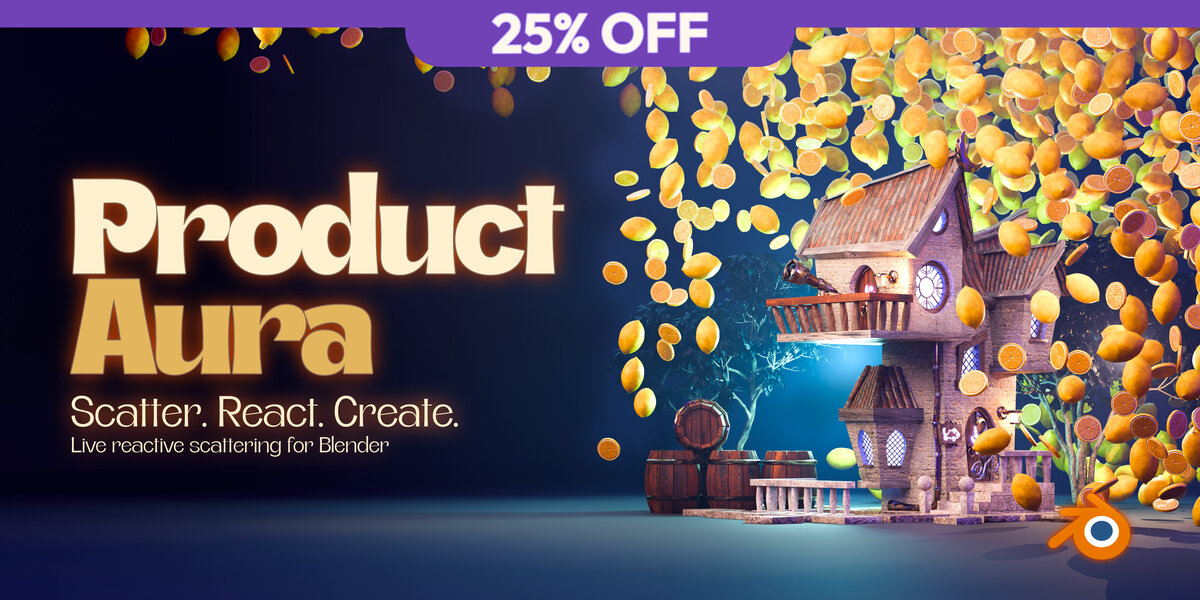
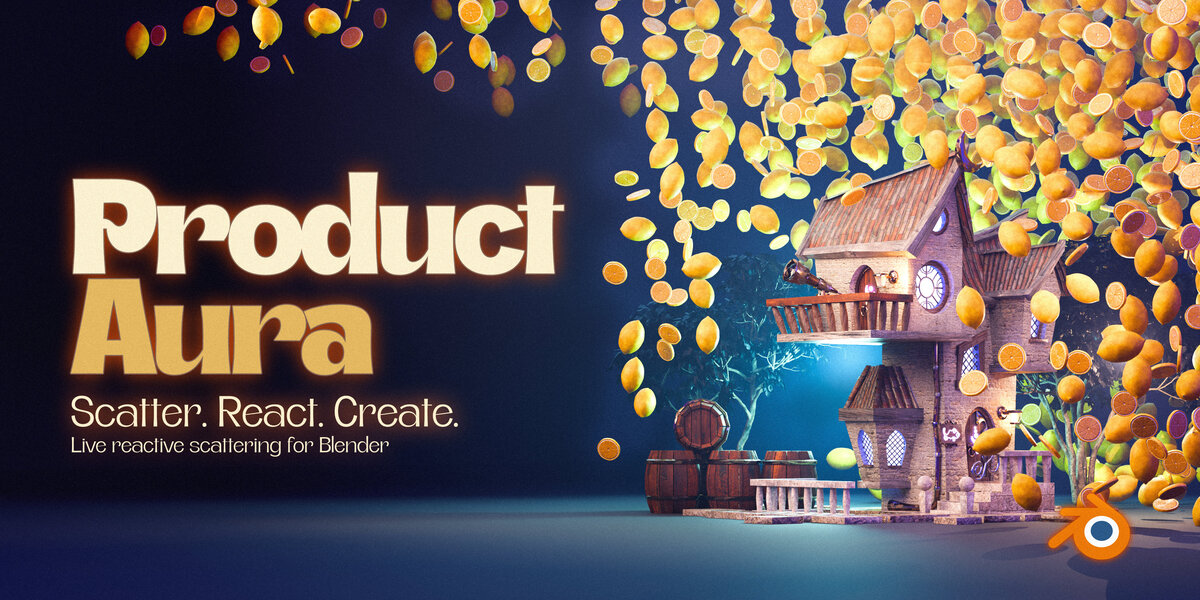




Scatter. React. Create. / User guide









Choose a hero, add one or two decorations, and shape the composition around your product. This guide covers creation, live reaction, filling, replacements and rendering.
Guide for 0.18.0Updated 19 October 202601 / Installation




- Save your work. Keep Product Aura.zip intact; do not unzip it or install the decoration library separately.
- Open Blender Preferences, go to Get Extensions, then choose Install from Disk from the top-right menu. Select the ZIP and complete installation.
- Under Add-ons, search for Product Aura and enable it if needed.
- Move the pointer over the 3D Viewport, press N, then open the Product Aura sidebar tab. Work in Object Mode.
The ZIP includes all ten decorations and their self-contained materials. No separate asset-library setup, texture download or Blender MCP connection is needed. See Blender’s extension installation overview for the standard extension workflow.
02 / First aura

- In Build & Live, choose your product mesh in Hero Product. This explicit choice avoids selection-order confusion.
- Under Included Decorations, choose a decoration and click Add Decoration. Alternatively, select a compatible decoration already in your scene.
- Select only the decoration source or sources you want to use. The chosen hero may stay selected, but it does not need to remain active or selected once it is explicitly assigned.
- Check the Hero Product and Decorations readiness indicators, then click Create Product Aura. Creation starts with 500 requested decorations and Dense Fill.
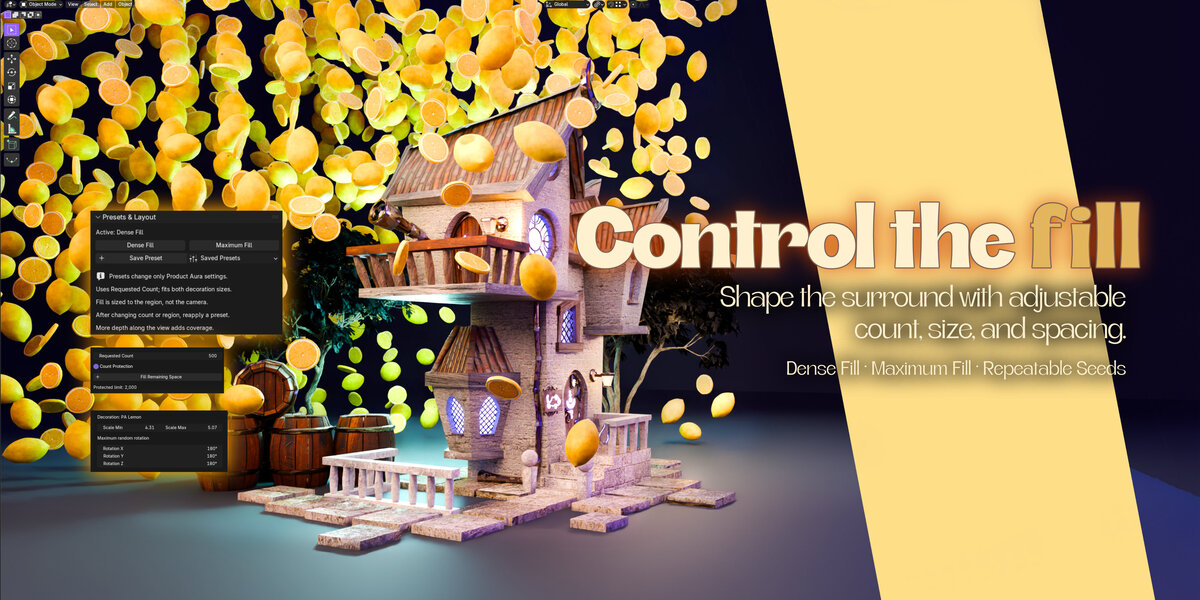
- Use Select Aura Region to adjust the surrounding volume. Set your requested count, then reapply Dense Fill or Maximum Fill to calculate sizes for the updated region and count.
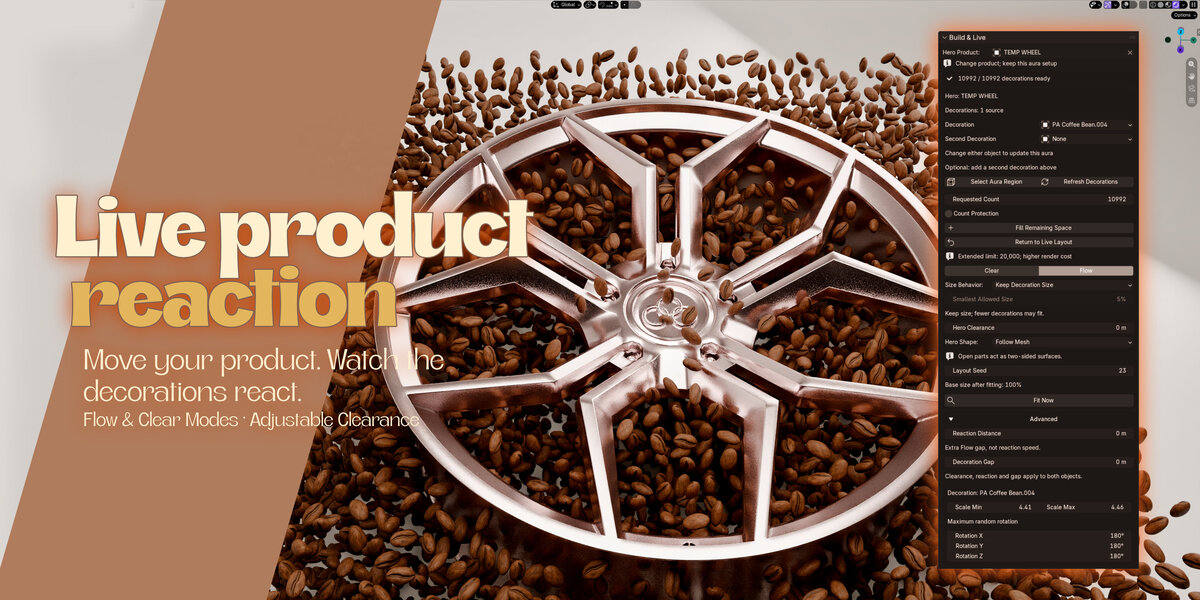
- Adjust Hero Clearance and Reaction Distance to control the space around the product. Move the hero to preview the live reaction, then save your scene.

Create, then adjust: the recorded demonstration adds Crystal, creates the aura and compares the two fill presets.
Three different things: the hero is the protected product; decoration sources are editable originals; generated decorations are the instances you see in the aura. Editing or hiding a source is not the same as editing or hiding the generated layout.
03 / Region & selection



The Aura Region is the fixed volume in which decorations may appear. It is created around the product at the current frame. It does not automatically follow, recenter or resize when you move or replace the hero.
- Click Select Aura Region in Build & Live.
- Move or scale the boundary to define the composition. Unequal scaling along different axes is supported.
- After changing region dimensions, reapply a fill preset if you want the decoration sizes recalculated. Region resizing alone does not run that fitting search.
The boundary is a helper, not a renderable box. Normal viewport clicks pass through it. When clicking a generated decoration, a real scene object behind it takes priority; if there is nothing behind it, the click can select the aura region. Original source objects remain directly editable.
If viewport selection behaves differently with your keymap, use the button or select the region in the Outliner. Re-enable the addon or restart Blender after changing the ordinary left/right-click selection binding. With multiple auras on one hero, select the specific region or rig to choose which aura you are editing.

Clearance first, region second: solid shading makes the space and region changes easier to see.
04 / Hero & decorations


| Control | What it does |
|---|---|
| Hero Product | Replace the protected product on the active aura without rebuilding it. Keep the region, decorations and layout settings. The products are not moved, hidden or deleted. |
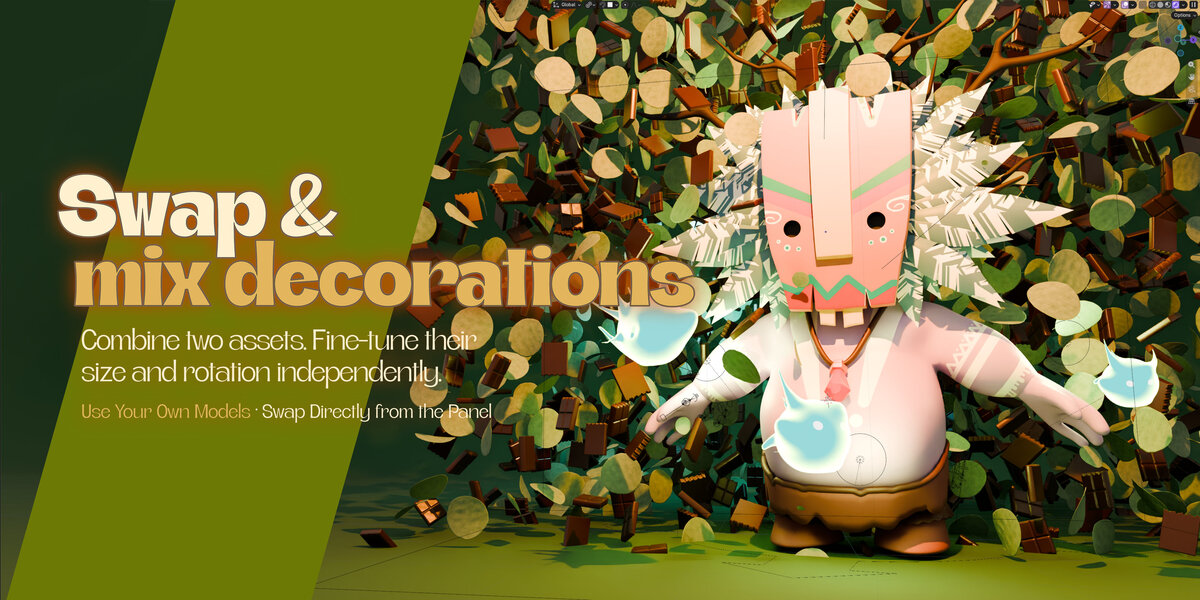
| Decoration | Replace the primary decoration immediately through its menu. Choose any of the ten Included Decorations or an eligible Scene Object. The existing region and layout settings stay in place. |
| Second Decoration | Optionally mix in a different decoration. Choose None to remove it. Requested Count is the combined total, not a separate count for each object. |
| Refresh Decorations | Recapture the selected source objects after geometry, modifier or material edits. This is not a command to load a newer bundled asset. |
Both decoration menus list all ten included assets, even if you have not added them to the scene. Choosing one reuses a suitable existing source, including its edits, or appends it when needed. Opening the menu alone does not load every asset.
To swap a decoration: select the aura or its hero, open Decoration, and choose the replacement. Use Second Decoration to add another ingredient. Selecting an object in the viewport alone does not replace a decoration slot.
The two decorations are mixed as instances, not joined into a new editable mesh. The mix is seeded random, not a guaranteed 50/50 split. Each slot gets its own size and rotation settings under Advanced; count, gaps and reaction settings are shared.
Replacement snapshots are normalized to keep a similar overall decoration size. With two sources, their relative source sizes still matter: adding a much larger second source can make the first appear smaller. Review both size ranges after swapping.
To replace the hero, position the new product inside the existing region, choose it in Hero Product, then manage the old product’s visibility yourself. Nearby placements and the actual count may change to respect the new shape. A failed replacement keeps the previous setup and displays an error.
Included decorations: Lemon, Citrus slice, Coffee bean, Cacao chunk, Citrus leaf, Eucalyptus leaf, Rose petal, Glass droplet, Satin ribbon and Crystal. Their materials are self-contained; the models and authored textures are not photographic scans.
05 / Count & filling


Requested Count is a target ceiling, not a promise that every item will fit. The status shows the actual number placed. Raising the count alone does not shrink decorations or start an extra gap-filling search.
Count Protection limits requests to 2,000. Turn it off to allow up to 20,000, not unlimited objects. Turning it back on clamps the current request to 2,000. Collision checks stay active in either mode; the cap is not a guarantee against excessive memory or render cost.
| Choose this | When you want… |
|---|---|
| Dense Fill | Sizes recalculated for the requested count and region, with 85–100% size variation and full random rotation. |
| Maximum Fill | Sizes recalculated with a tighter 99–100% range for a more uniform surround. It is still not a guaranteed opaque backdrop. |
| Fit Now | A one-time global size fit using Shrink to Fit Count and its minimum percentage. Other size behaviors retain/reset the preferred global size. |
| Fill Remaining Space | More placements at the current size ranges, by searching remaining gaps and allowed rotations. Existing visible placements and sizes are retained. |
Preset workflow: set the region and count first, then apply Dense Fill or Maximum Fill. Both recalculate size and rotation settings for both decoration slots, reset extra gaps to zero, select Flow and reset Size Behavior to Keep Decoration Size. They keep the requested count and respect Count Protection. Select Allow Shrinking afterwards if you want live shrinking.
Gap-filling workflow: choose sizes you like, increase Requested Count, then click Fill Remaining Space. The search tries extra placements and rotations within your limits, preserving the existing placements and sizes. Progress appears in the viewport header. Press Esc or right-click to cancel without committing the search.
Return to Live Layout discards the fixed filled placements and restores the ordinary reactive layout, keeping sources and settings. Source refreshes or changes to seed, size ranges, rotation limits or decoration gap can invalidate a filled layout; run Fill again for the new configuration. Count changes can limit existing slots, but a higher request alone does not add new saved slots.
The search has a 30-second search budget and additional attempt limits; preparation and committing can add time. A lower actual count can be a valid outcome. No preset or fill operation promises mathematically maximal packing.
06 / Reaction & gaps


| Control | Meaning |
|---|---|
| Flow | Moves generated candidates away from the evaluated hero before final safety checks. Use the ordinary live layout for this behavior. |
| Clear | Hides unsafe slots and shows them again when safe. It does not push decorations around the product. |
| Hero Clearance | Extra separation from the product’s protected shape. Zero removes the extra clearance but retains a small positive safety margin. |
| Hero Shape | Solid Envelope preserves the outer-shell behavior. Follow Mesh lets decorations occupy openings and recesses while avoiding the actual evaluated product surfaces. |
| Reaction Distance | An additional Flow-only stand-off distance. It adds space beyond Hero Clearance; it is not speed, damping or a time delay. Ignored in Clear mode. |
| Decoration Gap | Additional spacing between decoration collision proxies. Zero removes the added spacing, not collision protection. |
For the closest supported approach to the product in Flow, set Hero Clearance = 0 and Reaction Distance = 0. This allows closer placements; it does not attract every decoration onto the hero’s surface.
Solid Envelope is the default: its outer collision envelope bridges holes and recesses. Choose Follow Mesh for rims, rings, handles and other open shapes. It follows evaluated surfaces, including modifiers. Closed components protect their interior; open parts act as two-sided surfaces. Repair self-intersections or inconsistent face winding before relying on solid-interior protection.
Follow Mesh uses enclosing decoration spheres for safe surface clearance, so narrow openings may need smaller decorations. It does more work on detailed heroes, without allocating a voxel grid. Ordinary inter-decoration and region checks also use conservative spheres. Fill Remaining Space uses rotated boxes between decorations; its hero checks follow your chosen Hero Shape.
Both fill presets respect Hero Shape. Changing the shape mode does not move saved filled slots: clear the fill to return to live placement, or run Fill Remaining Space to search the new openings. Decorations still need enough room for their size and clearance.
07 / Size & rotation



| Size Behavior | How to use it |
|---|---|
| Keep Decoration Size | Keep the preferred size range. Accept fewer items when the region cannot safely contain the request. |
| Allow Shrinking | Let nearby generated instances shrink as the hero approaches and recover as it moves away. This takes effect live, without pressing Fit Now. |
| Shrink to Fit Count | Choose the minimum percentage, then press Fit Now. It searches for a global fitted size once at the current frame, and keeps that multiplier fixed during playback. |
Smallest Allowed Size appears directly under Size Behavior. Its range is 5–100%, and it is disabled for Keep Decoration Size. For live shrinking, it is relative to the fitted instance size: a base fit of 80% with a 40% live minimum can reach 32% of the original chosen size. Source objects are not resized.
Fit Now uses this percentage as the lower bound for its global fitting search with Shrink to Fit Count. It cannot promise the requested count; if that count still cannot fit at the allowed minimum, the status reports the smaller actual result. The displayed Base size after fitting is the global multiplier, not every instance’s live size.
Expand Advanced to set Scale Min, Scale Max and maximum random Rotation X/Y/Z. These affect generated instances, not the source objects. A second decoration reveals an independent size/rotation section; the first time it is added, it starts from the primary settings.
Layout Seed changes the random arrangement, not count or quality. The default 23 is just a starting value. The same ordinary-layout inputs and seed reproduce the arrangement. Changing the seed invalidates fixed filled placements.
08 / Custom objects



The hero must be a mesh. Decorations may be meshes, curves, surfaces, text or metaballs that evaluate to usable surface geometry. A parent Empty or Armature can represent an assembly containing supported geometry. The addon captures a private evaluated snapshot rather than modifying your original source.
- Work in Object Mode. Choose a decoration with valid, nonzero geometry and materials. Select a parent when its supported child parts belong to one decoration.
- Keep the evaluated result practical. Render-enabled modifier settings are captured, so high render subdivision can be much heavier than the viewport suggests.
- For Geometry Nodes sources, place Realize Instances before the final output. For collection/object/particle instances, make them real and prepare the resulting supported geometry before capture. Save a copy first and check the resulting size.
- Choose the object in Decoration or select it before creating the aura. After modeling, material or modifier changes, use Refresh Decorations.
- Inspect a small test render. External texture files and reference objects used by your own materials must remain available when you move the scene to another computer.
Non-uniform and mirrored scales are supported; applying transforms is not a general requirement. Do not apply a product’s transforms just to dismiss a Blender warning if that would disturb its modifiers or animation. Zero-scale or unusable geometry must be repaired.
UVs, material assignments and common procedural source coordinates are preserved during capture. Explicit reference-object/world-dependent shaders keep those dependencies. Shader-only render displacement is not mesh collision geometry: use evaluated geometric displacement or an appropriate collision proxy when protrusions matter.
Decoration deformation is captured at the current frame, not re-sampled continuously during animation. Animate the hero for live avoidance; refresh deliberately when you want a new decoration snapshot.
09 / Presets & actions


| Action | What to expect |
|---|---|
| Save Preset / Saved Presets | Save named layout settings, then load them into another aura. Overwriting an existing name requires Overwrite Existing. |
| New Variation | Randomly choose one included decoration or two different included decorations, plus a new seed. It changes ingredients, not just placement. Existing edited bundled sources can be reused. |
| Duplicate Aura | Create independent layout settings, region, captured meshes, filled slots and animation actions. The hero, original source objects, materials and external animation targets remain shared. |
| Hide / Show Aura Preview | Hide or show generated decorations in the viewport only. Final render visibility is unchanged. Show the preview before fitting or filling. |
| Delete Product Aura | Remove the selected aura’s managed rig, region and private snapshots after confirmation, preserving the hero and original decoration sources. |
Saved presets contain count, seed, both size/rotation ranges, gaps, reaction and size behavior. They do not include objects, region dimensions, camera setup, animation or packed positions, and loading one does not run an adaptive fit. Current Count Protection stays in effect and can clamp a saved high count.
Personal presets are JSON files under Blender’s user scripts folder at presets/product_aura, outside the addon installation. They are not embedded in your scene or automatically transferred to another computer.
Aura Actions is a separate panel below Presets & Layout. Duplicate Aura places its copy in the same location and selects the new region. Both copies render unless you disable one rig for rendering in the Outliner. Preview hiding alone is not a render switch. Use this dedicated duplicate action for an independent layout rather than relying on a normal object duplicate.
10 / Animation & rendering



Product Aura does not create product animation, cameras or lighting. It evaluates your hero’s current geometry and reacts to your existing transforms, modifiers and animation. Ordinary Flow is stateless, so you can scrub forwards and backwards without baking a simulation.
- Finish the basic region, sources, count and size choice before evaluating animation. Stable settings keep the random IDs, scales and rotations tied to the layout.
- Use the ordinary live layout for Flow. Use a filled layout only when fixed placements with hiding/shrinking suit the shot.
- Preview the entire motion range, including close passes and direction changes. Watch for conservative gaps, occlusion and appearing/disappearing instances.
- Render small test frames at several points in the shot using your intended engine. Check transparent materials, shadows, source visibility and the invisible region helper.
- Increase resolution, samples and decoration count gradually after the tests look right.
Numeric layout controls can be keyframed, but changing count, seed, sizes or region can change the composition. Reaction mode and Size Behavior are static choices. The Smallest Allowed Size percentage is a non-animated display adapter. In Shrink to Fit Count, fitting is a deliberate current-frame operation, not a continuous playback optimizer.
11 / Troubleshooting






Switch to Object Mode. Assign a mesh in Hero Product and select at least one supported decoration other than the hero. Check the two readiness indicators. Remove unrelated selected objects.







Select the intended region or rig in the Outliner. A product with multiple auras needs an explicit aura selection.






Check available volume, size ranges and gaps. Reapply a fill preset for automatic size recalculation, or use Fill Remaining Space for more items at the current sizes. A safe shortfall is preferable to forcing intersections.









Saved placements do not grow merely because the count rises. Run Fill Remaining Space again; it may still stop short if its search cannot find more safe placements.







In a filled layout, no placements were saved inside the original hero space. Returning to Live Layout restores the ordinary reaction; running Fill again can search the new gaps. Neither outcome guarantees every gap is filled.



In Flow, also set Reaction Distance to zero. Tiny safety margins, hull geometry and conservative collision proxies still apply. Decorations are not attracted onto the hero.






The managed region should be render-invisible in this release. Confirm that you installed the current ZIP and restarted Blender. Reopen a copy of the file to allow managed-helper migration. If it persists, identify whether the box is the managed region or another scene object and send a minimal reproduction; do not delete arbitrary scene geometry.







Use Refresh Decorations for edits to an existing source. For a newer bundled model, add a fresh copy and choose it in the aura. Refresh does not replace the old source with a new library edition.




Check the source’s own textures, material assignments and external/reference-object dependencies first, then refresh. Bundled materials are packed; reinstall the intact ZIP if a fresh bundled source is missing its data.






Save first, reduce count and source complexity, and use a lighter test render. Show/Hide Aura Preview helps viewport editing only. It does not reduce final render load. Leave Count Protection enabled until a small test is stable.







This error occurs in Blender’s extension installer before Product Aura can activate. Save your work, fully close Blender, restart it and retry Install from Disk. If it repeats, keep the exact traceback and contact support; do not remove unrelated extension folders or preference files.
12 / Updates & support


- Before updating, save a backup of your scene and note the installed Product Aura version.
- Install the new ZIP through Install from Disk, restart Blender, then verify the version in Preferences.
- Open a copy of your scene and inspect the layout before saving over production work. Owned legacy nodes/helpers can be migrated; the addon does not automatically save the file.
- Use Refresh Decorations to recapture retained sources when needed. Add a fresh included asset if you want a newer library model; existing edited sources are not silently overwritten.
Automatic updates: a one-off disk ZIP does not configure them. This release has no customer update repository configured. Use a new supplied ZIP until an official extension repository is provided; Product Aura does not download or replace its code during a running scene.
Contact: [email protected]
- Product Aura version and exact Blender version/build.
- Operating system, hardware and render engine/device.
- Requested versus actual count, selected sources and whether the layout is live or filled.
- Short reproduction steps, the full traceback and a screenshot or short recording.
- A minimal .blend file you are allowed to share, plus any required custom textures. Do not send confidential client assets without permission.
Product Aura · Bevel Graphics · [email protected]
 Included
Includes 12 months of
- Support from Bevel Graphics
- Product updates
Extend this product’s Support Period +12 months: 75% of product price
Have questions before purchasing?
Login to message
| Blender Extension Compatible | Yes |
| Dev Fund Contributor | |
| Published | about 5 hours ago |
| Blender Version | 4.2 - 5.2 |
| Extension Type | Add-on |
| Render Engine Used | Cycles, Eevee |
| License | GPL |
Discover more products like this
motion graphics collision avoidance geometry nodes advertising scatter 3d assets Add-on scene decoration product animation procedural product-visualization blender