 JuanBautista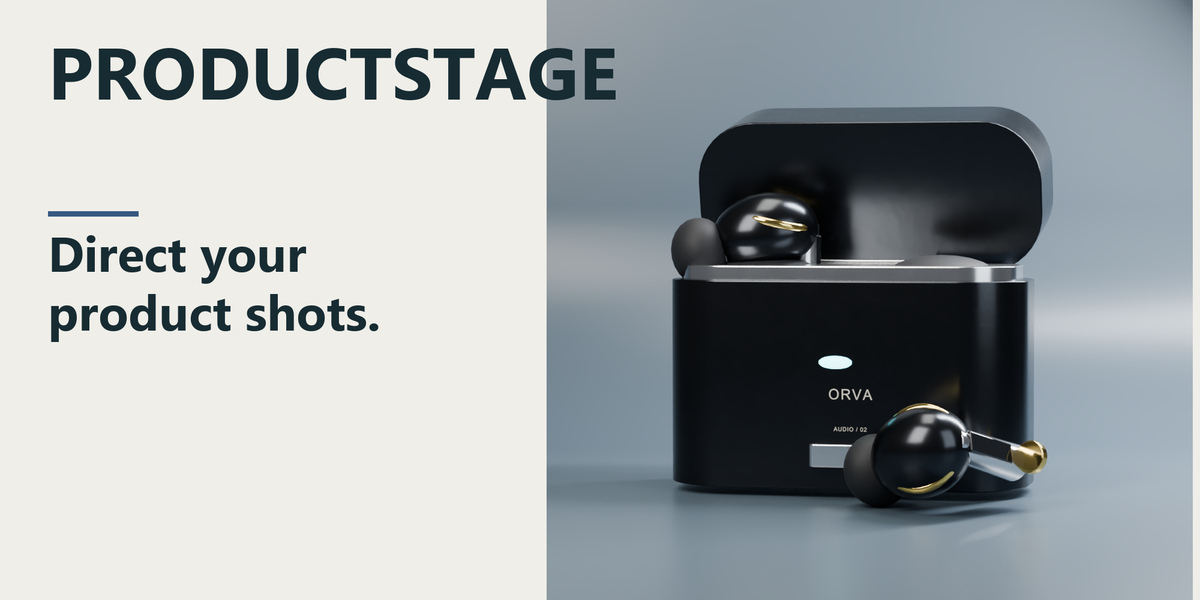
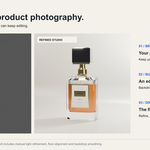
ProductStage — Product Photography Studios for Blender
Build the look. Keep control.
Build an editable photography studio around your own product, with lights, a backdrop and a camera you can direct. Start with a look, refine reflections and framing, then render and save your images inside Blender.
For product photography, packaging presentations and consistent output settings, keep the studio editable in your scene. You bring the product models and materials.
From your model to a directed studio shot.

18-second edited workflow overview using real Blender captures. Studio setup plus manual art direction; bring your own models and materials.
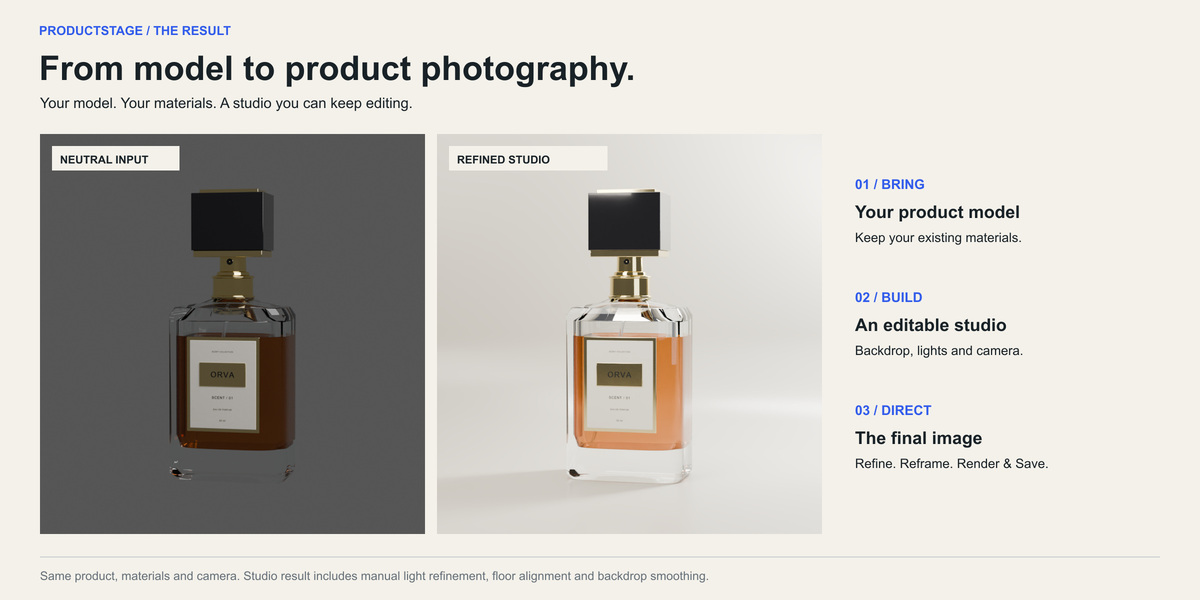
Your product. A studio built around it.
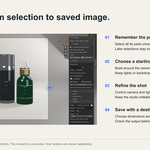
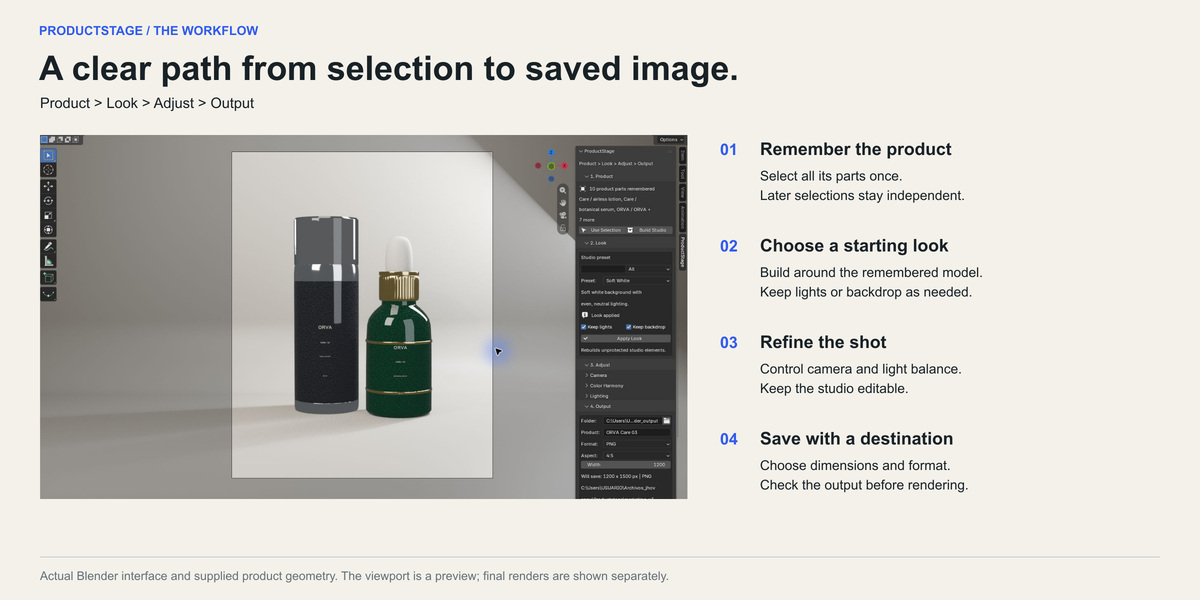
Select the parts of your product and click Build Studio. ProductStage remembers that selection, so camera updates and new queue jobs stay attached to the product even when you select another object.
The workflow follows four steps: Product → Look → Adjust → Output. Keep your existing models and materials, then work with editable Blender objects throughout the studio.

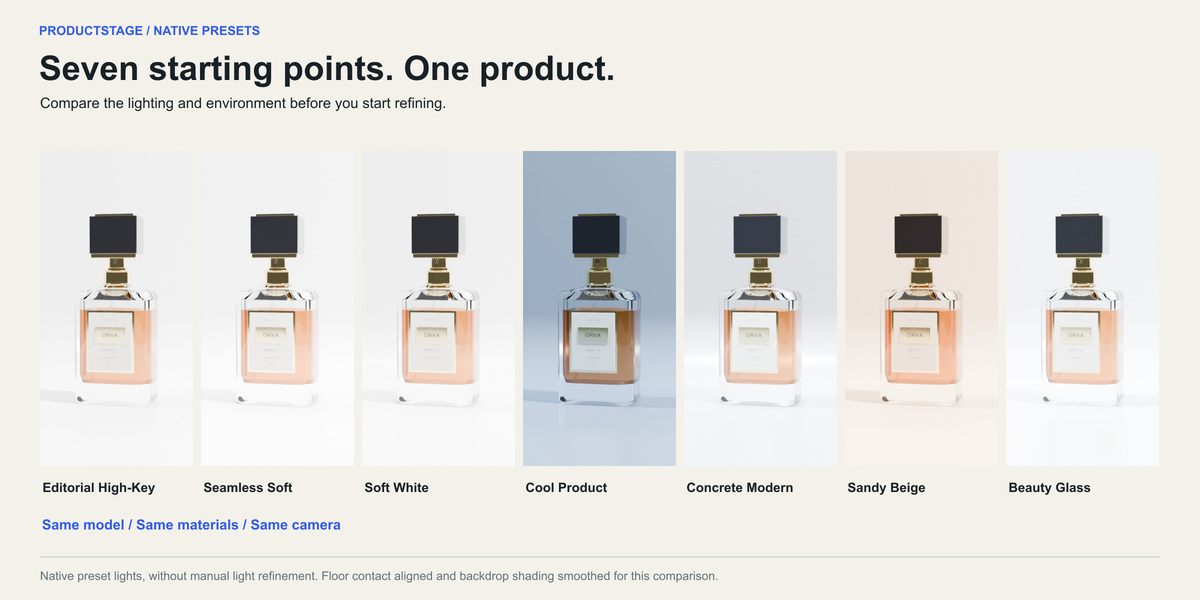
Seven starting looks. Room for your own direction.
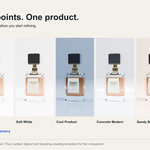
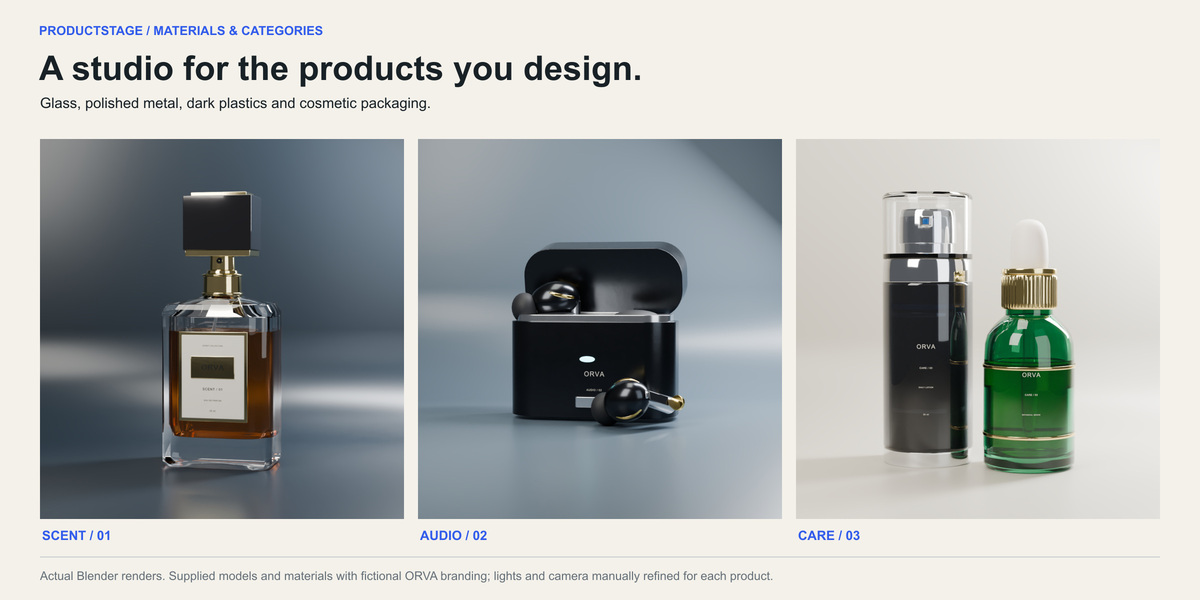
Choose Editorial High-Key, Seamless Soft, Soft White, Cool Product, Concrete Modern, Sandy Beige or Beauty Glass. Use them as starting points for product photography, packaging presentations and visual exploration.
The comparison shows the same model, materials and camera across all seven native lighting setups. Floor contact and backdrop shading were corrected manually for those images; their preset lighting was not refined.
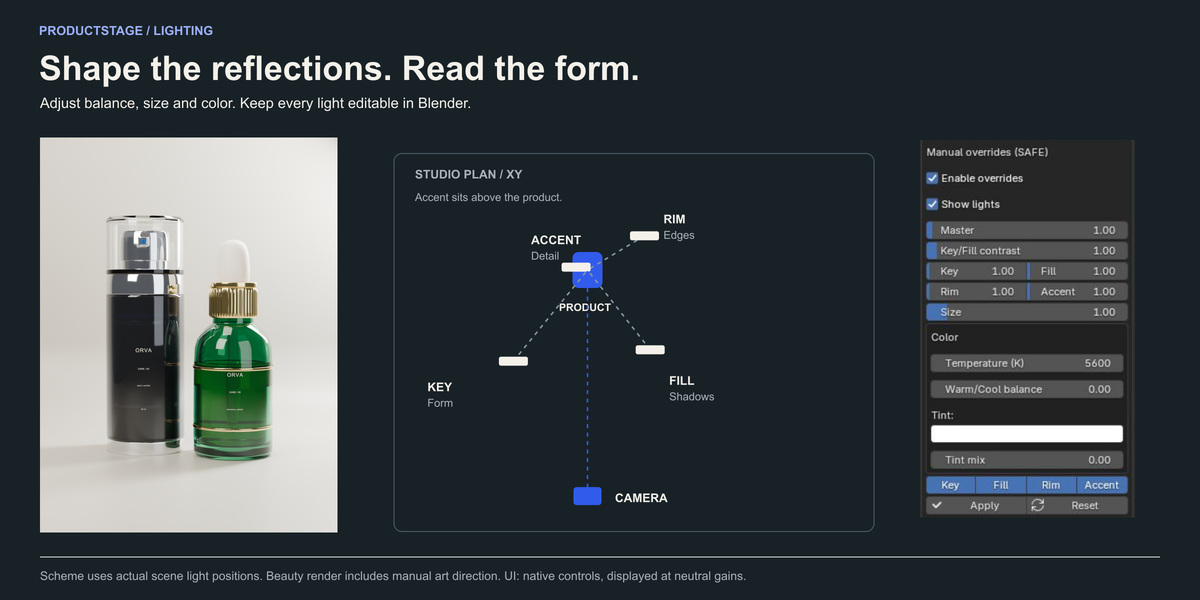
Shape the light around the material.
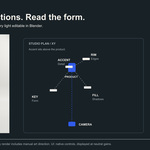
Balance Key, Fill, Rim and Accent contributions. Adjust the master level, contrast, source size, temperature and tint with the native lighting controls, or move and edit individual lights in Blender.
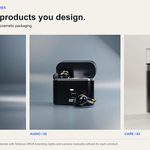
Glass needs readable edges. Dark plastics need controlled highlights. Metallic finishes need reflections that describe their shape. ProductStage gives you an editable studio in which to make those decisions.
The ORVA beauty images demonstrate manually refined lighting and camera work using supplied models and materials. They show an art-directed result rather than a one-click quality guarantee.

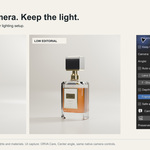
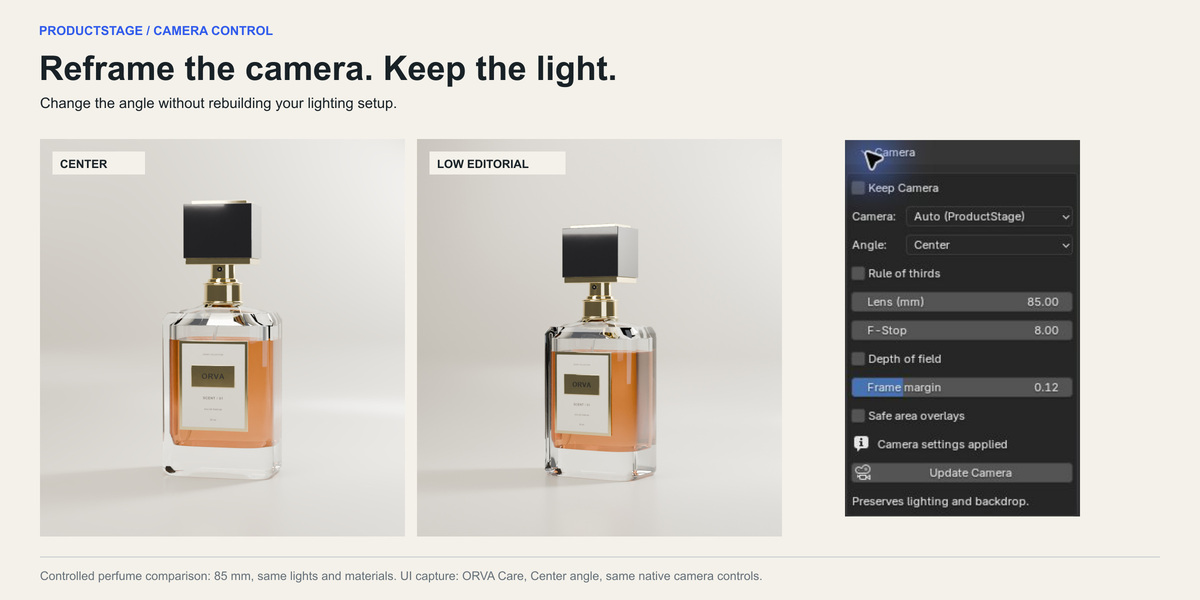
Reframe the camera. Keep the light.
Adjust the angle, lens, depth of field and frame margin, then use Update Camera. The operation preserves the studio lights and backdrop, allowing you to explore composition after refining the illumination.
The Center / Low Editorial comparison uses the same perfume, materials and 85 mm lens. Light energies, colors, sizes and transforms were verified unchanged across the camera update.
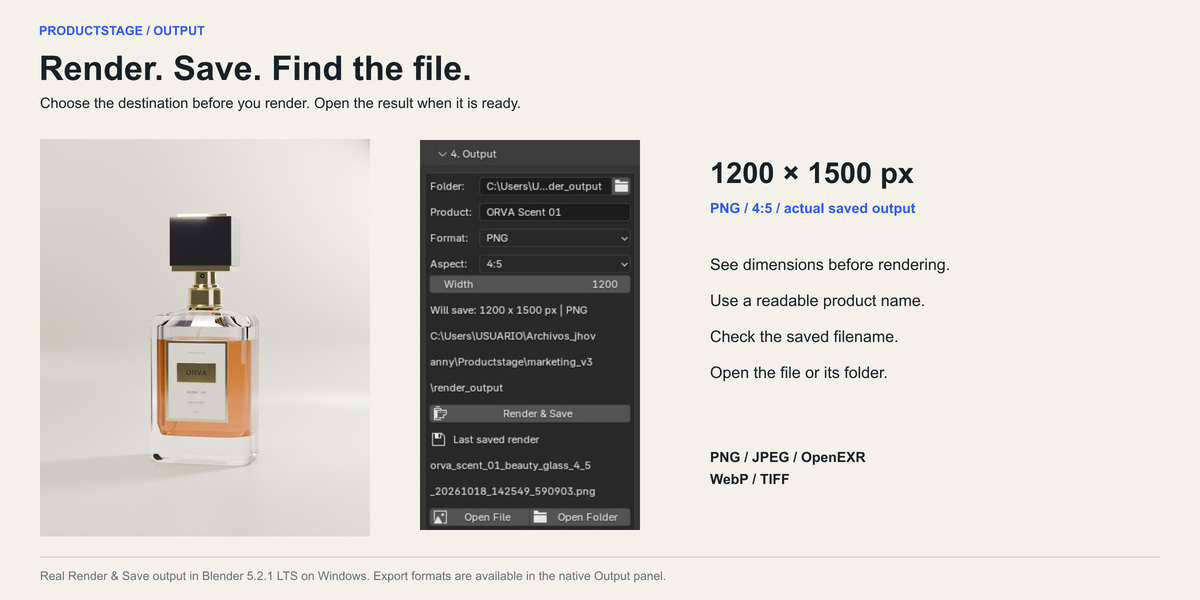
Render. Save. Find the file.
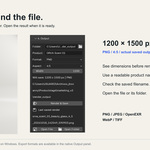
Choose the destination, product name, format and aspect ratio. The Output panel shows the actual pixel dimensions before rendering. After Render & Save, it displays the saved filename with Open File and Open Folder.
Available formats: PNG, JPEG, OpenEXR, WebP and TIFF. Export Suite, Batch Render and a persistent queue support repeated output recipes.
Queue jobs use the current settings in their original saved scene, rather than frozen snapshots. Use one queue process; Pause and Cancel take effect between renders.
Before you buy
- Bring your own product models and materials. ProductStage creates the photography studio.
- Supported and tested configuration: ProductStage 0.1.2 on Windows / Blender 5.2.1 LTS, including installation, studio creation, rendering, exports and the render queue. Earlier Blender releases, macOS and Linux have not been validated for this update.
- The native extension declares Blender 4.2 as its minimum. The optional legacy ZIP retains Blender 4.0 metadata. These metadata values are not claims of tested compatibility with those older releases; use Blender 5.2.1 LTS for the verified workflow.
- The extension runs offline, without API keys or additional Python packages.
- Use one studio per
.blend. The physical backdrop remains visible when the world is set transparent. - Install the extension ZIP directly through Preferences → Add-ons → Install from Disk. English quick start, manual, FAQ and changelog are included in the existing release.
ORVA is fictional branding created for these demonstrations. The new ORVA models and working marketing scenes are presentation assets; this media update does not add them to the buyer download. Beauty shots include manual lighting, camera, floor-contact and backdrop-shading refinements. Interface images are actual Blender captures. Animated comparisons are edited sequences of rendered stills, not recordings of live render speed.
Tools for another stage of the project
Explore Smart Cut & Bevel for editable product details, or LumaForge to create reusable HDRI lighting.
Each product is sold separately. These links suggest complementary uses; check each product’s requirements and documented workflow.