ProType
 Jishnu Jithu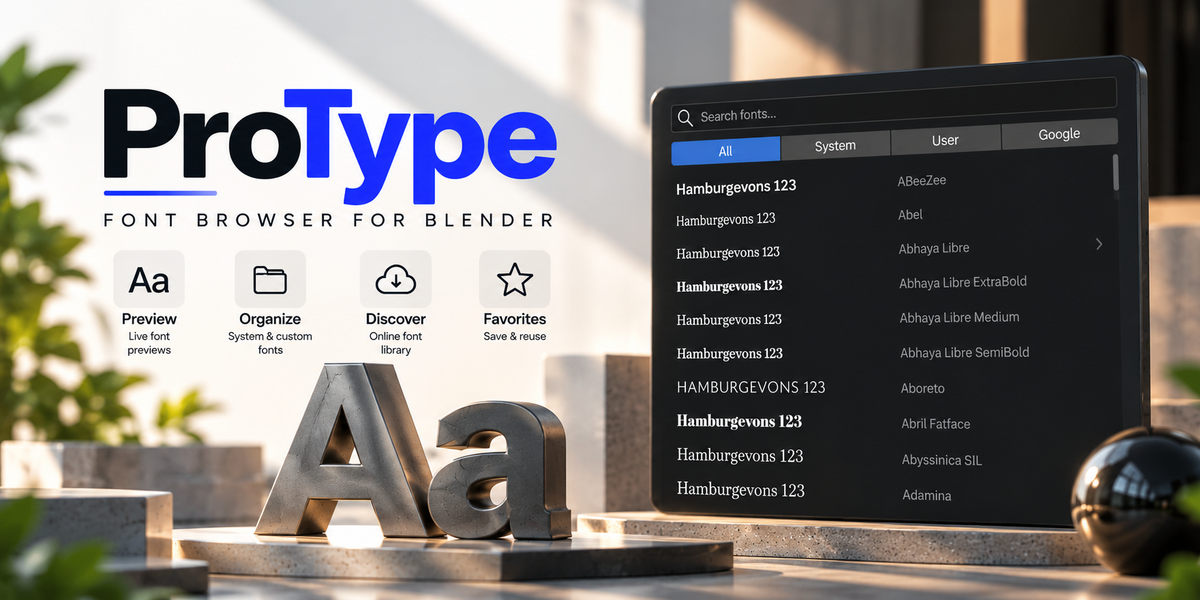
ProType — Documentation & User Guide
ProType is an interactive font browser and viewport typography tool for Blender 4.2+. It embeds font selection, style switching, and text formatting controls directly into the 3D Viewport header whenever a 3D Text object is active.
1. Installation & Setup
ProType is packaged as a standard Blender 4.2+ extension.
- Open Blender 4.2 or newer.
- Navigate to Edit > Preferences > Get Extensions.
- Click the dropdown menu arrow in the top-right corner of the Preferences window.
- Select Install from Disk....
- Choose the downloaded ProType package (
protype-1.0.0.zip). - Ensure the addon checkbox is enabled under Preferences > Add-ons > ProType.
2. Getting Started
- Add a 3D Text object to your scene: press
Shift + A> Text. - Ensure the text object is active (selected in the 3D Viewport).
- Look at the 3D Viewport Header: the ProType font toolbar appears automatically next to the tool settings.
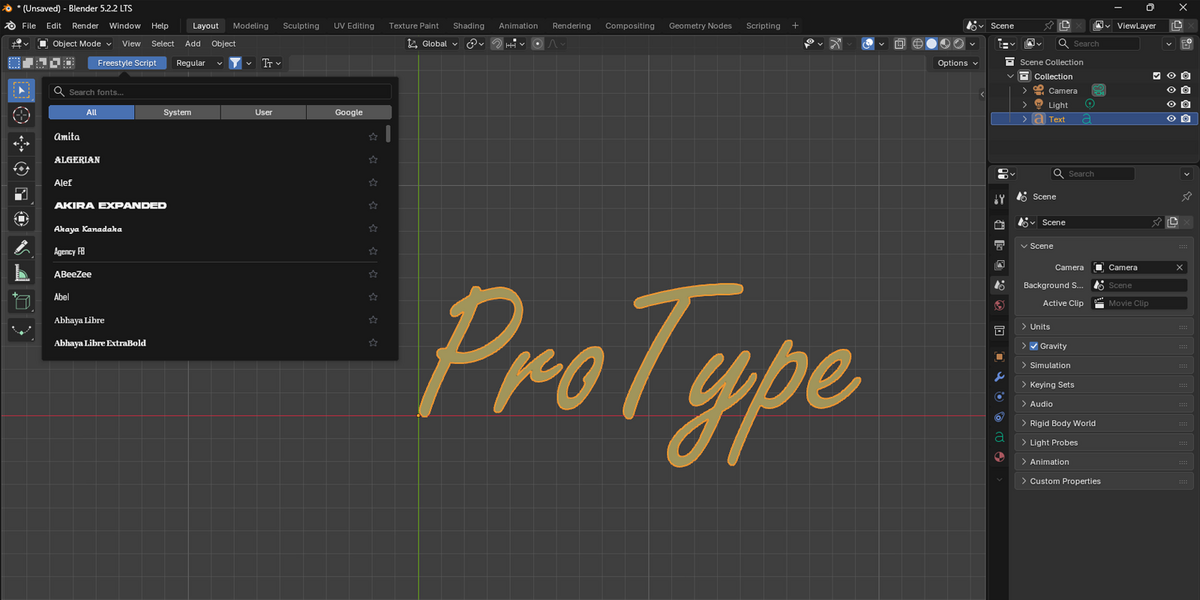
- Click the Font Name button to open the interactive font browser popup.
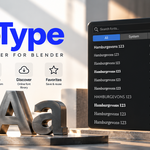
 Open the font picker from the 3D Viewport header to preview and apply fonts instantly.
 3. Interactive Font Browser
The font browser provides real-time GPU-rendered previews using actual font binaries.
- Live Typography Previews: Each row renders sample text in its true typeface so you can evaluate glyph shapes, weights, and proportions before applying.
- Family Grouping: Typefaces are grouped by family, keeping your list organized and clutter-free.
- One-Click Apply: Click any font row to immediately assign it to the active 3D Text object (and all selected text objects).
-
Favorites: Click the star icon (
★) next to any font to toggle it as a favorite for quick access. -
Fast Font Cycling Shortcut: Press
Ctrl + Mouse Wheel UporCtrl + Mouse Wheel Downin the 3D Viewport to step through your font catalog in sequence without opening the popup.
4. Search & Filtering
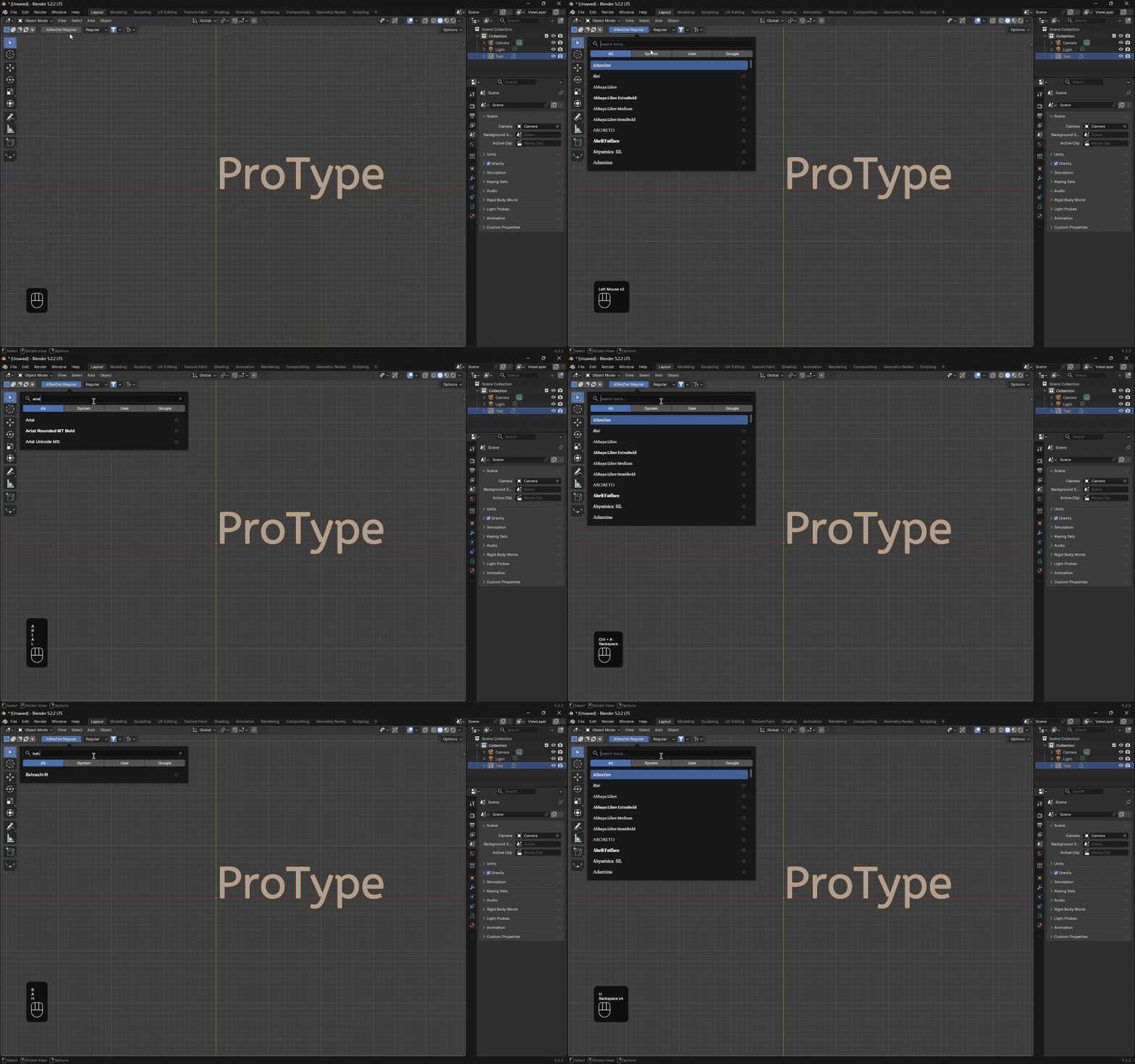 Real-time fuzzy search across family names, font styles, and file names.
 -
Instant Search: Click inside the search box at the top of the popup and type to filter fonts in real time. Use
Ctrl + Ato select all text, or double-click to clear/replace queries. -
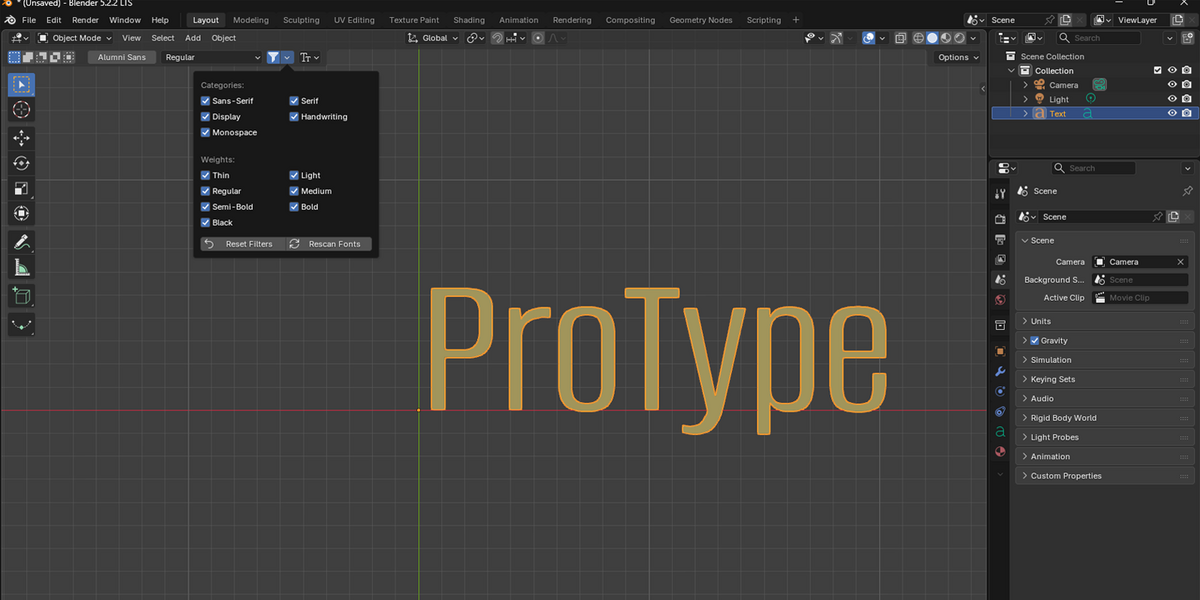
Category Filters: Use the Filter popover (funnel icon in the header) to restrict fonts to:
Sans-SerifSerifDisplayHandwritingMonospace
-
Weight Filters (Google Fonts): When browsing online Google Fonts, filter specifically by
Thin,Light,Regular,Medium,Semi-Bold,Bold, orBlack. - Reset Filters & Rescan: The filter popover includes a Reset Filters button and a Rescan Fonts button to refresh newly added fonts on disk.
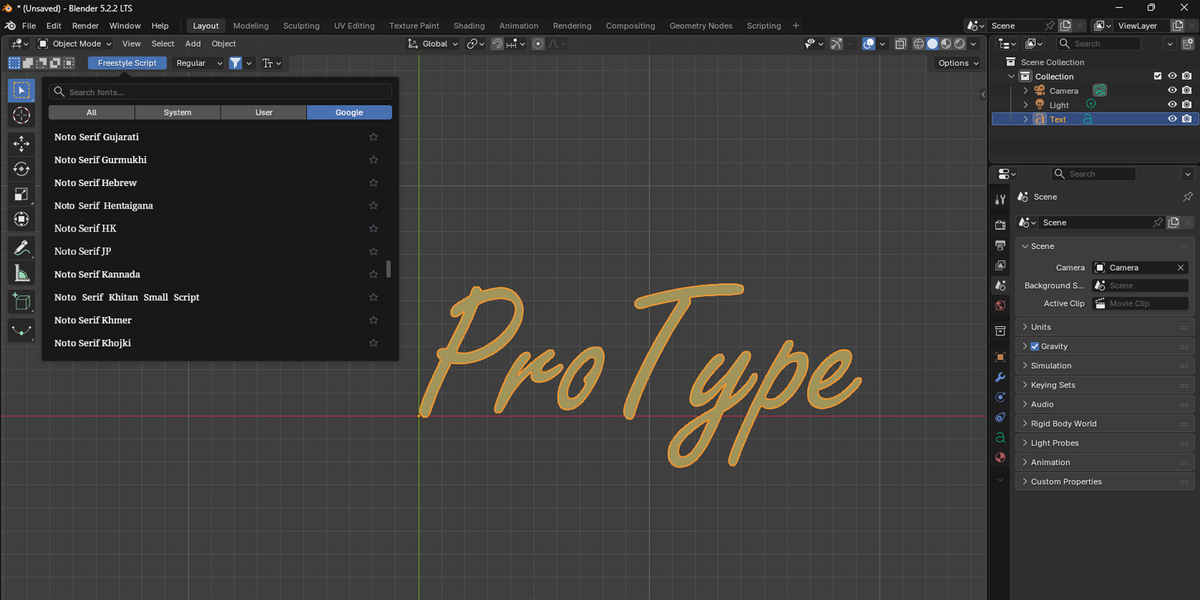
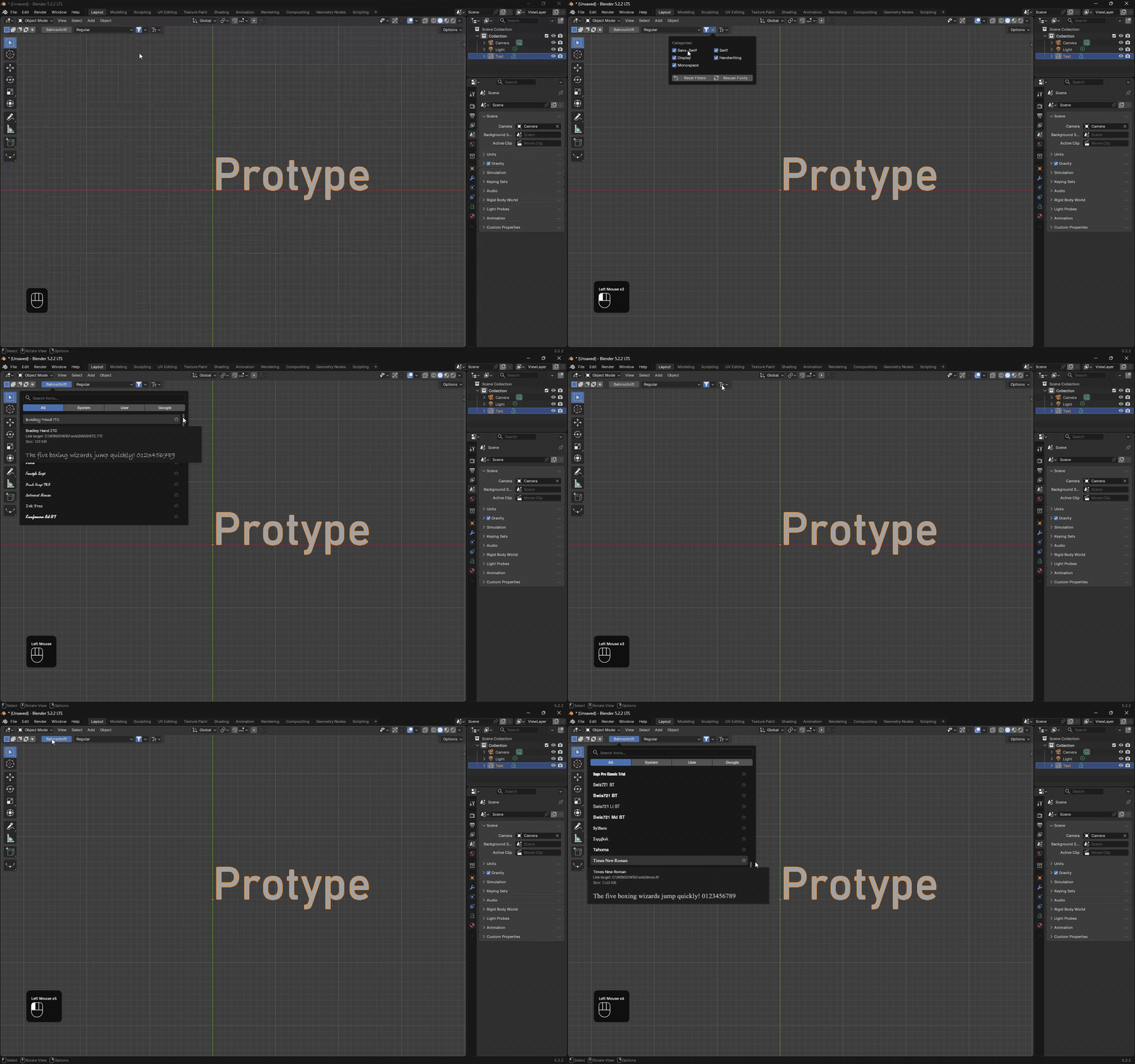 Select source tabs and refine font lists using category filters.
 5. Font Sources & Directory Management
ProType organizes fonts across dedicated source tabs:
- All: Unified list combining all available fonts.
-
System: Operating system fonts automatically scanned from:
-
Windows:
C:\Windows\Fontsand Windows Registry font entries. -
macOS:
/System/Library/Fontsand/Library/Fonts. -
Linux:
/usr/share/fontsand/usr/local/share/fonts.
-
Windows:
-
User: Per-user installed fonts (e.g.,
AppData\Local\Microsoft\Windows\Fonts,~/Library/Fonts, or~/.fonts). - Custom: Arbitrary folders added by the user in Add-on Preferences (ideal for project font folders or shared studio drives).
- Google: Over 1,500+ Google Fonts families available to browse, download, and cache locally.
6. Family Styles & Variable Fonts
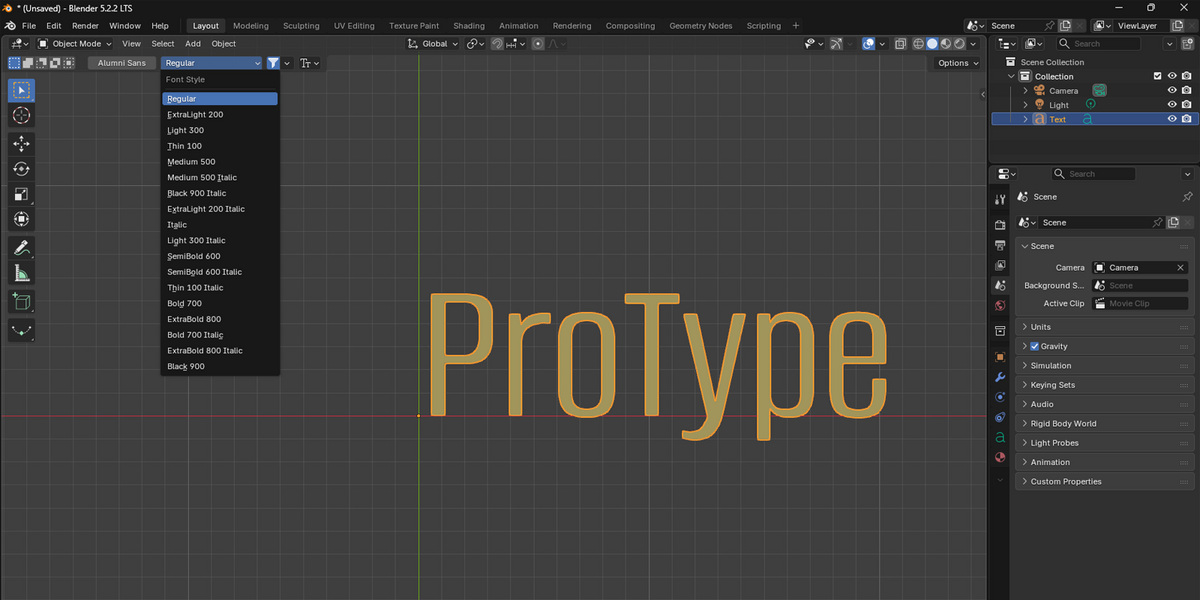
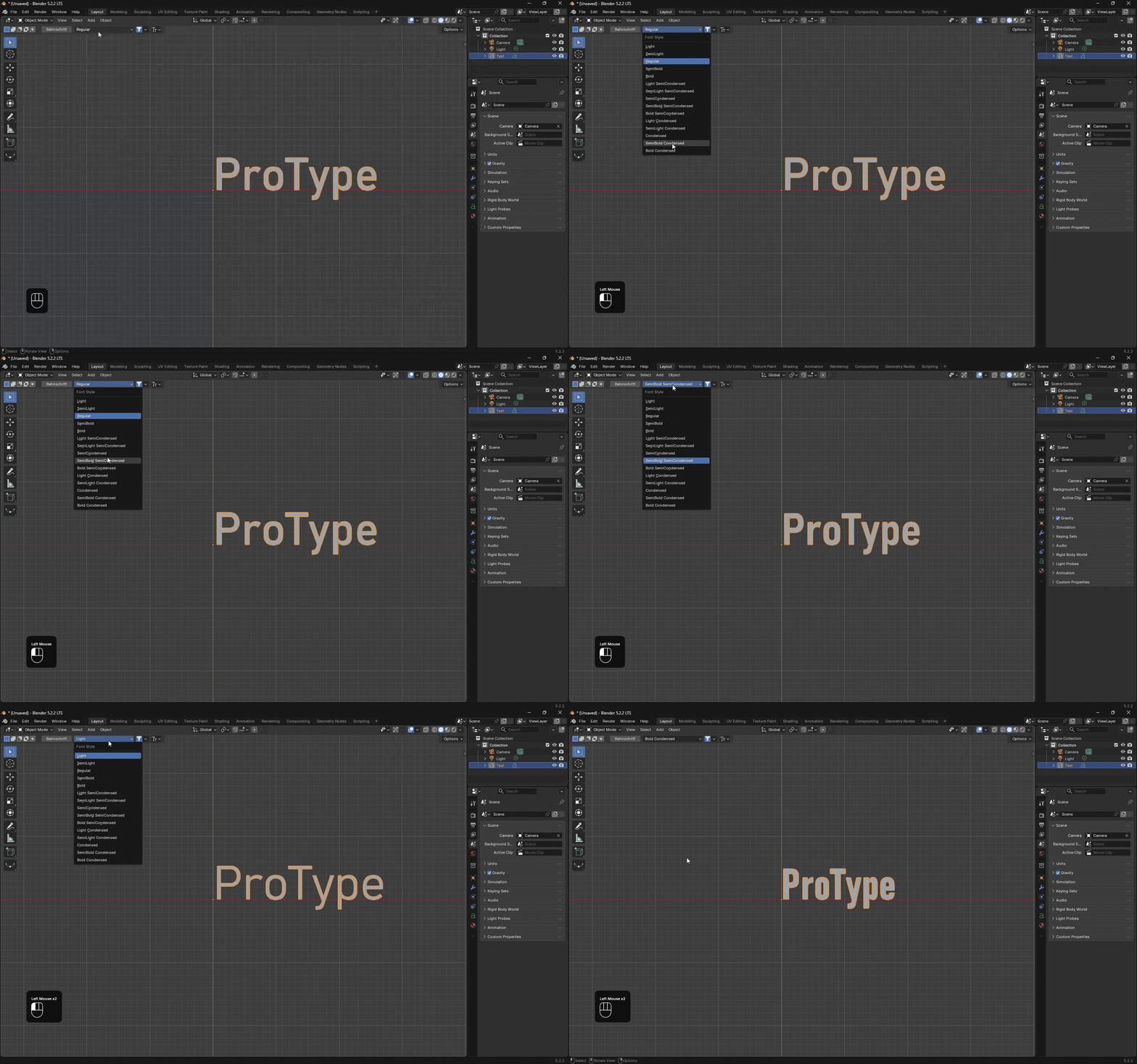 Choose style variants directly from the style dropdown next to the font button.
 - Style Selector: Located directly beside the main font button in the 3D Viewport header. Click it to choose any variant (e.g., Light, Regular, Bold, Italic, Black) belonging to the active font family.
-
Variable Font Support: When using variable
.ttfor.otffonts, ProType identifies all named style instances. Blender natively only applies static font files, so ProType automatically extracts and caches static instances into Blender's user data directory on demand.
7. Quick Typography Popover
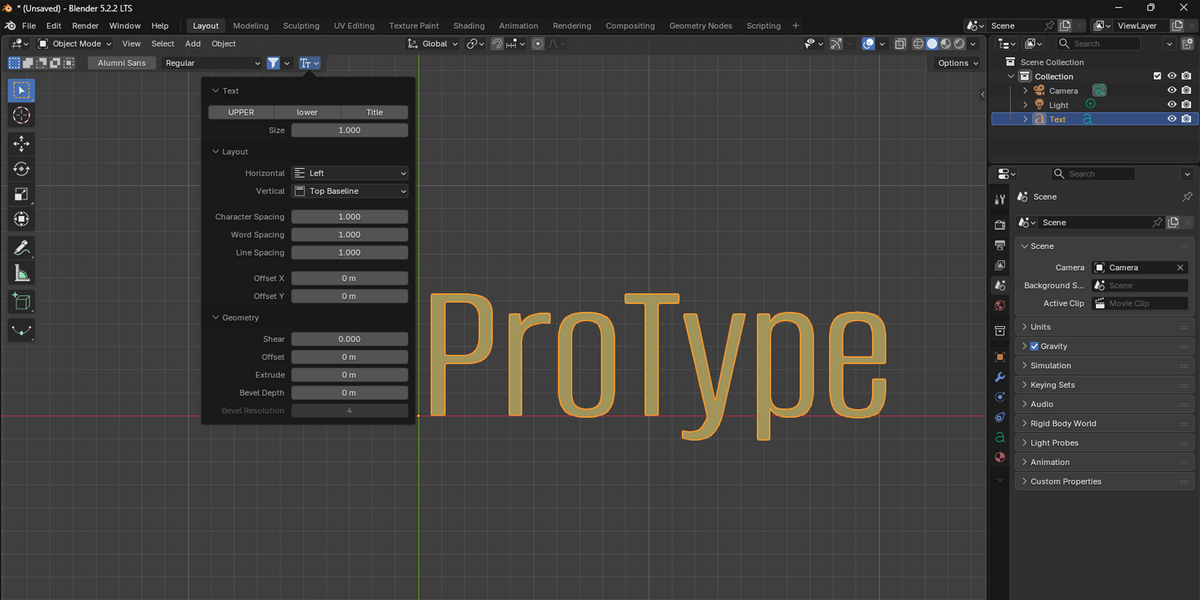
 Make character, layout, alignment, and 3D extrusion tweaks directly from the header.
 Click the typography icon (Small Caps) in the Viewport header to open the quick styling popover:
-
Text Case: Instant one-click transformations:
-
UPPER: Converts text to all uppercase. -
lower: Converts text to all lowercase. -
Title: Capitalizes each word.
-
- Text Size: Adjust the base font scale.
-
Layout & Alignment:
- Horizontal and Vertical alignment options.
-
Character Spacing(tracking / kerning). -
Word SpacingandLine Spacing(leading). -
Offset XandOffset Y.
-
3D Geometry:
-
ShearandOffset. -
Extrude: Add depth to your text. -
Bevel DepthandBevel Resolution: Create rounded or chamfered edges on 3D text.
-
8. Specimen Hover Tooltip
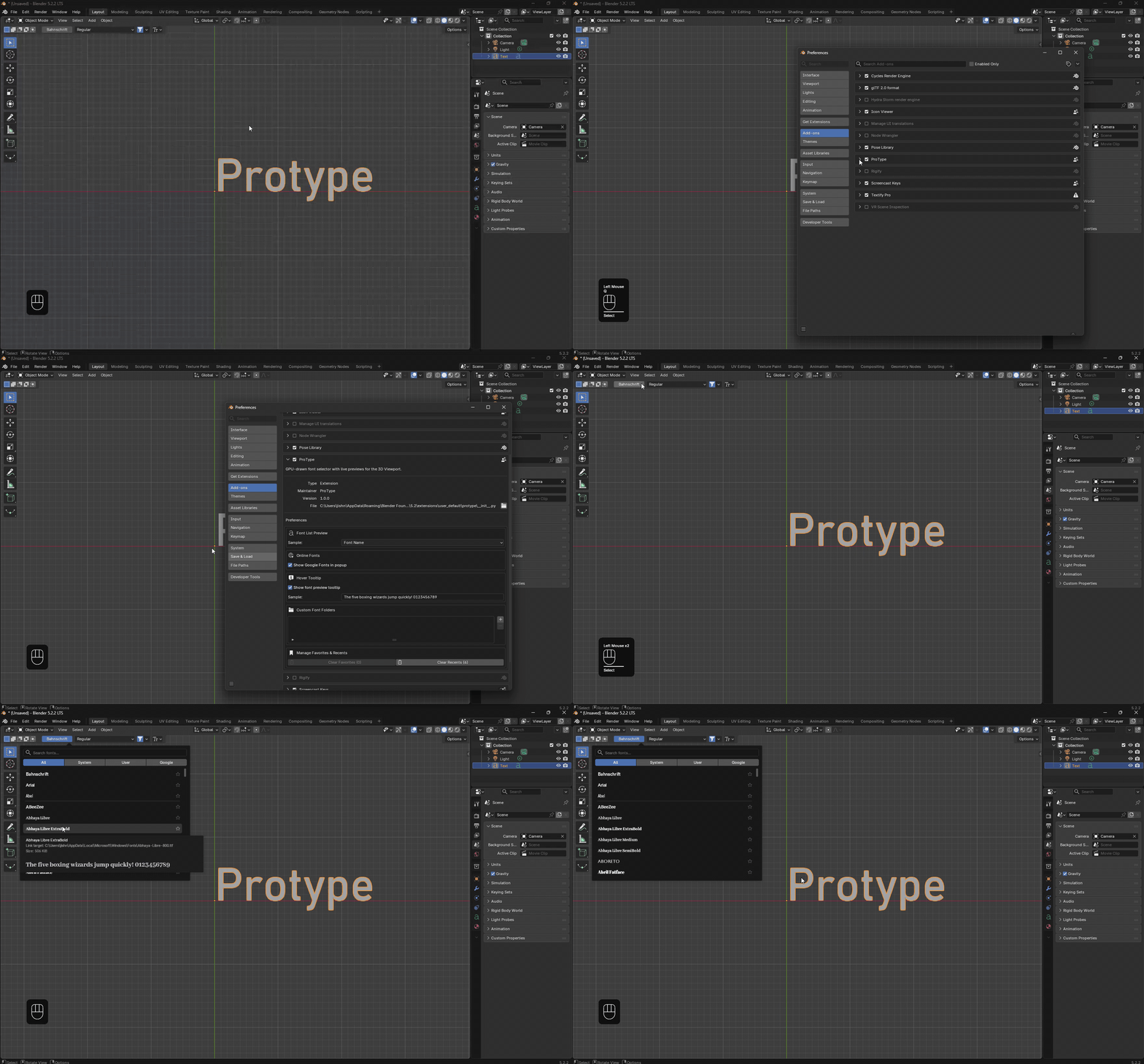 Inspect large letterforms, curves, and kerning in the high-resolution hover tooltip.
 - Hover over any font row in the browser to trigger an enlarged specimen tooltip.
- Allows inspection of fine typographic details, serifs, and kerning pairs before applying.
- Can be enabled or disabled in Preferences > Add-ons > ProType.
- Customizable specimen text string configurable independently from list row text.
9. Add-on Preferences Guide
Access settings via Edit > Preferences > Add-ons > ProType:
-
Font List Preview:
-
Preview Mode: Choose whether font rows display the typeface's own name (Font Name) or sample text (Custom). -
Sample Text: The text rendered in preview rows (defaults toHamburgevons 123).
-
-
Online Fonts (Google Fonts):
- Toggle Google Fonts catalog integration.
- Note: Requires Blender's System > Online Access setting to be allowed.
-
Hover Tooltip:
- Toggle tooltip visibility on hover.
- Set custom sample text specific to the specimen preview.
-
Custom Font Folders:
- Click
+to add local project or studio folders. - Click
-to remove a directory. - Fonts in custom folders appear immediately under the Custom source tab.
- Click
-
Manage Favorites & Recents:
- View current counts of starred favorites and recently applied fonts.
- Use
Clear FavoritesorClear Recentsbuttons to reset saved history.
 Included
Includes 12 months of
- Support from Jishnu Jithu
- Product updates
Extend this product’s Support Period +12 months: 50% of product price
Have questions before purchasing?
Login to message
| Blender Extension Compatible | Yes |
| Published | about 9 hours ago |
| Blender Version | 4.2 - 5.2 |
| Extension Type | Add-on |
| License | GPL |
Discover more products like this
addon blender font preview 3d font Arabic font preview blender font font