Quad Fill
 Tachyon Studio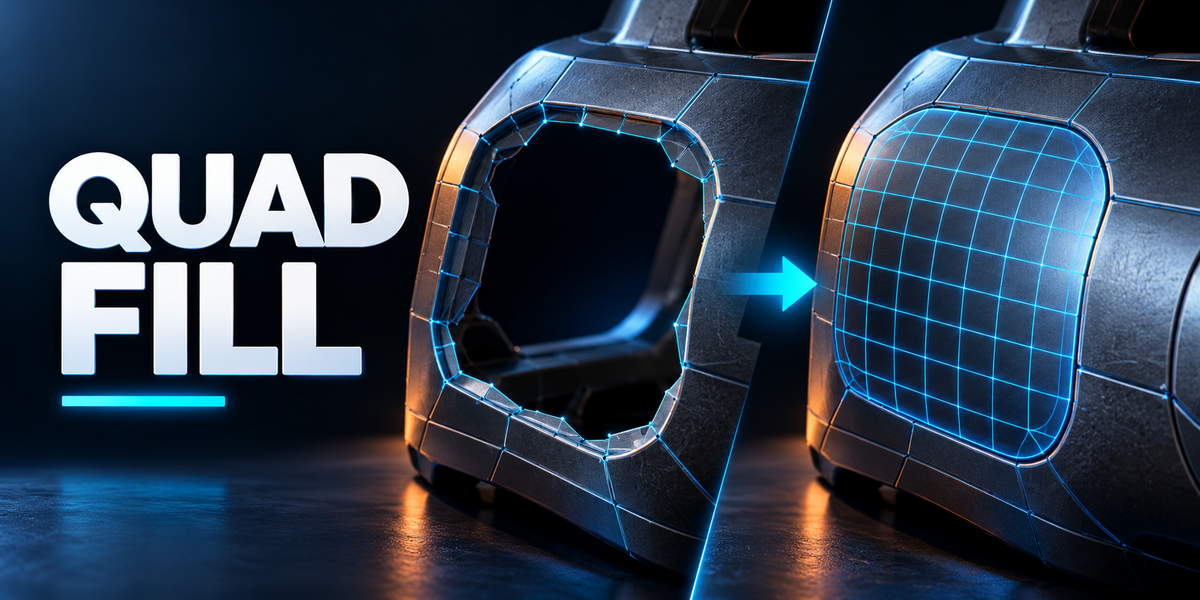

QUAD FILL 1.0.0 · USER GUIDE
From selected border to editable mesh
Quad Fill creates bridges and patches from selected edges or vertices in a mesh. Start on a copy of an important model and inspect the preview before applying.
1. Install and enable
- Download quadfill-1.0.0.zip. Keep the ZIP intact; do not select an individual Python file.
- Blender 4.2 and newer: open Edit → Preferences → Add-ons, open the menu and choose Install from Disk. Select the ZIP and enable Quad Fill if it is not enabled automatically.
- Blender 3.0–4.1: open Edit → Preferences → Add-ons → Install, select the ZIP, then enable Mesh: QuadFill.
- Select a mesh and enter Edit Mode. Press N in the 3D Viewport and open the QuadFill tab.
Use one installation route at a time. If you switch between a legacy add-on and an extension, disable/remove the previous installation first to avoid duplicate panels or shortcut conflicts. Internet access is not required for the fill operation.
2. Your first fill
- In a mesh plane, remove a small rectangular group of faces using Only Faces, leaving a clear hole.
- In Edit Mode, deselect everything. Use Edge Select and select only the edges around that hole.
- Open N-sidebar → QuadFill. The panel identifies the selection and shows a preview when Live Preview is enabled.
- Press Shift+F or click Fill.
- Use F9 immediately afterward to adjust the last operation. Check the face layout, shading and normals, then continue modeling.
For a bridge, select two separate open chains or two closed loops instead. Both must belong to the active editable mesh. Join separate objects first if that matches your intended modeling workflow.
3. Selection recipes
| Task | Select | What to expect |
|---|---|---|

| Open-chain bridge | Two open border chains, with equal or different edge counts. | A transition between them. Extra rows and pattern settings control the layout. |

| Tube bridge | Two closed border loops. | A closed connection; twist and Classic seam controls help align transitions. |

| Hole fill | The closed boundary around missing faces. | A corner-aware patch. Auto Corners finds a layout; disable it to tune manually. |
| U-shaped opening | One U-shaped chain or three sides around a gap. | A new closing side and a grid. Existing connecting sides can be detected and reused. |

| Inner corner | An L- or V-shaped open border inside a missing region. | Complete creates a corner grid; Close Across closes the gap across its arms. |
| Chain to point | An open chain and a separate selected vertex, in Vertex Select mode. | Patch-based fill, or a fan for a short chain / explicit fan mode. |

| Loop to point | A closed loop and a separate selected vertex. | A cap with reducing rings toward a small pole. Small loops may use a direct fan. |
| Multiple regions | Three or more separate valid chains/loops. | Auto pairs suitable facing borders and fills independent holes/corners. Pairs and Separately override grouping. |
Do not select the whole mesh by habit. Select the boundary you want to fill. A lone straight chain, a branched selection, a loop around faces that already exist, or an outer corner covering its own faces is not a valid gap.
4. Live preview and interactive filling
The sidebar preview is a read-only view of the proposed topology. Ctrl+Shift+F starts an interactive fill, letting you adjust the proposal before committing. Press Enter or left click to apply; press Esc or right click to cancel. H displays the context-sensitive help. Navigation remains available while previewing.
| Shortcut | Interactive action |
|---|---|
| Wheel | Rows for bridges/tubes; sides for holes; arm length for U-shaped fills; padding rows or extra rings for point/cap workflows. |
| Shift + Wheel | Smoothness. |
| Ctrl + Wheel | Transition shift for open bridges, twist for tubes, or corner rotation for a hole. |
| Alt + Wheel | Seam rotation / transition shift, or span / open-side edge count, depending on the selection. |
| C | Switch Classic / Adaptive pattern. |
| D / P / O | Cycle transition distribution / placement / odd-face handling where applicable. |
| S / R | Cycle smoothness / relaxation presets. Shift reverses cycling. |
| F / N | Flip bridge direction / output normals. |
| E / Shift+E | Increase / decrease Classic tube seam count. |
| Q / L / A | Toggle Square Faces / Support Loops / Auto Corners where applicable. |
| H | Show the full help for the current fill type. |
| Enter or LMB / Esc or RMB | Apply / cancel. |
Controls are selection-dependent: the HUD and help are the authoritative guide for the active operation. If Shift+F or Ctrl+Shift+F conflicts with your keymap, use the sidebar buttons or change the shortcuts in Quad Fill preferences. The optional pie menu has no shortcut assigned by default.
5. Pattern and topology controls
| Setting | Purpose |
|---|---|
| Classic / Adaptive | Classic places reductions around strip ends and uses seams for tube transitions. Adaptive distributes 3-to-1 transitions according to the distribution and placement settings. |
| Rows | Add interior rows. Large edge-count differences can require rows automatically; zero does not always mean no internal topology. |
| Square Faces | Automatically adds rows across a wide gap to reduce overly stretched faces. Turn it off when you want fewer rows. |

| Support Loops / Support Width | Add narrow support rows along a bridge or a ring around a hole. Width controls their spacing. U-shaped fills do not use this option. |
| Classic Inset | Keeps the end columns straight across the gap in supported Classic bridge layouts. |
| Transition distribution | Spread, Near Long Side or Near Short Side changes where Adaptive count reductions occur along the connection. |
| Placement / Shift | Distribute transitions evenly, in the center, toward sides, or toward one end; shift their positions. |
| Odd Face | Choose how to handle parity: a centered triangle, an all-quads open-bridge compromise, a corner triangle in Adaptive mode, or a pentagon where applicable. |
| Twist | Rotate the correspondence between two closed loops. |
| Seams / Seam at Active | Choose Classic tube seam count and use the active selected element as a seam reference. |
6. Surface shape and patch layout
| Setting | Purpose |
|---|---|
| Smoothness | Controls how strongly the new patch follows surrounding geometry. Zero is flatter. Start near the default 0.5 and inspect the result before increasing it. |
| Relax | Number of relaxation passes for applicable patch interiors. More is not always better; check for overly soft or thin regions. |
| Corner Mode | Auto chooses between Complete and Close Across according to the angle. Complete extends the arms into a grid; Close Across closes across them. |
| Point Mode | Auto chooses a patch or fan; Patches and Fan let you request a particular approach. |
| Multiple Selections | Auto groups suitable pairs; Pairs forces pair-based filling; Separately treats supported independent regions individually. |
| Detect Sides | Reuses existing connecting borders where a two-chain / three-sided gap already has side edges. |
| Auto Corners | Automatically finds a hole layout. Disable it for manual Sides, Span and Offset adjustments. |
| Sides / Span / Offset | Adjust the hole or U-shaped grid layout. Offset rotates the corner choice around a closed boundary. |
7. New faces and display preferences
Flip Normals reverses the generated faces when required. Select Result leaves the new faces selected. Inherit Attributes copies material and smooth-shading choices from neighboring faces where available. These do not automatically unwrap UVs or create a production-ready texture layout.
In Quad Fill preferences you can customize preview colors, rail/wire widths, hidden-line opacity, labels, the interactive HUD and keymaps. Reset controls restore Quad Fill settings; they are not a reason to reset all Blender preferences. The globe icon opens the support link.
8. Six practical use cases
The gallery demonstrates a 10-to-4 open bridge, a 16-to-8 tube connector, a curved shell patch, a hole with support ring, a completed panel corner, and a 24-edge loop cap. Every cyan patch was produced by the shipped Quad Fill solver/build functions. These are rendered modeling demonstrations, not screen recordings or automatic UV/retopology claims.
9. Troubleshooting
| Symptom | Check |
|---|---|
| No Quad Fill panel / command disabled | Confirm the add-on is enabled. Select a mesh, switch to Edit Mode, and use the 3D Viewport sidebar. Check for duplicate legacy/extension installations. |
| Nothing selected / nothing to fill | Select border edges rather than unrelated faces. The target may already be filled. Undo, inspect the opening and select its boundary again. |
| Branched or ambiguous selection | Deselect extra spokes, crossing chains and unrelated edges. Isolate one simple region first, then try multiple selections. |
| Outer border or corner rejected | The selection would cover existing faces instead of filling a gap. Select an inner boundary around genuinely missing faces. |
| Triangle or pentagon appears | Odd counts can prevent a symmetric all-quad result. Inspect Odd Face options, adjust the boundary count, or accept the local non-quad. All Quads is not a universal guarantee. |
| Twisted connection | Try Flip Direction for open chains or Twist and seam settings for closed loops. Inspect active-element alignment. |
| Concave, folded or very thin faces | Reduce smoothness, change rows/pattern/layout, or clean up the border. Treat preview quality warnings as a prompt to inspect—not as a guarantee that every mesh can be repaired automatically. |
| Wrong shading or face orientation | Enable Face Orientation to inspect normals. Recalculate surrounding normals as appropriate, or use Flip Normals. Check Inherit Attributes and the adjacent faces. |
| Slow live preview on a dense selection | Isolate a smaller region, reduce relaxation/row counts, or disable live preview while changing the selection. |
| F9 no longer adjusts the fill | Another operation may have replaced Blender's last-operation state. Undo back to the fill or run it again on the original boundary. |
10. Compatibility and verification
The legacy add-on metadata starts at Blender 3.0; the extension manifest starts at 4.2. The same supplied ZIP passed installation and fill smoke checks in Blender 3.0.1, 3.3.21, 3.6.23, 4.1.1, 4.3.2 and 5.2.0 LTS on Windows. Each build also passed the 76-check background integration suite. The pure Python topology/quality tests passed 378 checks.
These are background tests, not proof that every GPU, keymap, OS or intermediate Blender release behaves identically. Foreground preview/navigation interactions still need a final hands-on release check. This add-on fills local mesh regions; it is not a complete sculpt retopology or automatic UV tool.
11. Update or uninstall
Save your work before changing add-ons. Disable the old Quad Fill installation, install the replacement ZIP through the appropriate route, and enable it. Remove duplicate installations if necessary. To uninstall, disable Quad Fill and use Remove / Uninstall in Preferences. Mesh faces already created by Quad Fill remain ordinary Blender geometry.
12. Release notes — 1.0.0
- Initial product release: Classic and Adaptive bridging; hole, U, corner and point/cap workflows.
- Live previews, interactive adjustment, support loops and topology-quality feedback.
- Legacy add-on and Blender extension installation metadata in one ZIP.
Support
Questions or a tricky mesh? Contact Tachyon Studio through Superhive or join our Discord. Include your Blender version, Quad Fill version, selected border, settings, and a small example file when possible.
For bug reports, include a minimal reproducible mesh, the Blender build, Quad Fill version, exact selection, settings and any reported message. Remove private project data before sharing an example.
Have questions about this product?
Login to message
| Blender Extension Compatible | Yes |
| Published | 1 day ago |
| Blender Version | 3.0 - 5.2 |
| Extension Type | Add-on |
| License | GPL |
Discover more products like this
quad mesh topology hard surface edge bridge quadfill mesh modeling hole fill