RealStep Camera
 GPolygon Design


Installation & Requirements:
Requirement: Blender 4.2 or higher.
Go to Edit > Preferences > Get Extensions. Click the drop-down arrow at the top right, select 'Install from Disk', and choose the downloaded zip file.
⚠️ CRITICAL PRE-REQUISITES (Read Before Use): RealStep Camera relies on real-world physics and dimensions. For the collision and eye-level to work perfectly, you MUST ensure two things:
Add a Camera: The add-on does not create a camera for you. You must add a standard Blender Camera to your scene (
Shift + A > Camera).Apply Scale: Your environment must be at real-world scale (1 Blender Unit = 1 Meter). Select your environment/building, press
Ctrl + A, and click "Scale". If your building is unscaled, a 1.7m "Eye Level" might make you look like an ant or a giant!
Getting Started:
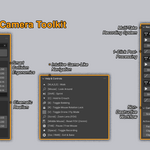
Press 'N' to open the side panel in the 3D Viewport and click the RealStep Camera tab.
In the "Active Camera" box, select the camera you just added to your scene.
Configure your Movement & Physics (Eye Level, Max Step Height, Base Walk Speed).
Configure your Cinematics & Recording (Enable Dynamic Auto-Focus, tweak Mouse Smoothing or Bobbing).
Click "Start RealStep Mode" to enter the viewport.
Help & Controls (In-Game):
[W, A, S, D]: Walk
[Mouse]: Look Around
[Shift]: Sprint (Uses your Sprint Multiplier)
[C]: Hold to Crouch (Lowers eye level to pass under obstacles)
[B]: Toggle Bobbing (Turn head movement on/off)
[R]: Toggle Mouse Rotation Lock
[V]: Toggle Drone / Fly Mode (Disable gravity for free flight)
[Scroll]: Zoom Lens (Adjust FOV on the fly)
[Middle Mouse]: Reset FOV to default (24mm)
[TAB]: Pause / Free Mouse (Allows you to click other Blender menus temporarily)
[Space]: Toggle Recording (Start/Stop capturing keyframes)
[Esc / RMB]: Exit & Bake (Ends the session and writes your keyframes to the timeline)
Pro Tip - Ignore Collection: Got a complex, high-poly plant or a glass window you want to walk straight through? Put those objects into a specific Blender Collection and select it in the "Ignore Collection" box in the panel. The physics engine will completely ignore them!
Have questions about this product?
Login to message
| Blender Extension Compatible | Yes |
| Sales | 10+ |
| Dev Fund Contributor | |
| Published | 3 months ago |
| Blender Version | 4.2 - 5.2 |
| Extension Type | Add-on |
| Render Engine Used | Cycles, Eevee |
| License | GPL |
Discover more products like this
navigation First person realtime physics camera architectural visualization cinematic viewport animation presentation ArchViz walkthrough