RealStep Camera
 GPolygon Design


Q: Which Blender versions are supported?
A: RealStep Camera fully compatible with Blender 4.2, 4.3, and the new Animation v2 API in Blender 5.0+
Q: Does it work with complex or high-poly architectural scenes?

A: Yes! RealStep uses optimized raycasting to detect collisions and ground levels. However, for extremely dense scenes (millions of polygons), we recommend placing a low-poly "collision floor/mesh" (set to invisible) to ensure maximum performance.
Q: Does this add a visible 3D character to my scene? Will I see hands or feet?
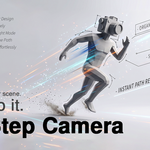
A: No. RealStep Camera is strictly a first-person observational tool. It calculates physical collisions and head movements for the camera itself to simulate human presence, but it does not generate or animate a visible 3D character mesh.
Q: Does the camera clip through walls?
A: No. Our Smart Collision system prevents the camera from passing through standard meshes. It also features a "sliding" mechanic, so if you walk into a wall at an angle, you will smoothly slide along it rather than getting stuck.
Q: Why am I falling through the floor or floating way above my building?
A: You forgot to Apply Scale! Select your environment mesh, press Ctrl + A, and select Scale. Also, check your "Eye Level" parameter in the add-on panel to ensure it matches the scale of your architecture (default is 1.7 meters).
Q: Can I edit the camera path after recording?
A: Yes, but it requires patience. Because RealStep bakes physical movements (like head bobbing, collision responses, and walking) frame-by-frame, the resulting animation data is very dense. We included a "Simplify" tool to reduce unnecessary keyframes, but even after simplifying, the path will still contain a lot of data. It is best used for minor tweaks rather than completely rewriting the camera's trajectory.
Have questions about this product?
Login to message
| Blender Extension Compatible | Yes |
| Sales | 10+ |
| Dev Fund Contributor | |
| Published | 3 months ago |
| Blender Version | 4.2 - 5.2 |
| Extension Type | Add-on |
| Render Engine Used | Cycles, Eevee |
| License | GPL |
Discover more products like this
ArchViz viewport cinematic realtime First person presentation walkthrough architectural visualization animation navigation camera physics