ReFace 2.0
 Ferasyahya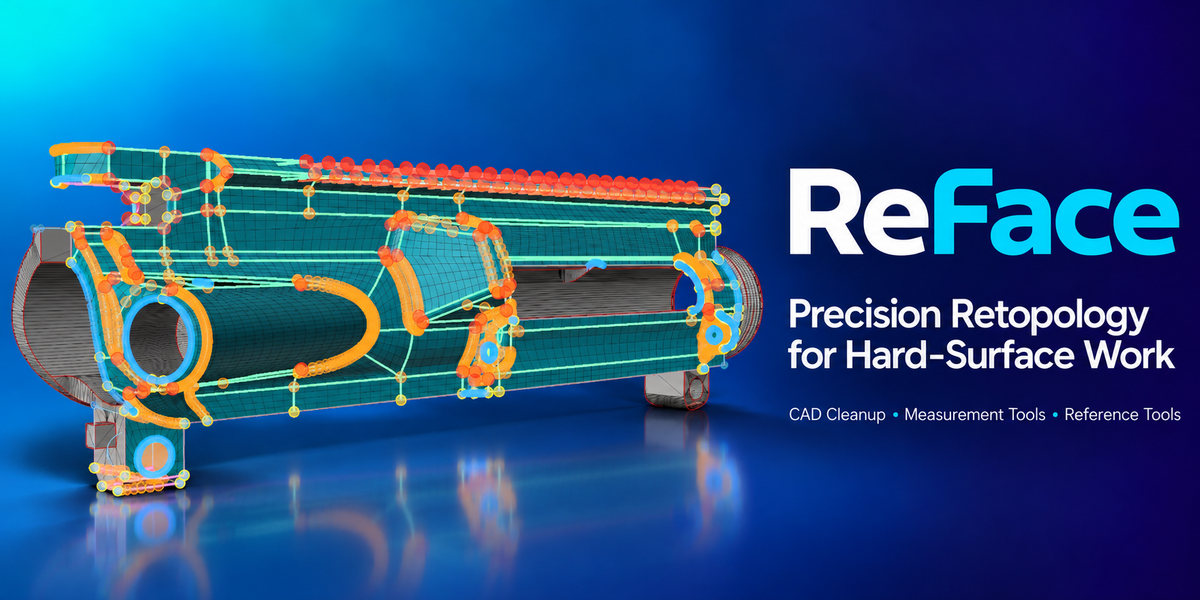


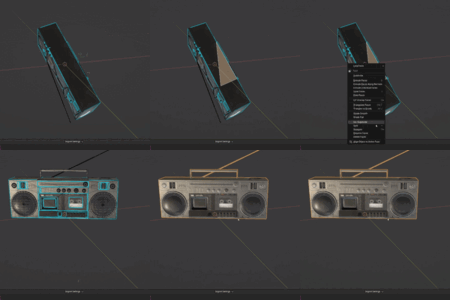
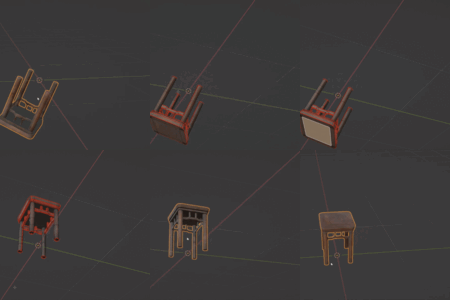

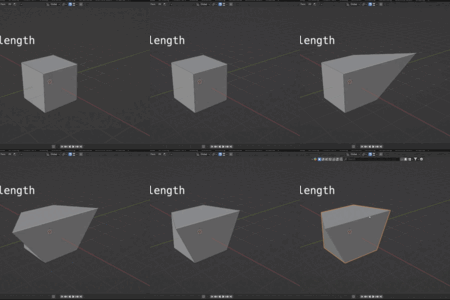
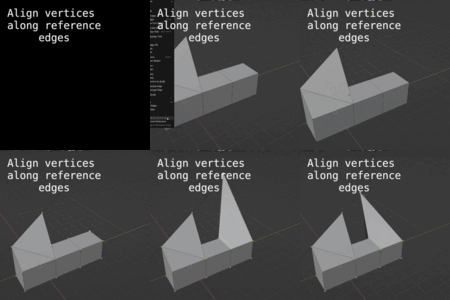
ReFace 2.0 Documentation

ReFace is a precision modeling toolkit for Blender focused on CAD-style mesh cleanup, face alignment, reference-based editing, live measurement overlays, retopology helpers, selection tools, and object isolation. It is designed for hard-surface workflows, STL cleanup, imported CAD meshes, boolean repair, and situations where exact lengths, angles, circles, planes, and clean rebuilt topology matter.
Accessing ReFace
Core Concepts
Object Mode Tools
ReFace Isolate
Isolates selected objects or collections while keeping protected objects and collections visible.
- Select one or more objects or collections.
- Run ReFace Isolate.
- Protected items remain visible during isolation.
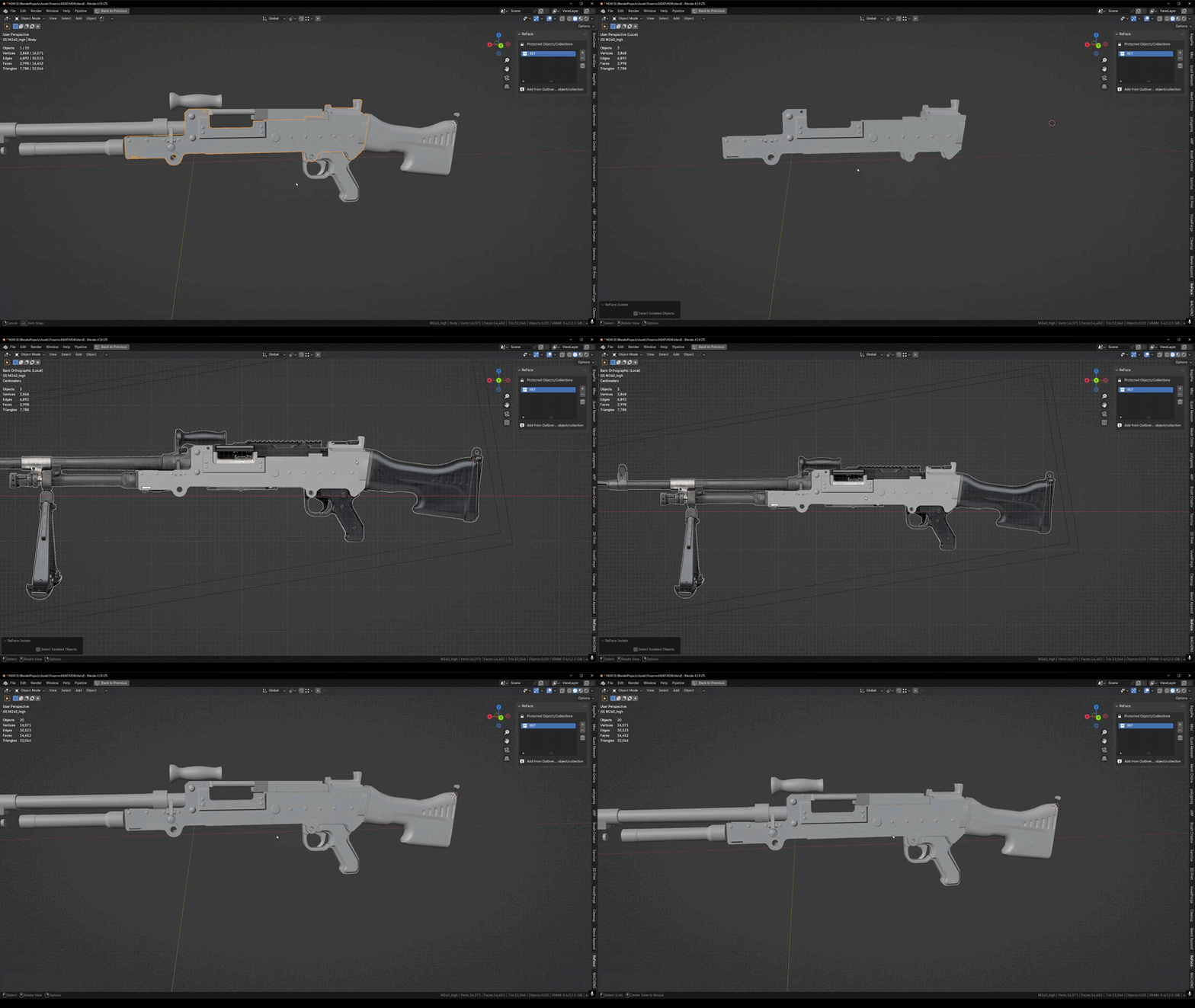
Protected Objects / Collections List
A manager for objects and collections that should remain visible when using ReFace Isolate.
- Add selected objects or collections to the protected list.
- Remove individual protected items.
- Clear the list when needed.
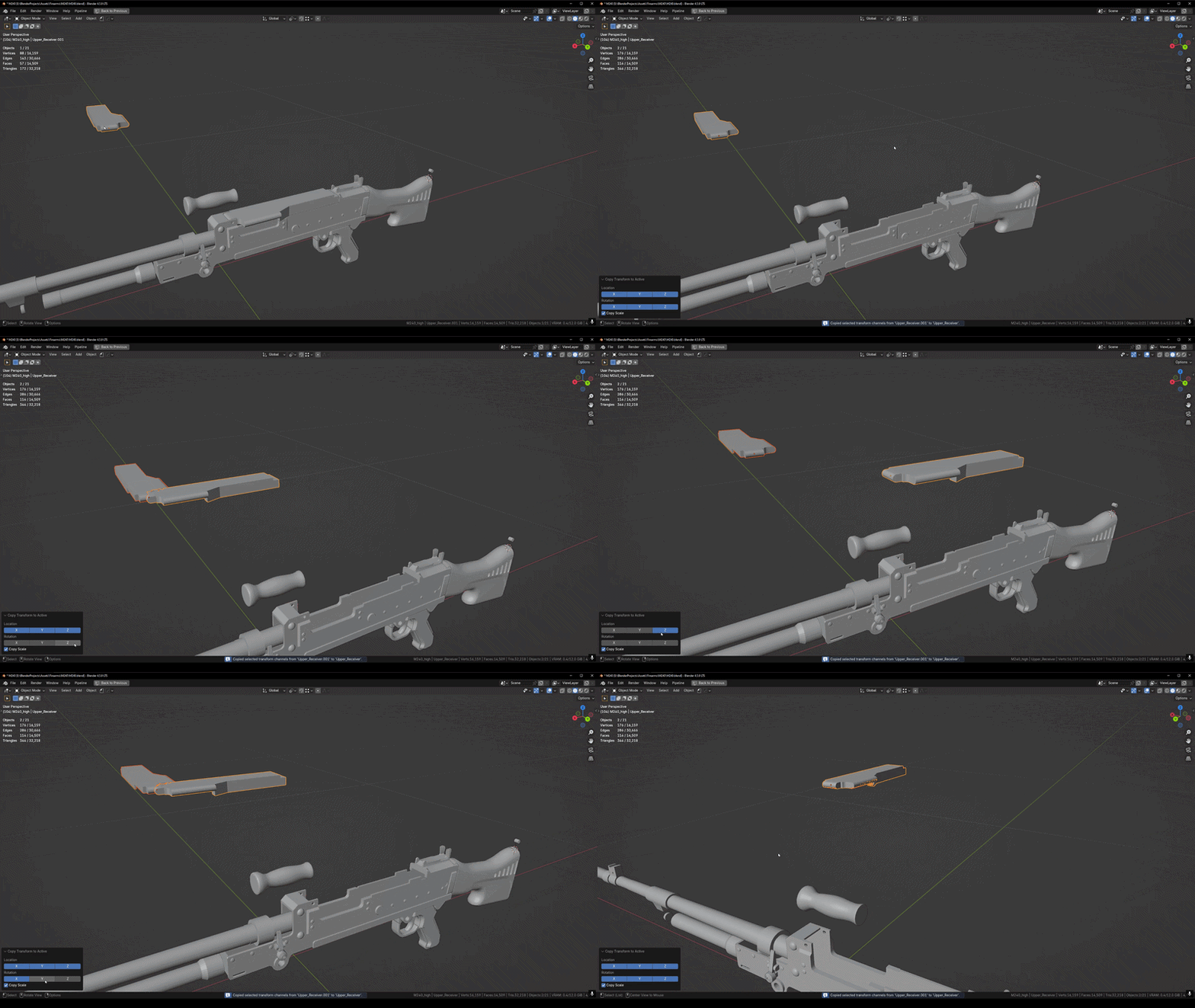
Copy Transform to Active
Copies selected transform channels from one selected object to the active object.
- Supports location axes.
- Supports rotation axes.
- Includes optional scale copying.
Curve Through Mesh Center
Generates a curve through the center axis of a tubular or spring-like mesh by marching through cross-sections from the object origin.
- Useful for extracting a center path from tube-like geometry.
- Works best on meshes with clear cross-sectional structure.

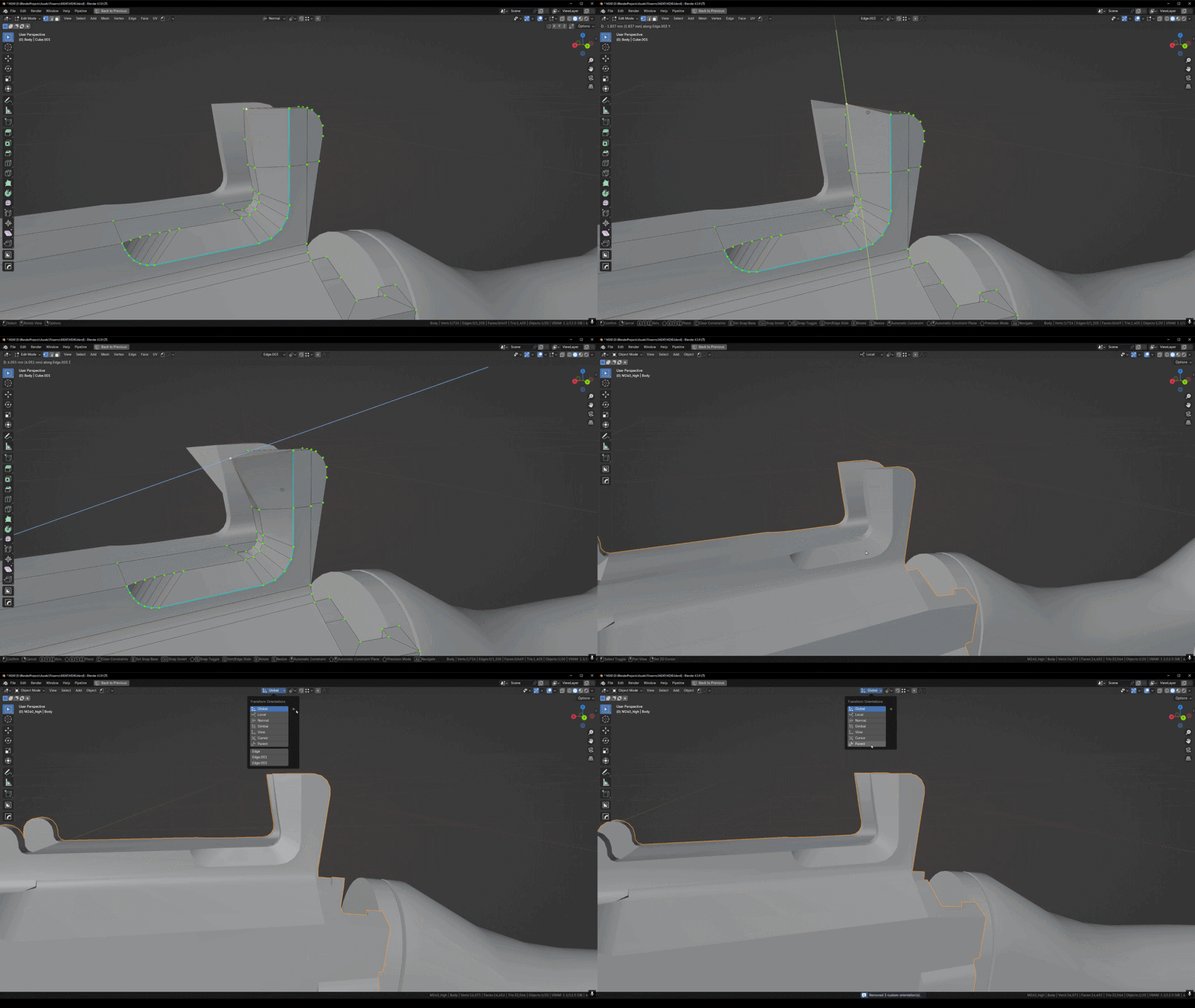
Transform Orientations
Tools for switching, creating, deleting, and clearing transform orientations.
- Switch built-in orientations.
- Create custom orientations from selected geometry.
- Delete the active custom orientation.
- Clear all custom orientations managed through ReFace.
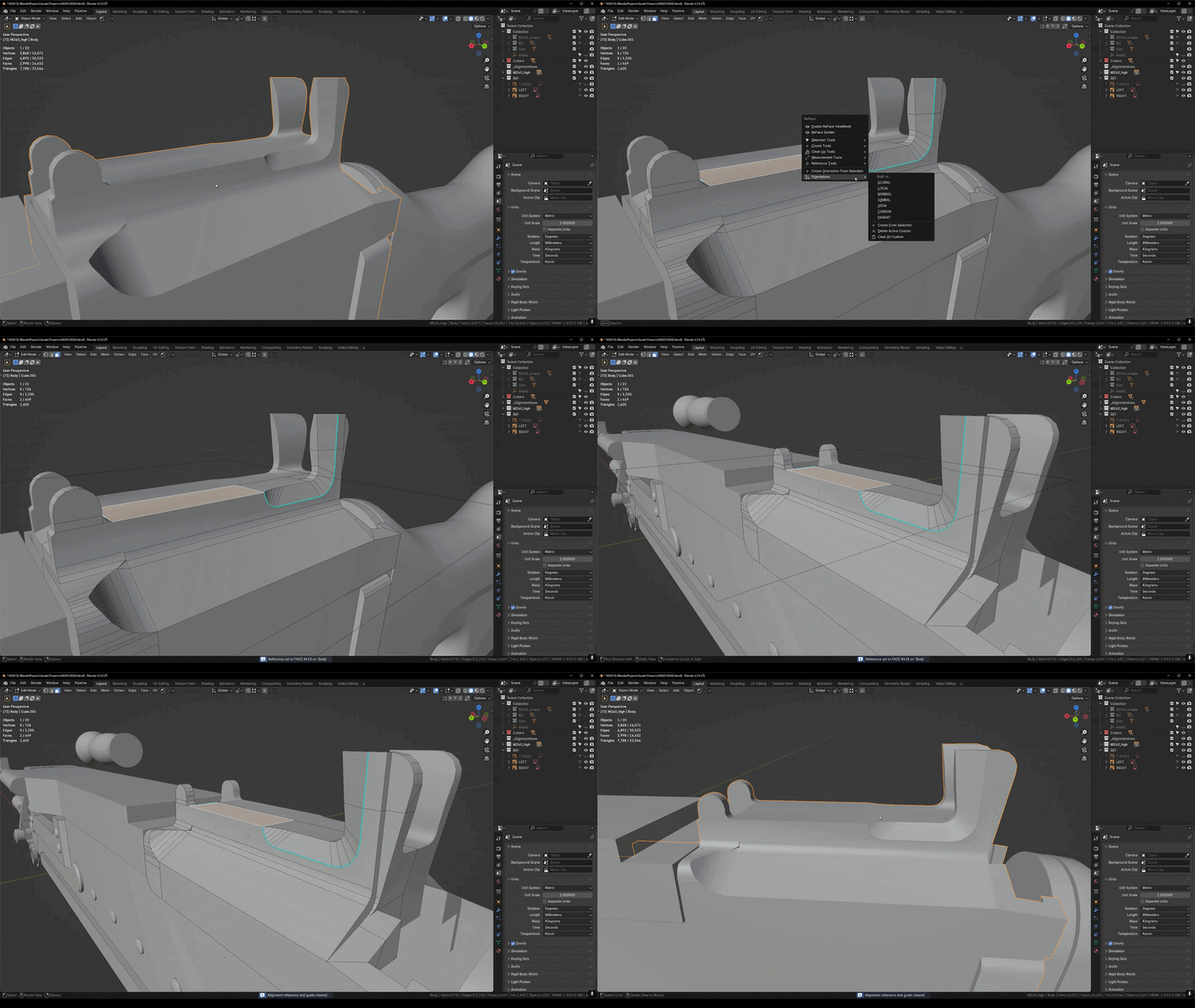
Clear Reference
Clears the stored edit-mode reference edge or reference face/plane when one exists.
Edit Mode: ReFace ViewMode
ReFace ViewMode is a live viewport measurement overlay for mesh editing. It helps inspect geometry directly in the viewport without constantly opening separate tools or manually checking dimensions.
- Edge lengths
- Angles
- Circle radii
- Face areas
- Face normals
- Loop perimeters
- Min/max edge indicators
- Parallel/perpendicular indicators
Adjust selected edge lengths, edge angles, and circle radii directly in the viewport using interactive handles.
- Set Length
- Set Angle
- Set Radius
- Set Reference
- Clear Reference
Edit Mode: Selection Tools
ReFace includes selection helpers for surfaces, paths, boundaries, enclosed regions, similar shapes, and mesh quality checks.
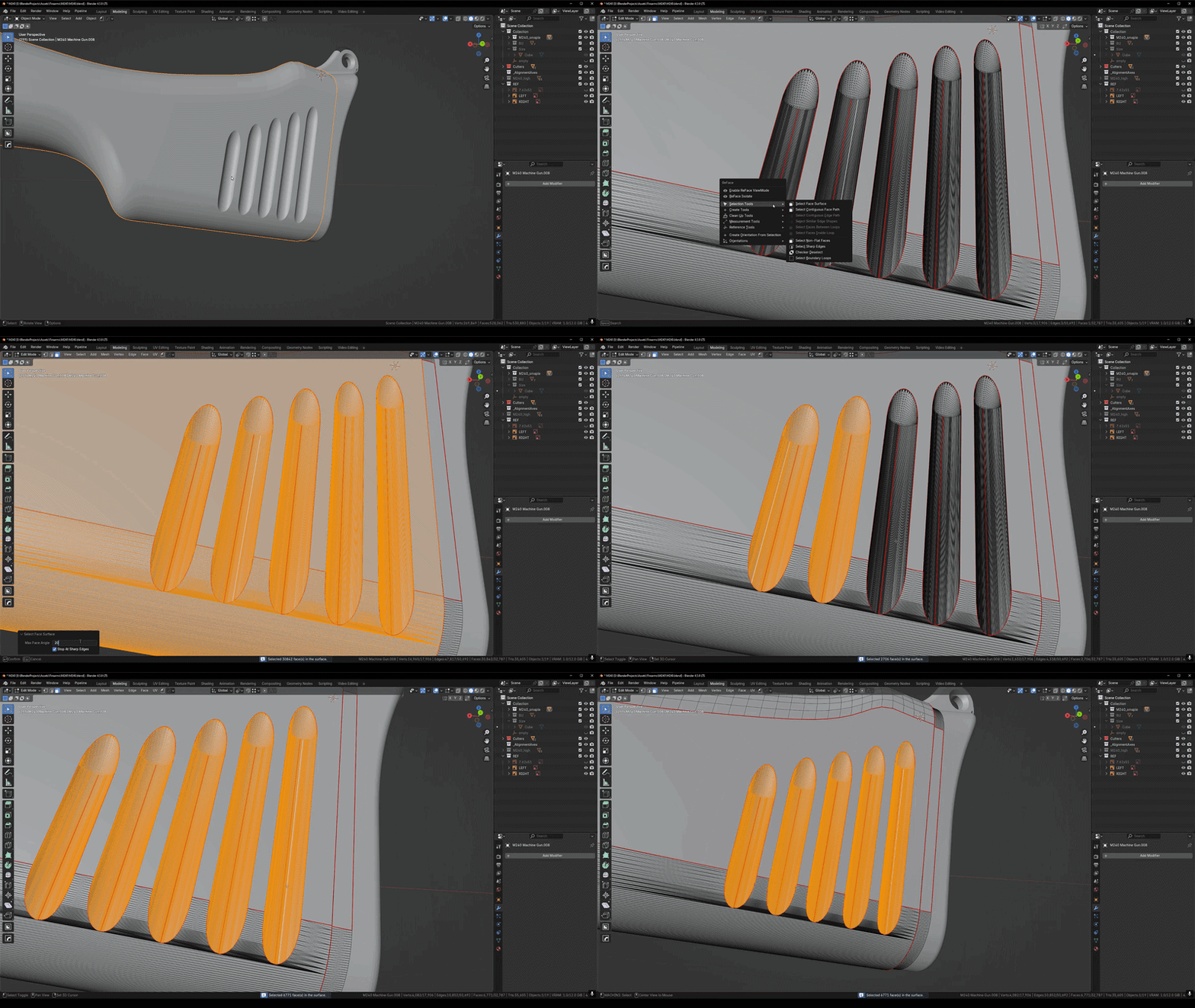
Select Face Surface
Expands from the active face across a continuous surface. Useful for selecting a smooth or connected region, including triangulated surfaces.
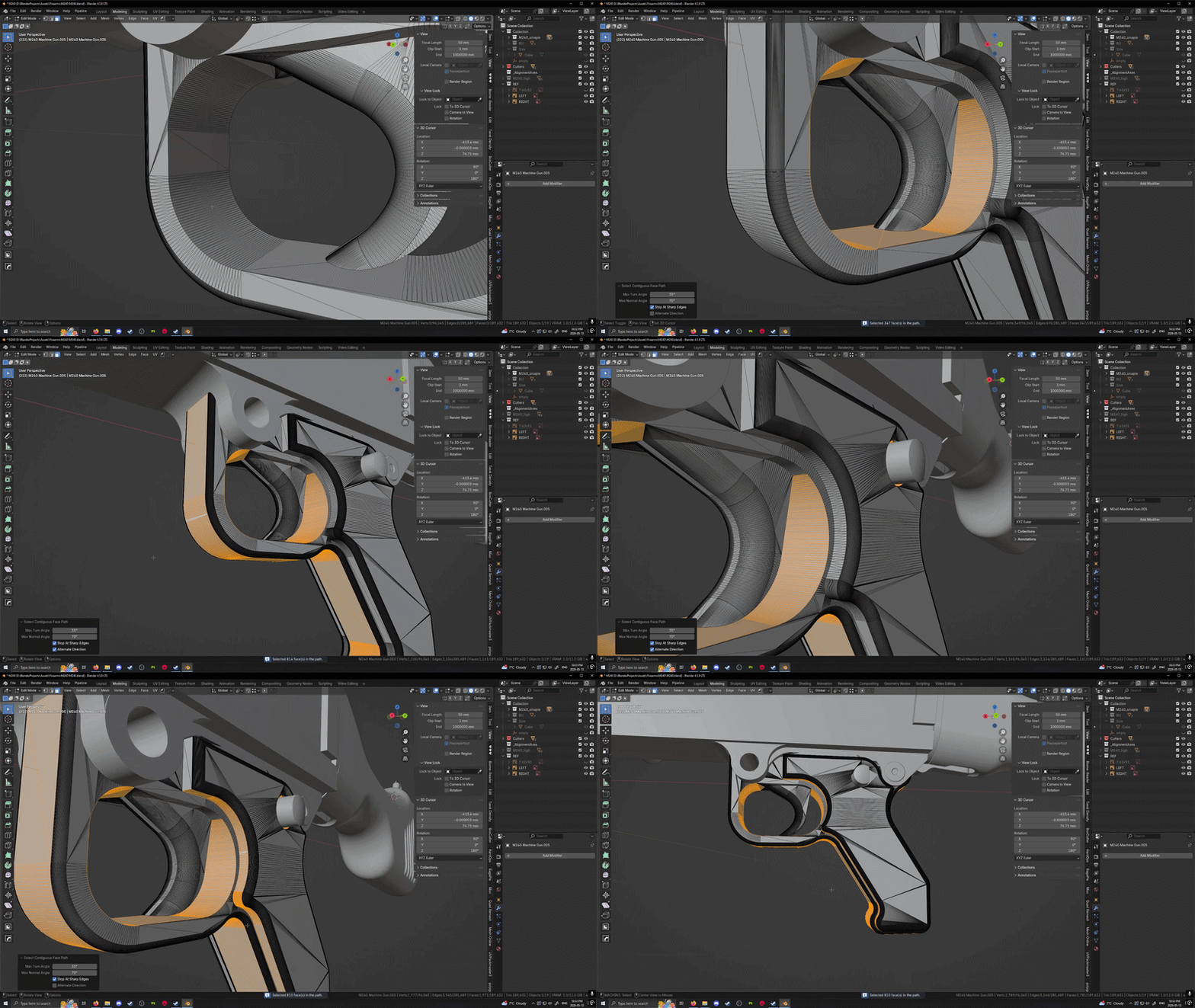
Select Contiguous Face Path
Selects a path of connected faces following the most continuous direction from the active face.
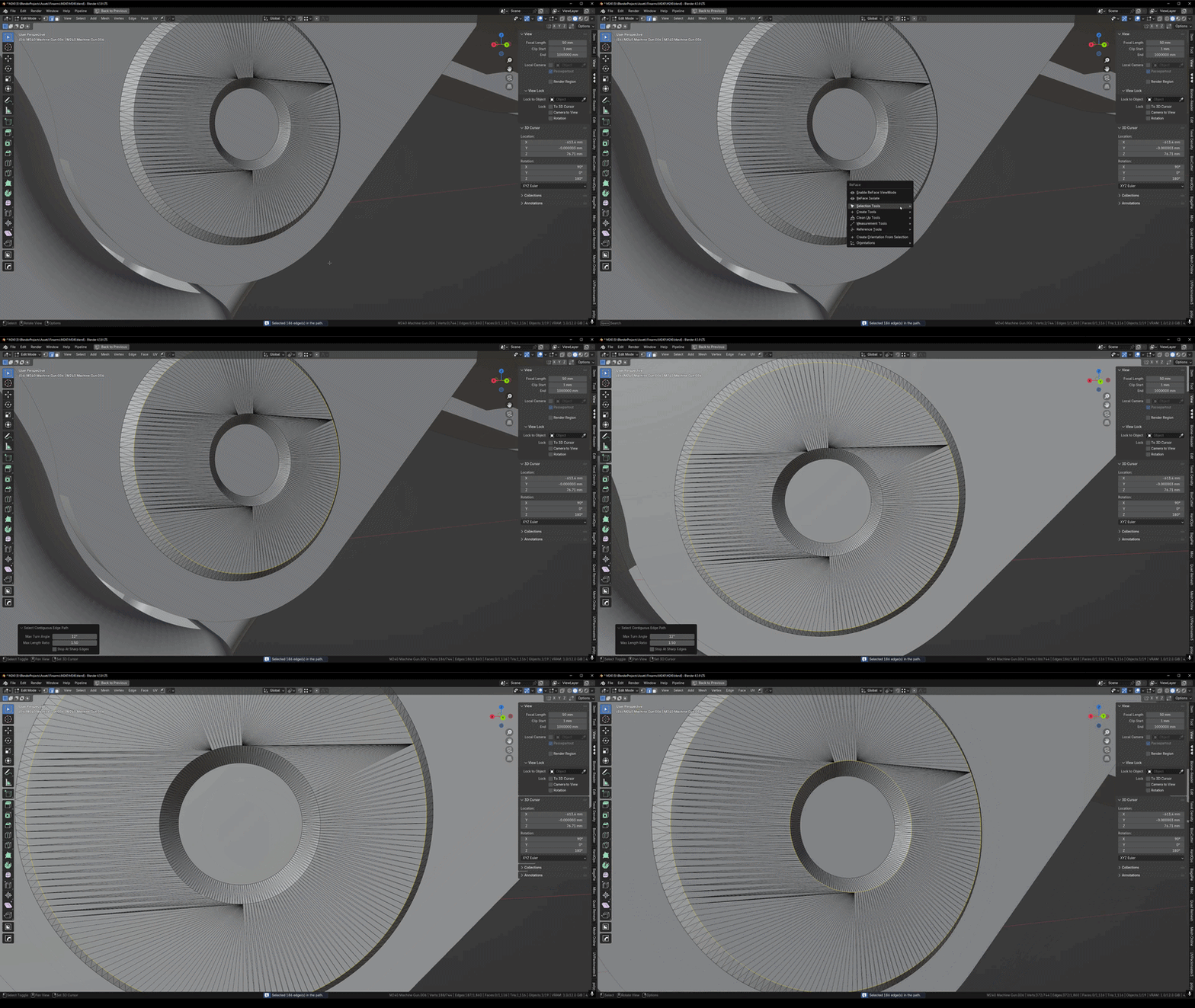
Select Contiguous Edge Path
Extends an edge selection along a continuous edge path
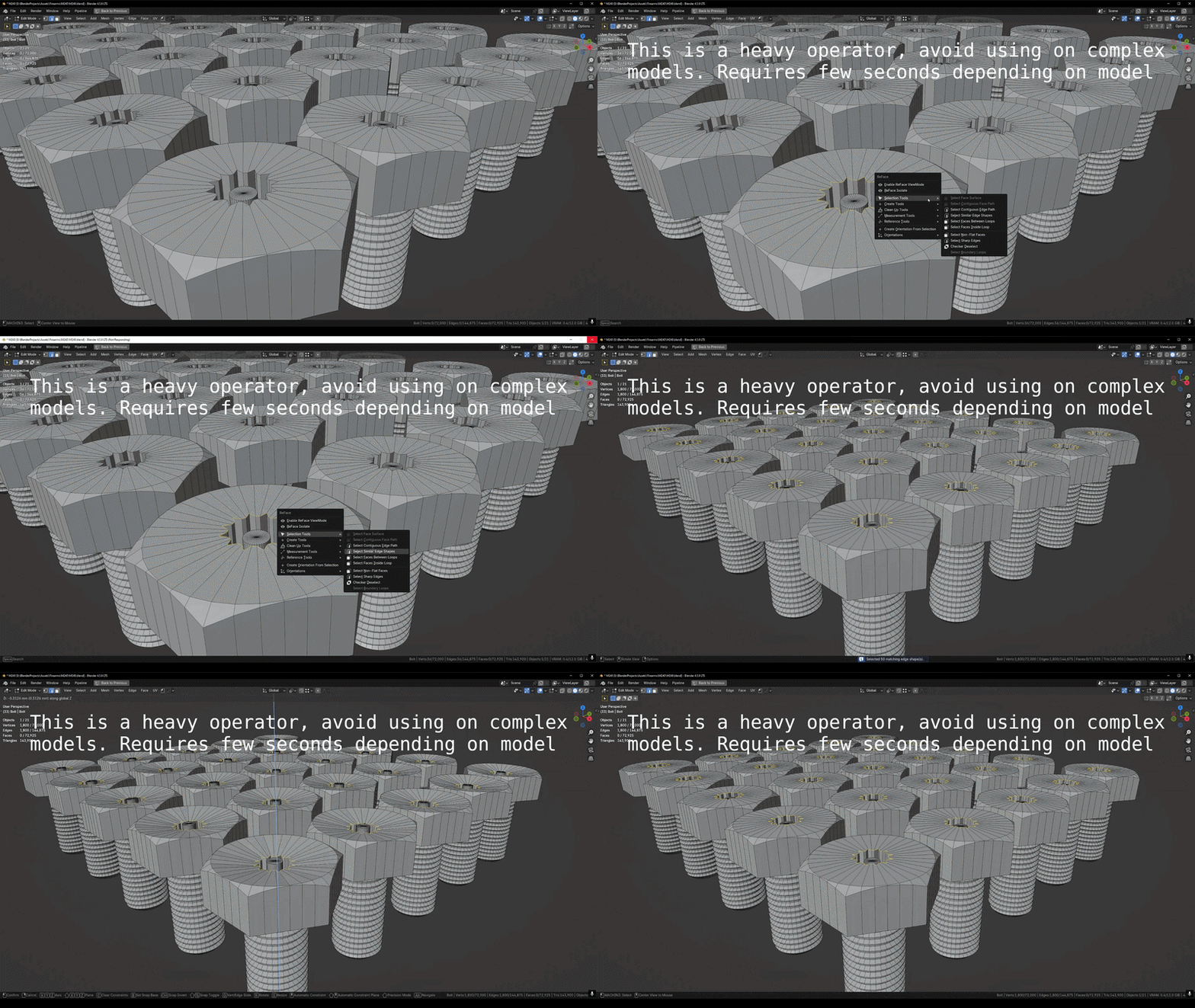
Select Similar Edge Shapes
Uses a selected closed edge loop as a template and finds similar matching edge shapes elsewhere in the mesh.
Select Faces Between Loops
Selects the face region between selected edge loops.
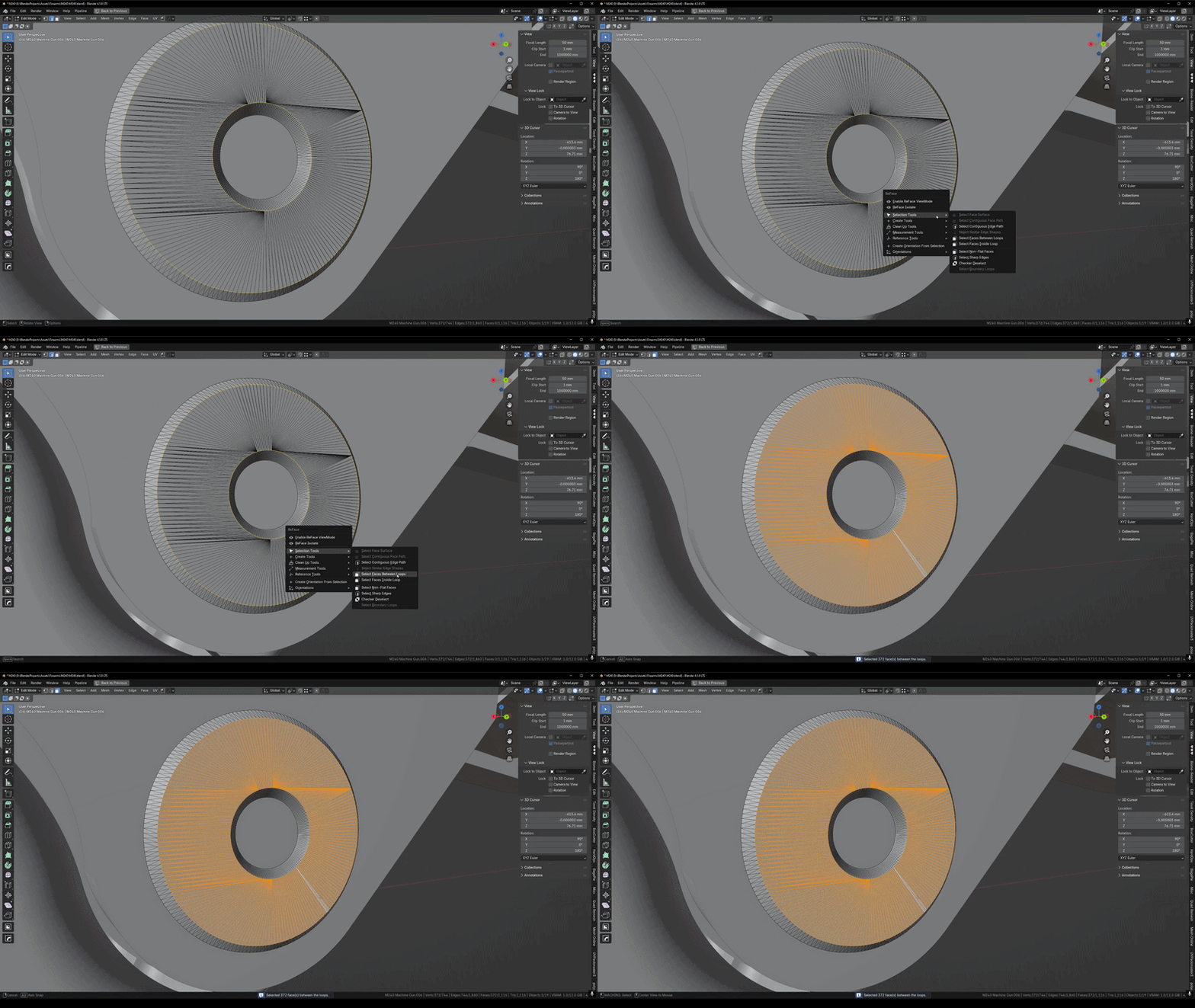
Select Faces Inside Loop
Selects all faces enclosed by a selected closed edge loop.
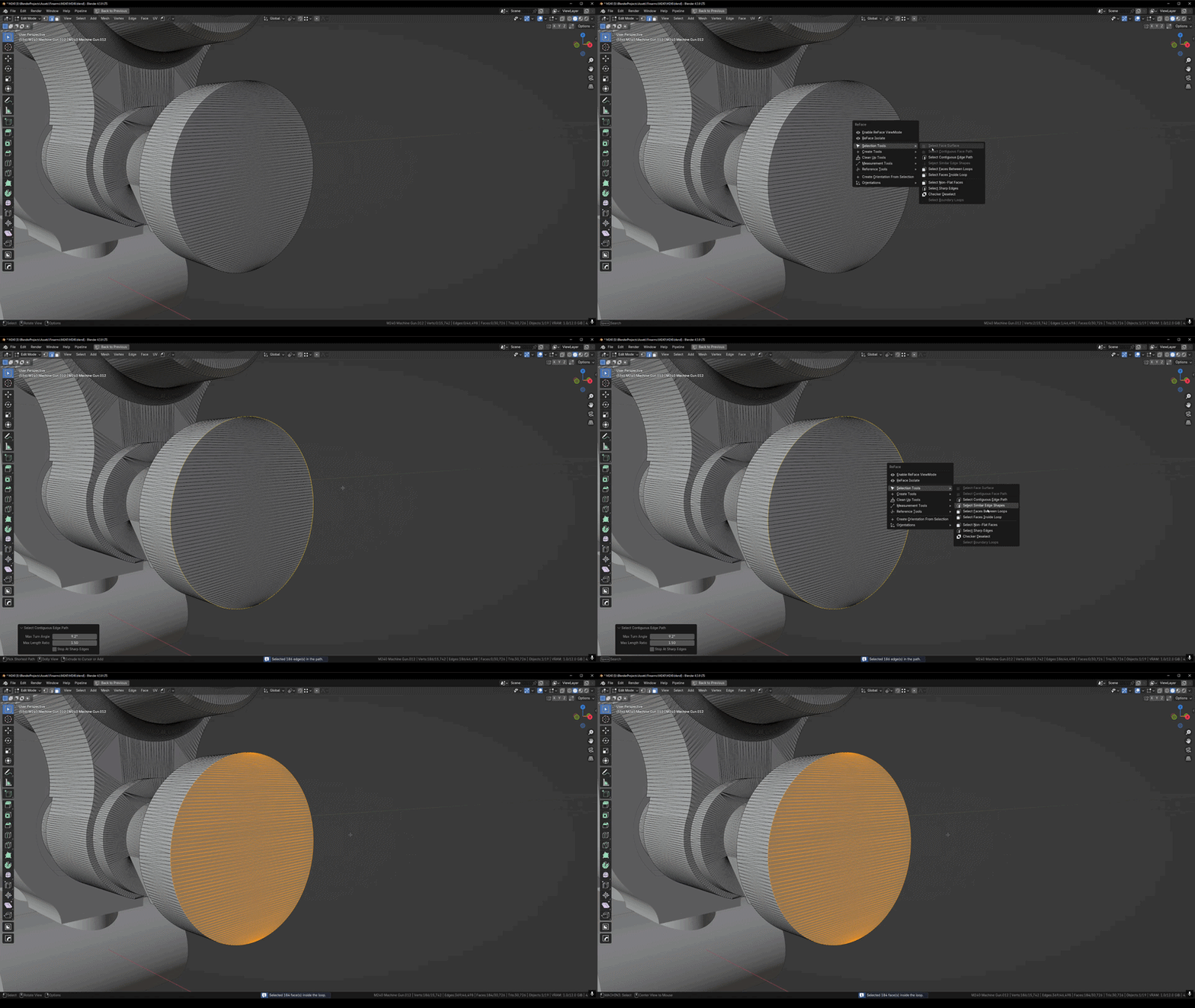
Select Non-Flat Faces
Finds and selects non-planar faces based on the add-on’s planarity tolerance.
Boundary / Utility Selection
- Select Boundary Loops: converts selected face regions to boundary loops.
- Select Sharp Edges: opens Blender’s sharp-edge selection tool.
- Checker Deselect: opens Blender’s checker deselect tool.
Edit Mode: Create Tools
Create Arc
Creates a circular arc between two selected unconnected vertices.
Create Tangent Arc (G1)
Creates a G1 tangent arc between two connected selected edges.
Array Mesh Along Path
Destructively duplicates a selected mesh object along a selected edge path or face path.
Edit Mode: Cleanup / Retopology Tools

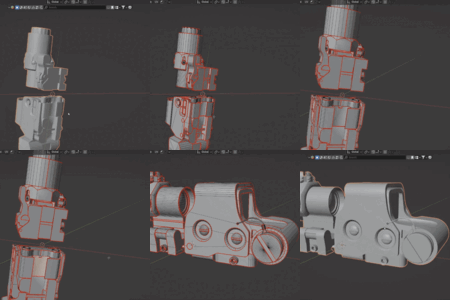
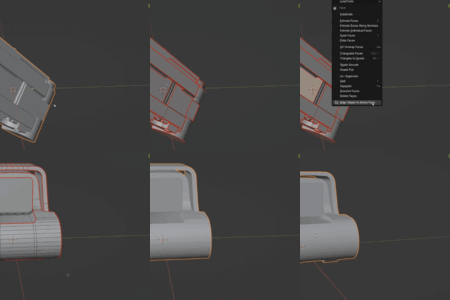
These tools are designed for practical repair work: messy boolean cuts, imported STL geometry, uneven circular openings, inconsistent loop counts, and selected face islands that need cleaner topology.
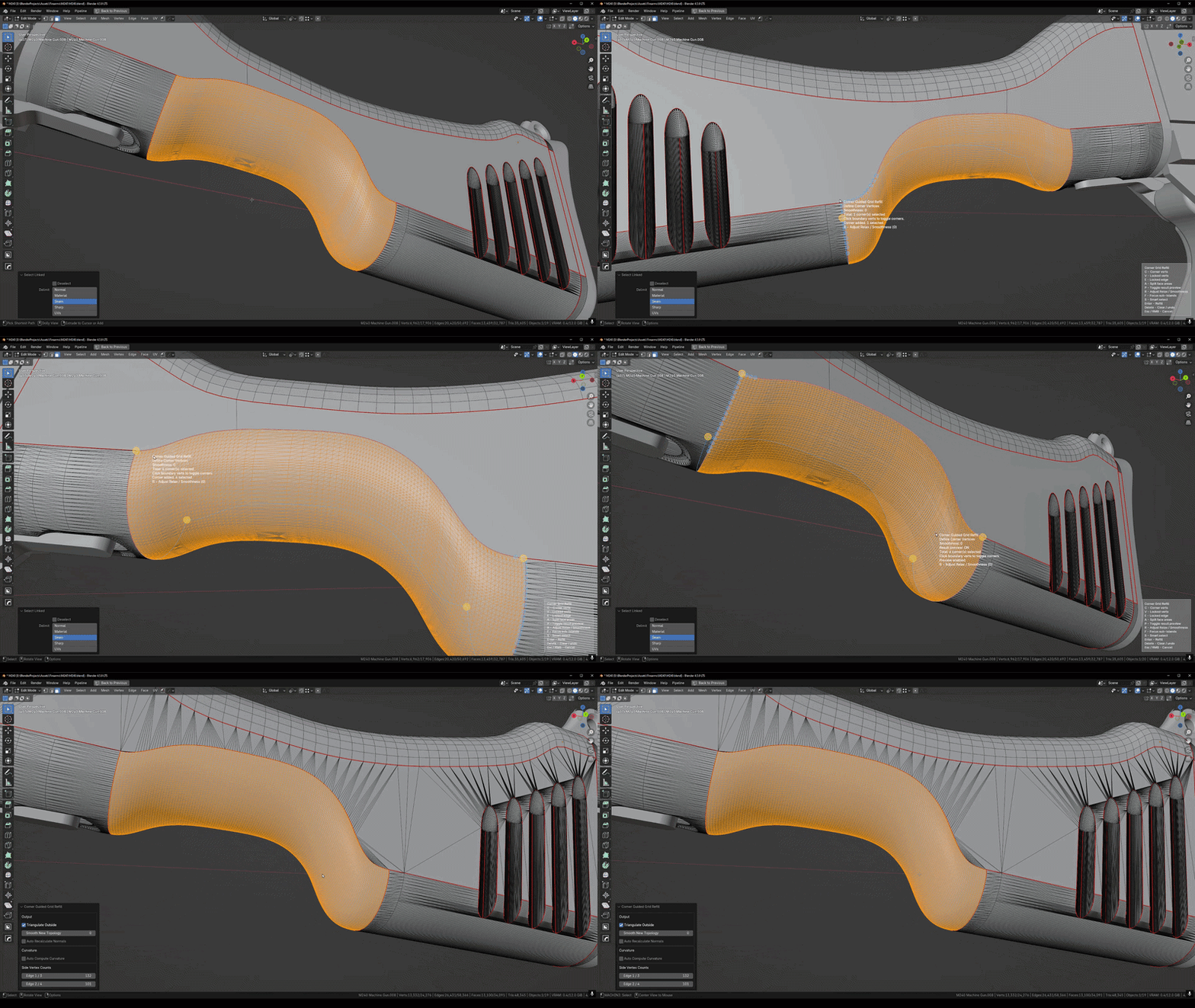
Corner Guided Grid Refill

Retopologizes a selected face island by choosing boundary corners and rebuilding it with a guided Grid Fill workflow.
- Best used on messy STL or boolean-generated face islands.
- Works on many shapes depending on how constraints are defined.
- Useful for rebuilding nearby patches into cleaner grid-based topology.
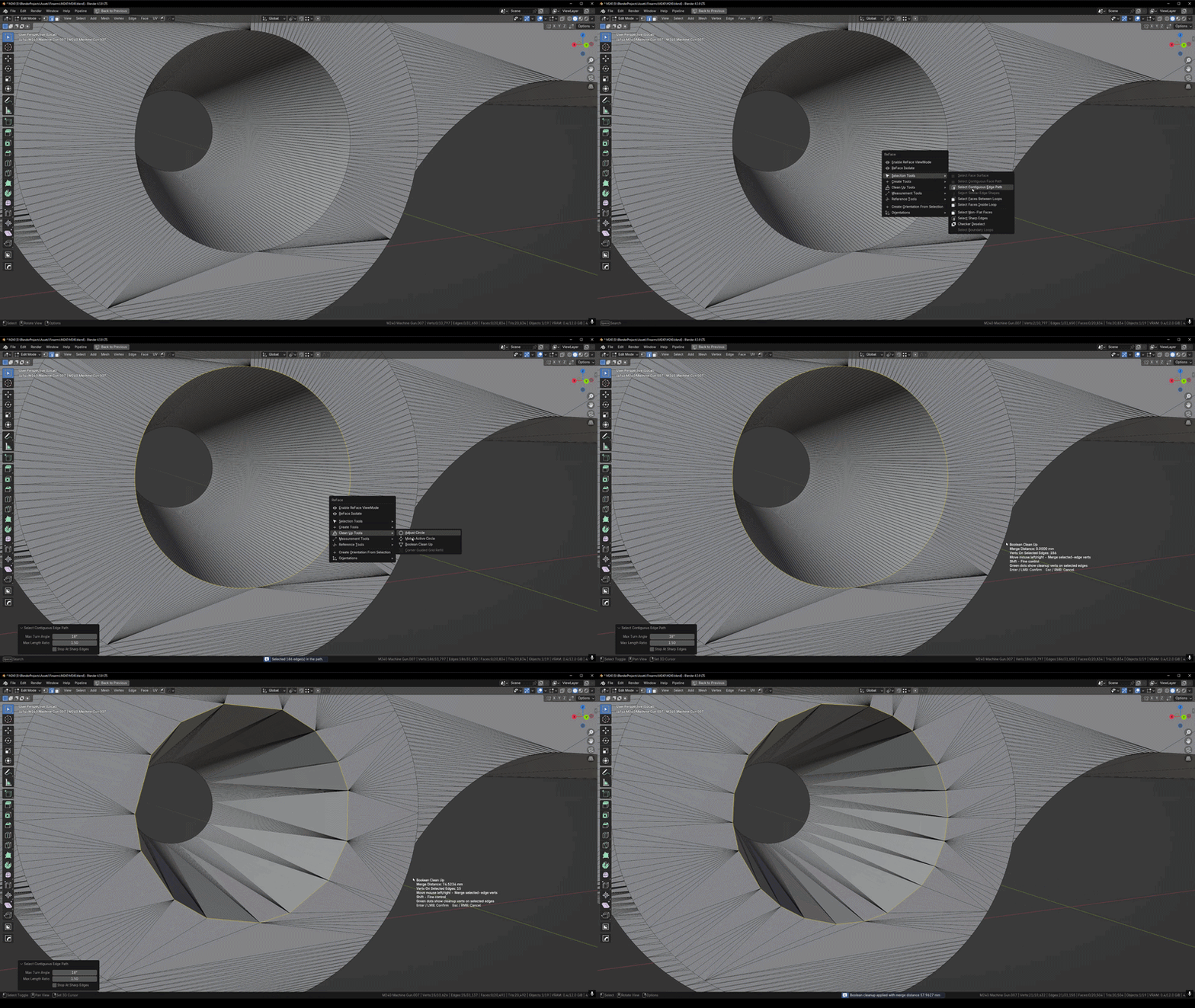
Boolean Clean Up
Interactive cleanup tool that merges vertices on selected edges. This is useful after boolean cuts where edges are fragmented, duplicated, or slightly messy.
Adjust Circle
Re-circularizes a selected circular edge loop, spaces vertices evenly, and can adjust vertex count.
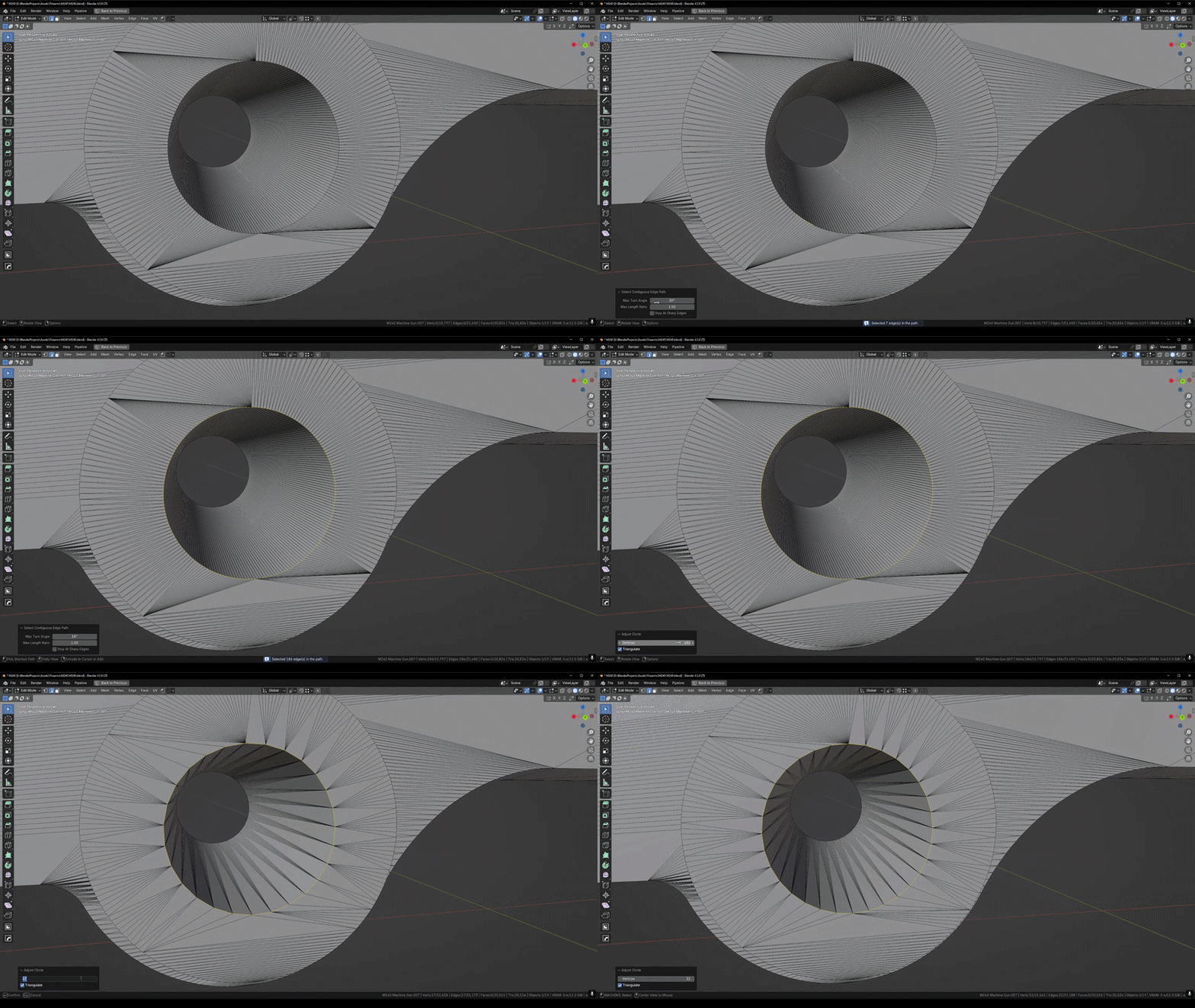
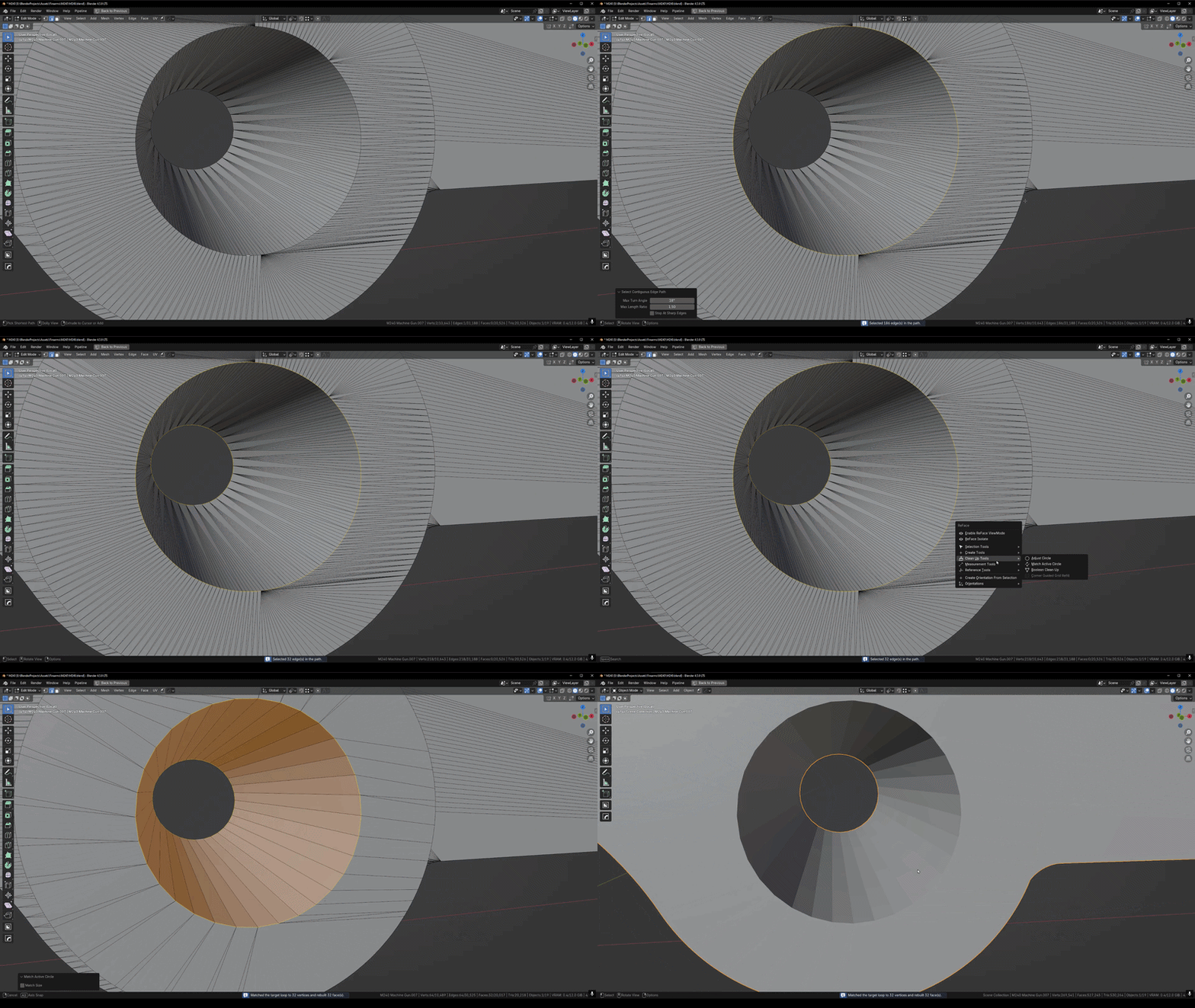
Match Active Circle
Matches another closed loop to the active loop’s vertex count and optionally its radius, then rebuilds faces between them.
Edit Mode: Measurement Tools
Set Edge Length
Sets a selected edge to an exact length using the current scene units.
- Select exactly one edge.
- Run Set Edge Length.
- Enter the desired length.
- Choose the anchor point: first vertex, second vertex, or center.
Match Active Edge Length
Changes selected edges to match the length of the active edge.
- Select multiple edges.
- Make the reference edge active.
- Run Match Active Edge Length.
- Use anchor options to control how edges resize.
Set Edge Angle
Sets the angle between two connected selected edges.
- Select exactly two connected edges.
- Choose which edge stays anchored.
- Set the target angle.
Set Circle Radius
Sets the radius of a selected circular edge loop using the current scene units.
- Select a closed set of vertices or a circular edge loop.
- Run Set Circle Radius.
- Choose whether the radius changes from the center or from the active vertex.
Edit Mode: Reference Tools
Set Alignment Reference
Stores a selected edge, face, two vertices, or three vertices as a reusable reference.
- One edge: stores a reference edge.
- Two vertices: stores a reference edge between the two vertices.
- One planar face: stores a reference plane.
- Three vertices: stores a reference plane from the three points.
Clear Alignment Reference
Removes the stored reference and deletes its guide object.
Align Object to Active Face
Rotates the active object so the active face aligns to the world XY plane, with the face normal pointing to +Z. Location and scale are preserved.
Align Edges to Active
Aligns selected disconnected edges parallel or perpendicular to the active edge.
Align Vertex / Edge to Reference Edge
Aligns a selected vertex or edge to the stored reference edge.
- Supports offset control.
- Supports anchor modes.
- Can translate only or rotate the selected edge to the reference direction.
Project Verts to Reference Face
Projects selected vertices onto the stored reference face or reference plane. Useful for flattening, planar cleanup, and correcting drift.
Mirror Selection from Reference
Mirrors the current vertex, edge, or face selection using the stored reference edge or reference plane. This is useful for repeating cleanup work across symmetrical details without manually recreating the same selection.
Edit Mode: Orientation Tools
Create Orientation From Selection
Creates a custom transform orientation from one selected edge or face.
Set Orientation
Switches the active transform orientation.
Delete Active Custom Orientation
Deletes the currently active custom transform orientation.
Clear All Custom Orientations
Deletes all custom transform orientations created or managed through ReFace.
Common Workflows

Clean an Imported STL Patch
- Select the messy face island.
- Use selection tools to isolate the region if needed.
- Run Corner Guided Grid Refill.
- Define the boundary constraints and corners.
- Confirm the rebuild and inspect the result.
Repair a Rough Circular Opening
- Select the circular edge loop.
- Run Adjust Circle or Set Circle Radius.
- Adjust radius, spacing, or vertex count as needed.
- Use Match Active Circle if another loop should match it.
Use a Reference Plane for Cleanup
- Select one planar face or three vertices.
- Run Set Alignment Reference.
- Select vertices that need to be flattened or corrected.
- Run Project Verts to Reference Face.
Inspect and Edit Measurements Live
- Enable ReFace ViewMode.
- Use overlays to inspect edge lengths, angles, circles, faces, and loops.
- Enable drag handles when direct viewport adjustment is needed.
- Use HUD actions for Set Length, Set Angle, Set Radius, Set Reference, or Clear Reference.
Notes and Best Practices
- Use clean selections. Many ReFace tools depend on a clear active element or a clean selected loop/path.
- Planar references should be flat. Face references work best when the selected face is planar.
- Check your selection mode. Vertex, edge, and face modes can change how some reference tools interpret the selection.
- Scene units matter. Edge length and radius inputs follow Blender’s Scene Properties unit setup.
- Use ViewMode for inspection. It is the fastest way to catch uneven lengths, incorrect radii, non-flat faces, and topology issues.
- For retopology tools, define constraints carefully. Corner Guided Grid Refill can handle many shapes, but the quality of the result depends heavily on how the boundary and constraints are defined.
Troubleshooting
Recommended Starting Points
- Start with ReFace ViewMode to inspect your mesh and understand what needs cleanup.
- Use Set Alignment Reference early when a workflow needs a stable edge or plane.
- Use Set Edge Length, Set Edge Angle, and Set Circle Radius for exact CAD-style corrections.
- Use Adjust Circle, Match Active Circle, and Boolean Clean Up for imported or boolean-heavy models.
- Use Corner Guided Grid Refill when a selected face island needs to be rebuilt into cleaner topology.
