 3DMAGIC


Getting Started
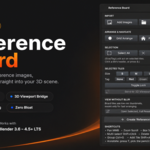
- Install the add-on (Edit > Preferences > Add-ons > Install), then enable it.
- A new Reference tab appears automatically at the top of the screen, next to Layout/Shading. If it doesn't, open the add-on's Preferences entry and click "Create 'Reference' Tab".
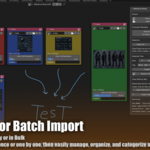
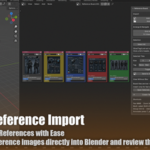
- In the sidebar (press N if it's hidden), use Add Images or Add Folder to bring in your reference pictures.
Organizing the Board
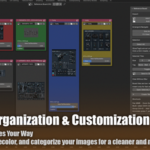
- Click a tile's header (top strip) to select it — clicking a slider or field inside the tile does not select it. Press B to box-select several at once.
- With tiles selected, use the Size (S/M/L/XL) and Tag (color) buttons in the sidebar to organize visually.
- Group tiles visually with Blender's native Ctrl+G (Frame). Delete with X, duplicate with Shift+D — all native Node Editor shortcuts.
- Press T to open the tool shelf and use Blender's built-in Annotate tool to sketch notes directly on the board.
Sending References Into Your 3D Scene
- Select one or more tiles (e.g. front/side/back views of a character).
- Click Send to 3D Viewport... A dialog lets you:
- Group as One Rig — parents all created references under one Empty so they move/scale/hide together.
- Match Size to Selected Mesh — if a mesh is also selected in the scene, references are auto-scaled to match it.
- Guess Orientation From Filename — auto-rotates each image if its filename contains front/back/left/right/top/bottom.
- Open the 3D Viewport's sidebar > "Reference Rig" tab to show/hide, isolate, adjust opacity, select, or delete any rig — without touching the Outliner.
Viewing Without Blur
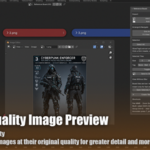
Board tiles are lightweight thumbnails meant for fast organizing (like any file browser icon). For pixel-perfect viewing at any size:
- Click View Full Resolution on any tile to open it in a real, independently resizable Image Editor window.
- Select several tiles and click Open Selected, Full Resolution in the sidebar to open them all at once, each in its own window.
- Or simply send them to the 3D Viewport — Image Empties are always rendered at full quality.
Updating References for a Resized Model
If your model's proportions change later: select the model plus its reference rig together, then click Match Size to Selected Mesh in the 3D Viewport's "Reference Rig" panel. Everything rescales instantly.
Compatibility Notes
- Blender 3.6 LTS and newer (tested through 4.5 LTS). Works on Windows, macOS, and Linux.
- Native OS drag-and-drop of image files onto the board requires Blender 4.0+.
- "Lock" on a tile excludes it from Grid Arrange and tints it, but Blender's API does not allow fully preventing manual dragging.
Have questions about this product?
Login to message
| Blender Extension Compatible | Yes |
| Published | about 2 months ago |
| Blender Version | 4.1 - 5.2 |
| Extension Type | Add-on |
| Render Engine Used | Cycles, Eevee |
| License | GPL |
Discover more products like this
camera add mesh geometry nodes bake 3D View Add Curve animation Game Engine Development Grease Pencil Import-Export Compositing