 CGJackB



Reliable Auto Save for Blender
Reliable Auto Save creates real, timestamped .blend backup files while you work in Blender.
Unlike Blender’s built-in temporary recovery autosave, these backups are normal .blend files that you can open directly.
Installation
Open Blender.
Go to Edit > Preferences > Get Extensions.
Open the options menu and choose Install from Disk.
Select the Reliable Auto Save ZIP file.
Enable the extension if Blender does not enable it automatically.
Where to Find It
Reliable Auto Save can be accessed from:
3D Viewport Header — autosave icon and dropdown
3D Viewport Sidebar — press
Nand open the AutoSave tabBlender Preferences — extension settings
Quick Setup
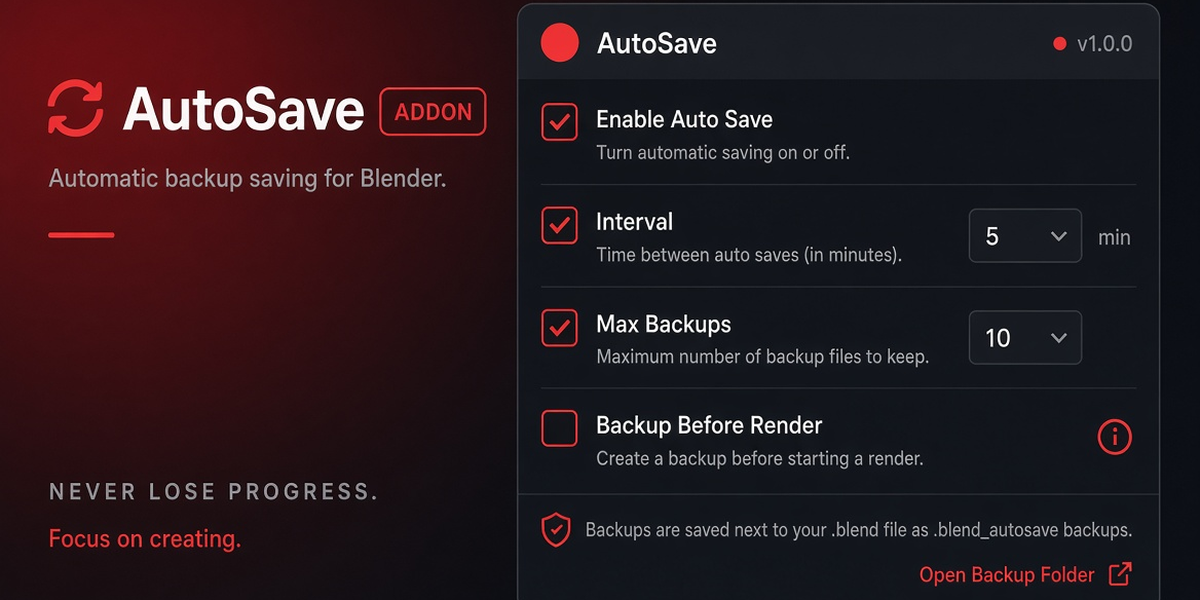
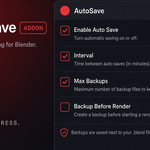
Enable Reliable Auto Save.
Set the Interval in minutes.
Set the maximum number of backups to keep.
Enable Save Only If File Changed if desired.
Enable Backup Before Render if desired.
Optionally choose a custom backup folder.
For most users, an interval of 2–5 minutes and 20–50 backups works well.
Backup Location
By default, backups are placed in a folder named:
_autosave_backups
This folder is created beside your current .blend file.
Example:
D:\Projects\MyScene\MyScene.blend
Backups will be stored in:
D:\Projects\MyScene\_autosave_backups\
You can also enable Use Custom Backup Folder and select your own location.
Backup File Names
Backup files include the project name and timestamp.
Example:
MyScene__autosave__2026-10-27_01-30-00.blend
This makes it easy to identify previous versions.
Max Backups
The Max Backups setting controls how many backups are retained for the current project.
When the limit is exceeded:
the newest backups are kept
the oldest matching backups are automatically deleted
Save Only If File Changed
When enabled, Reliable Auto Save checks whether Blender reports unsaved changes.
If nothing has changed since the previous save, another backup is not created.
This helps reduce unnecessary files and disk usage.
Backup Before Render
When Backup Before Render is enabled, Reliable Auto Save creates a backup when a render job begins.
For animation renders, it creates one backup at the beginning of the render job rather than creating a new backup for every frame.
Header Controls
The 3D Viewport header provides quick access to Reliable Auto Save.
The autosave icon can be used to enable or disable the system.
The adjacent dropdown opens the full Auto Save controls, including:
autosave interval
maximum backups
Save Only If File Changed
Backup Before Render
backup folder settings
Save Backup Now
Open Backup Folder
Re-Arm Timer
Manual Backup
Click Save Backup Now to immediately create a timestamped backup.
This does not change the path of your currently open Blender project.
Open Backup Folder
Click Open Backup Folder to open the folder currently being used for backups.
Re-Arm Timer
The Re-Arm Timer button resets the autosave countdown.
This can be useful after changing the autosave interval or troubleshooting the timer.
Recommended Settings
For a typical Blender workflow:
Interval: 3 minutes
Max Backups: 20–50
Save Only If File Changed: Enabled
Backup Before Render: Enabled
For very large Blender files, you may prefer a longer interval.
Important
Reliable Auto Save is designed as an additional safety layer.
It is still recommended to:
save your working project normally
keep Blender’s built-in recovery options enabled
maintain external backups of important projects
For best reliability, use a local SSD or another folder with reliable write access.
Have questions about this product?
Login to message
| Blender Extension Compatible | Yes |
| Dev Fund Contributor | |
| Published | about 4 hours ago |
| Blender Version | 5.0 - 5.2 |
| Extension Type | Add-on |
| License | GPL |

Discover more products like this
backup autosave file management Workflow crash recovery pipeline blender 5 file recovery safety blend backup Versioning productivity