 EnnJinn


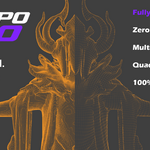
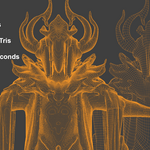
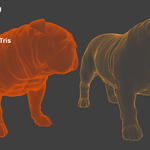
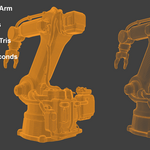
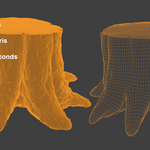
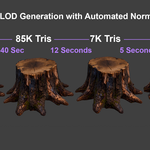
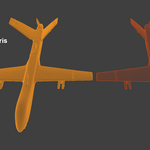
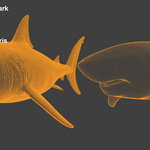
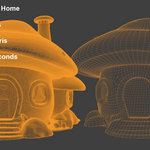
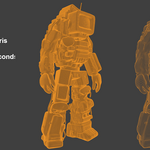
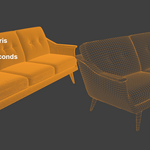
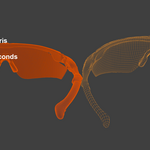
Retopo Loco is a Blender add-on that turns a messy, high-poly mesh into
clean, production-ready quad topology — right inside Blender, in a couple of
clicks. No server, no internet connection, no separate download: a genuine
cross-field quad solver ships bundled inside the add-on itself, so
installing it is the only setup step.
This README covers installation, how the tool actually works, what each
setting does, and some tips for getting the best results.
---
## Requirements
- **Blender 4.2 or newer.**
- **Windows** — fully tested.
- **macOS** — Apple Silicon (M-series) only; there is no Intel build.
- **Linux** — needs a real desktop session (X11 or Wayland with XWayland).
It will not run over a headless/SSH-only session.
- About 160 MB of disk space once installed (the engine is bundled for all
three platforms at once, so the same download works everywhere).
---
## Installation
1. Download `RetopoLoco.zip`. **Do not unzip it** — Blender installs it
straight from the zip.
2. In Blender, go to **Edit > Preferences > Add-ons**.
3. Click the dropdown arrow in the top-right corner of the Add-ons window
(or the **Install...** button, depending on your Blender version) and
choose **Install from Disk**.
4. Select `RetopoLoco.zip` and confirm.
5. If the checkbox next to "Retopo Loco" isn't already ticked, tick it to
enable the add-on.
That's it — the solver engine is already inside the package, so there's
nothing else to download, configure, or point at an external tool.
### Finding it in Blender
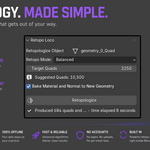
In the 3D Viewport, press **N** to open the sidebar, then look for the
**Retopo** tab. That's the add-on's entire interface — one panel, no
sub-menus to dig through.
---
## How it works
1. **Select a mesh** in your scene (it needs to be a Mesh object).
2. Open the **Retopo** tab in the sidebar.
3. Pick a **Retopo Mode** (see below).
4. Set your **Target Quads**, or just use the suggested value shown right
under it.
5. Optionally turn on **Bake Material and Normal to New Geometry** (see
below).
6. Click **Retopologize**.
While it runs, you'll see a real progress bar — the percentage and current
phase come straight from the solver itself, plus a rough time-remaining
estimate once it has enough data to make one. You can hit **Cancel** at any
point to stop it immediately.
When it finishes, a new object named `_Quad` appears in the
scene, in the exact same position, rotation and scale as the original — so
the before and after sit right on top of each other. Your original mesh is
**hidden, not deleted**, so you can toggle it back on in the Outliner at any
time to compare, or just hit **Ctrl+Z** to undo the whole operation in one
step (Retopo Loco pushes a single, clean undo step, not a handful of messy
intermediate ones).
You don't need to apply your object's scale/rotation/location first —
Retopo Loco already accounts for your object's full transform, so the
result lands in the right place regardless.
---
## The four Retopo Modes
Retopo Loco deliberately doesn't hand you a wall of cross-field tuning
sliders. Instead there are four fixed, ready-to-use presets:
| Mode | Best for | What it does |
| --- | --- | --- |
| **Bedrock** | Simple, blocky, architectural shapes | Steady, even quad flow with no adaptive density or edge stretching — a plain, reliable foundation. |
| **Balanced** | Most everyday assets | The general-purpose default: denser topology where the shape needs it, longer quads where it doesn't. |
| **Chiseled** | Hard-surface, mechanical, man-made objects | Keeps sharp edges crisp and deliberate instead of softening them — good for anything that should look "cut," not "melted." |
| **Sculpted** | Organic, sculpted, creature/character forms | Soft, flowing quad flow that favors smooth curves over sharp corners — built for anything that came out of a sculpting session. |
If you're not sure where to start, **Balanced** is a safe default for
almost anything. Switch to **Chiseled** or **Sculpted** once you know which
direction your specific mesh needs.
## Target Quads
This is the quad count the solver aims for — it lands close to this number,
not exactly on it, since the actual result depends on the shape it's
working with. Retopo Loco shows a **Suggested Quads** value under the field
based on your source mesh's own triangle count, which is a reasonable
starting point for most assets. Push it up for more topology detail, or
down for a lighter result — there's no fixed "right" number, it depends on
what the mesh is for (a background prop needs far fewer quads than a
hero character).
## Bake Material and Normal to New Geometry
Off by default. When enabled, this runs **after** the quad solver has
already finished — it treats your original mesh as a high-poly "cage" and
bakes its appearance down onto the new low-poly mesh's own UVs, via Cycles:
- **Base Color**
- **Roughness**
- **Metallic**
- **Normal** (a full tangent-space normal map, capturing surface detail —
bark, wrinkles, panel lines, whatever your source mesh actually has —
so the simplified quad mesh doesn't just look flat and faceted)
The result is packed into a brand-new material assigned to the retopo'd
mesh, ready to use immediately — no manual texture setup required.
A few things worth knowing:
- **It only touches the new mesh's material — never its geometry.** The
solver has already finished and written the final topology before this
step even starts; enabling or disabling this checkbox cannot change the
shape of the result.
- **It only does anything if your source mesh already has a material.** If
it doesn't, the bake step reports a failure but the retopologized mesh
itself is still produced normally — a failed bake never throws away the
actual deliverable.
- **It adds real time to the run.** This is a genuine Cycles bake across
four 2K image channels, not a shortcut — expect it to noticeably
outlast the solve itself, especially on detailed meshes. If you're
iterating quickly on topology and don't need materials yet, leave it off
and turn it on for your final pass.
---
## Best practices
- **Iterate on topology first, bake last.** Turn off the material bake
while you're dialing in Retopo Mode and Target Quads — it's the slowest
part of the process by far, and you don't want to pay that cost on every
test run.
- **Compare, don't guess.** Since the original is only hidden, toggle its
visibility in the Outliner (or just undo) to flip between before and
after until you're happy with the result.
- **Match the mode to the mesh, not the other way around.** A hard-surface
prop run through Sculpted will round off edges you wanted crisp; an
organic character run through Chiseled can look faceted. When in doubt,
start from Balanced and compare against the alternative that matches
your subject.
- **Give it a sensible target quad count.** Extremely high targets on an
already-simple mesh mostly just add solve time for no visual benefit;
extremely low targets on a complex mesh can lose the shape entirely. The
suggested value is a reasonable anchor to adjust from.
- **A material bake needs a material to bake from.** If you want textures
transferred, make sure the *original* mesh has an actual material with
something in its Base Color/Roughness/Metallic inputs before you retopo —
an untextured or material-less source has nothing to bake.
---
## Troubleshooting
| Problem | What to do |
| --- | --- |
| "Engine files missing" error | Reinstall the add-on — the bundled solver files didn't make it into your Blender install correctly. |
| Retopologize button is greyed out | Make sure you have a **Mesh** object selected and active (not an empty, camera, curve, etc.). |
| It's taking a long time | Lower **Target Quads**, and make sure **Bake Material and Normal to New Geometry** is off if you don't need it yet — the bake is the most time-consuming part. |
| macOS refuses to run the engine | The add-on clears the quarantine flag automatically on first run. If it's still blocked, allow it once via **System Settings > Privacy & Security**. |
| Nothing happens on Linux | Retopo Loco needs a real graphical desktop session — it won't run over a plain headless/SSH connection. |
| "Material bake failed: ..." in the result message | The retopologized mesh was still produced successfully — only the optional bake step failed. The most common cause is the source mesh having no material assigned. |
| A solve is stuck for a very long time | Every run has a 60-minute hard limit and will report a timeout if it's exceeded; you can also hit **Cancel** at any point before that. |
---
## Uninstalling
**Edit > Preferences > Add-ons**, find Retopo Loco, and remove it from
there like any other add-on.
Have questions about this product?
Login to message
| Blender Extension Compatible | Yes |
| Sales | 10+ |
| Rating | 1 ratings |
| Dev Fund Contributor | |
| Published | about 2 months ago |
| Blender Version | 4.2 - 5.2 |
| Extension Type | Add-on |
| Render Engine Used | Arnold, Blender-Internal, Blender-Game-Engine, Cycles, Eevee, Freestyle, Luxrender, Mental-Ray, Octane, Vray, Yafaray |
| License | GPL |
