RetopoGen — Game-Ready Auto-Retopology, LODs & Baking for Blender
 StormScourge Games


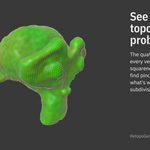
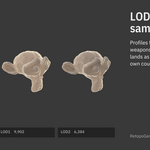
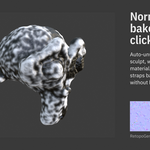
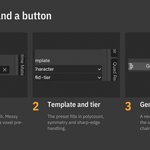
RetopoGen 1.0.2 — Documentation
RetopoGen turns a high-poly mesh into a game-ready quad mesh, builds LOD chains, bakes normal and AO maps onto the result, and gives you the tools to check and fix topology — all from one tab in the 3D viewport sidebar.
Everything in this manual describes version 1.0.2 exactly as it ships. Field names match the panel.
Contents
- Requirements and installation
- The 60-second version
- How RetopoGen works
- Main panel reference
- Instant Meshes panel
- Post-Edit Tools panel
- Bake Pipeline panel
- Preferences
- Presets reference
- Workflows
- What auto-retopology can and cannot do
- Performance notes
- Troubleshooting
- FAQ
- Changelog
- Licenses and support
1. Requirements and installation
Requirements
- Blender 4.5 LTS or later. Tested on 4.5, 5.0 and 5.2 LTS.
- Windows, macOS or Linux. QuadriFlow works out of the box; the optional Instant Meshes engine uses a free program you install separately (section 5).
- Cycles (included with Blender) is used for baking.
- RetopoGen makes no network connections and collects no data.
Install
- Edit → Preferences → Get Extensions.
- Open the dropdown at the top right of that page and choose Install from Disk…
- Select
retopogen-1.0.2.zip. The extension enables itself. - In the 3D viewport press N to open the sidebar. The RetopoGen tab holds four panels: RetopoGen (main), Instant Meshes, Post-Edit Tools and Bake Pipeline.
Update: install the new zip the same way; Blender replaces the previous version.
Remove: Edit → Preferences → Get Extensions → Installed → RetopoGen → dropdown → Uninstall.
2. The 60-second version
- Target — pick your high-poly mesh.
- Template and Quality Tier — for example Organic + Mid-tier. The preset fills in polycount and solver settings.
- Generate Retopo.
A new object named _retopo appears beside the source, all quads, at the same position. The source is never modified.
If Generate reports that QuadriFlow could not process the mesh, turn on Robust (Voxel Pre-Pass) and click Generate again.
3. How RetopoGen works
RetopoGen never edits the Target. Every operation that produces geometry works on a copy:
-
Generate Retopo copies the Target's mesh, optionally rebuilds it with a voxel pre-pass, cleans it, runs the chosen solver and leaves the result as a new object:
_retopofor a single mesh,_LOD0,_LOD1, … for a LOD chain,_retopo_imfor Instant Meshes. - Separate Panels copies the Target and splits the copy.
- Bake Maps writes UVs, a material and images onto the active object (your retopo), reading detail from the Target.
Two solvers are available. QuadriFlow is Blender's own quad remesher: it hits the polycount you ask for, runs in seconds, and is deterministic. Instant Meshes is a free external field-aligned remesher you install separately: fast, guidable with painted strokes in its own GUI, and it treats the requested face count as approximate.
Guides are ordinary Blender sharp edges on the Target. Anything marked sharp — by the guide buttons or by hand — becomes a constraint the solver aligns to.
Generate, Separate Panels and all Post-Edit tools support Undo (Ctrl+Z). Bakes write image data and are not undoable.
4. Main panel reference
Target
The high-poly mesh to retopologize. Only mesh objects can be picked. If the Target has a Multires modifier, apply or remove it first; Generate refuses to run otherwise.
Engine
- Quadriflow — Blender's built-in remesher. Use it for exact polycounts, LOD chains and anything you need to reproduce.
-
Instant Meshes (CLI) — runs your own installed Instant Meshes headlessly with the settings from the Instant Meshes panel (one-time setup, section 5). The result is named
_retopo_im. Face count is approximate and can overshoot on dense input; for hand-guided edge flow use the GUI workflow described in section 5.
Template and Quality Tier
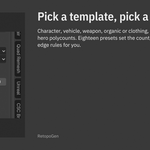
Choosing a Template or a Tier fills in Target Polycount, Preserve Sharp Edges, Preserve Boundary, Mesh Symmetry and Smooth Normals. You can change any of them afterwards; the preset is a starting point, not a lock. Custom leaves all values as they are. The full table is in section 9.
| Template | Intended for | Sharp | Boundary | Symmetry | Smooth |
|---|---|---|---|---|---|
| Character | bodies, heads | off | on | on (X) | on |
| Vehicle | cars, ships, mechs | on | on | off | off |
| Weapon | guns, blades, tools | on | on | on (X) | off |
| Organic | creatures, rocks, terrain pieces | off | on | off | on |
| Clothing | garments with open hems | off | on | on (X) | on |
| Custom | anything | — | — | — | — |
Tiers scale the polycount: Mobile / VR, Mid-tier (console and mid-range PC) and AAA Hero.
Settings
- Target Polycount — approximate number of quads in the result (QuadriFlow lands within a few percent). Range 100 to 1,000,000.
- Preserve Sharp Edges — keeps sharp edges aligned in the new topology. Turned on automatically for the run whenever the Target has guide edges.
- Preserve Boundary — keeps open edges (hems, holes, panel borders) intact instead of closing or eroding them.
- Mesh Symmetry — QuadriFlow only. Mirrors the result across the Target mesh's symmetry axis. If the Target has no symmetry axis set, RetopoGen uses X. (Set another axis on the Target under Object Data Properties → Symmetry.)
- Smooth Normals — shade the result smooth. Off for hard surface.
Source Pre-Pass
- Robust (Voxel Pre-Pass) — voxel-remeshes the copy before retopologizing. Use it for sculpts with overlapping shells, scans and photogrammetry, self-intersections, and any mesh QuadriFlow refuses. The voxel pass rebuilds the surface, so it also erases guide edges on the copy (RetopoGen warns you) and softens detail finer than the voxel size.
- Voxel Size — 0 means automatic: 1% of the object's bounding-box diagonal. Smaller keeps more detail and takes longer; a 1,000,000-triangle sculpt at the automatic size takes about a second.
- Symmetrize Source First and its direction — mirrors one half of the copy onto the other before retopologizing. For scanned objects that should be symmetric but aren't. The direction reads as side kept → side replaced.
Multi-LOD
-
Multi-LOD — generate several levels in one click instead of one mesh. Each level is a separate object:
_LOD0,_LOD1, … - Profile — Vehicle (4 levels, 100/50/25/12.5%), Character (3 levels, 100/60/36%), Weapon (2 levels, 100/50%), Mobile Aggressive (4 levels, 100/40/16/6.5%), or Custom.
- LOD Count (2–6) and LOD Falloff (0.1–0.95) — each level's polycount is the previous level's count multiplied by the falloff, never below 100 quads. LOD0 always uses Target Polycount.
If any level fails, RetopoGen removes the partial chain and reports the error.
Guides (sharp edges on Target)
Guides tell the solver where edge flow must go. They are Blender sharp edges on the Target; you can also mark them yourself in Edit Mode (Edge → Mark Sharp) and RetopoGen treats them the same way.
- Mark — first click puts the Target in Edit Mode. Select edges, click Mark again to mark them.
- Mark Loop — expands your edge selection to full edge loops and marks them. Select one edge across a limb or around an eye first.
- Mark Ring — expands to an edge ring (across faces) and marks it. Useful for cylindrical parts.
- X (clear button) — removes every sharp edge on the Target.
- Mark Borders — marks all open boundaries: hems, holes, garment edges.
- Mark Hard Edges (by Angle) — marks every edge whose faces meet at more than the angle you set (default 30°). One click sets up most hard-surface assets. Adjust the angle in the Adjust Last Operation panel (bottom left) after clicking.
Generate Retopo
Runs the pipeline with everything above. In the status bar you get the result: object name, quad count, template used. Undo removes the result.
5. Instant Meshes panel
Instant Meshes is a free, separate program; RetopoGen does not include it.
One-time setup
- Click Open download page in the panel and download the build for your system.
- Unzip it anywhere.
- Click Set path in Preferences and point the path field at the program — on macOS you can pick the
Instant Meshes.appbundle itself.
The panel shows Ready once the path is valid; until then the workflow buttons are disabled and QuadriFlow is unaffected.
IM Settings apply to the headless engine and to the LOD chain when Engine is Instant Meshes:
- Deterministic — fixed random seed so the same input gives the same output. On by default.
- Crease Angle — dihedral angle (degrees) above which Instant Meshes treats an edge as a crease. 0 disables.
- Smooth Iterations — smoothing passes on the orientation field (default 2).
- Rotational Symmetry — 2, 4 or 6. 4 gives quads.
- Position Symmetry — 4 for quads, 6 for triangles.
Workflow (stroke-guided edge flow):
- Open in IM GUI — exports the Target as OBJ and launches the Instant Meshes application.
- In Instant Meshes, paint orientation strokes where you want the flow to go, set the face count, click Solve, then Extract Mesh, then save the result as OBJ.
- Back in Blender, Import IM Result — pick the saved OBJ. It comes in as
_retopo_imat the Target's position.
Face counts from the headless engine are approximate; on dense input they can come out two to four times higher than requested. If the count matters, use QuadriFlow, or dial it in inside the GUI.
6. Post-Edit Tools panel
These act on the active object — normally your retopo result. Tools with settings can be adjusted in the Adjust Last Operation panel after you click them.
Cleanup
- Quick Cleanup — merge vertices by distance (0.0001), delete loose geometry, dissolve degenerate faces, make normals consistent. Run it on a source that QuadriFlow rejects, or on any imported mesh.
- Convert Tris to Quads — merges adjacent triangles into quads where possible.
- Convert Quads to Tris — the same triangulation as Game Export below.
Topology Quality
- Quality Report — prints quad/tri/n-gon counts and a pole breakdown to the status bar: 3-poles, 5-poles, and bad poles (valence 2 or below, 6 or above). 3- and 5-poles are normal and useful; bad poles are the ones to fix.
-
Compute Quality Heatmap — writes a per-vertex colour attribute named
retopogen_quality. Green is ideal, red is poor. The score averages two things: a valence score (valence 4 = 1.0; 3- and 5-poles are penalized more the more curved the surface is under them; valence 2 or 6 = 0.2; 7 or more = 0.05; boundary vertices are not penalized) and the squareness of the faces around the vertex. To see it: viewport shading Solid, Color: Attribute. - Select Bad Poles — selects interior vertices with valence 2 or below, or 6 or above, and switches to Edit Mode.
- Find Pinch Risk — selects interior poles sitting on curved surface (angle defect above the Curvature Threshold, default 0.5 radians). These are the vertices that pinch under subdivision.
- Smooth Topology — computes quality, selects vertices below Threshold (default 0.5) and smooths only those, Iterations times (default 3). Everything else stays exactly where it was.
Inspection
-
Toggle Subdiv Preview — adds a level-2 Subdivision Surface modifier named
retopogen_preview; click again to remove it. Look for pinching at poles.
Symmetry
- Detect Asymmetry — selects vertices that have no mirror counterpart across the chosen Axis within Threshold (default 0.001). Leaves you in Edit Mode with the mismatches selected.
- Symmetrize — bisects on Axis, keeps the Keep Side half, mirrors it across and welds the seam within Center Weld Threshold.
Detail Reprojection
- Project to Source Surface — snaps the active mesh's vertices onto the Target with a Shrinkwrap that is applied immediately. Wrap Method: Nearest Surface Point (default), Project (along normals) or Nearest Vertex. Offset keeps the result a distance above the surface. Use it after smoothing or symmetrizing to pull the mesh back onto the sculpt.
Panel Workflow (Vehicles, Hard Surface)
-
Separate Panels — copies the Target, splits the copy along its sharp edges, and separates the pieces into objects named
_panels,.001,.002… All pieces are left selected. Mark the panel boundaries first (Mark Hard Edges usually does it in one click). -
Retopo All Selected Panels — runs Generate on every selected mesh with the current settings, producing one
_retopoobject per panel. Use a Custom polycount appropriate to a single panel.
Game Export
- Triangulate (Game Export) — converts the active mesh to triangles with your choice of Quad Method (Beauty for curved surfaces, Fixed, Fixed Alternate, Shortest Diagonal for hard surface) and Ngon Method (Beauty or Clip).
7. Bake Pipeline panel
Baking reads surface detail from the Target (plus any floating geometry) and writes it onto the active object. Select your retopo (or a LOD) so it is active, then click Bake Maps. RetopoGen switches to Cycles for the bake and restores your render engine afterwards.
Maps
- Normal Map — tangent-space normal map. Default on.
- AO Map — ambient occlusion. Default on.
- AO Distance — maximum ray distance (default 10). Larger is softer; scale it to your object size — try 1 to 10 for default units.
- AO Samples — Cycles samples for the AO pass (default 128). Higher is smoother and slower.
- AO Blur (px) — Gaussian blur applied to the AO image after baking (default 3). 0 keeps the raw result.
Output settings
- Resolution — 512, 1024, 2048 (default), 4096 or 8192, square.
- Margin (px) — bleed past UV island edges (default 16).
- Auto-Unwrap — runs Smart UV Project and packs islands on the destination before baking. Turn off to keep UVs you made yourself.
- Triangulate First — triangulates the destination before baking so the bake and the game engine see identical triangles. Off by default; recommended for export.
- Cage Extrusion — how far rays start above the low-poly surface (default 0.05). Raise it if the bake shows seams or missing detail.
-
Output Path — folder where PNGs are saved, named
_normal.png and_ao.png. Default//bakes/, relative to the .blend, which only works once the file has been saved. Leave empty to keep the images inside Blender only (save or pack them yourself before closing).Floating Geometry
Floating objects are baked into the destination's maps but never retopologized: bolts, straps, panel lines, sights.
- Include Floating — add every floating object to the bake source.
- Mark Floating / Unmark — flag or unflag the selected objects. The count in the label shows how many are flagged.
- Select All Floating — selects every flagged object in the scene.
Bake Maps
Source: Target. Destination: active object. Produces the images, a material named
_bake_mat with the normal map wired through a Normal Map node into the shader and the AO map into Base Color, so Material Preview shows the result immediately. Existing materials on the destination are replaced by the bake material.Bake All LODs
Finds every
_LOD*object and runs Bake Maps on each, with its own UVs, material and images. Generate with Multi-LOD first.---8. Preferences
Edit → Preferences → Get Extensions → RetopoGen → expand the entry.
-
Instant Meshes Path (optional) — where your own Instant Meshes install lives; on macOS the
.appbundle can be picked directly. Leave it empty if you only use QuadriFlow. A button below it opens the official download page.
---9. Presets reference
Target polycount in quads:
Template Mobile / VR Mid-tier AAA Hero Character 6,000 17,500 50,000 Vehicle 7,500 22,500 60,000 Weapon 2,000 6,000 12,500 Organic 2,500 6,000 15,000 Clothing 750 3,000 9,000 LOD profiles:
Profile Levels Falloff Polycount per level Vehicle 4 0.5 100 / 50 / 25 / 12.5% Character 3 0.6 100 / 60 / 36% Weapon 2 0.5 100 / 50% Mobile Aggressive 4 0.4 100 / 40 / 16 / 6.5% Custom 2–6 0.1–0.95 your values Defaults when nothing has been chosen: Character template, Mid-tier, 17,500 quads.
---10. Workflows
A. Sculpt to game-ready prop
- Target = the sculpt. Template Organic, tier to taste.
- If the sculpt has overlapping parts or came from dynamic topology, enable Robust.
- Generate Retopo.
- Post-Edit → Quality Report. If it lists bad poles, Select Bad Poles shows them; Smooth Topology usually settles them.
- Make the result active, Bake Pipeline → Bake Maps.
- Post-Edit → Triangulate (Game Export) if your engine needs triangles, then export.
B. Character base mesh
- Template Character, tier for your platform. Mesh Symmetry is on; the result mirrors across X.
- Optional: on the Target, Mark Loop around the eyes, mouth and major joints so the solver aligns to them.
- Generate Retopo, then Compute Quality Heatmap and Find Pinch Risk to see where the solver placed poles on curved surface.
- Hand-tune the loops around the face and joints in Edit Mode — see section 11 — then Project to Source Surface to snap your edits back onto the sculpt.
- Detect Asymmetry to confirm the mesh is still mirrored after editing; Symmetrize if not.
C. Hard-surface vehicle with panels
- Target = the vehicle. Template Vehicle.
- Mark Hard Edges (by Angle) — adjust the angle until the panel lines are marked and the curved surfaces are not.
- Separate Panels. The pieces are selected.
- Template Custom, set Target Polycount for one panel, then Retopo All Selected Panels.
- Mark bolts and trim as Floating and bake each panel, or join the panels first and bake once.
D. Scan or photogrammetry
- Target = the scan. Enable Robust; set Voxel Size manually if the automatic 1% loses detail you need.
- If the object should be symmetric, enable Symmetrize Source First.
- Template Organic or Custom, Generate Retopo.
- Project to Source Surface if the voxel pass softened fine detail you want back.
- Bake with a slightly larger Cage Extrusion if the scan surface is noisy.
E. LOD chain and export
- Enable Multi-LOD, pick a Profile, Generate Retopo.
- Bake Pipeline → Bake All LODs. Each level gets UVs, a material and its own maps.
- Export each
_LODobject separately (FBX or glTF) with its material.
F. Clothing with open hems
- Template Clothing. Preserve Boundary is on.
- Mark Borders so hems and collars become alignment constraints.
- Generate Retopo. Loops follow the garment edges rather than the body.
G. Stroke-guided edge flow with Instant Meshes
- Target set. Instant Meshes panel → Open in IM GUI.
- Paint strokes along the flow you want, set the face count, Solve, Extract Mesh, save as OBJ.
- Import IM Result → pick the OBJ.
- Continue with the Post-Edit and Bake tools as usual.
11. What auto-retopology can and cannot do
QuadriFlow and Instant Meshes produce even, all-quad meshes that follow the surface and your guides. They do not know where an eyelid, a mouth corner or a knee is, so the loops that make a face or a joint deform well are not something a remesher can invent.
Use the result as-is for props, environment pieces, hard surface, scans and LOD chains. For hero characters that will be animated, treat it as a clean, symmetric base: mark loops around the eyes, mouth and joints on the Target before generating, then hand-tune those regions afterwards. The heatmap, pinch-risk and subdivision-preview tools exist to show you exactly where that work is needed, and Project to Source Surface puts your edits back on the sculpt.
12. Performance notes
Measured on a 1,007,616-triangle sculpt, Blender 5.2, desktop workstation:
- Robust pre-pass + QuadriFlow to 17,500 quads: about 4 seconds
- Three-level LOD chain: about 7 seconds
- Normal + AO bake at 1024 px, 24 AO samples: about 18 seconds
- Bake All LODs, three levels at 512 px: about 28 seconds
- Quality heatmap on 19,000 vertices: under a second
Blender freezes while an operation runs; there is no progress bar. Progress messages go to the System Console (Windows: Window → Toggle System Console; macOS and Linux: launch Blender from a terminal).
Very dense sources (5,000,000 triangles and up) are slower mainly in the cleanup and voxel stages and use several times the mesh's memory during processing. Decimating a sculpt to 1–2 million triangles first costs nothing you will see in the result.
13. Troubleshooting
"QuadriFlow could not process this mesh. Try Post-Edit → Quick Cleanup on the source, or enable Robust (Voxel Pre-Pass), or switch Engine to Instant Meshes." QuadriFlow refuses meshes with edges shared by more than two faces, overlapping shells and similar geometry. Robust rebuilds the surface and succeeds on nearly everything. Quick Cleanup on the source fixes the milder cases. Instant Meshes is more tolerant of imperfect input.
"Source has a Multires modifier — apply or delete it first." Generate does not read Multires levels. Apply the modifier at the level you want retopologized (or remove it).
"Robust pre-pass clears guide edges. Disable Robust to keep guides." The voxel pass rebuilds the surface, so sharp-edge guides cannot survive it. Either run Quick Cleanup instead of Robust, or let the voxel pass run and accept solver-chosen flow.
"Instant Meshes is not set up." The optional engine needs your own copy: download it (button in the Instant Meshes panel), unzip anywhere, set its path in Preferences.
Instant Meshes will not launch on macOS. Gatekeeper quarantines unsigned downloads. Right-click the app once and choose Open, or in Terminal run
xattr -dr com.apple.quarantine "/path/to/Instant Meshes.app"for the folder where you unzipped it, then try again.Instant Meshes GUI on Linux shows no file dialogs. Install the
zenitypackage. The headless engine does not need it.Instant Meshes returned far more faces than requested. Expected on dense input; the headless mode treats the count as approximate. Use QuadriFlow for exact counts or set the count in the GUI.
Bake produced a black or empty image. The active object must be the retopo, not the Target; the Target must be visible; Cycles must be available. Raise Cage Extrusion if only parts of the map are missing.
Bake ran but no PNGs were written. Output Path is relative (
//) and the .blend has not been saved, or the folder is not writable. Save the file or set an absolute path. The images still exist inside Blender — save them from the Image Editor.Heatmap colours don't show. Viewport shading Solid, Color: Attribute. The attribute is named
retopogen_quality.Separate Panels says the Target has no sharp edges. Mark boundaries first: Mark Hard Edges, Mark Loop, or Mark in Edit Mode.
Something else failed. Open the System Console; RetopoGen prints what it was doing when it stopped. Send that output with your Blender version and OS to support (section 16).
14. FAQ
Does it need an internet connection, an account or a license key? No. It runs entirely offline and never phones home.
Can I use it on commercial projects, on several machines? Yes. GPL-3.0-or-later, no seat limits.
Does it modify my sculpt? No. Every result is a new object; the Target is read only. The one exception is intentional: the guide buttons mark sharp edges on the Target, and Clear removes them.
Which engine should I use? QuadriFlow by default. Instant Meshes when the input is imperfect or when you want to paint the flow by hand.
Can I run it on several objects at once? Select them and use Retopo All Selected Panels with a Custom polycount; it runs Generate on each.
Does it work with Multires? Apply the modifier first.
Does it produce animation-ready character topology? It produces a clean, symmetric quad base with your guide loops respected. Face and joint loops for deformation are still hand work; the QA tools show you where. See section 11.
Can I keep my own UVs when baking? Turn off Auto-Unwrap.
Will it work in future Blender versions? It uses the Blender extension format (4.2+ manifest) and only stable mesh, bake and operator APIs. Updates are published on this product page.
15. Changelog
1.0.2
- Instant Meshes binaries are no longer distributed with the add-on; the engine runs your own separately installed copy (path set once in Preferences, download button in the panel, macOS
.appbundle accepted). QuadriFlow unaffected. - Object names are sanitized before use in temporary OBJ file paths.
- The OBJ export restores visibility, selection and the active object even when the export fails.
1.0.1
- Robust (Voxel Pre-Pass) no longer fails with "the mesh needs to be manifold"; the voxel result is cleaned before QuadriFlow, and the same cleanup runs on every QuadriFlow input.
- Generate now reports a clear error and removes the working copy when QuadriFlow cannot process a mesh. Multi-LOD removes any partial chain.
- Mesh Symmetry works on sources with no symmetry axis set (defaults to X).
- Separate Panels splits reliably along sharp edges.
- Mark Loop and Mark Ring work on Blender 5.x.
- Bake All LODs no longer stops with "Context missing active object".
- Bake maps are wired into the material after baking, not before.
- Find Pinch Risk and Detect Asymmetry can be adjusted in the Adjust Last Operation panel.
- Removed the "Add Density Paint Group" button (no engine consumed it).
- Instant Meshes attribution corrected to BSD 3-Clause; verbatim license text shipped.
- Added FEATURES.md, generated from the operator descriptions.
1.0.0 — initial release.
16. Licenses and support
RetopoGen is licensed GPL-3.0-or-later. Instant Meshes is not included; if you install it separately, your copy is governed by its own BSD 3-Clause license, reproduced for reference in the
LICENSESfolder of the extension.Support: [email protected]. Please include your Blender version, operating system, and the System Console output from the failed operation.
Have questions about this product?
Login to message
| Blender Extension Compatible | Yes |
| Published | about 2 months ago |
| Blender Version | 4.5 - 5.2 |
| Extension Type | Add-on |
| Render Engine Used | Cycles, Eevee |
| License | GPL |
Discover more products like this
LOD game ready hard surface normal map retopo quadriflow topology auto-retopology retopology low poly character baking