Retro Grid - CRT & Pixel Effect
 SUPRA3D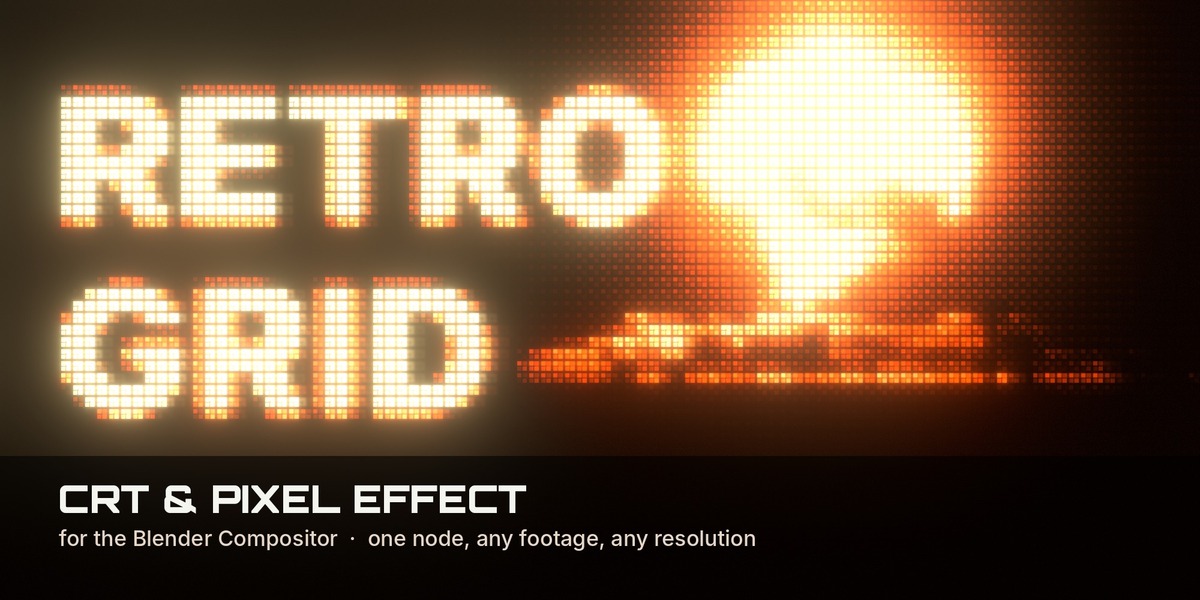
Quick start
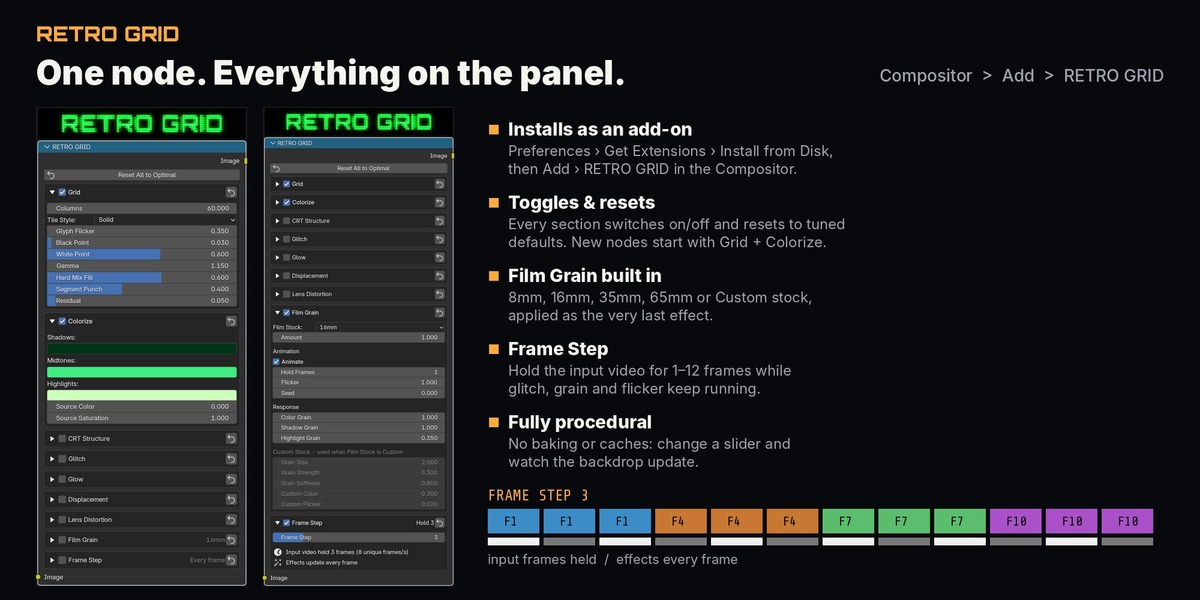
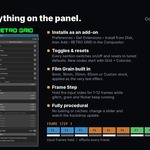
- Install the add-on: Edit › Preferences › Get Extensions, open the ⌄ menu at the top right, choose Install from Disk… and pick retro_grid-1.0.0.zip.
- In the Compositor, add the node: Add › RETRO GRID. A new node starts with only Grid and Colorize switched on.
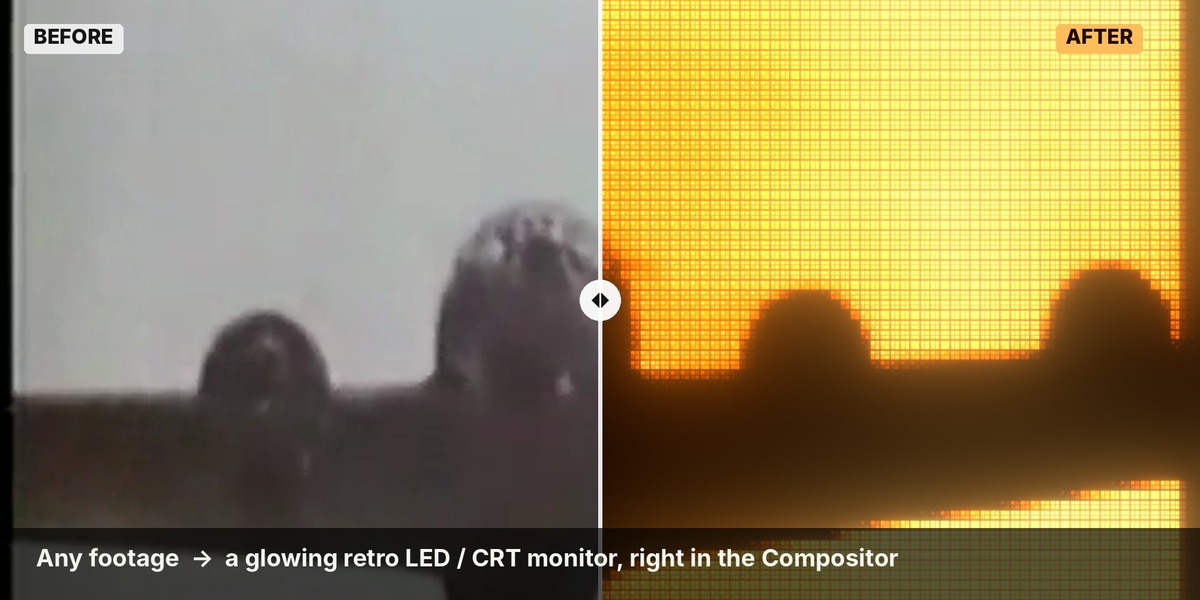
- Connect your footage (Image node or Render Layers) into the node's Image input, and the node's output to the Group Output / Viewer.
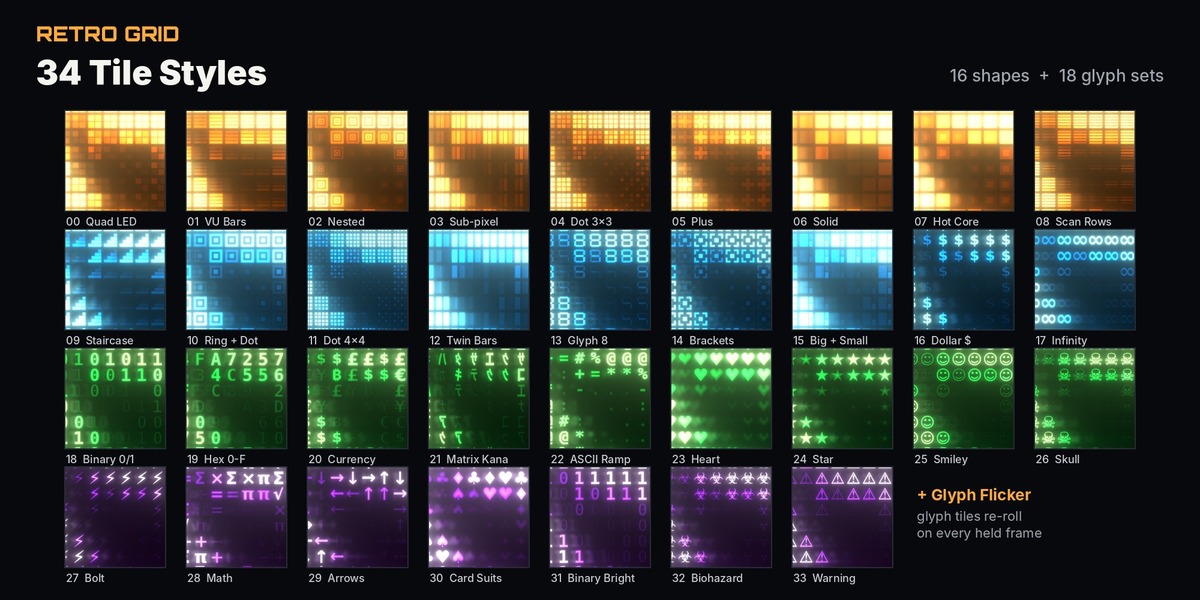
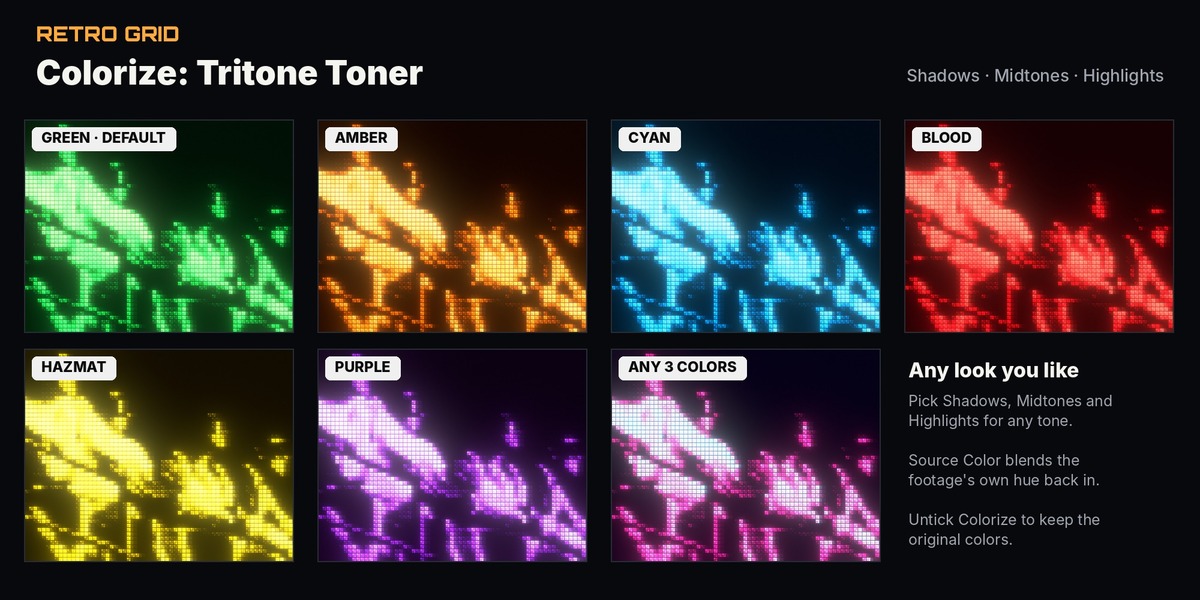
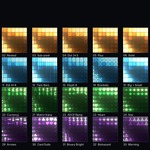
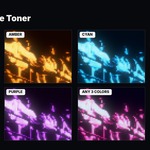
- Pick a Tile Style, set Columns and choose your Colorize colors (or untick Colorize to keep the original colors).
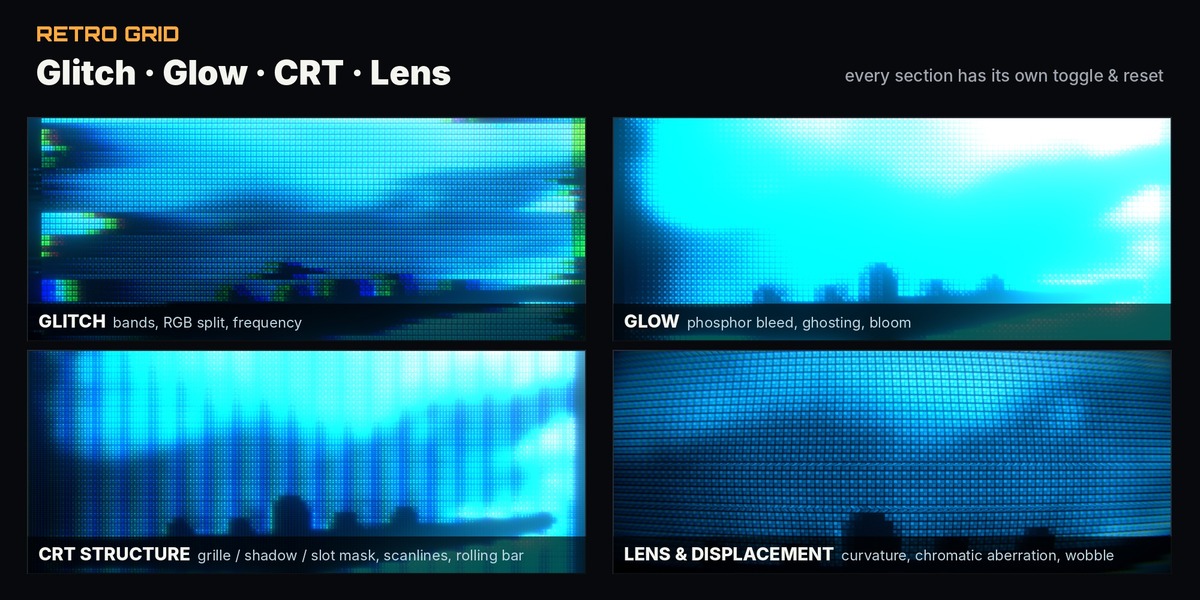
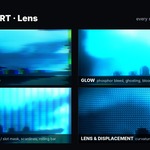
- Tick the sections you want (CRT Structure, Glitch, Glow, Displacement, Lens Distortion, Film Grain, Frame Step) and tweak. Every section has an on/off checkbox and a reset button; Reset All to Optimal brings everything back to the tuned defaults without changing your checkboxes.
Tips
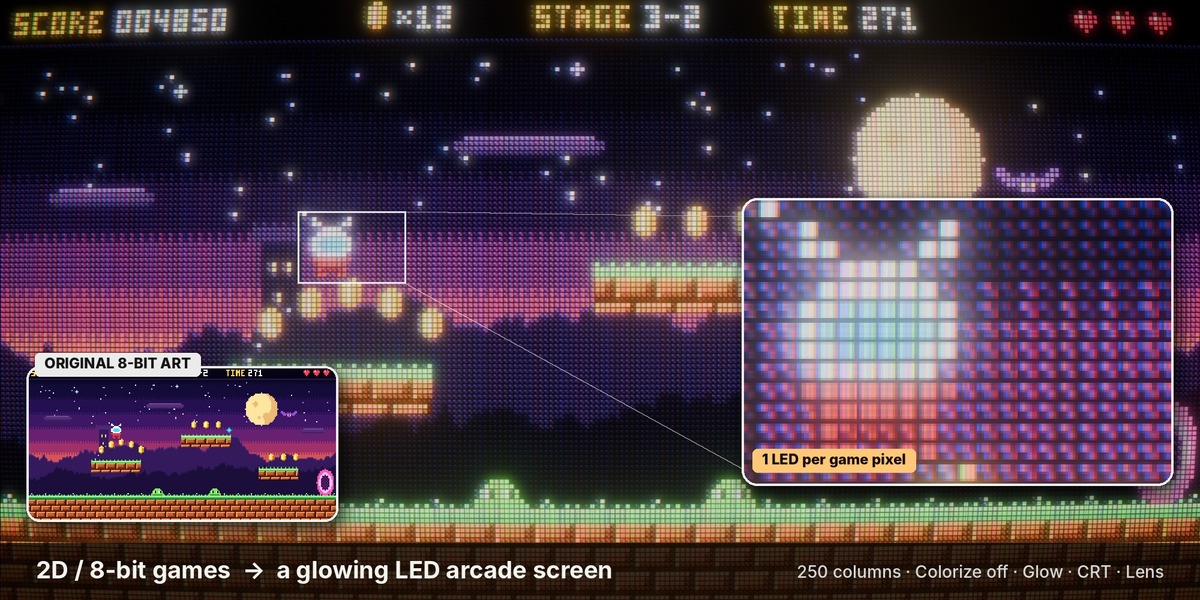
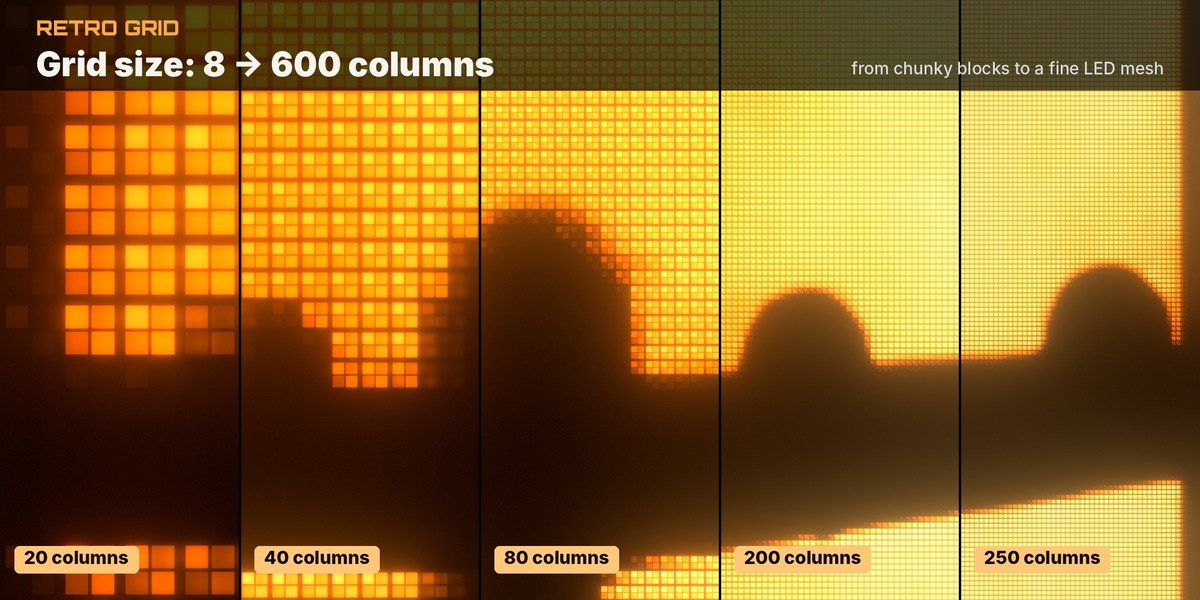
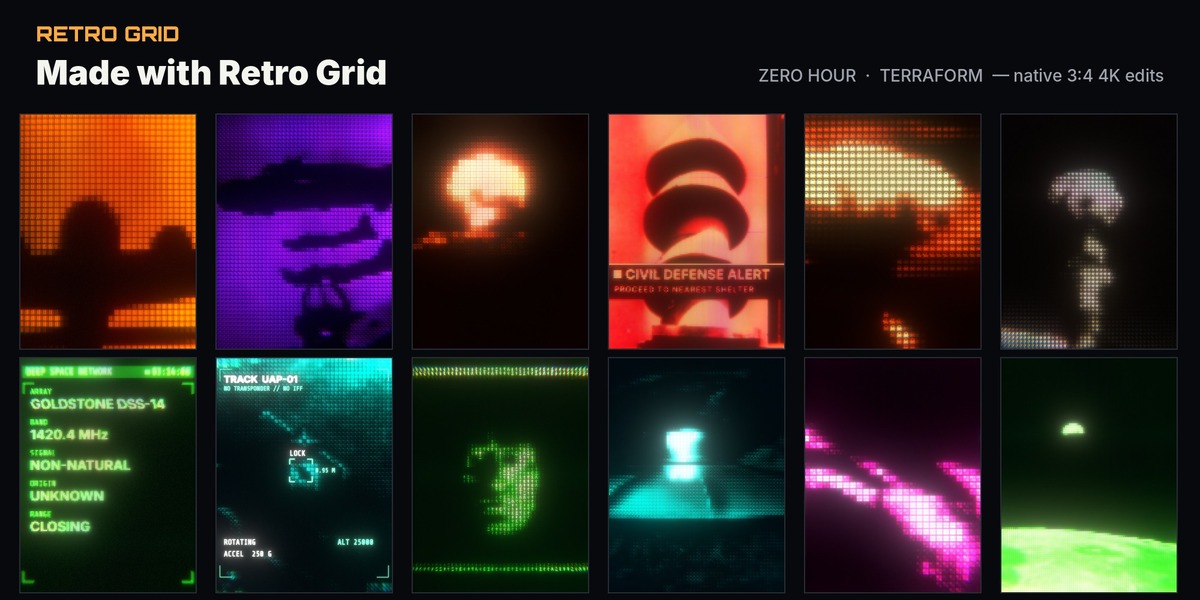
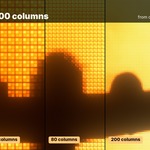
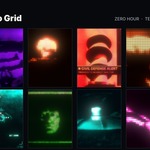
- Columns sets how many cells run across the frame: low values (20-40) give chunky 8-bit blocks, high values (150+) a fine LED mesh.
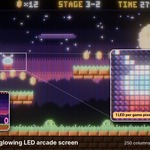
- Pixel art & 2D games: set Columns to the game's pixel width so every game pixel becomes one LED, and untick Colorize to keep the original palette.
- Use Black Point / White Point to decide which parts of the image light up; raise Black Point to keep dark areas fully off.
- Glyph tile styles (16-33) re-roll with Glyph Flicker; set it to 0 for static glyphs.
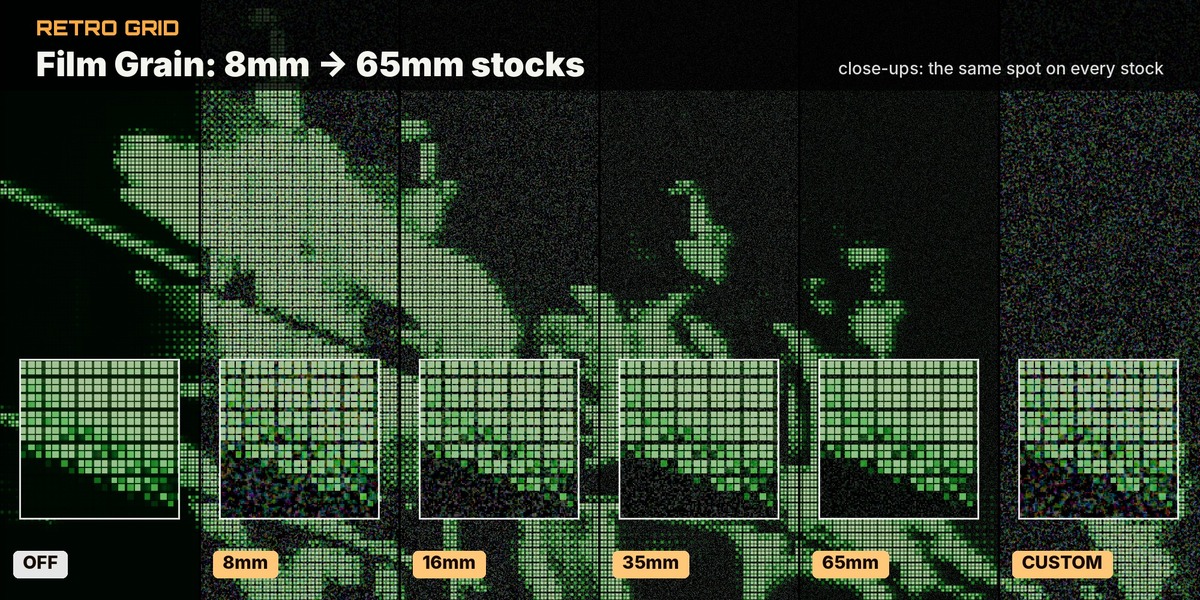
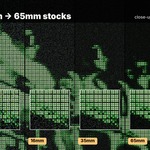
- Film Grain is applied as the very last effect. Pick an 8mm, 16mm, 35mm or 65mm stock, or choose Custom to set Grain Size, Strength and Softness yourself.
- Frame Step holds the input video for 1-12 frames while the effects keep running every frame.
- Stack two Retro Grid nodes with an Alpha Over for layered looks (for example a fine grid under a coarse glyph grid).
Have questions about this product?
Login to message
| Published | about 5 hours ago |
| Blender Version | 5.2 |
| License | GPL |
Discover more products like this
retro compositor node Post-Processing CRT blender-compositor glitch retro-futurism monitor compositor pixel led-screen scanlines