Review Notes
 phamduyson



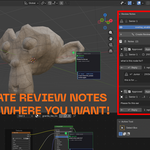



Review Notes — Blender Addon
Pin feedback directly onto your 3D work. No more guessing what needs to be fixed.
Review Notes is a Blender addon built for studios, production teams, and anyone who needs structured, pinpoint-accurate feedback on 3D assets. Supervisors and art directors can leave comments directly on object surfaces, shader nodes, material slots, and more — and artists receive feedback that is impossible to misinterpret.
---
Why Review Notes?
Traditional review workflows are broken. Screenshots get lost in chat threads. Written feedback like *"fix the thing on the left side of the model"* wastes time and causes rework. Review Notes solves this by embedding feedback **inside Blender itself**, attached to the exact spot that needs attention.
- ✅ **Supervisors** leave precise, contextual comments without leaving Blender
- ✅ **Artists** open the file and immediately see exactly what needs to change and where
- ✅ **The whole team** tracks progress through approval status and reply threads
- ✅ **Production leads** export a full report for documentation, sign-off, or archiving
---
Who Is This For?
Art Director / Supervisor : Pin review notes to problem areas during asset review sessions
3D Artist : Open the file, read pinned notes, fix issues, reply when done |
Project Manager : Export the CSV report to track review status across all assets |
---
Features
- Surface-pinned notes — click directly on an object's surface; the note follows the mesh even as it is transformed
- Node-level feedback — attach notes to specific nodes or individual input/output sockets in the Node Editor
- Slot-aware comments — target material slots, modifiers, UV maps, bones, bone constraints, and particle systems in the Properties editor
- Multi-editor support — works in 3D Viewport, Node Editor, Image Editor, Sequencer, Dopesheet, NLA, Graph Editor, and Clip Editor
- Reply threads — artists can reply directly to a note; supervisors can follow up in the same thread
- Approve / resolve — mark a note as resolved when the fix is confirmed; status is color-coded in the overlay
- Jump to note — one click navigates the viewport to the exact location of any note
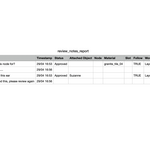
- CSV export — generate a full report of all notes, replies, statuses, and attachment info for documentation or handoff
- Overlay toggle — show or hide all note pins without losing any data
---
Installation
1. Download the `review_notes` folder.
2. Open Blender and go to **Edit → Preferences → Add-ons**.
3. Click **Install from Disk** and select the folder or its `.zip`.
4. Enable the addon by checking the box next to **Review Notes**.
5. The panel appears in any supported editor under **Sidebar (N key) → Review Notes**.
---
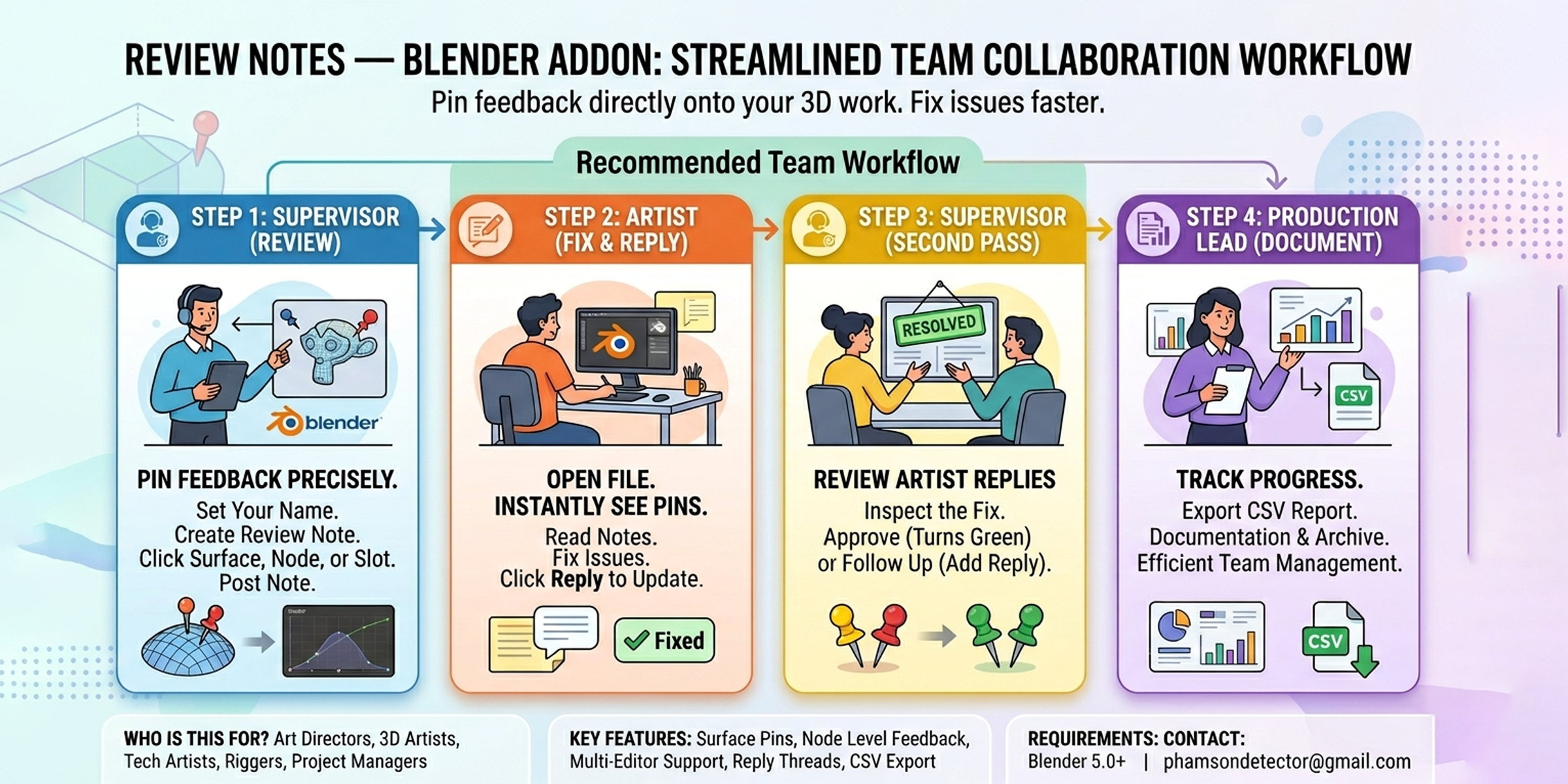
Recommended Team Workflow
For the Supervisor / Reviewer
1. Set your name
Click **❓ Who Are You?** in the panel and enter your name. All your notes will be signed.
2. Pin your feedback
Click **✏️ Create Review Note**, then click directly on the problem area:
- Click on a mesh surface → note pins to that exact point on the object
- Click on a node or socket → note pins to that node in the material graph
- Click in the Properties editor → note attaches to the active slot (material, modifier, bone, etc.)
Type your comment and click **Post Note**.
4. Repeat for every issue
Create as many notes as needed. Each note is independent — artists can resolve them one by one.
---
For the Artist
1. Open the file
All notes pinned by the supervisor are visible immediately as colored pins in the viewport.
2. Read each note
Click any pin to expand the note card and read the feedback. The pin is attached to the exact surface, node, or slot being referenced — no ambiguity.
3. Fix the issue, then reply
After making the correction, click **↩ Reply** on the note and write a short update (e.g. *"Fixed — rebuilt the loop flow in this area"*). This keeps all communication in one place.
4. Jump between notes
Use the **🔍 Jump** button on any note in the N-Panel list to navigate the viewport directly to that note's location. No hunting around the scene.
---
For the Supervisor (Second Pass)
1. Review replies
Open the file again — notes with artist replies are visible in the panel. Read the reply and inspect the fix.
2. Approve or follow up
If the fix is correct, click **Approve** — the pin turns green. If more work is needed, add another reply to the thread.
3. Export when done
Click **📤 Export Report (CSV)** to generate a full record of all feedback, replies, and approval status for the asset.
---
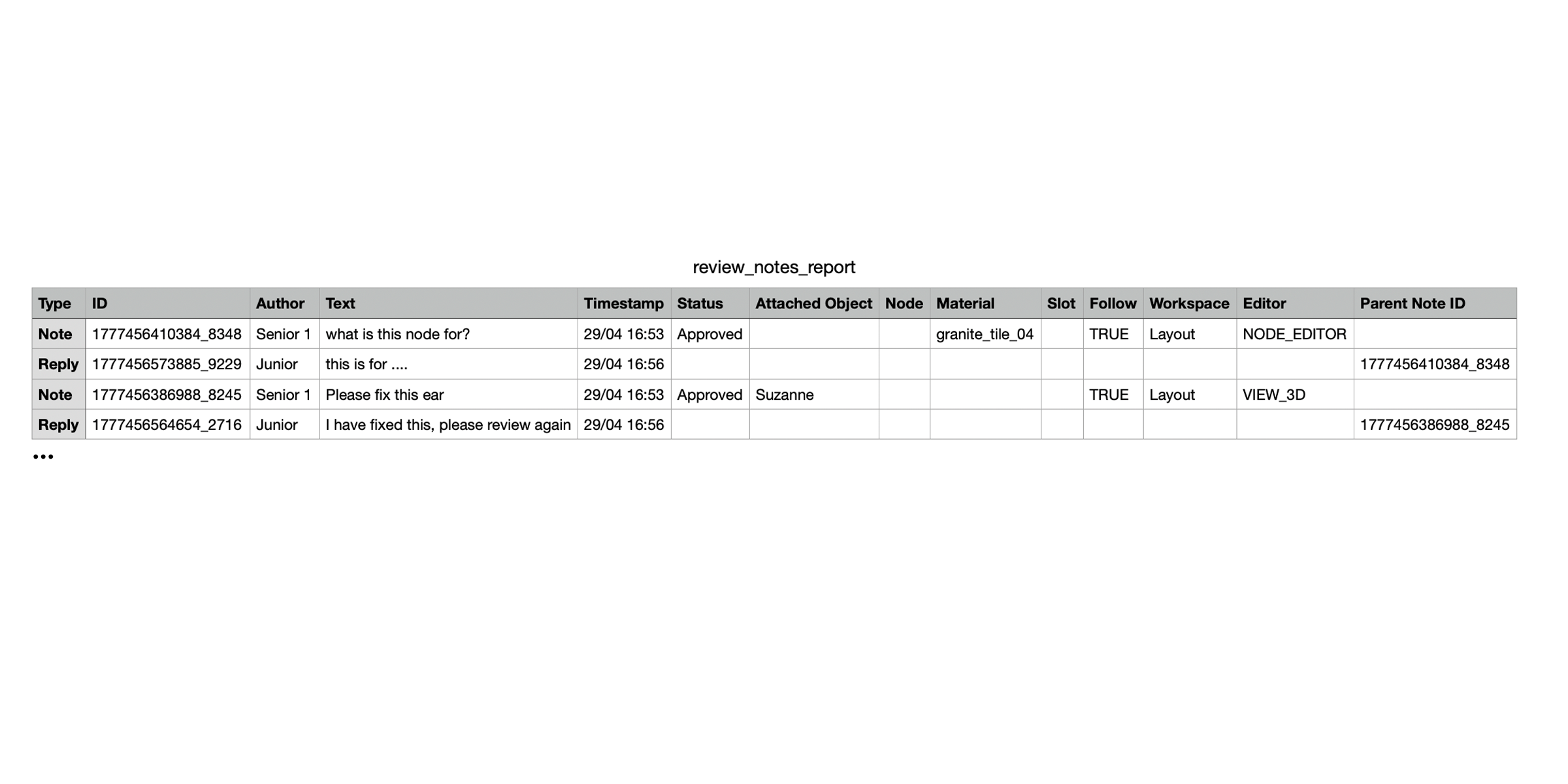
CSV Export Reference
The exported file contains status of all comments in CSV.
---
Requirements
- Tested on Blender 5.x
---
Contact
For feedback or bug reports, please reach [email protected]
Have questions about this product?
Login to message
| Dev Fund Contributor | |
| Published | 5 months ago |
| Blender Version | 4.5 - 5.1 |
| Extension Type | N/A |
| Render Engine Used | Cycles, Eevee |
| License | GPL |