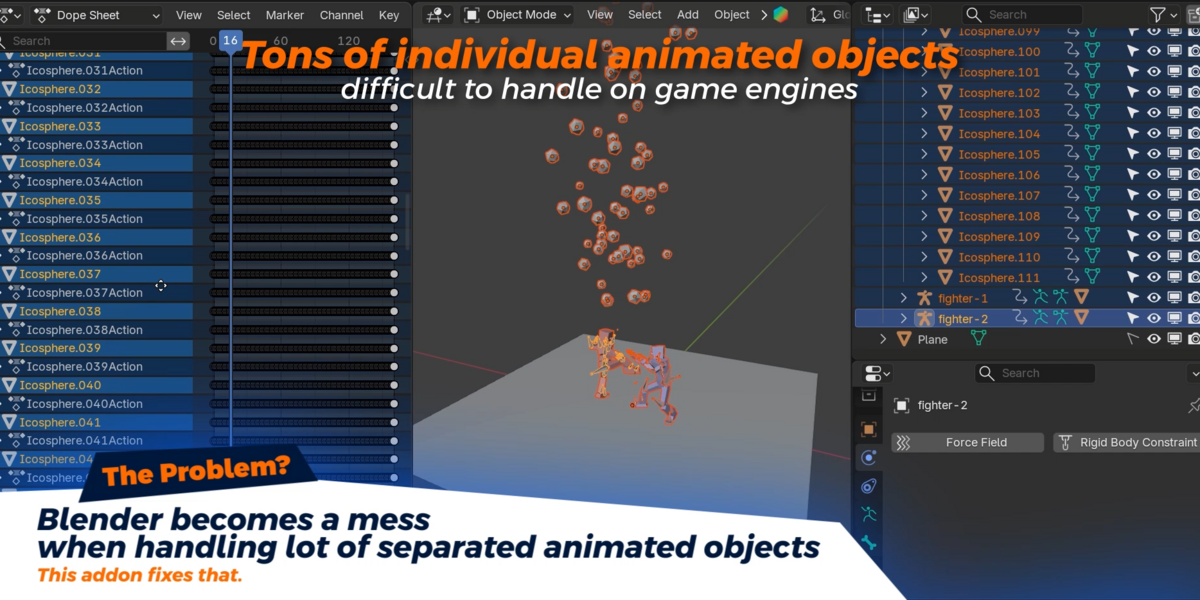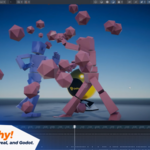
Rigidanim Merger

Leandro Marquez in Animation


DOCS

RigidAnim Merger

Everything you need to know about the addon: from installation to the full merge process.

01   INSTALLATION
1. Download rigidanim_merger.zip
2. Blender → Edit → Preferences → Add-ons → Install
3. Enable the checkbox next to Animation: RigidAnim Merger
4. Open the N-Panel (N key) and find the RigidAnim tab
02   QUICK START
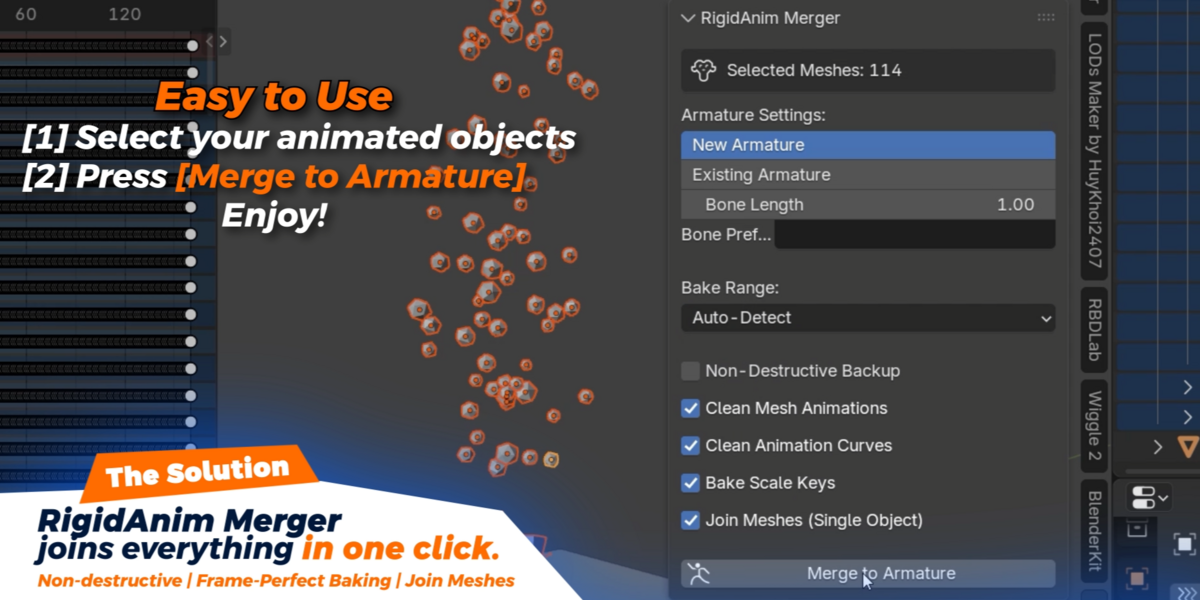
Select

Select all animated mesh objects in your scene.

Configure

Set bone length, prefix, frame range, and toggle options in the panel.

Merge

Click Merge to Armature in the N-Panel.

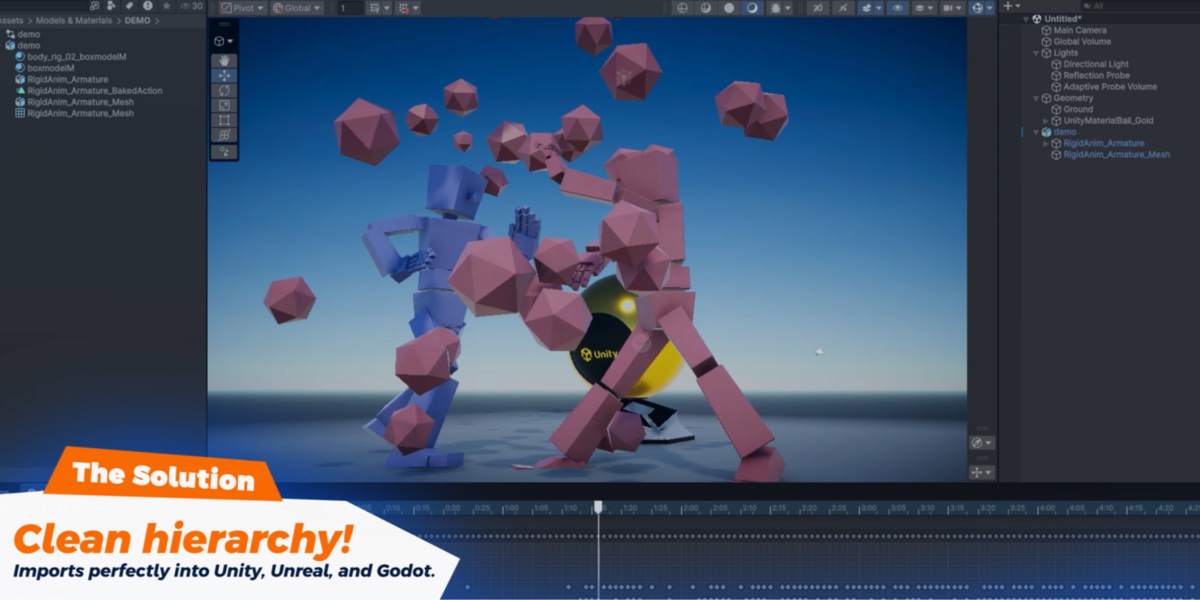
Export

Export as FBX. One armature, one clip, one skinned mesh.

03   PANEL REFERENCE

Every setting in the RigidAnim N-Panel, explained.

▶ Armature Settings
Armature Target armature_mode
Default: New Armature

Choose whether to create a fresh armature or add bones to an existing one. When set to Existing Armature, an object picker appears to select the target.

Bone Length bone_length
Default: 0.2   Min: 0.001

Tail length of each generated bone. Controls the visual size of bones in the viewport. Does not affect animation or export.

Bone Prefix bone_prefix
Default: (empty)

Optional prefix for all generated bone names. Useful for namespacing when working with multiple armatures in the same scene.

▶ Bake Range
Frame Range frame_range_mode
Default: Scene Range

Controls which frames are baked onto the armature. Scene Range uses the scene start/end. Auto-Detect scans all selected objects for keyframes and uses the min/max. Custom Range lets you set start and end manually.

▶ Options
Non-Destructive Backup non_destructive
Default: ON

Duplicates all selected objects before merging and archives the originals in a hidden RigidAnim_Backups collection. Off keeps working on the originals directly.

Clean Mesh Animations clean_original_anims
Default: ON

Strips all animation data from the original mesh objects after baking. Off keeps the original animations on the meshes (they won't affect the armature-driven result).

Bake Scale Keys bake_scale
Default: ON

Bakes scale keyframes onto the bones. Off bakes location and rotation only. Useful when objects don't animate in scale and you want leaner FBX files.

Join Meshes (Single Object) join_meshes
Default: OFF

When on, combines all meshes into a single skinned mesh with vertex groups and an Armature modifier. When off, each mesh remains separate and is parented directly to its bone. Joining produces a single draw call in-engine.

04   MERGE PROCESS

What happens internally when you click Merge to Armature.

01 Validate & Detect Frame Range

Confirms at least one mesh is selected. Determines the bake range: scene start/end, auto-detected from all keyframes across all selected objects, or custom values you set. Each object's action is read via get_action_keyframes() with fallback paths for Blender 3.x legacy fcurves, 4.4+ slotted actions, and a generic layer-based path.

02 Backup Originals (optional)

If non-destructive mode is on, each selected object is duplicated. The originals are moved to a hidden RigidAnim_Backups collection. All subsequent operations run on the duplicates.

03 Capture World-Space Matrices

Iterates every frame in the bake range. For each frame, evaluates the full dependency graph (evaluated_depsgraph_get) and records every object's evaluated world matrix. This captures constraints, drivers, path animations, and modifier effects at their exact frame values.

04 Create Armature & Bones

Creates a new armature (or uses the one you selected). In edit mode, creates one bone per mesh object. Each bone's head and matrix is set to the object's rest position (world matrix at the start frame). Bone names are derived from object names, with your optional prefix.

05 Bake Animation to Pose Bones

For every frame, each mesh's recorded world matrix is transformed into armature-local space (armature.matrix_world.inverted() @ world_matrix). The pose bone's matrix is set to this value, then location, rotation, and optionally scale keyframes are inserted. This produces a dense, frame-accurate baked action.

06 Parent Meshes

Two paths depending on Join Meshes:

OFF — Each mesh is parented to its bone via parent_type='BONE'. Classic bone parenting, each mesh remains separate.

ON — Each mesh gets a vertex group (all vertices, weight 1.0) named after its bone, plus an Armature modifier. Then all meshes are joined into a single object via bpy.ops.object.join().

ⓘ Keyframes are baked at every frame in the range, not just at original keyframe positions. This guarantees frame-perfect reproduction of all animation, including constraints and drivers. For optimization, decimate the action's fcurves in the Graph Editor after merging.
05   VERSION SUPPORT

The addon works across Blender 3.0 through 5.0+ with automatic fallback for animation data access.

Blender 3.0 – 4.3

Uses legacy action.fcurves direct access for keyframe detection.

Blender 4.4+

Reads slotted actions via action.layers → strips → channelbag → fcurves.

Fallback

If no slot is found, iterates all slots in the action attempting to find channelbags.

RigidAnim Merger | Created by Leandro Marquez

$27

Support Period Included

Includes 12 months of

Extend this product’s Support Period +12 months: 25% of product price

Have questions before purchasing?
Login to message

Details
Published 2 months ago
Blender Version 3.6 - 5.2
Extension Type N/A
License GPL
Discover more products like this

armature Game skinned gameready Export fbx mesh Merge rig bones bake animation