 Edmond
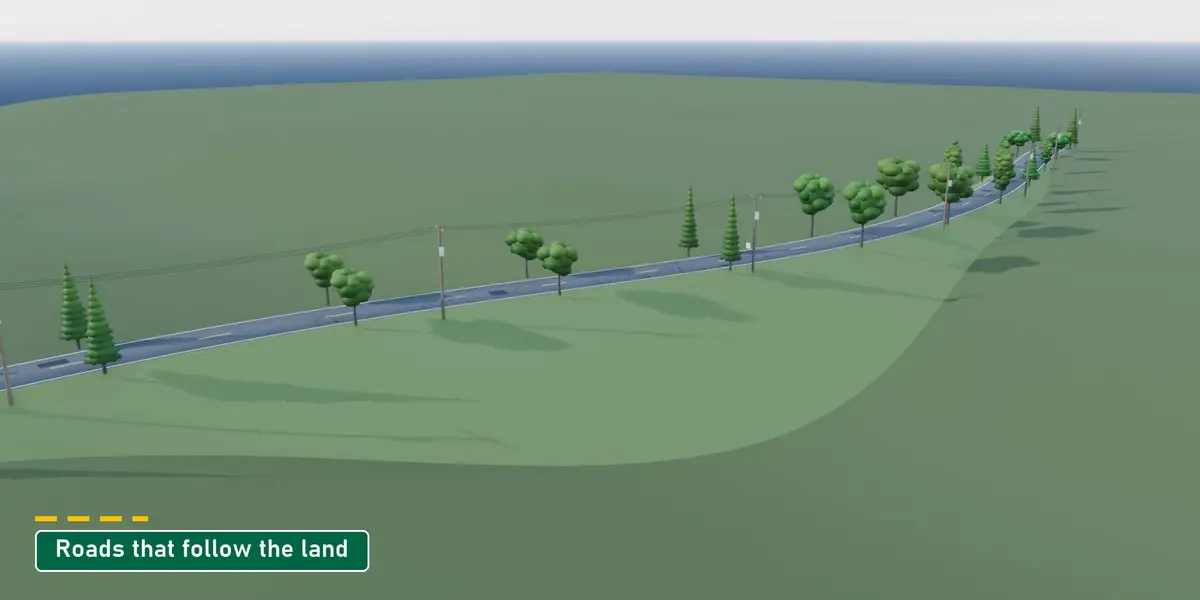
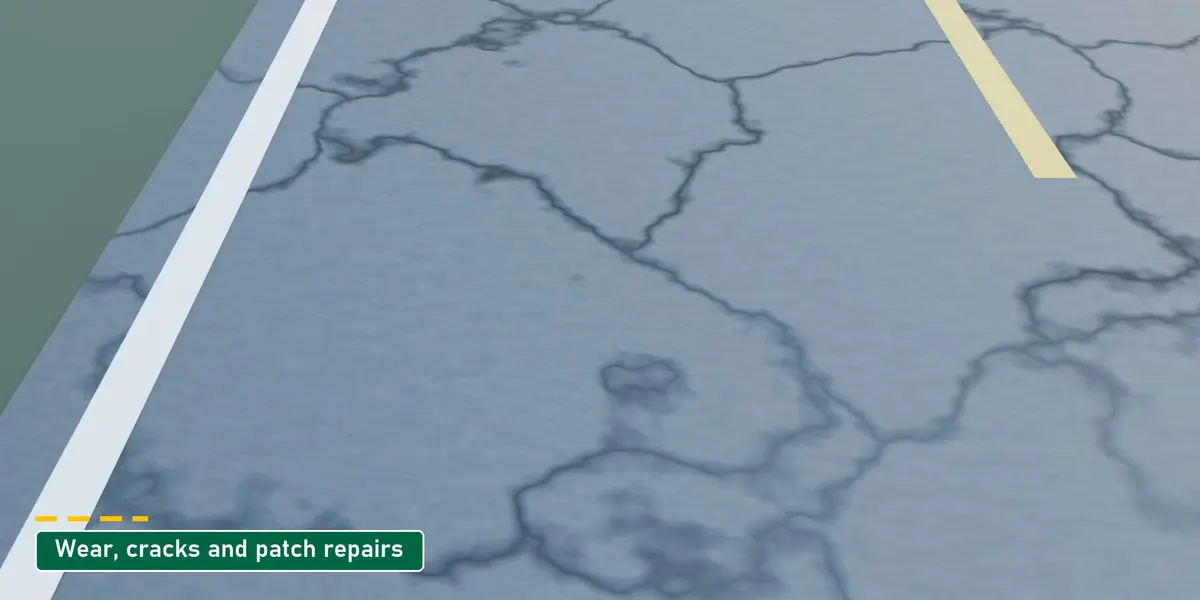
Full guide
Every panel, tool and setting is covered in the online guide, with screenshots and clips: Road Builder documentation. The Tutorial button at the top of the add-on panel opens it too.
Install
- Download road_builder-1.6.0.zip (do not unzip it).
- Drag the zip into the Blender window, or go to Edit › Preferences › Get Extensions, open the menu at the top right and choose Install from Disk.
- Make sure Road Builder is enabled in the add-on list.
Requires Blender 4.2 or newer (tested on 5.2 LTS). Windows, macOS and Linux.
Quick start
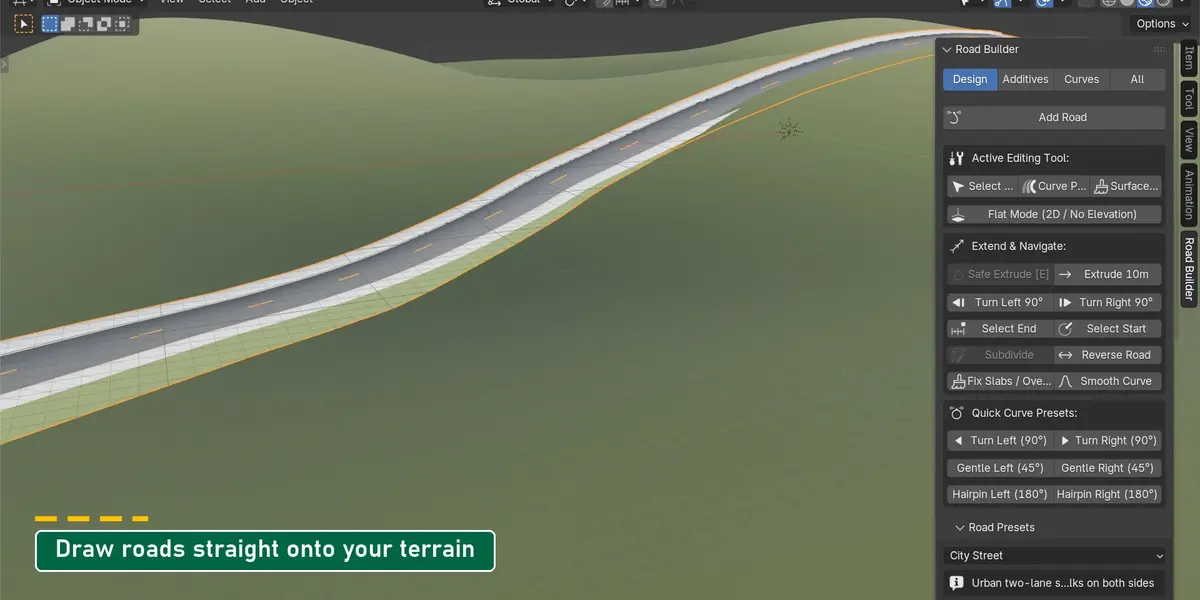
- In the 3D Viewport press N and open the Road Builder tab.
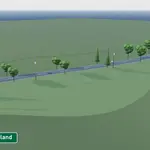
- Pick a preset (City Street, Modern Highway, Country Two-Lane and more) and press Add Road.
- Select the road, press Tab and move its points: the whole street follows. Press E on an end point to extend it, or use the Quick Curve Presets for turns and hairpins.
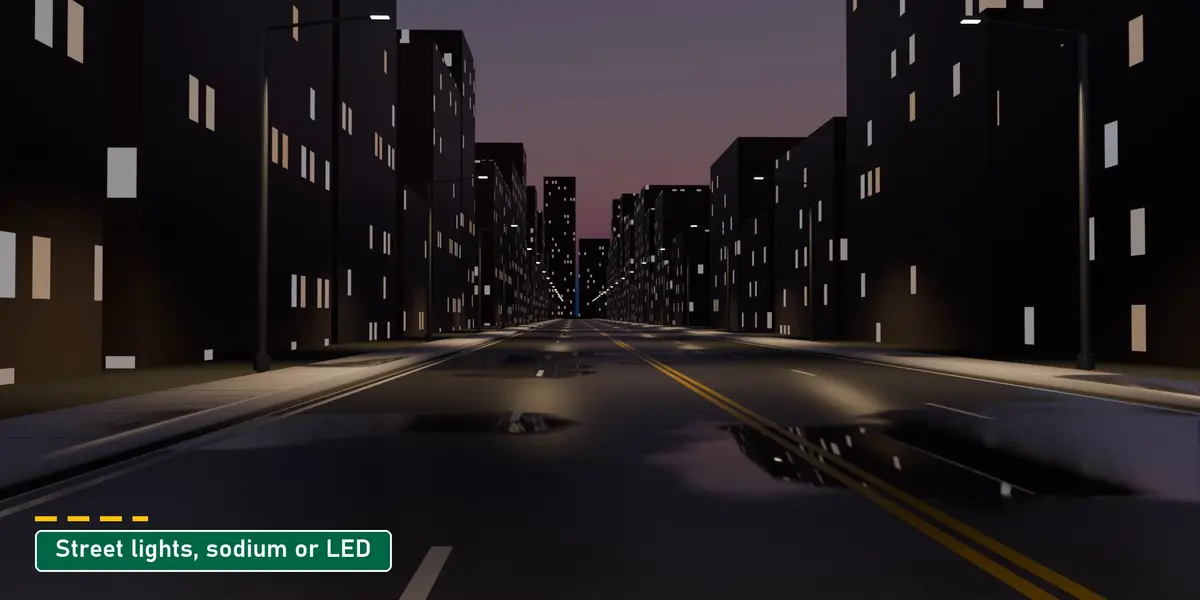
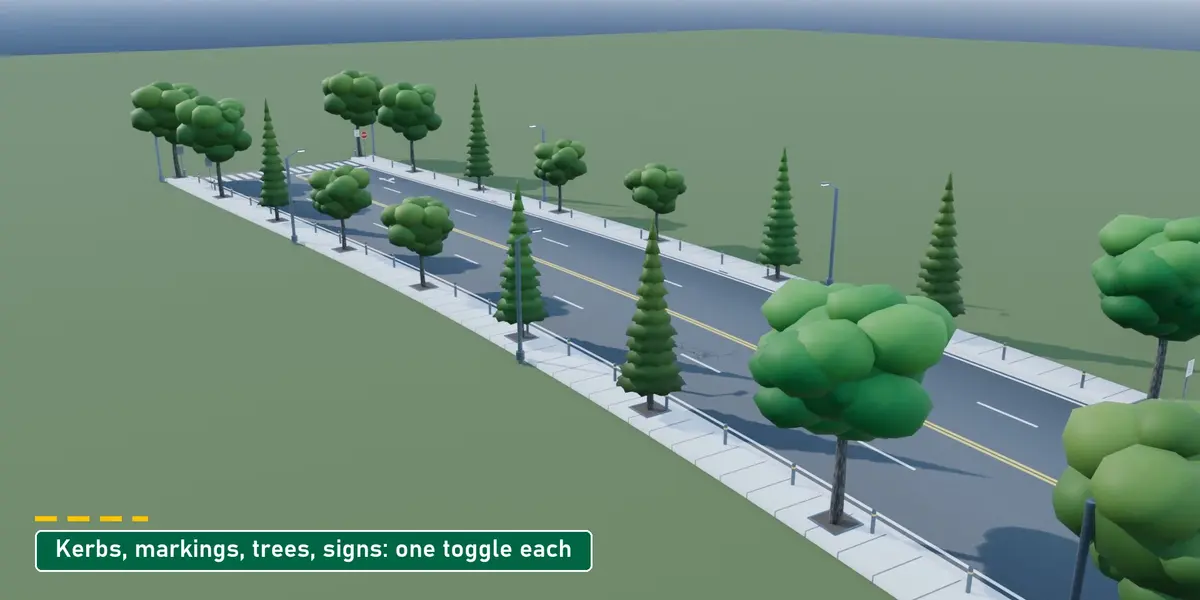
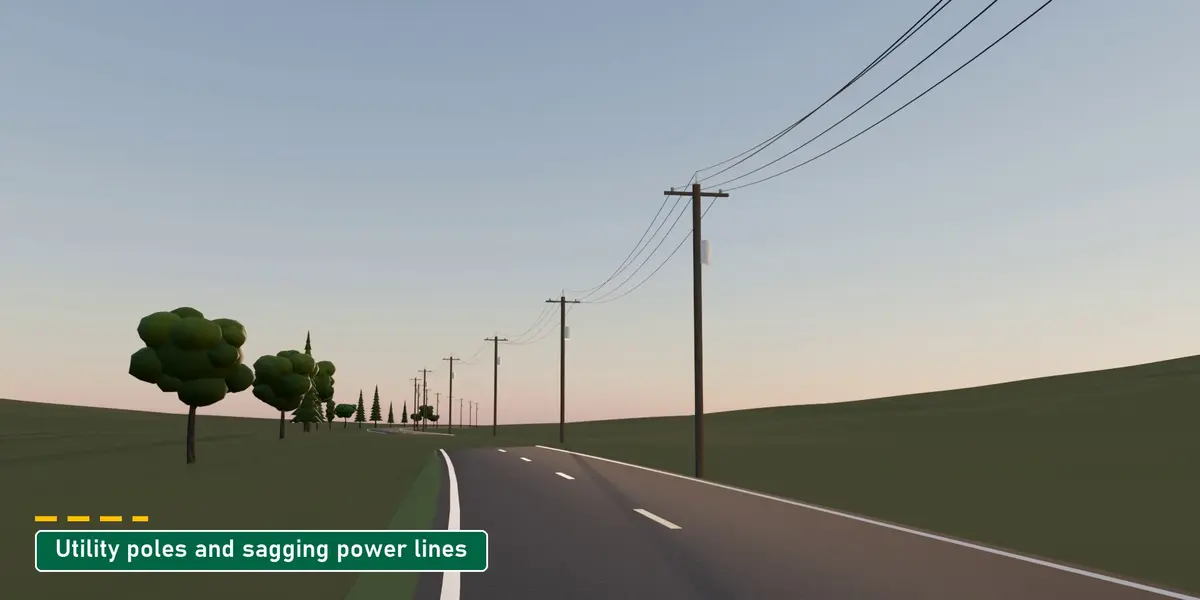
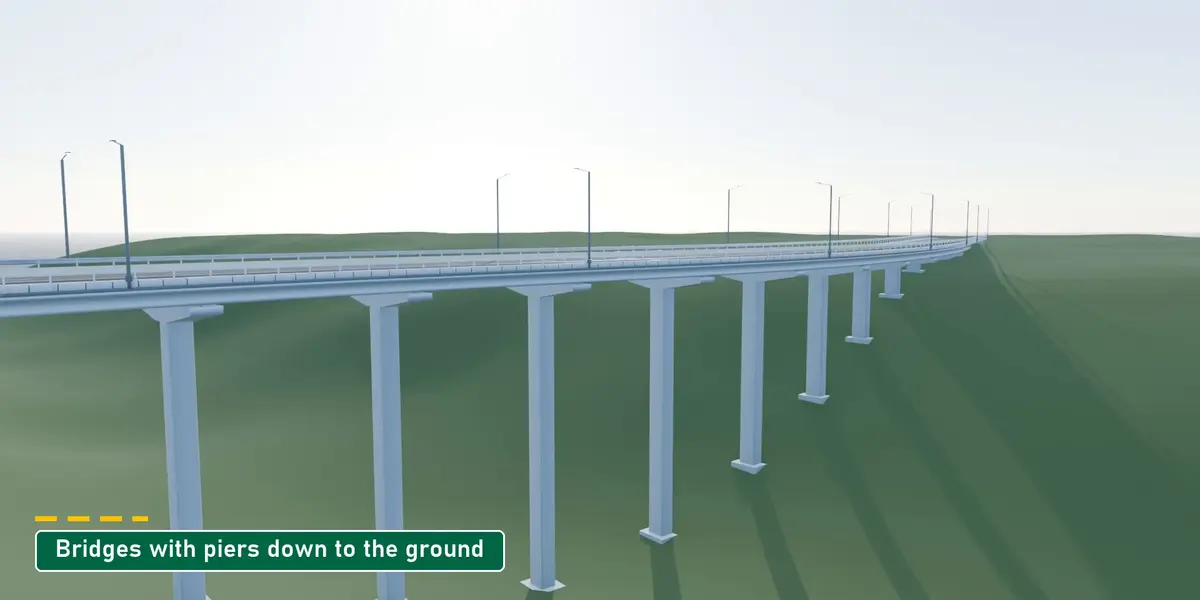
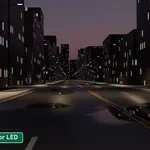
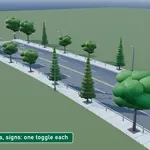
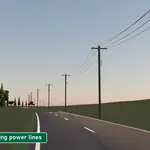
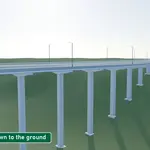
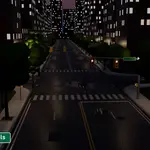
- Turn on parts of the street in the Additives tab: markings, crosswalks, signs, trees, street lights, utility poles, bridges.
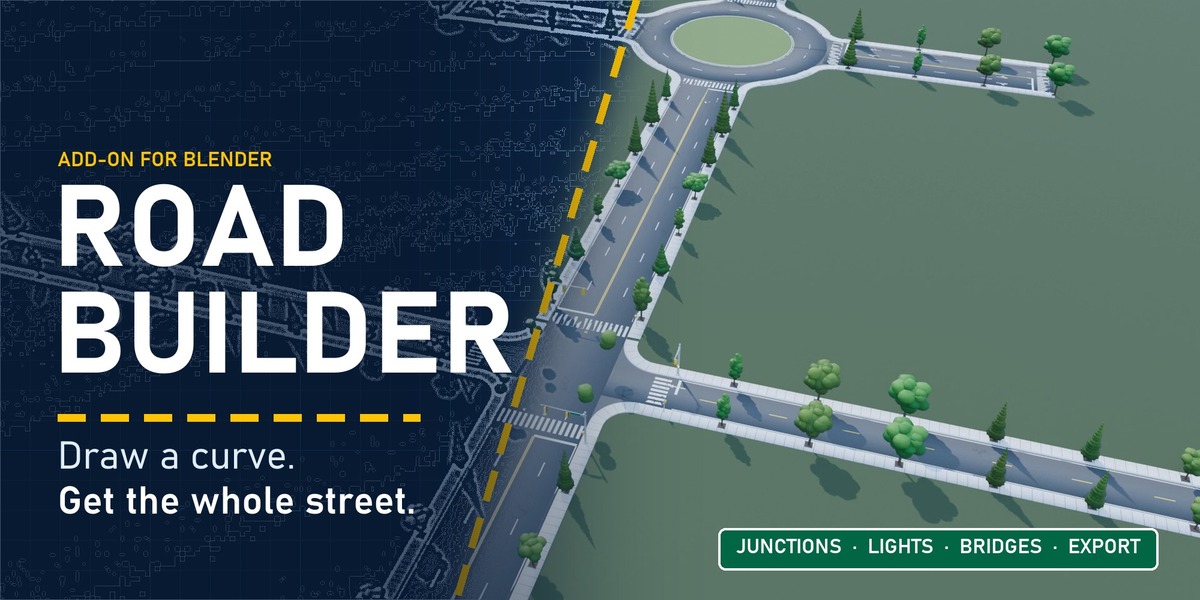
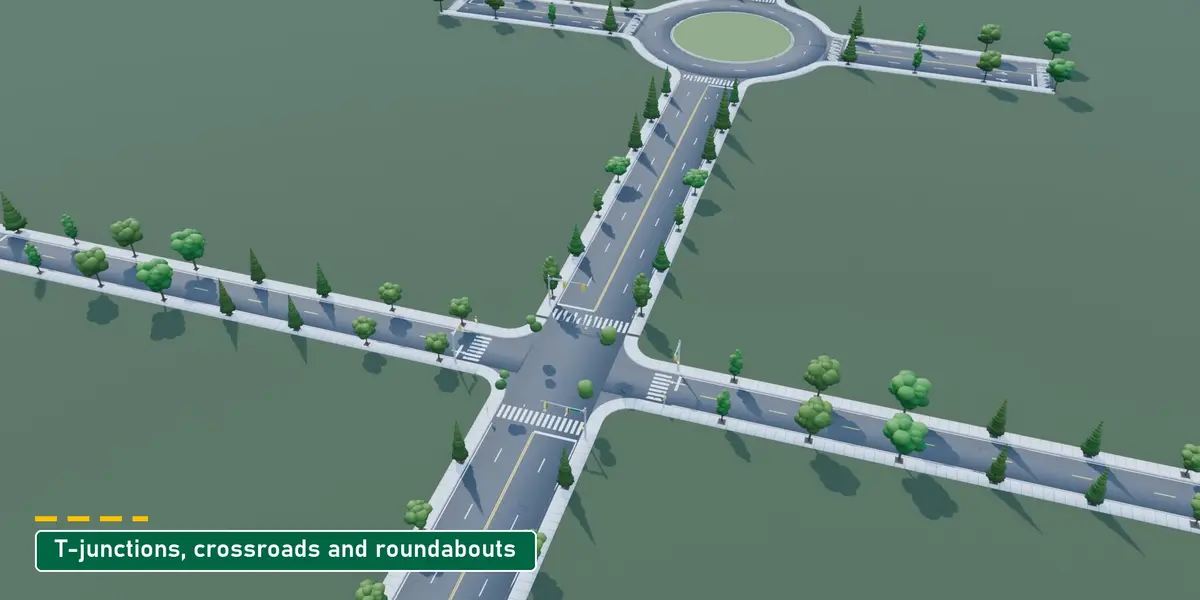
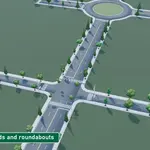
- Select two roads to make a T-junction, crossroads or roundabout.
- When you are done, use Export for Game Engine / Web or Bake to Static Mesh.
Language
Pick the interface language from the menu next to the Tutorial button: English, Deutsch, Français, Español, Italiano, Português (Brasil), Polski, Русский, 日本語, 한국어, 简体中文 or 繁體中文. No restart needed.
Support
Questions or bug reports: send a message through Superhive. Please include your Blender version and, if you can, the .blend file.
 Included
Includes 12 months of
- Support from Edmond
- Product updates
Extend this product’s Support Period +12 months: 50% of product price
Have questions before purchasing?
Login to message
| Blender Extension Compatible | Yes |
| Published | about 6 hours ago |
| Blender Version | 4.2 - 5.2 |
| Extension Type | Add-on |
| Render Engine Used | Cycles, Eevee |
| License | GPL |

Discover more products like this
city environment street procedural road street lights bridge junction power-lines geometry nodes game assets roundabout