SceneCast Pro — Record, Annotate & Export Modeling Tutorials
 Alberto Cordero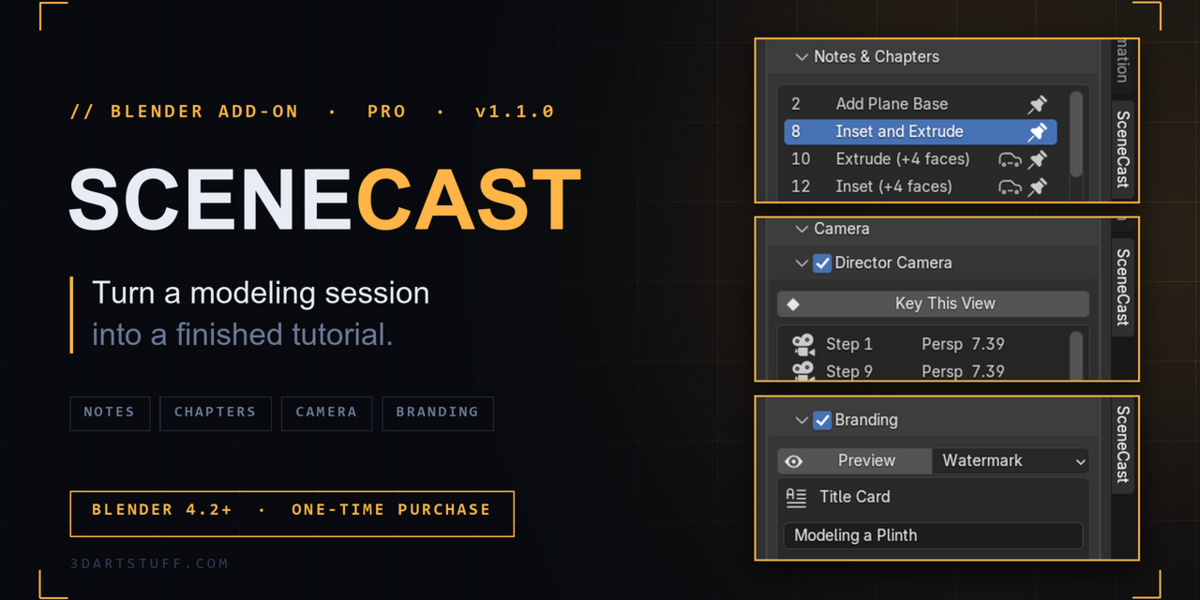
Installation
- Download
scenecast-pro-1.1.0.zip. Don't unzip it. - In Blender: Edit → Preferences → Get Extensions → ⌄ (top right) → Install from Disk… and pick the zip.
- SceneCast Pro appears under Extensions (not the legacy Add-ons list), named "SceneCast Pro".
- Open the 3D Viewport sidebar (N) → SceneCast tab.
If you have the free version installed, Pro replaces it. You don't need to uninstall it first. Requires Blender 4.2 or newer, including 5.0.
Quick start
- Record: press Start Recording and model. Each settled edit becomes a step.
- Stop and review: press Stop, switch to Object Mode, then scrub or play the session in Playback.
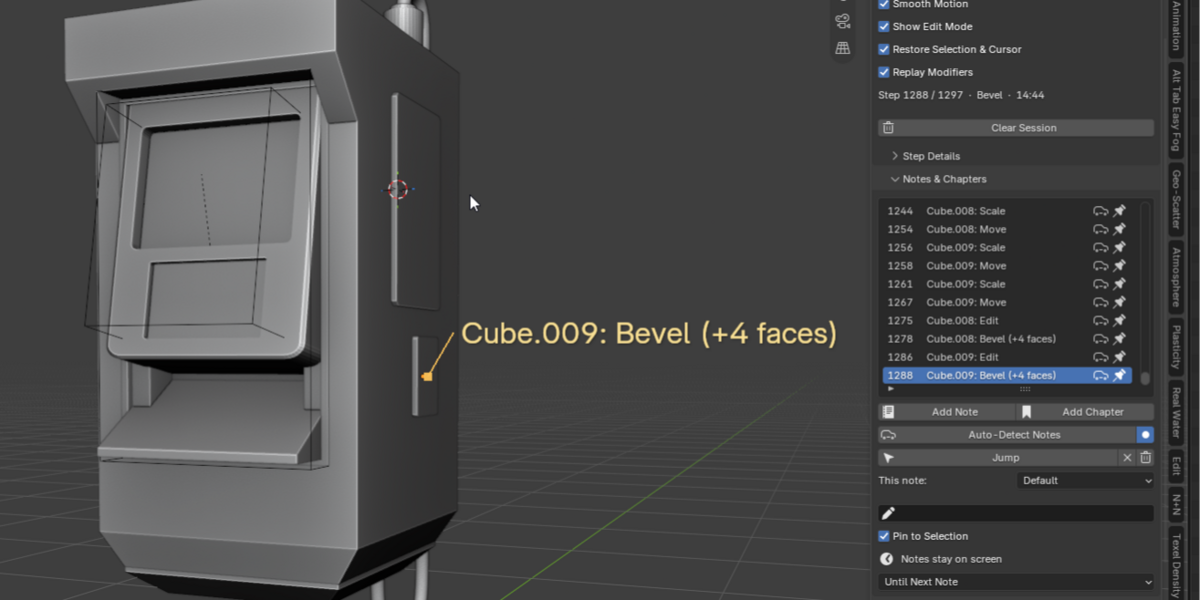
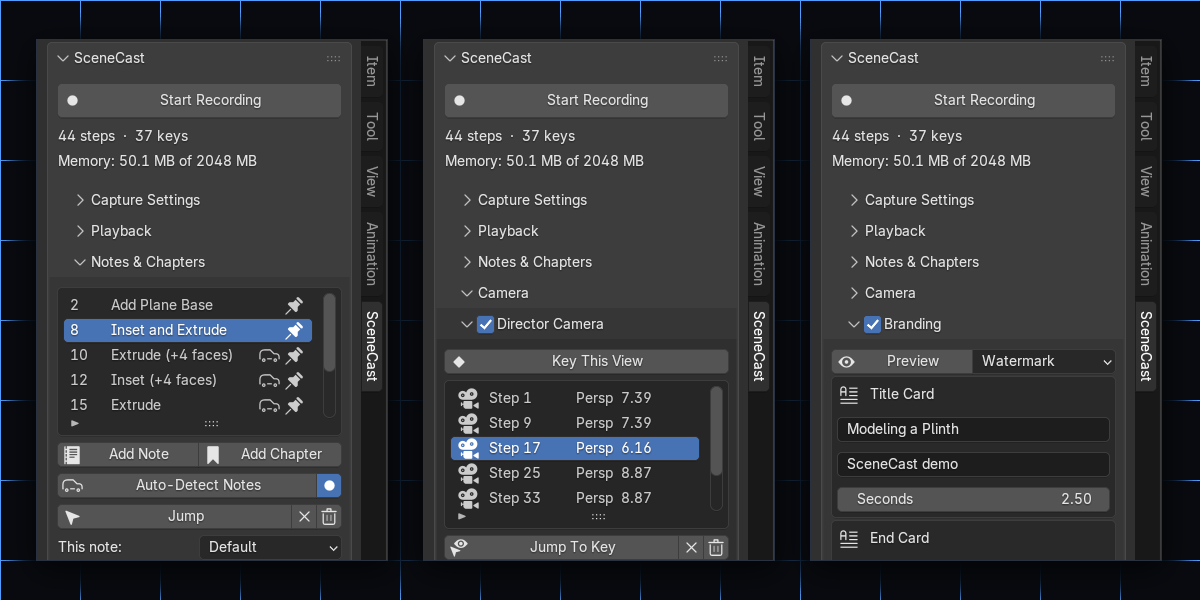
- Annotate: in Notes & Chapters, press Auto Notes to generate notes, then edit, add or remove them. Add chapters where a new section starts.
- Direct (optional): in Camera, turn on Punch In to follow your work, or use Director Camera to place your own camera keys.
- Brand (optional): turn on Branding and add a title card, end card or watermark. Use Preview to check them in the viewport.
- Export: in Export, pick a size and press Export Session. Press Export Guide to get the written version.
Panel reference
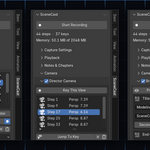
Record
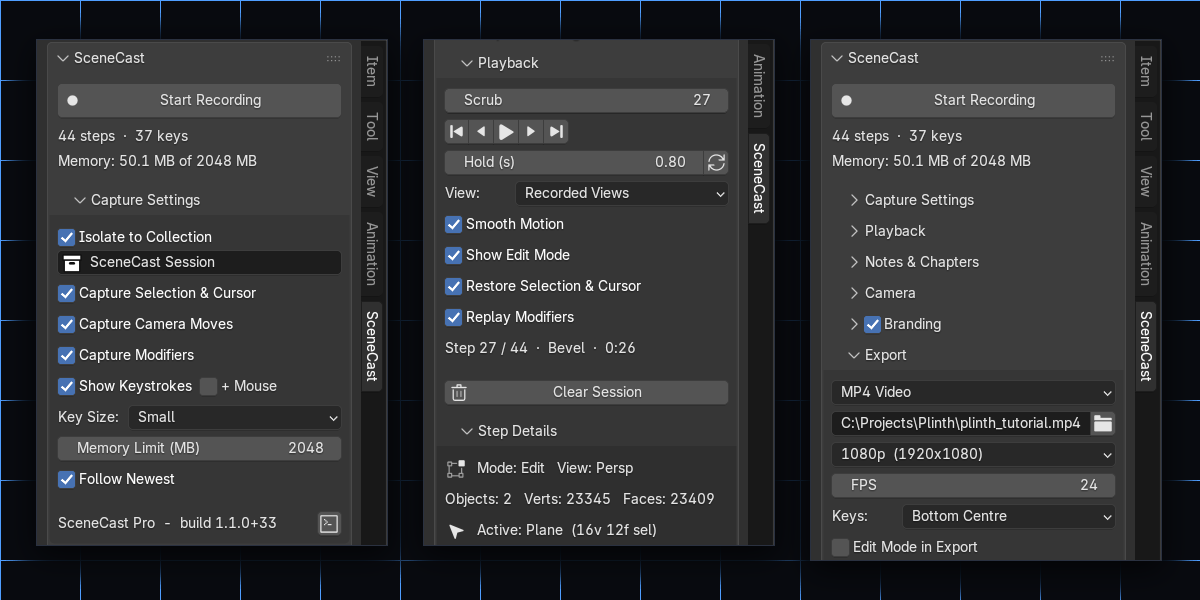
Start/Stop Recording, plus a status line with steps, keys and memory used.
Capture Settings
- Isolate in Collection: gathers recorded objects into one collection while recording.
- Capture Selection & Cursor, Capture Camera Moves, Capture Modifiers: what gets recorded.
- Keys: show keystrokes, include mouse buttons, and set the text size.
- Memory Limit (MB): recording stops safely at this limit (default 2048, 0 = no limit).
- Follow Newest: keeps the playhead on the newest step while recording.
These settings are locked while recording.
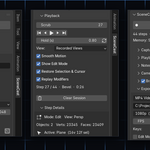
Playback
- Scrub and the play controls move through the steps.
- Hold (s): how long each step is shown. It also sets the export speed.
- View: Recorded Views, Front, Right, Top, Scene Camera or Current View.
- Smooth Motion: glides between steps (Recorded Views only).
- Show Edit Mode, Restore Selection & Cursor, Replay Modifiers: what's shown during replay.
- Step Details shows the mode, counts, active object, modifiers and keys for the current step.
Notes & Chapters
- Add Note / Add Chapter at the current step. Chapters become title cards in the video.
- Auto Notes writes notes from the recorded operators and geometry changes.
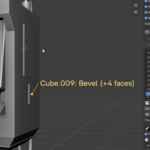
- Pin to point attaches a note to a spot in the model, drawn with a leader line.
- Timing: each note shows until the next note, for a number of seconds, or until the end. Set a default, then override it per note.
Camera
- Director Camera: press Key This View to place a camera key at the current step, or Keys From Recorded Views to generate keys automatically. Ease controls how moves are smoothed.
- Punch In: pushes the camera toward the active object or the selected vertices. Amount, Margin and Smooth control how tight and how steady it is. What you see while paused is what exports.
Branding
Title card, end card, and a text or logo watermark, with font, text size, colors, opacity and corner. Preview draws them in the viewport inside a frame of the export's shape.
Export
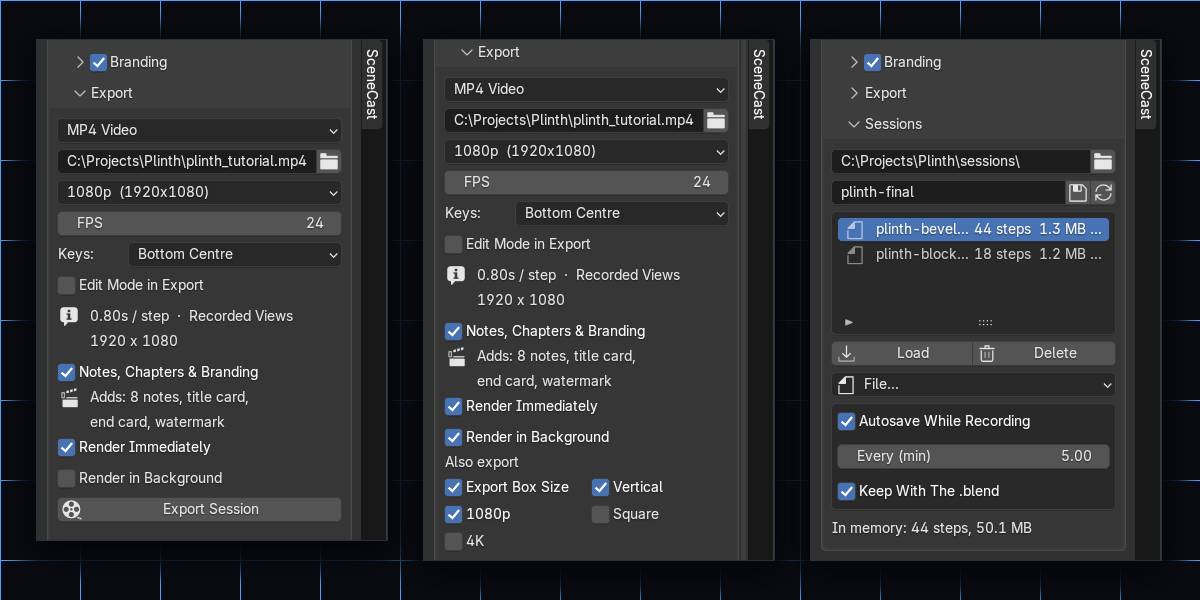
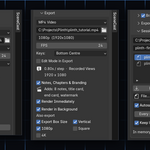
- Format: MP4 or PNG sequence. Set the output path here.
- Resolution: 720p, 1080p, 1440p, 4K, Vertical 1080×1920, Square 1080×1080, Custom, or the scene's own settings.
- Keys: Bottom Centre, Top Left or Off.
- Notes, Chapters & Branding: includes your annotations in the video.
- Render Immediately: off builds an editable "SceneCast Edit" scene in the sequencer, so you can adjust it before rendering.
- Render in Background: renders in a second, minimised Blender so you can keep working. Tick extra sizes to get several versions (for example 16:9 and 9:16) from one job. Save your .blend first: the background render uses the file as saved on disk.
- Export Guide: writes the written tutorial (HTML or Markdown) with a still per step. Set the title, format, which steps get stills, and the image width in Guide Settings.
Sessions
-
Library: sessions are saved as
.scastfiles in a folder you choose, and listed here to load or delete. - Autosave: saves while you record, at the interval you set.
- Save with .blend: the session follows your .blend when you save and reopen it.
-
File…: save or load a
.scastfile anywhere..scastfiles are safe to share; loading one never runs code.
Tips
- Keep Hold around 0.5–1.0 s for watchable videos.
- Use Front or Top view with Punch In for a clean, slow push-in.
- Export the 16:9 and the 9:16 cut in one background render for YouTube and Shorts.
FAQ
Does it record my screen?
No. It records the scene as steps, which is why you can change the camera, size and annotations after recording.
Is the recording saved?
Yes, in Pro. Sessions autosave and travel with your .blend. They're also saved as .scast files you can reload or share.
Can I edit the video after export?
Yes. Turn off Render Immediately and SceneCast builds an editable sequencer scene with every note and card as a strip.
Why didn't Background Render include my latest changes?
It renders the .blend as it is on disk. Save first.
Can it show Blender's menus in the video?
No. Menus are temporary popups Blender doesn't render. SceneCast shows the shortcut that opened the menu and the action chosen instead.
Is there a free version?
Yes: 3dartstuff.com/scenecast. It records, replays and exports with keystrokes. Pro adds everything listed above.
Known limitations
- Objects are tracked by name, so renaming one mid-session breaks its history.
- Deleted objects hide on rewind rather than coming back.
- Smooth Motion only blends steps with the same topology; a change in vertex count snaps.
- Keys pressed inside a running tool (the Z 5 of G Z 5) are shown via the tool's own shortcut instead.
- "Edit Mode in Export" is experimental.
Have questions about this product?
Login to message
| Blender Extension Compatible | Yes |
| Published | 6 days ago |
| Blender Version | 4.2 - 5.2 |
| Extension Type | Add-on |
| License | GPL |
Discover more products like this
timelapse education modeling Screencast youtube progress video keystrokes tutorial recording Workflow