 Phorge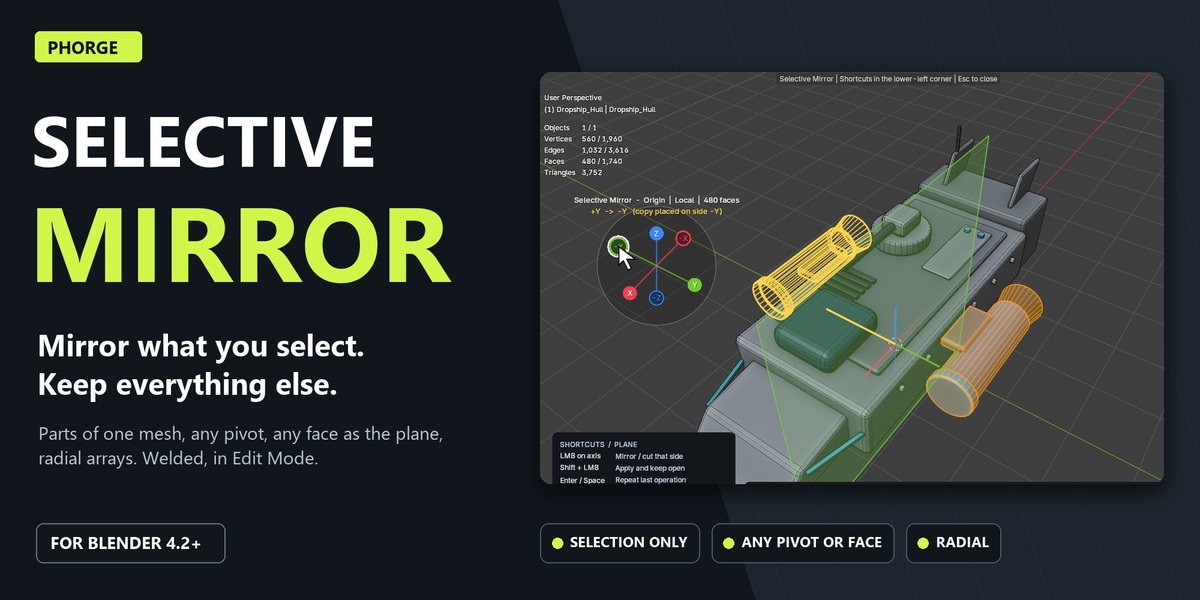
Selective Mirror 0.11.1
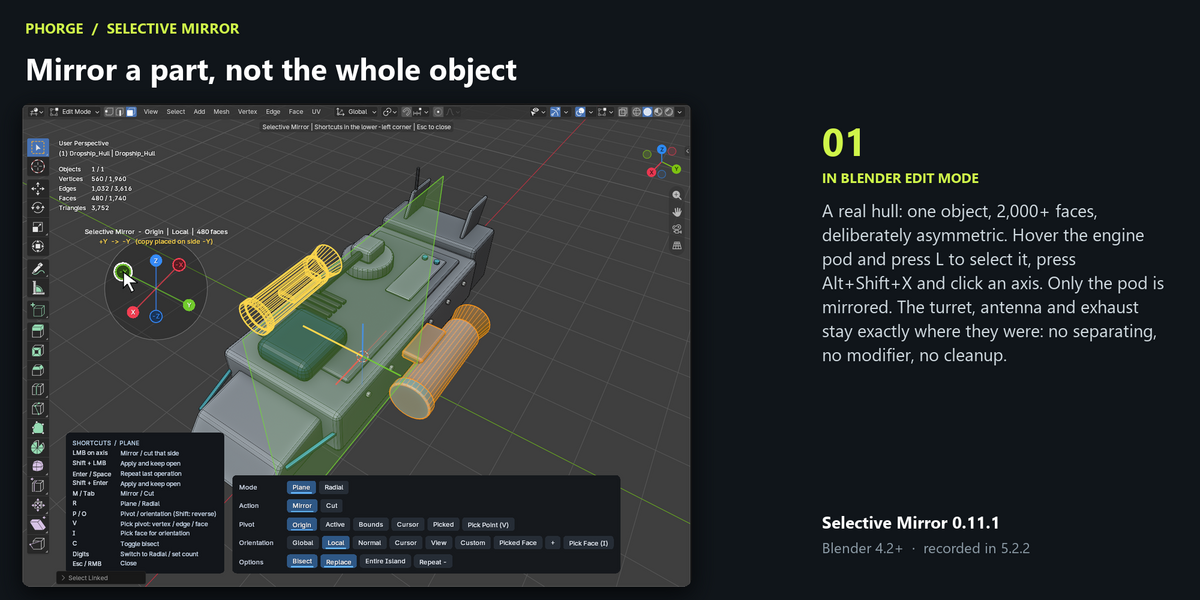
Selective Mirror mirrors selected faces, or the connected islands they belong to, around a pivot and orientation you choose in the viewport. Radial mode repeats a source wedge around an axis. Everything happens in mesh Edit Mode and edits the mesh directly; Undo reverts each operation.
Install and start
- Download
SelectiveMirror_0.11.1_extension.zipand keep it zipped. - Edit › Preferences › Get Extensions › top-right menu › Install from Disk…; select the ZIP and enable Selective Mirror.
- Alternatively install
SelectiveMirror_0.11.1.zipwith the legacy add-on installer. Enable only one of the two. - Select a mesh, enter Edit Mode and select faces (L over a part selects the whole part).
- Press Alt+Shift+X over the 3D View, or open Sidebar (N) › Selective Mirror and click Gizmo (Alt+Shift+X).
Scope: choose what can change
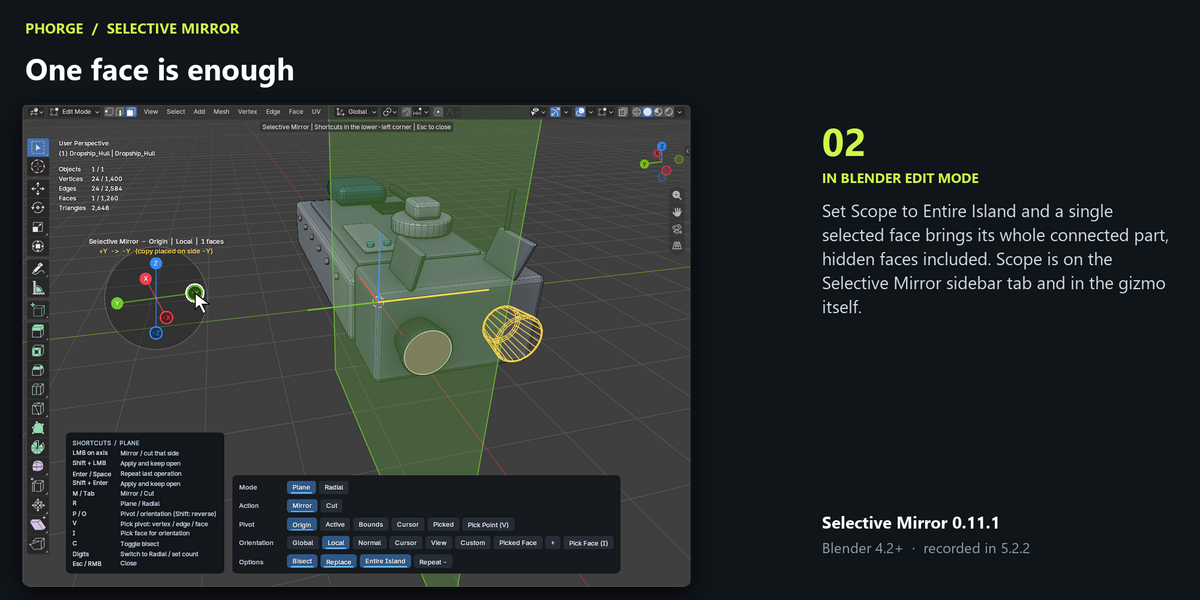
Selection affects selected faces. Entire Island includes every connected mesh island touched by the selection, including unselected faces on the other side. Connected means shared mesh topology; overlapping but disconnected solids remain separate islands. Replace only works inside the chosen scope. Scope is in the sidebar and in the gizmo’s Options row.
Plane mode
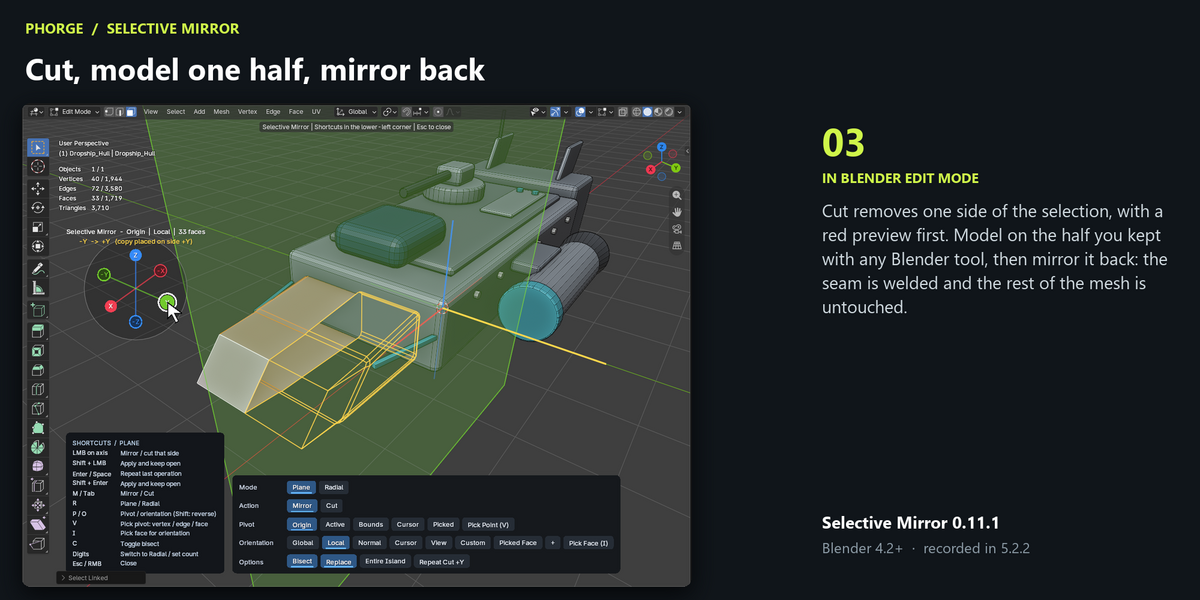
Mirror: +X receives the opposite side reflected onto +X; −X receives the opposite side reflected onto −X. Y and Z follow the same rule. Cut: removes the clicked side without copying. Cut +X followed by Mirror +X restores symmetry from the retained side.
Bisect splits faces crossing the plane. Replace removes in-scope target-side geometry before copying. Hovering an axis previews the plane and the mirrored copy, or the geometry to remove in red.
Pivots
| Pivot | Reference |
|---|---|
| Origin | Object origin. |
| Active | Active vertex, edge midpoint or face center. |
| Bounds | Center of the visible mesh bounding box. |
| Cursor | 3D cursor location. |
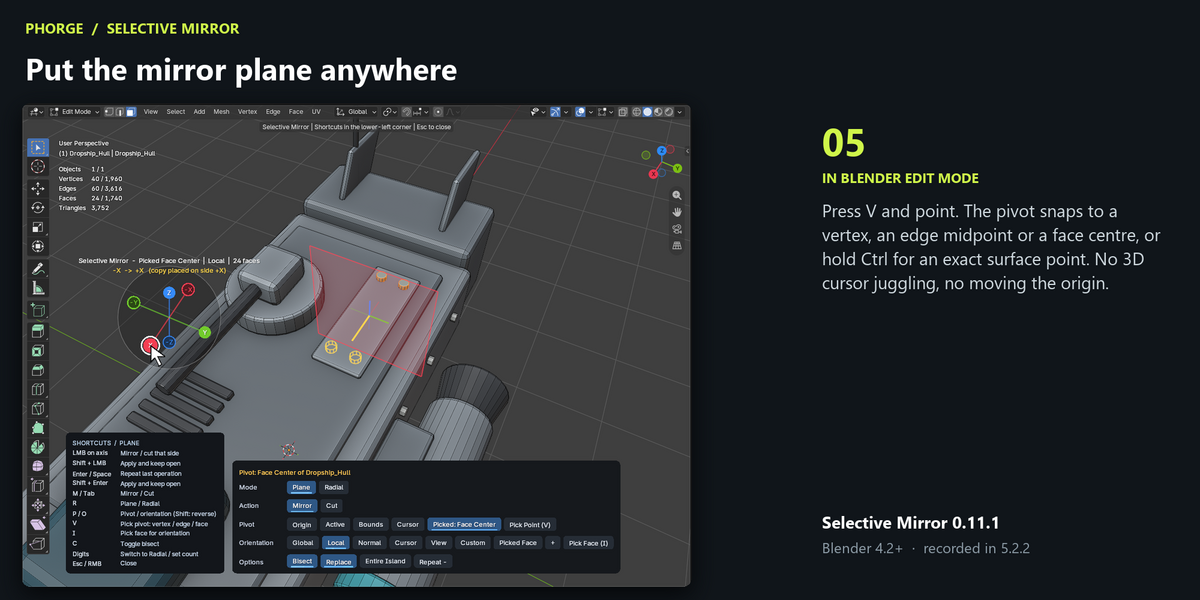
| Picked | A point sampled on a visible mesh, including another object. |
V / Pick Point: hover near a vertex to snap to it, near an edge for its midpoint, or inside a face for its center. Hold Ctrl for the exact surface point. A marker previews the snap. The pick is a world-space snapshot; pick again after moving the reference.
Orientations
| Orientation | Behaviour |
|---|---|
| Global | World axes. |
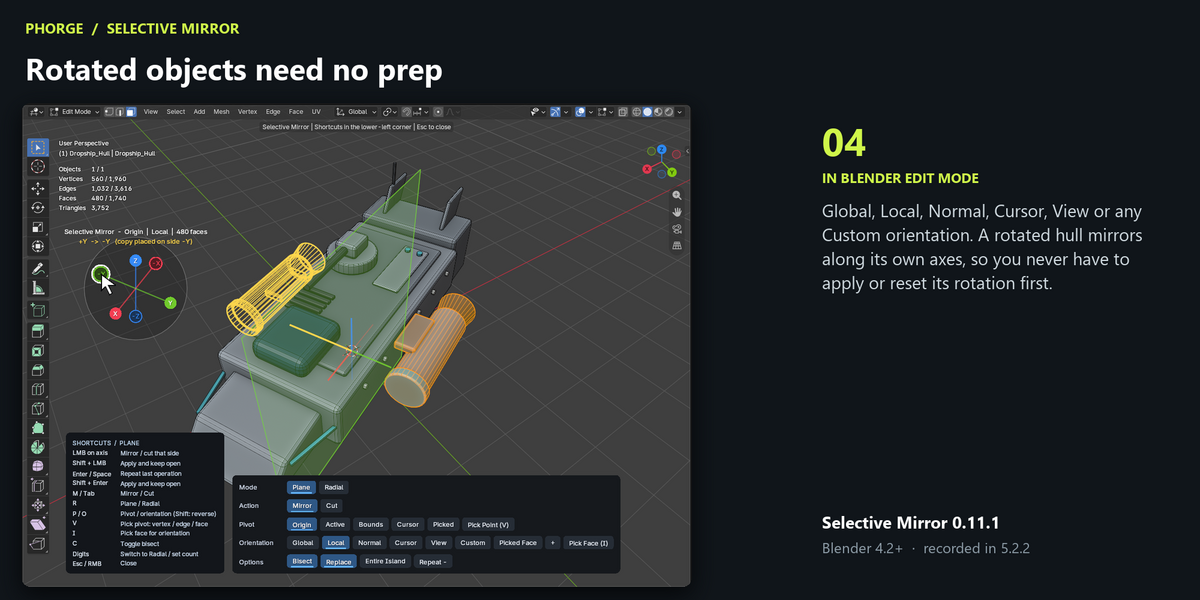
| Local | Object axes (default); rotated and non-uniformly scaled objects are handled. |
| Normal | Active element normal or average selected face normal. |
| Cursor | 3D cursor rotation. |
| View | Current view axes. |
| Custom | Current transform orientation. + creates one from the selection; click Custom again to cycle. |
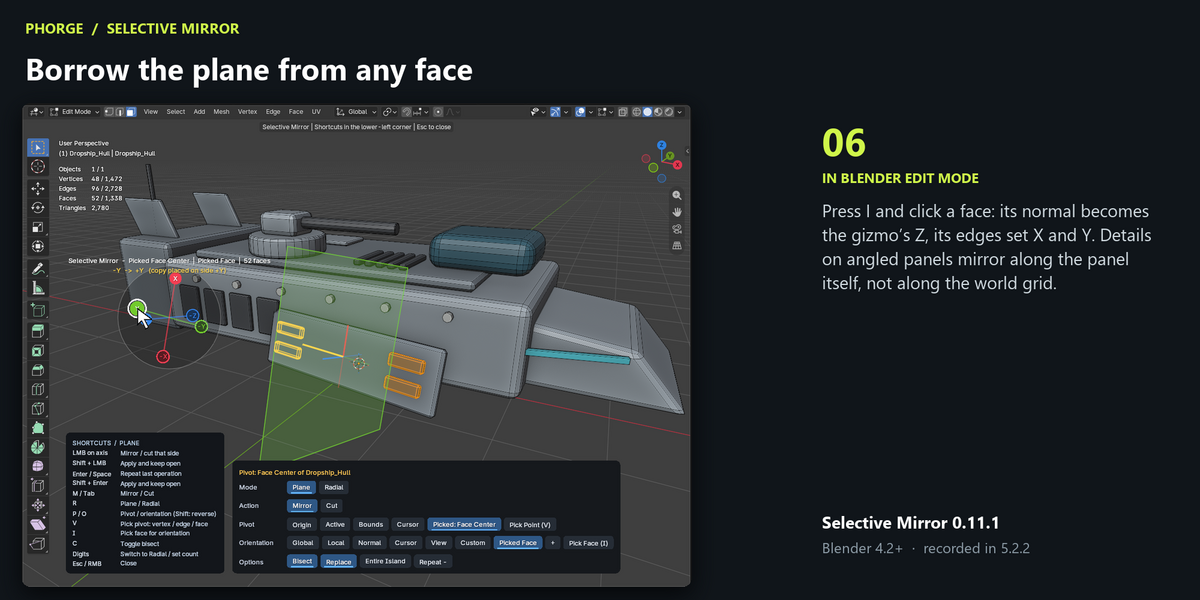
| Picked Face | Z follows the sampled face normal; X and Y lie in its plane. |
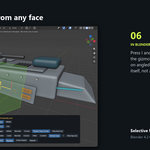
I / Pick Face: pick a visible face on the edited object or another mesh. Selection and active object are preserved. Esc or right-click cancels picking. To mirror across a reference surface, also place the pivot on it with V, then use Z.
Radial mode
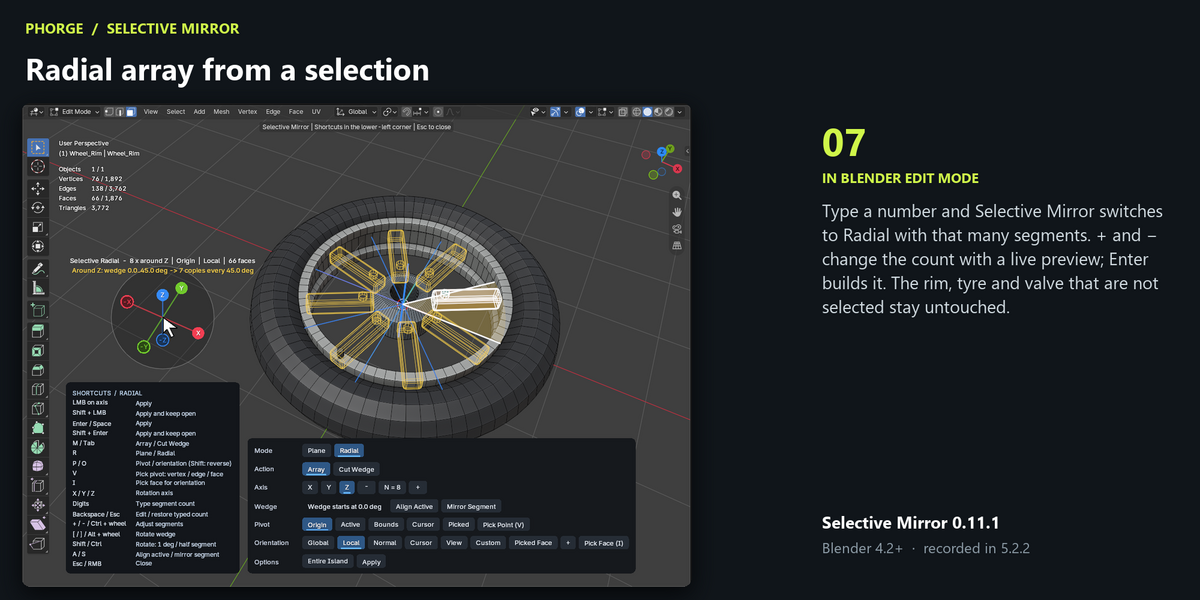
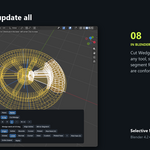
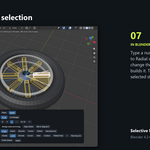
Choose X, Y or Z of the current orientation through the pivot. N segments divide a full turn into 360/N degrees. Typing digits switches to Radial and sets N; + and − adjust it; Enter applies.
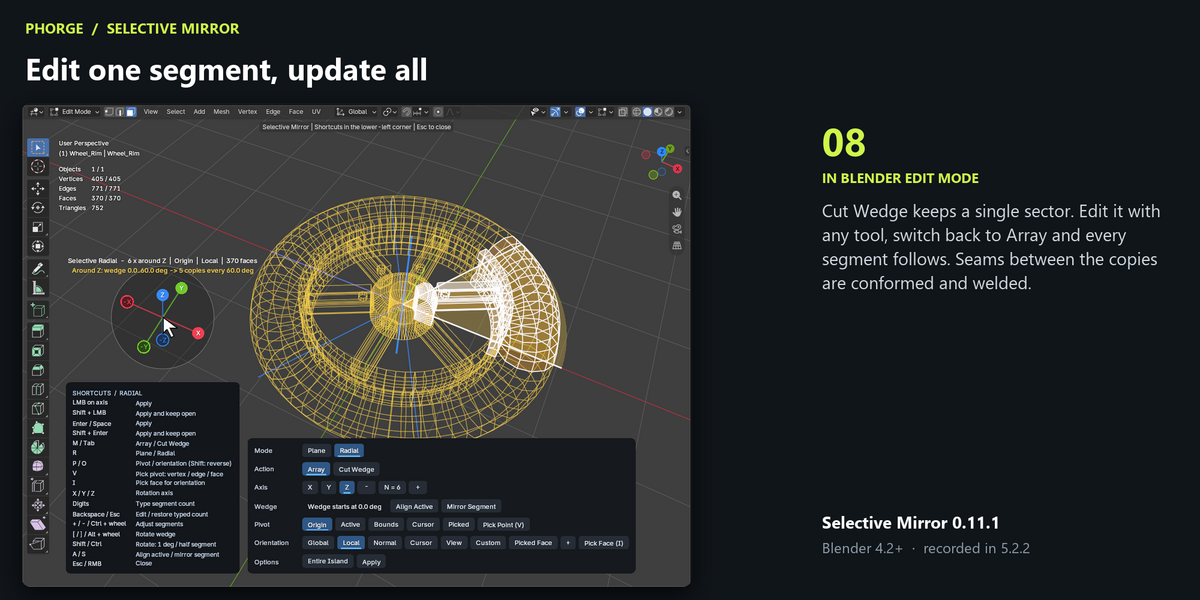
- Array: keep the source wedge and replace the rest of the scope with rotated copies.
- Cut Wedge: keep only the source wedge for focused editing.
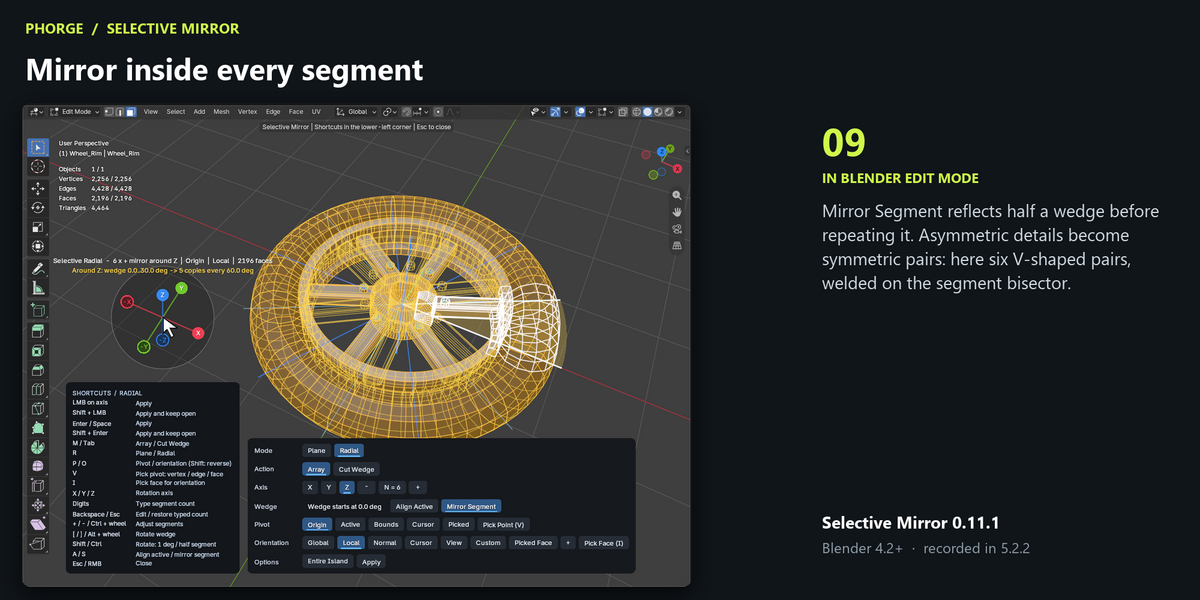
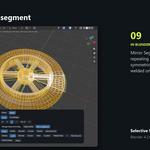
- Mirror Segment (S): reflect half a wedge across its bisector, then repeat the completed segment.
- Wedge fitting: a narrow detail that does not wrap around the axis is fitted into the wedge automatically; a selection around the whole axis uses the wedge start you set ([ ], A).
Seam conforming matches each wedge end to its rotated start and can subdivide boundary edges. Welding joins copies at seams without collapsing small details inside a wedge. Incompatible profiles can remain open and are reported.
Shortcuts in the gizmo
| Key | Action |
|---|---|
| Click an axis | Mirror / cut that side (Plane) or apply (Radial). |
| Shift+Click, Shift+Enter | Apply and keep the gizmo open. |
| Enter / Space | Repeat the last plane operation or apply radial settings. |
| M / Tab | Mirror ↔ Cut, or Array ↔ Cut Wedge. |
| R | Plane ↔ Radial. |
| P / O | Cycle pivot / orientation; Shift reverses. |
| V / I | Pick point / pick face. |
| C | Toggle Bisect. |
| X / Y / Z (Radial) | Rotation axis. |
| Digits | Segment count 2–128 (also enables Radial); a 1.5 s pause starts a new number. |
| Backspace / Del | Remove a digit / clear the typed count. |
| Enter / Esc while typing | Confirm / restore the previous count. |
| + / − / Ctrl+wheel | Adjust the count. |
| [ / ] / Alt+wheel | Rotate the wedge 5°; Shift 1°; Ctrl half a segment. |
| A / S (Radial) | Centre wedge on the active element / toggle Mirror Segment. |
| Esc / right-click | Close the gizmo, or cancel picking. |
Geometry and selection after the operation
Merge Distance controls seam welding and near-plane snapping. Snap Seam to Plane projects near-plane vertices onto the plane. Remove Interior Walls removes partitions made interior by the operation; plane surfaces stay when deleting them would open a hole. The welded seam remains an edge loop; dissolve it if you need one flat face.
After Mirror selects the copy, the source or both. Copy selection uses surface matching, including matching geometry that already exists on the other side (Match Tolerance). The active element is restored by position or by its mirrored counterpart. Cut selects the retained half. Invalid directions and empty selections cancel with a message. Advanced settings are in the operator’s Adjust Last Operation panel.
Compatibility and limitations
Declared minimum: Blender 4.2. Recorded and tested: Blender 5.2.2. Requires a mesh in Edit Mode. There is no live modifier relationship. Picking uses visible mesh geometry and stores a snapshot. Watertight results are not promised for incompatible radial seams, and full preservation of UVs and custom data is not guaranteed in every case.
Have questions about this product?
Login to message
| Blender Extension Compatible | Yes |
| Published | about 22 hours ago |
| Blender Version | 4.2 - 5.2 |
| Extension Type | Add-on |
| Render Engine Used | Cycles |
| License | GPL |
Discover more products like this
quality-of-life mesh modeling speed modeling Advanced3D mirror mesh editing gizmo