Set Project Tool Add-On
 Nothing Software


# Set Project Tool — Blender Add-on
**by Nothing Software** | Free | Blender 5.1.1+
---
## What is this?
If you came from Maya, you already know what Set Project does. It creates a structured folder system for your project and tells Blender where everything lives so you're not hunting through your Downloads folder six months later wondering where a render went.
Blender doesn't have this out of the box. This add-on brings it back.
---
## Installation
1. Download `set_project_tool.zip`
2. Open Blender and go to **Edit › Preferences › Add-ons**
3. Click **Install…** and select the file
4. Enable the add-on by checking the box next to **Set Project**
The add-on will appear in the **Sidebar** (press `N` in the 3D Viewport) under the **Set Project** tab. It also adds a panel to the **Image Editor** sidebar.
---
## How to Use It
### Setting Up a New Project
1. Open a fresh unsaved `.blend` file
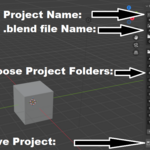
2. Under **Project Name** give your project a name, then under **File Name** give your blend file a name.
3. Next in **Project Location** set the path to where you want your project to live. You can change it again later.
4. Now, choose which folders you want to be in your project, you can add, remove, and rename all the **Project Folders**
NOTE: removing Autosave will cause Blender handle autosaves in the default blender folder rather than in your project.
4. When you're done, Click **Set New Project**
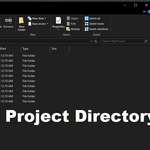
5. The add-on creates the full folder structure at that location
---
### After Your Project is Set
Once a project is active:
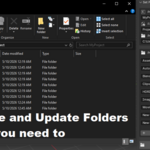
- You can rename your **Project Name** and **File Name** just press **Update Project** when you're done
- You can add, remove, and rename **Project Folders** after your project is set
- You can move your entire project anywhere you want by editing the **Project Location** file path
- **Open Folder** — opens the project root in your OS file manager
---
### Saving Images (Image Editor)
When you have an image open in the **Image Editor**, the Set Project panel shows a **Save Image to Project** button. This opens Blender's native Save Image dialog pre-navigated to your project's `Images` folder so you don't have to find it yourself.
---
## Folder Structure
Every project created with this add-on uses the same fixed folder structure:
| Folder | Purpose |
|---|---|
| Assets | 3D models, rigs, and imported assets |
| Autosave | Blender's autosave files — redirected here automatically |
| Blends | Your `.blend` files live here |
| Clips | Video reference or playblasts |
| Images | Renders and output images |
| Movies | Final video exports |
| Scripts | Python scripts used in the project |
| Sound | Audio files |
| Textures | Textures and source images for materials |
---
## Tips
- **Autosave is redirected per-project.** Each time you open a `.blend` that has a project set, the autosave path is restored automatically so recovery files always land in the right place.
- **Render output is set automatically** to the `Images` folder when a project is created or linked. You can change it anytime in **Properties › Output** as usual.
---
## Compatibility
Blender 3.0.0 and above. Not tested on earlier versions.
---
*Nothing Software — made for artists who switched from Maya and miss the little things.*
*2026*
AI Usage Disclosure: This addon was developed with the assistance of AI (large language models) for code generation, structuring, and optimization. All AI-generated code has been reviewed, tested, and curated by a human developer to ensure functionality, quality, and security.
Have questions about this product?
Login to message
| Published | 5 months ago |
| Blender Version | 3.0 - 5.1 |
| Extension Type | N/A |
| Render Engine Used | Cycles |
| License | GPL |
Discover more products like this
Workflow project-management automation blender addon blender