 Phatarian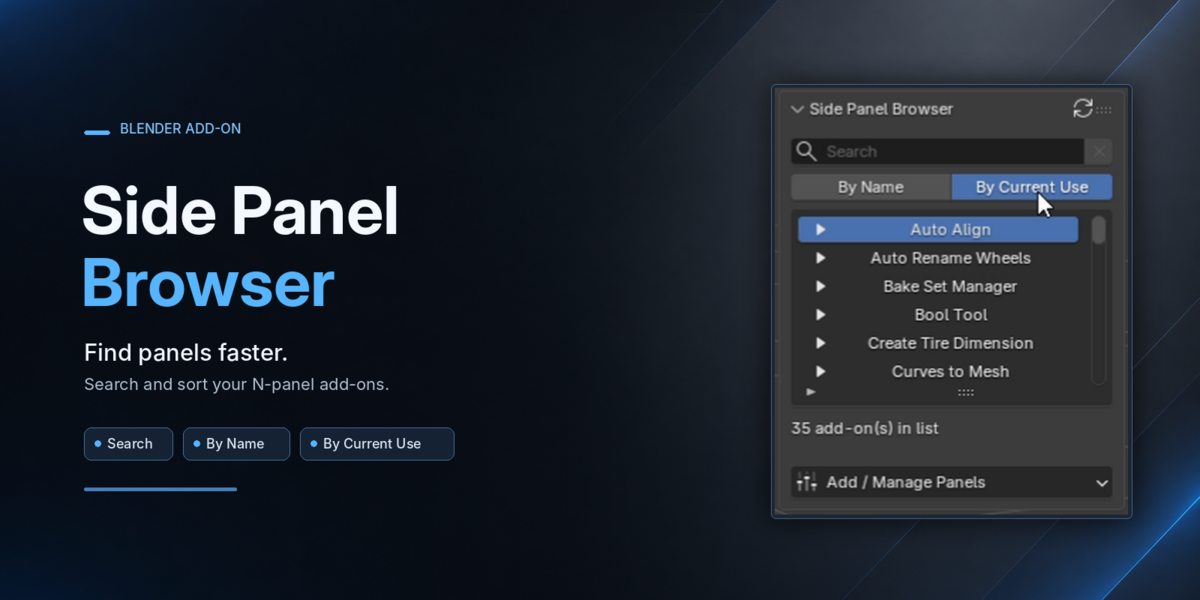
Side Panel Browser — Documentation
1. Installation
Download the Side Panel Browser ZIP file.
Open Blender and go to Edit → Preferences.
Install the downloaded ZIP file using Blender's add-on installation option.
Enable Side Panel Browser if it is not enabled automatically.
2. Opening Side Panel Browser
Open the 3D Viewport.
Press
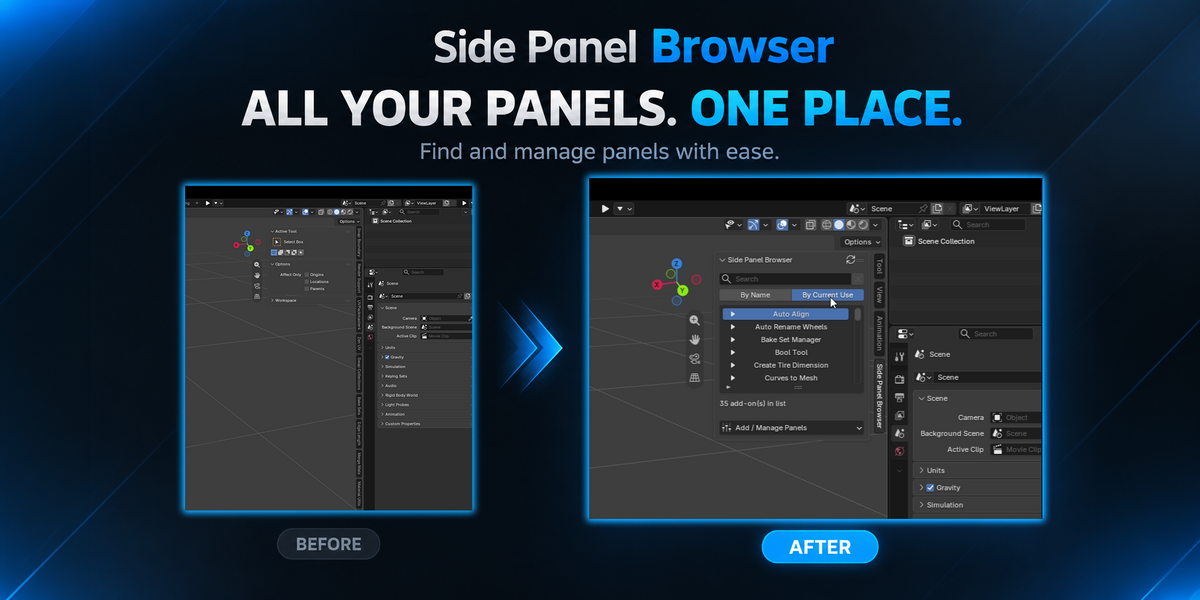
Nto open the Sidebar if it is hidden.Select the Side Panel Browser tab.
Your panel browser is now ready to use.
3. Finding and Accessing Add-ons
Search
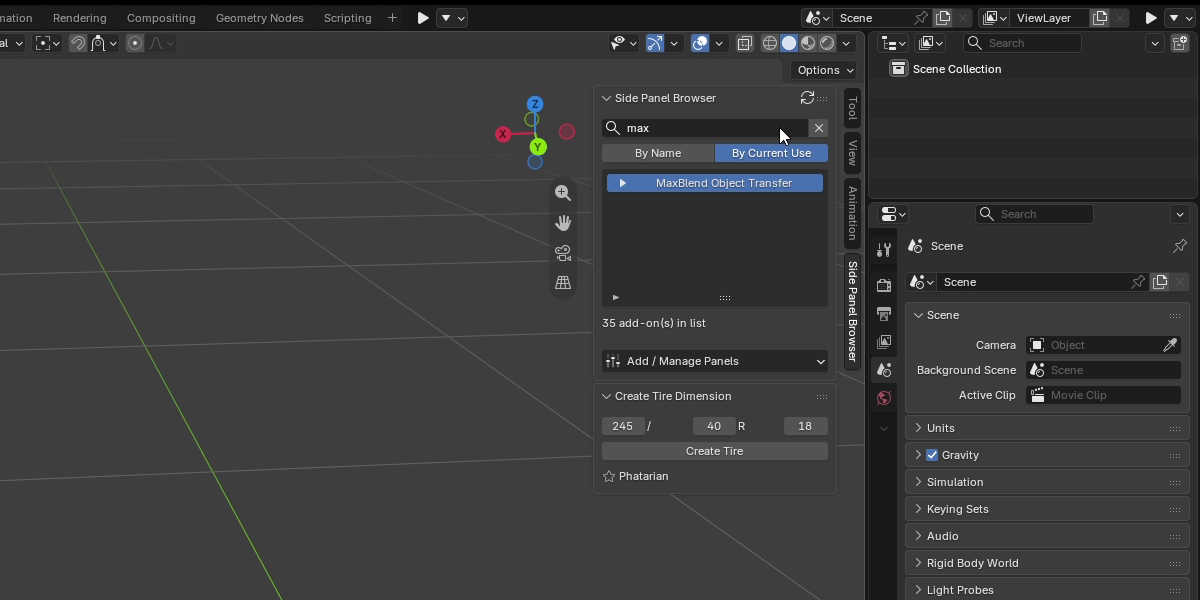
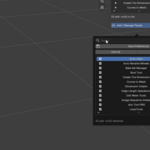
Use the search box to quickly find an add-on by name. Clear the search field to see the full list again.
Sorting
Choose your preferred sorting mode:
By Name — Organize add-ons alphabetically.
By Current Use — Organize the list based on current use.
Accessing Original Panels
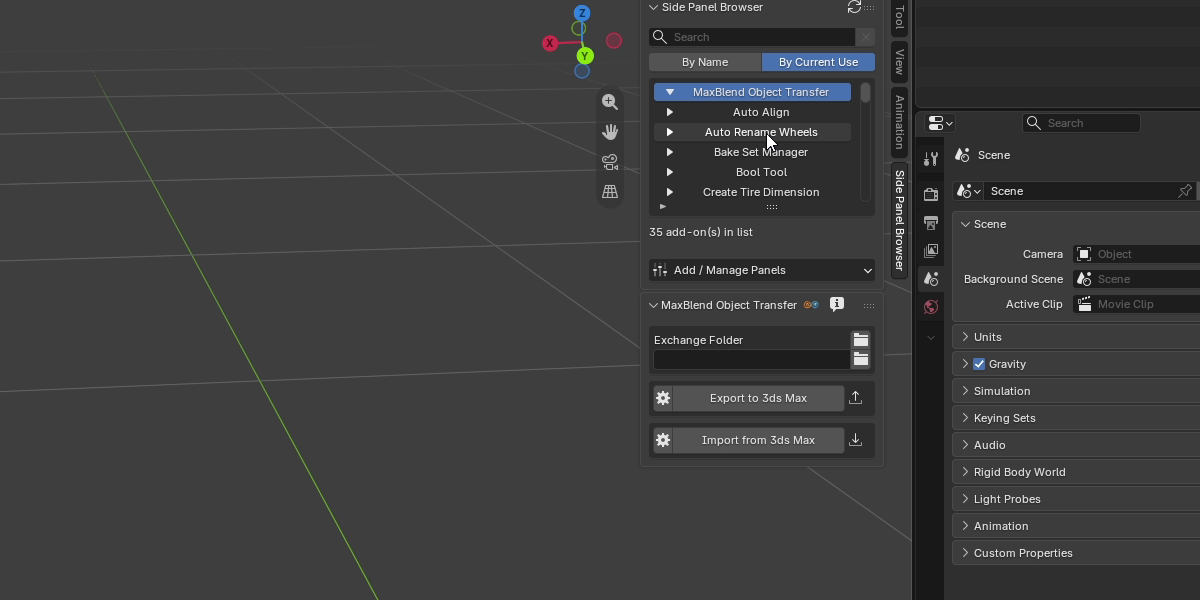
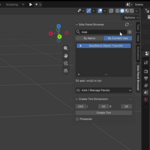
Click an add-on in the browser to show its original panels alongside Side Panel Browser.
The panels remain independent Blender panels with their original functionality. They are not copied into a separate interface.
4. Managing Your Panels
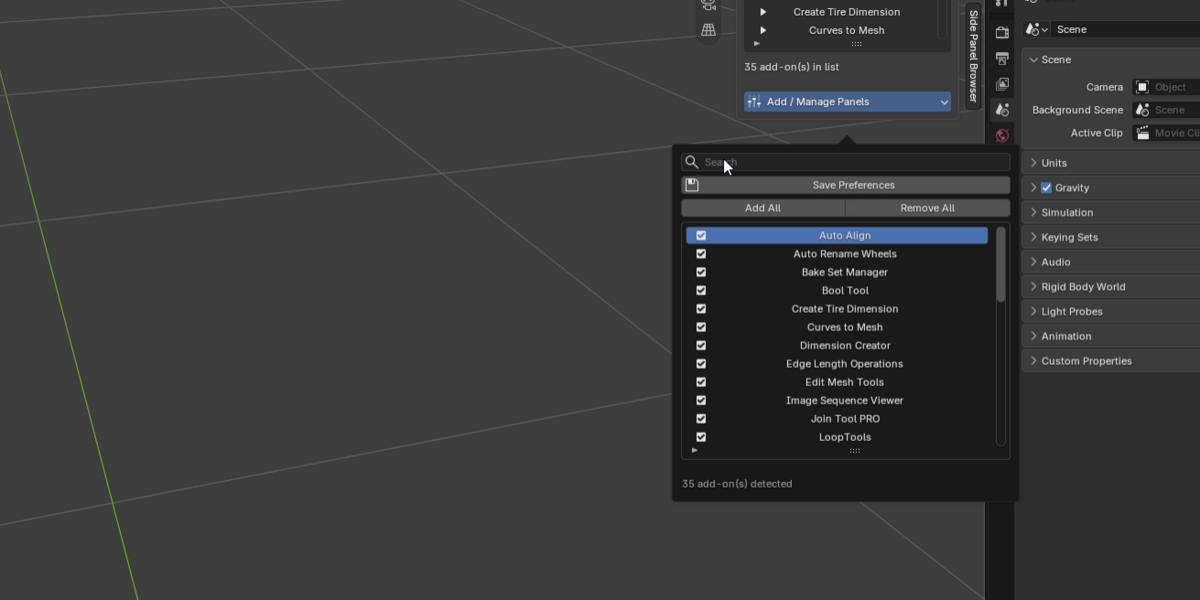
Expand Add / Manage Panels to organize the add-ons displayed in the browser.
Add — Include an add-on in your managed list.
Remove — Remove an add-on from the managed list.
Add All — Add all available add-ons to the list.
Remove All — Clear the managed list.
Refresh — Update the list when add-ons become available or their status changes.
Use the search box and sorting options to make managing a large list easier.
5. Saved Preferences
Your managed add-on list is saved in Blender Preferences, so your setup remains available when you switch between .blend files or restart Blender.
If a managed add-on is temporarily disabled or unavailable, Side Panel Browser can resume managing its panels when the add-on becomes available again.
6. Troubleshooting
An add-on does not appear in the list.
Make sure the add-on is installed and enabled, then click Refresh.
An add-on's panels are missing.
Check that the original add-on is enabled and available in your Blender installation. Refresh the browser and check again.
Your list looks different from before.
Check the selected sorting mode and search field. Your search or sorting settings may change how the list is displayed.
7. Feedback and Support
Found a bug, have a suggestion, or need help? Your feedback is always welcome.
Creator page: https://beacons.ai/phatarian3d
Side Panel Browser
Made by Phatarian 💙
Have questions about this product?
Login to message
| Blender Extension Compatible | Yes |
| Published | 1 day ago |
| Blender Version | 4.2 - 5.2 |
| Extension Type | Add-on |
| Render Engine Used | Cycles |
| License | GPL |
Discover more products like this
Addon manager n menu organizer clean panel Sub Tabs workspace Sidebar simple tabs clean n-panel