 KacaDev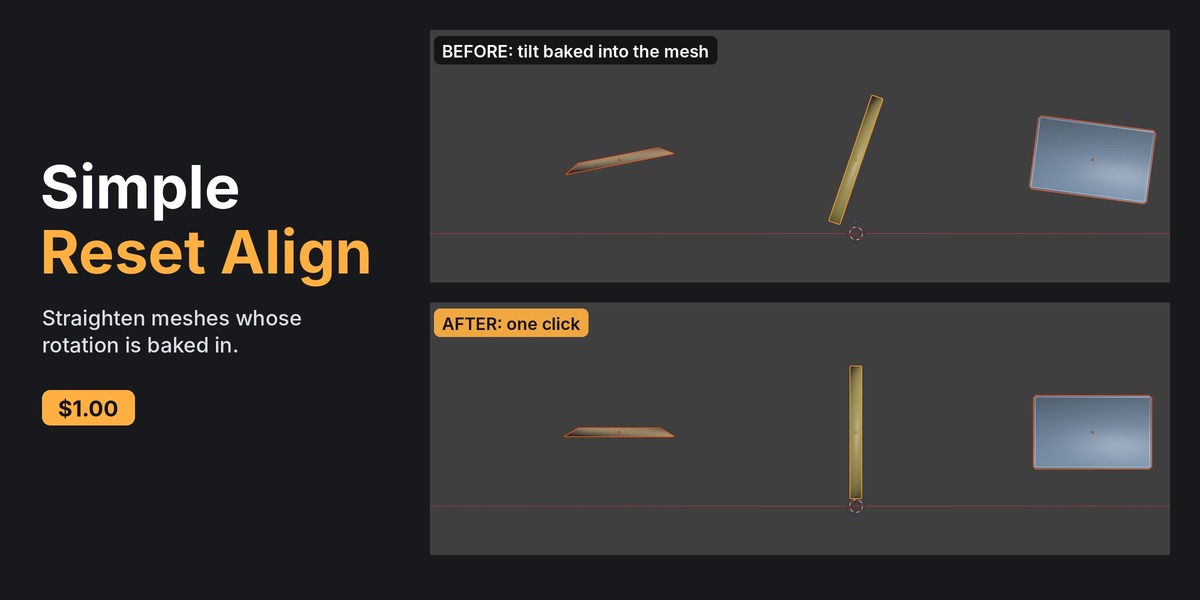
Requirements
Blender 4.2 or newer (developed and tested on 5.1).
Installation
- Download
simple_reset_align-x.y.z.zip. Don't unzip it. - In Blender, open Edit > Preferences > Get Extensions, click the drop-down arrow at the top right and choose Install from Disk…. You can also drag the zip into the Blender window.
- In the 3D viewport, press N and open the Reset Align tab.
Use
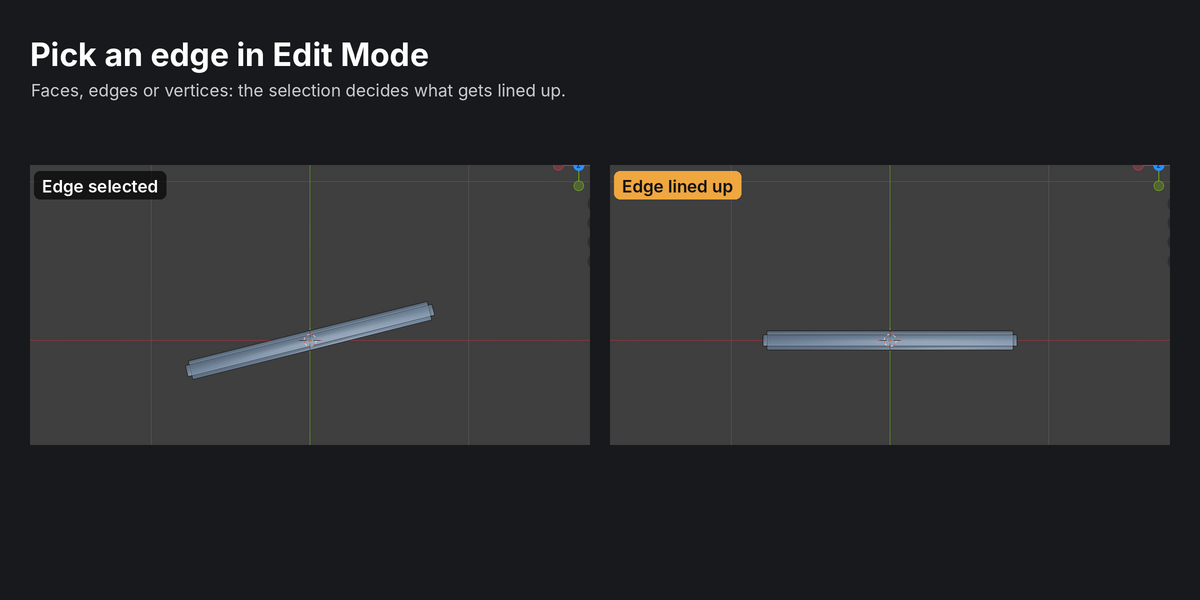
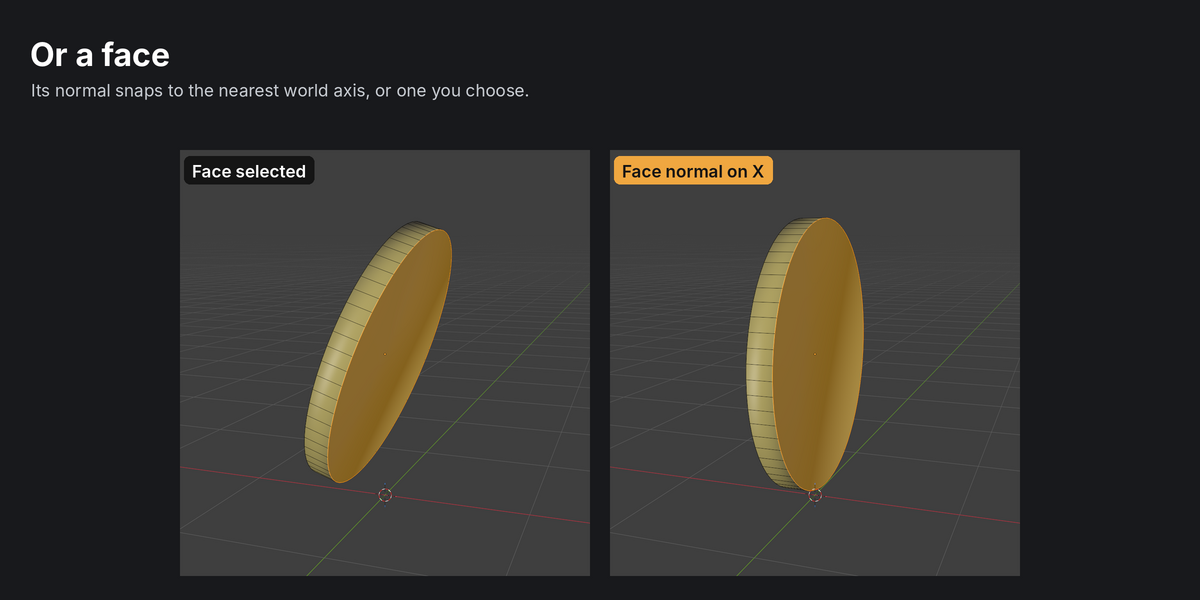
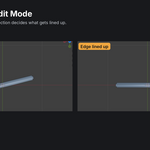
- Select one or more meshes. In Edit Mode, you can select the faces, edges or vertices that should line up instead.
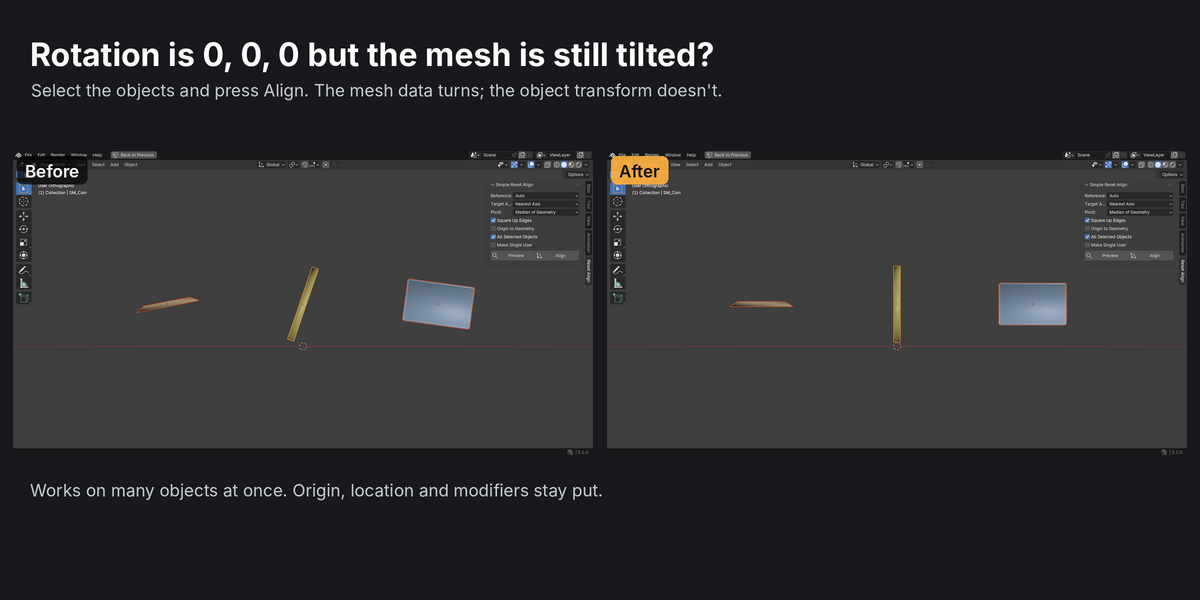
- Press Preview to see the angle, then Align.
- The same command is in Object > Transform and Mesh > Transform as Reset Align. Press F9 afterwards to change options and redo.
Options
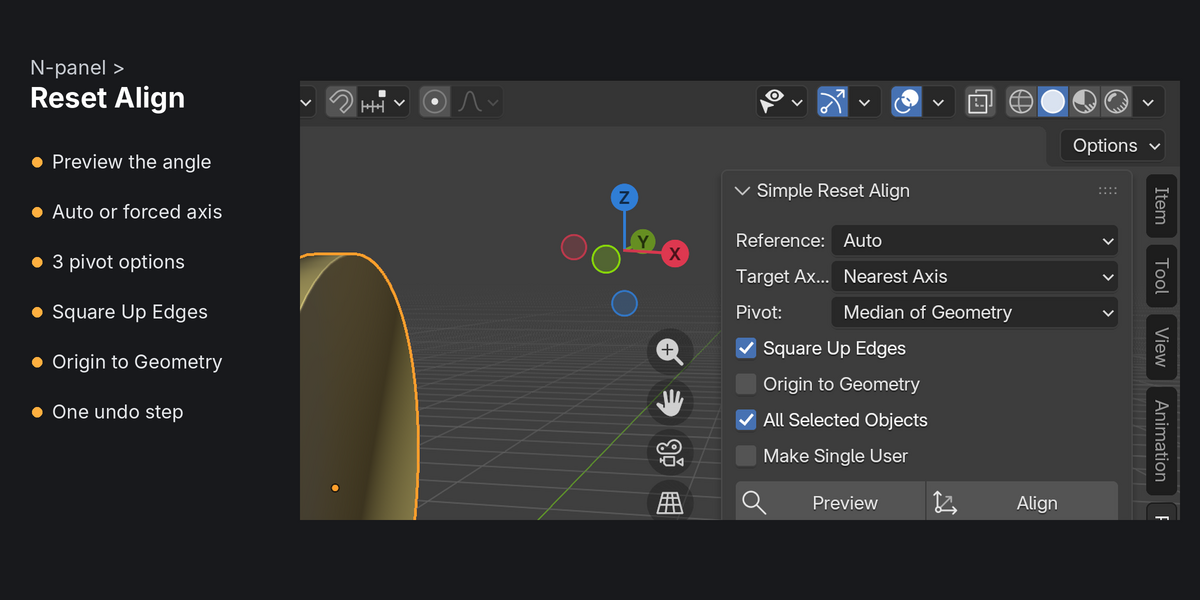
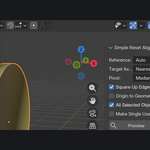
- Reference: Auto uses your Edit Mode selection, else the largest flat area, else PCA. Selection, Largest Flat Area or Thin Axis (PCA) force one method.
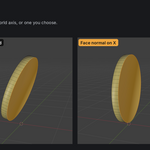
- Target Axis: Nearest Axis, X/Y/Z (either sign), or +X/-X/+Y/-Y/+Z/-Z.
- Pivot: Median of Geometry, Object Origin or 3D Cursor.
- Square Up Edges: also spin the mesh around the target axis so straight edges line up. Turn it off to align only one direction.
- Origin to Geometry: move the origin to the mesh centre afterwards.
- All Selected Objects: align every selected mesh, or only the active one.
- Make Single User: give shared mesh data its own copy instead of skipping it.
Have questions about this product?
Login to message
| Blender Extension Compatible | Yes |
| Published | 3 days ago |
| Blender Version | 4.2 - 5.1 |
| Extension Type | Add-on |
| Render Engine Used | Cycles |
| License | GPL |