Smart Align (Blender Add-On)
 Gabor Kiss


Usage
Smart Align works in Edit Mode and is designed for fast, predictable source-to-target alignment between vertices, edges, faces, and connected geometry islands.
Fast Align (Quick Workflow)
1. Select a vertex, edge, or face on the island you want to move
2. Select the matching element on the target island
vertex to vertex
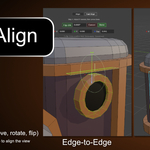
edge to edge
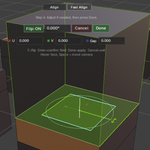
face to face
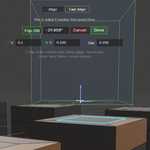
3. Press Alt + A
4. Choose Fast Align
5. Optional: use Fine Tune, then press Done
The entire connected island of the reference moves and aligns to the target element.
Align (Step-by-step Mode)
1. In Edit Mode, select the geometry you want to move
2. Choose a reference element (vertex, edge, or face) from that selection
3. Choose the target element
4. Optional: use Fine Tune, then press Done
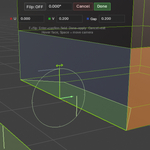
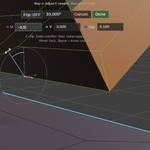
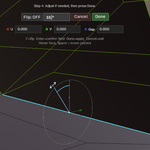
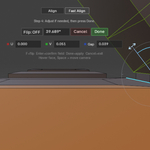
Fine Tune
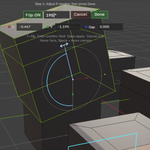
Fine Tune is available after alignment for edge-edge and face-face workflows.
It includes:
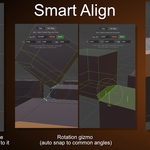
- Interactive rotation with snapping
- Local U / V / Gap offsets for post-align movement
- Viewport gizmos for both movement and rotation
- Numeric fields that stay in sync with the gizmos
- F to flip alignment direction
- Hover face + Space to move the view perpendicular to that face for easier inspection
Behavior Notes
- Works in Edit Mode only
- Supports vertex, edge, and face selection
- Moves full connected islands in Fast Align
- Partial selections are supported in Align mode
- In vertex mode, Fine Tune rotation and flip are not available
