Snapline - Rulers & Guides For Blender
 benedetto battipede


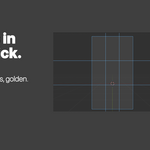
Installation
- Download the file from your Superhive library.
- Open Blender (4.2 or higher).
- Go to Edit → Preferences → Get Extensions (or Add-ons in 4.2).
- Click the down-arrow at the top-right → Install from Disk.
- Select
snapline-1.5.0.zip— do not extract it. - Enable the checkbox next to "Snapline".
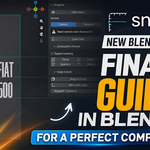
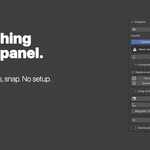
Snapline is now installed. Press CTRL+ALT+R in any 3D viewport, or open the N-panel → View → Snapline.
Quick start
1. Toggle the rulers. Press CTRL+ALT+R. Two ruler bands appear along the top and left of the viewport. A small CAM badge in the corner indicates the default Camera anchor mode.
2. Switch to camera view. Press Numpad 0. The camera frame is outlined in faint cyan. Guides will lock to this frame.
3. Drag a guide. Click on the top ruler band and drag down. A horizontal guide follows your cursor. Hold CTRL while dragging to snap to thirds, halves, and quarters. Release to drop the guide.
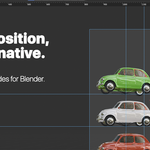
4. Use a preset. Open the N-panel → View → Snapline → Composition Presets → click Thirds. Four guides appear instantly, anchored to the camera frame.
5. Snap an object. Select any object. Press CTRL+ALT+T. Move the mouse — the object pulls magnetically onto guides as it crosses them. Click to confirm, Esc to cancel.
Anchor modes
Camera Frame (default). Guides are stored as fractions of the active camera's view rectangle. Move the camera, orbit the viewport, change focal length — the guides stay visually locked to the same composition. Only visible when you are in camera view (Numpad 0).
Viewport. Guides are stored as fractions of the viewport rectangle. Anchored to your screen, not to any camera. Useful for general layout work or when you want a persistent overlay regardless of view.
Switch modes from the Snapline panel. The badge in the corner — CAM or VP — always tells you which mode is active.
Composition presets
Four one-click compositional frameworks:
- Thirds — 4 guides at 1/3 and 2/3 (rule of thirds)
- Center — 2 guides crossing at 1/2 (symmetric framing)
- Quarters — 6 guides at 1/4, 1/2, 3/4 (4×4 grid)
- Golden — 4 guides at 0.382 and 0.618 (phi proportions)
By default, applying a preset replaces all existing guides. Toggle Replace existing off and presets stack on top of each other instead. Useful for richer grids — for instance, Thirds combined with Center gives you both the rule of thirds and the central crosshair simultaneously.
Snap actions
Snap to Guide (CTRL+ALT+E). One-shot. Moves the active object so its pivot lands on the nearest X+Y guide intersection. Best for snapping multiple objects to the same intersection in sequence.
Move with Snap (CTRL+ALT+T). Interactive. Replaces Blender's standard G operator with a magnetic version. The object translates on the screen plane and snaps onto guides within tolerance. The snapped guide highlights in orange.
During Move with Snap:
- X or Y — lock to that screen axis
- LMB or Enter — confirm
- Esc or RMB — cancel and restore initial position
Magnetic Tolerance (panel setting) controls how close in screen pixels the object needs to be before it snaps. Default 20px. Increase for sticky composition work, decrease for surgical precision.
Smart drag snap
While dragging a guide from the ruler:
- Hold CTRL — snap to thirds, halves, quarters (0, 1/4, 1/3, 1/2, 2/3, 3/4, 1)
- Hold SHIFT — fine snap at 5% increments
- Drag a guide off-canvas — delete it
Lock View
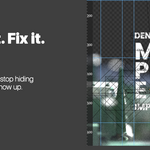
When you're composing carefully, an accidental wheel scroll or stray middle-click can jolt the camera and ruin the alignment you just built. Lock View prevents that.
Toggle from the Snapline panel. While Lock View is active, Snapline intercepts and discards orbit, pan, and zoom events — middle-mouse drag, wheel zoom, trackpad pan and pinch. Numpad teleports (1, 3, 7, 0) still work, so you can jump between standard views without unlocking.
An amber LOCKED badge appears in the viewport corner whenever Lock View is on.
Default shortcuts
| Action | Shortcut |
|---|---|
| Toggle rulers | CTRL+ALT+R |
| Snap to guide | CTRL+ALT+E |
| Move with snap | CTRL+ALT+T |
All shortcuts rebindable via Edit → Preferences → Keymap → 3D View (search "snapline"). On macOS, CTRL maps to ⌘.
Persistent guides
Snapline stores guides per-scene, inside the .blend file. Save your project, close Blender, open it tomorrow — your composition is still there. Each scene has its own set, its own anchor mode, its own settings.
Multiple cameras
Snapline anchors to whichever camera is currently set as active in the scene. Switch active cameras and the guides re-anchor to the new frame automatically. Guides are stored as fractions of the frame, so the same composition (e.g. thirds) translates correctly between cameras of different sensor sizes.
Render-safe by design
Snapline draws to the viewport overlay only. It never writes to the depsgraph, never modifies any data block at render time, and never touches your scene state. Cycles, EEVEE, and Workbench renders are completely unaffected.
Troubleshooting
Guides not visible? Most likely you're in Camera anchor mode but not in camera view. Press Numpad 0. An orange warning appears whenever the camera frame can't be resolved.
Move with Snap doesn't activate? The operator works in Object Mode only. In Edit Mode, Sculpt Mode, etc., use Blender's native G operator — Snapline's rulers and guides remain visible as a reference.
Shortcut conflict with another addon? Rebind via Edit → Preferences → Keymap → 3D View. Snapline registers three keymap items in CTRL+ALT+R/E/T which are unbound in the default Blender 4.2+ keymap.
Removing all guides at once? N-panel → Snap Actions → Clear All Guides. Undoable.
Requirements
- Blender 4.2 or higher (tested on 5.0)
- Windows, macOS, or Linux
- No external dependencies
- No internet connection required
Support
Questions, bug reports, feature requests — DM @benedetto_battipede on Instagram. Updates and changelogs posted there.
A full PDF user manual is included with the download (Snapline_Manual.pdf inside the extension folder).
Discover more products like this
photoshop composition rulers camera guides rule of thirds snap motion graphics alignment after effects layout framing