Snapshots - Freedom to Experiment
 BlenderAddon


Snapshots User Manual
Professional Version Control for Blender
01 Introduction
Welcome to Snapshots, a professional version-control workflow for Blender. Snapshots is designed to liberate your creative process by removing the fear of commitment. By creating non-linear "checkpoints" in your work, you can explore radical creative tangents, A/B test lighting setups, prototype complex procedural systems, and compare animation takes using Ghost Curves, all while knowing your primary vision is safe and restorable with surgical precision.
02 Installation
- Download the
snapshots.zipfile. - In Blender, go to Edit > Preferences > Add-ons.
- Click the Install... button at the top-right.
- Select the downloaded
.zipfile. - Enable the addon by ticking the checkbox next to Snapshots.
03 Configuration & Pipeline
Access these settings in Edit > Preferences > Add-ons > Snapshots.
Global Snapshots Directory
By default, Snapshots are saved relative to your project in a hidden folder. Set a global directory to centralize backups to a secondary drive or network server, which is ideal for studio environments.
UI Tab Customization
Change the UI Tab Name to move the Snapshots panel to a specific location in your N-panel sidebar (e.g., "Pipeline" or "Exploration") across all editors.
04 Capturing & Managing History
Press N in the 3D Viewport or any major editor to access the Snapshots tab.
Creating a Snapshot
Click Create Snapshot. If your file hasn't been saved yet, it will prompt you to save first to initialize the system.
When creating a snapshot, check Capture Thumbnail. Click and drag in the UI to draw a region; it will automatically be cropped, padded to a square, and saved as a lightweight, high-quality image to keep your project folder small while giving you a clear visual reference.
Managing Your Snapshot
- Annotations (Notes): Click any snapshot to expand it and type detailed notes to track your process.
- Renaming: Double-click a snapshot's name in the UI list to instantly rename it.
- Recapture: Use the camera icon in the snapshot details to recapture the thumbnail at any time.
- View Full Thumbnail: Click the expand button to pop open a high-resolution version of your capture in Blender's standalone image player.
05 Contextual Editor Integration
The Snapshots panel dynamically adapts to your workspace, allowing you to create partial snapshots of specific data blocks (like an Action, Mesh Data, or a Node Tree) without saving the entire file.
Properties & Node Editors
When working in the Properties panel (Data, Modifiers, Material) or Node Editor (Shader, Geometry Nodes, Compositing), the sidebar adapts to target the active data context. Quickly version-control complex setups independently of the main scene.
Dopesheet & Graph Editor
In animation editors, the add-on recognizes the active Action data-block. Snapshot different animation takes, compare them visually using Ghost Curves, and surgically restore specific channels or bones.
06 Surgical Restoration
Snapshots allows you to mix and match different versions of your project. You don't always have to revert the whole file; you can pull just the ideas you need.
6.1 Property-Level Recovery (Right-Click)
This is the most powerful way to use Snapshots.
- Right-click almost any field (Roughness, Location, custom Geometry Node inputs, etc.).
- Select Restore Property from Snapshot.
- Pick a snapshot from the list. The specific value—along with any attached Drivers, F-Curves, or keyframes—will be safely restored.
6.2 Component & Node Tree Restoration
- Materials & Compositing: Right-click a material name or a Compositor Effect layer to restore its entire configuration and nested node trees.
- Modifiers & Constraints: Right-click the name of a modifier or constraint in the stack to revert it. If a modifier contains an embedded Geometry Node tree, it will be mapped correctly.
6.3 Animation & Ghost Curves
In the Graph Editor, Dopesheet, or the Object Properties panel, you gain fine-grained control over animation history:
- Ghost Curves (Graph Editor): Click the ghost icon next to a restore button to project the snapshot's animation data into your viewport as background ghost curves. Compare timing and spacing without overwriting your current work!
- Restore Selected Bones: In Pose Mode, select specific bones and restore *only* their animation channels from a previous take.
- Restore Selected Channels: Highlight specific F-Curves (like Z-Rotation) in the Graph Editor and restore only those targeted tracks from a snapshot.
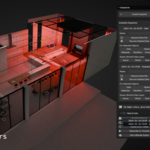
6.4 Bulk Restoration (Viewport Menu)
Select multiple objects in the 3D Viewport and Right-click > Restore from Snapshot.
- Restore Data: Reverts underlying meshes/curves/lights while keeping current object positions.
- Restore Object Properties: Reverts transforms (Location, Rotation, Scale).
- Restore Modifiers & Constraints: Synchronizes entire modifier stacks across multiple objects, including embedded Node Trees.
- Restore Materials & Actions: Reverts material slot assignments and active Action datablocks for the entire selection.
6.5 Granular Mesh Data Restoration
Snapshots provides incredibly granular control over your mesh's topology data. By navigating to the Data Properties panel, you can take and restore partial snapshots of specific geometric properties:
- UV Maps: Restore specific UV unwraps without losing changes to other UV channels.
- Vertex Groups: Bring back perfectly weighted vertex groups.
- Shape Keys: Recover lost facial expressions or morph targets.
- Attributes: Restore color attributes and custom Geometry Node attribute arrays.
If you perform a Mesh Data Restore while in Edit Mode, the restored data (UV coordinates, Weights, Attributes) will only be applied to your currently selected vertices, edges, or faces! This allows you to patch specific areas of a mesh using older versions without affecting the rest of the model.
07 Recovery & Scene Tools
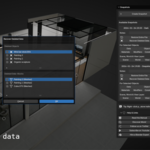
7.1 Recover Deleted Data
If you set aside an idea earlier and deleted it from your scene, you can bring it back seamlessly:
- Expand a global snapshot in the sidebar.
- Click Recover Deleted Data.
- The system intelligently identifies every object or data-block present in the snapshot but missing from your current file.
- Select the items and click OK. Objects will be automatically linked back into their original collections if they still exist.
7.2 Scene-Level Restoration
Inside the expanded global snapshot panel, use the quick-action buttons to instantly restore high-level environments:
08 Technical Compatibility
© blenderaddon.com
Discover more products like this
time-machine version-control restore backup-versions snapshots backup