Speedlines FX
 Flidoh Animations



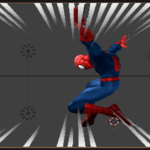
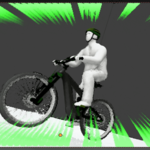
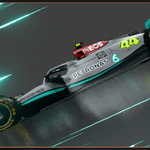
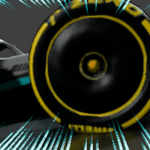
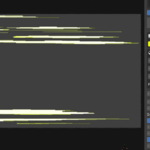
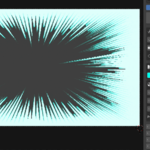
SPEEDLINE FX
Add speedlines to your Blender scene with ease — and give every shot more feel, more emotion, more life.
Speedline FX generates professional anime and manga-style speedlines directly inside your 3D scene. No compositing. No external software. No greenscreens. Everything is driven by Geometry Nodes, so every parameter is fully customizable and animates cleanly on the Timeline.
1. Overview
Speedline FX is a Blender addon that gives you two distinct speedline modes, a smart focal-point tracking system, 10 built-in emotion presets, and a full preset export / import pipeline everything you need to add punchy, expressive energy to action shots, character moments, and cinematic sequences.
2. Installation
Speedline FX ships as a standard Blender Extension zip and installs in seconds.
1. Open Blender and go to Edit > Preferences > Get Extensions.
2. Click the dropdown arrow at the top-right and select Install from Disk.
3. Browse to the downloaded .zip file and confirm.
4. Enable the addon if it is not already toggled on then restart blender
5. Open any 3D Viewport and find the Speedline FX tab in the N-panel (press N if the sidebar is hidden).
|
System Requirements Blender 4.2 or higher (required for the Extension system) Works on Windows, macOS, and Linux Compatible with EEVEE and Cycles render engines |
3. Quick Workflow
From a fresh scene to rendered speedlines in eight steps.
Parameter |
Description |
1. Install |
Drop the .zip into Blender via Preferences > Extensions > Install from Disk. |
2. Open Panel |
Find the Speedline FX tab in the N-panel of any 3D Viewport. |
3. Choose Style |
Select Radial or Linear from the icon picker at the top of the panel. |
4. Add Lines |
Click ADD SPEEDLINES. The mesh is built, parented to the camera, and ready immediately. |
5. Pick Target |
Use the eyedropper to click your hero object. The focal point locks to that object. |
6. Adjust Look |
Dial in colour, glow, extrusion, and speed or choose an emotion preset. |
7. Bake |
When done tracking, click Release Tracking to bake the motion to explicit keyframes. |
8. Render |
Hit Render. Speedlines render with your scene in any supported render engine. |
4. Speedline Modes
Speedline FX provides two distinct visual modes selectable from an icon picker at the top of the panel. A Style Mix slider lets you transition smoothly between NONE, RADIAL, and LINEAR, and you can keyframe the transition for animated style changes mid-shot.
4.1 Radial Speedlines
The classic anime burst. Lines radiate outward from a focal point toward the edges of the camera frame perfect for impact frames, power moments, and reaction shots.
Parameter |
Description |
Strips Amount |
Number of speedlines generated (range: 10 – 150). Values below 20 trigger a panel warning. |
Max Extrusion |
Maximum length of each line as a fraction of the camera frame. Controls how far lines extend. |
Min Extrusion |
Minimum line length. The gap between Max and Min creates organic length variation. |
Thickness Random. |
Subtle random width variation applied per line for a hand-drawn feel. |
Gradient |
How far along each line the opacity fade zone starts (0 = no fade, 1 = fades from root). |
Fade |
Overall opacity multiplier for the entire radial effect. |
Glow |
Emission strength. Raise this value when using a bloom / glow compositor pass. |
Animation Speed |
How fast the flutter animation plays. Keyframeable for speed ramp effects. |
Line Style |
Concentrate visible lines to a quadrant: All, Top, Bottom, Left, or Right. |
Style Intensity |
Strength of the quadrant concentration effect (active when Line Style is not All). |
Grouping |
Toggle to cluster lines into groups with stylised gaps between them. |
Group Count |
Approximate number of clusters to create (active when Grouping is on). |
Gap Size |
How wide the blank spaces between groups are (active when Grouping is on). |
4.2 Linear Speedlines
Horizontal strips sweep across the camera frame, evoking lateral motion, high-speed flight, or stylised speed-blur. Perfect for chase scenes, racing shots, or background atmosphere.
Parameter |
Description |
Strips |
Number of horizontal strips (range: 20 – 150). |
Subdivisions |
Geometry resolution along the length of each strip. |
Line Thickness |
Random width variation applied per strip. |
Line Taper |
How sharply each strip narrows toward its trailing tip (0 = no taper, 1 = sharp point). |
Direction |
Sweep direction: Left, Right, or Alternate. |
Rotation |
Rotate the sweep axis from 0° to 360° for diagonal or vertical motion lines. |
Group Type |
Concentrate strips to Center, Edge, Top, or Bottom of the frame. |
Style Intensity |
Strength of the concentration bias. |
Grouping |
Same cluster system as Radial, with independent Group Count and Gap Size controls. |
5. Smart Focal-Point Tracking
Radial speedlines converge on a Focus Point a camera-space empty that you can animate manually or lock to any object in the scene. The tracking system handles even the most complex multi-character rigs.
5.1 Eyedropper Picker
Click the eyedropper icon in the Focal Point section to enter Picker mode. Move your cursor over any object in the viewport the header shows its name in real time. Click to confirm. The speedline focus snaps to exactly where you clicked and a location keyframe is inserted at the current frame.
5.2 Multi-Target Animation
Assign a different target object at any point on the Timeline. The addon stores a per-frame target map, so the focus seamlessly switches from one character to another as your shot cuts or pans. Previous assignments are never overwritten when you pick a new target.
5.3 Release Tracking (Bake)
When you are satisfied with the live tracking result, click Release Tracking to bake the motion to explicit location keyframes on the Focus Point empty. A dialog lets you choose a bake step (every N frames) to keep curves lean. Baked keyframes are set to Constant interpolation by default to match the per-frame target logic.
5.4 Manual Tracking Mode
Toggle Manual Tracking to reveal the Focus Point empty in the viewport and position it by hand, frame by frame. When Manual Tracking is active, all automatic target-following is cleanly detached. Use the Previous Keyframe and Next Keyframe arrows in the panel to jump between saved positions.
5.5 Clear Animation
The Clear Animation button (shown in red when animation data exists) removes all target keyframes and location keyframes from the Focus Point in one click. This resets the empty to its default center position.
6. Color, Glow & Emotion Presets
Every color and material property is animatable. Color, glow, gradient, and fade all drive into the shader via Blender drivers, so you can keyframe the mood of a shot just as easily as the camera move.
6.1 Line Color
Use the Line Color picker to set a flat color for all speedlines. The color is applied to the object's material color slot and is readable by the emission shader.
6.2 Emotion Presets
Select a preset from the dropdown to instantly apply a curated combination of color, glow intensity, extrusion, thickness, animation speed, gradient, and fade. Presets are designed to match common anime storytelling moments.
Preset |
Color |
Best Used For |
Rage |
Red |
Explosive impact frames, aggressive power moments |
Happy |
Yellow |
Bouncy, fast, playful energy shots |
Sad |
Soft blue |
Slow drift, low intensity, melancholy scenes |
Fear |
Purple |
Unstable, flickering, uneven tension |
Love |
Pink |
Smooth, flowing romantic moments |
Mystery |
Deep indigo |
Subtle, creeping atmosphere |
Power |
Orange |
Strong controlled bursts of energy |
Calm |
Green |
Steady, minimal-noise background atmosphere |
Danger |
Dark crimson |
Slow but heavy threat and dread |
Supernatural |
Cyan |
Eerie, reactive otherworldly moments |
6.3 Custom Color Ramp
Select Custom from the preset dropdown to reveal a full color ramp editor directly inside the N-panel. Add stops, adjust positions and colors, and build multi-tone gradients that go beyond a single-color look. The ramp drives the per-vertex gradient from base to apex on each speedline.
7. Preset Export / Import
Speedline FX includes a full preset pipeline so you can save looks and reuse them across projects or share them with other artists.
• Export: Click Export in the bottom of the panel. A file browser opens and saves a .json file containing all current parameters for the active style (Radial or Linear).
• Import: Click Import and browse to a previously saved .json preset. The addon validates that the preset style matches the currently active style before applying. Mismatched presets display a clear error message.
|
Note Radial presets cannot be imported while Linear mode is active, and vice versa. Preset files are plain JSON and can be edited by hand or version-controlled. |
8. Reset Parameters
The RESET PARAMETERS button at the bottom of the panel returns all speedline properties to their factory defaults and removes any animation curves attached to those properties from the active action. The button turns red when any parameter has been changed from its default, making it easy to spot a modified state at a glance.
9. Known Limitations
The following limitations arise from the Geometry Nodes architecture and Blender's rendering pipeline. Understanding them will help you plan your compositing and rendering workflow.
1. Depth of Field
Speedlines are real geometry parented to the camera, so they exist within the scene's depth stack. If Depth of Field is enabled on the camera, lines near the focal plane boundaries will receive blur just like any other mesh object.
Workaround: Disable DoF on the camera, or render speedlines on a separate render layer with DoF turned off and composite them over the main render.
2. Motion Blur
Because the Geometry Nodes modifier animates vertex positions on every frame, Blender's motion blur system will detect that movement and streak the lines. This is typically undesirable for a stylised 2D effect.
Workaround: Exclude the Speedlines FX collection from motion blur in the Object Properties panel, or render it as a separate pass with motion blur disabled.
3. Single Camera Only
The addon builds its mesh relative to one active scene camera at build time. Multi-camera setups or shots that switch the active camera mid-sequence require manually rebuilding or re-targeting the speedlines for each camera.
4. Resolution / Camera Changes Require Rebuild
The mesh topology is baked at the moment you click ADD SPEEDLINES using the camera's current view frame. If you later change the render resolution, sensor size, focal length, or camera aspect ratio, the lines will no longer align correctly to the frame edges. Simply click ADD SPEEDLINES again to rebuild and realign.
5. EEVEE Transparency Sorting
The material uses Alpha Blend, which can produce z-fighting or incorrect transparency sorting in EEVEE when many overlapping speedline triangles stack on top of each other. Complex grouping patterns with high strip counts are the most likely trigger.
Workaround: Switch the material to Alpha Hashed for baked / final renders, or adjust the object's Render > Pass Index to influence sort order.
For support, updates, and new presets, visit the Blendermarket product page.
Have questions about this product?
Login to message
| Blender Extension Compatible | Yes |
| Published | 6 months ago |
| Blender Version | 4.2 - 5.0 |
| Extension Type | Add-on |
| Render Engine Used | Cycles, Eevee |
| License | GPL |