Scatter — Batch Object Export
 Sporemind

Scatter 1.0.1 — User Manual
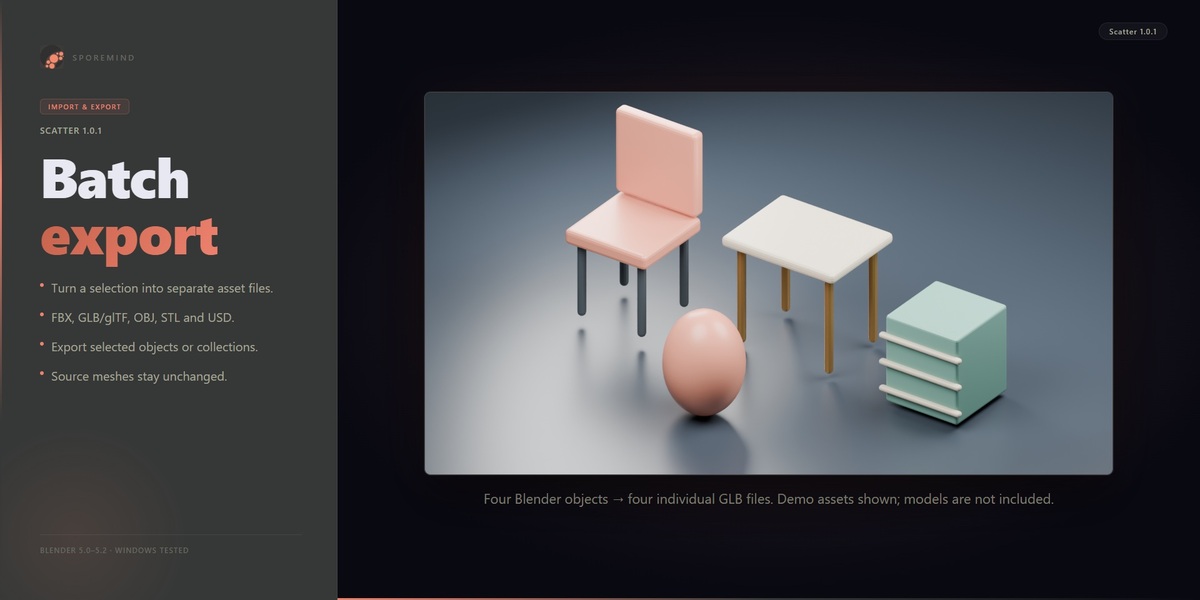
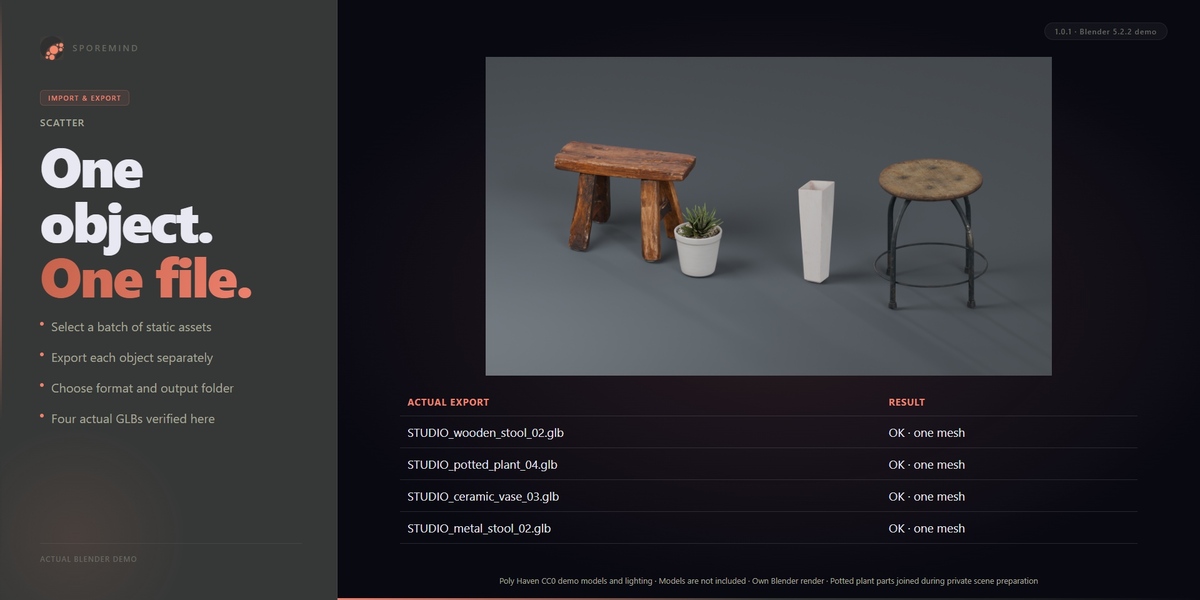
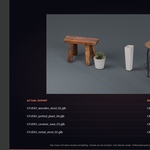
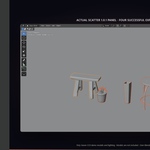
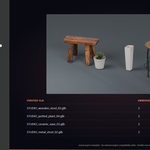
Scatter exports each chosen Blender object into its own file. It is a batch export tool, not a geometry scattering tool. It uses Blender's exporters and works on temporary object copies.
Requirements and installation
Requires Blender 5.0 or newer. Tested on Windows with Blender 5.0.1 and 5.2.2 LTS. Other Blender versions and operating systems have not been verified. Engine presets are starting settings; Unity, Unreal and Godot have not been tested directly.
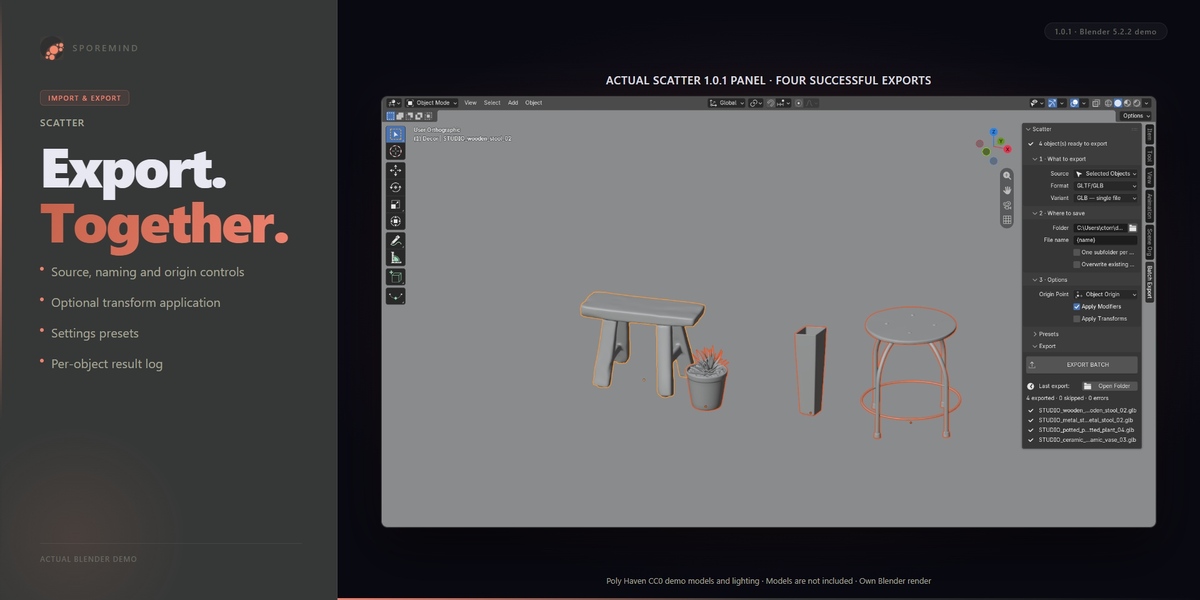
Download scatter_v1.0.1.zip and keep it zipped. In Blender open Edit → Preferences → Get Extensions, open the menu at the top right, choose Install from Disk and select that ZIP. Enable Scatter if needed. In the 3D Viewport press N and open the Batch Export tab. Installation creates four starting presets in Blender's user presets folder. It does not replace your existing presets.
First export
• Switch to Object Mode and select your asset objects.
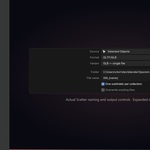
• Set Source to Selected Objects and choose a format.
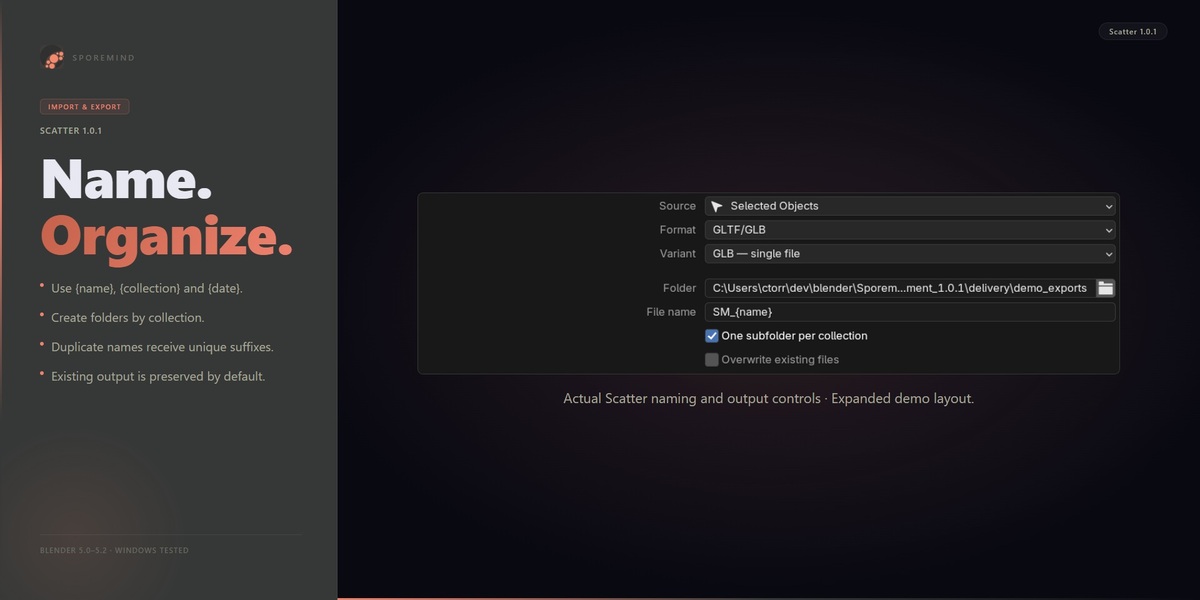
• Choose an export folder. An absolute path works in an unsaved project. A path starting with // requires a saved .blend and is relative to that file.
• Keep File name at {name}, Origin Point at Object Origin and Apply Transforms off for the first test.
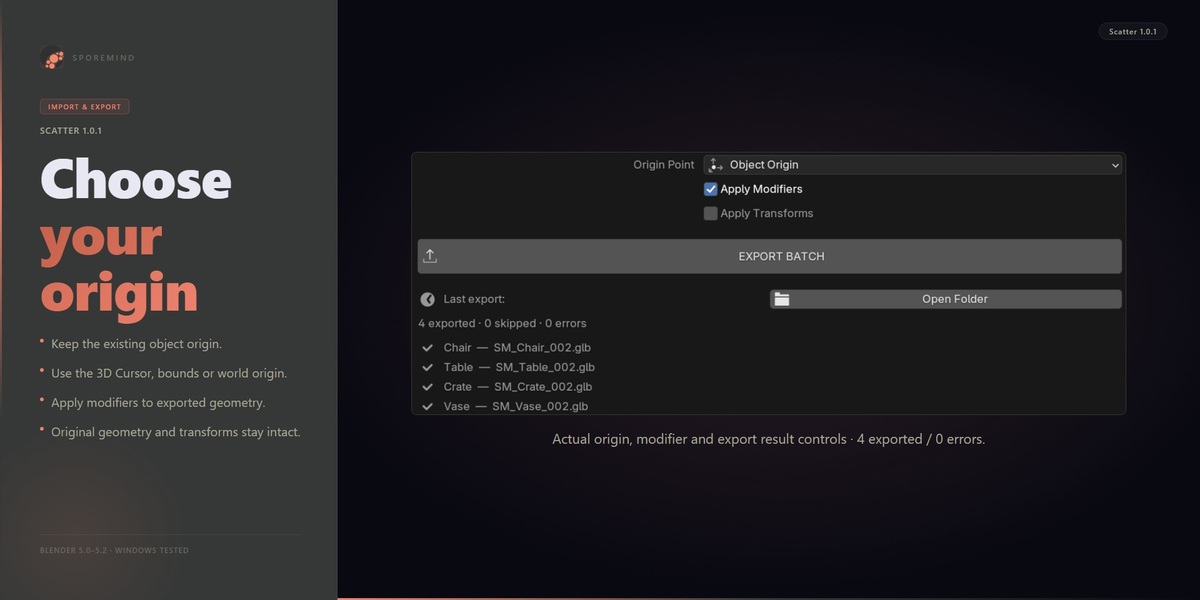
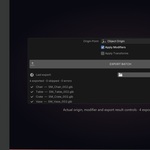
• Click EXPORT BATCH. Inspect the individual result entries and use Open Folder to inspect the files.
The original meshes, object names, transforms, selection and 3D cursor are restored after export, including exporter failures. Export settings and the last result log are Scene properties; saving your project may store those settings. Scatter does not save your .blend automatically. Output files and presets are written to disk.
Sources
• Selected Objects: the current selection.
• Active Collection: the active Outliner collection, including child collections present in the current view layer. Hidden objects in that collection are included deliberately.
• All Visible: visible objects in the current view layer, respecting object eye visibility and hidden or excluded collections. This does not promise visibility through a viewport's Local View filter.
Each object is a separate export. An object with multiple collection memberships uses its first collection for {collection} and folder grouping. Assemblies, linked collection instances and a rig with its skinned mesh are not bundled into a single asset automatically. Lights and cameras are skipped. Linked library objects keep a unique local name in the exported copy because their original names cannot be changed.
Formats
Format — Output — Notes
FBX — .fbx — Includes scale and Forward/Up settings. Axes must differ.
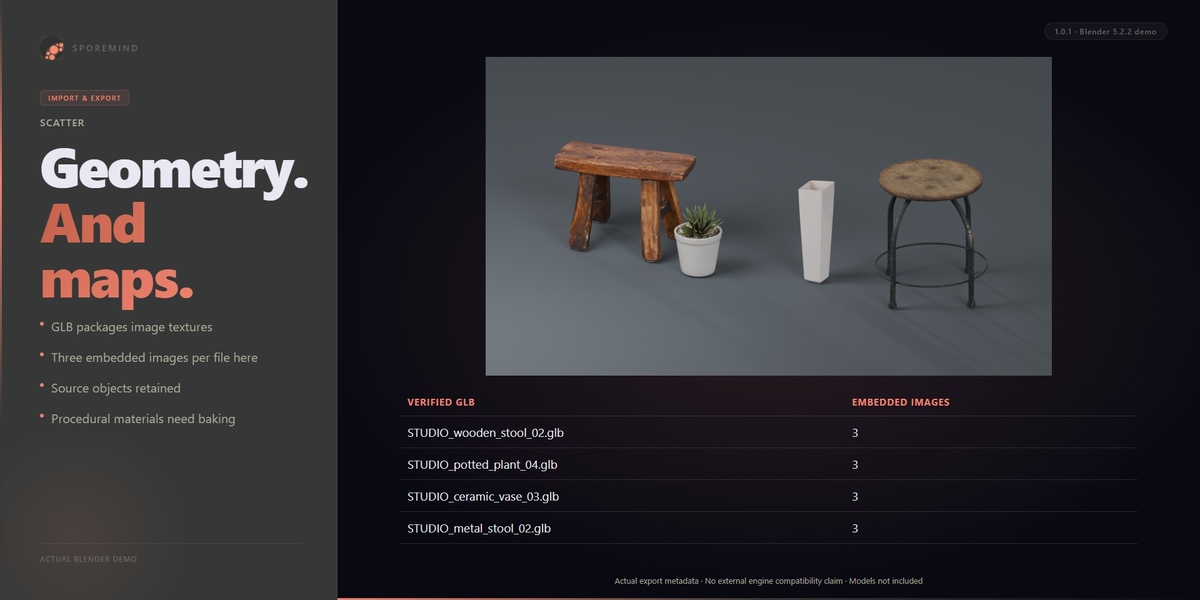
GLB — .glb — Binary glTF file containing supported geometry and material resources.
glTF separate — .gltf, .bin, textures — Keep sidecars together when moving the export.
glTF embedded — .gltf — Scatter embeds the exported geometry/image resources as data URIs. Larger than GLB; not every consumer supports it.
OBJ — .obj, .mtl, optional textures — Meshes and curves; keep material sidecars together.
STL — .stl — Mesh geometry for printing workflows. Materials and textures are not supported. Empty meshes are reported as errors; non-mesh objects are skipped. Native Blender coordinates, without the FBX/OBJ axis conversion.
USD — .usdc, possible texture sidecars — Static export using Blender's USD exporter.
FBX, glTF and USD also accept the exporter-supported armature/empty/curve object types. Acceptance of a type does not bundle its dependencies or certify a full character pipeline. Files use each native exporter's capabilities and limitations. Blender-only procedural shaders are not baked or converted into matching image textures by Scatter. Use image textures and supported material node arrangements; bake procedural shading separately when the target requires it.
Naming and output safety
Templates support {name}, {collection} and {date} (YYYYMMDD). For example SM_{name} produces SM_Chair.glb. Collection folders are optional. Unsafe path characters and Windows reserved names are sanitized. Duplicate or sanitized names in the same batch receive suffixes such as _001.
Overwrite existing files is off by default. Existing primary files and matching material/buffer sidecars lead to a new filename. Enable it only if you want to replace earlier outputs. Two objects within one batch always use distinct primary filenames. Native exporters may create additional sidecars; export to a dedicated asset folder and retain the whole result. An interrupted or failed exporter can leave incomplete files; the result log identifies the failed object. Clean those output files before retrying if needed.
Origins and geometry
Origin Point offers Object Origin, 3D Cursor, Bounding Box Centre and World Origin. The change applies to the temporary export copy. Pivot behavior after import depends on the format and importing application; validate an asset in your intended pipeline.
Apply Modifiers exports the evaluated geometry. OFF exports the base geometry and does not preserve an editable Blender modifier stack. Apply Transforms bakes location, rotation and scale into geometry and resets exported object transforms. World-space geometry stays in place. It is optional, not an obligatory Unreal setting. Parent transforms are preserved as world placement; object constraints are evaluated at the current frame, then removed on the export copy. Scatter is intended for static asset batches, not animation or dependency graph reconstruction.
Textures
Copy Textures is available for FBX, OBJ and USD. It copies supported image files into textures/, including packed images and images inside shader groups, without changing source image paths. External textures receive a content suffix to avoid clashes between files with the same basename. The copied export materials use local image paths; native exporters may also create their own texture copies. This does not bake procedural nodes or guarantee that a target application understands every Blender shader. Image sequences, movies and UDIM sets are not a validated workflow.
Presets
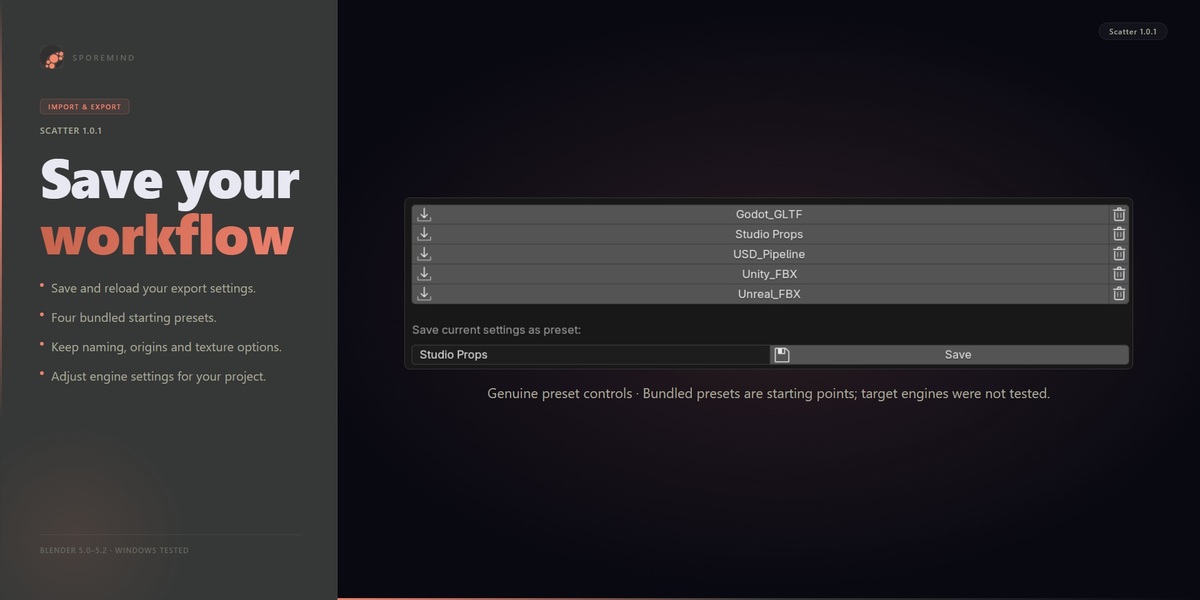
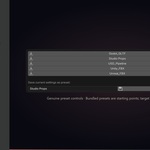
Save current settings with a descriptive name, then click a saved preset to reload it. Presets include format, folder, naming, origins, transforms, modifier, texture and overwrite settings. Names cannot contain path separators. Invalid JSON or invalid names are rejected with a warning. The four included presets are Unity_FBX, Unreal_FBX, Godot_GLTF and USD_Pipeline; check scale, origins and material requirements for your own project before relying on them.
Deleting a preset removes its JSON file from the user presets folder. Keep a copy of custom presets if you need to retain them. No automatic backup is made for preset deletion.
Troubleshooting and support
Nothing to export: check Object Mode, source and current view layer. No output: check the result log, folder permissions, disk capacity, source geometry and native exporter support. Relative path warning: save the project or use an absolute folder. Unsupported type: convert a copy to an appropriate mesh if required. Missing material detail: procedural shaders need baking for many external formats.
Contact the seller through Superhive with the Scatter version, Blender version, operating system, format, relevant settings and result-log message. Share a minimal reproduction file only if it contains no private client assets. No guaranteed reply time, future feature or update schedule is advertised. Source code is licensed GPL-3.0-or-later as declared by the extension manifest; marketplace usage terms are shown by Superhive.
Have questions about this product?
Login to message
| Blender Extension Compatible | Yes |
| Dev Fund Contributor | |
| Published | 4 days ago |
| Blender Version | 5.0 - 5.2 |
| Extension Type | Add-on |
| License | GPL |