Stack Studio
 Blendwright Studio


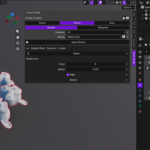
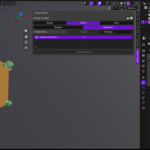
Stack Studio Documentation
Stack Studio compares, aligns, reuses, links, and checks modifier stacks across selected Blender objects. It appears in 3D Viewport → Sidebar (N) → Stack Studio.
Installation
- Download the Stack Studio ZIP without extracting it.
- Open Edit → Preferences → Add-ons.
- Open the top-right menu and choose Install from Disk.
- Select the downloaded ZIP and enable Stack Studio.
- Open the 3D Viewport sidebar with N and select the Stack Studio tab.
Updating
Disable and remove the previous version, restart Blender, then install the new ZIP. Your user Blueprint library is not removed when the add-on is uninstalled.
Quick Start: Compare and Align
- Enter Object Mode.
- Select two or more editable mesh objects.
- Make the object containing the intended stack active.
- Open Stacks and choose Compare with .
- Expand an object, modifier, or parameter to inspect its differences.
- Choose Align to ….
- Choose how to handle Stack, Values, and References.
- Review the exact affected-object plan before confirming.
The comparison uses Object → Modifier → Parameter levels. Objects with matching stacks remain visible without unnecessary parameter details.
Alignment Options
Stack
- Keep: preserve the current target structure.
- Add Missing: add modifiers that are missing from the target.
- Match Order: match the reviewed modifier order.
- Replace: rebuild the target stack from the active source.
Values
- Keep Current: retain existing target values.
- Match Active: copy supported values from the active source.
References
- Keep Current: preserve existing supported references.
- Copy Active: copy supported references from the source.
- Match Names: resolve compatible loaded data by name.
- Clear: intentionally leave supported references empty.
Missing or ambiguous references are reported instead of being guessed.
Linked Groups
- Select an active object and one or more editable mesh objects.
- Choose Link Selected Objects….
- Review the initial synchronization plan and confirm.
Editing one member updates the other members with its complete supported modifier stack. This includes modifier order, values, states, and supported Object or Collection references.
- Use the power icon to pause or resume a group.
- Removing a member leaves its current stack unchanged.
- If multiple members change at once, the group stops with Conflict.
- Select the version that should win and use Use Active after reviewing the plan.
- One object can belong to only one Linked Group.
Library and Recipes
The Library contains 21 recipes grouped by purpose, including modeling, hard-surface, shading, arrays, deformation, scattering, and editable-curve workflows.
- Select the intended objects.
- Choose a Category and Recipe.
- Choose Apply Recipe….
- Review applicable and skipped objects before confirming.
- Use Adjust… to edit controls belonging to the modifiers created during the current session.
Some recipes are limited to mesh objects, while Path Scatter and Curve Cable require traditional editable Curve objects. High scatter density, high path count, or Realize can create heavy evaluated geometry.
Blueprints
Blueprints save reusable modifier stacks as versioned JSON files. New Blueprint v3 captures can include supported local Geometry Nodes groups and their local Object or Collection dependencies.
Capture
- Make the source object active.
- Choose Capture Blueprint….
- Name and review the Blueprint before saving.
Apply
- Select the target objects and choose a Blueprint.
- Choose Apply Blueprint….
- Select Merge, Replace, or Match.
- Choose how captured references should be handled.
- Review the exact per-object plan and confirm.
- Merge: add missing modifiers while keeping existing modifiers.
- Replace: remove and rebuild the selected stacks.
- Match: match presence, order, and values while retaining extra modifiers.
Blueprint files may contain native Blender data. Import Blueprints only from sources you trust. External image, volume, and cache files are not guaranteed to be embedded.
Scan
Choose Scan Selected to check modifier stacks for common problems such as missing references, missing Geometry Nodes groups, duplicate modifiers, suspicious order, viewport/render mismatches, high subdivision, disabled or zero-effect modifiers, and Linked Group drift.
- Select an object through its explicit object-name button.
- Use Preview Fix to inspect a supported repair before confirming.
- Use Ignore for intentional setups.
- Restore individual ignored issues or choose Restore All.
Order warnings are practical heuristics, not universal errors. Review the artistic intent before applying a fix.
Safety and Recovery
- Stack-changing actions require Object Mode.
- Broad or destructive choices show an affected-object plan.
- Changed or stale reviewed data is rejected instead of applied blindly.
- User-invoked modifier changes support Blender Undo where available.
- Linked and read-only objects are skipped.
- Failed operations attempt to restore the original modifier stack.
If Blender cannot complete automatic restoration, Stack Studio may preserve a hidden object named BWSS Recovery — . Do not delete it until the original stack has been recovered.
Requirements and Limitations
- Requires Blender 4.5 or newer.
- Designed for Blender 4.5 and Blender 5.2.
- Stack-changing actions require Object Mode and editable local data.
- Compare targets are mesh objects; some recipes support editable Curves.
- Linked Groups support up to 101 members.
- General forward compatibility for Blender data created with newer unsupported nodes cannot be guaranteed.
- Stack Studio does not diagnose mesh topology, UVs, materials, or export configuration.
Privacy, License, and Support
Stack Studio uses no telemetry, analytics, accounts, or network access. The Python source is licensed under GPL-3.0-or-later.
For support, contact Blendwright Studio through the Superhive Inbox. Include your Stack Studio version, exact Blender version, operating system, reproduction steps, and the displayed error. Do not share confidential production files or personal information unnecessarily.
Have questions about this product?
Login to message
| Published | about 2 months ago |
| Blender Version | 4.5 - 5.2 |
| Extension Type | N/A |
| Render Engine Used | Cycles, Eevee |
| License | GPL |
Discover more products like this
hard surface modifier stack productivity batch modifiers non-destructive geometry nodes scene audit modifier manager blueprints modeling workflow modifier presets linked modifiers