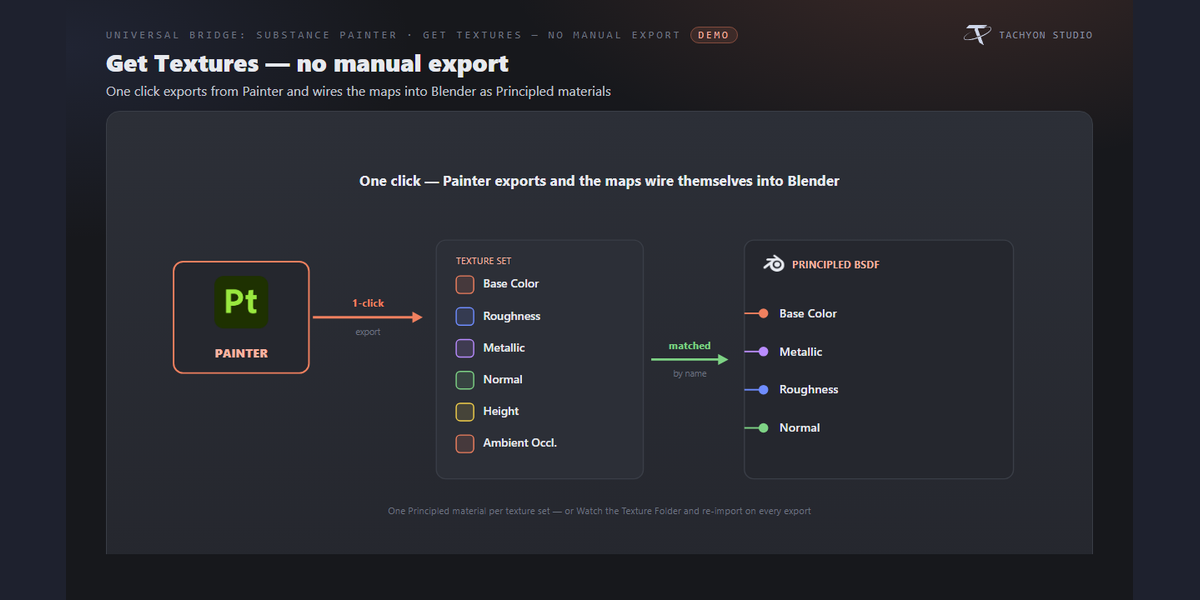
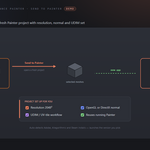
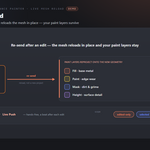
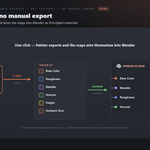
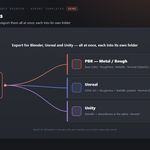
A two-way bridge between Blender and Substance Painter. Send meshes to Painter, texture them, and pull the finished maps back onto your Blender meshes as ready-wired materials — without exporting or importing files by hand. It reuses a running Painter (and launches the exact version you pick), reloads the mesh in place so your paint layers survive edits, bakes mesh maps for you, and can export for Blender, Unreal and Unity in one go.
Requirements - please read before buying
-
Windows only. The add-on detects and launches Substance 3D Painter through Windows paths and processes. macOS and Linux are not supported.
-
Blender 3.3 - 5.2 - Extension on 4.2+, classic add-on on 3.3-4.1.
-
Adobe Substance 3D Painter is required and sold separately. You need your own licensed copy from Adobe. No Adobe Substance 3D Painter licence is included with this product - it is the Blender-side bridge only, and is not affiliated with, endorsed by, or a reseller of Adobe.
-
mesh reload needs 7.4+; in-app baking needs 8.2+.
-
Network: none. Blender and Substance 3D Painter exchange files on your own machine - the add-on opens no network connection.
Installation
Blender 4.2+ (Extension): Edit ▸ Preferences ▸ Add-ons ▸ drop-down ▸ *Install from Disk…* → pick universal_bridge_painter-x.x.x-blender4.2-5.2.zip, then enable it. Blender 3.3–4.1: Edit ▸ Preferences ▸ Add-ons ▸ *Install…* → pick universal_bridge_painter-x.x.x-blender3.3-4.1.zip.
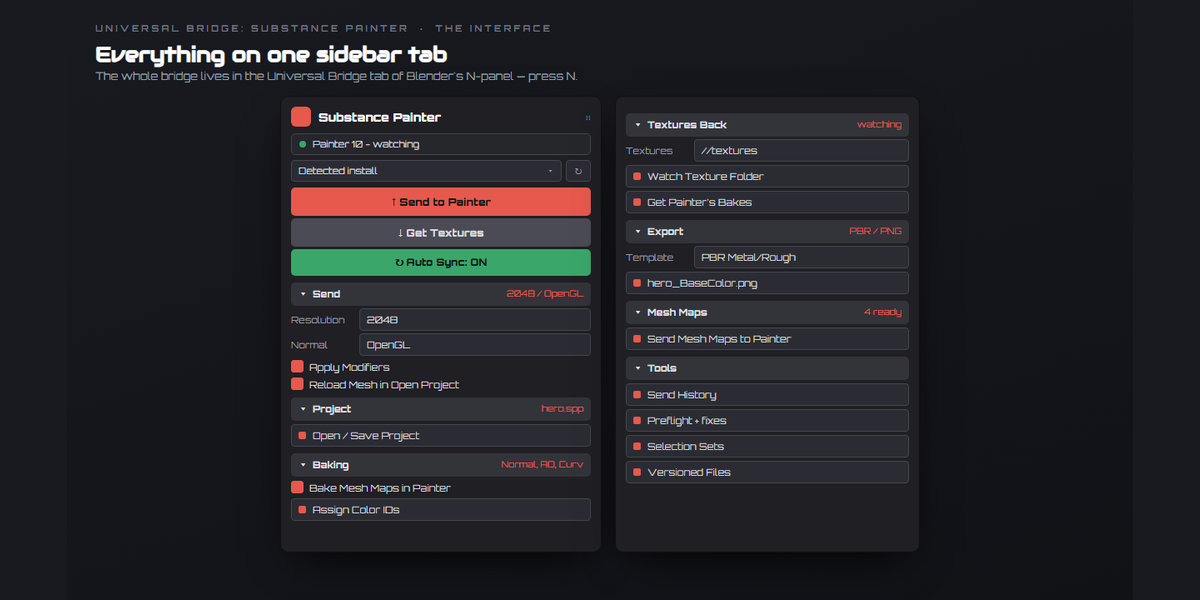
The panel is in the 3D Viewport sidebar (press N) under the Universal Bridge tab. Open the add-on preferences, check the Version dropdown — it lists the Painter installs found on this machine — and pick one, or set the executable by hand.
Companion plugin (unlocks the two-way link)
Sending a mesh works on its own. For Get Textures, in-app baking and the live status readout, install the Painter-side plugin: in preferences click Install / Reinstall, then in Painter enable *tachyon_painter_bridge* under Python ▸ Plugins and restart Painter. Uninstall removes it again.
Getting started
- Select mesh objects.
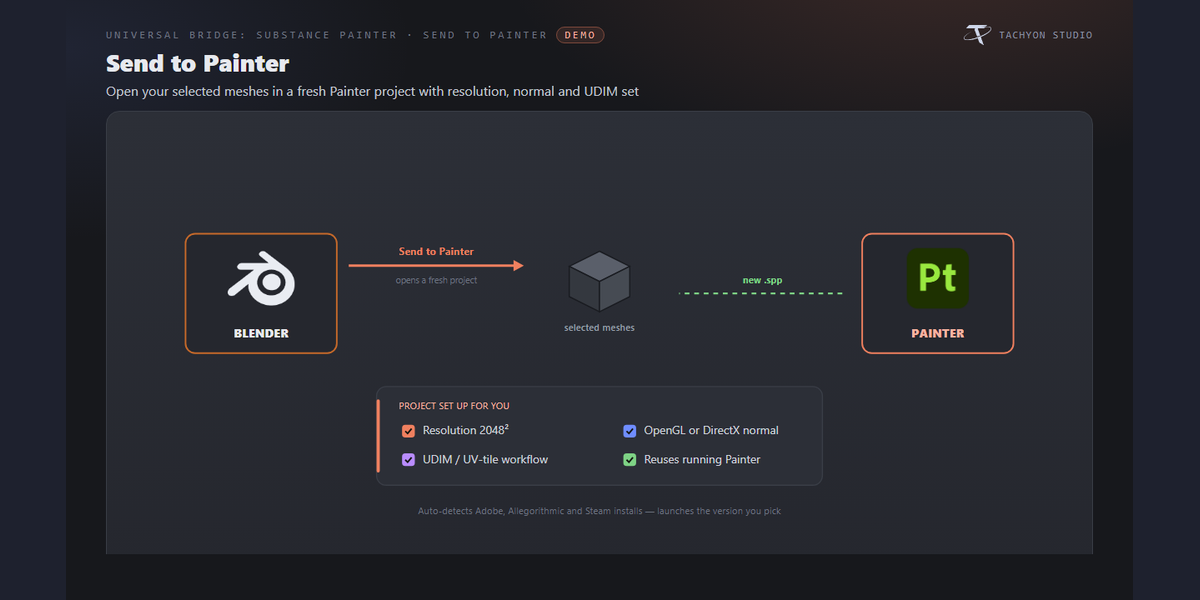
- Set your project options (resolution, normal, UDIM) and click Send to Painter.
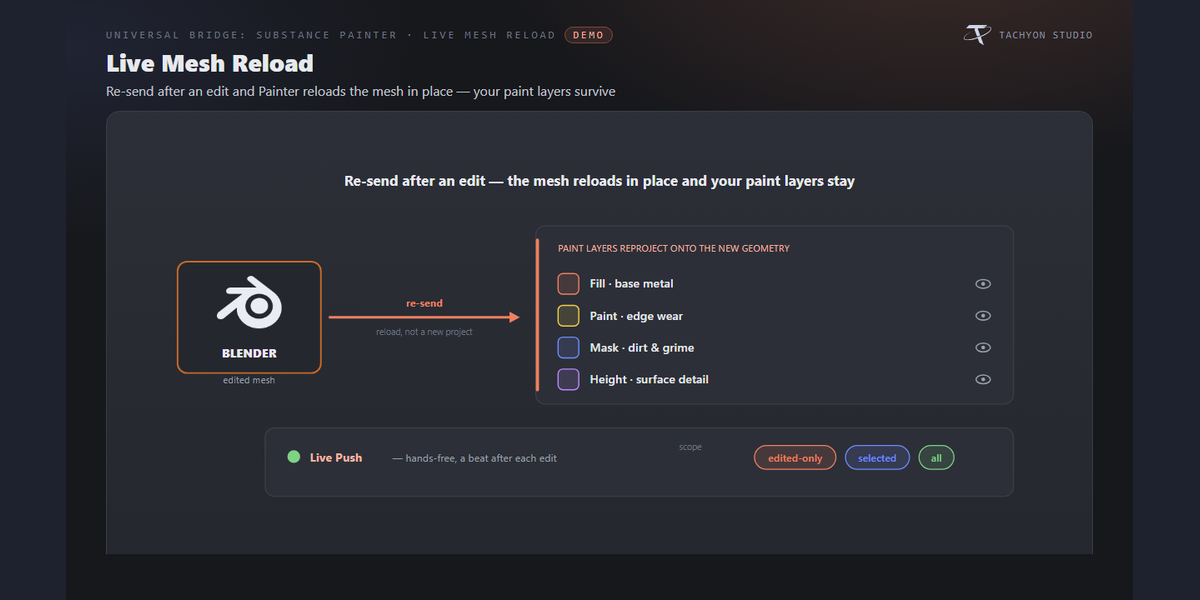
- Texture in Painter. Edit the mesh in Blender and re-send — the mesh reloads in
place and your layers reproject.
- Click Get Textures from Painter (or turn on Watch Texture Folder) to
export and import the maps as a Blender material automatically.
Send
-
UV Channel — pick which UV channel of the active mesh Painter receives.
-
Apply Modifiers — bake modifiers into the mesh on export (with a per-modifier
picker).
-
Backup Before Send — duplicate the objects into a "Substance Painter Backup"
collection first.
-
Resolution / Normal / UV — the new project's texture size, OpenGL or DirectX
normal, and default vs. UDIM (UV-tile) workflow.
-
Reload Mesh in Open Project — re-sends reload the mesh into the open project
in place, so paint layers survive low-poly edits (Painter 7.4+). Off always makes a new project. Save Before Reload saves first.
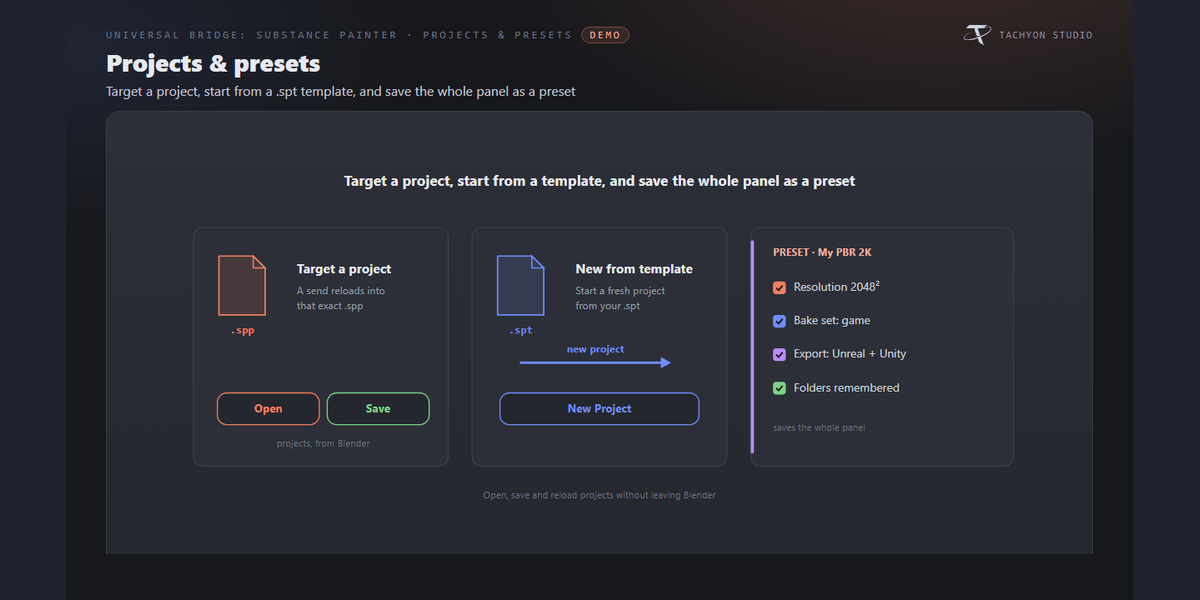
Project
-
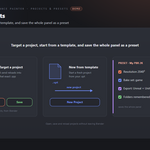
Project Template — a
.spt used when a new project is created (your channels,
resolution and starting layers).
-
Project File — the
.spp this asset lives in. Send opens it and reloads into
it; if it doesn't exist yet, a new project is saved there. Open and Save drive Painter's project from Blender.
Live Sync
Two loops, either or both:
-
Live Textures (saves → Blender) — every save in Painter exports the
textures to a scratch folder Blender watches, and the maps are assigned to your material a moment later. No Export in Painter, no Import here.
-
Live Folder — where those saves land. Empty uses a scratch folder in the
bridge's temp area, on purpose: a live loop rewrites its files every few seconds, which is no way to treat the textures you are about to ship.
-
Min Gap — the shortest time between two live exports, so a burst of
autosaves does not keep Painter busy for nothing.
Change the resolution or format while it runs and the next save uses it. Switching it off disarms Painter; so does closing Blender.
-
Live Push (edits → Painter) — after you finish an edit, the mesh reloads in
the open project a moment later, hands-free.
-
Push Delay — how long to wait after your last edit before reloading.
-
Push Scope — reload edited-only, all selected, or every mesh.
-
Push in Edit Mode — push while still in Edit Mode, or wait for Object Mode.
Needs Painter open with a project and Reload Mesh in Open Project on.
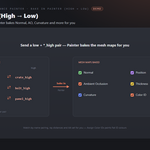
Baking (High → Low)
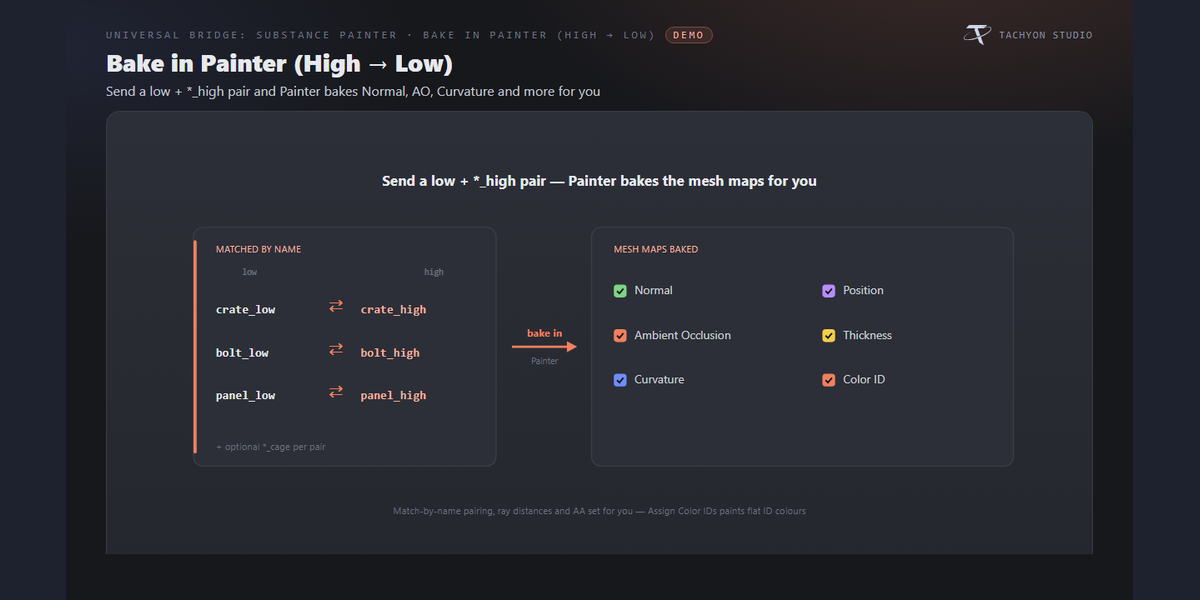
Select the low/paint meshes together with their *_high (and optional *_cage) meshes and Send exports all of them; Painter bakes the enabled mesh maps automatically (Painter 8.2+).
-
Maps — Normal, AO, Curvature, Position, Thickness and Color ID.
-
Match By Name — bake rays only between same-named low/high pairs, so nothing
needs exploding.
-
Frontal / Rear — max ray distances for the bakers. AA — 2×2 / 4×4 / 8×8.
-
High-poly File — bake against a file (e.g. a sculpt never imported) instead of
*_high scene objects.
-
Assign Color IDs — fill a random flat vertex colour per selected object
(attribute IDCol), so Painter's Color ID baker with source *Vertex Color* gives instant masks. Non-destructive — your materials are untouched.
Mesh maps baked elsewhere
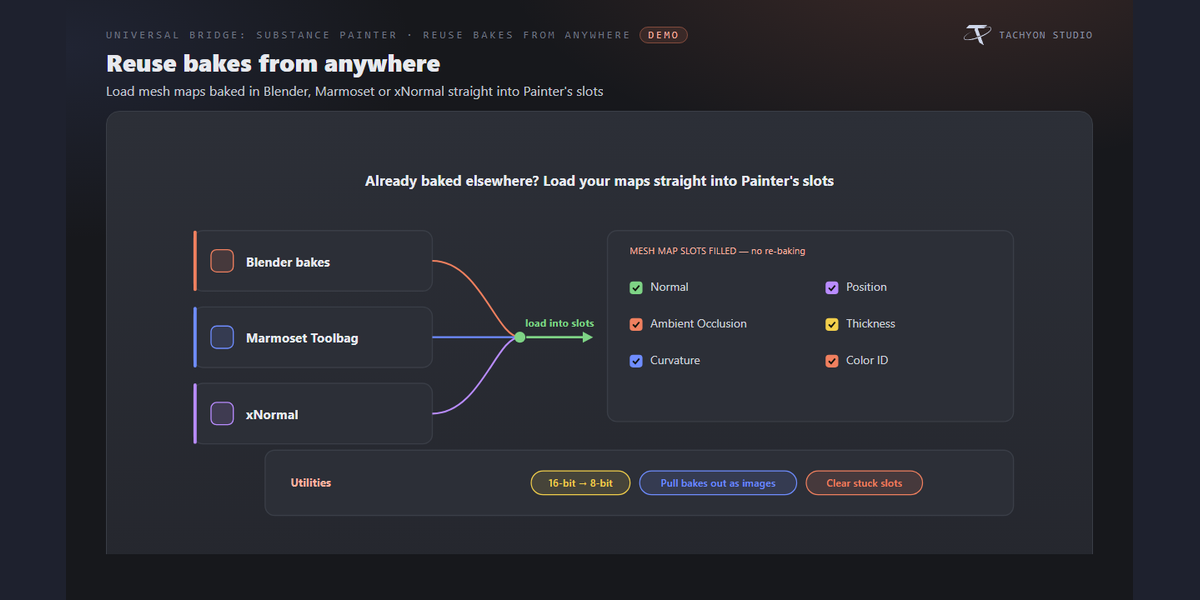
Point the Mesh Maps Folder at maps you baked in Blender, Marmoset or xNormal and Send loads them into Painter's mesh map slots — no re-baking.
-
Send With Mesh — include them on every Send, or use Send Mesh Maps Now.
-
Convert to 8-bit — re-save maps as 8-bit PNGs when Painter reports "Failed to
decode bitmap" for some 16-bit bakes (copies are cached).
-
Save Project After — imported maps live in the
.spp, so save or they are
gone next open.
-
Clear Mesh Map Slots — empty every slot to stop a stuck-resource decode retry.
-
Get Painter's Bakes — write the maps Painter baked out to the Bake Files
folder as image files, so Blender and Marmoset can reuse them.
Textures back
-
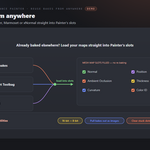
Get Textures from Painter — tell Painter to export into the Textures folder
and import the result here automatically. No hand-exporting in Painter.
-
Import Folder — scan the Textures / Bake Files folders and build materials
from whatever is there.
-
Watch Texture Folder — auto-import and rebuild the material whenever Painter
exports new maps.
Export templates
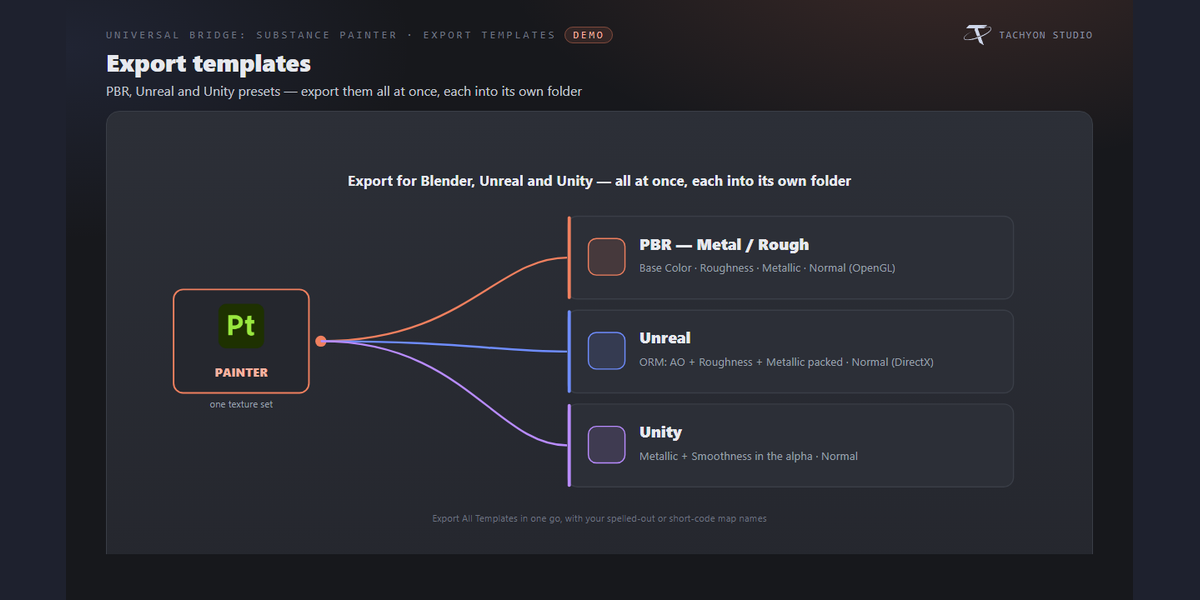
The export template decides how the maps are written:
| Template |
What it writes |
| PBR Metal/Rough (Standard) |
Every channel its own file, OpenGL normal — the set that imports straight back into Blender (also Marmoset / Godot / Toolbag). |
| Unreal Engine |
AO/Roughness/Metallic packed into one ORM file, DirectX normal. Export only. |
| Unity (Standard / URP Lit) |
Metallic in RGB with Smoothness in alpha, OpenGL normal, AO on its own. Needs an alpha-capable format (PNG / TGA / TIFF). |
| Painter Preset |
Use an export preset already in Painter, by name. |
-
Export All Templates — export PBR, Unreal and Unity in one go, each into its
own folder (needs Folder Per Template on). Painter runs them one after another and the PBR set imports back here.
-
Channels — tick Base Color, Roughness, Metallic, Normal, Height, Emissive,
Opacity and AO.
-
Naming — a shared filename convention (Painter default,
T_ prefix, or
Mesh + Set), spelled-out or short map codes, a custom pattern, and optional per-template patterns. Format (PNG / TGA / TIFF / EXR / JPEG / PSD), Bit Depth, Size, Padding and Dithering apply to every map.
Import into Blender
-
Per Texture Set — match each Painter texture set to the Blender material of
the same name, one material each.
-
Active Material — merge every map into the material on the active object,
refreshing what it has and adding the rest.
-
New Material — build a fresh material under a name you type.
-
On Re-import — *Refresh + Add* keeps your node tweaks; *Rebuild Material*
starts the node tree over.
Presets
Save the whole Painter panel — resolution, bake set, export options, folders — under a name, then load or delete it later.
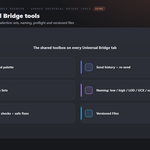
Shared Universal Bridge tools
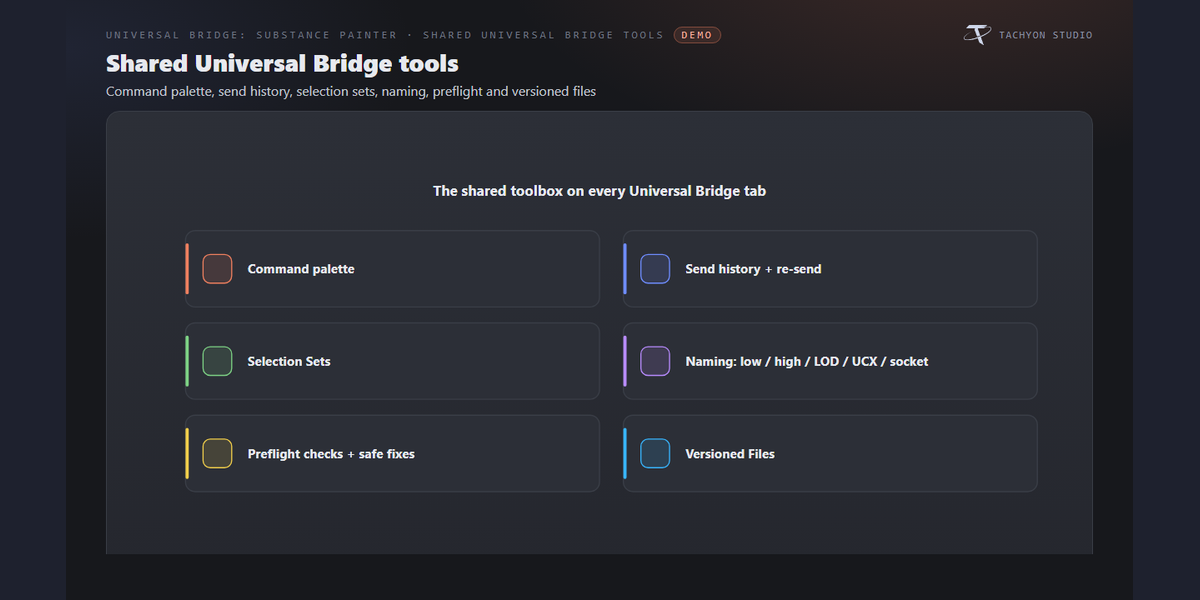
Registered once and shared with every other bridge you own, on the same tab: Command Palette, Send History (re-send), Selection Sets, a Naming convention helper (low / high / LOD / UCX / socket), Preflight (scale/rotation, UV maps, materials, n-gons, non-manifold edges) with safe fixes, Versioned Files, and Send Each Collection for batch sends.
Troubleshooting
-
Get Textures / baking greyed out or nothing happens → install the companion
plugin (preferences ▸ Install / Reinstall), enable *tachyon_painter_bridge* in Painter's Python menu, and restart Painter.
-
"Substance Painter not found" → set or detect the executable in the add-on
preferences.
-
Painter logs "Failed to decode bitmap" → a 16-bit mesh map it can't read; turn
on Convert to 8-bit, or use Clear Mesh Map Slots.
-
"No maps found in that folder" → export with Painter's *PBR Metallic
Roughness* preset (or keep a {map} token in the name pattern) so the importer recognises the filenames.
-
Two versions installed → pick the one you want in the Version dropdown; the
bridge launches exactly that build.
Button icons
The buttons in the bridge panels use a drawn icon set rather than Blender glyphs borrowed from elsewhere. Preferences ▸ Button Icons controls it:
-
Brand Colours (default) — each bridge in its own colour.
-
Mono — every icon in one accent colour you pick.
-
Blender Built-ins — no custom icons at all, exactly as before.
Colour-code Status keeps the link and modifier icons green / amber / red, where the colour is the message; turn it off and they take your accent too. Blender's own glyphs are kept wherever they are already the familiar thing — the trash can, the folder, the warning triangle — so the panels still look like Blender.
Support
Join the Discord: https://discord.gg/T4CkhDghNP (link on the panel header and in preferences). Include your Blender and Substance Painter versions.
Part of the Universal Bridge line. Works on its own, and the free Universal Bridge Manager hub add-on is included with your purchase.
 Tachyon Studio