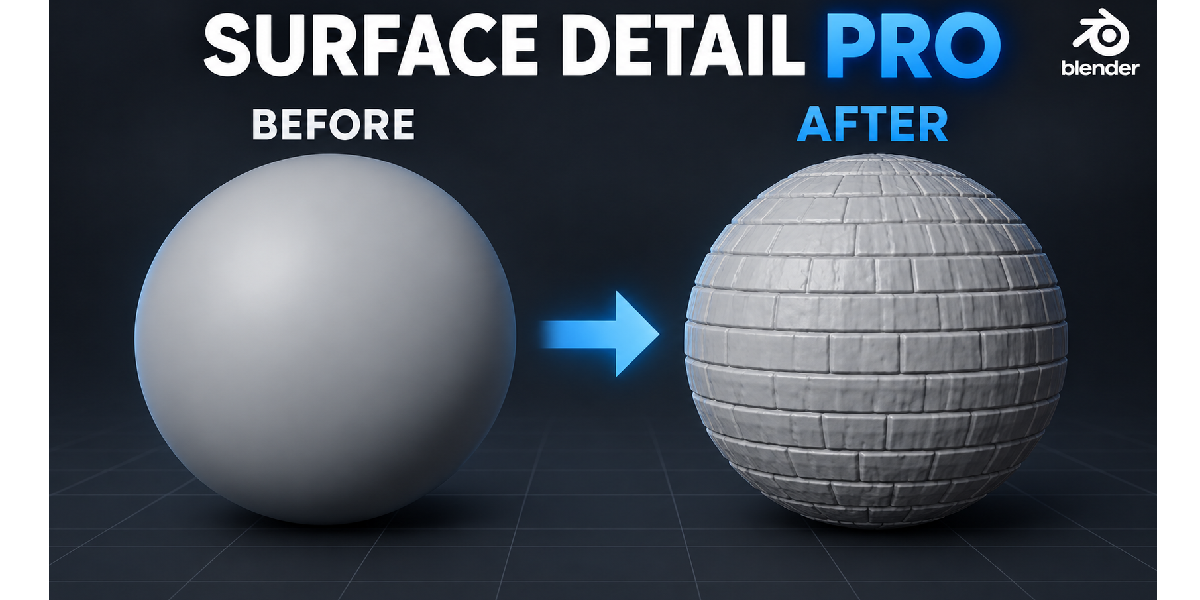
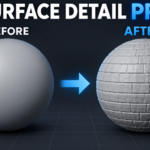
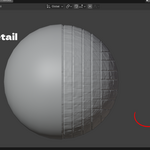
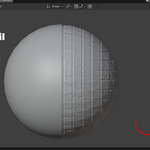
Surface Detail Pro - Real Geometry Surface Detail From Images
 Salman Animator
Requirements
- Blender 4.2.0 or newer.
- A mesh object. Surface Detail Pro works on mesh objects only.
Installation
- Save your work. If an older Surface Detail Pro is installed, disable and remove it, then restart Blender.
- Keep the ZIP file zipped. Do not extract it.
- Go to Edit > Preferences > Add-ons. Open the top right menu and choose Install from Disk..., then select
Surface_Detail_Pro_1.1.6_Superhive.zip. - Enable Surface Detail Pro if it is not already enabled.
- In the 3D Viewport, select a mesh, press N and open the Surface Detail tab.
First use (add your first surface detail)
- Select a mesh in Object Mode.
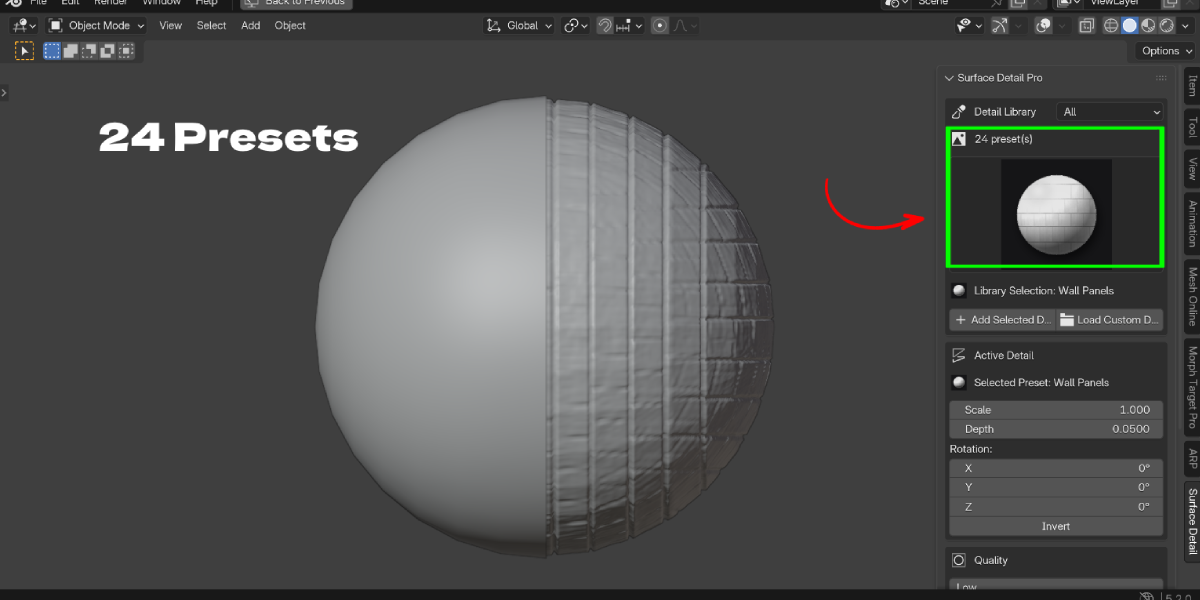
- In Detail Library, pick a category (or All) and click a preset thumbnail.
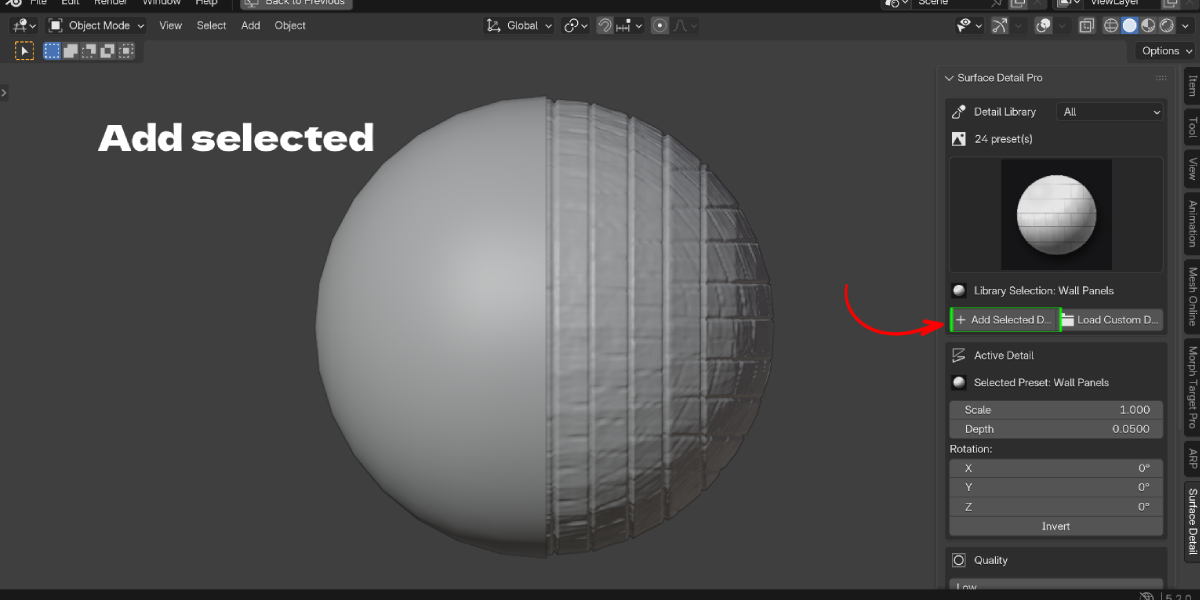
- Click Add Selected Detail. The detail appears live on the mesh.
- Adjust Scale, Depth and Rotation under Active Detail.
- Choose a Quality level. Start with Low or Medium, go higher for final results.
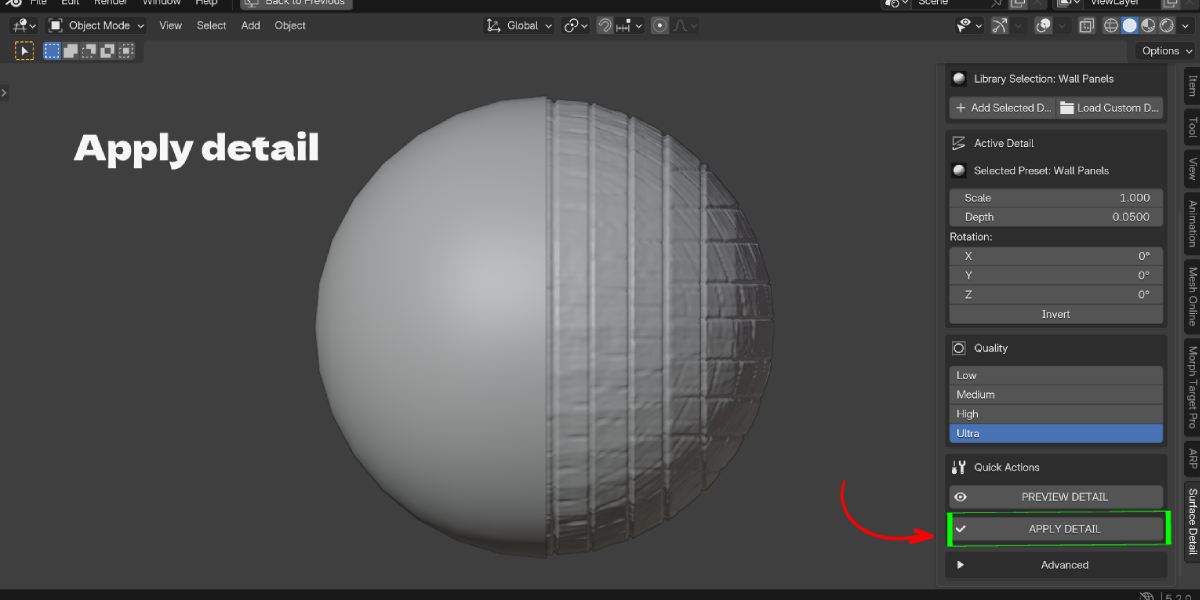
- When you are happy, click APPLY DETAIL to make it real geometry. Save first, because applying is permanent.
Panel guide
Detail Library
- Category menu: All, Structure, Organic, Stone, Damage, Pattern, Ground.
- Preset thumbnails: click to select.
- Add Selected Detail: adds the chosen preset as a new live layer.
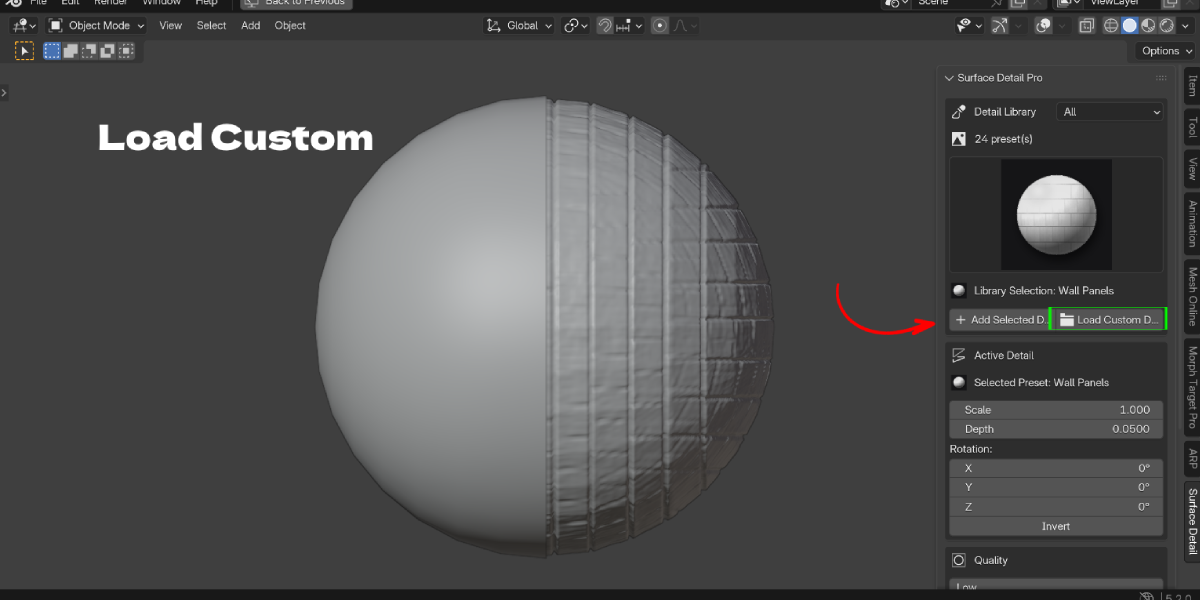
- Load Custom Detail: loads your own PNG, JPG/JPEG or TIFF height map.
Active Detail
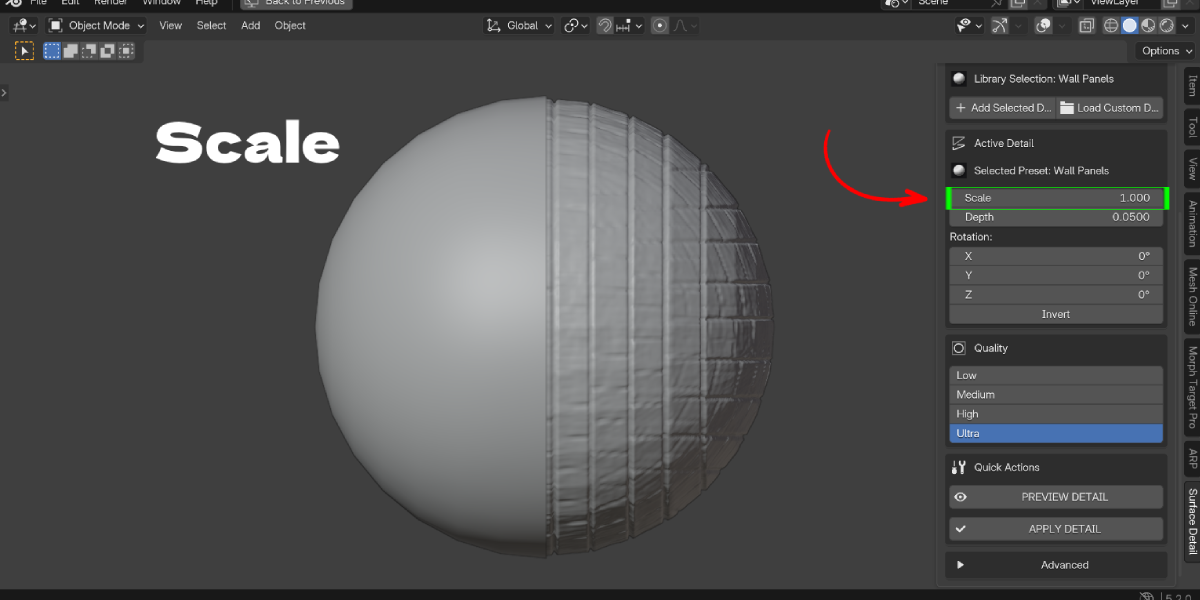
- Scale: size of the pattern. Higher values make the pattern larger.
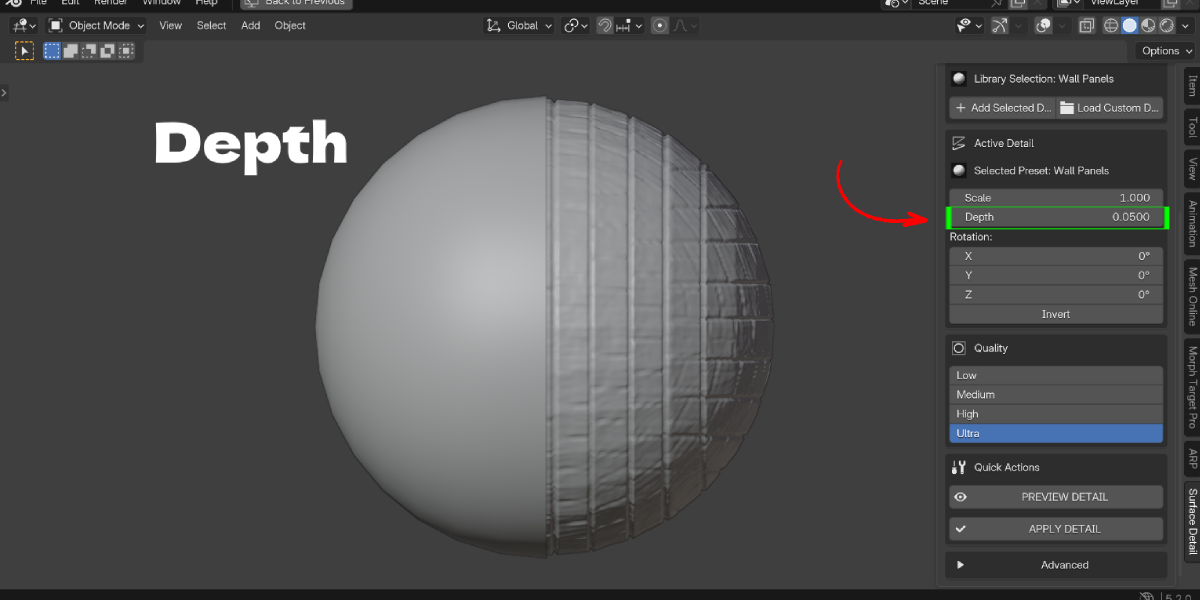
- Depth: how far the surface moves. Negative values push the detail inward.
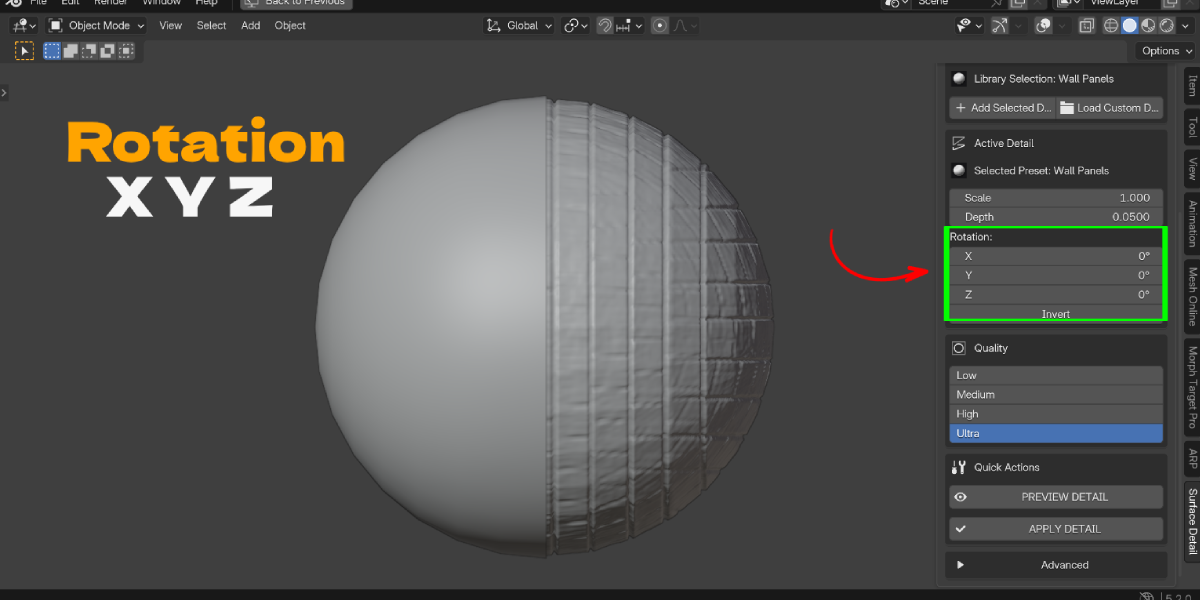
- Rotation X / Y / Z: rotate the projection without rotating the object.
- Invert: flip high and low areas of the height map.
Quality
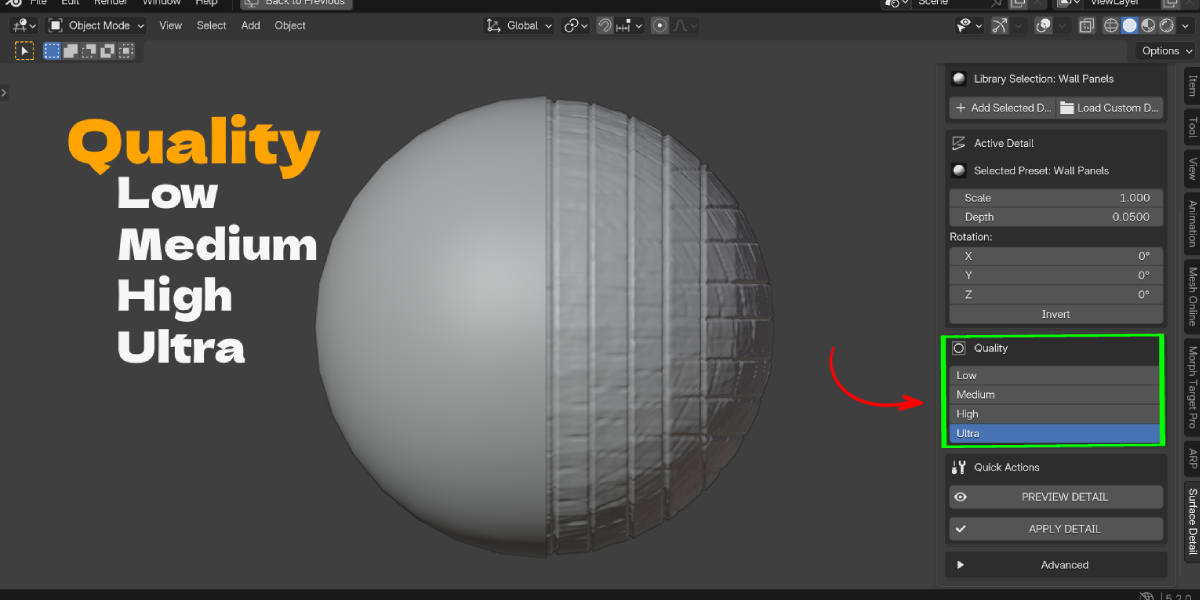
- Low, Medium, High, Ultra set the subdivision used for the detail. Simple subdivision keeps your base shape.
- Ultra is automatically limited on heavy meshes to protect performance.
Quick Actions
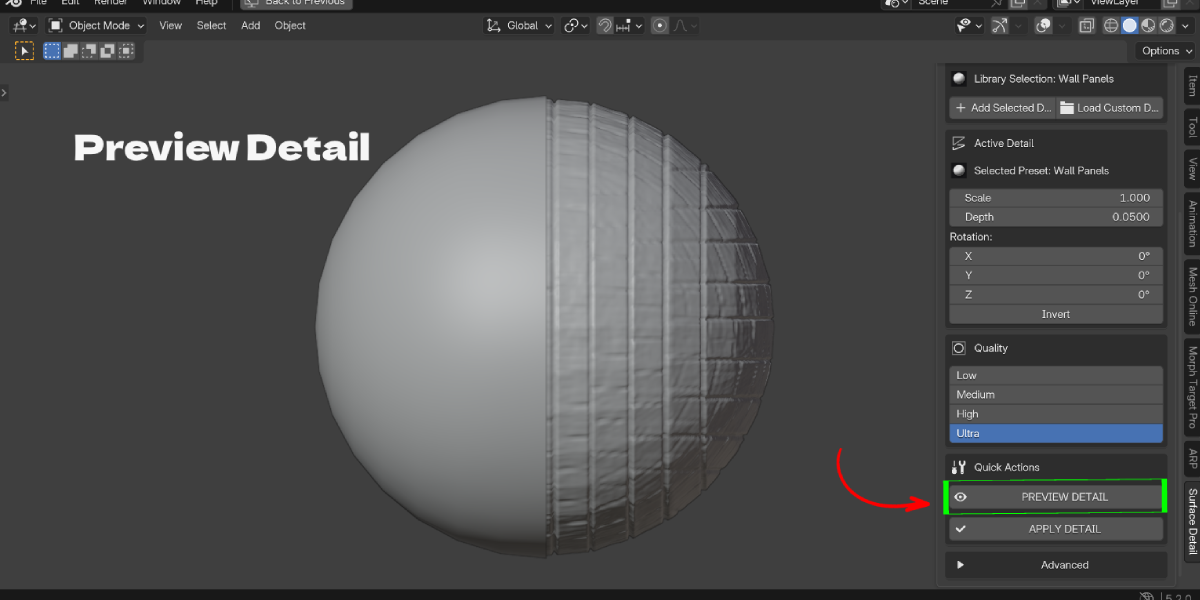
- PREVIEW DETAIL: refreshes the live setup and makes sure the detail is visible.
- APPLY DETAIL: bakes the live detail into real mesh geometry (destructive).
Advanced (collapsed by default)
- Mapping Mode: Box / Triplanar (Locked), Box / Triplanar (Object), Planar, UV.
- Offset: move the projection without moving the object.
- Midlevel: the gray value that means "no displacement" (default 0.5).
- Contrast: strengthen or soften the height map around Midlevel.
- Projection Falloff: Planar mode only; fades detail on faces pointing away.
- Tiling: repeat the image instead of clipping it.
- Use Image Alpha: read height from the alpha channel instead of brightness.
- Detail Resolution: Auto, Fine (+1 level) or Very Fine (+2 levels) when it is safe.
- Reset Transform: resets scale, rotation and offset of the active detail.
- Repair: rebuilds missing Surface Detail modifiers or node groups.
- Detail Layers: list of all details on the object with visibility toggles, Duplicate, Delete and move up / down.
Combining details
Add a second preset with Add Selected Detail. Each one becomes its own layer. Use the layer list to select one and adjust it, hide it with the eye toggle, change the order with the arrows, or duplicate it to try a variation.
Performance tips
- Work on Low or Medium Quality, switch to High or Ultra at the end.
- Already dense meshes need less Quality. Lower it if the viewport feels slow.
- Hide layers you are not working on.
- Apply details you are finished with to lock them in.
Troubleshooting
The Surface Detail panel is missing. Make sure the add-on is enabled, a mesh object is selected, and you are in the 3D Viewport sidebar (press N).
Displacement is not showing / detail is not visible. Check that the layer is visible in Detail Layers, increase Depth, and raise Quality. Then click PREVIEW DETAIL. If it is still missing, use Advanced > Repair.
Detail looks stretched on the sides. Switch Mapping Mode to Box / Triplanar. Planar only projects from one direction.
UV mode shows nothing. The mesh needs an active UV map. Unwrap it, or use Box / Triplanar instead.
The viewport is slow. Lower Quality or Detail Resolution, or hide extra layers. The automatic clamp limits the live mesh to about 1.5 million faces.
Detail is too strong, too weak or looks inverted. Adjust Depth, Contrast and Midlevel, or toggle Invert.
APPLY DETAIL does not work. Objects with shape keys cannot be applied. Remove or apply the shape keys first, or work on a copy.
My custom image is missing after reopening the file. The add-on tries to pack custom images into the .blend file. If it was not packed, reload the image from its original location.
"Already registered" error during install. Remove older copies of Surface Detail Pro, restart Blender and install again.
Limits
- APPLY DETAIL is permanent. Save or duplicate the object first.
- Objects with shape keys cannot be applied.
- High Quality on dense meshes creates heavy geometry.
Have questions about this product?
Login to message
| Blender Extension Compatible | Yes |
| Published | 9 days ago |
| Blender Version | 4.2 - 5.2 |
| Extension Type | Add-on |
| License | GPL |

Discover more products like this
height map surface detail tree bark non-destructive no uv unwrap geometry nodes triplanar real geometry brick wall displacement presets sculpting alternative