 Li Shoujing



Surface placement that follows your intent
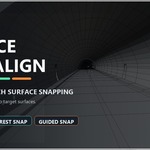
Surface Snap Align adds three practical surface-placement workflows to Blender. Slide one mesh across visible surfaces in real time, guide a complete selection toward the target side you choose, or snap many selected meshes independently to their nearest target surfaces.
1. Smart Slide Snap
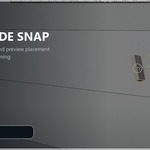
Place a single object directly on the surface you can see. Move the pointer over a visible target and preview the result continuously before confirming.
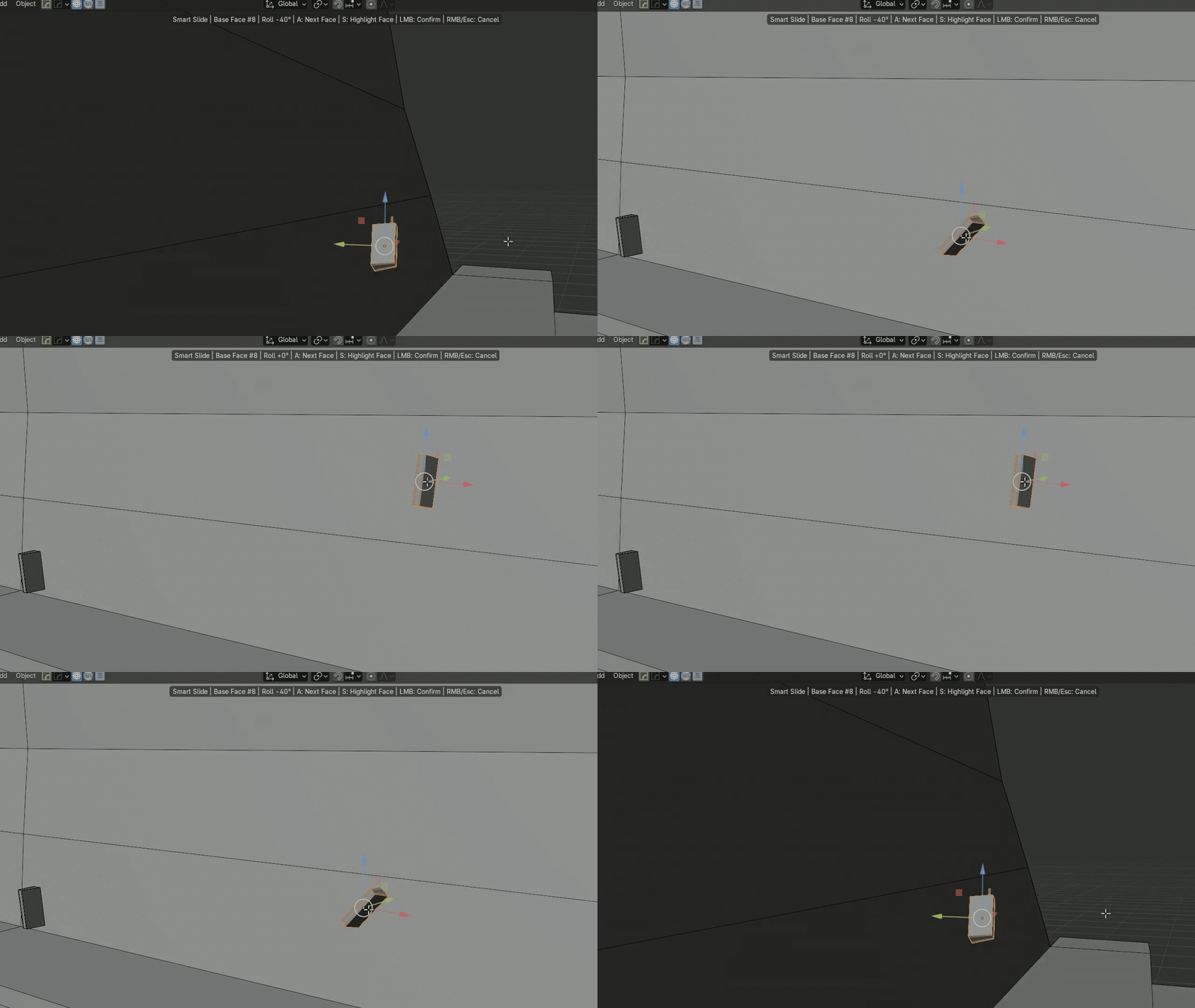
- Real-time pointer-driven surface sliding.
- The first visible viewport hit helps prevent accidental snapping to a target's far side.
- Rotate in both directions with the mouse wheel while contact is maintained.
- Press A to cycle candidate support faces or S to temporarily choose a source face.
- Left-click confirms. Right-click or Esc restores the original transform.
2. Target-Guided Batch Snap
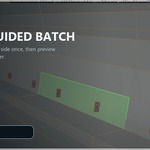
Choose the direction and physical side when nearest is not the result you want. Select the source meshes first and the target mesh last, then hover the intended target side. The green face gives the batch a common travel direction; it is not a shared landing point.

- Every source starts from its own position and keeps its lateral placement.
- Each source stops at its own first real target surface and uses that hit's local normal.
- A source with no valid directional hit remains unchanged; Guided never falls back to Nearest or a rear layer.
- The complete batch updates as a live preview before confirmation.
3. Nearest Surface Snap
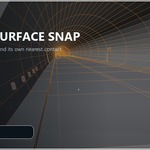
Place many objects independently when the intended target side is already clear. Select every source mesh first and the target mesh last so it remains active.

- Each source finds its own nearest valid outside contact.
- Evaluated mesh geometry is used instead of object origins or local-axis setup.
- Triangle interiors, edges and vertices participate in the search.
Orientation and placement controls
- Automatic source support-face selection.
- Four orientation strategies: Keep Orientation, Flush + Upright, Limited Align and Minimum Rotation.
- Adjustable surface offset and a 5-degree default wheel step.
- Optional S-selected face contact priority for inserts, sockets and intentionally intersecting kitbash placement.
Compatibility
- API-compatible with Blender 4.0–5.1.
- Automated runtime tests completed on Blender 4.2.19 LTS and Blender 5.1.0.
- Windows, macOS and Linux; no platform-specific binaries.
- English and Simplified Chinese UI, following Blender's language setting.
Requirements and scope
- Mesh objects in Object Mode.
- For batch tools, select the source meshes first and the target mesh last so it is active.
- Smart Slide targets must be visible and reachable by the pointer ray in the current 3D View.
- Surface Snap Align is a placement and alignment tool, not a Boolean or complete collision solver. Inspect complex concave or non-manifold results.
Installation
Blender 4.0–4.1: Edit > Preferences > Add-ons > Install.
Blender 4.2–5.1: Open the Add-ons page, use the top-right menu and choose Install from Disk.
Select the downloaded ZIP without extracting it, enable the add-on, press N in the 3D View and open the Surface tab.
