Texture Atlas — PBR Packing & Baking
 Rynor
Rynor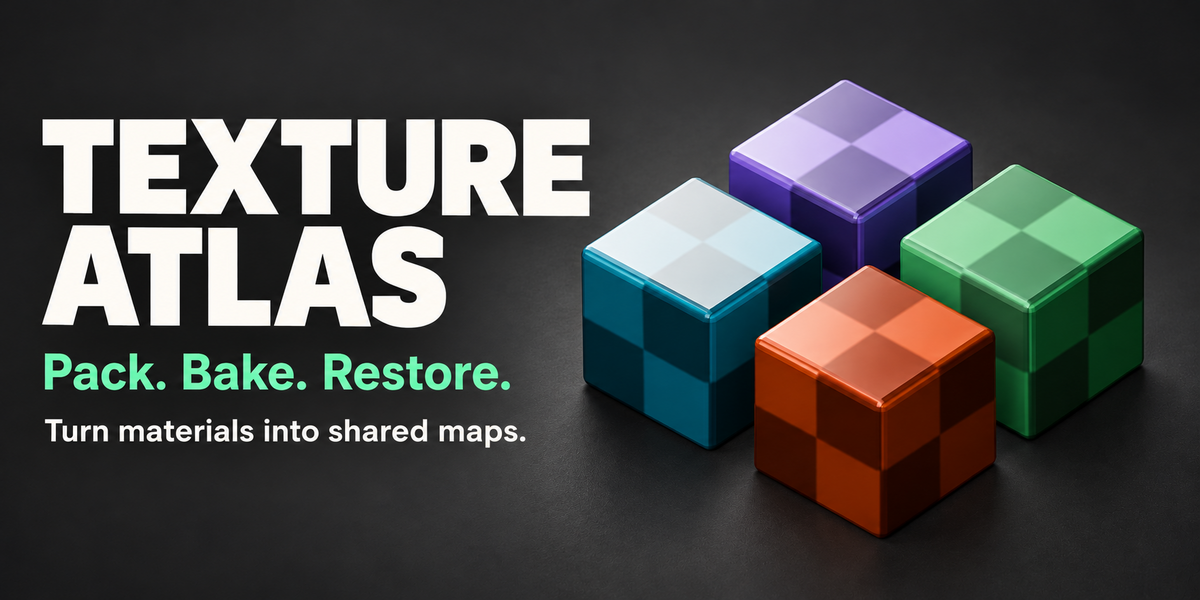
Installation and workflow
Install Texture Atlas
- Download
texture_atlas-1.0.0.zip. Keep this ZIP compressed. - In Blender, open Edit > Preferences > Get Extensions. Open the menu and choose Install from Disk.
- Select the ZIP and enable Texture Atlas.
- In the 3D View, press N and open the Texture Atlas tab.
The illustrated English/Spanish HTML guide and example scenes are separate downloads. Install only the addon ZIP through Install from Disk.
Create your first atlas
- Save a copy of your source project. Work in Object Mode.
- Select meshes with faces, assigned materials and a source UV layer.
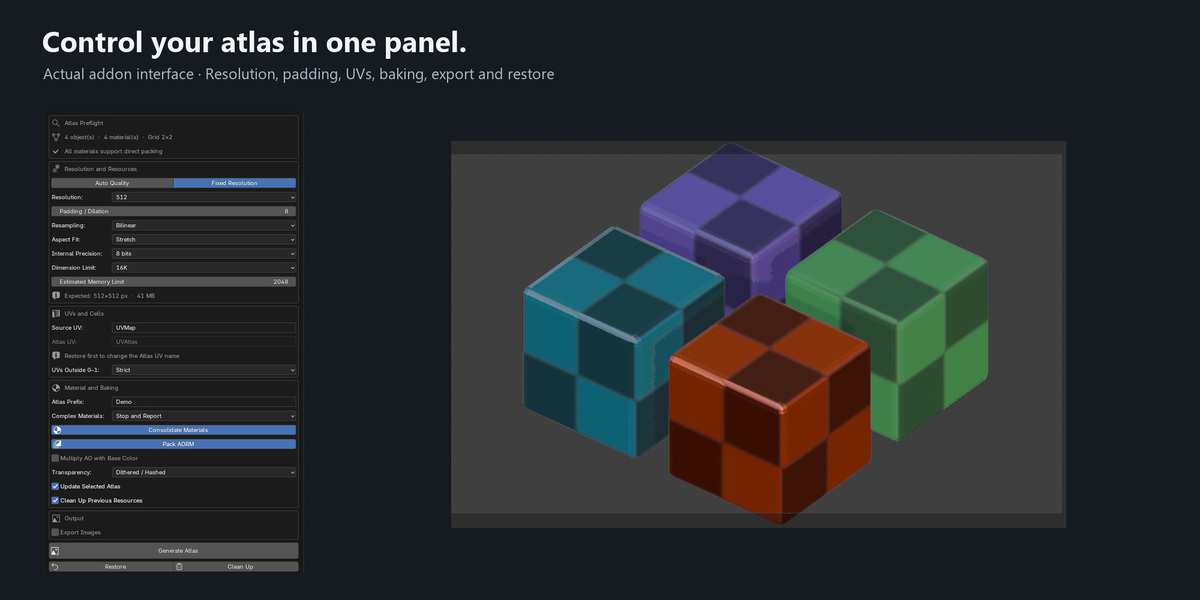
- Set Source UV to that layer's name, usually
UVMap. - Start with Fixed Resolution, 1K or 2K, 8 pixels of padding and Bilinear resampling.
- Choose Strict if the source UVs are inside 0–1. Leave Consolidate Materials enabled to assign the generated material.
- Click Generate Atlas. Inspect the surfaces, atlas borders, maps and generated material before exporting.
Each atlas cell corresponds to a material entry. Direct packing can share entries for reused materials. Baking can require per-object entries to preserve evaluation.
Material handling
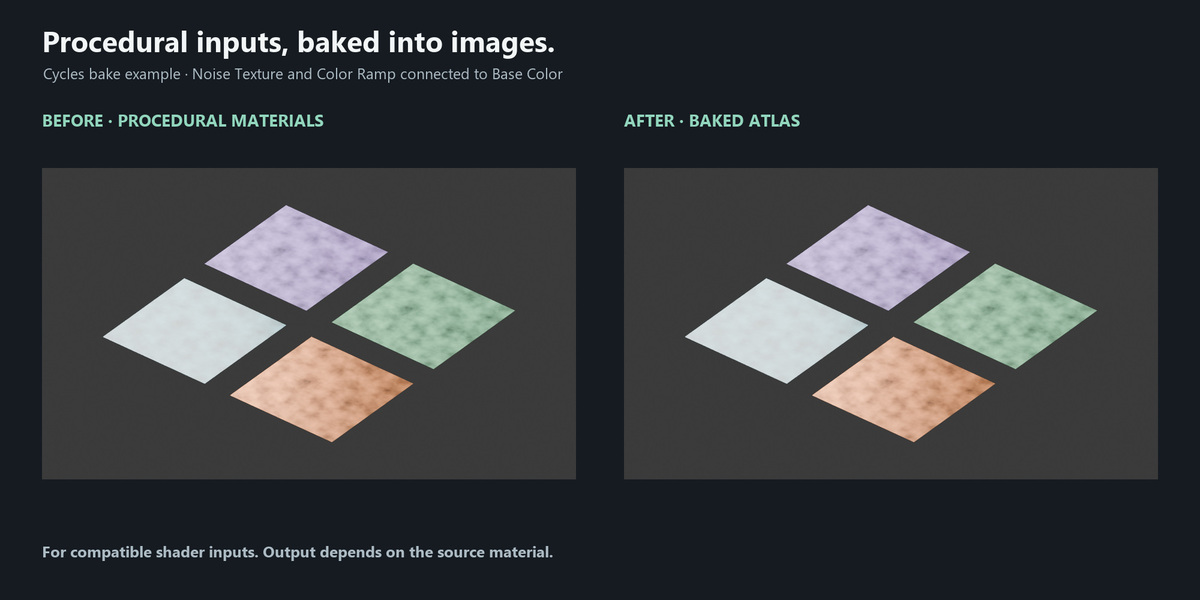
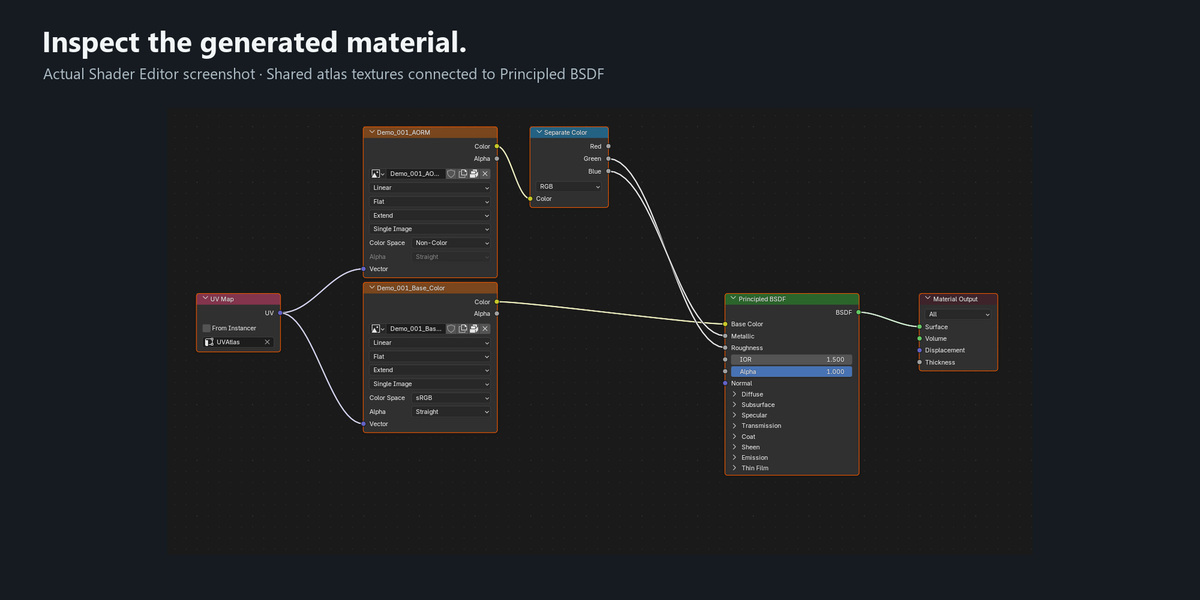
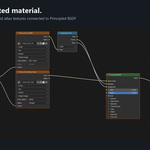
Supported image-based Principled inputs can be packed directly. Stop and Report cancels when the material requires baking. Bake allows Cycles to evaluate compatible inputs, including supported procedural branches.
Not every shader can be converted. Animated or camera/ray-dependent materials, ambiguous connections and unsupported mixtures may be rejected. Bake UVs need valid surface area without incompatible overlaps. Read the reported reason and simplify the source accordingly.
Maps and channels
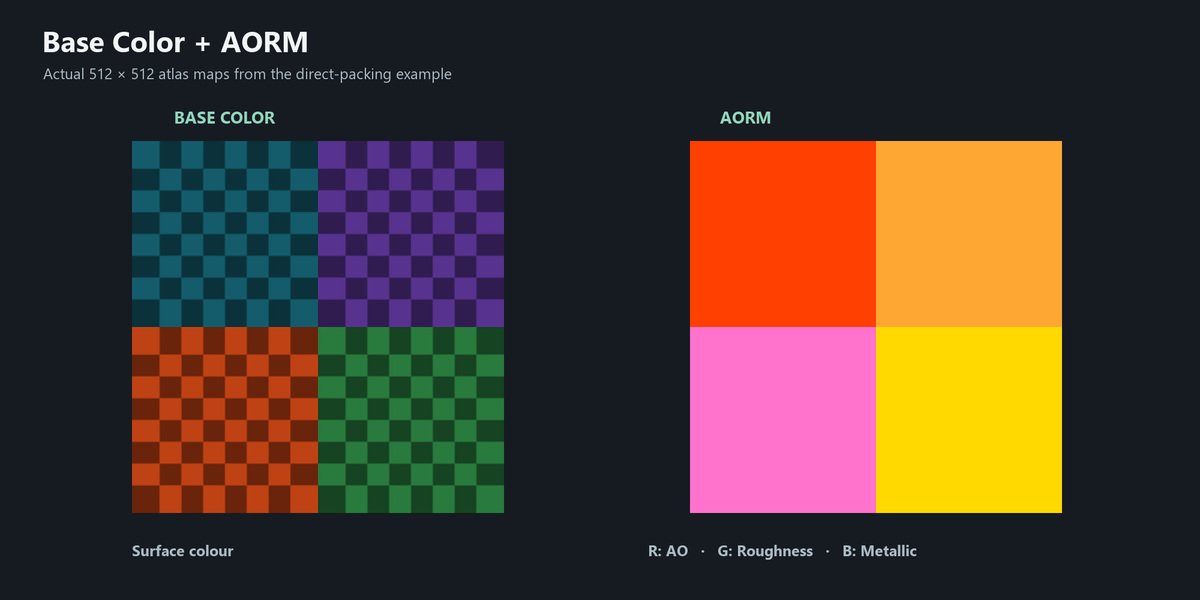
Available maps depend on detected material inputs: Base Color, Normal, Roughness, Metallic, AO, Alpha, Emission and Height. Height support does not imply generating displaced geometry.
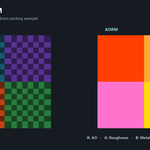
Pack AORM combines AO in red, Roughness in green and Metallic in blue. Normal and packed data maps use Non-Color. Multiply AO with Base Color applies detected occlusion to colour; choose this according to your target material setup.
Alpha supports Dithered, Blended or Clip with a threshold. Inspect transparent edges after conversion. Match exported normal conventions and colour spaces to the destination renderer.
Resolution and UV controls
Auto Quality sizes cells using source images and the minimum bake resolution. Fixed Resolution divides a square image into cells. Padding extends cell borders but cannot prevent every distant mipmap artifact.
Nearest keeps hard transitions; Bilinear and Bicubic interpolate images. Stretch fills the cell, Contain preserves aspect ratio and Cover crops to fill. Contain may reject materials whose maps have inconsistent aspect ratios.
Strict rejects UVs outside 0–1. Repeat preserves repetition through baking where required and supported. Clamp clips coordinates to the range. Fit normalises each material's UV bounds; this changes texture scale.
Dimension Limit and Estimated Memory Limit bound the operation. The estimate is not total Blender or GPU memory. Lower resolution or map count if memory is insufficient. Internal Precision controls requested storage; HDR can still require a float buffer.
Update, restore and cleanup
Enable Update Selected Atlas and select every object belonging to that generation. Updates validate generated UVs, images, materials and recovery data. Editing these resources can prevent an update.
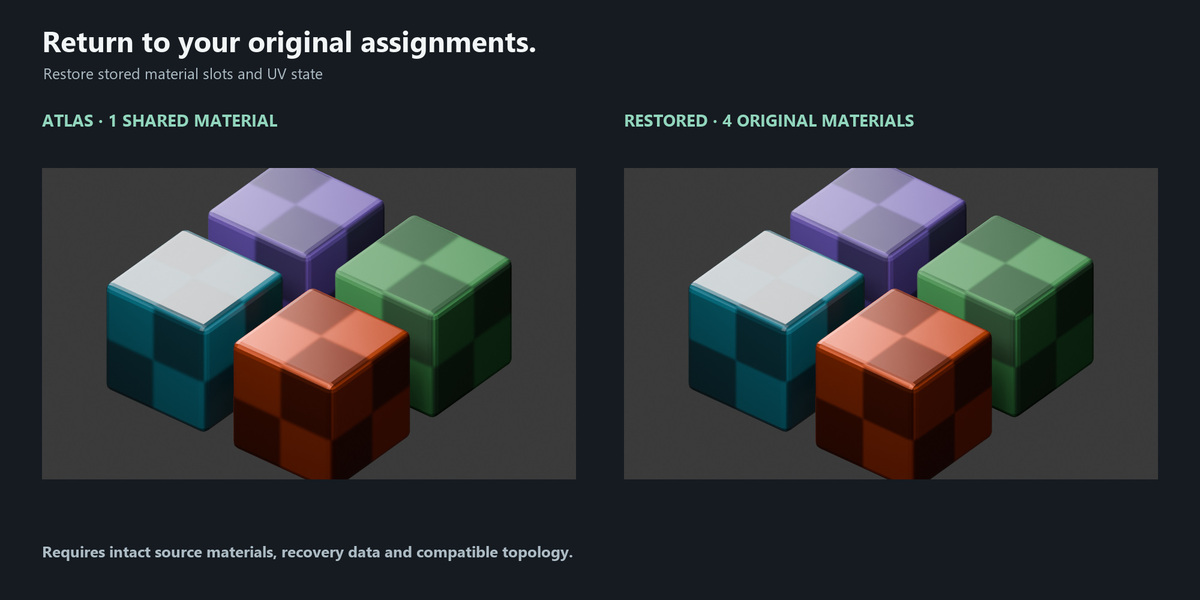
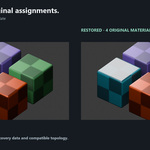
Restore recovers stored material slots and UV state. Keep source materials and recovery data intact. Mesh topology changes can prevent exact recovery. Restoration does not delete exported images.
Clean Up Previous Resources removes unused resources during an update. Clean Up handles unused atlas resources within its supported scope. Keep your saved source project for recovery beyond that scope.
Export
Enable Export Images, choose a folder and format, and use the generation-and-export button. Save the blend before using a // relative path, or choose an absolute folder.
PNG and TIFF are suitable for values within 0–1. OpenEXR supports HDR and negative values; output uses full float when values exceed half-float range. Non-finite pixel values are rejected.
Export checks ownership before replacing files. Externally modified owned exports can block replacement. Ctrl+Z does not undo disk exports.
Downscale Textures
Use the separate panel to create lower-resolution copies and materials using those copies. Choose 128, 256, 512, 1024 or 2048 pixels and optionally Preserve Aspect Ratio. Smaller sources are not enlarged unnecessarily.
Downscaling uses nearest-neighbor sampling independently of the atlas resampling option. It preserves float/HDR data and alpha interpretation. It handles image nodes in the main material tree, rather than recursively processing all nested groups. Existing reduced copies may be reused; inspect them after changing a source image.
Example scenes
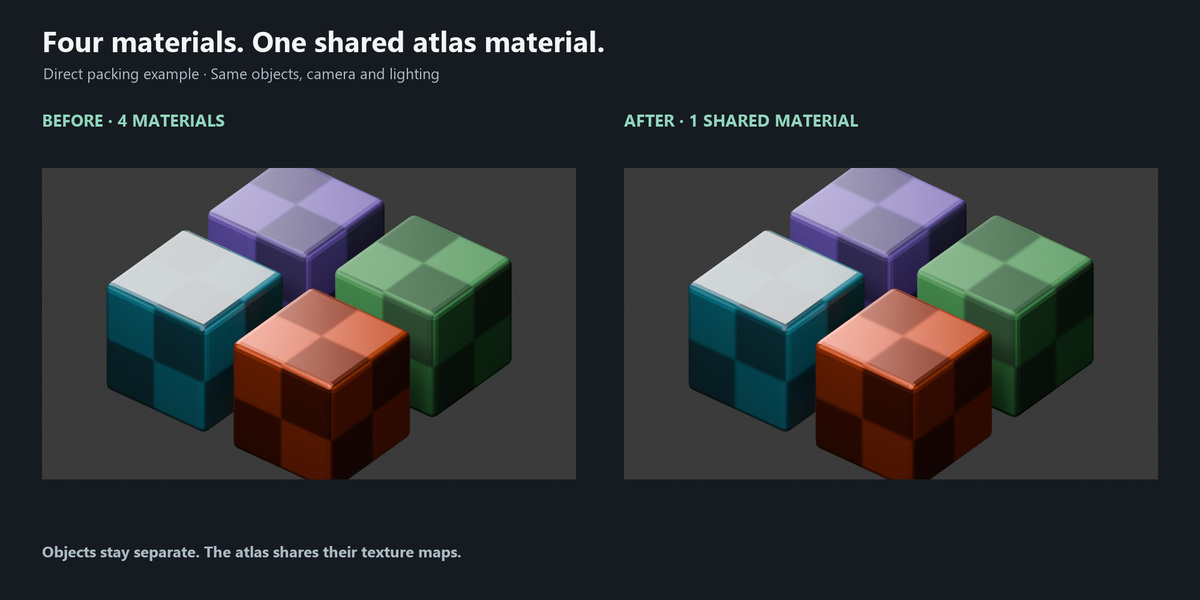
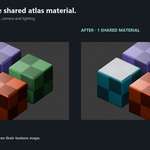
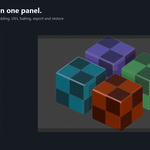
Atlas_Workflow_Demo.blend demonstrates four blocks with a shared atlas material. Select the blocks and use Restore to inspect their original assignments, then generate again.
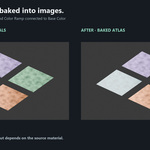
Atlas_Procedural_Demo.blend demonstrates compatible Noise Texture and Color Ramp inputs baked into images. These are small workflow examples, not performance benchmarks.
Compatibility
Minimum Blender version: 4.5. Tested on Windows with Blender 4.5.0, 5.0.0 and 5.1.1. The interface is English. Baking requires Cycles. Other Blender releases and operating systems have not been verified for this version.
Reporting a problem
Contact the creator through Superhive with your addon version, Blender version, operating system, exact error message and reproduction steps. A screenshot or a minimal blend with textures you can share will help investigate the issue.
 Included
Includes 12 months of
- Support from Rynor
- Product updates
Extend this product’s Support Period +12 months: 50% of product price
Have questions before purchasing?
Login to message
| Blender Extension Compatible | Yes |
| Published | 2 days ago |
| Blender Version | 4.5 - 5.1 |
| Extension Type | Add-on |
| Render Engine Used | Cycles, Eevee |
| License | GPL |

Discover more products like this
Channel Packing texture atlas materials procedural baking texture downscaling uv texture export PBR texture-baking AORM Texture packing game assets