Texture Resizer
 Rynor
Rynor

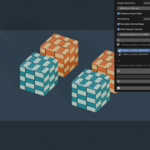
Texture Resizer 1.0.0
Requirements
Blender 4.5.0 or later. Verified on Windows with Blender 4.5.0, 5.0.0 and 5.1.1. Other releases, operating systems and custom OCIO configurations have not been verified. No separate Python packages or online service are required.
Installation
1. Download texture_resizer-1.0.0.zip and keep it compressed.
2. In Blender, open Edit > Preferences > Get Extensions, open the menu in the upper-right corner and choose Install from Disk.
3. Select the installer ZIP and enable Texture Resizer if it is not enabled automatically.
4. Press N in the 3D Viewport and open the Texture Resizer tab.
5. Extract Texture_Resizer_Guide_And_Demo.zip separately to access the offline HTML guide and example scene. The User Guide button also opens the guide included with the installed add-on.
Quick start
1. Select the mesh objects you want to process in Object Mode. Linked objects must be made local first.
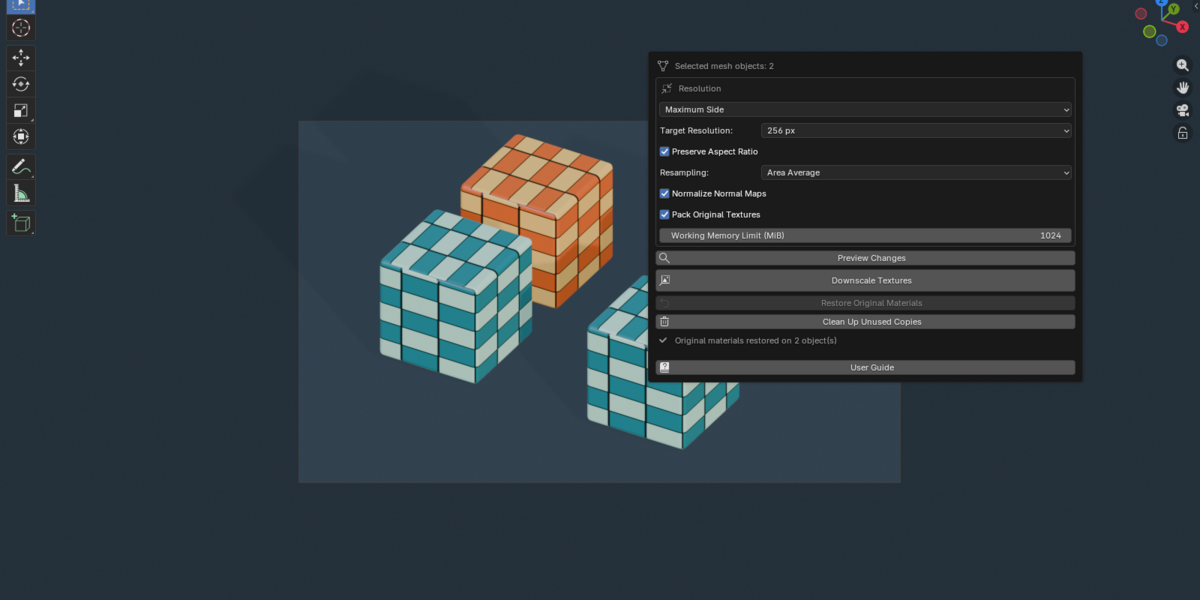
2. Choose Maximum Side, a target resolution and a resampling filter. Start with Preserve Aspect Ratio enabled and Area Average.
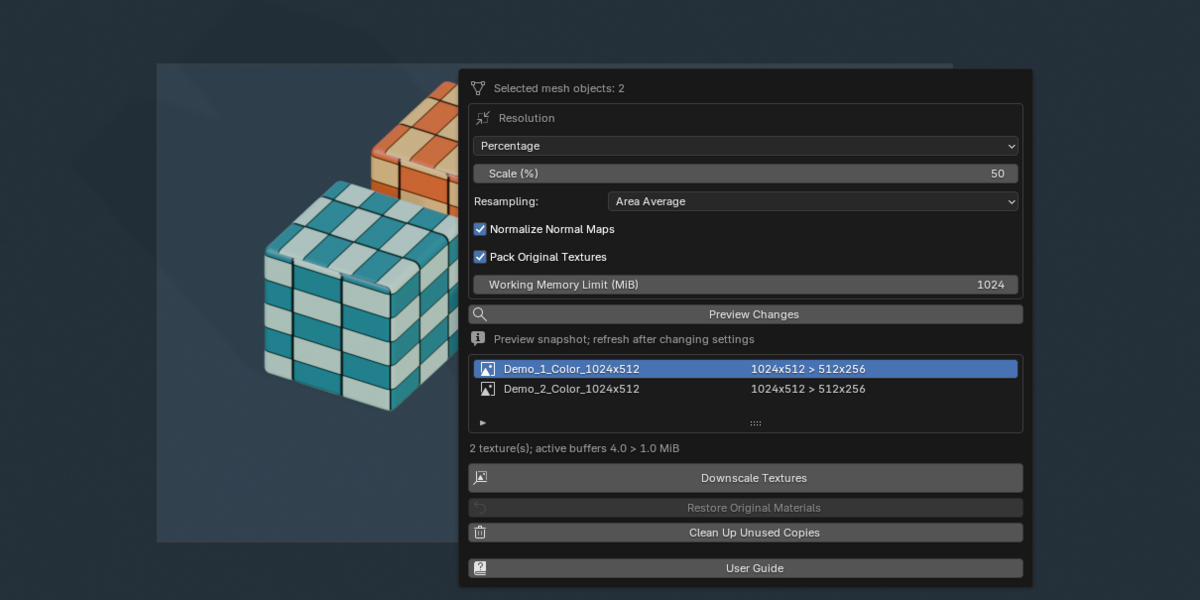
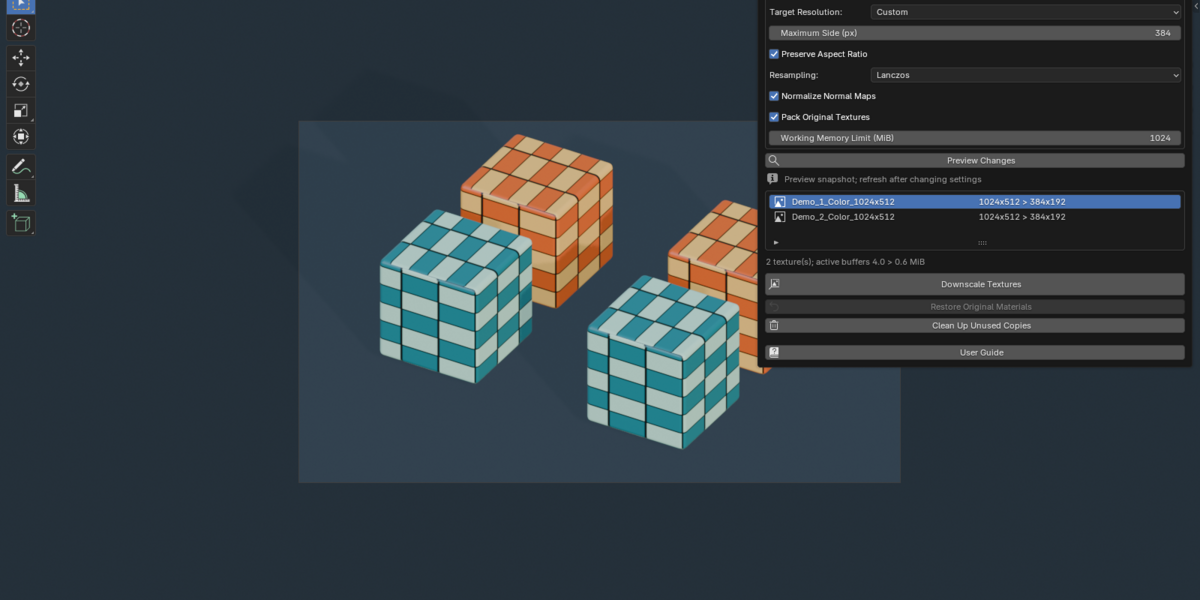
3. Click Preview Changes to inspect original and target dimensions and estimated active image buffers. Refresh the preview after changing settings or selection.
4. Click Downscale Textures. The add-on creates packed image copies and assigns copied materials and shader groups to the selected objects.
5. Save the blend to retain the reduced images and recovery data.
6. Select the processed objects and click Restore Original Materials to return to their saved assignments. Use Clean Up Unused Copies afterward if the generated resources are no longer needed.
Resolution settings
Maximum Side limits the longest dimension. Presets are 128, 256, 512, 1K, 2K and 4K. Custom accepts 1-16384 pixels. Preserve Aspect Ratio keeps the original proportions. Disabling it produces square images, capped to the source's shorter side to avoid upscaling.
Percentage scales each source from its original resolution, from 1-100%. At 50%, each side is approximately halved and the pixel count becomes roughly one quarter. Preserve Aspect Ratio is a Maximum Side setting. Images are never upscaled.
Resampling
Area Average: a useful starting point for general downscaling and data maps; fine detail may soften.
Lanczos: sharper detail, with possible ringing near high-contrast edges.
Bilinear: smooth, antialiased reduction with a softer appearance.
Nearest: preserves discrete sampled values for pixel art and categorical masks; thin features may be lost.
Additional controls
Normalize Normal Maps renormalizes filtered RGB vectors for Non-Color images connected directly or through reroutes to a Normal Map node's Color input. Arbitrary processing chains and connections across group interfaces are not traced for normal detection.
Pack Original Textures packs editable external originals into the blend for portable recovery. Edited and generated originals are always packed. Linked-library originals remain external dependencies. Reduced images are always packed.
Working Memory Limit sets a conservative MiB budget for the operation's estimated working buffers. It is not a cap on Blender's total memory or image-decoding allocations.
Restoration and cleanup
Original image files are never overwritten. Restoration uses retained material references and original material-slot links. Save and reopen the blend with those references intact. Restore before changing the processed objects' meshes, material-slot layouts or assignments. Cleanup removes unused resources created by Texture Resizer and keeps copies that still have users.
Supported inputs and limits
Supports readable static, single-layer image textures and generated images, including images inside nested shader groups. Byte sRGB color is filtered in linear light; alpha conventions, independent data channels and float HDR buffers are handled. UDIMs, image sequences, video, viewer buffers and multilayer EXR are unsupported and stop the operation with a report.
The add-on resizes image textures. It does not bake procedural materials, create atlases, convert file formats or export texture files. Large batches process synchronously and can occupy Blender until completion. Preview figures describe active image buffers; retained originals may increase blend file size, and total RAM, VRAM or frame-rate improvements are not guaranteed.
Example and support
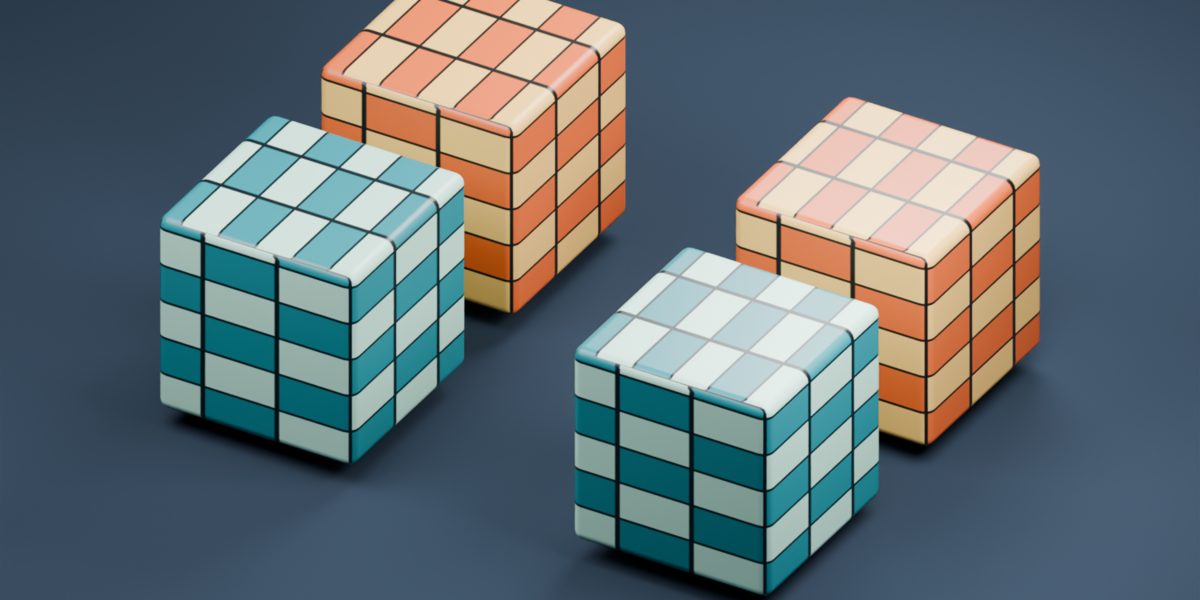
Open Texture_Resizer_Demo.blend after installing the add-on. Restore the selected Reduced objects, then preview and downscale again. The Original objects demonstrate unchanged shared mesh users.
For support, contact me through Superhive with your Blender version, add-on version, operating system, exact error message and steps to reproduce the issue.
 Included
Includes 12 months of
- Support from Rynor
- Product updates
Extend this product’s Support Period +12 months: 50% of product price
Have questions before purchasing?
Login to message
| Blender Extension Compatible | Yes |
| Published | 1 day ago |
| Blender Version | 4.5 - 5.1 |
| Extension Type | Add-on |
| Render Engine Used | Cycles |
| License | GPL |

Discover more products like this
texture downscaling normal maps restore materials resampling material workflow batch-resize game assets texture optimization texture resizer Texture resolution