Time & Click Tracker - Break Time Reminder and Monitor Blender Activity in Real-Time
 Salman Naseem

Time & Click Tracker for Blender
Version 1.4 · Blender 4.2 and newer, including Blender 5 · by Salman Naseem
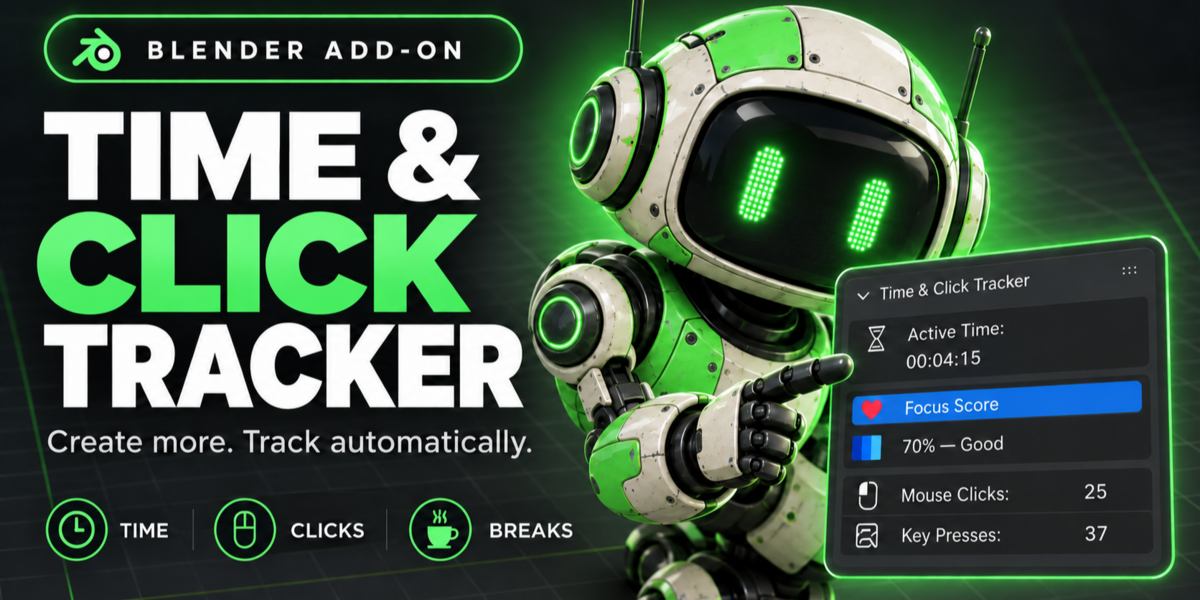
Time & Click Tracker measures how long you actively work in Blender, how long you sit idle, and how many mouse clicks and key presses you make. It reminds you to take breaks, shows a timer in the viewport, and keeps a history of your sessions that you can export.
What's new in 1.4
Fixed an error in Blender 5 that made the "More Addons & Support" panel fill the console with errors. Blender 5 removed an icon the panel used, and the add-on now picks a replacement icon automatically. The support contact email is also updated to .
Installation
From Superhive (recommended)
- In Blender, open Edit > Preferences > Get Extensions.
- Add the Superhive remote repository if you have not already.
- Find Time & Click Tracker and click Install.
From a zip file
- Download
time_click_tracker_v1.4.zip. Do not unzip it. - In Blender, open Edit > Preferences > Get Extensions.
- Click the drop-down arrow in the top right and choose Install from Disk.
- Select the zip file.
Updating from an older version: install the new version the same way. Your session history is stored outside the add-on and is kept.
Getting started
- In the 3D Viewport, press N to open the sidebar.
- Click the Time Tracker tab.
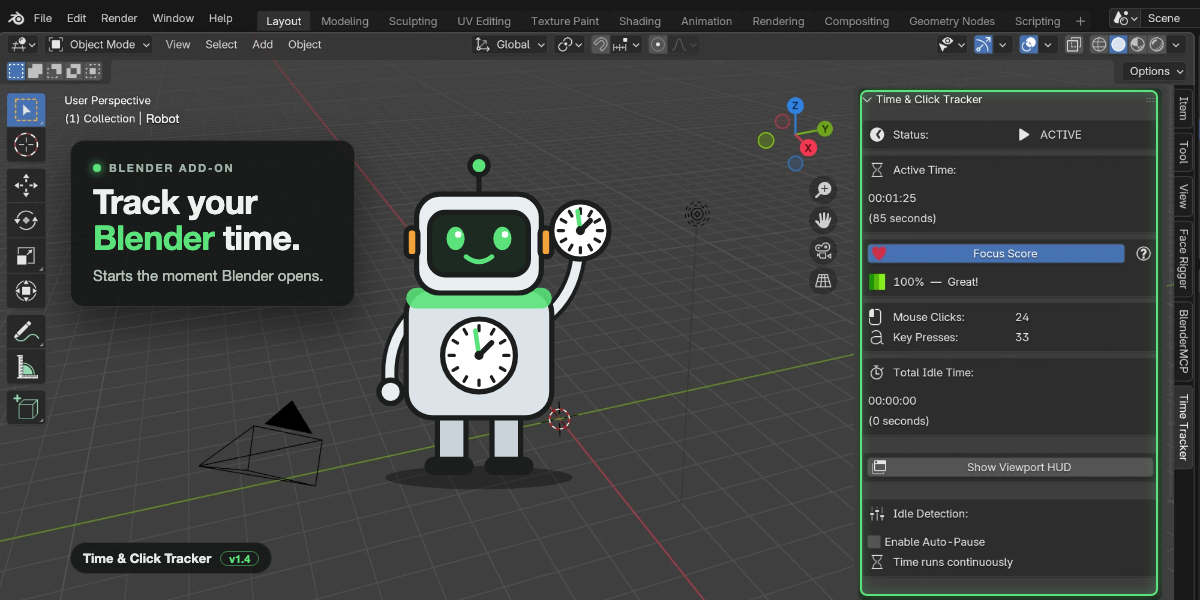
- Tracking has already started. The status shows ACTIVE and the timer is running.
There is nothing to start. The add-on begins tracking as soon as Blender opens, and restarts automatically whenever you open or create a file.
The panel
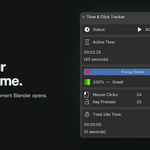
| Section | What it shows or does |
|---|---|
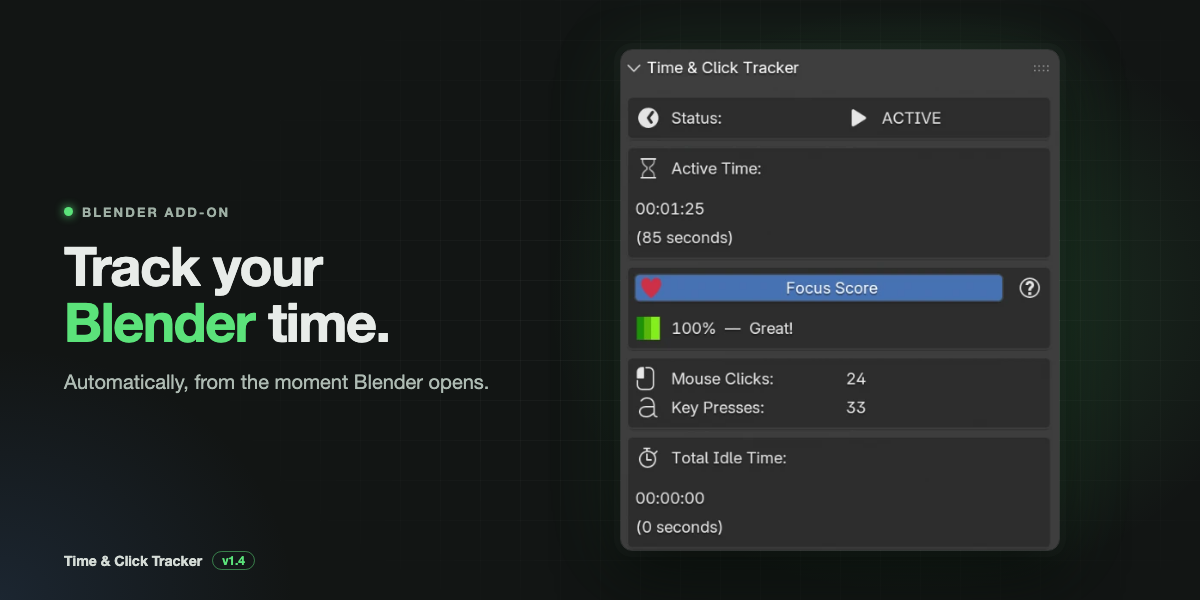
| Status | ACTIVE, IDLE (TRACKING), IDLE (PAUSED) or PAUSED |
| Active Time | Time you have spent working, as HH:MM:SS and in seconds |
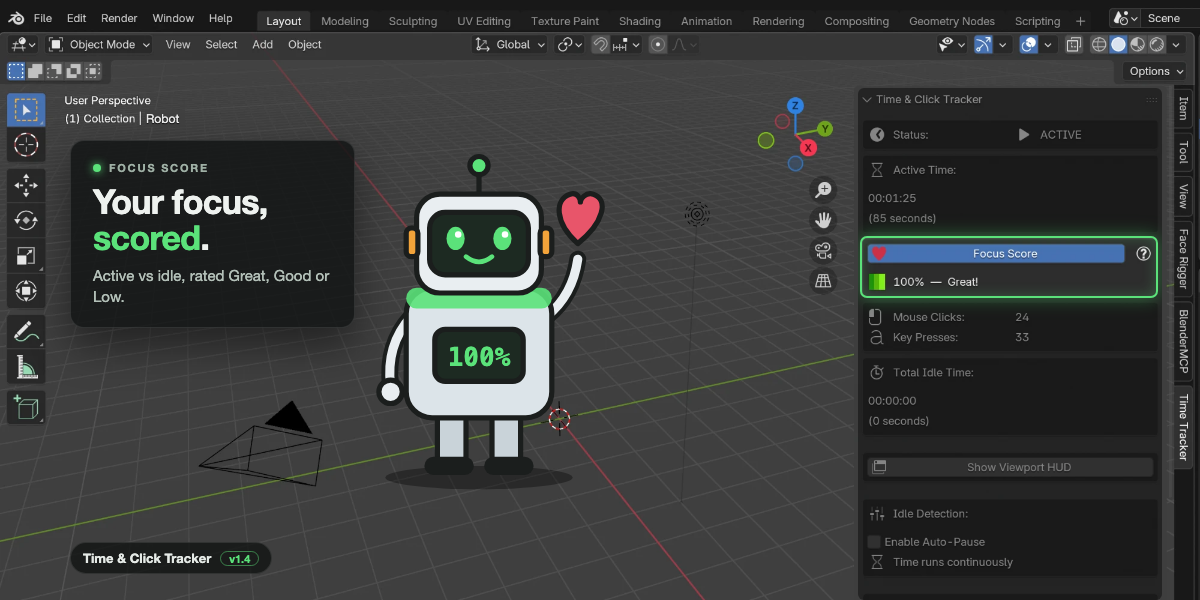
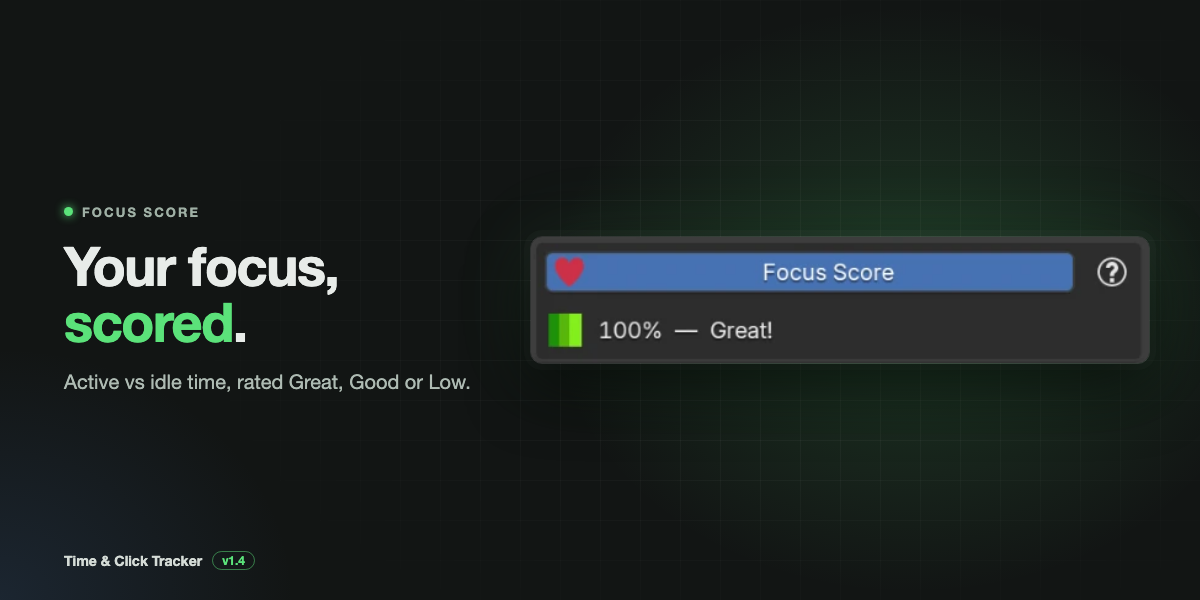
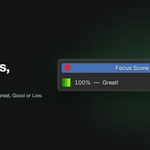
| Focus Score | Share of your session spent active. Click ? to see the formula |
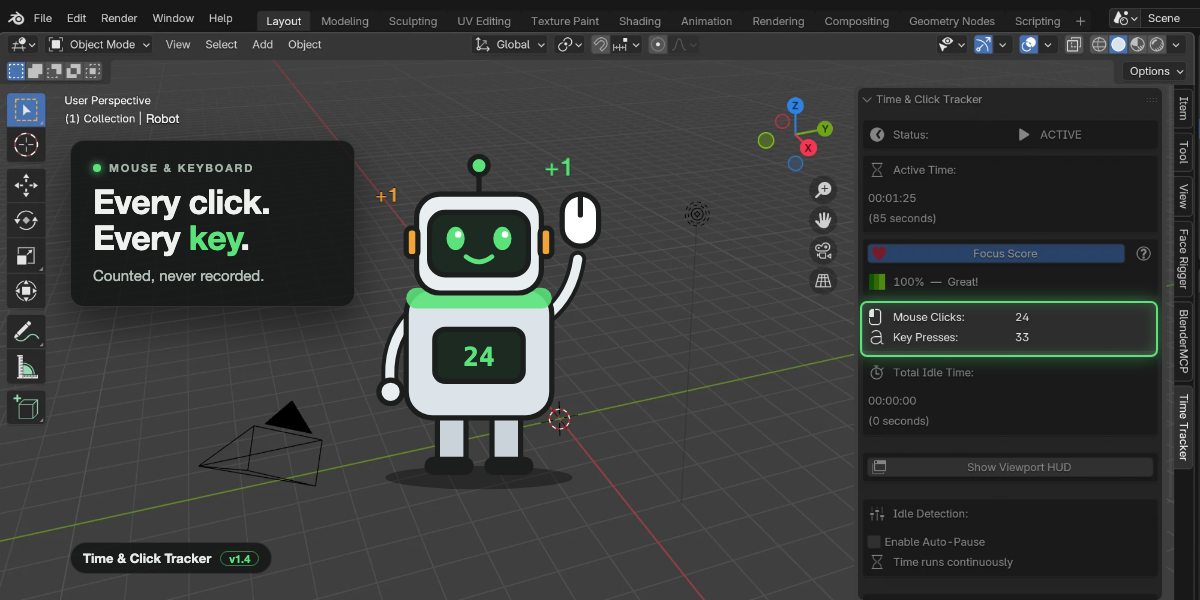
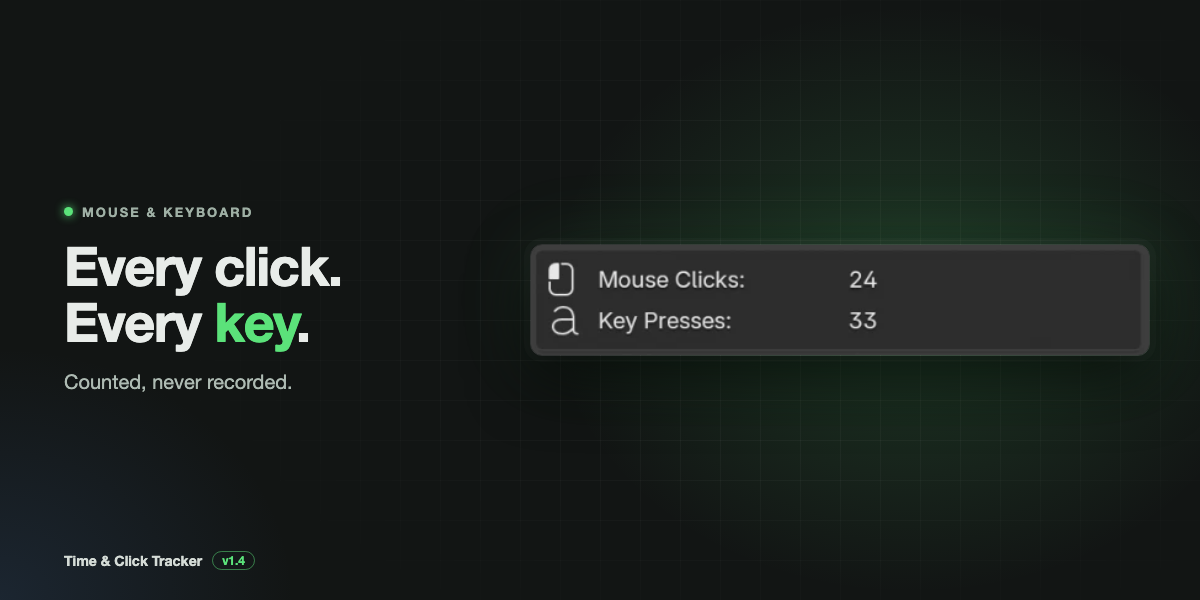
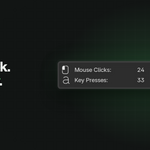
| Mouse Clicks / Key Presses | Running counts for this session |
| Total Idle Time | Time with no input after the idle threshold passed |
| Show Viewport HUD | Turns the on-screen timer on or off, with a font size setting |
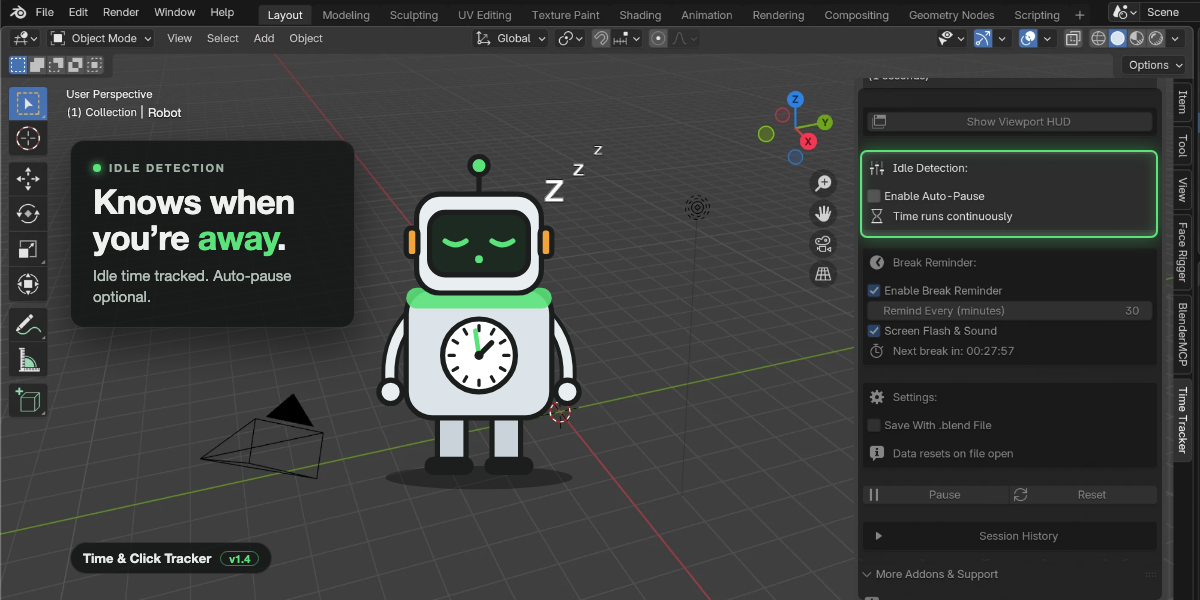
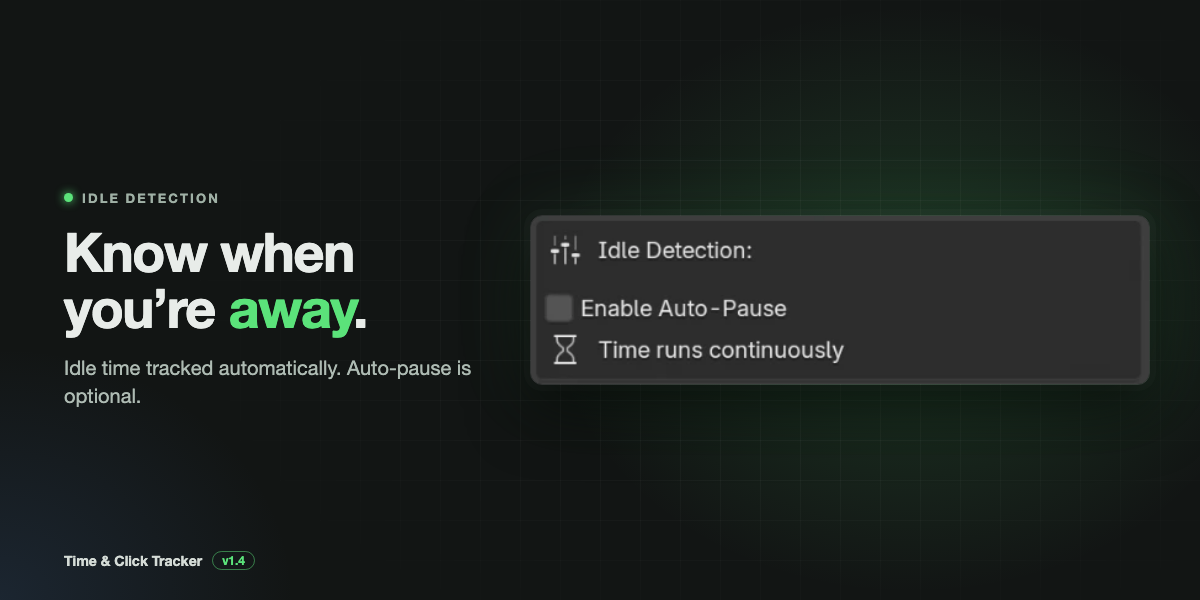
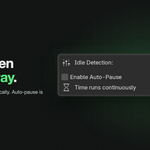
| Idle Detection | Auto-pause on or off, and how many seconds before you count as idle |
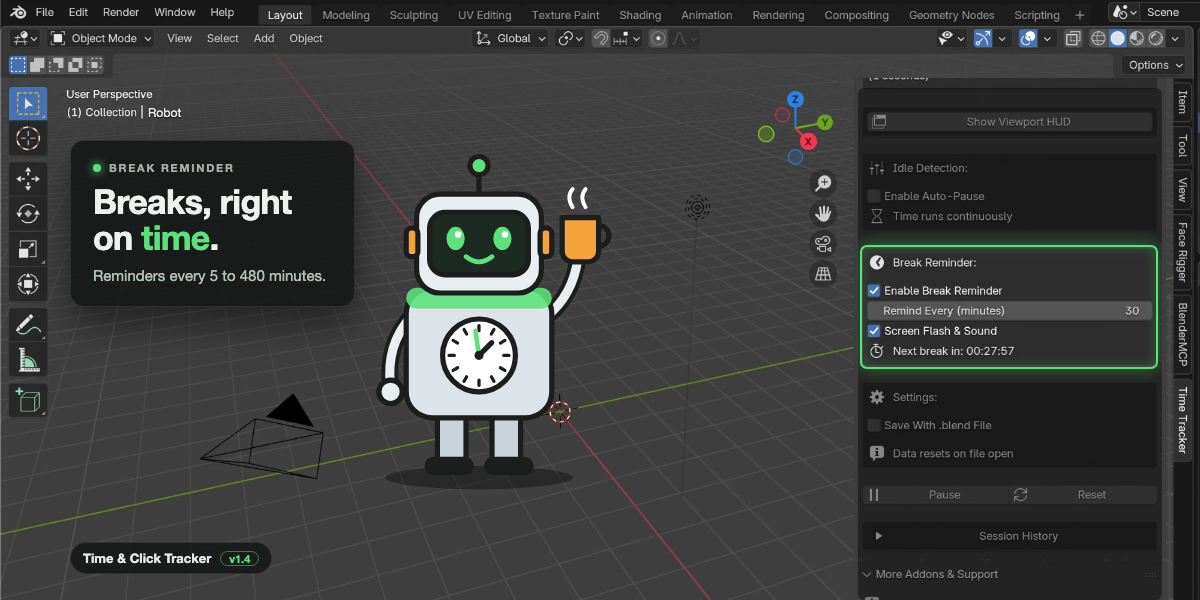
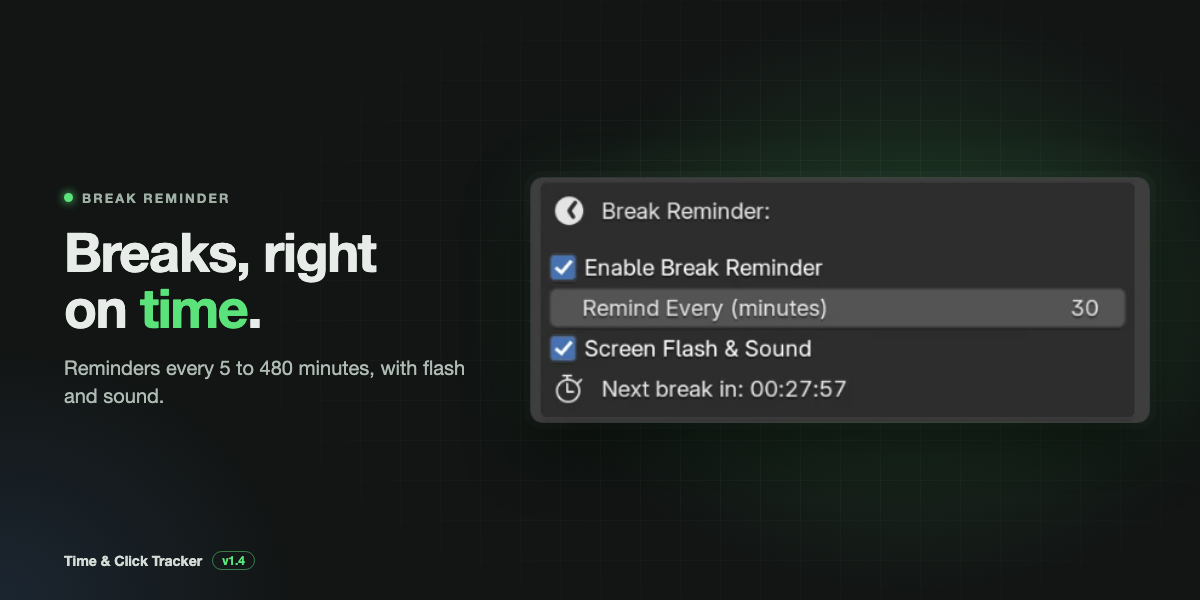
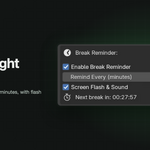
| Break Reminder | Reminder on or off, interval, and screen flash and sound |
| Settings | Whether tracking data is saved inside the .blend file |
| Pause / Reset | Pause or resume tracking; save this session to history and start fresh |
| Session History | Your recent sessions, plus Export CSV, Export TXT and Clear History |
How time is counted
What counts as activity: mouse clicks (left, right, middle), key presses, mouse movement, scrolling, and trackpad pan and zoom. Input anywhere in the Blender window counts, not only in the 3D Viewport.
What counts as a click or key press: only mouse button presses count as clicks, and only key presses count as key presses. Moving the mouse or scrolling keeps you active but does not add to either count.
Idle: when there is no input for the idle threshold (10 seconds by default), you become idle. The idle time starts from the end of the threshold, so the first 10 seconds are not counted as idle.
Auto-Pause decides what happens to Active Time while you are idle:
| Auto-Pause | While idle | Best for |
|---|---|---|
| Off (default) | Active Time keeps running. Idle Time also counts up. | Knowing total time spent with the file open |
| On | Active Time stops. Only Idle Time counts up. | Knowing real hands-on working time |
Pause stops Active Time, and clicks and key presses are not counted. Click Resume to continue.
Focus Score
Focus % = Active Time / (Active Time + Idle Time) x 100Example: 1 hour 30 minutes active and 30 minutes idle gives 90 / 120 x 100 = 75%.
| Score | Rating |
|---|---|
| 75% and above | Great |
| 50% to 74% | Good |
| Below 50% | Low |
For the most meaningful score, turn on Auto-Pause. With Auto-Pause off, Active Time keeps running while you are away, so the score stays high.
Break reminders
- Tick Enable Break Reminder.
- Set Remind Every (minutes), from 5 to 480. The default is 30.
- Leave Screen Flash & Sound on if you want a sound with the popup.
When the time is up, a popup appears with a short list of things to do (rest your eyes with the 20-20-20 rule, stretch, drink water). Click OK, I'll Take a Break! to restart the timer, or Remind Me in 5 Minutes to snooze.
The reminder only appears while you are actively working. If the time comes while you are idle or paused, it appears when you return.
Sounds: Windows plays the system exclamation sound, macOS plays "Glass", and Linux uses paplay if it is installed.
Viewport HUD
Turn on Show Viewport HUD to show your Active Time on the left side of every 3D Viewport.
- Green: active
- Orange: idle, with the idle time shown next to it
- Grey: paused
Set HUD Font Size from 10 to 48. The HUD turns off when you open a file, so it never gets saved as "on" into a file you share.
Saving your data
The add-on keeps two kinds of data.
1. The current session (per file) By default, the counters start at zero every time you open a file. Tick Save With .blend File to store the counters inside the file when you save. The next time you open that file, tracking continues from those numbers.
2. Session history (per computer) When you open or create another file, or press Reset, the session you just finished is added to your history. Sessions with less than 10 seconds of active time are skipped. The last 60 sessions are kept.
History is saved in Blender's config folder as time_click_tracker_history.json:
| System | Folder |
|---|---|
| Windows | %APPDATA%\Blender Foundation\Blender\<version>\config\ |
| macOS | ~/Library/Application Support/Blender/<version>/config/ |
| Linux | ~/.config/blender/<version>/config/ |
Each Blender version has its own config folder, so each version keeps its own history.
Tip: to make sure your last session of the day is in the history, press Reset before you close Blender.
Exporting
Open Session History and click Export CSV or Export TXT. Both include every saved session plus the session you are in now. The file name defaults to time_tracker_YYYY-MM-DD.
-
CSV has the columns
date, time, active_seconds, idle_seconds, mouse_clicks, keyboard_presses. It opens in Excel, Google Sheets or Numbers, which is useful for invoicing clients or tracking hours per project. - TXT is a readable report with active time, idle time, focus score, clicks and key presses for each session.
Clear History permanently deletes all saved sessions after you confirm.
Default settings
Open Edit > Preferences > Add-ons > Time & Click Tracker to set the defaults used for new files:
- Auto-Pause and the idle threshold
- Save With File
- Break Reminder and the interval
- Show HUD Overlay
Defaults apply to new files and to files that have no tracking data saved in them. Files that already have saved data keep their own settings.
Support
Questions, bugs or suggestions:
When reporting a problem, please include your Blender version, your operating system, and any error text from the console.
More add-ons:

Discover more products like this
project time tracking for blender productivity tracker for blender artists mouse click counter blender addon efficiency tracker for blender artists track blender work hours automatically monitor blender activity automatically studio productivity monitoring in blender time management tool for blender users blender time tracking addon automatic time tracker for blender