Transpose Classic : ZBrush Style Action Line to Move, Rotate and Scale Masked Sculpts
 blenderustad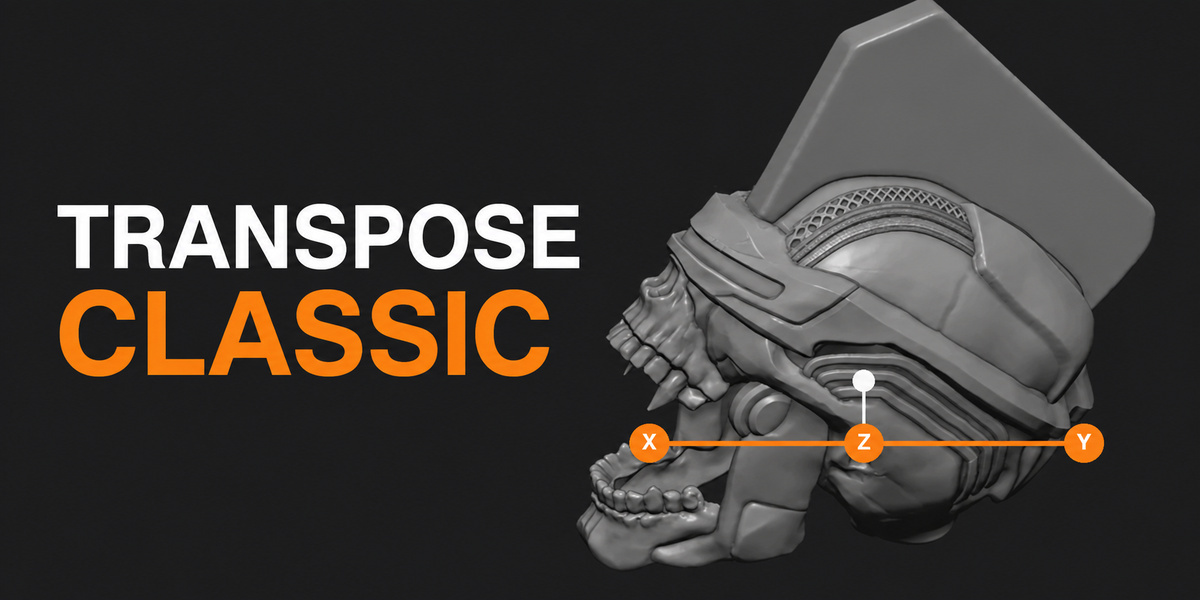
Requirements
Blender 4.2 or newer
A mesh object (Object Mode or Sculpt Mode)
Installation
If you have an older standalone version of Transpose Classic installed, disable and remove it first. Two versions would register the same shortcuts.
In Blender, open Edit > Preferences > Add-ons.
Use Install from Disk (or Install in older layouts) and select the ZIP file. Do not extract it.
Enable Transpose Classic.
Open the 3D View sidebar (N) and find the Transpose tab.
Quick start
Select a mesh. In Sculpt Mode, paint a mask over the parts that should stay still.
Hover over the 3D Viewport and press U (or Ctrl + Alt + T). You can also click Start Action Line in the sidebar.
Click and drag in the viewport to draw the action line. Both ends snap to the mesh surface where your cursor is over it.
Press G (Move), R (Rotate) or S (Scale). The current mode shows at the bottom left of the viewport.
Drag one of the handles to transform the unmasked geometry.
Press Esc to finish, or U to switch to Blender's native gizmo.
The action line explained
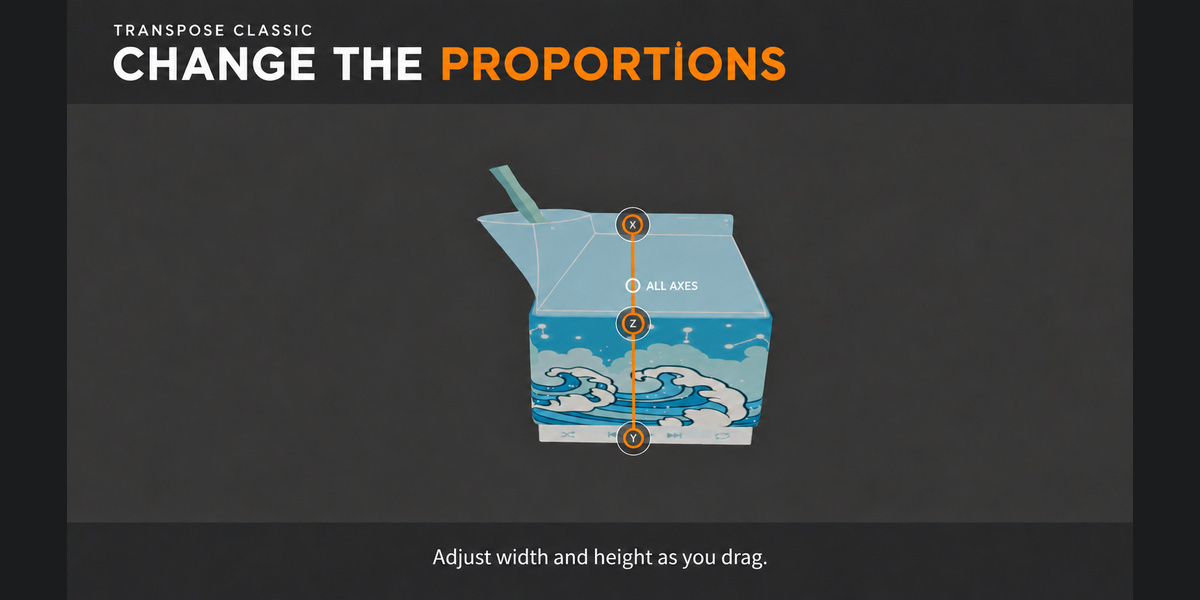
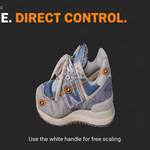
The line has three positions: start, middle and end. Each position has two parts.
Inner orange core: drag it to transform the mesh.
Outer white ring: drag it to reposition the line without changing the mesh.
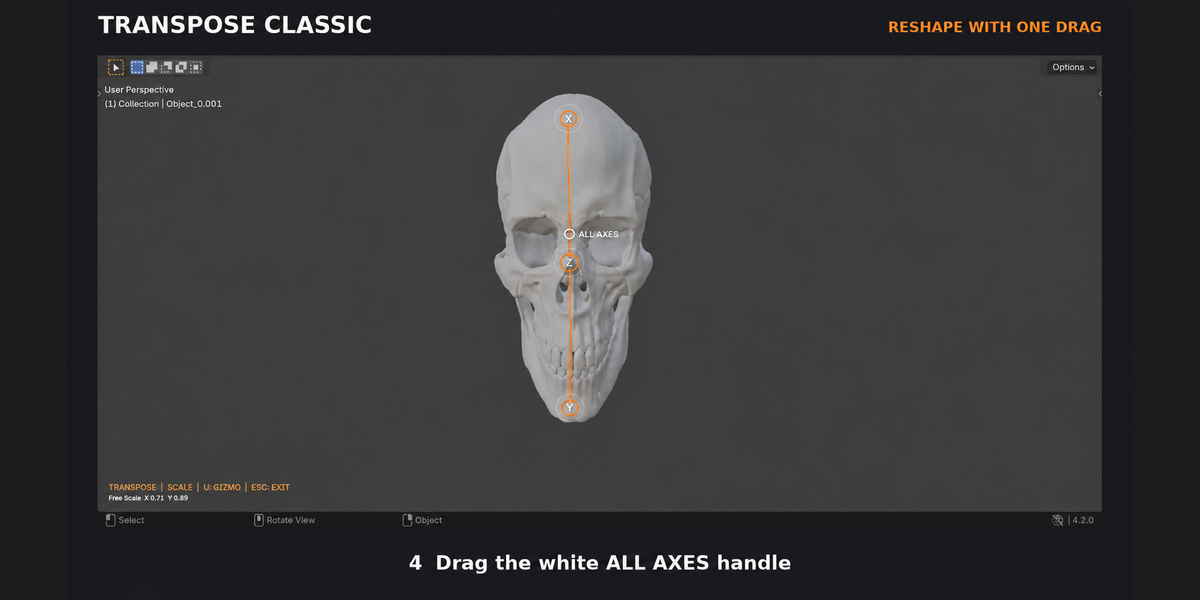
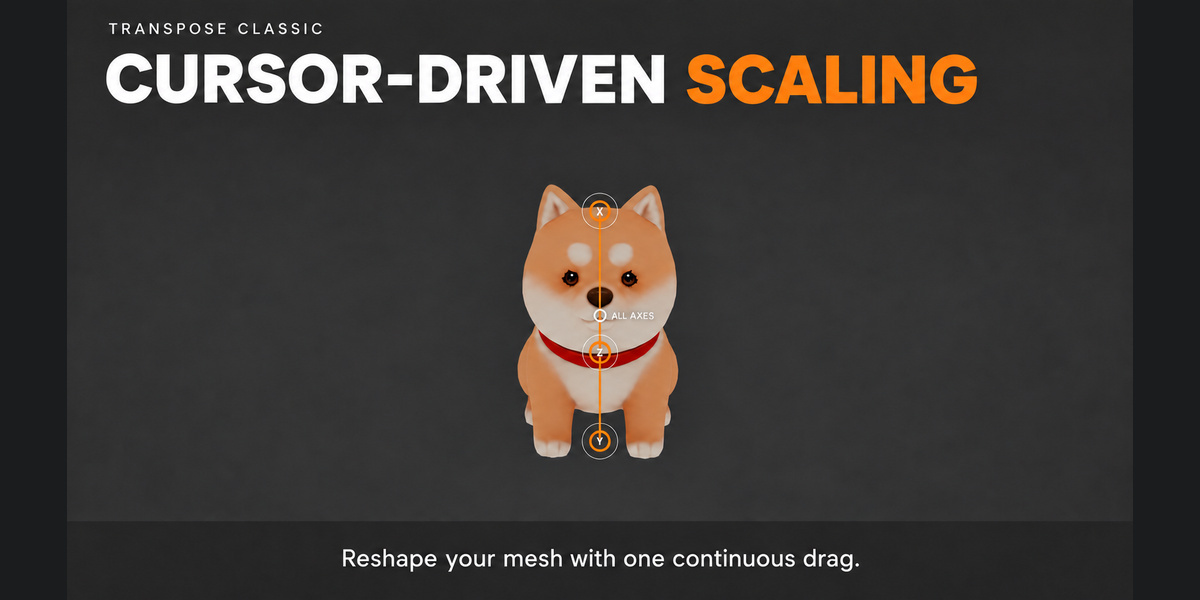
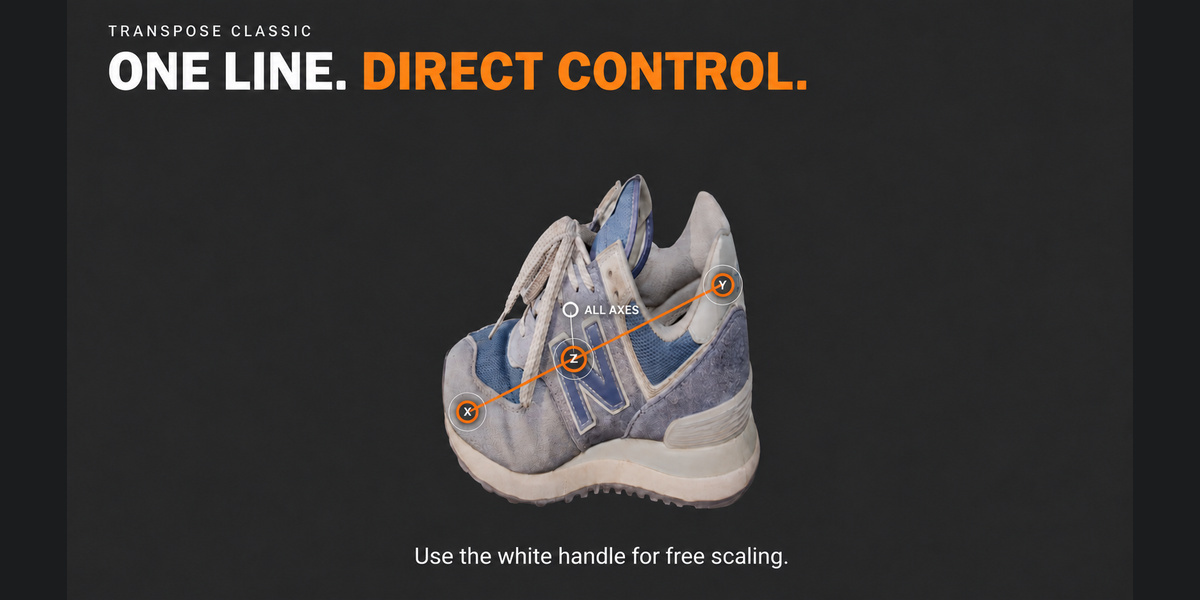
There is also a small white circle above the middle, labeled ALL AXES, for free transforms.
Handle axes
The orange handles always use world axes:
| Handle | Axis |
|---|---|
| Screen-left end | X |
| Middle | Z |
| Screen-right end | Y |
The labels follow the screen, so if you orbit the view and the line flips, the X and Y labels swap sides to stay correct.
Modes in detail
Move (G)
Orange handle: moves the unmasked mesh along that handle's world axis.
White ALL AXES handle: moves freely in the view plane. The line moves with the mesh.
Rotate (R)
End handle: rotates around that handle's world axis, pivoting at the opposite end of the line.
Middle handle: rotates around world Z, pivoting at the middle of the line.
White ALL AXES handle: rotates around the viewing direction, like turning a dial on screen.
Scale (S)
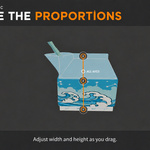
Orange handle: scales along that handle's world axis only. Dragging away from the pivot grows the mesh, dragging toward it shrinks it.
White ALL AXES handle: left and right stretch horizontally, up and down stretch vertically, based on your current view. A live readout shows the X and Y factors.
Scale is always centered on the bounding box of the movable (unmasked) geometry.
Repositioning the line
Drag the outer ring of an end to move that end. It snaps to the mesh surface.
Drag the outer ring of the middle to slide the whole line in the view plane.
Drag in empty space to draw a brand new line.
Masking tips
Masked value 1 = fixed. Masked value 0 = fully movable.
Values in between move partly. Use a soft mask brush or Mask > Smooth Mask for gentle bends at joints.
No mask at all means the whole mesh moves.
Keyboard reference
| Key | Action |
|---|---|
| U | Start the tool / exit to the native gizmo |
| Ctrl + Alt + T | Start the tool (alternative) |
| G / R / S | Move / Rotate / Scale mode |
| Left drag | Draw line, move ring, or transform with a handle |
| Right-click | Cancel the current drag (restores the mesh) |
| Esc | Exit the tool and keep changes |
| Middle mouse, wheel, 3D mouse | Navigate the viewport as usual |
Good to know
The tool edits mesh vertex positions directly, not the object transform. Save your file before large changes.
In Sculpt Mode, the tool switches to Object Mode while the line is active so mesh updates stay reliable. Sculpt Mode comes back when you exit.
Changing the active object closes the tool.
Only one action line session can run at a time.
Current limitations
Shape keys: apply or remove them first. The tool will show a message and stop.
Multires: a visible Multires modifier is not supported. Hide it in the viewport or work on the base mesh.
Edit Mode: not supported. Use Object or Sculpt Mode.
Have questions about this product?
Login to message
| Blender Extension Compatible | Yes |
| Downloads | 30+ |
| Published | 8 days ago |
| Blender Version | 3.3 - 5.2 |
| Extension Type | Add-on |
| Render Engine Used | Cycles, Eevee |
| License | GPL |
