Triview
 KennyPhases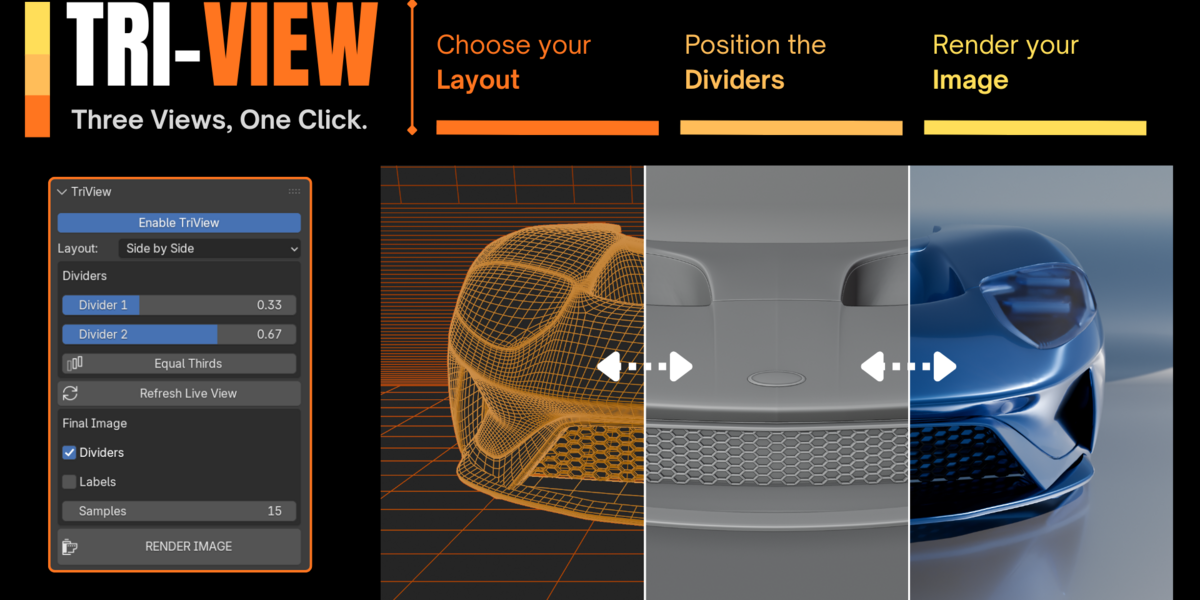


Installation
-
Download the TriView
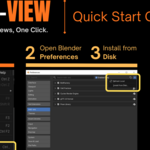
.pyadd-on file. - Open Blender.
- Go to Edit → Preferences → Add-ons.
-
Click Install from Disk and select the downloaded
.pyfile. - Enable the TriView add-on.
The TriView panel can be found in the 3D Viewport Sidebar (N Panel) under the TriView tab.
How to Use
- Position your camera where you'd like to showcase your model.
- Click Enable TriView.
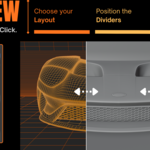
- Adjust the divider positions to frame each section.
- (Optional) Enable or disable labels and divider lines.
- Click Refresh Live View after making changes to your scene or camera.
- Click Render Image to generate the final high-resolution composite.
- Save the rendered PNG from Blender's Image Editor.
Tips
- Refresh the preview after changing your camera, model, or scene.
- The final image uses your current Blender render settings.
- Higher render resolutions produce higher-quality results.
- Render speed depends on your scene complexity and render settings.
- Remember to save the generated image after it opens in the Image Editor.
Discover more products like this
Workflow client artstation Comparison gumroad showcase screenshot wireframe viewport Render presentation portfolio