Undo History
 MNC Development


Undo History — Documentation
Requires Blender 5.0 or later.
1. Open Blender and go to Edit > Preferences > Get Extensions.
2. Click the arrow at the top right and choose Install from Disk…
3. Select UndoHistory-1.2.0.zip and confirm. The add-on is enabled automatically.
4. Expand its entry in the extensions list to reach all settings described below.
You can also simply drag the .zip file into the Blender window. To update later, install the new .zip over the old one and restart Blender.
There is nothing to switch on. Select a mesh, start working, and a timeline appears across the top of the 3D viewport as soon as the first state is recorded.
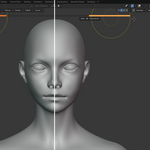
Each significant change adds one segment to the right of the timeline. The segment matching your current position is drawn in the accent colour; the others stay neutral. Nothing is displayed until an object actually has a history, so an empty scene shows no bar at all.
| Click a segment | Restores that state immediately. |
| Drag along the bar | Scrubs through the timeline, updating the model as you move. |
| Hover a segment | Shows the date and time that state was recorded. |
Going backwards never deletes the states after your position — you can return to the most recent one at any time. Making a new change while positioned in the past does replace what followed.
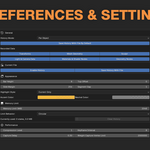
Found in Preferences > General. It decides how timelines are organised.
| Per Object (default) | Every object keeps its own independent history. The bar follows the active object and changes when you select another one. Navigating one object never affects the others. |
| Whole File | All objects share a single chronological timeline. The bar stays the same whatever you select, and navigating replays or undoes changes across every object. |
Switching mode mid-session does not discard anything: states already recorded in the other mode stay in memory and reappear if you switch back.
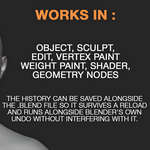
In Preferences > General. Each toggle is independent and all are on by default — turn off what you do not need to keep the history smaller.
| Transforms | Object position, rotation and scale. |
| Mesh Geometry | Geometry edits, paint attributes and vertex weights outside Sculpt Mode. |
| Sculpt | Brush strokes and other changes made in Sculpt Mode. |
| Light & Camera Data | Light type, colour, power; camera lens and clipping. |
| Materials & Shader Nodes | Material slot assignments and the full content of shader node trees, including node values, links, colour ramps and curves. |
| Geometry Nodes | Geometry Nodes modifiers, their input values, and the content of the node trees they use. |
These two settings belong to the open .blend file and are saved inside it, unlike everything else which is global to your Blender installation.
| Enable History | Turns recording on or off for this file. Off means no new states are created; the bar disappears. |
| Save History With File | Writes the history next to your .blend as a companion file named yourfile.blend.uhistory, reloaded automatically when you reopen the project. Turn it off to keep your project folder light. |
Save History With File By Default, in the General section, decides whether the option starts enabled in every new project. It is on by default and only applies to new files — opening an existing .blend always respects the choice stored in that file.
The budget applies to all timelines combined, and the panel shows how much is currently used.
| Memory Limit (MB) | Maximum memory the history may use. Default 2048, from 64 up to 65536. |
| Circular (default) | Oldest states are discarded automatically to make room. Segments vanish from the left of the bar while new ones appear on the right, so the timeline stays continuous and you never have to think about it. |
| Block New States | Recording stops once the limit is reached, and nothing else is recorded until you clear the history. A warning appears beside the bar. |
| Clear History | Deletes every recorded state and frees the memory at once. Your model is never modified — only the history is erased. |
| Bar Height | Thickness in pixels. Default 8, from 4 to 40. |
| Top Offset | Distance from the top edge of the viewport. Default 0, up to 200. |
| Side Margin | Horizontal margin on both sides. Default 256, up to 1000. |
| Segment Gap | Space between two segments, 0 to 4 pixels. The gap closes automatically when segments become very narrow. |
| Highlight Style | Current Only colours just the segment you are on. Fill To Current colours everything from the first state up to your position. |
| Accent & Neutral Colour | Colours of the current position and of the remaining segments, alpha included. |
The defaults suit most projects. The first option matters most on heavy meshes; the two marked experimental are off by default and described in the notes below.
| Defer Capture Until Stroke Ends | Postpones all history work while a brush stroke is in progress, so the stroke itself stays responsive on heavy meshes. The state is recorded once you release the brush. Leave this on unless you want states to appear the instant a change is detected. |
| Skip Sculpt Rebuild (experimental) | Avoids rebuilding Blender's internal sculpt data when restoring a state, which makes navigation noticeably faster on heavy meshes. Off by default — see the note below. |
| Multiresolution Sculpting (experimental) | Records sculpting done through a Multiresolution modifier above level 0, which is otherwise invisible to the history. A state is recorded once each stroke ends. Off by default — see the note below. |
| Compression Level | 0 to 3, default 1. Set it to 0 to disable compression entirely: recording becomes much faster, at the cost of a noticeably larger history. Higher values store a smaller history but take longer to record. |
| Keyframe Interval | A complete snapshot is stored every N states, default 8; the states in between are stored as deltas. Lower values speed up jumps but use more memory. |
| Capture Delay | Idle time in seconds before a change is recorded, default 0.30. This is what groups a continuous action into a single state instead of many. |
| Weight Capture Vertex Limit | Vertex weights are recorded only for meshes below this vertex count, default 2 000 000. |
About Skip Sculpt Rebuild. Restoring a state normally makes Blender rebuild the internal data that brushes rely on. Skipping that step is faster, but brush accuracy and viewport display may become unreliable until you leave and re-enter Sculpt Mode.
About Multiresolution Sculpting. Blender only exposes the subdivided surface outside Sculpt Mode, so each recorded state costs a brief internal mode switch and stores far more data than an ordinary sculpt state — expect a short pause after each stroke and a much larger history. The switch is never performed while a stroke is running; the state is simply recorded once you release the brush. Leave the option off unless you actually sculpt with a Multiresolution modifier.
It coexists with Blender's undo. Ctrl+Z keeps working exactly as before. When you undo, Undo History recognises the resulting state and simply moves its position rather than creating a duplicate.
Renaming an object is safe. Histories are tied to a hidden identifier stored with the object, not to its name.
Multiresolution sculpting needs its own option. Multires stores its displacement separately from the base mesh, so strokes above level 0 are invisible to the history until you enable Multiresolution Sculpting in the Performance section. Sculpting at level 0 is always recorded, like any other mesh edit.
Deleted data blocks cannot be resurrected. Restoring an earlier state rewrites existing materials and node groups; it does not recreate ones you have deleted from the file.
The bar does not appear.
The active object needs at least one recorded state. Check that Enable History is on for this file, and that the object is a type the add-on records.
Sculpting with Multiresolution is not recorded.
Strokes above level 0 require Multiresolution Sculpting to be enabled in the Performance section. If it is on and nothing is recorded, check that the modifier's sculpt level is actually above 0; any error is reported directly under the option.
Sculpting or navigating feels slow on a very heavy mesh.
Open the Performance section. Make sure Defer Capture Until Stroke Ends is on, set Compression Level to 0, and try Skip Sculpt Rebuild if jumping between states is what feels heavy. Turning off the categories you do not need in Recorded Data also helps. If Multiresolution Sculpting is on and you are not sculpting above level 0, turn it off.
Nothing is being recorded any more.
You are probably in Block New States mode with the memory limit reached — look for the warning triangle beside the bar. Clear the history or raise the limit, or switch to Circular.
Undo History · Requires Blender 5.0 or later ·
-
$10
1 User - Non-commercial use
-
$25
5 Users - Commercial use
-
$75
10 Users - Commercial use
-
$200
10+ Users - Commercial use
Have questions about this product?
Login to message
| Blender Extension Compatible | Yes |
| Published | about 2 months ago |
| Blender Version | 5.0 - 5.2 |
| Extension Type | Add-on |
| Render Engine Used | Cycles, Eevee |
| License | GPL |
Discover more products like this
geometry nodes undo addon sculpting Workflow weight paint productivity tools undo vertex paint viewport undo history