Undo History
 MNC Development


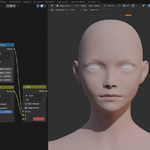
Does Undo History replace Blender's undo?
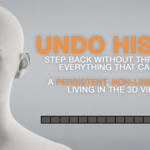
No. Ctrl+Z keeps working exactly as it always has, and the two run side by side. Undo History adds a second, persistent timeline on top of it. When you press Ctrl+Z, the add-on recognises the resulting state and simply moves its position on the bar instead of creating a duplicate entry.
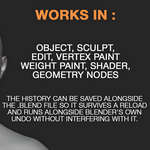
Which modes does it work in?
Object, Sculpt, Edit, Vertex Paint, Weight Paint, Shader and Geometry Nodes.
Does it record changes inside my shader and Geometry Nodes setups?
Yes. Node values, links, colour ramps and curves are all captured, so deleting a node or tweaking a ramp creates a state you can come back to. Object and collection references inside nodes are restored too, and they survive renaming.
What happens if I go back and then keep working?
Going back never deletes anything on its own — you can always return to the most recent state. But if you make a new change while positioned in the past, the states that followed are replaced by your new branch. That is the only situation where states are lost.
What happens when the memory limit is reached?
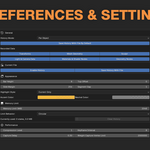
You choose. In Circular mode, the default, the oldest states are discarded automatically to make room — segments disappear from the left of the bar while new ones appear on the right, and you never have to think about it. In Block New States, recording stops until you clear the history, and a warning appears next to the bar.
Does saving the history make my .blend file bigger?
No. The history is written to a separate companion file next to your project, named yourfile.blend.uhistory, and reloaded automatically when you reopen it. Your .blend itself is untouched. You can turn this off per file, and set the default for new projects.
-
$10
1 User - Non-commercial use
-
$25
5 Users - Commercial use
-
$75
10 Users - Commercial use
-
$200
10+ Users - Commercial use
Have questions about this product?
Login to message
| Blender Extension Compatible | Yes |
| Published | about 2 months ago |
| Blender Version | 5.0 - 5.2 |
| Extension Type | Add-on |
| Render Engine Used | Cycles, Eevee |
| License | GPL |
Discover more products like this
vertex paint viewport undo history undo weight paint Workflow productivity tools geometry nodes sculpting undo addon