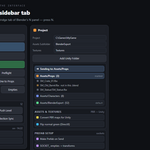
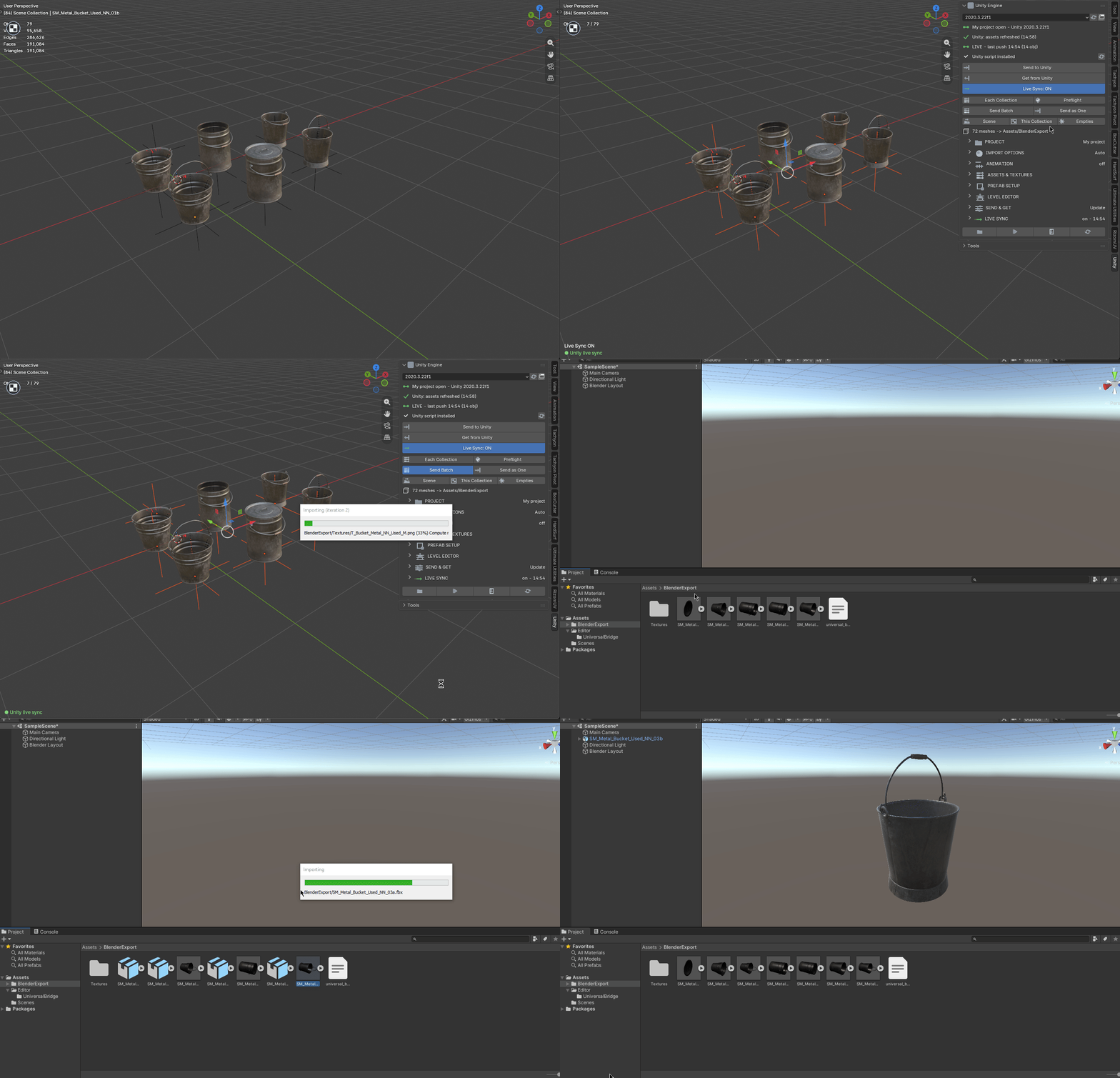
A bridge from Blender into a Unity project. Export the selection as FBX straight into the project's Assets folder and Unity auto-imports it — no exporting or locating files by hand. The bridge reuses a running editor (and launches the one you pick if it's closed), can bring assets Unity exported back into Blender, and an optional companion C# script applies your import settings automatically.
Requirements - please read before buying
-
Windows only. The add-on detects and launches Unity through Windows paths and processes. macOS and Linux are not supported.
-
Blender 3.3 - 5.2 - Extension on 4.2+, classic add-on on 3.3-4.1.
-
Unity is required and licensed separately by Unity Technologies, and is not included. Free and paid tiers are offered by Unity Technologies - which one you need is between you and them. No Unity licence is included with this product, which is the Blender-side bridge only and is not affiliated with or endorsed by Unity Technologies.
-
separately by Unity Technologies.
-
Network: none. Blender and Unity exchange files on your own machine - the add-on opens no network connection.
Installation
Blender 4.2+ (Extension): Edit ▸ Preferences ▸ Add-ons ▸ drop-down ▸ *Install from Disk…* → pick universal_bridge_unity-x.x.x-blender4.2-5.2.zip, then enable it. Blender 3.3–4.1: Edit ▸ Preferences ▸ Add-ons ▸ *Install…* → pick universal_bridge_unity-x.x.x-blender3.3-4.1.zip.
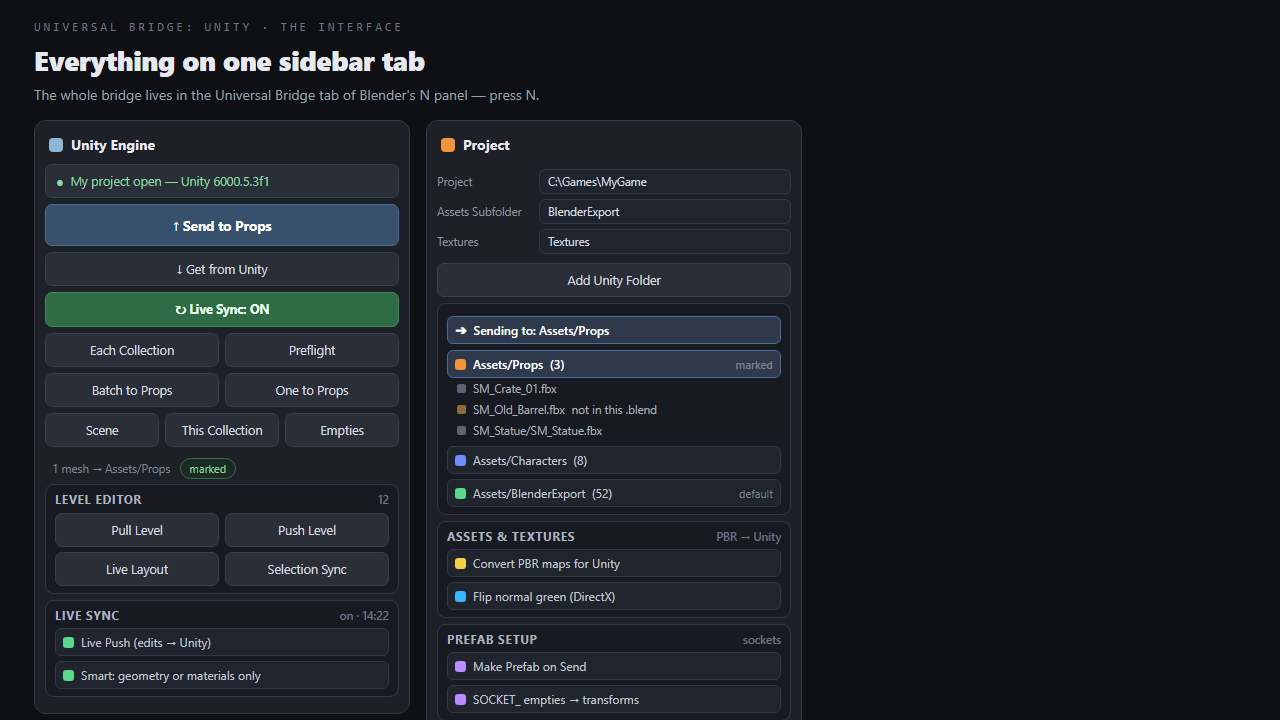
The panel is in the 3D Viewport sidebar (press N) under the Universal Bridge tab. Open the add-on preferences and check the Version dropdown — it lists the Unity editors found on this machine; pick one, click Detect to re-scan, or set the Unity.exe path by hand.
Getting started
- On the panel, set your Unity Project — the project root folder that contains
the Assets folder. Change Project browses to another one and Recent lists the last projects you used.
- (Optional) Click Install Unity Script so Unity applies your import settings
automatically.
- (Optional) Click a folder under PROJECT to mark it. The send buttons then
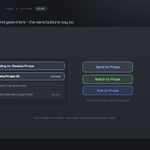
name it — *Send to Props* — and everything you send goes there. With nothing marked, sends follow each asset's own folder and then the default.
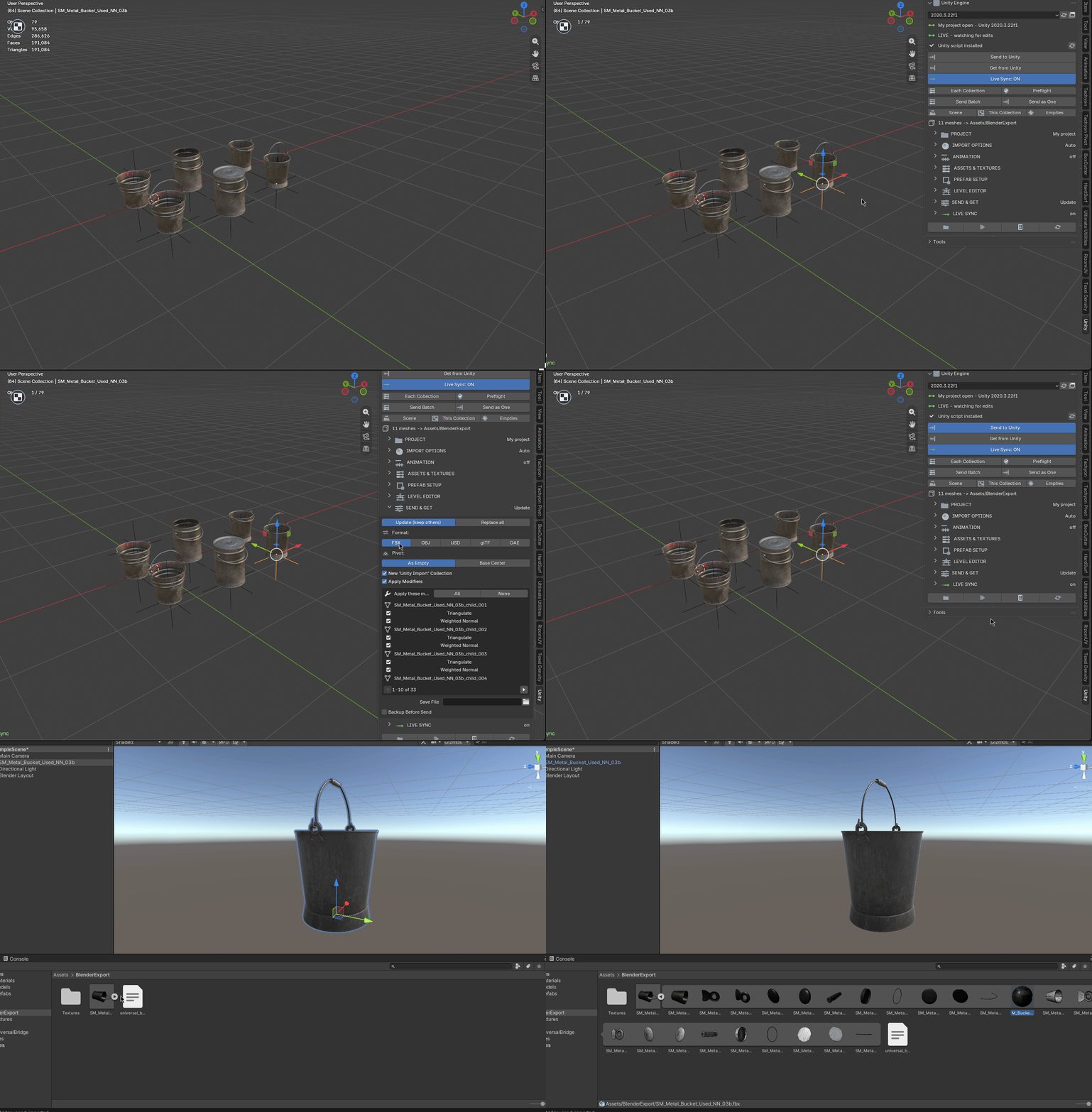
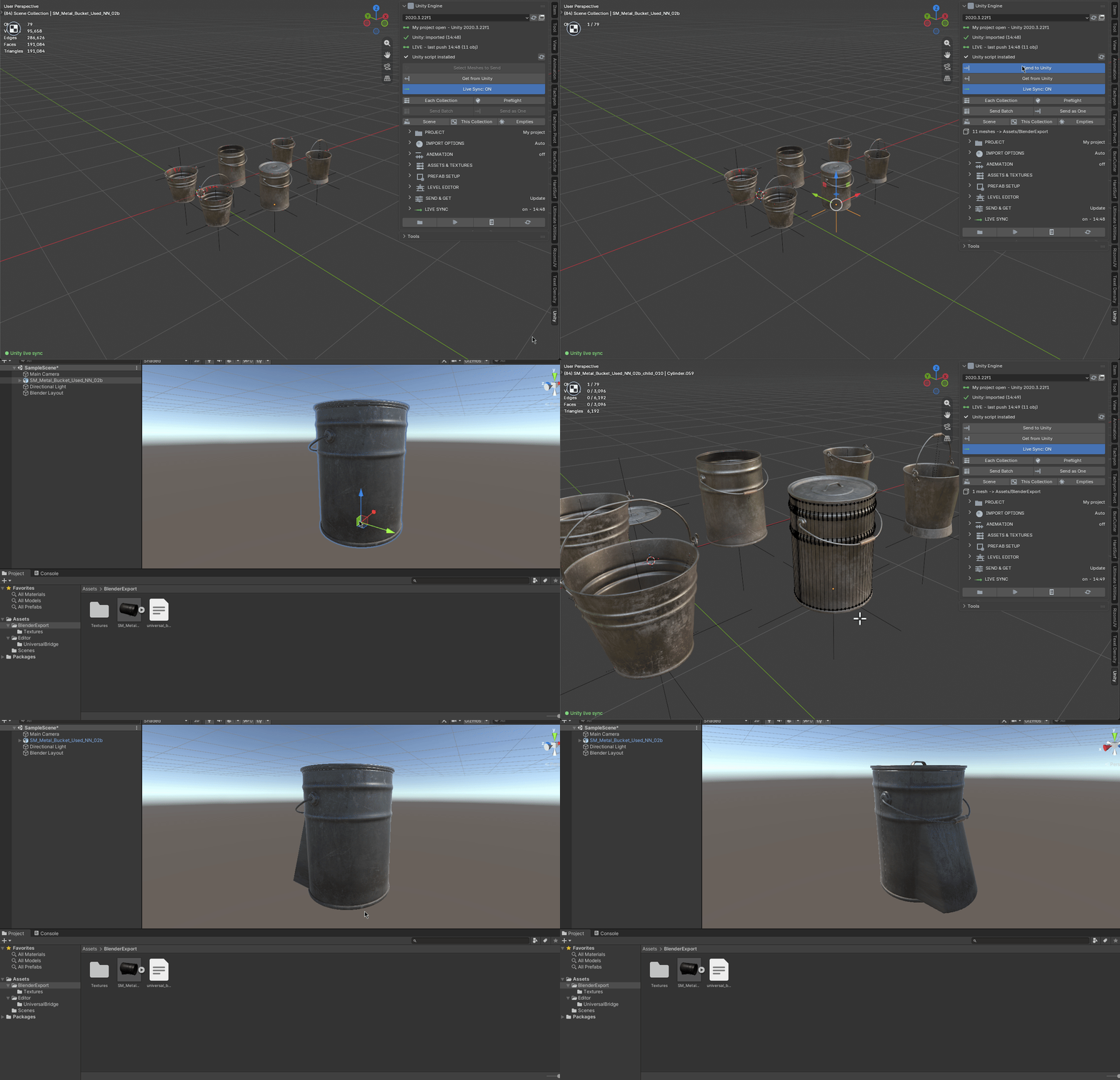
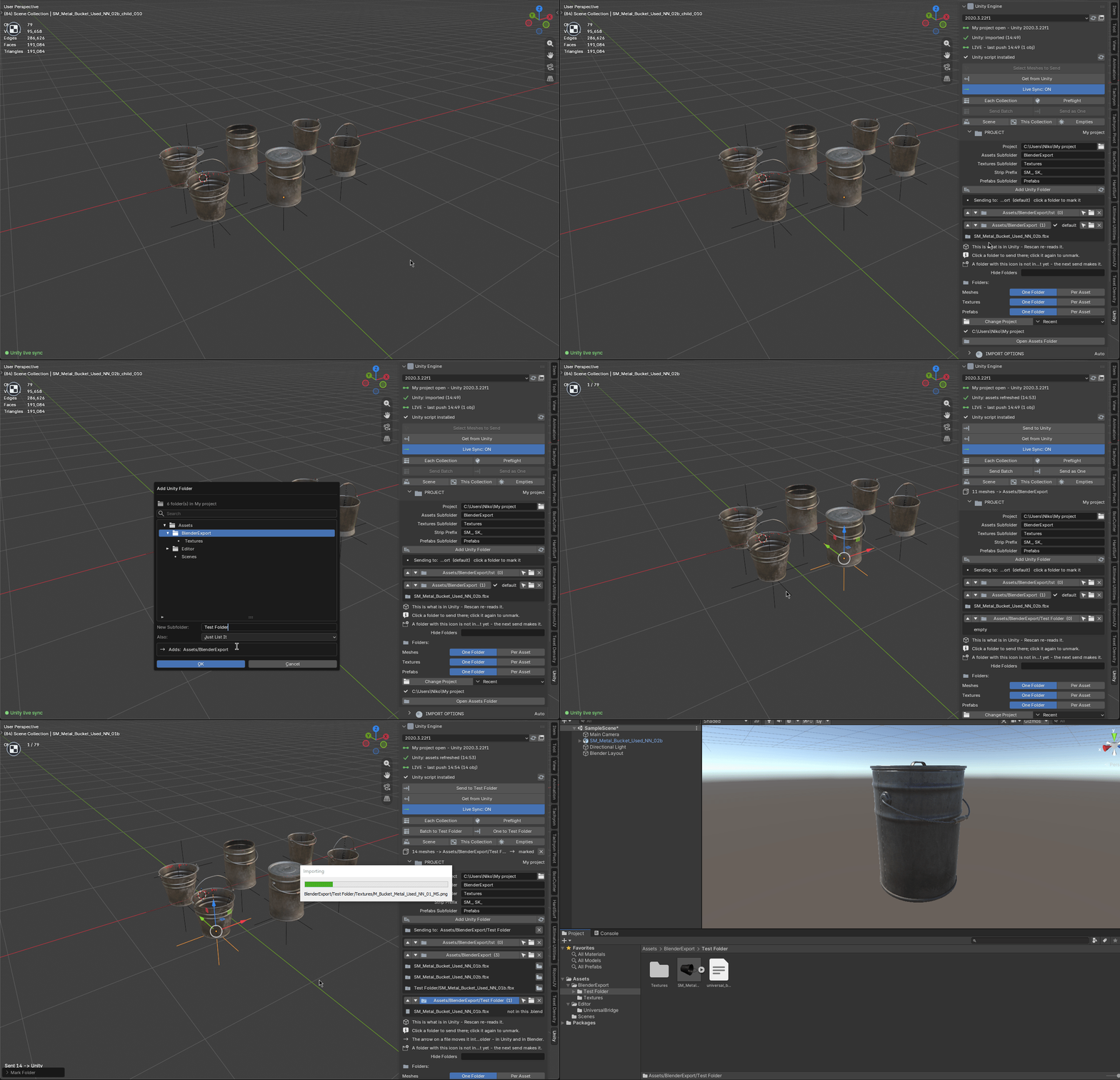
- Select mesh objects and click Send to Unity. Unity imports the file on focus,
or the bridge launches Unity with your project if it's closed.
- Turn on Live Sync and carry on modelling — every edit crosses on its own.
- To bring an FBX Unity exported back, click Get from Unity.
Send to Unity
Exports the selected meshes as FBX into /Assets/ (default BlenderExport), then:
-
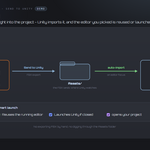
If Reuse Running Unity is on and Unity is already open, the file is left in
Assets and Unity imports it on focus.
-
If Unity is closed, the bridge launches the editor you picked with your project.
-
If no editor is set, the FBX is still written — open Unity yourself to import it.
The FBX is exported with Unity-friendly settings (unit scale applied, face smoothing, tangent space). A JSON manifest is written next to the FBX for the companion script.
Get from Unity
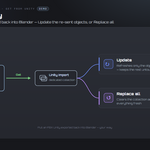
Imports unity_to_blender.fbx from the bridge's exchange folder into a dedicated Unity Import collection (or the active collection, if you turn that off):
-
Update (keep others) — refresh only the objects you re-sent, matched by name,
and keep every other bridged object.
-
Replace all — clear the Unity Import collection and import everything fresh.
Project & folders
-
Project — the Unity project root (the folder containing
Assets).
Change Project, Recent and Forget manage which one is in use.
-
Assets/ subfolder — where a send lands by default (default
BlenderExport).
-
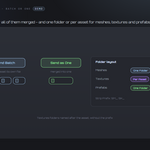
Textures / Prefabs subfolders, and a layout choice for each of meshes,
textures and prefabs: One Folder or Per Asset.
-
Strip Prefix — a prefix like
SM_ is dropped from per-asset folder names.
-
Open Assets Folder — opens the target folder in Explorer.
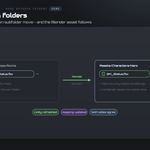
The folder browser
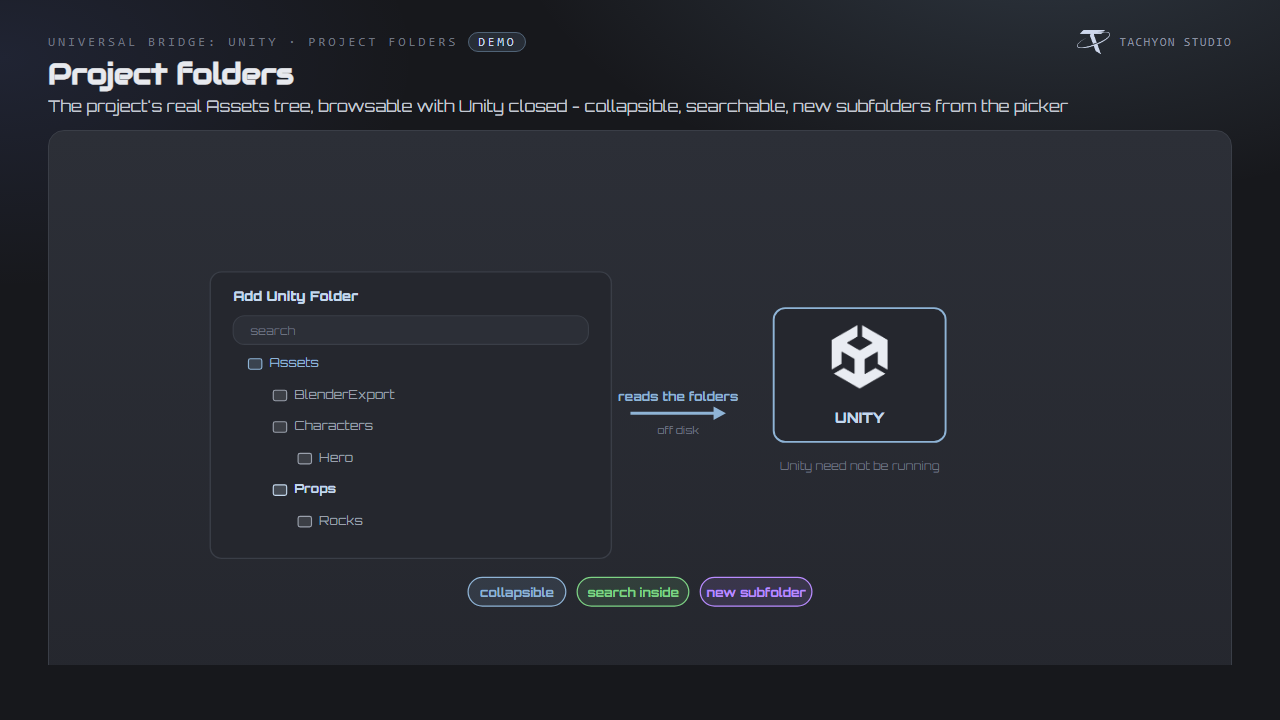
The bridge reads your project's real Assets tree straight off disk, so you can browse and map with Unity closed.
-
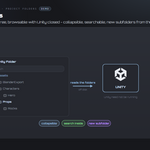
Add Unity Folder opens that tree as an indented, collapsible list. It
scrolls, the search box reaches inside collapsed branches, and New Subfolder creates a folder in the project immediately.
-
Click a folder to mark it. The line above the list reads *Sending to:
* and the send buttons name it. Click it again, or the X, to unmark.
-
Each folder lists what is actually in it, read from disk — including one
level down, for the Per Asset layout. A file this .blend cannot send is marked *not in this .blend*. Delete one in Unity and it leaves the list by itself; Rescan re-reads at once.
-
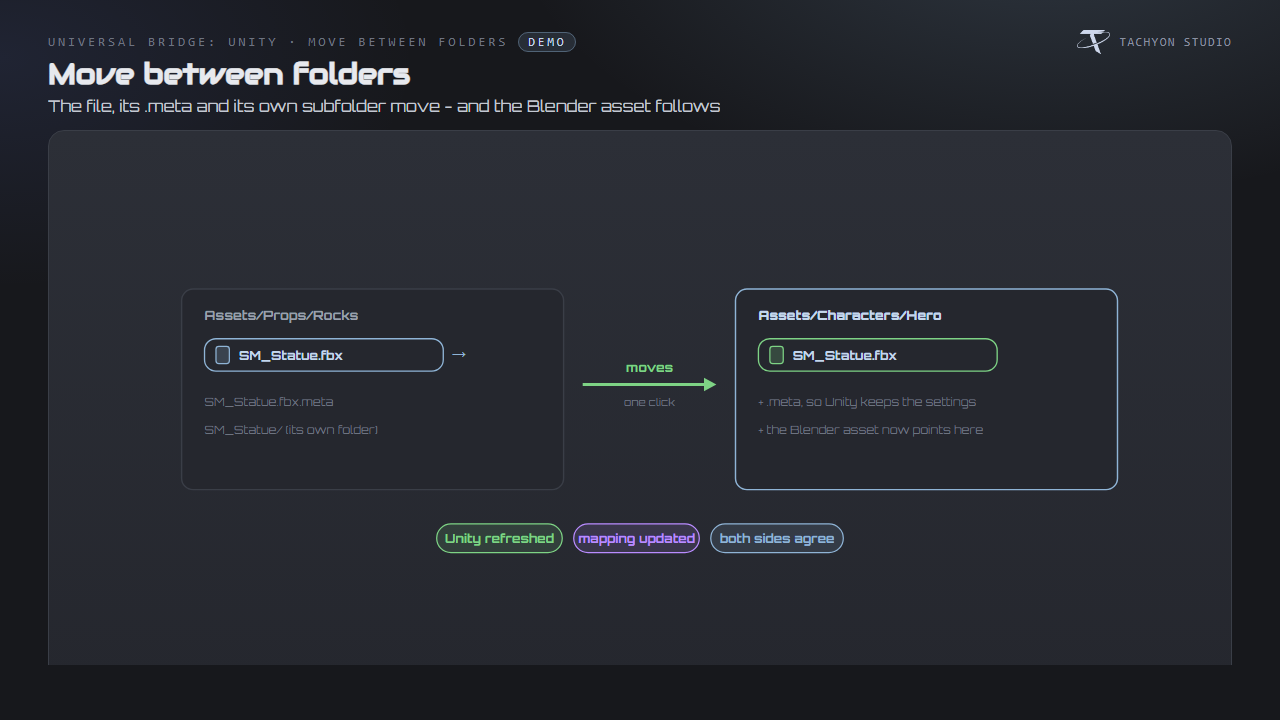
Moving an asset: mark the destination, then press the arrow on a file. The
file, its .meta and its own subfolder move on disk, the Blender asset that writes it is repointed, and Unity is told to refresh.
-
Hide Folders takes comma-separated text; a folder whose path contains any of
it is not offered.
Where an asset goes is decided in this order: the marked folder, then the asset's own folder, then the innermost collection with a folder walking outward, then the scene default. A live push ignores the mark, so editing a mesh keeps updating the file Unity already has.
The panel header shows the project name and whether Unity is currently running.
Live Sync
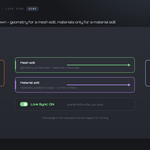
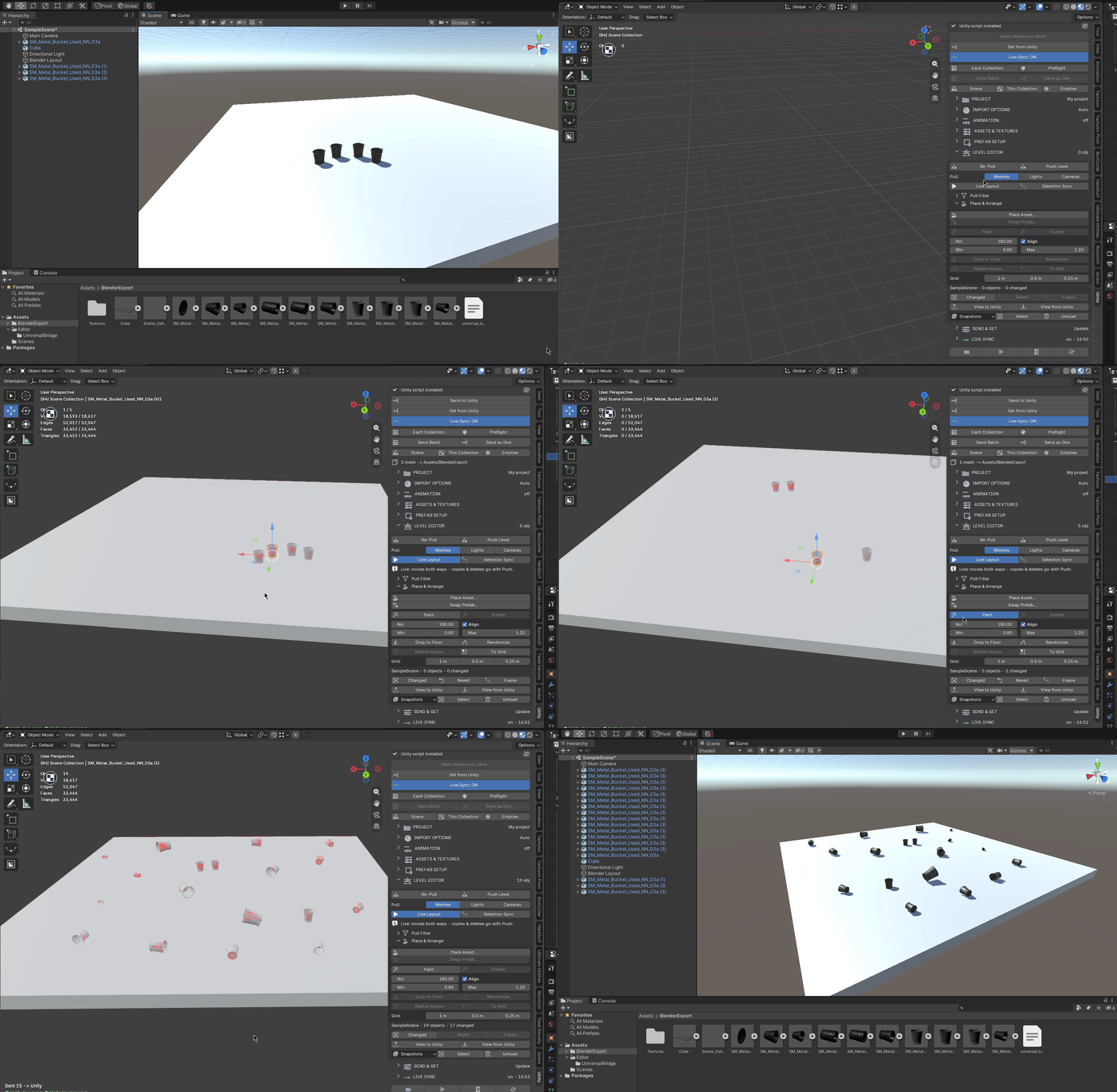
Turn Live Sync on and every edit re-exports after a short delay.
-
A mesh edit re-exports the geometry only.
-
A material edit updates the materials in Unity without writing a model file
at all.
-
The delay is yours to set, and Smart can be turned off to always send
everything.
-
A green badge in the viewport corner says it is running; the panel header shows
the time of the last push.
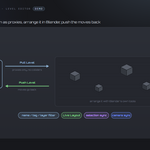
Level Editor
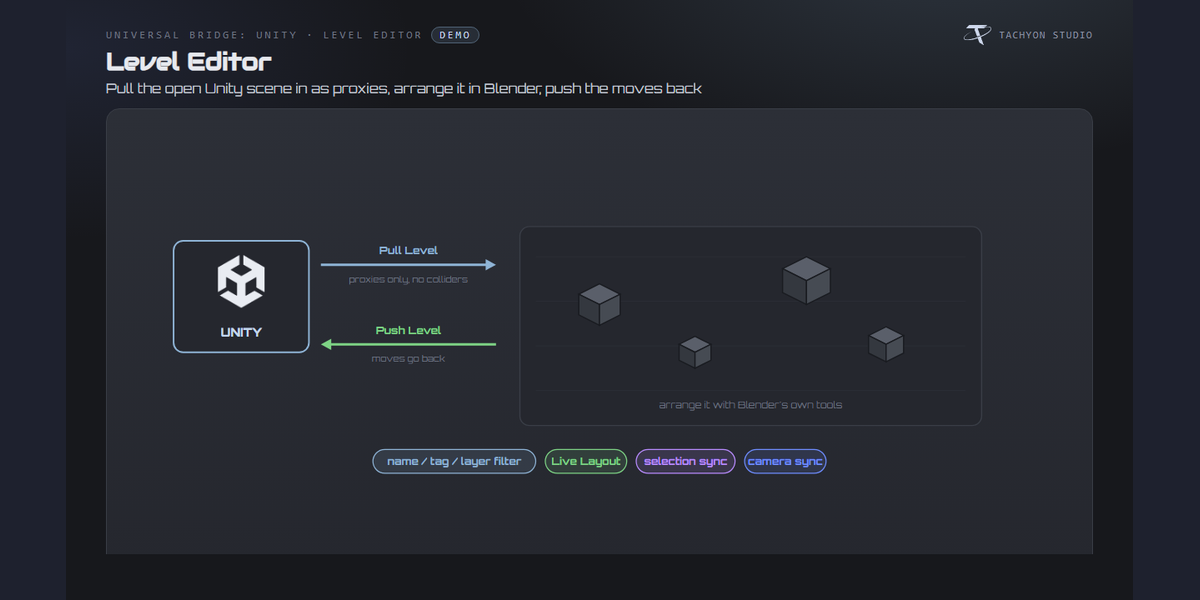
Pull the open Unity scene into Blender, arrange it, and push the moves back.
-
Pull Level brings the scene in as lightweight proxies — LOD0 shells only, no
colliders — filtered by name, tag or layer, and coloured or grouped as you like.
-
Move, duplicate and delete proxies with Blender's own tools; Push Level sends
the changes back, and Live Layout pushes them as you drag.
-
Place, Drop, Scatter, Paint, Randomise and Snap build
layouts from your own assets; Swap Prefab replaces one asset with another.
-
Selection Sync and the view buttons keep Blender and the Unity editor looking
at the same thing.
-
Snapshots save a layout so you can come back to it.
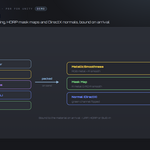
Textures for Unity
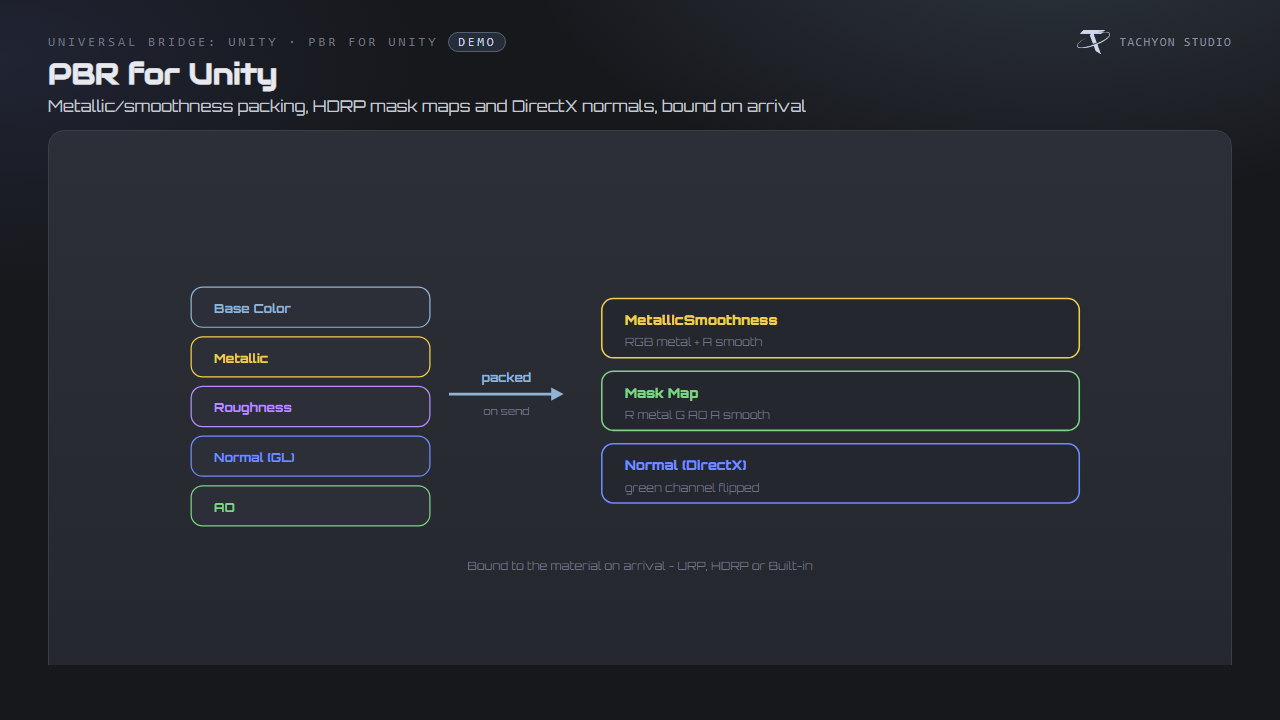
Blender's PBR maps are packed the way Unity wants them on send:
-
Metallic + smoothness into one map: metal in RGB,
1 - roughness in alpha.
-
A mask map (R metal, G AO, B 1, A smoothness) when an AO map is present, for
HDRP.
-
DirectX normals — the green channel is flipped when you ask for it.
The maps are bound to the material as it arrives. Turn the conversion off to send your maps untouched.
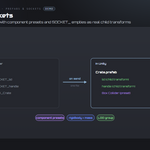
Prefabs, components and sockets
-
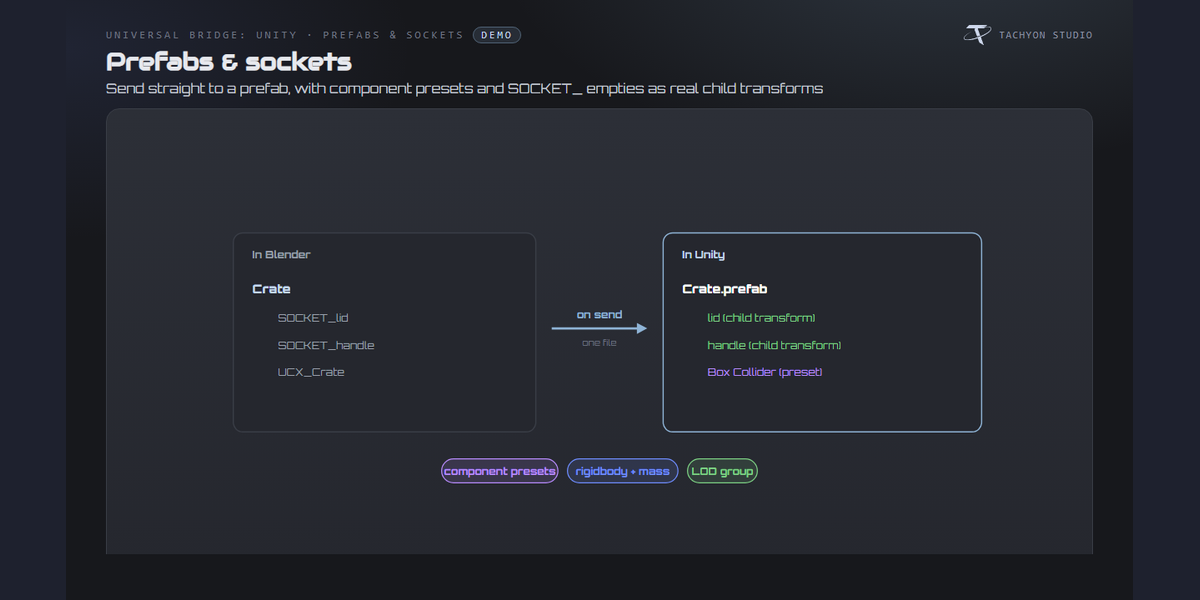
Make Prefab on Send writes a prefab beside the model, in the prefabs folder
and layout you chose.
-
Component presets apply colliders, rigidbodies (with mass) and LOD groups on
import.
-
Empties named
SOCKET_* become real child transforms in Unity, so weapons and
attachments have somewhere to go.
History and safety nets
-
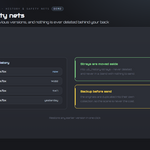
Every send keeps the previous versions of an asset; Restore puts one back.
-
Move Strays Aside moves files no object in this .blend could have written
into .ub_history/strays — nothing is deleted, and the button refuses to run in a .blend with no meshes.
-
Backup Before Send duplicates the originals into their own collection first.
Import Options
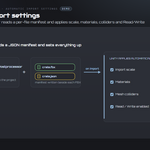
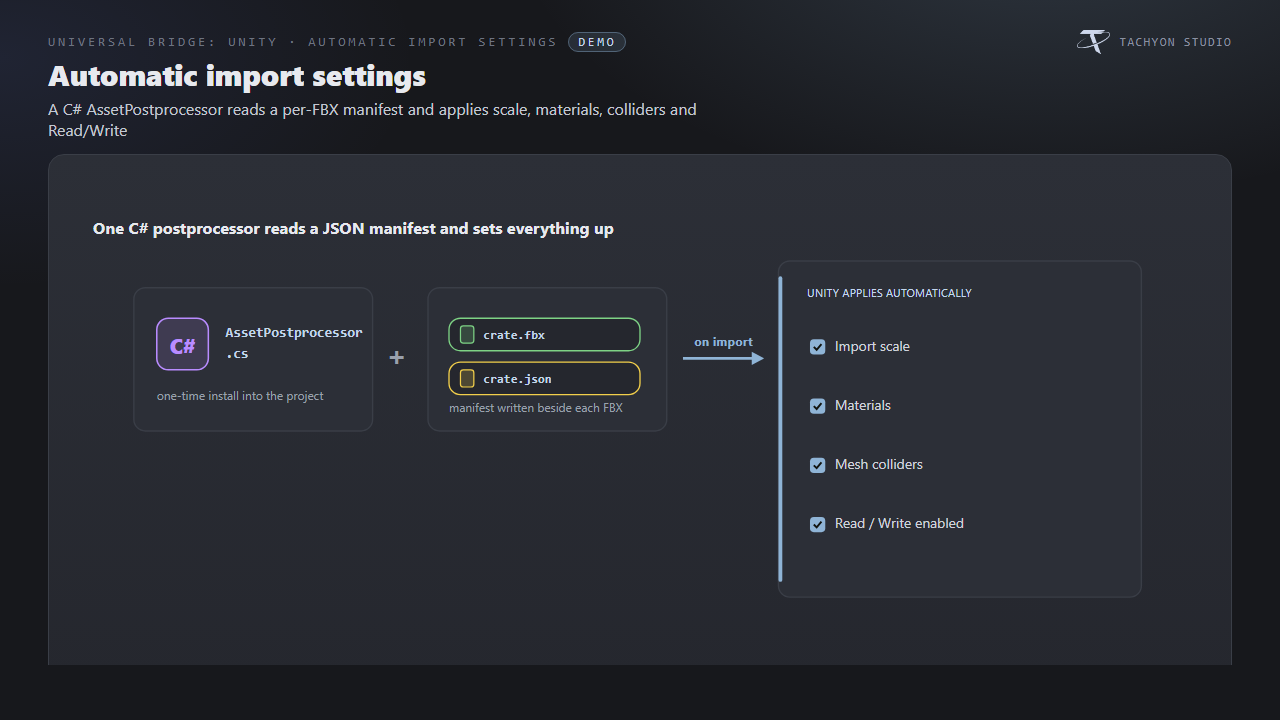
These are written into the manifest and applied by the installed C# script:
-
Import Materials — embed and import materials/textures with the FBX.
-
Generate Colliders — add mesh colliders on import.
-
Read/Write Meshes — enable Read/Write on the imported meshes.
-
Import Scale — the model import scale factor Unity applies.
-
Install Unity Script — copies
UniversalBridgeImporter.cs into
Assets/Editor/UniversalBridge; Unity compiles it and then honours the settings above on every import.
Send & Get Settings
-
On Get — Update (keep others) or Replace all (see *Get from Unity*).
-
New 'Unity Import' Collection — import into a dedicated collection.
-
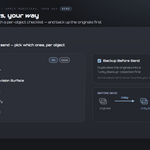
Apply Modifiers — bake modifiers into the mesh on send. When on, a per-object
checklist lets you include or exclude each modifier (All / None); unticked modifiers are temporarily muted for the export only.
-
Save File — export to a specific FBX path instead of the project Assets folder.
-
Backup Before Send — duplicate the objects into a "Unity Backup" collection
first, so your working scene is untouched.
Preflight & clean-up
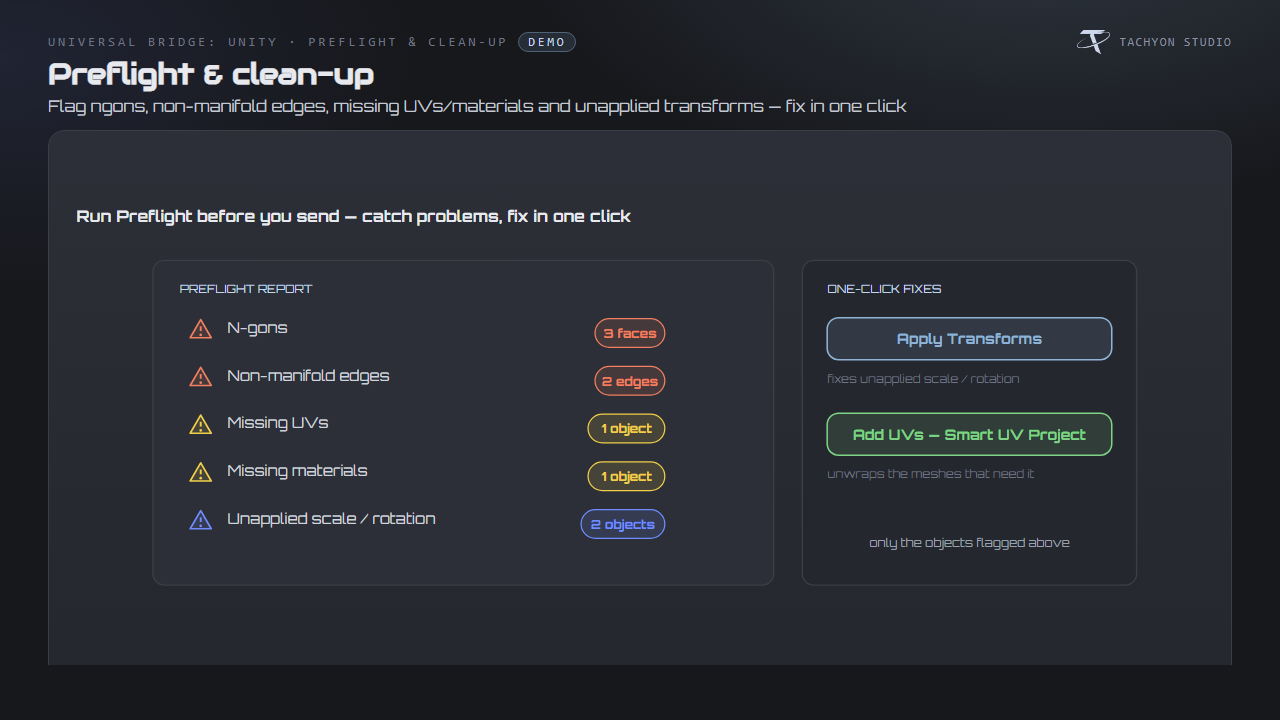
From the shared Tools panel, Run Preflight checks the selection for:
-
unapplied scale/rotation, missing UV maps, missing materials,
-
ngons (faces with more than four verts) and non-manifold edges.
One-click fixes Apply Transforms and Add UVs (Smart UV Project) repair the meshes that need it before you send.
Shared Universal Bridge tools
Registered once and shared with every other bridge you own, on the same tab: Command Palette, Send History (re-send), Selection Sets, a Naming convention helper (low / high / LOD / UCX / socket), Version Exchange Files, and Send Each Collection for batch sends. A small viewport overlay flashes the last send result.
The panel, and its preferences
The Unity panel comes in two layouts, chosen from the welcome window with a Preview of each: Full, with every group in the N panel, or Minimal, which keeps the status and the send buttons and moves the groups into Preferences. Every group can be switched off, and each has its own page in Preferences > Bridges > Unity.
Preferences
-
Version — the auto-scanned Unity editors, a Detect re-scan, the active
install, and a manual Unity Editor (Unity.exe) path.
-
Reuse Running Unity — prefer an already-open editor (imports on focus) rather
than launching a new one.
Troubleshooting
-
Send says "Set a valid Unity project" → point Project at the folder that
contains the Assets directory.
-
Nothing imports in a running Unity → click into the Unity window so it regains
focus; Unity imports new assets on focus. Check the file landed in Assets/.
-
Import settings ignored → click Install Unity Script and let Unity compile
it; scale / materials / colliders / Read-Write are applied by that script.
-
No Unity editor found → install via Unity Hub, click Detect, or set the
Unity.exe path by hand in preferences.
Button icons
The buttons in the bridge panels use a drawn icon set rather than Blender glyphs borrowed from elsewhere. Preferences ▸ Button Icons controls it:
-
Brand Colours (default) — each bridge in its own colour.
-
Mono — every icon in one accent colour you pick.
-
Blender Built-ins — no custom icons at all, exactly as before.
Colour-code Status keeps the link and modifier icons green / amber / red, where the colour is the message; turn it off and they take your accent too. Blender's own glyphs are kept wherever they are already the familiar thing — the trash can, the folder, the warning triangle — so the panels still look like Blender.
Support
Join the Discord: https://discord.gg/SuSqbZMDk5 — include your Blender and Unity versions.
Part of the Universal Bridge line. Works on its own, and the free Universal Bridge Manager hub add-on is included with your purchase.
 Tachyon Studio



 Included