 Danilo Caliro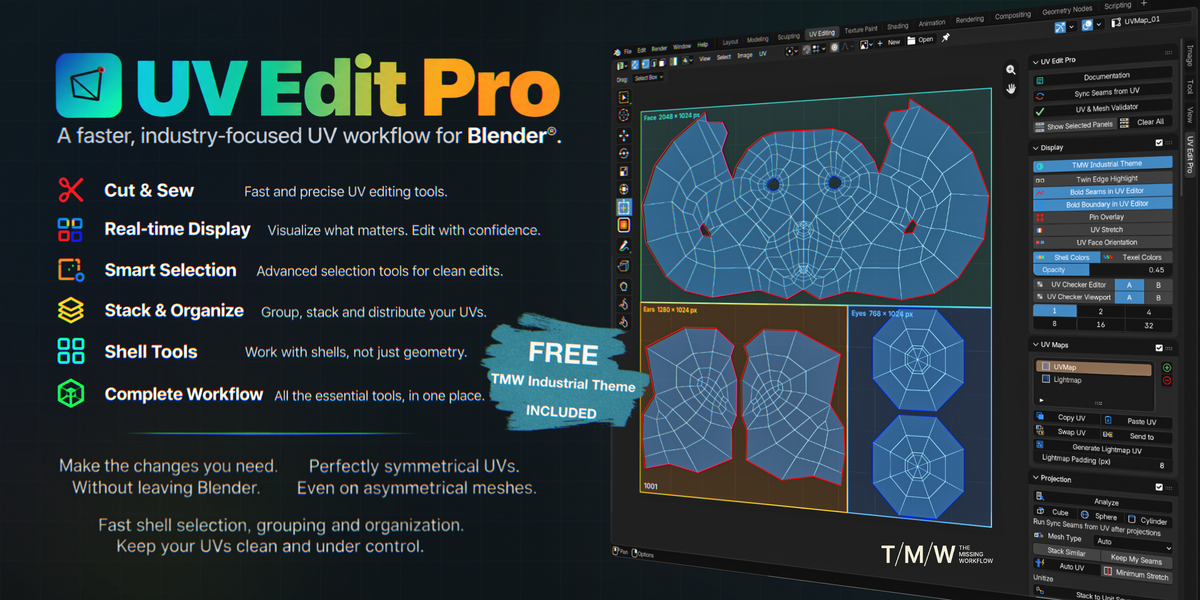
A faster, industry-focused UV workflow for Blender®.
Professional UV editing. Surgical precision. Entirely inside Blender®.
UV Edit Pro brings a professional, shell-focused UV editing workflow directly into Blender®, combining familiar concepts from industry-standard DCCs and dedicated UV applications with advanced tools developed specifically for Blender®.
Cut and sew. Unfold and optimize. Straighten, symmetrize and match UV shells. Diagnose distortion, organize complex UV sets, manage texel density and build controlled UDIM layouts.
All in one workspace. Without external applications or export/import round-trips.
DESIGNED FOR REAL PRODUCTION WORK
UV Edit Pro is built for artists who need more than a basic unwrap-and-pack workflow.
Precise asset corrections. Fix local distortion, adjust individual shells, repair seams and preserve existing UV work.
Consistent asset libraries. Standardize texel density, organize matching components and manage layouts across multiple objects.
Complex UV production. Work with advanced selection, symmetry, optimization, UDIM organization and validation without transferring the asset to another application.
Artist-driven control. Combine familiar industry-standard UV editing concepts with dedicated Blender® tools in a single workspace.
Sometimes you don't need another algorithm. You need control.
What's Inside
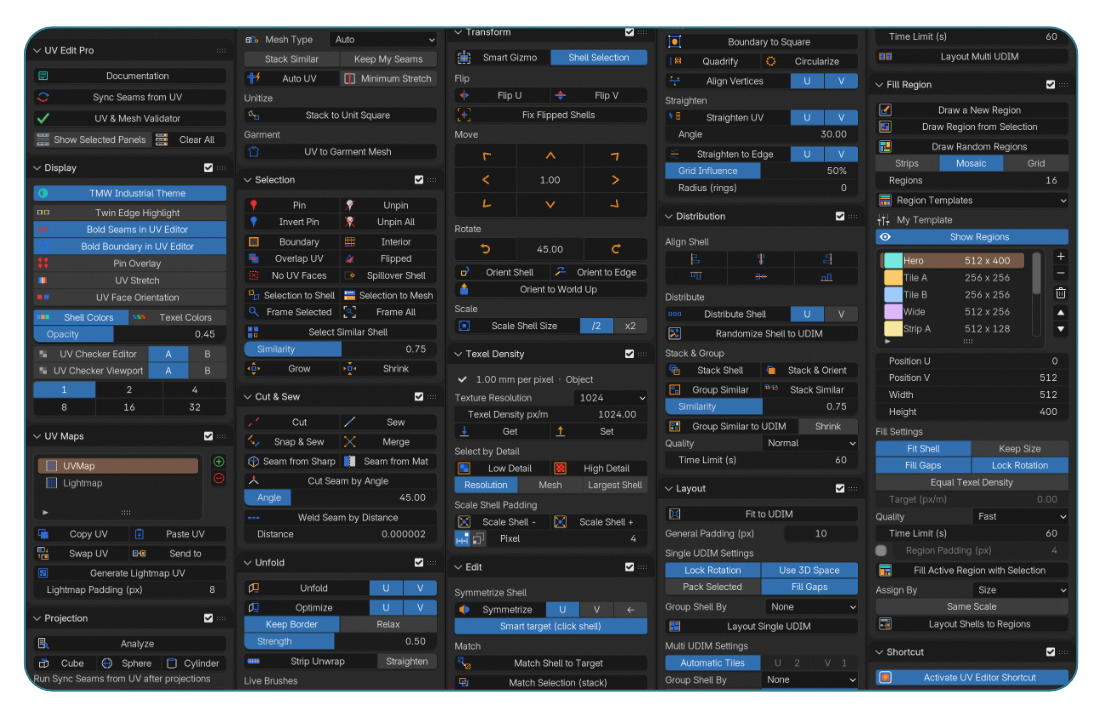
- UV Sync — maintain a consistent editing workflow with UV Sync Selection enabled and synchronize real UV cuts with mesh seam flags.
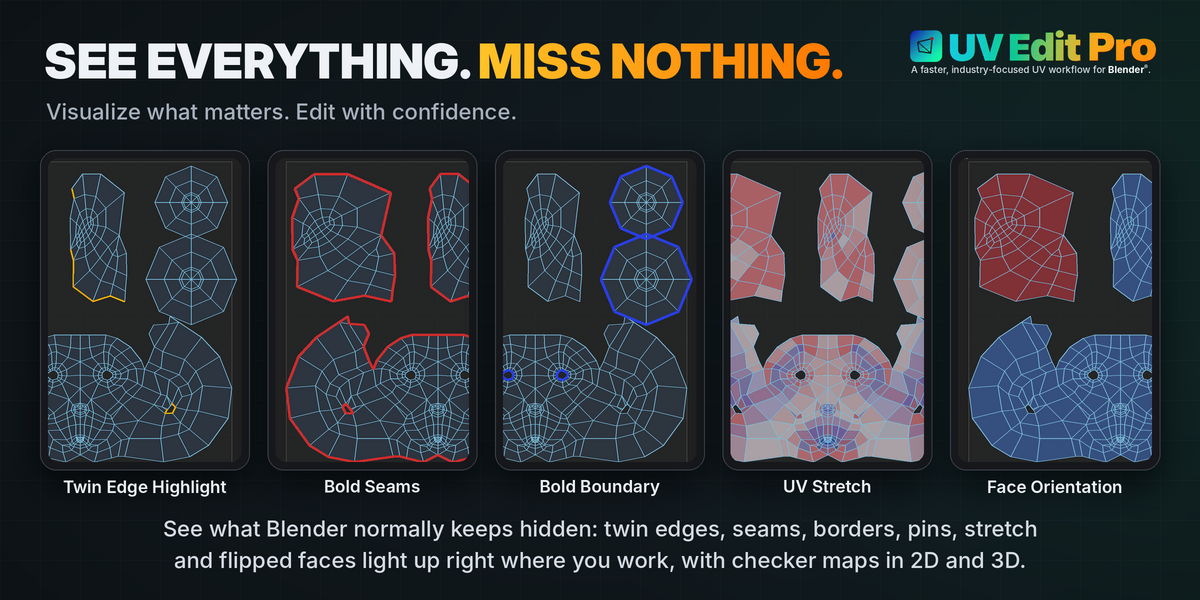
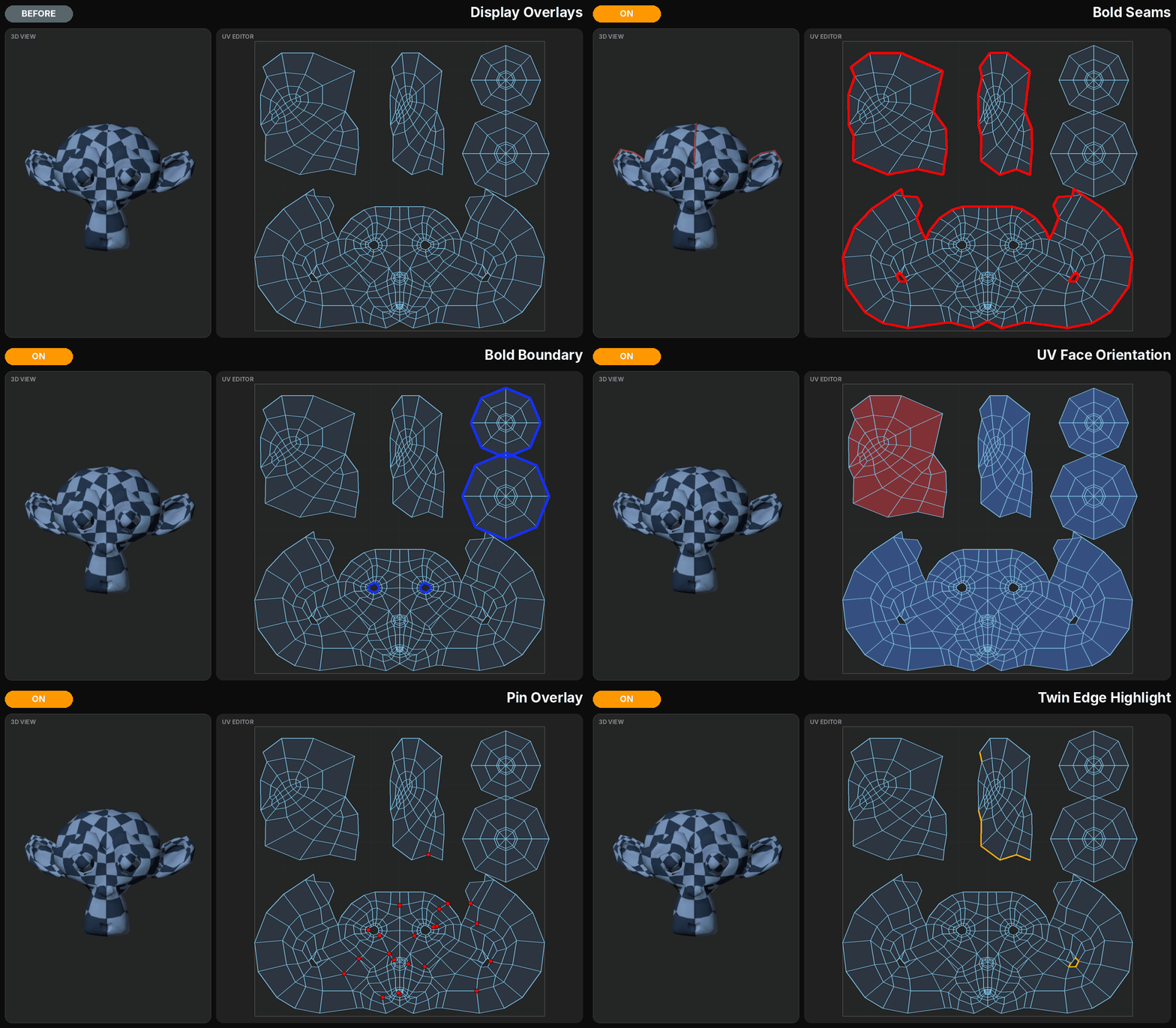
- Smart Display — Twin Edge Highlight, Bold Seams, mesh boundaries, UV Stretch, face orientation, pins, shell colors and checker visualization.
- UV Maps — add, remove and rename UV layers, copy and paste layouts between objects, swap UV shells between maps and generate lightmap UVs.
- Projection — Cube, Sphere, Cylinder, Smart UV Project and Stack to Unit Square.
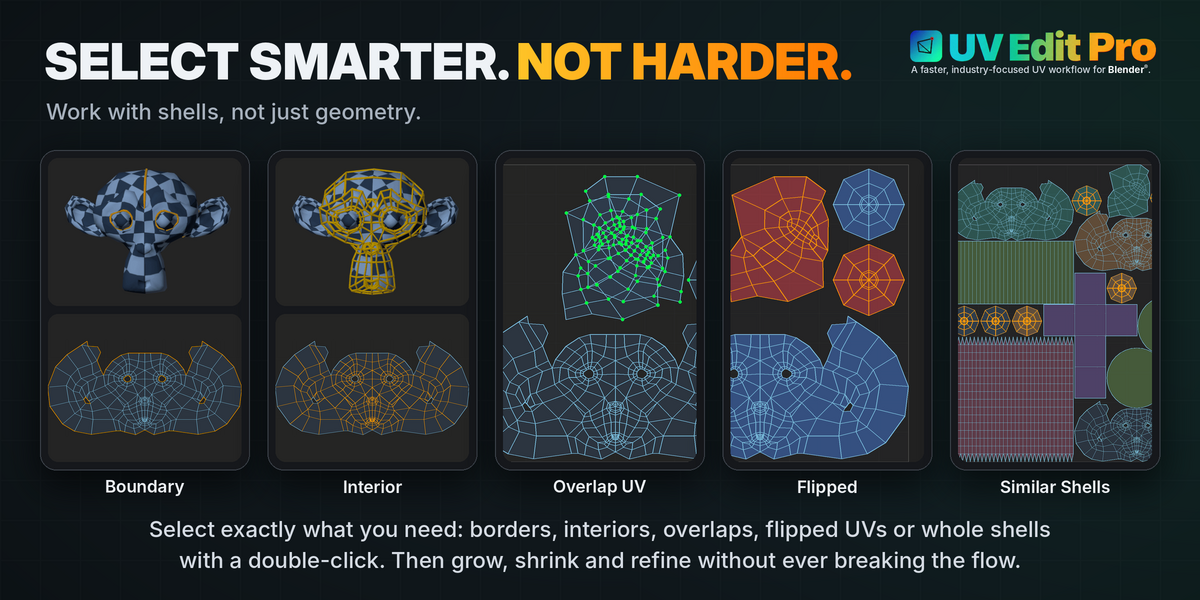
- Selection — shell selection, Boundary, Interior, Overlap, Flipped, No UV Faces, Spillover Shell, Select Similar, Grow and Shrink.
- Cut & Sew — Cut, Sew, Snap & Sew, Merge and dedicated seam operations.
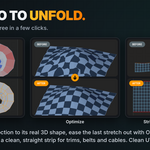
- Unfold & Optimize — geometry-based unfolding, iterative optimization, border preservation, interactive brushes and Strip Unwrap.
- Transform — Smart Gizmo, Flip, Move, Rotate, Orient, Scale and Fix Flipped Shells.
- Edit — shell-based Symmetrize, Match, Straighten, Quadrify, Circularize, Align Vertices and more.
- Distribution — Align, Distribute, Stack, Group Similar, Stack Similar and UDIM organization.
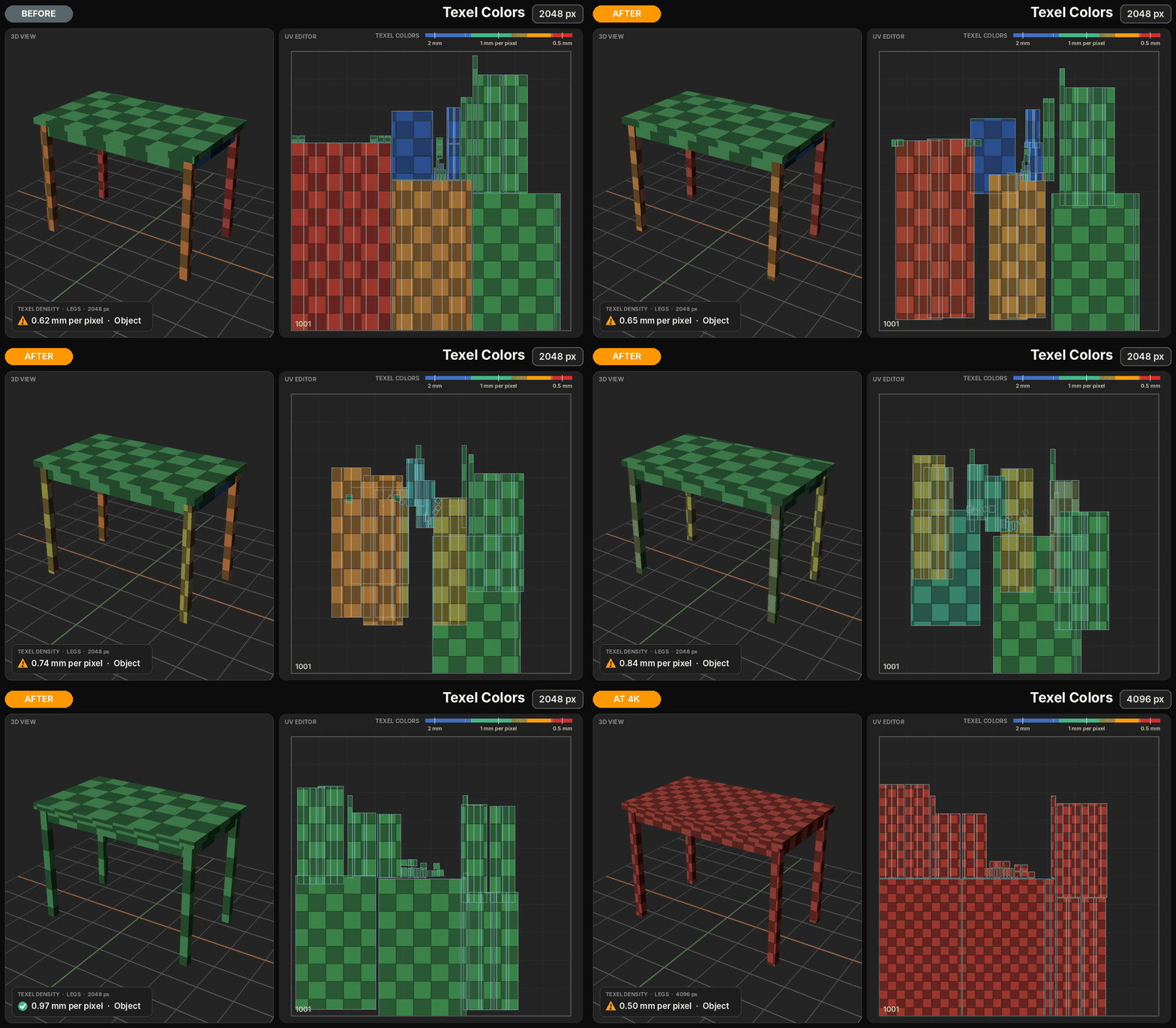
- Texel Density — measure, set and standardize density across multiple objects.
- Layout — Single UDIM, Multi UDIM, region-based packing, padding and density-aware organization.
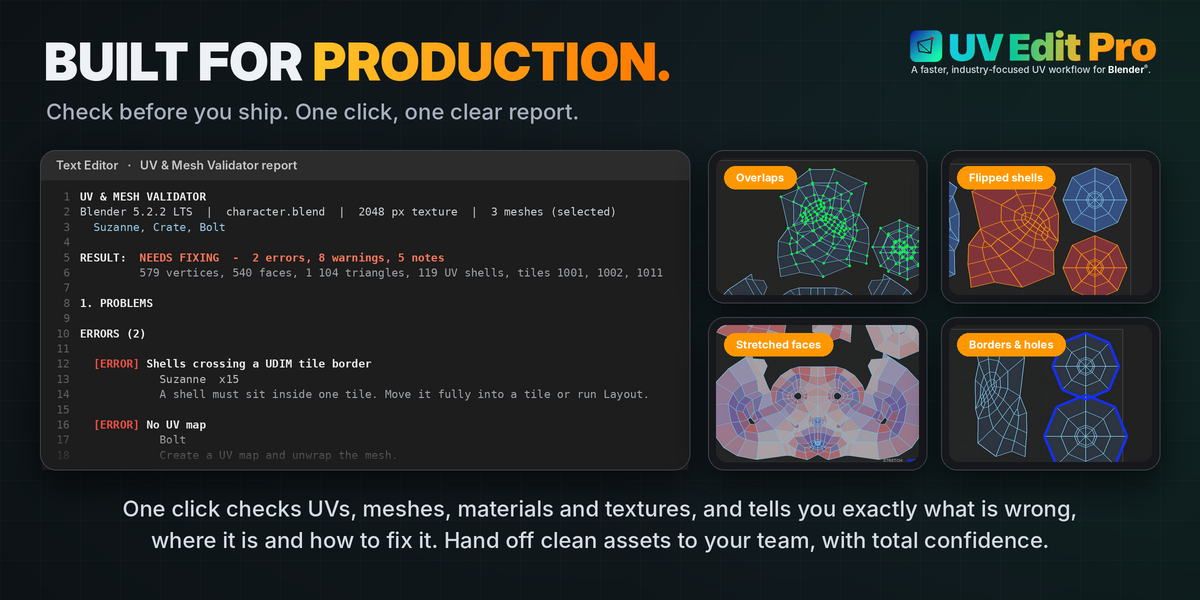
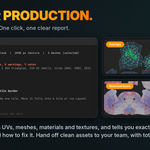
- UV & Mesh Validator — production-oriented checks for UVs, meshes, materials and textures, with a structured diagnostic report.
- Show & Order Selected Panels — customizable workspace with selective panel visibility, instant section isolation and project-specific layouts.
- Customizable Shortcuts — dedicated UV editing shortcuts for faster operation, with centralized controls and instant switching to Blender®'s native key bindings.
01 — UV SYNC
One workflow. Consistent selection.
UV Edit Pro is designed to work with Blender® UV Sync Selection enabled throughout the editing process.
The UV Editor and 3D Viewport remain connected, allowing artists to select, modify and inspect geometry without repeatedly switching selection modes or changing UV Sync settings.
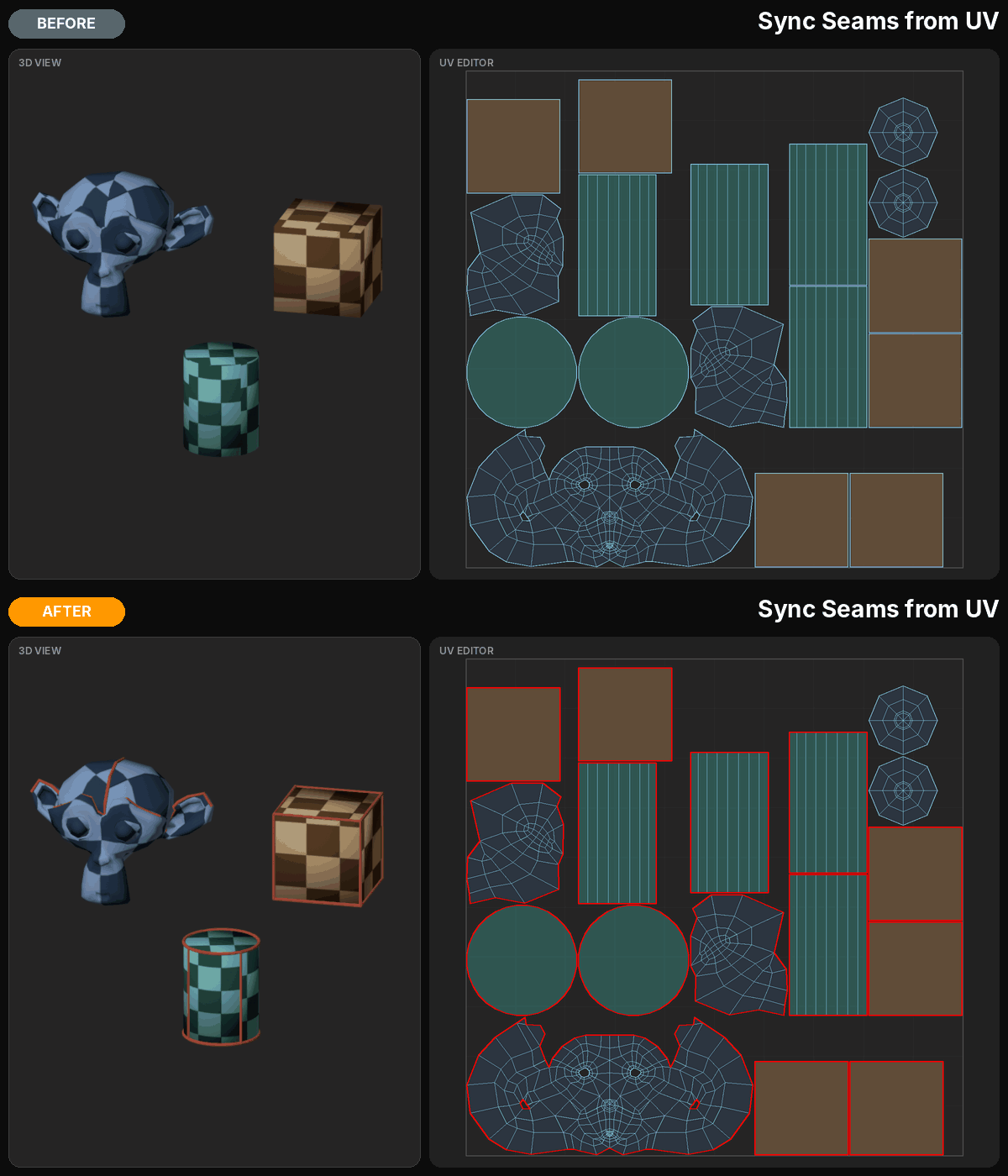
Sync Seams from UV identifies actual UV cuts and updates missing mesh seam flags, helping restore consistency to imported or previously edited assets.
Stay focused on the UVs, not the selection settings.
02 — SMART DISPLAY
See exactly what you're editing.
UV editing depends on clear visual feedback.
UV Edit Pro introduces dedicated overlays that make important information directly accessible in the UV Editor.
Twin Edge Highlight reveals the corresponding edge on the opposite side of a UV cut, even when the two edges are far apart in UV space.
Bold Seams distinguishes intentional cuts, while Bold Boundary identifies actual open mesh boundaries. Pin indicators, shell colors, face orientation and checker visualization provide additional context without modifying the underlying UV data.
Less visual ambiguity. More informed decisions.
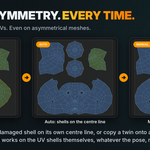
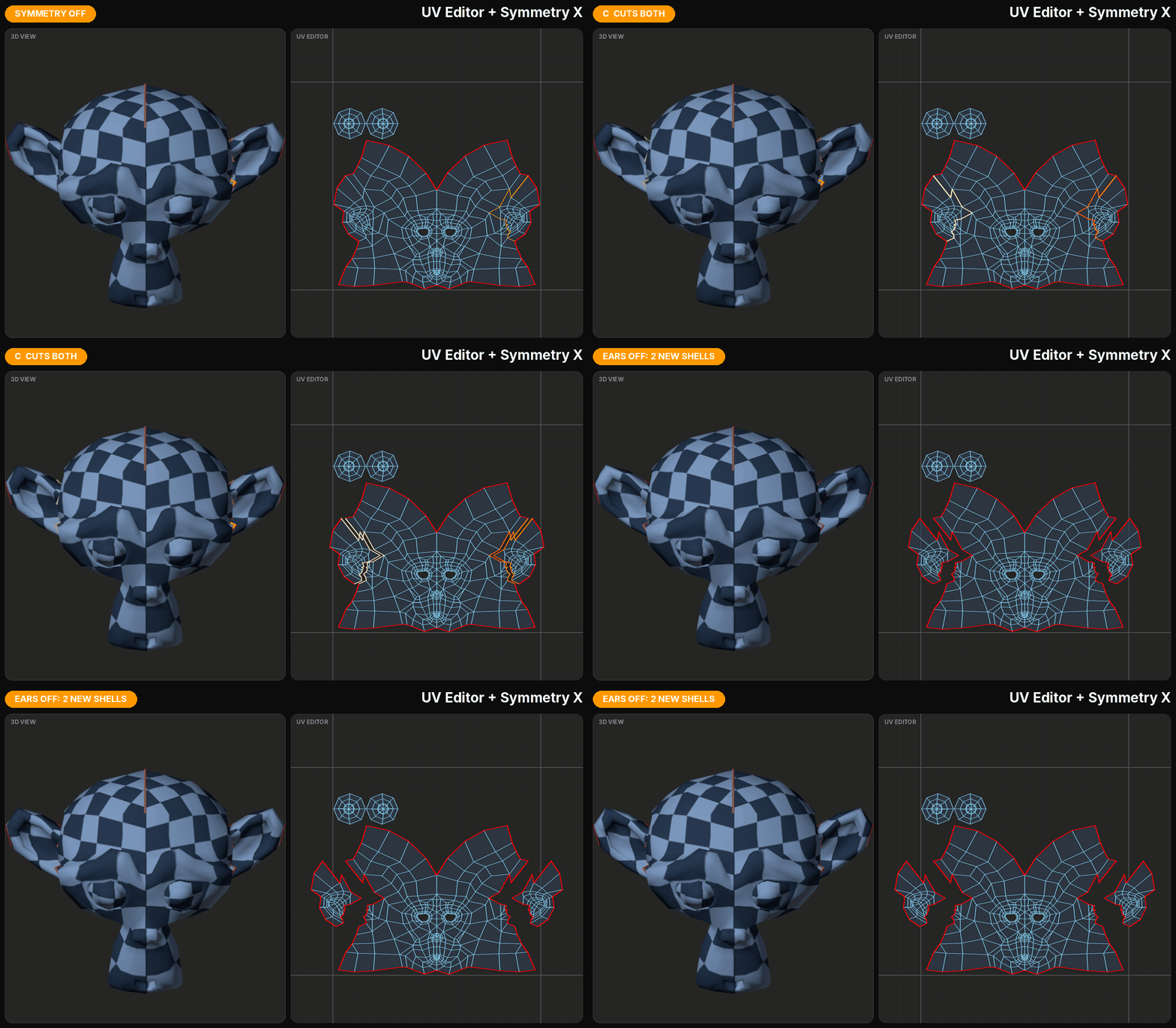
03 — SHELL-BASED SYMMETRY
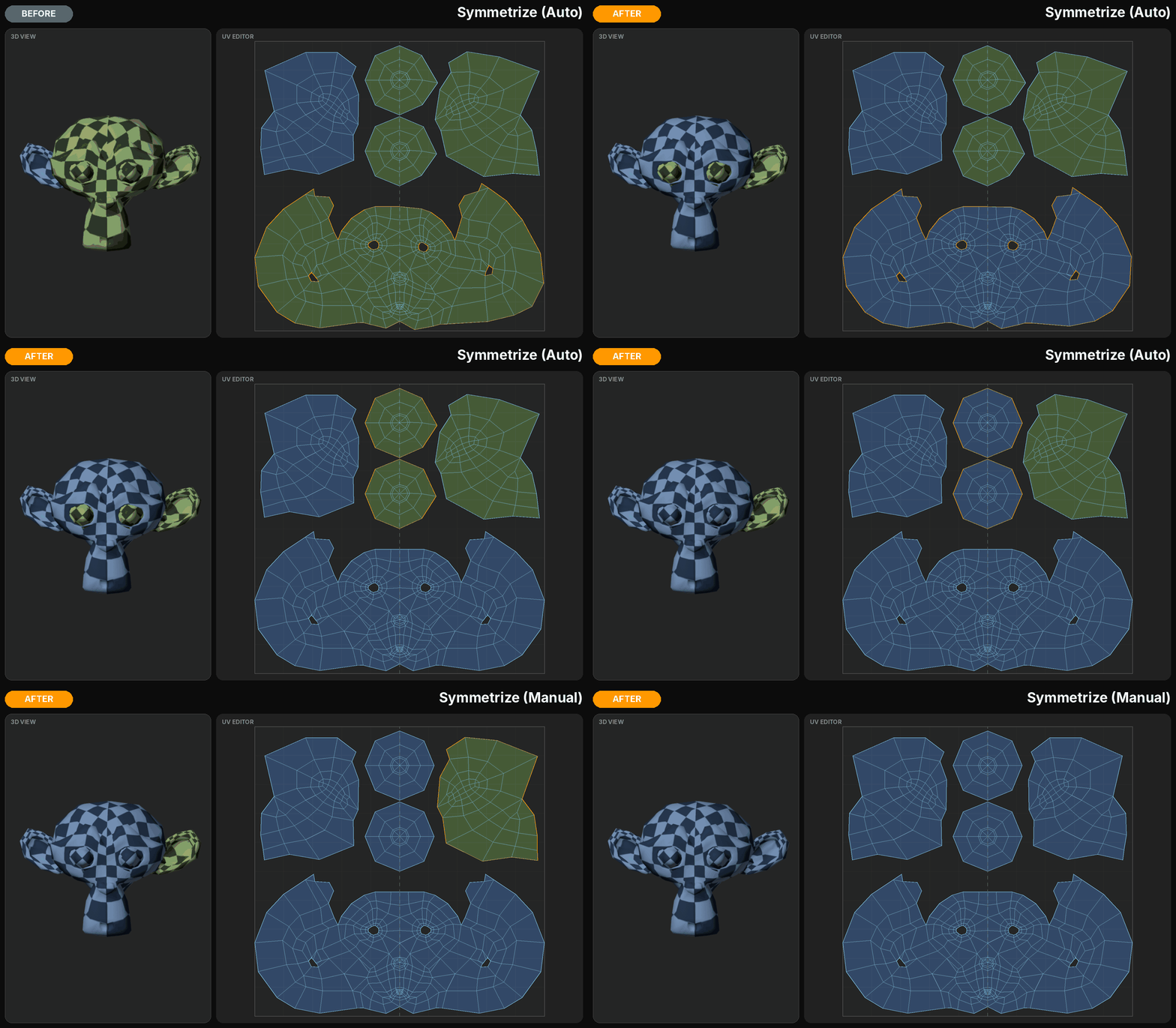
Symmetrize UVs without rebuilding them.
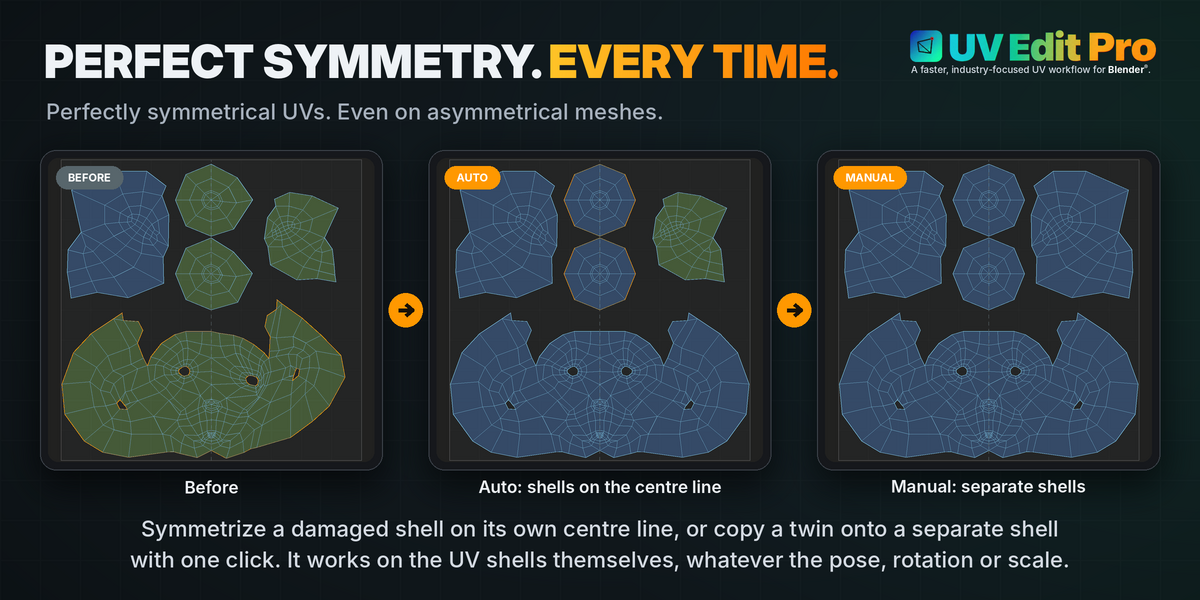
UV Edit Pro introduces topology-aware UV symmetry designed around shells rather than relying on a simple geometric mirror.
Select the side that needs correction and use Symmetrize to reconstruct its UV counterpart.
For a continuous shell crossing the symmetry line, the tool can identify the shared center automatically. Separate shells can be matched through target selection, with manual reference points available when correspondence needs confirmation.
Choose which side remains the reference and which side receives the correction.
Fix one side. Preserve the other.
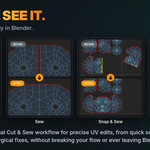
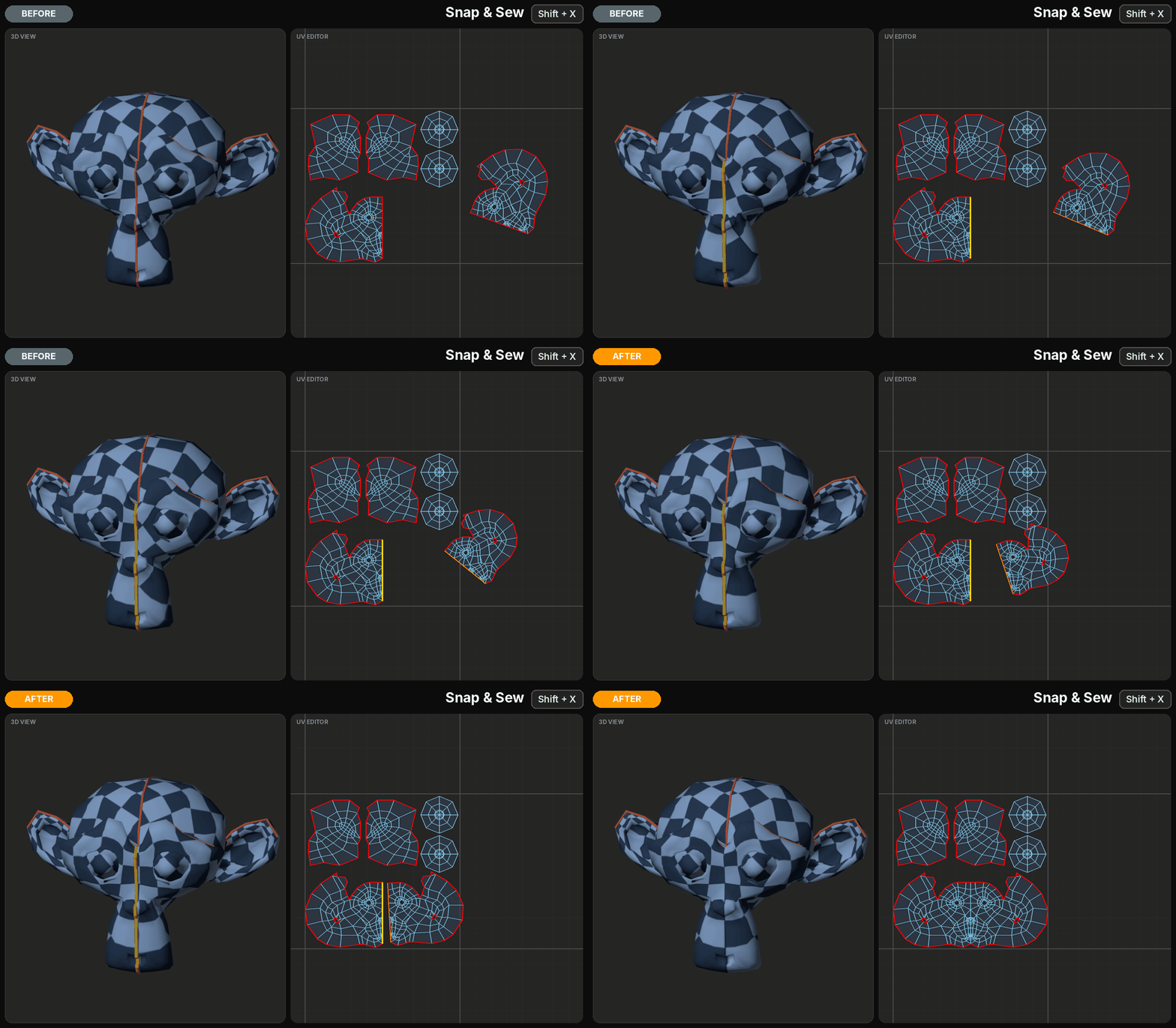
04 — CUT. SEW. SEE IT.
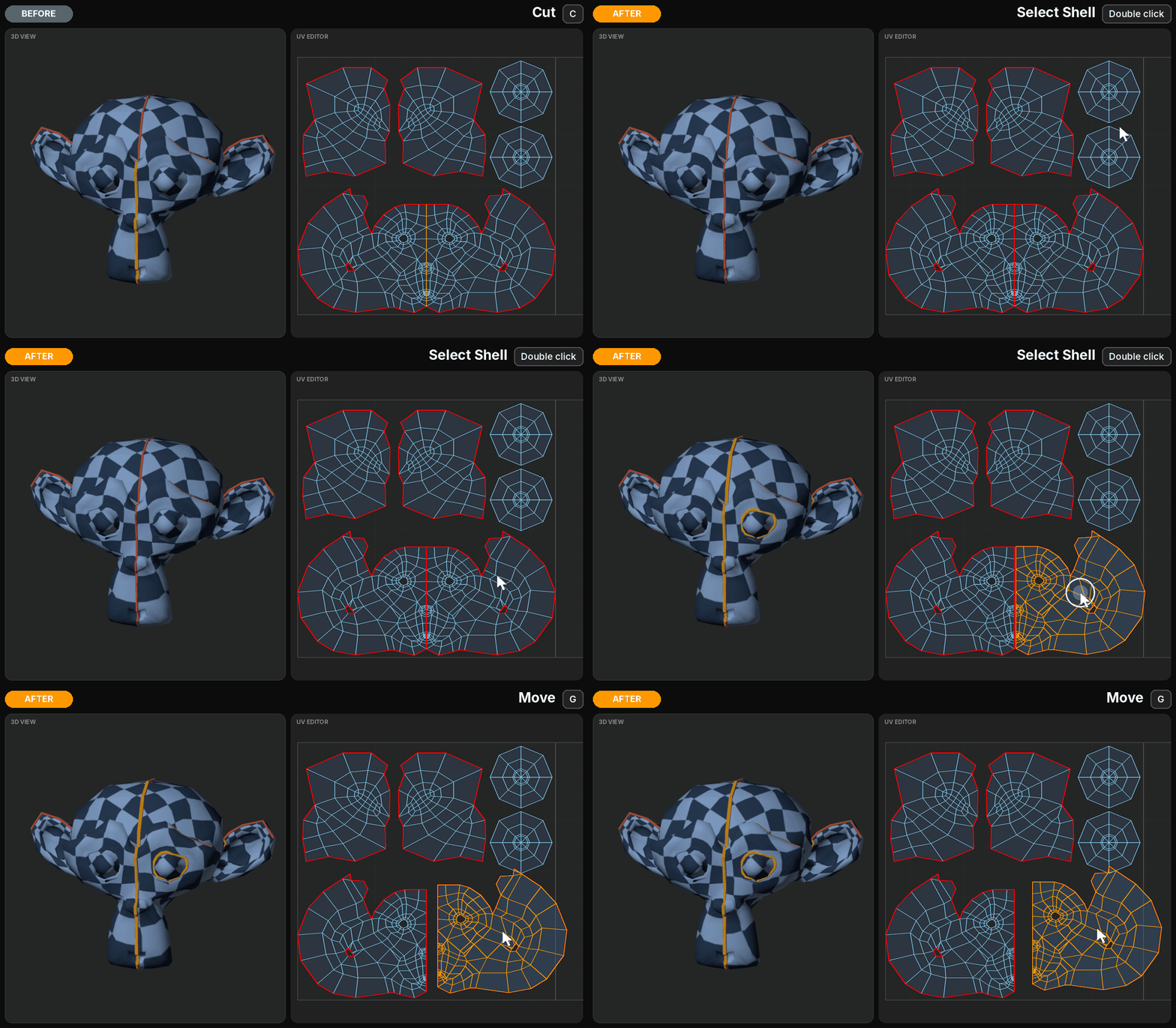
Direct UV editing, with immediate feedback.
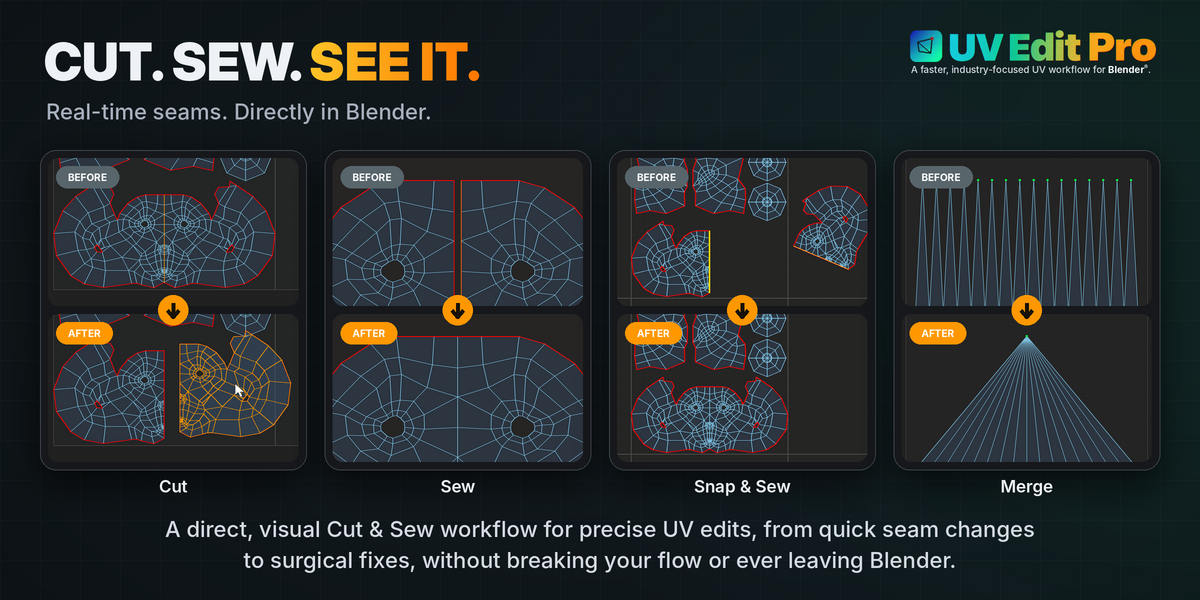
Cut, Sew, Snap & Sew and Merge provide direct control over UV boundaries and connections.
Cut selected edges without unnecessarily repositioning entire shells. Sew separated edges back together, or use Snap & Sew to rigidly reposition a shell and connect it to its corresponding boundary without deforming its shape.
With Sync Seams from UV, existing UV cuts can be reconciled with Blender® seam flags, including mismatches introduced by imported geometry.
The result is a predictable cut-and-sew workflow built around precise changes.
Don't rebuild it. Fix it.
05 — AUTO UV
Automatic unwrapping. Professional control.
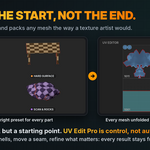
Start with a complete UV unwrap, then take control of every detail.
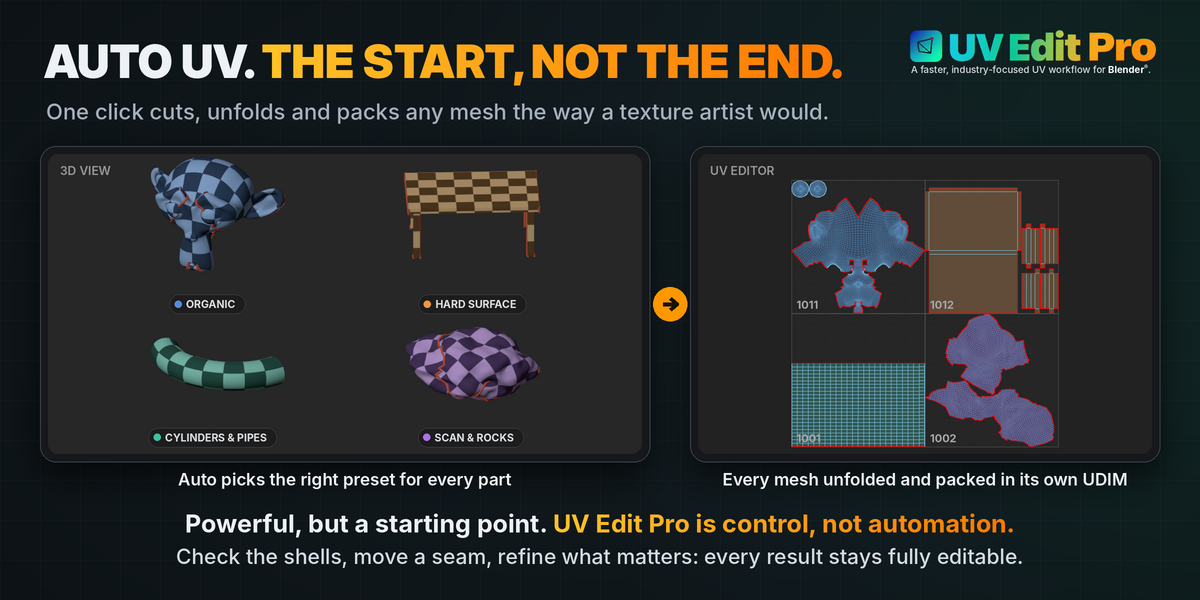
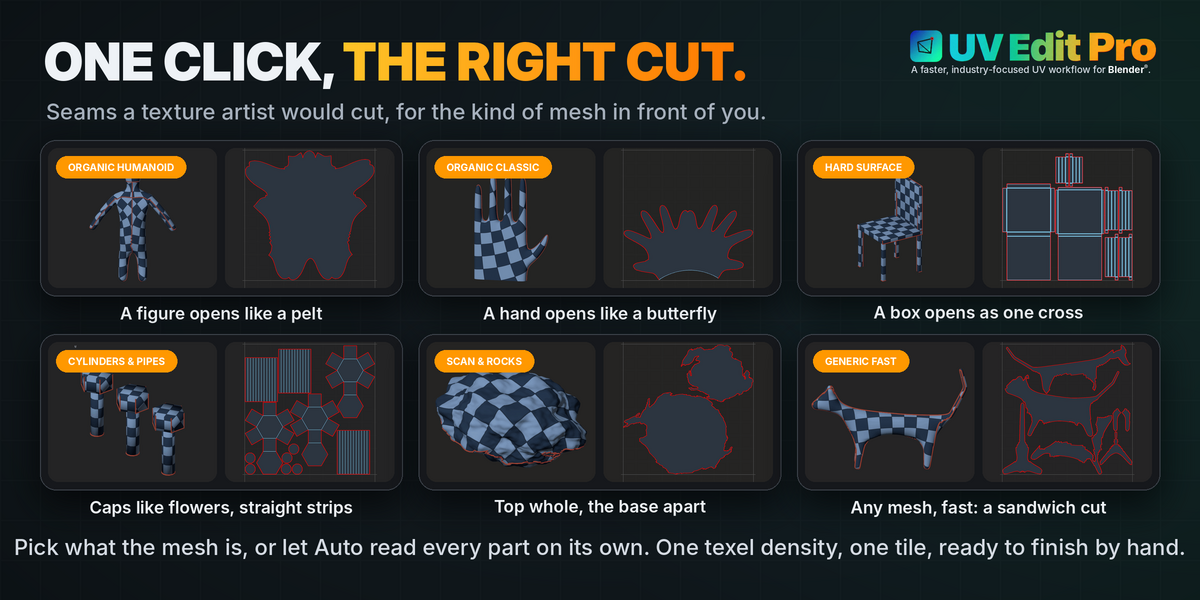
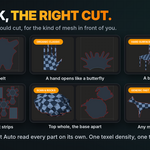
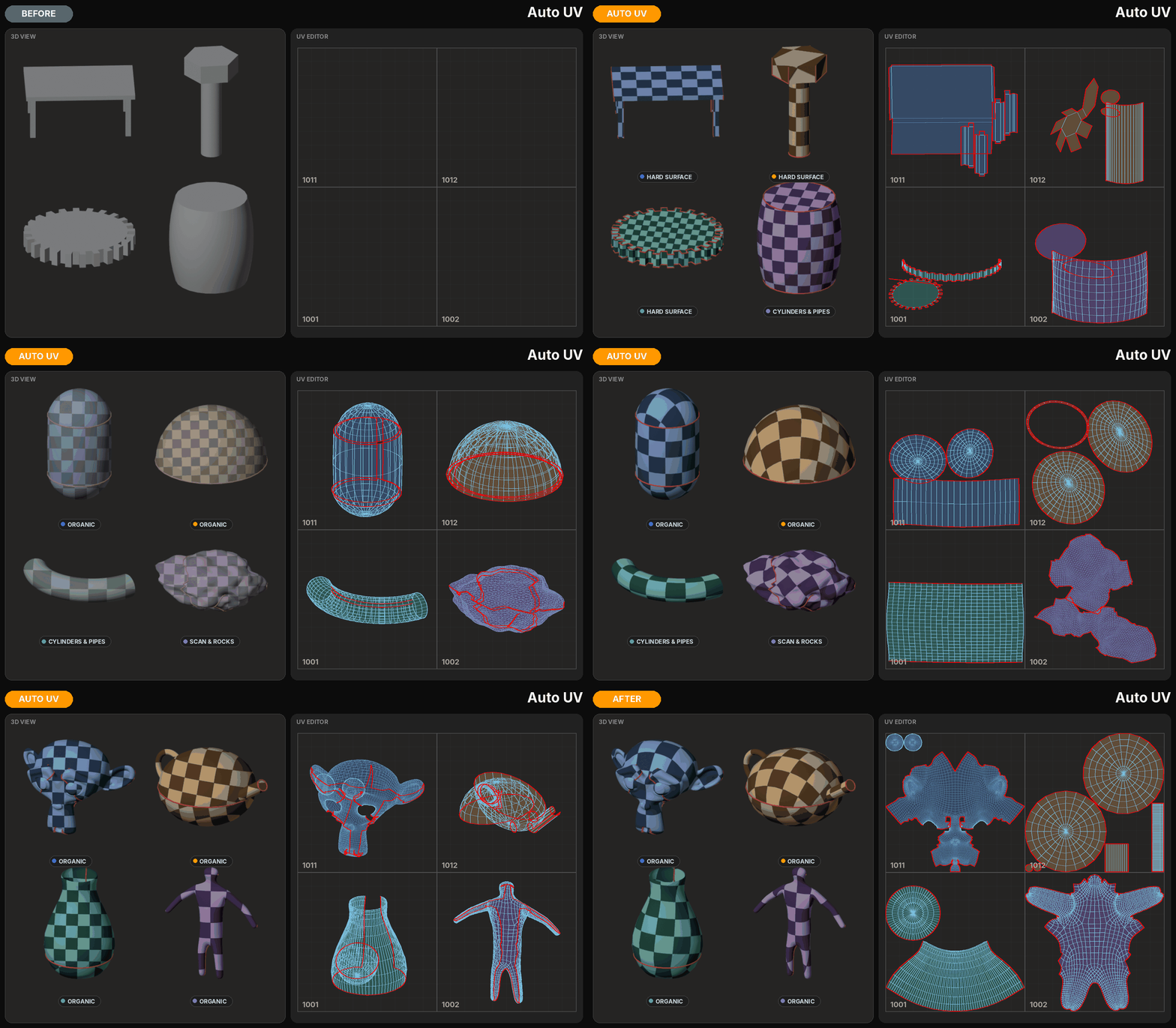
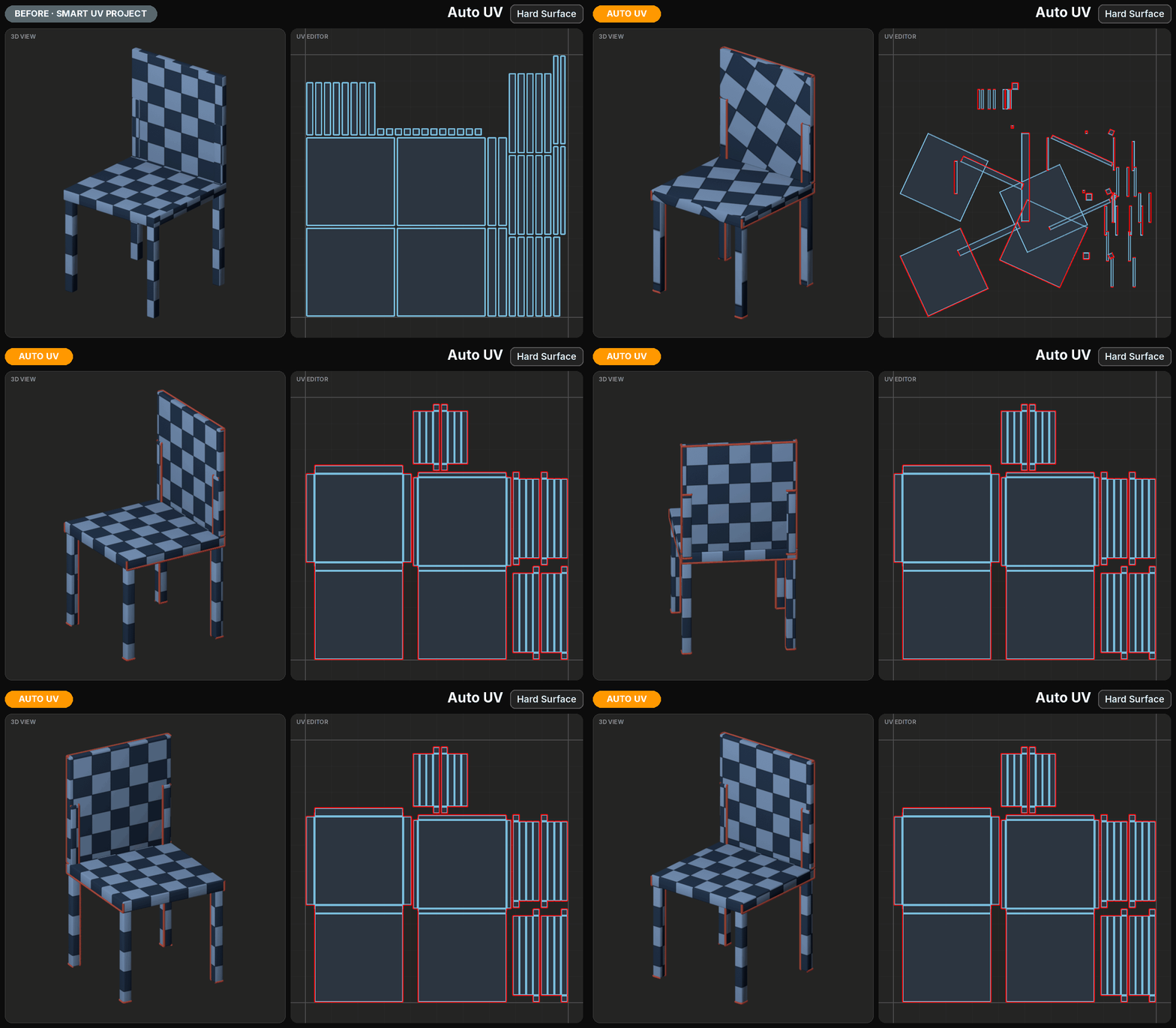
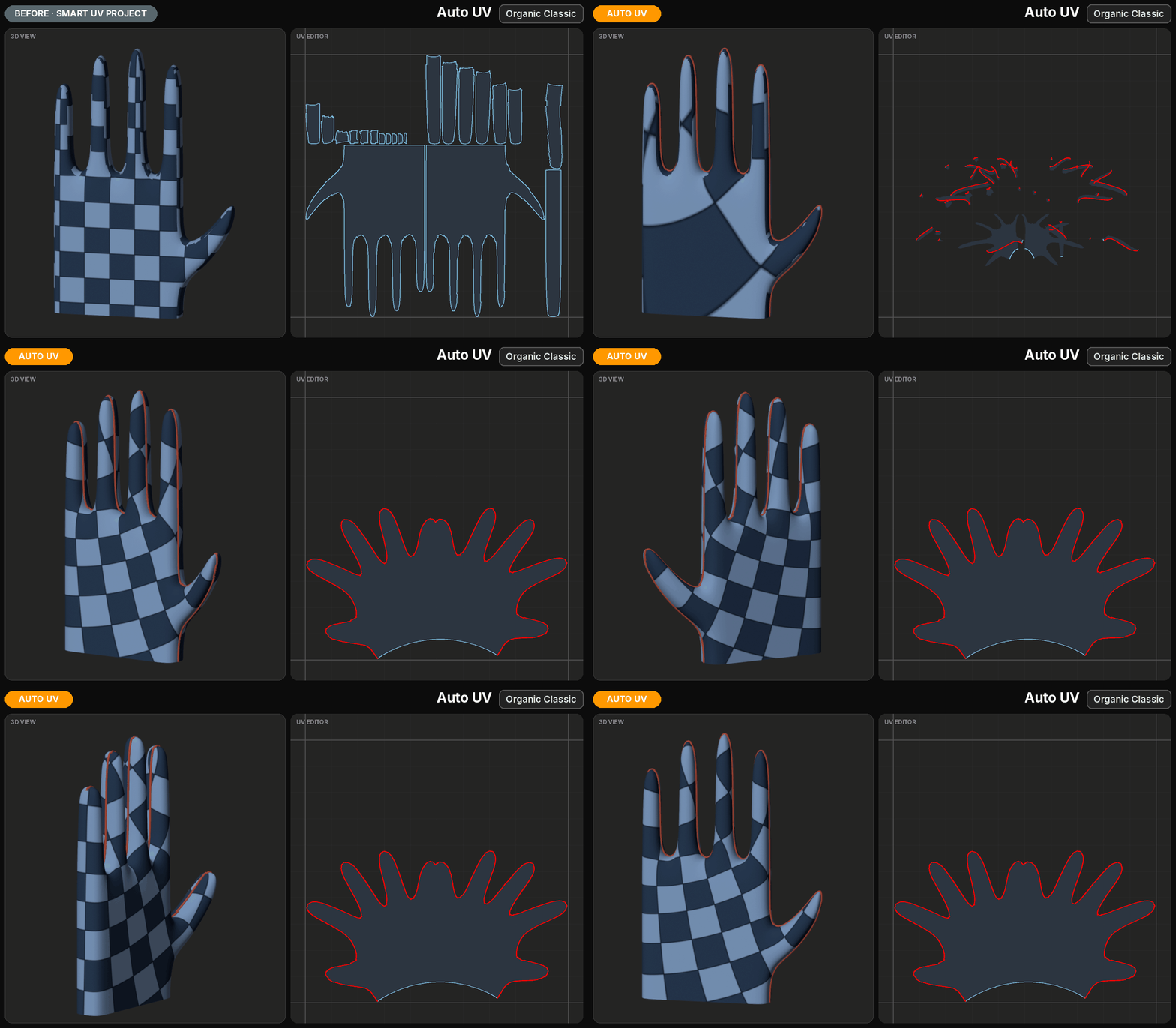
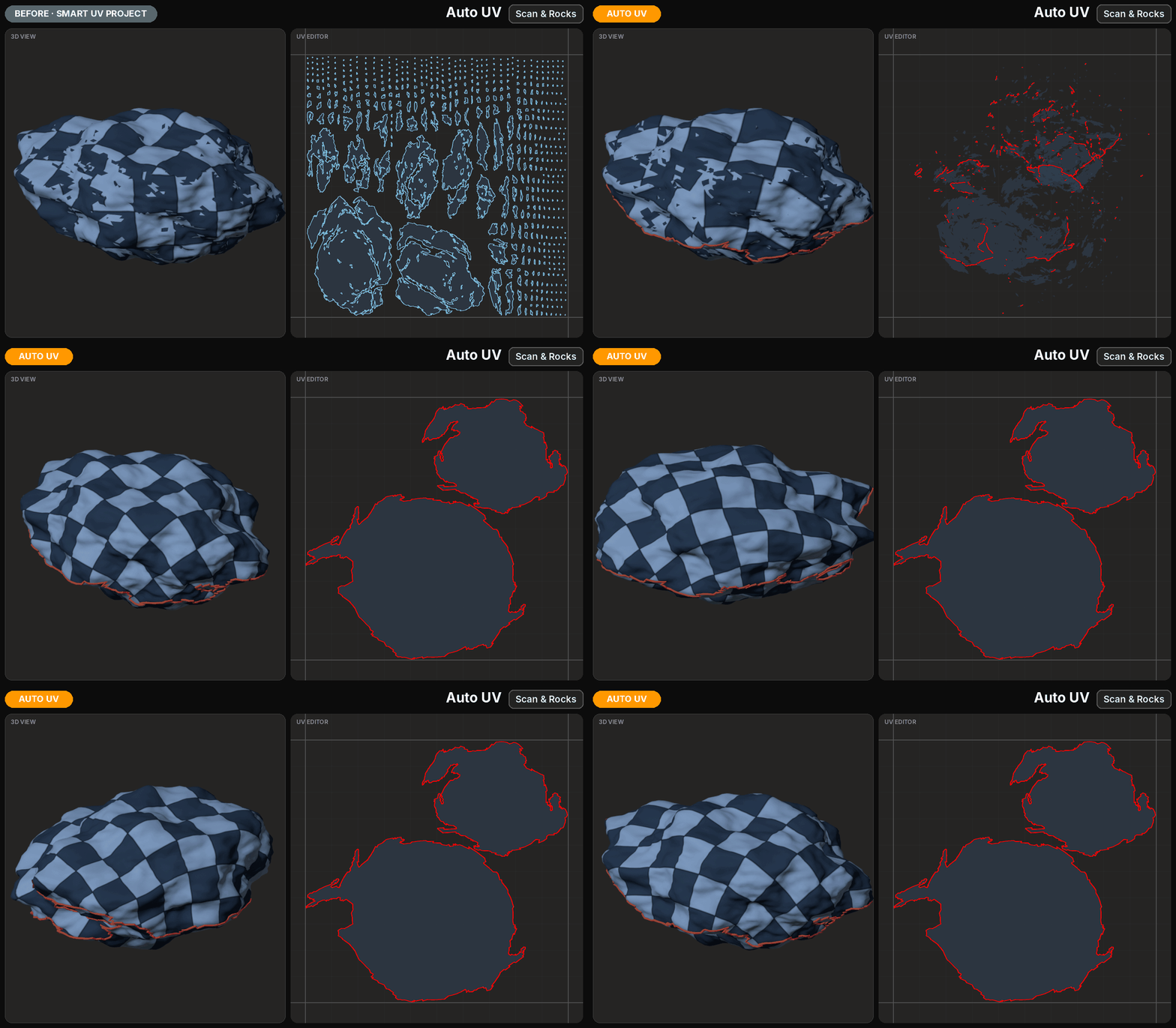
Auto UV analyzes your geometry and generates seams, unwraps, relaxes, orients and packs UV shells into a single tile, with consistent texel density. It works across multiple meshes in Edit Mode, using different cutting strategies based on the geometry.
Five mesh types: Auto, Hard Surface, Cylinders & Pipes, Organic, and Scan & Rocks. Choose the appropriate strategy or let Auto UV analyze the geometry for you.
Adjust the balance between fewer seams and less distortion, preserve your existing seam placement with Keep My Seams, or overlap identical UV shells with Stack Similar.
From mechanical parts and curved pipes to characters, sculpted surfaces and irregular rocks, Auto UV provides a practical starting point for further editing.
Automation gets you started. Control gets you finished.
Auto UV doesn't replace the artist's decisions. Every generated seam remains editable, and every UV shell can be refined using UV Edit Pro's Cut & Sew, Unfold, Optimize, Straighten and Layout tools.
Your mesh. Your shells. Your decisions.
06 — UNFOLD & OPTIMIZE
More control over the shape of your UVs.
UV Edit Pro extends the editing workflow with dedicated tools for unfolding, optimizing and refining UVs without automatically rebuilding an entire layout.
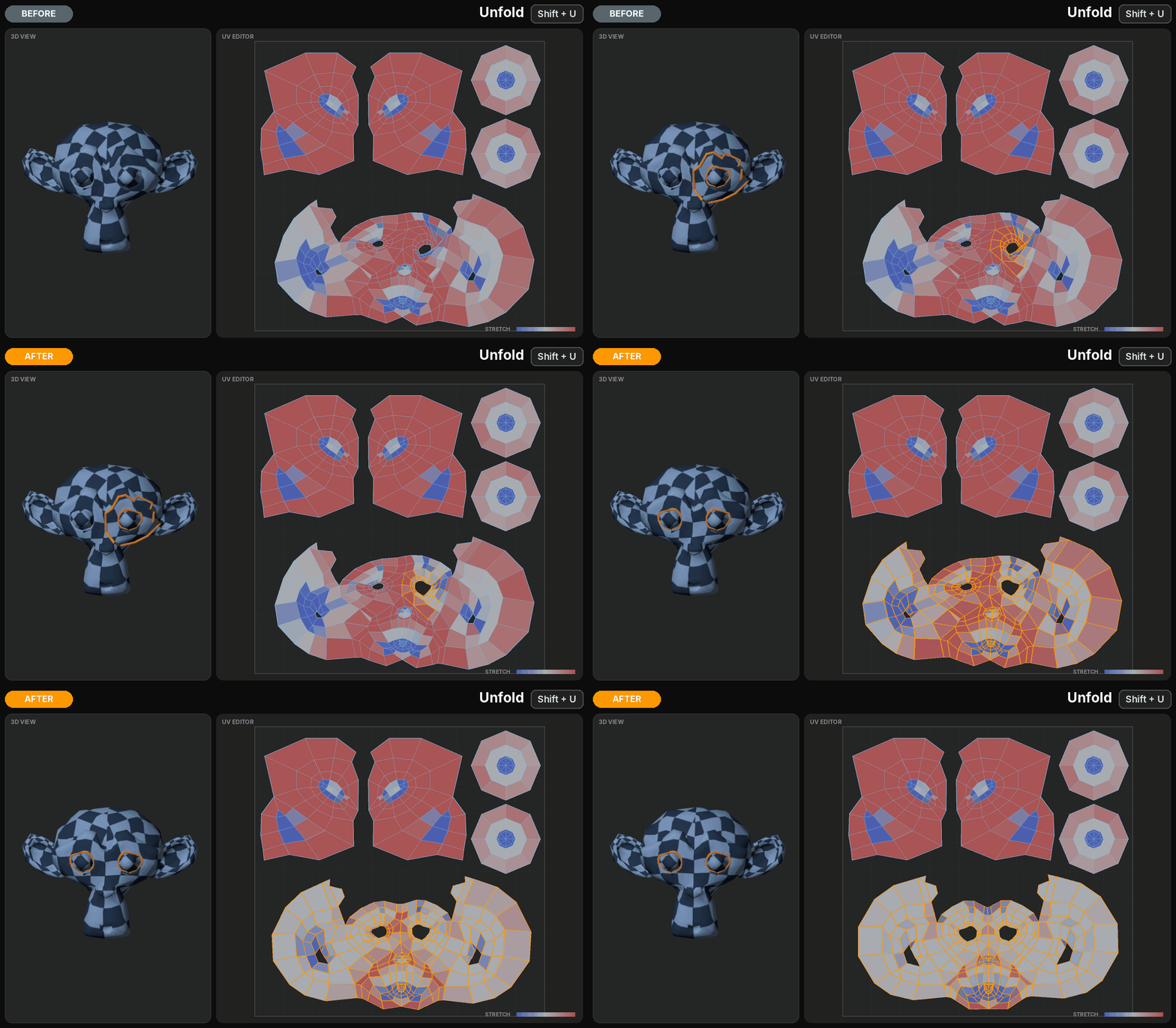
Unfold. Where you need it.
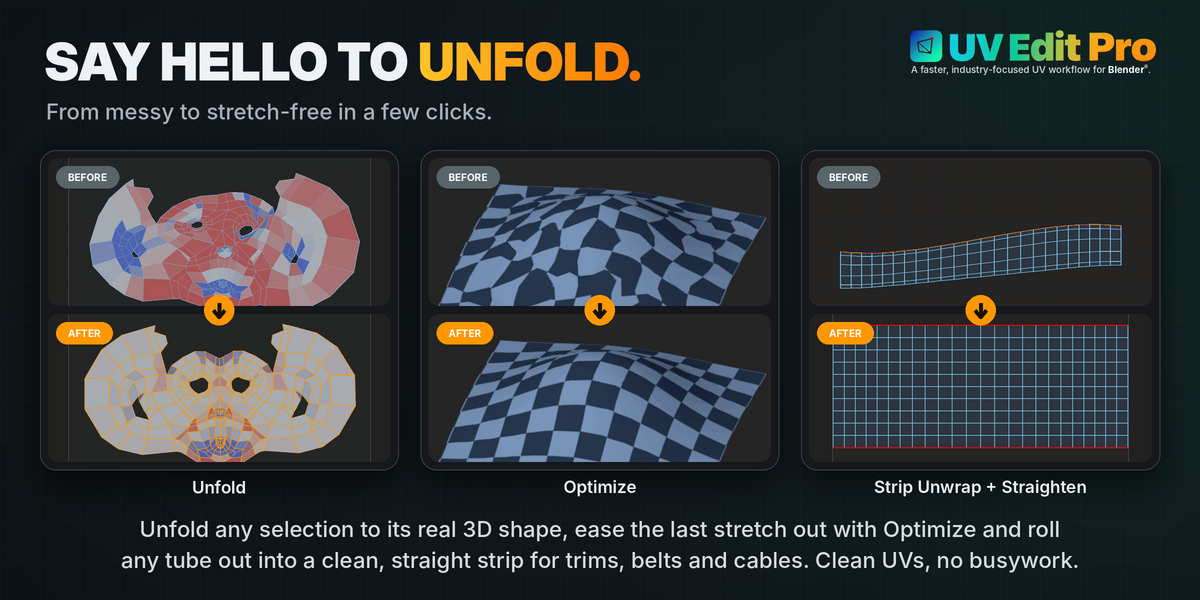
Unfold uses the underlying 3D geometry to flatten selected UVs, from small areas to complete shells.
Work along U, V or both axes, correct local distortion and preserve the surrounding layout where appropriate.
Whole-shell unfolding can reconstruct a consistent result from the geometry while maintaining the shell's placement and scale.
A targeted correction instead of a complete restart.
Optimize. Refine without losing control.
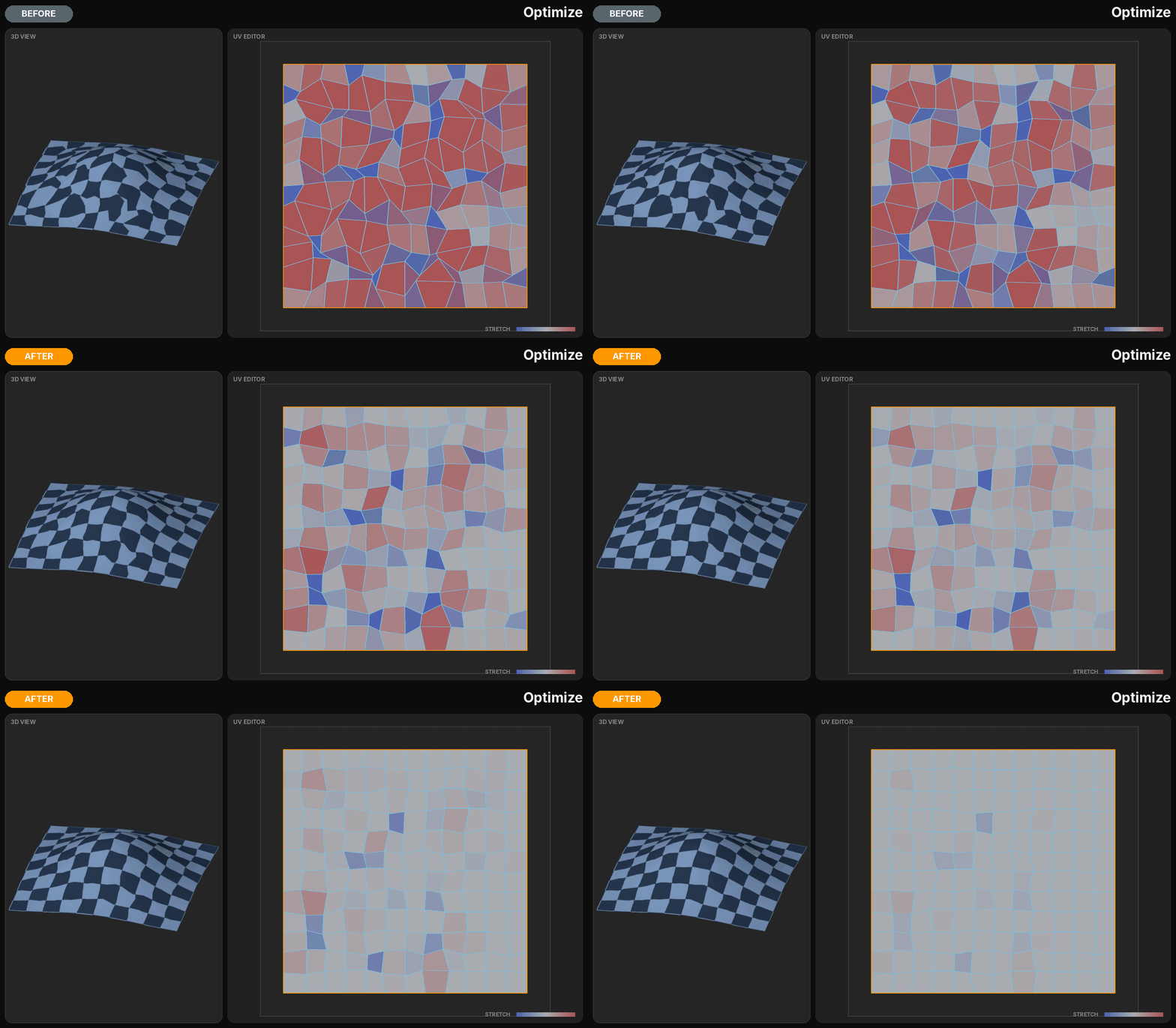
Optimize progressively reduces UV distortion through repeated, adjustable operations.
Use geometry-based optimization or switch to Relax for a more uniform distribution. Control the influence with Strength and use Keep Border when the shell outline must remain fixed.
This makes it possible to refine interior UVs without sacrificing an already established boundary.
Improve the shape. Keep what matters.
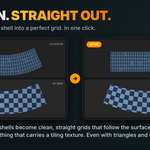
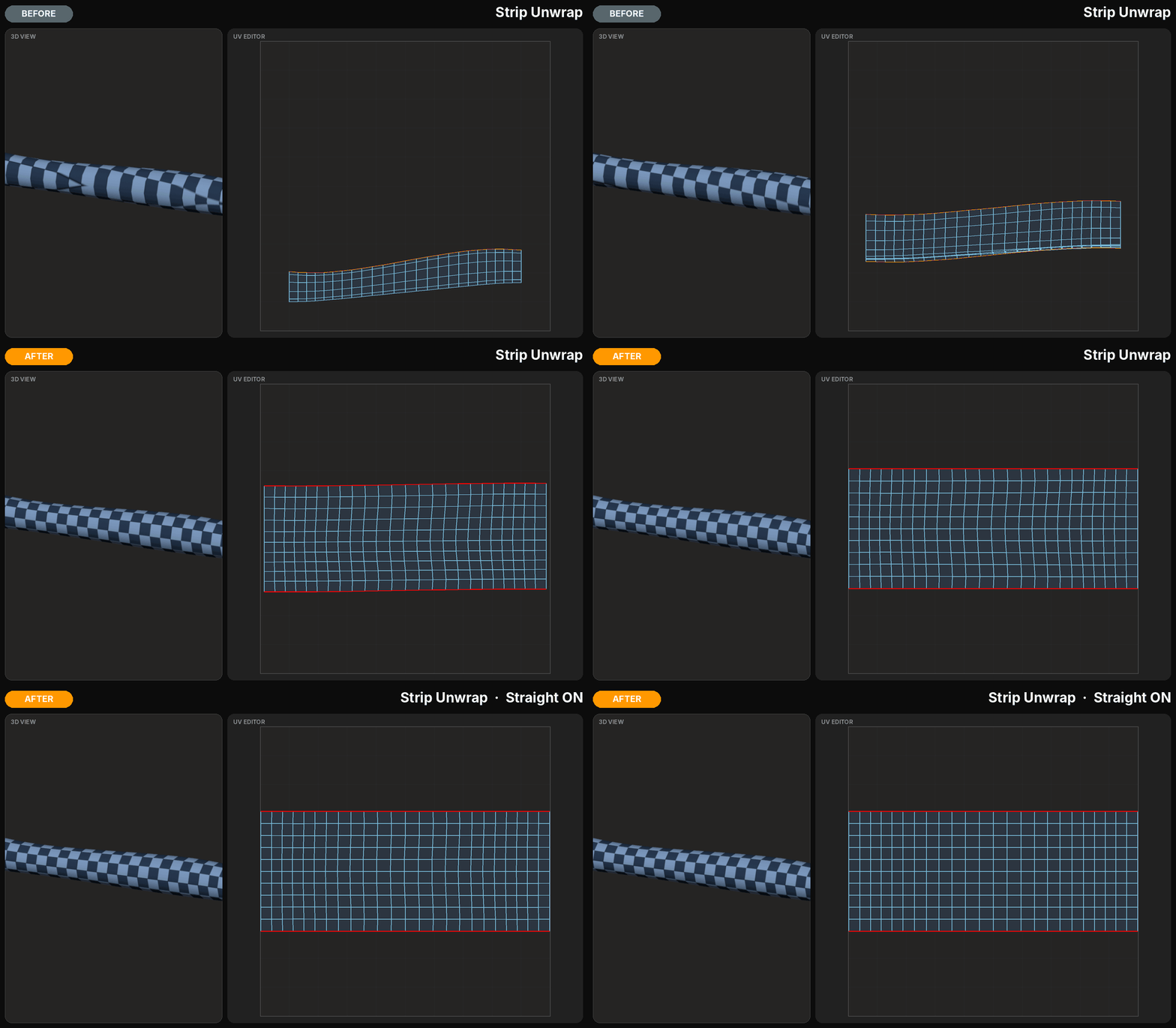
Strip Unwrap. Straight from the mesh.
For tubes, cables, straps and other elongated geometry, Strip Unwrap creates a straight UV strip from a selected edge path.
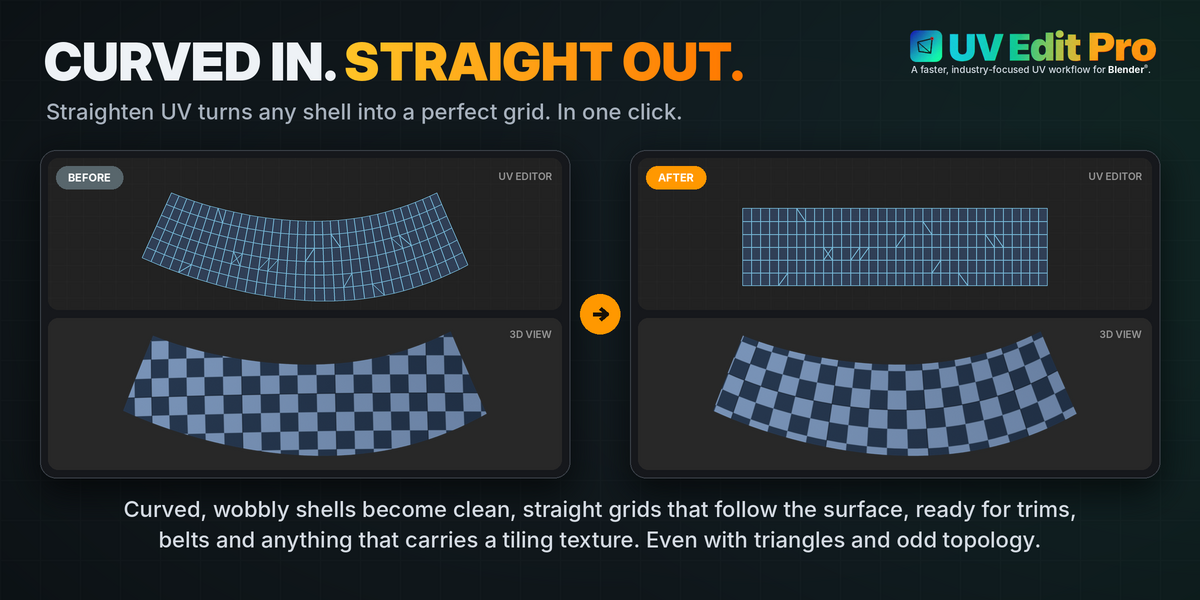
With Straighten enabled, the resulting UVs can be arranged into regular rows, reducing the manual work normally required to prepare these shapes for texturing.
Interactive Grab, Relax and Pinch brushes provide further control for local adjustments.
07 — ADVANCED SELECTION
Select the problem, not the entire mesh.
UV Edit Pro provides shell-focused selection tools designed for dense assets and complex layouts.
Select entire shells with a double-click. Add or remove shells from the selection with modifier keys, or expand and contract selected regions one ring at a time.
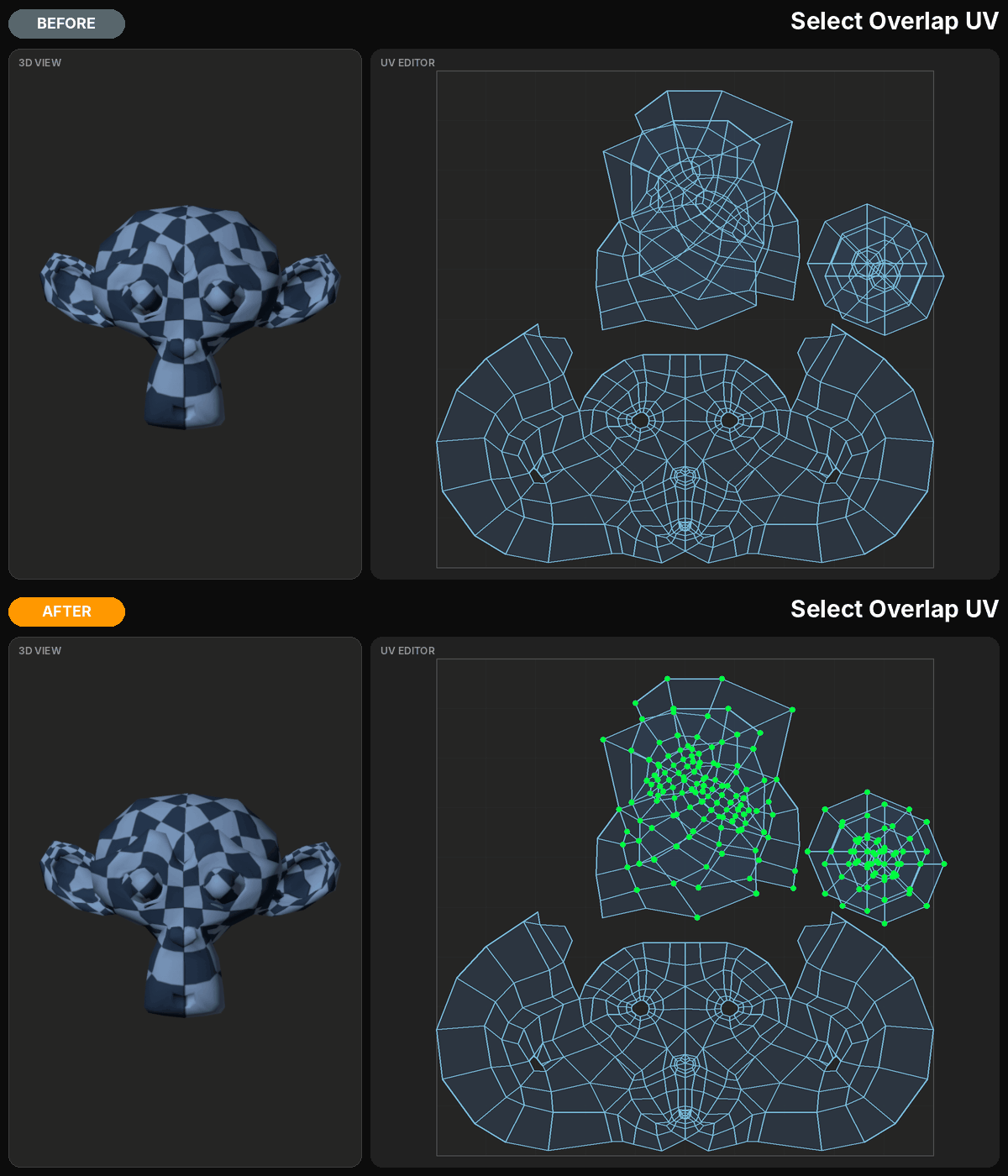
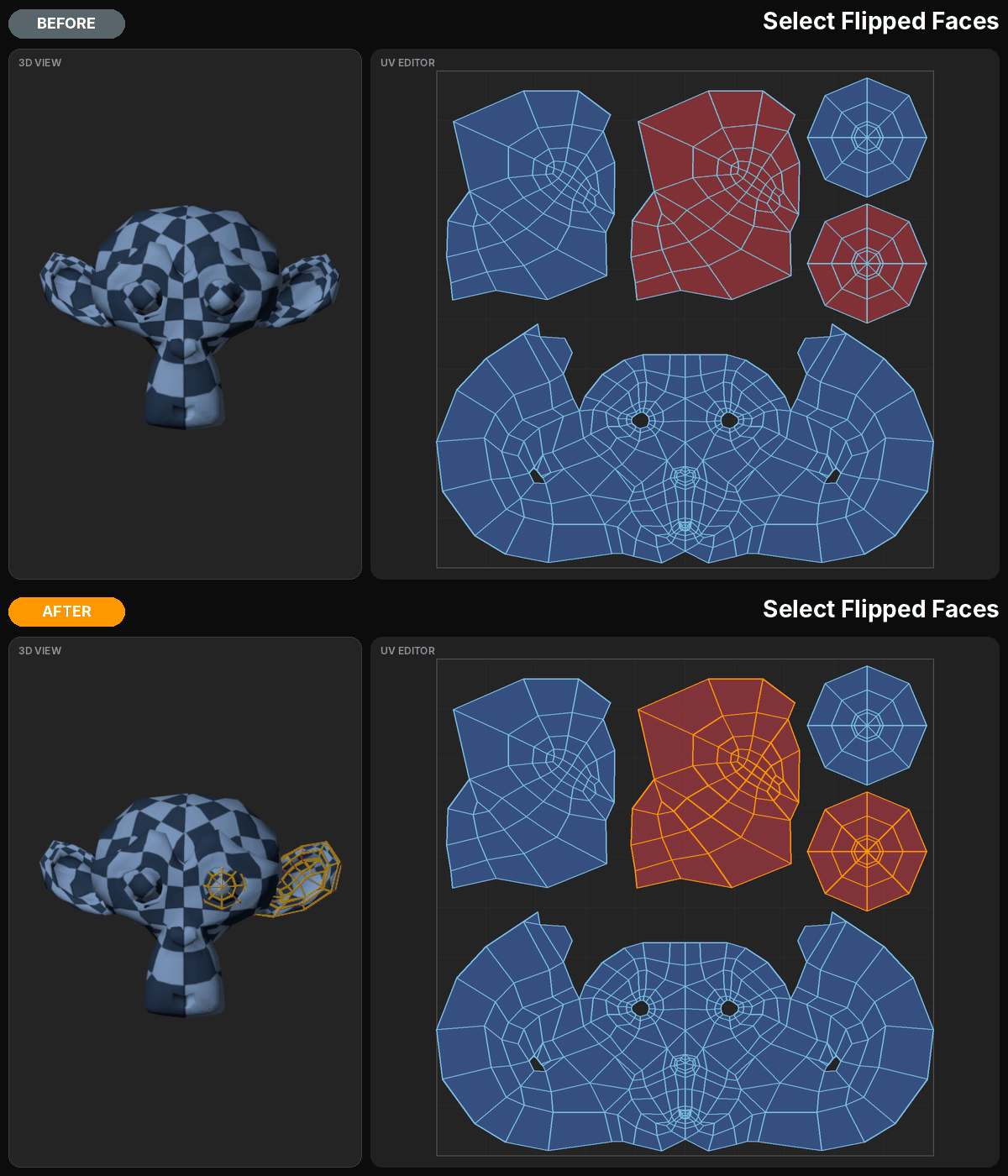
Dedicated operators identify UV boundaries, interiors, overlapping regions, flipped faces, faces without valid UVs and shells extending across UDIM boundaries.
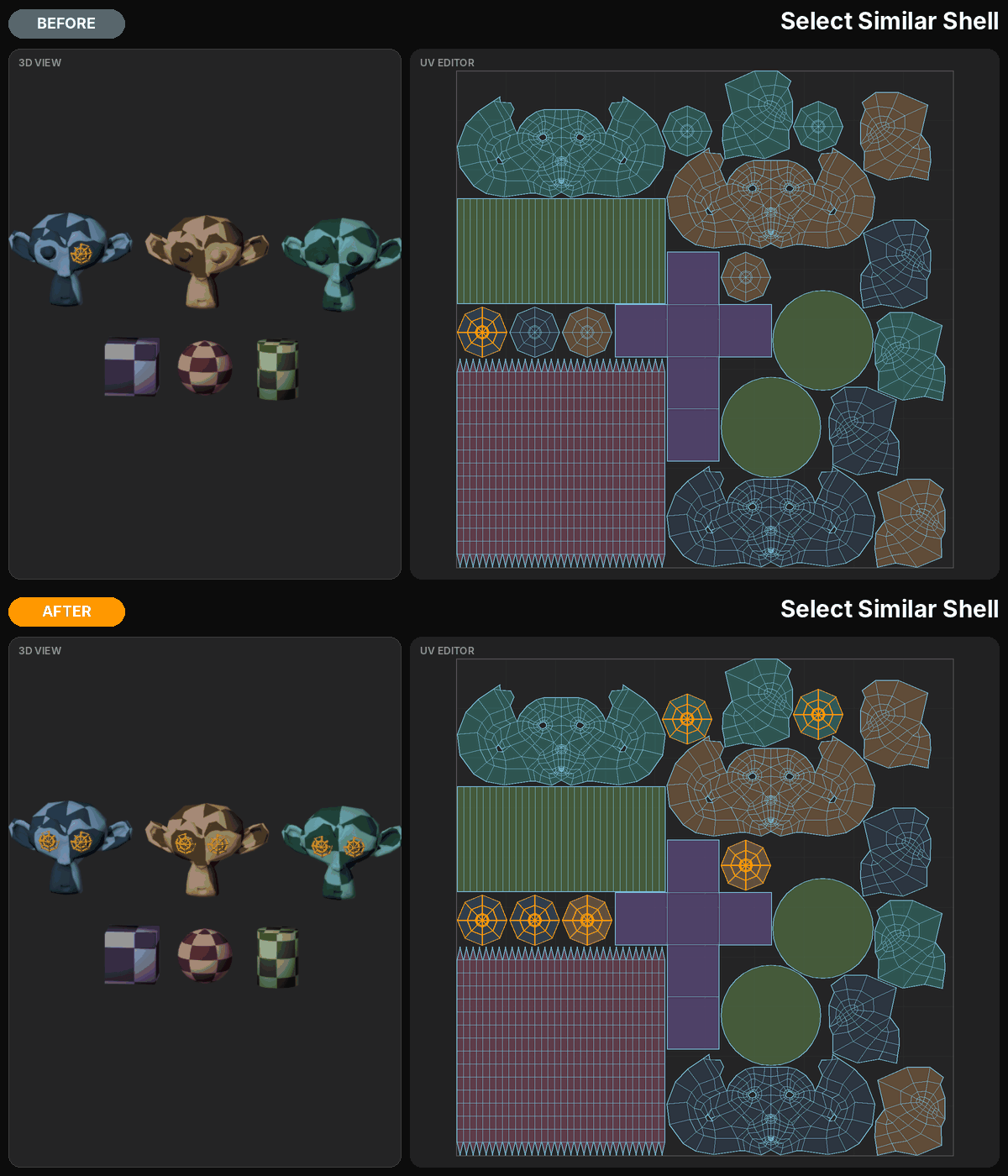
Select Similar Shell also helps locate shells with matching shape characteristics.
These tools reduce the manual selection work required before an edit can even begin.
Select. Edit. Keep moving.
08 — STRAIGHTEN, QUADRIFY & ALIGN
Turn irregular UVs into controlled geometry.
UV Edit Pro includes dedicated tools for reshaping UVs with greater precision.
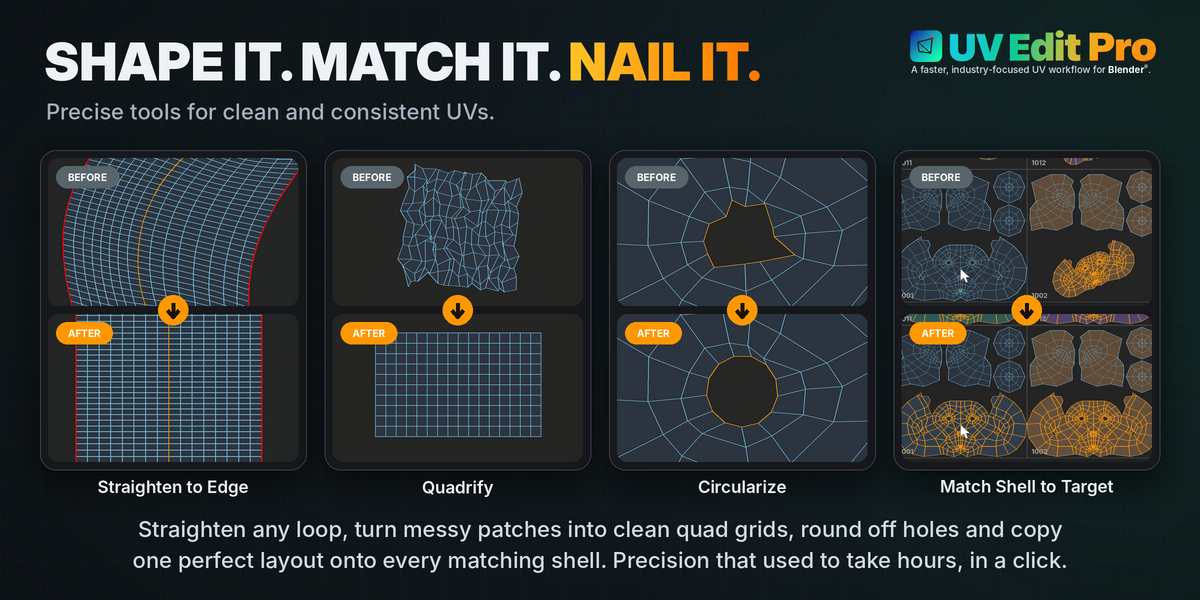
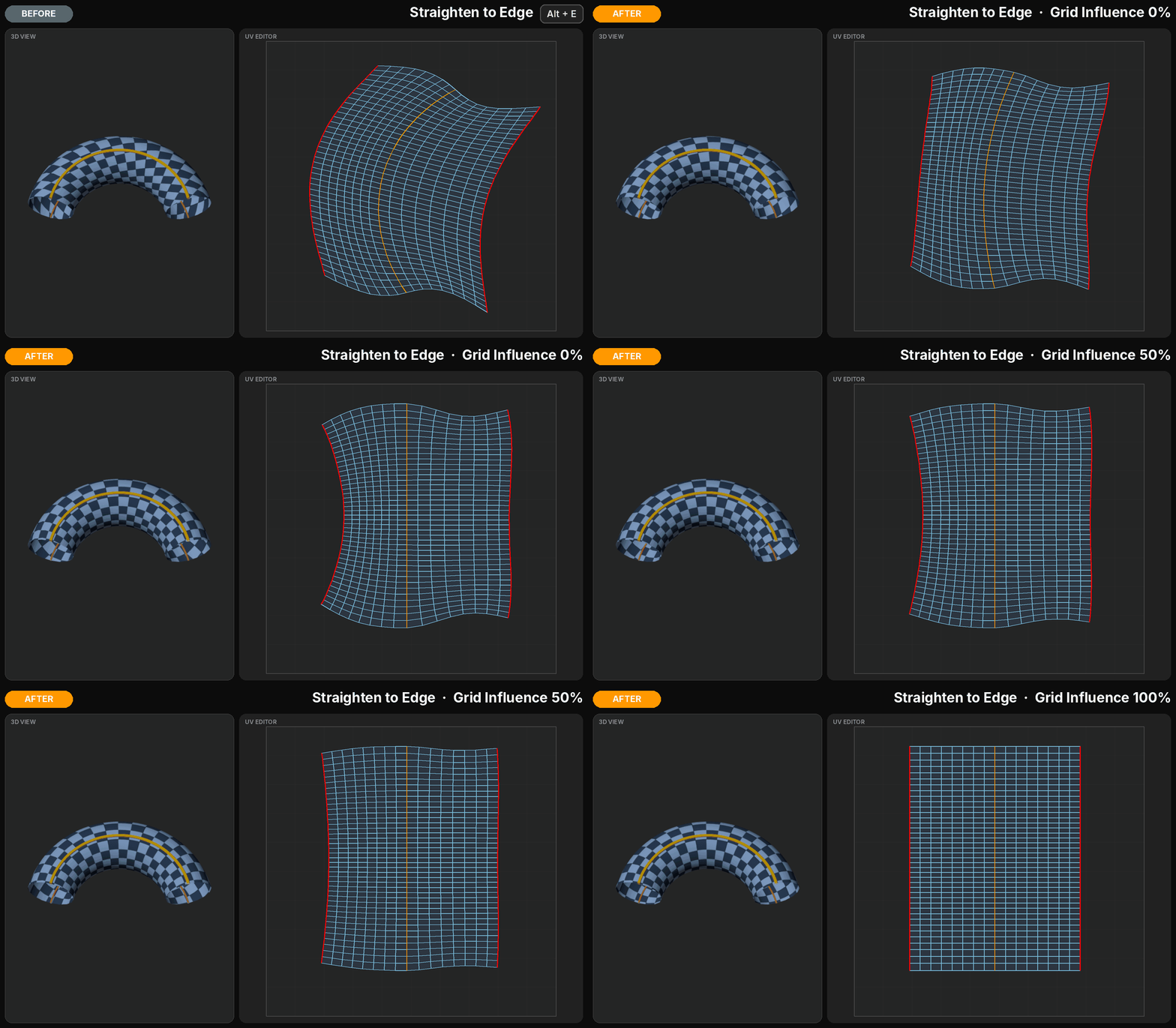
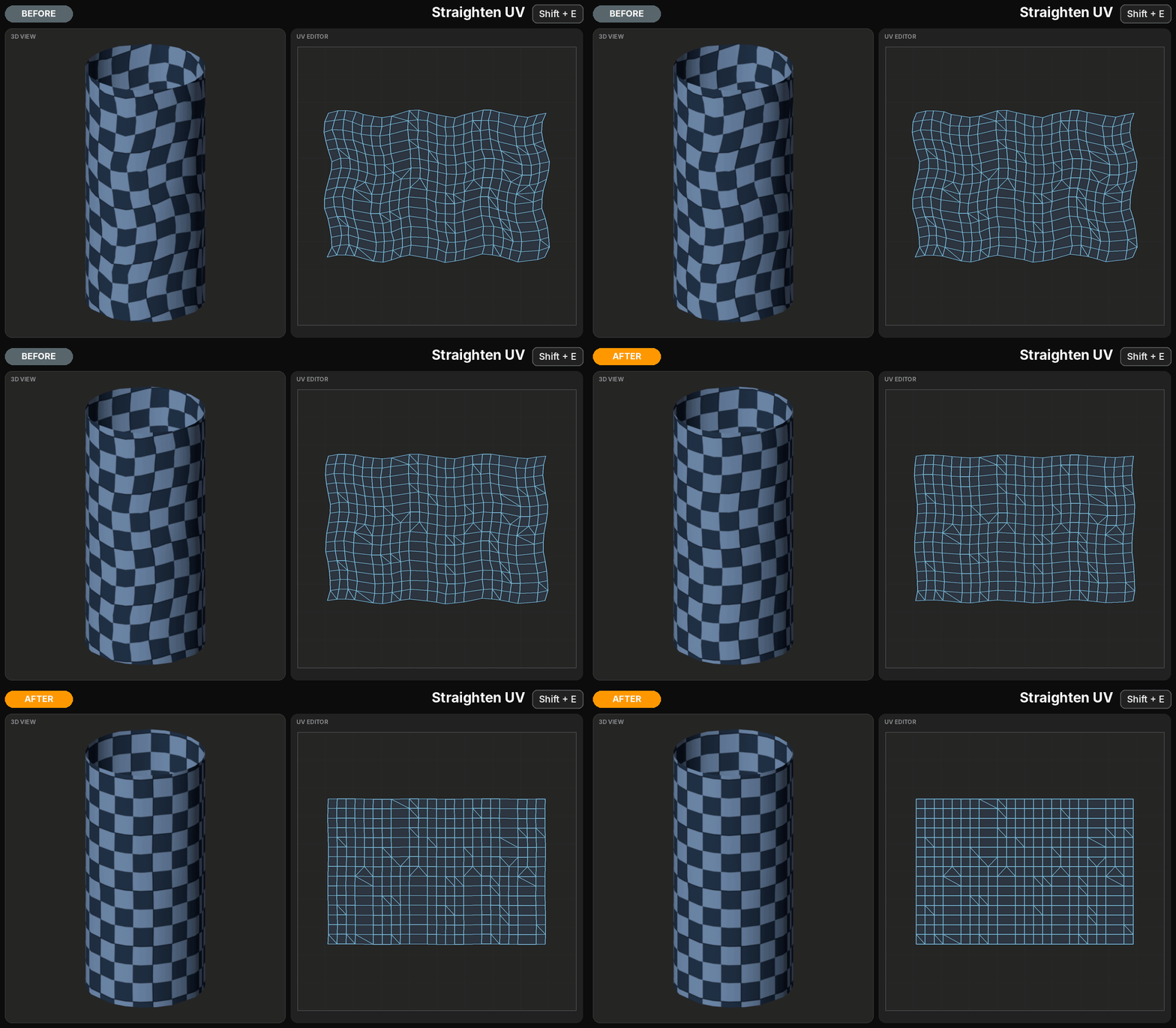
Straighten UV corrects irregular arrangements, while Straighten to Edge uses a selected edge as a reference and adjusts the surrounding UVs accordingly.
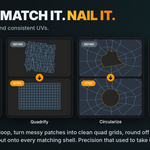
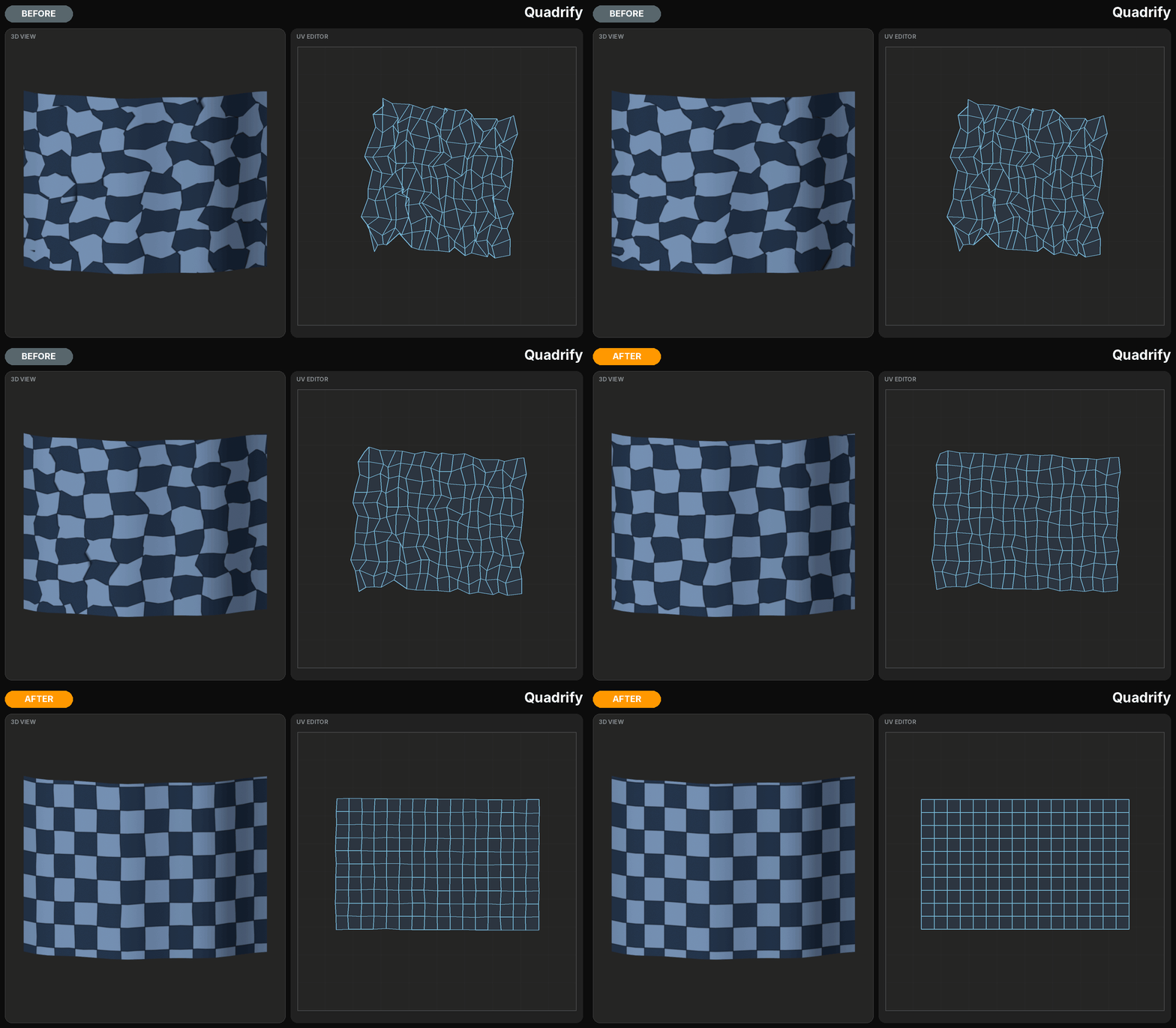
Quadrify reconstructs suitable shells into organized quad grids. Circularize reshapes selected loops, and Align Vertices provides direct alignment along U or V.
Additional tools such as Boundary to Square support specific projection and layout requirements.
From a distorted strip to a structured UV grid, these operations provide targeted alternatives to manual vertex-by-vertex editing.
Precision where it counts.
09 — UV TO GARMENT MESH
From UV shells to real geometry.
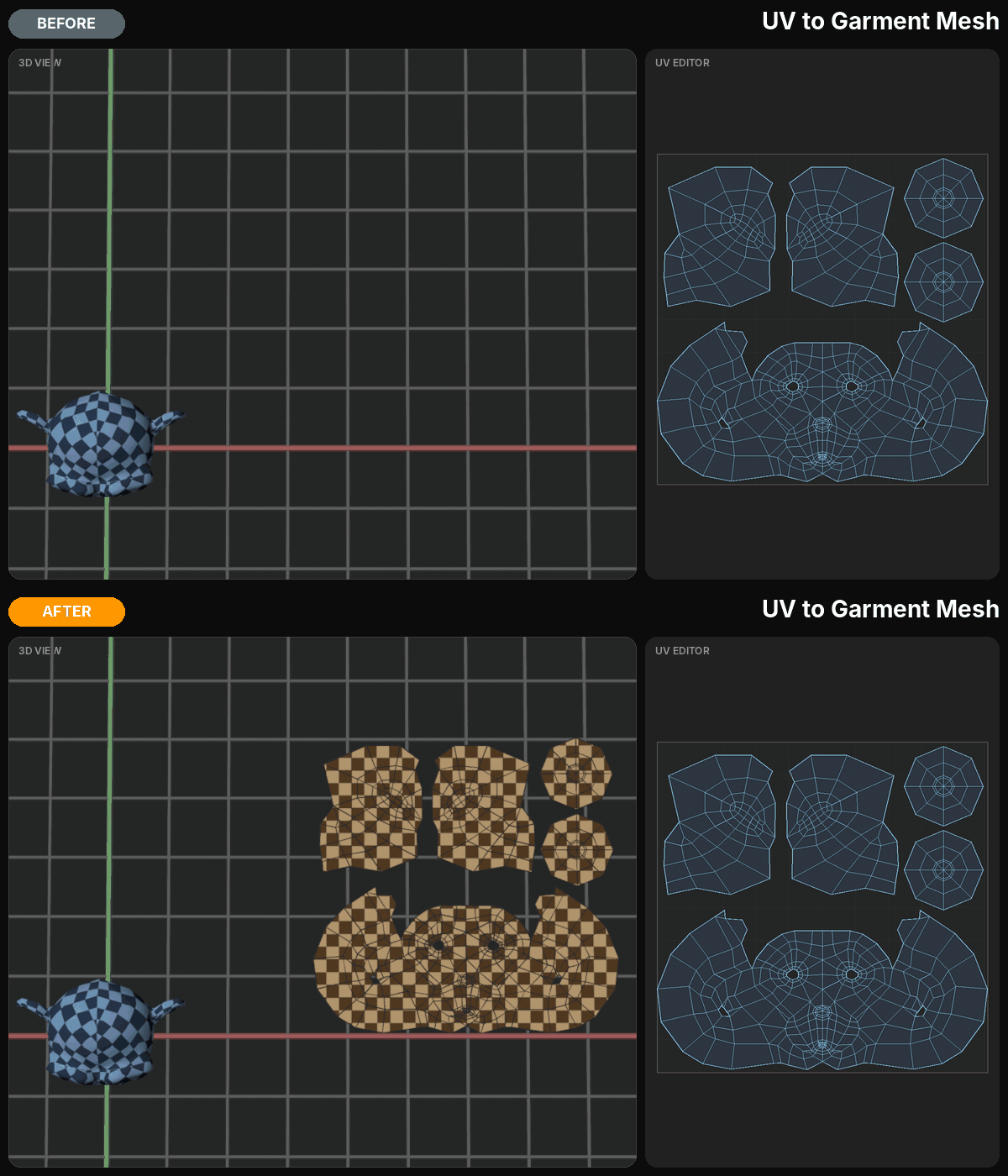
UV to Garment Mesh converts the UV arrangement into a separate, flat mesh, with faces positioned according to their UV coordinates.
Each shell becomes an independent geometric piece, following the cuts defined in the UV layout.
This creates a direct connection between UV editing and workflows that benefit from flat geometric patterns, such as garment preparation and related technical applications.
The original mesh remains unchanged.
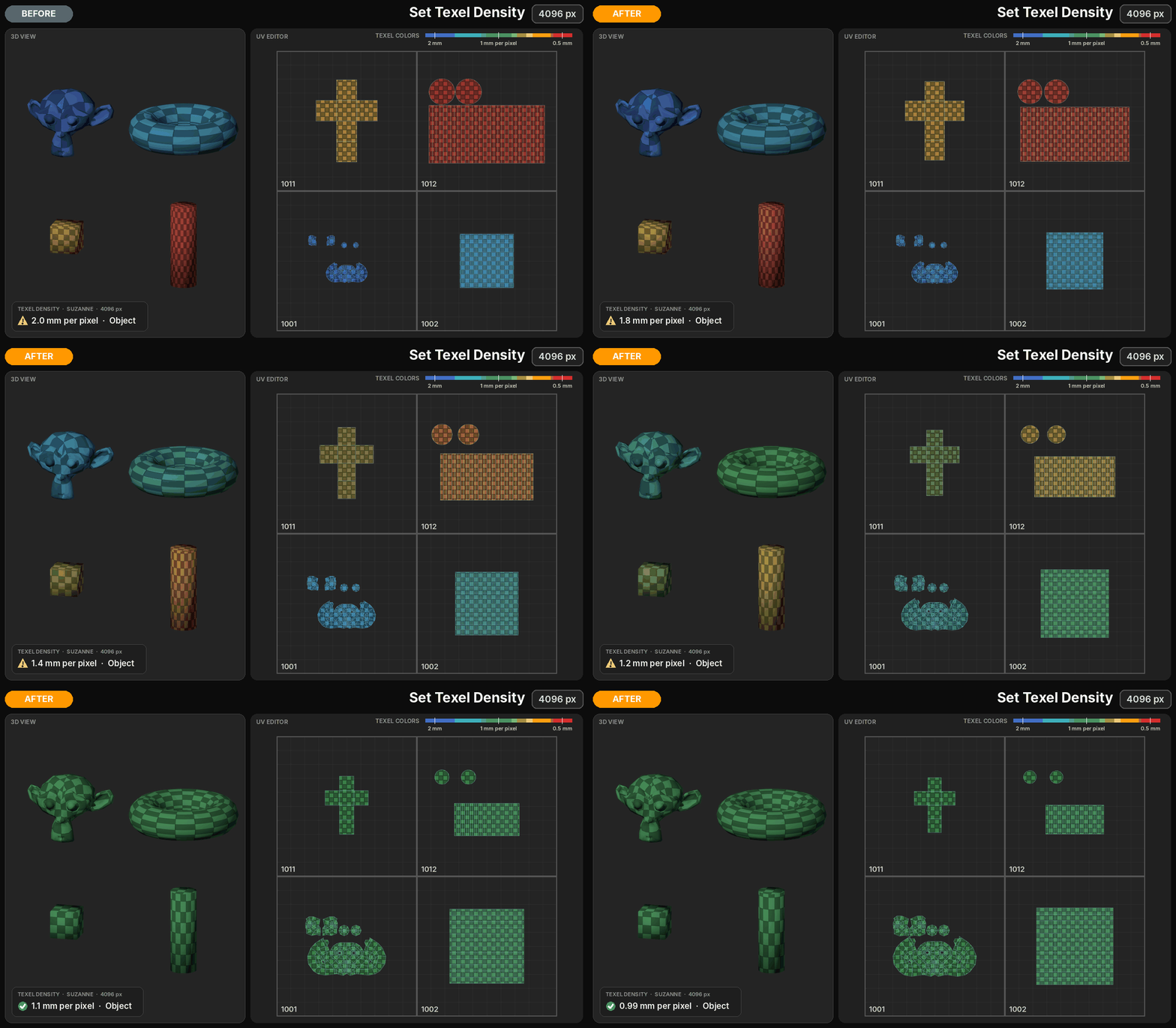
10 — TEXEL DENSITY
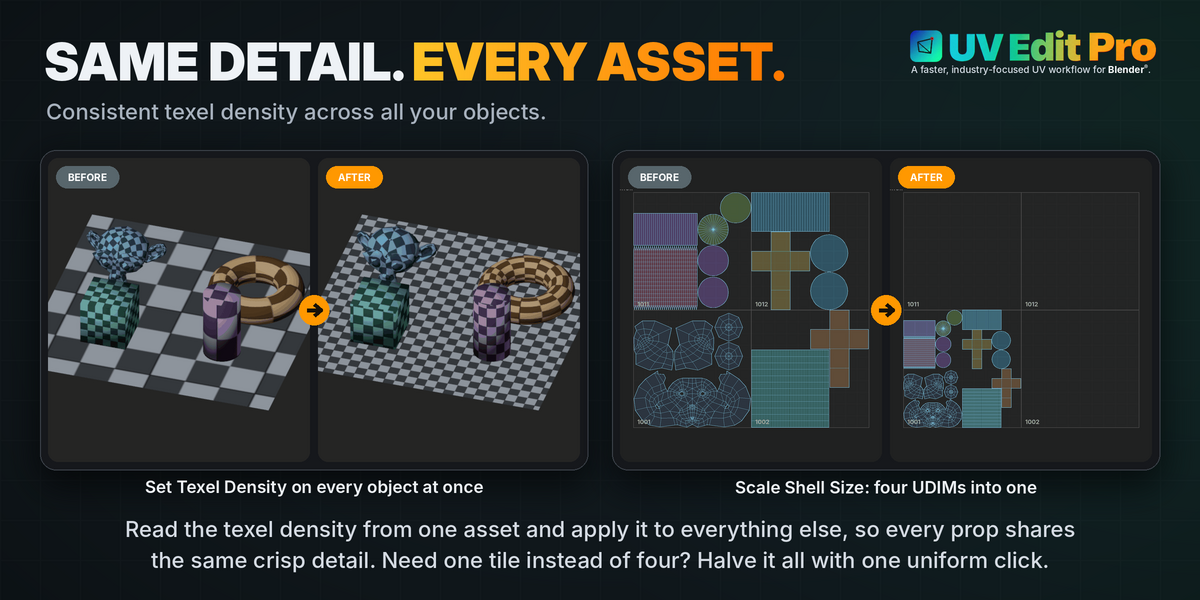
Consistency across assets.
Texture resolution should be a deliberate production decision.
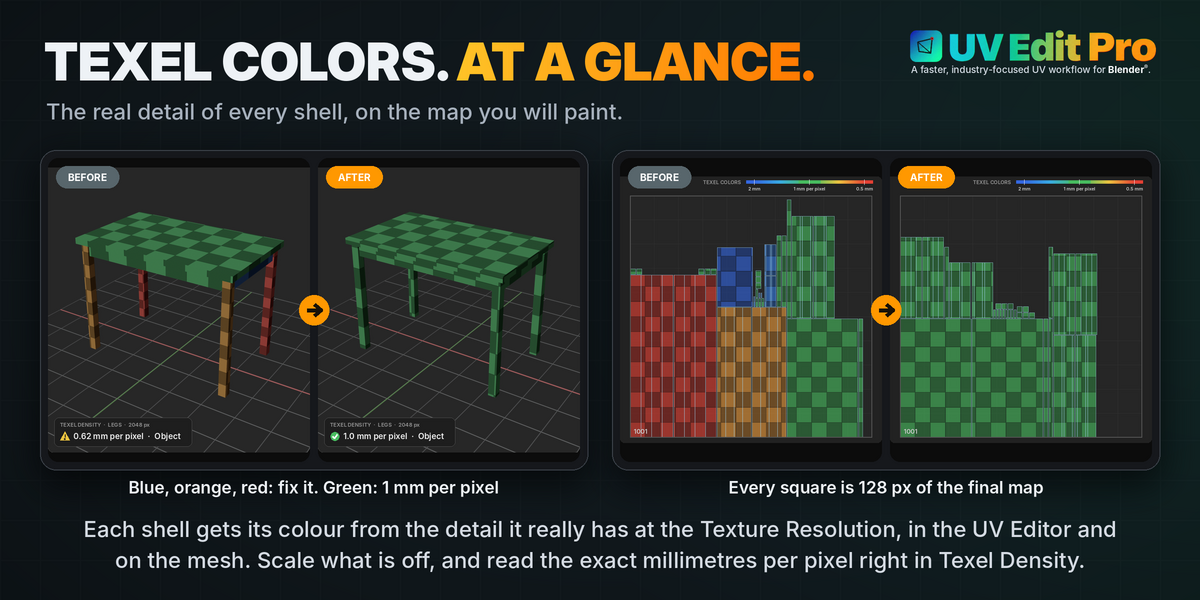
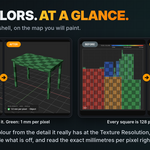
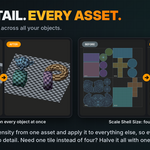
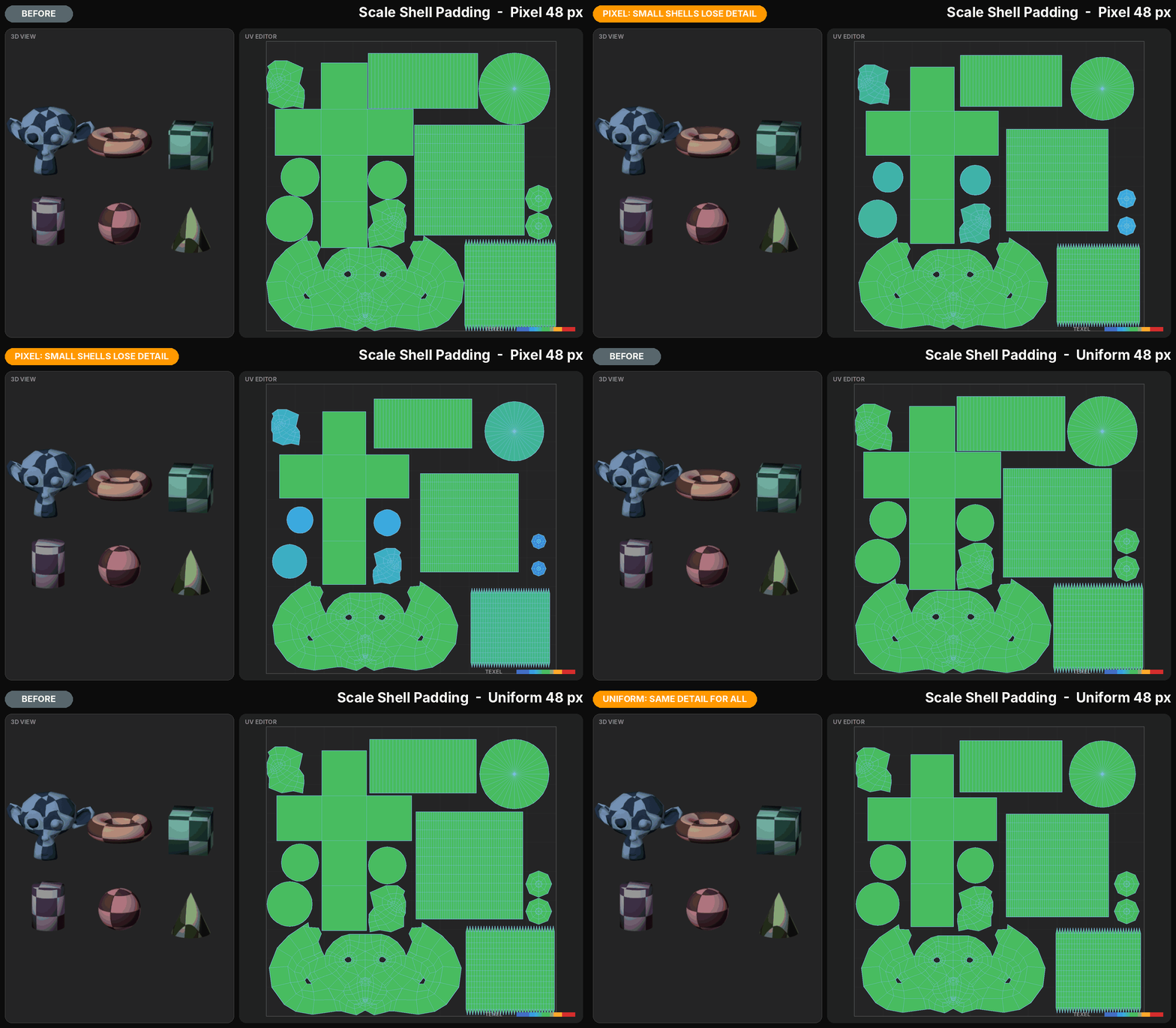
With Get and Set, UV Edit Pro allows artists to measure and apply texel density at a chosen texture resolution, including workflows involving multiple objects.
Individual shells can be rescaled around their own centers to match the target density without requiring a new unwrap.
Additional pixel-based scaling controls help adjust shell spacing while preserving the existing arrangement.
One target. Consistent texture detail.
11 — STACK, GROUP & DISTRIBUTE
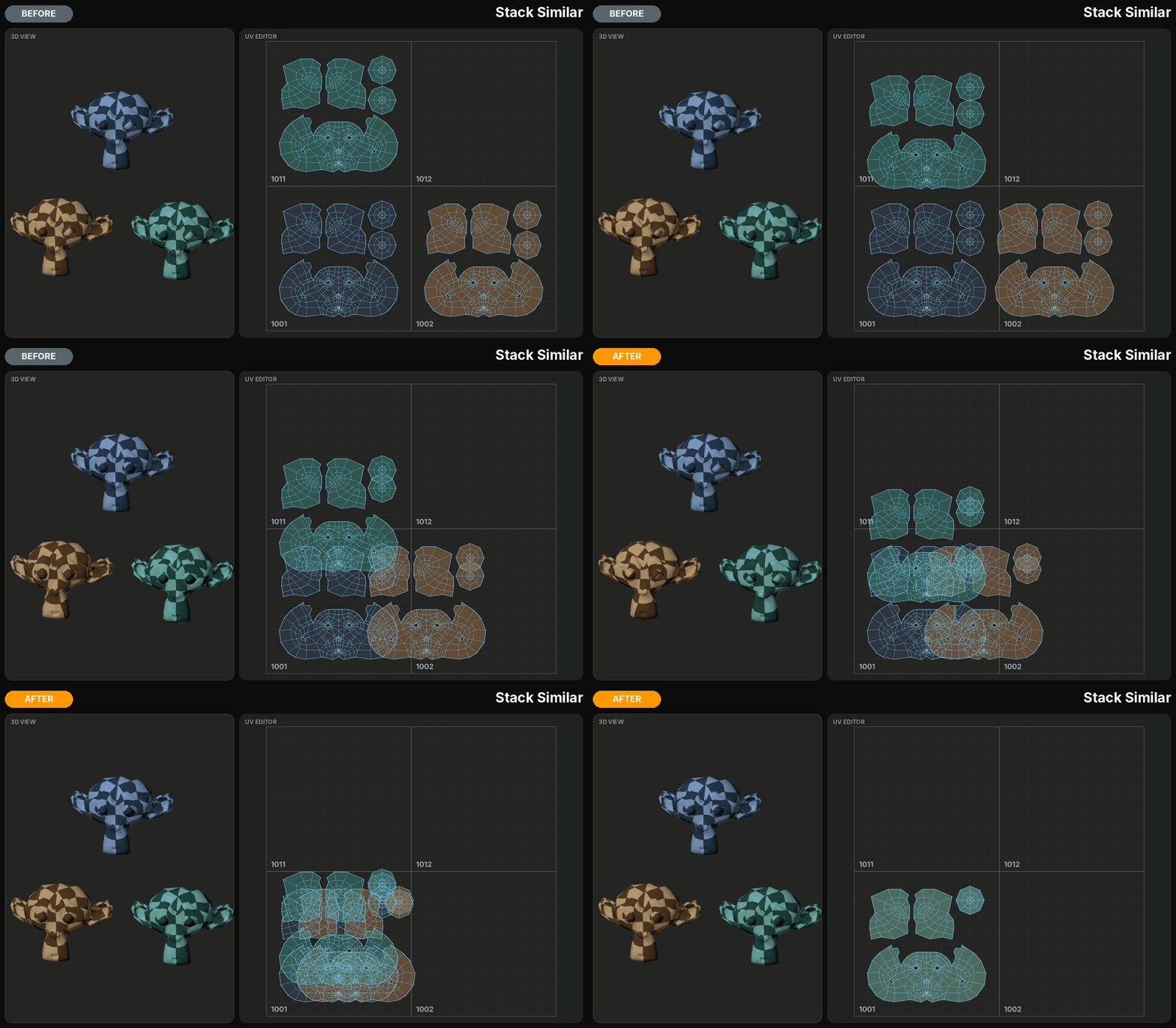
Bring order to complex UV layouts.
Organizing UV shells should be as direct as editing them.
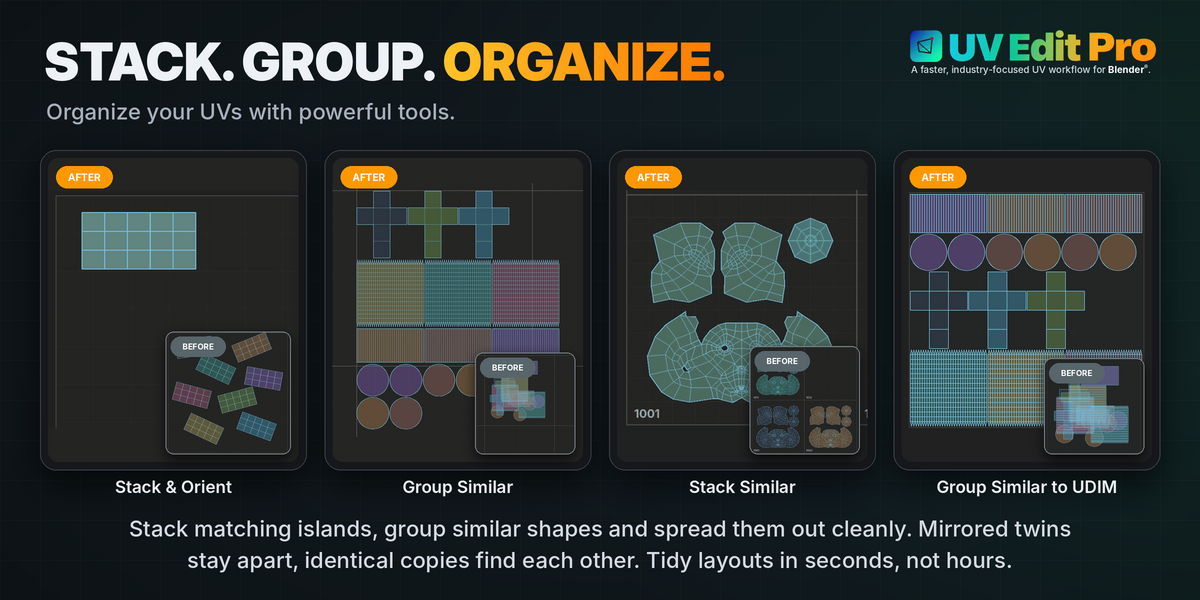
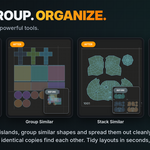
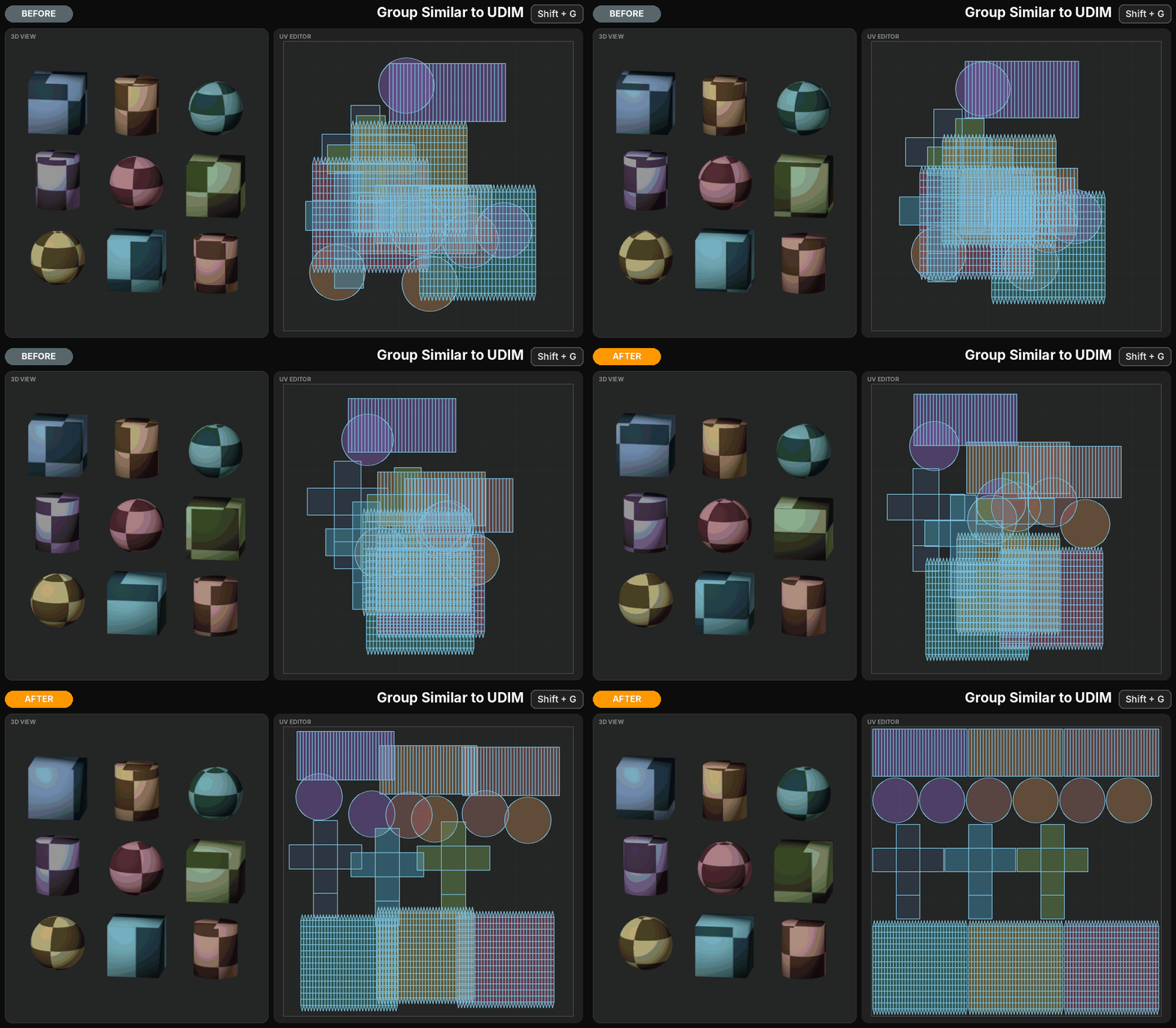
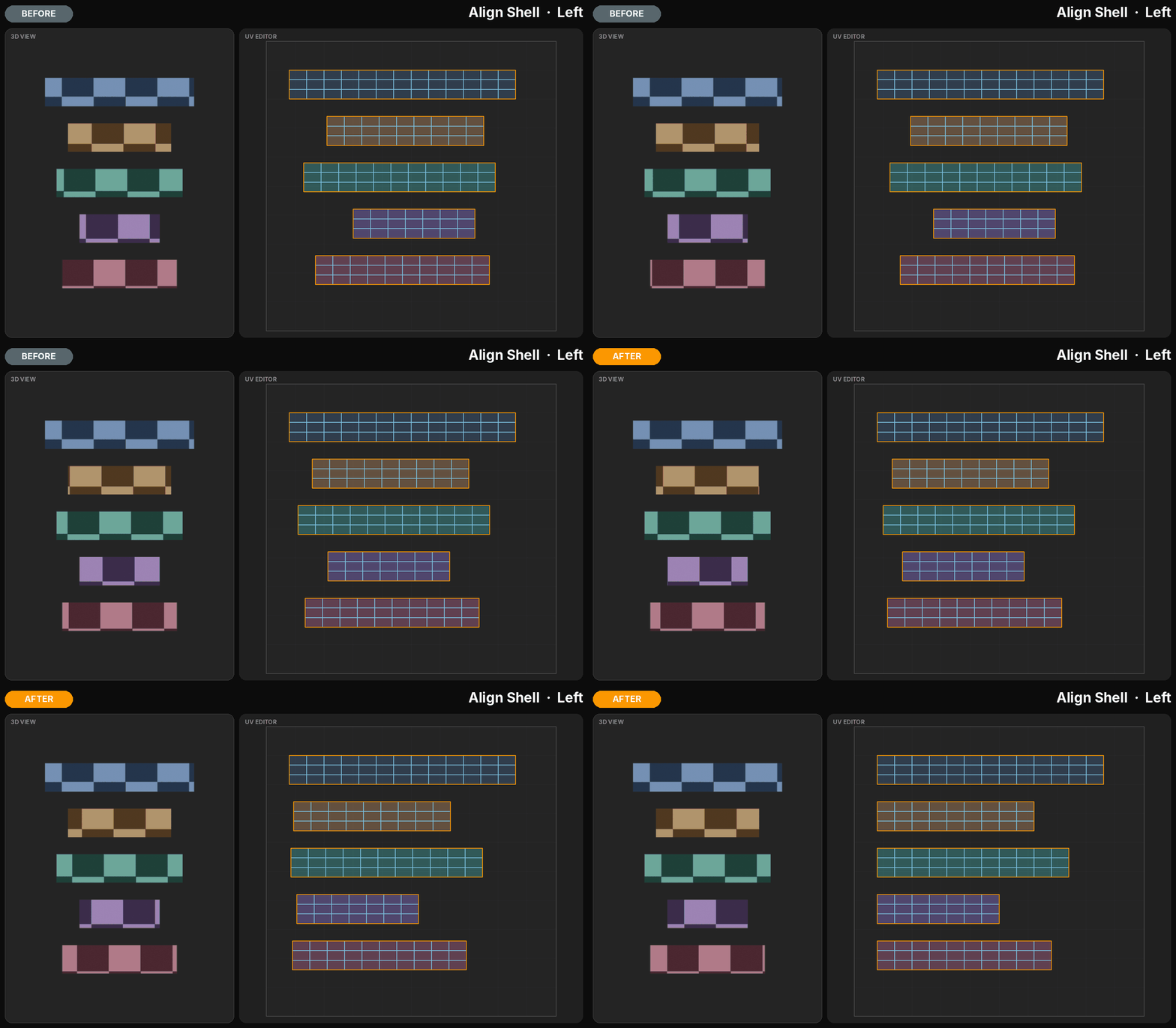
UV Edit Pro includes tools to align shells, distribute them with controlled spacing and identify similar islands for stacking or grouping.
Stack Similar and Group Similar use shell shape characteristics to identify matching candidates, while dedicated organization tools support more structured arrangements and UDIM workflows.
Whether you're aligning repeated components, organizing matching pieces or preparing a layout for packing, the goal is the same:
Less manual arrangement. More predictable results.
12 — MATCH UV
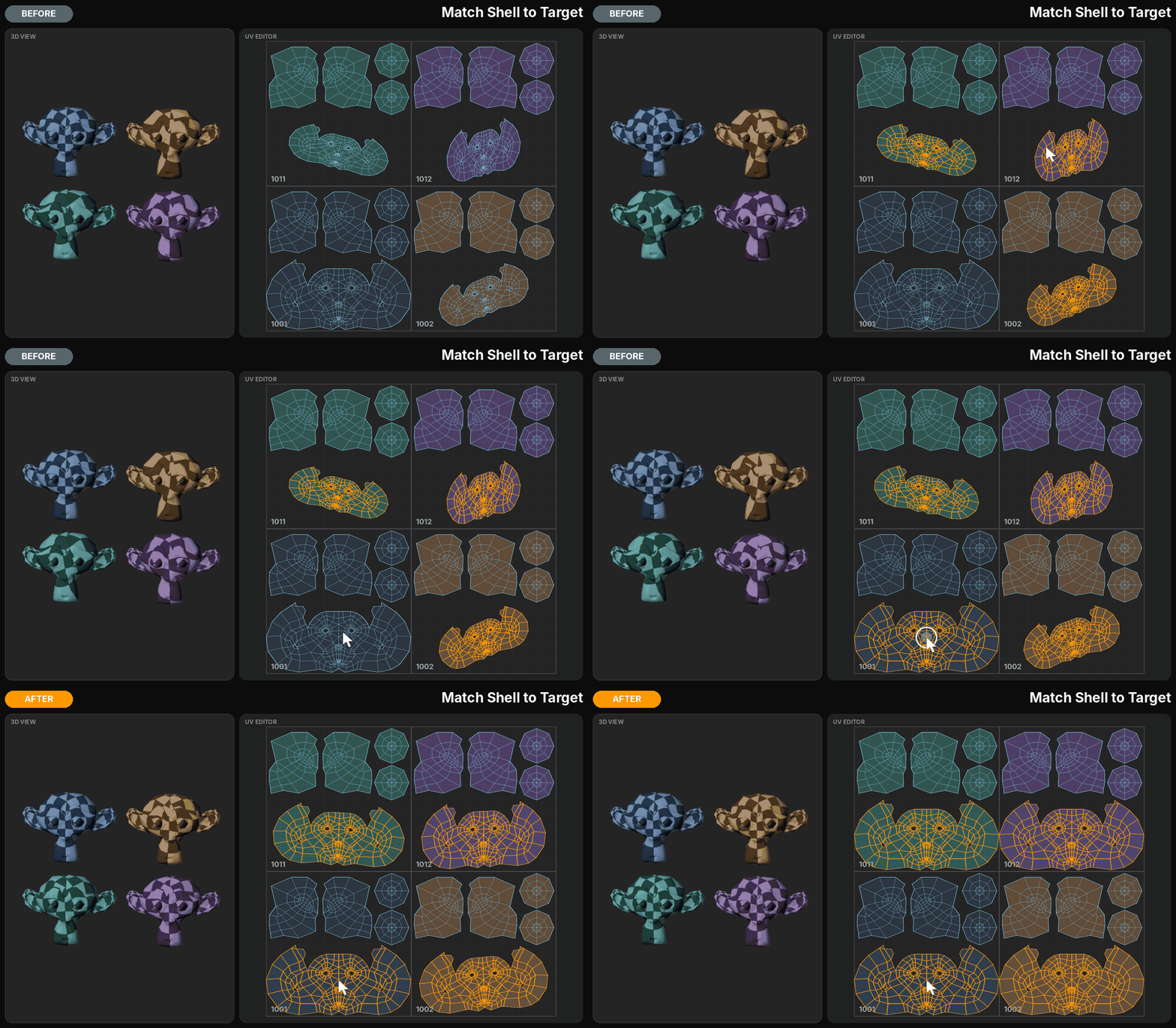
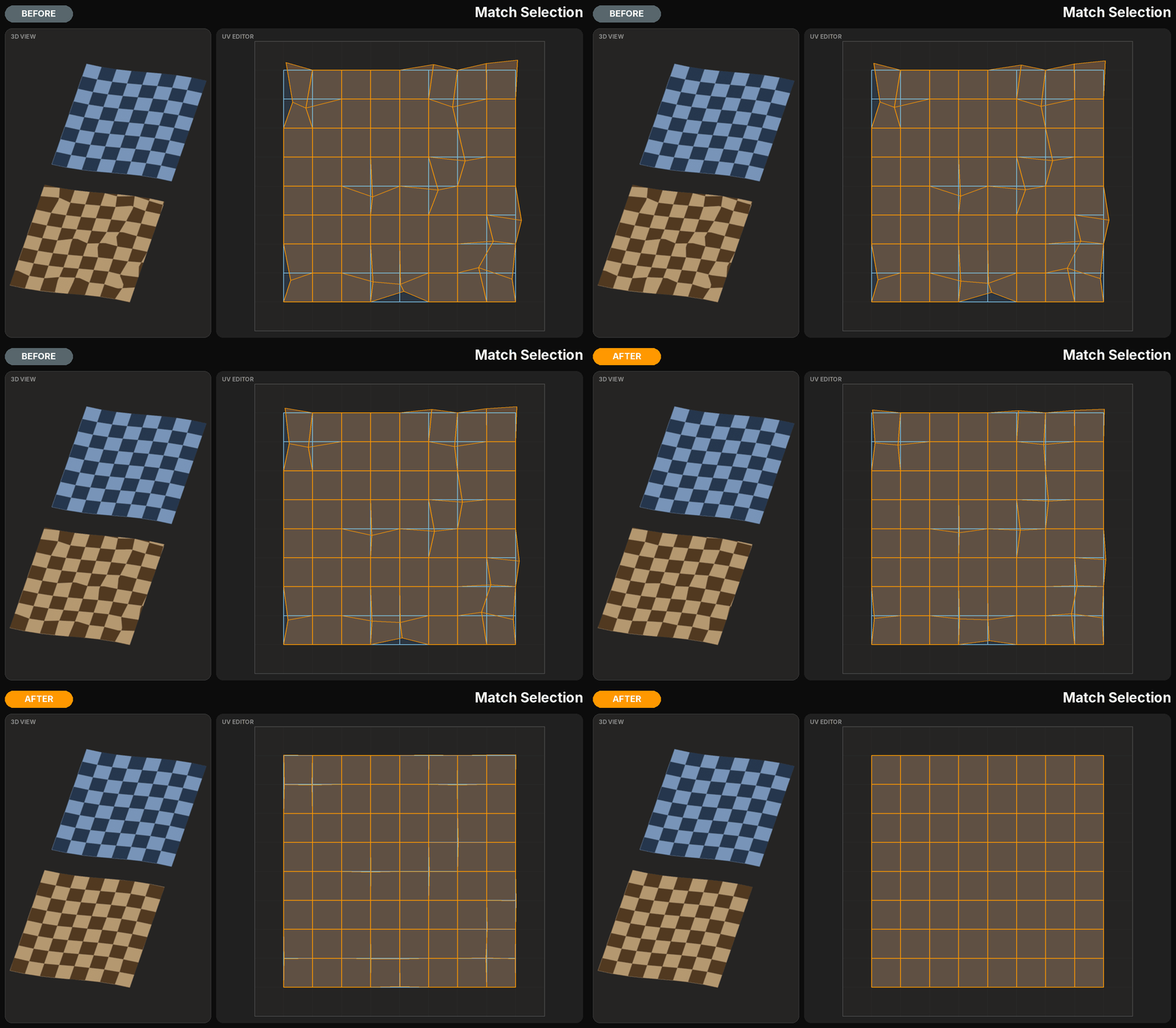
Transfer precision between shells.
Match Selection helps reposition selected UV vertices onto corresponding positions in an overlapping shell, using an adjustable matching range.
For complete islands, Match Shell to Target allows selected shells to adopt the UV arrangement of a target shell while retaining their individual positions.
These operations are particularly useful when correcting matching components or restoring consistency between related UV shapes.
Match what needs matching. Leave the rest untouched.
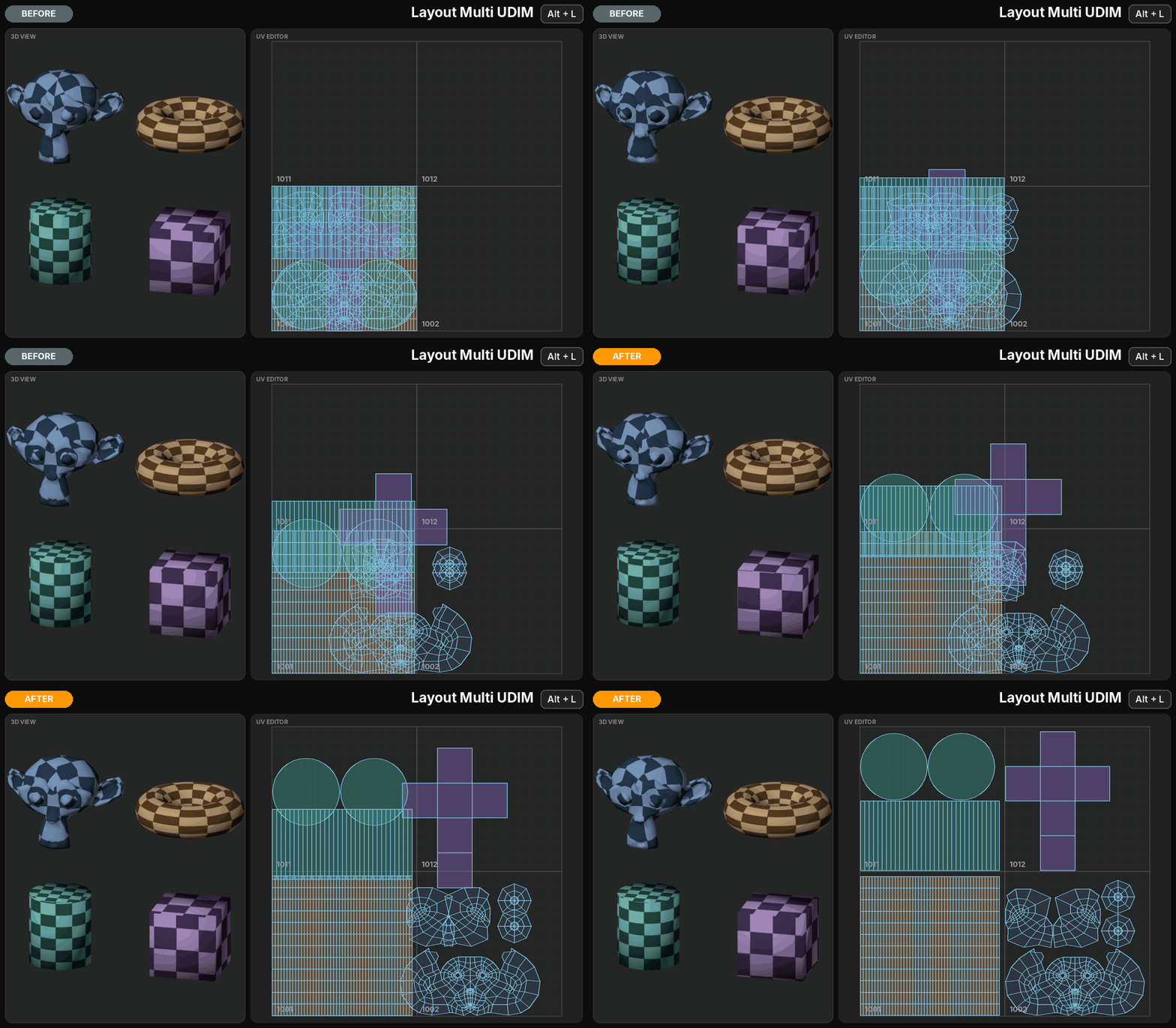
13 — SINGLE & MULTI UDIM LAYOUT
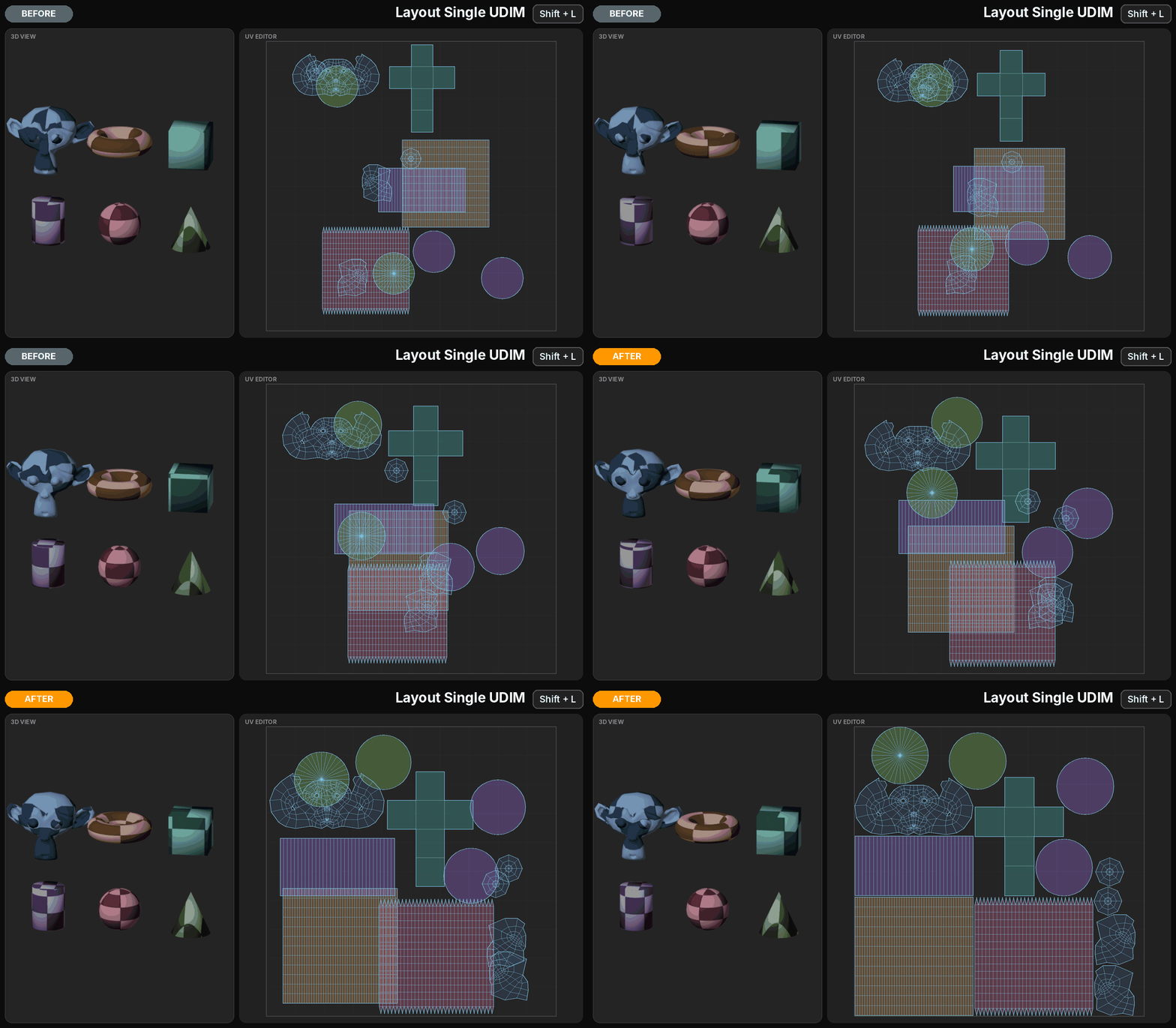
From individual shells to production-ready layouts.
UV Edit Pro brings multiple layout workflows into one consistent environment.
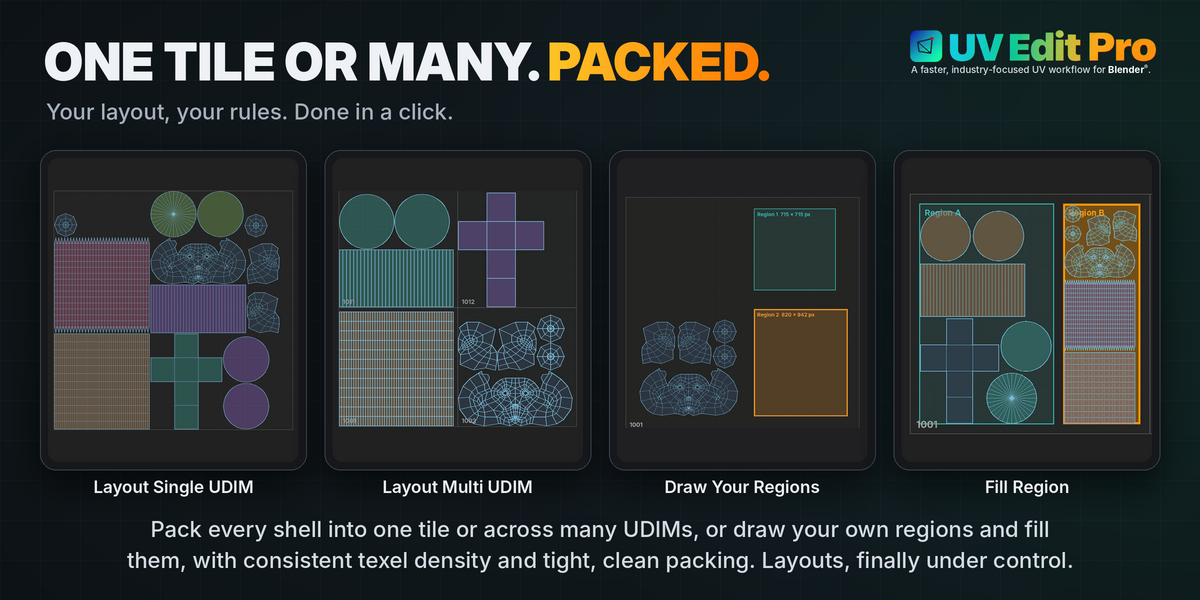
Layout Single UDIM integrates new packing functionality with controls for padding, rotation and shell organization.
Selected shells can also be packed into available space around an existing layout, leaving unselected islands in place.
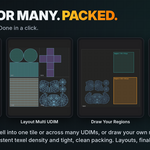
For larger assets, Layout Multi UDIM distributes shells across multiple tiles, with options for grouping, packing quality and consistent texel density.
14 — REGION CREATION & TEMPLATES
Design your UV space before filling it.
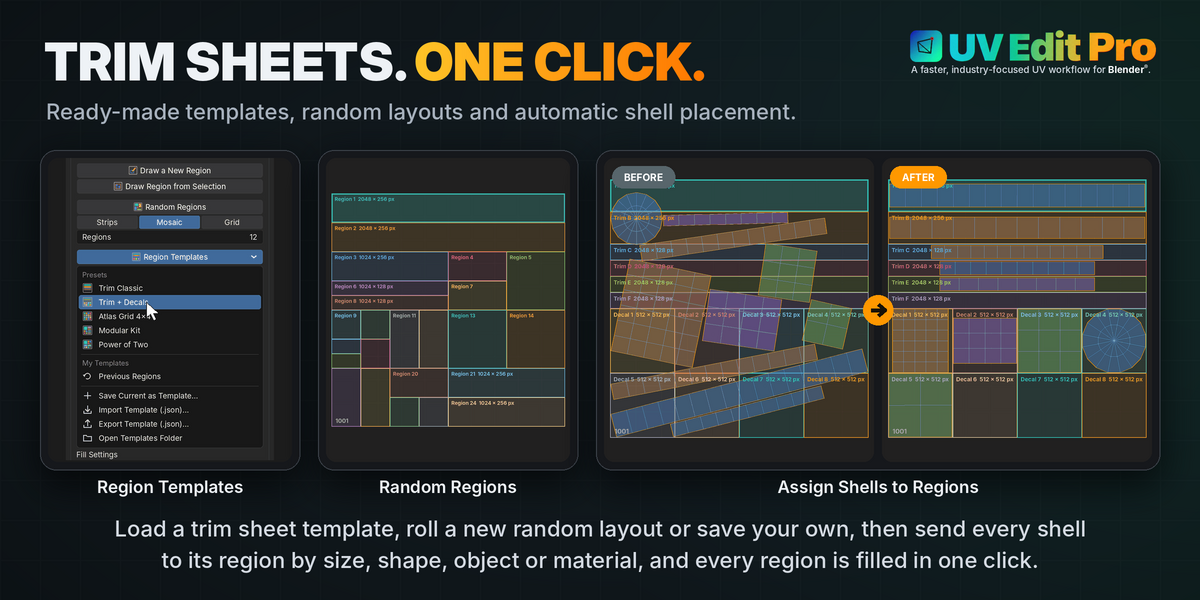
UV Edit Pro introduces a flexible region system for creating structured UV layouts, trim sheets and texture atlases directly inside Blender®.
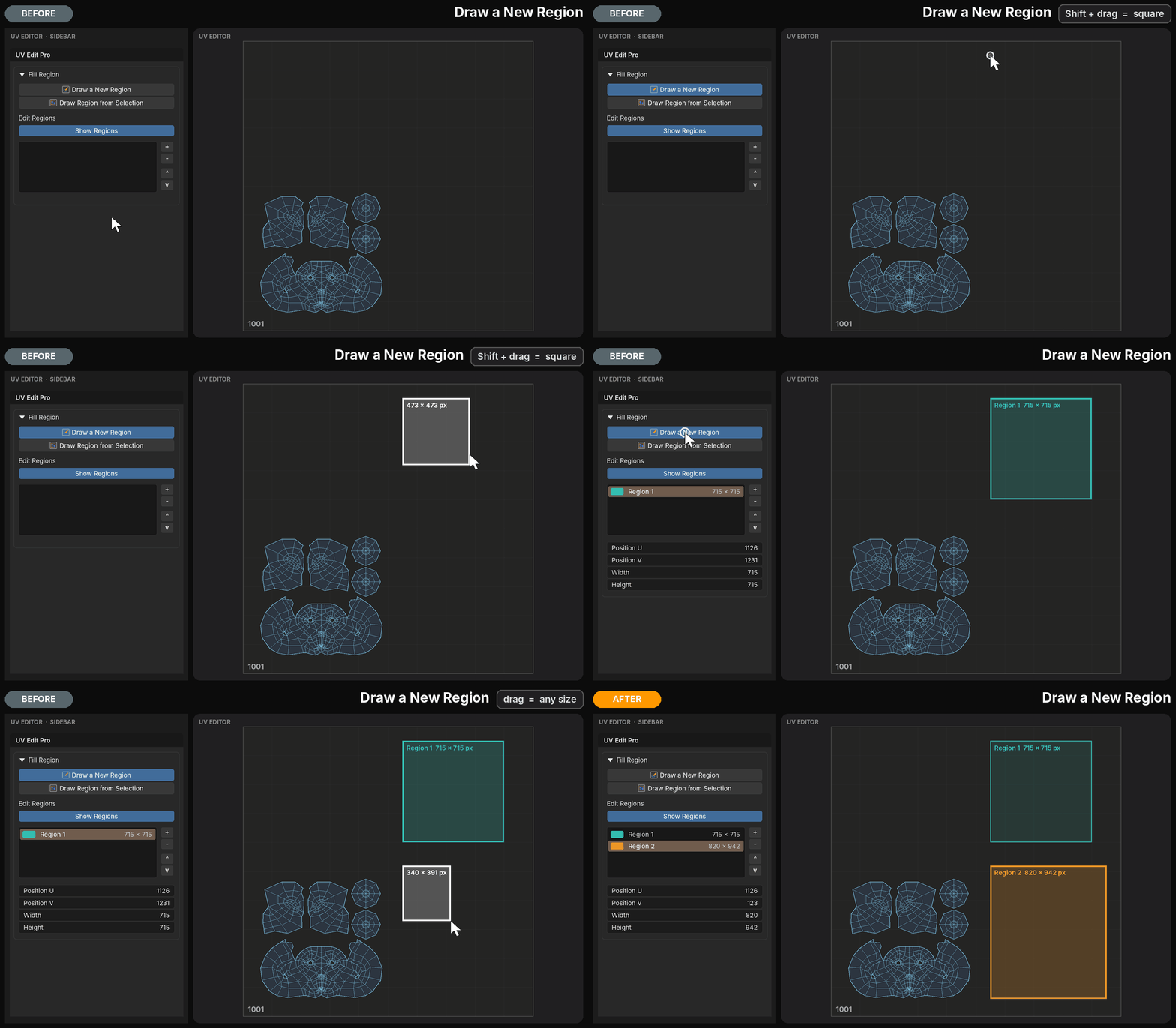
Draw a New Region lets you define rectangular areas interactively in the UV Editor, with pixel-accurate dimensions based on the selected texture resolution. Hold Shift to draw a square, or create a region directly from an existing UV selection.
Each region can be renamed, resized and repositioned numerically. Colored overlays display its boundaries, name and dimensions without affecting the UV shells.
Define the space. Keep full control over the layout.
Random Regions. Structured possibilities.
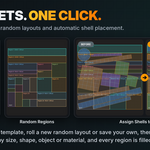
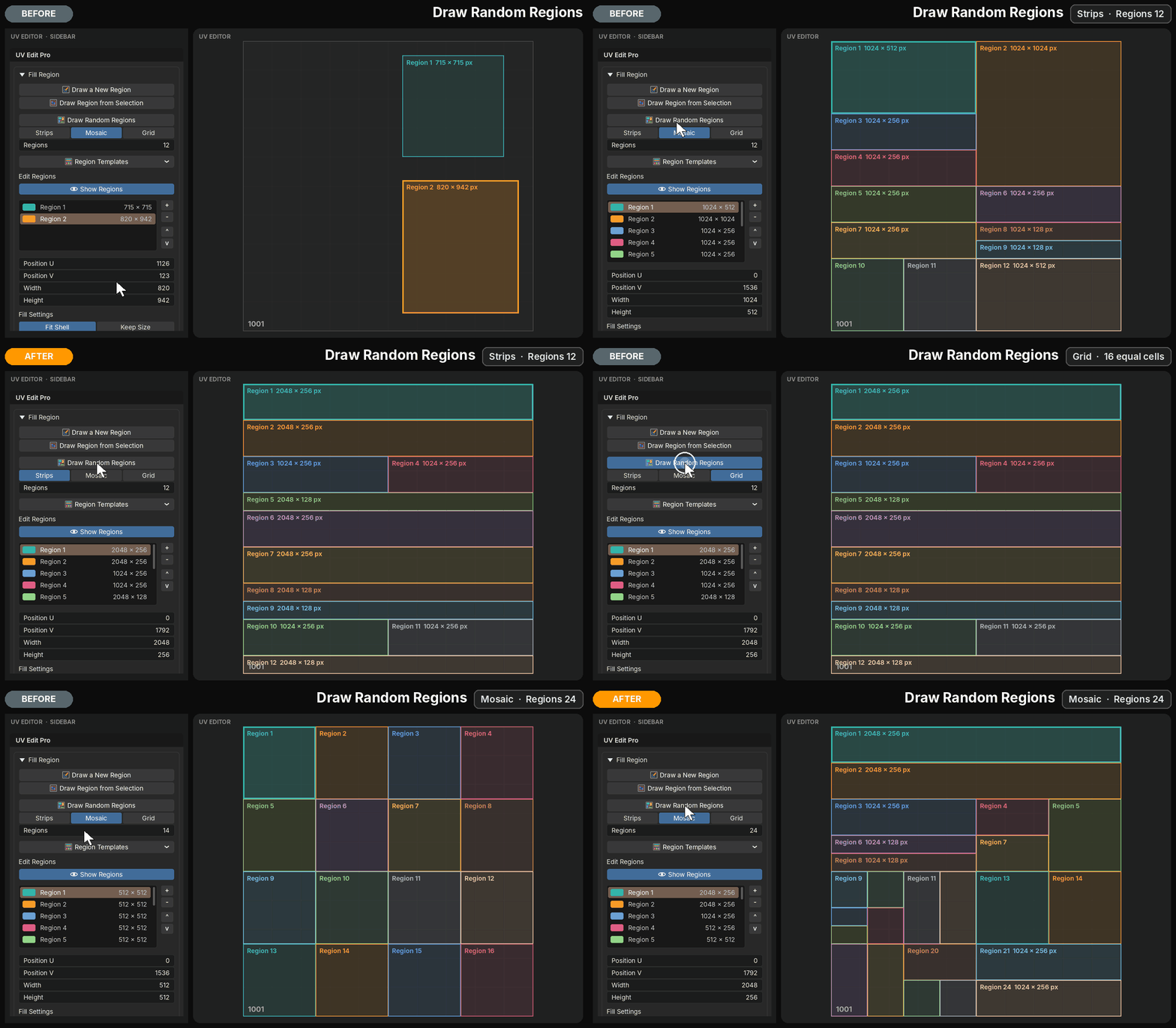
Draw Random Regions generates complete region layouts in a single click, using three distinct styles:
- Strips — horizontal trim-style regions with varying heights and subdivisions.
- Mosaic — mixed-size rectangular regions arranged through progressive subdivision.
- Grid — evenly sized cells for regular atlas layouts.
Regions follow power-of-two subdivisions, align to whole texture pixels and cover the UV tile without overlaps.
Generate another arrangement whenever you need a different starting point, or restore the previous regions from the template menu.
Region Templates. Ready when you need them.
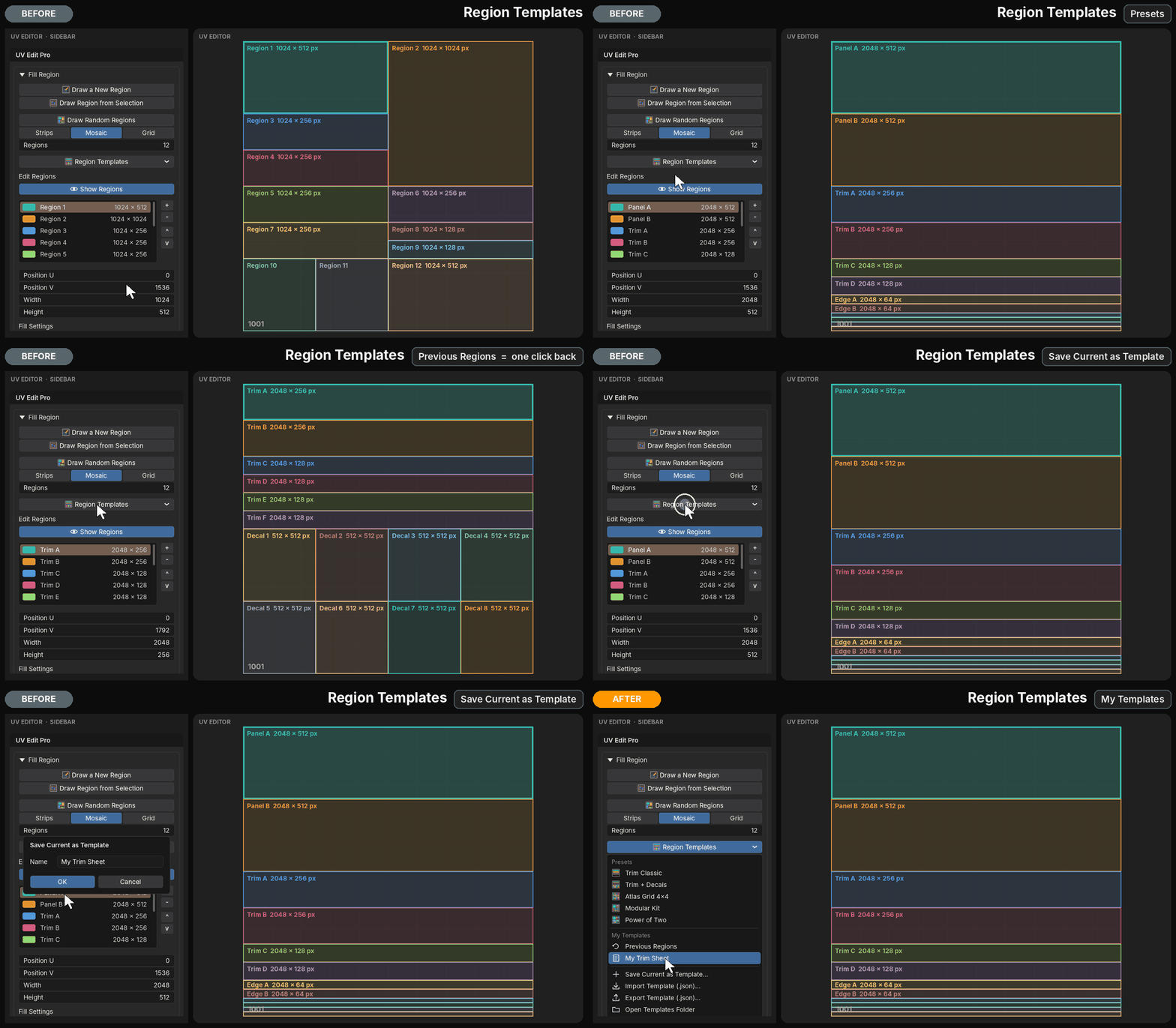
UV Edit Pro includes five predefined layouts for common production scenarios:
- Trim Classic — horizontal strips for tiling trims, edges and bevels.
- Trim + Decals — a combination of tiling strips and square decal areas.
- Atlas Grid 4×4 — sixteen equal cells for organized texture atlases.
- Modular Kit — dedicated regions for hero pieces, smaller components and strips.
- Power of Two — a hierarchical arrangement of power-of-two blocks.
Save your own region layouts as reusable templates, import or export them as JSON files and access them across different Blender® projects.
Build once. Reuse across assets.
15 — REGION-BASED UV LAYOUT
Pack shells into precisely defined areas.
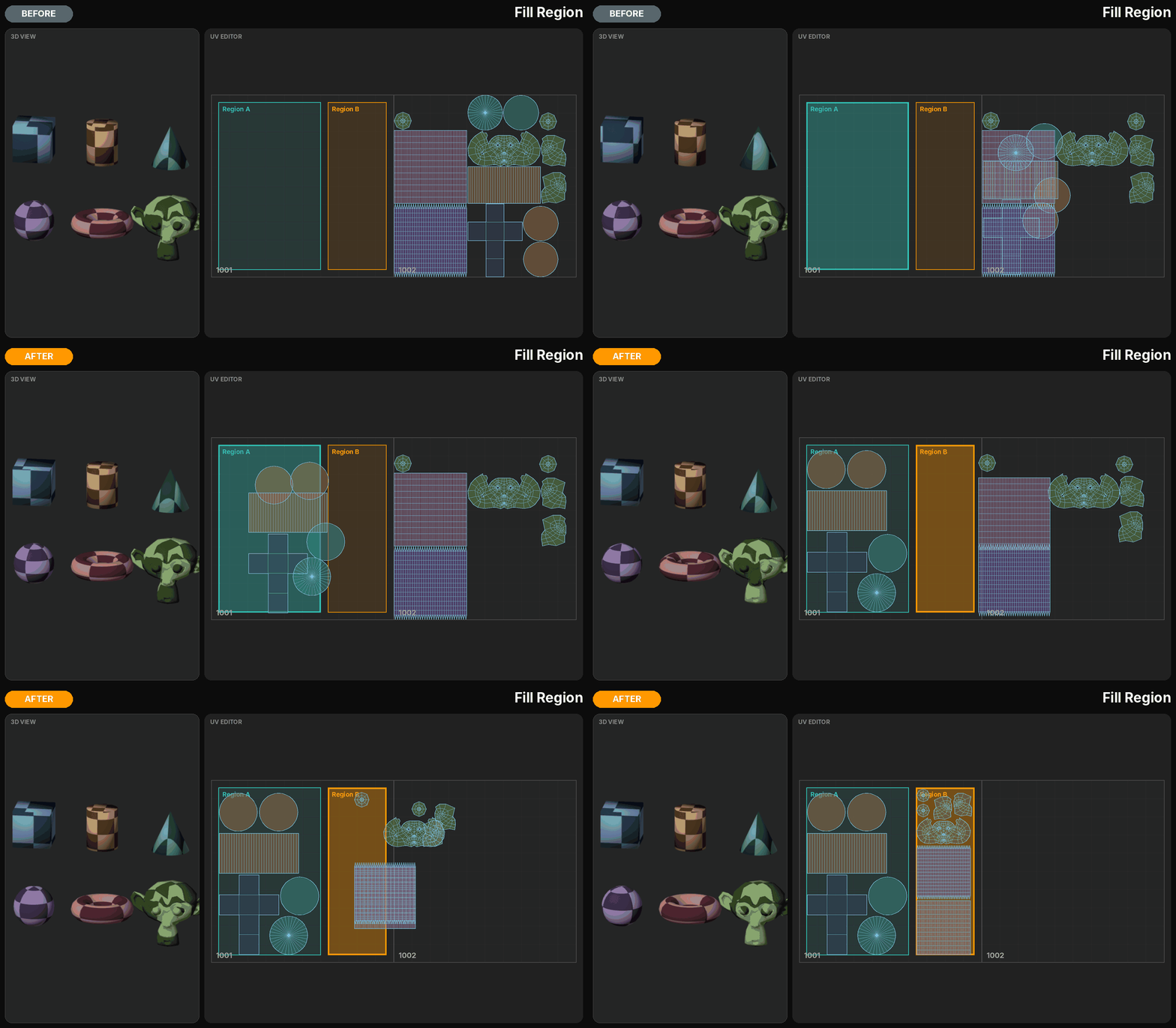
Fill Active Region with Selection packs selected UV shells inside a chosen region, respecting its boundaries and the specified pixel padding.
Choose Fit Shell to scale the selection uniformly for the available space, or Keep Size to preserve the current shell dimensions. If the selection cannot fit at its original size, the operation leaves it unchanged.
Fill Gaps uses the actual shell shapes to make better use of available space, while Lock Rotation preserves texture orientation. Optional Equal Texel Density and a dedicated Region Padding provide additional control.
Adjust packing quality and time limits according to the complexity of the selection.
Pack where you want, without rebuilding the surrounding layout.
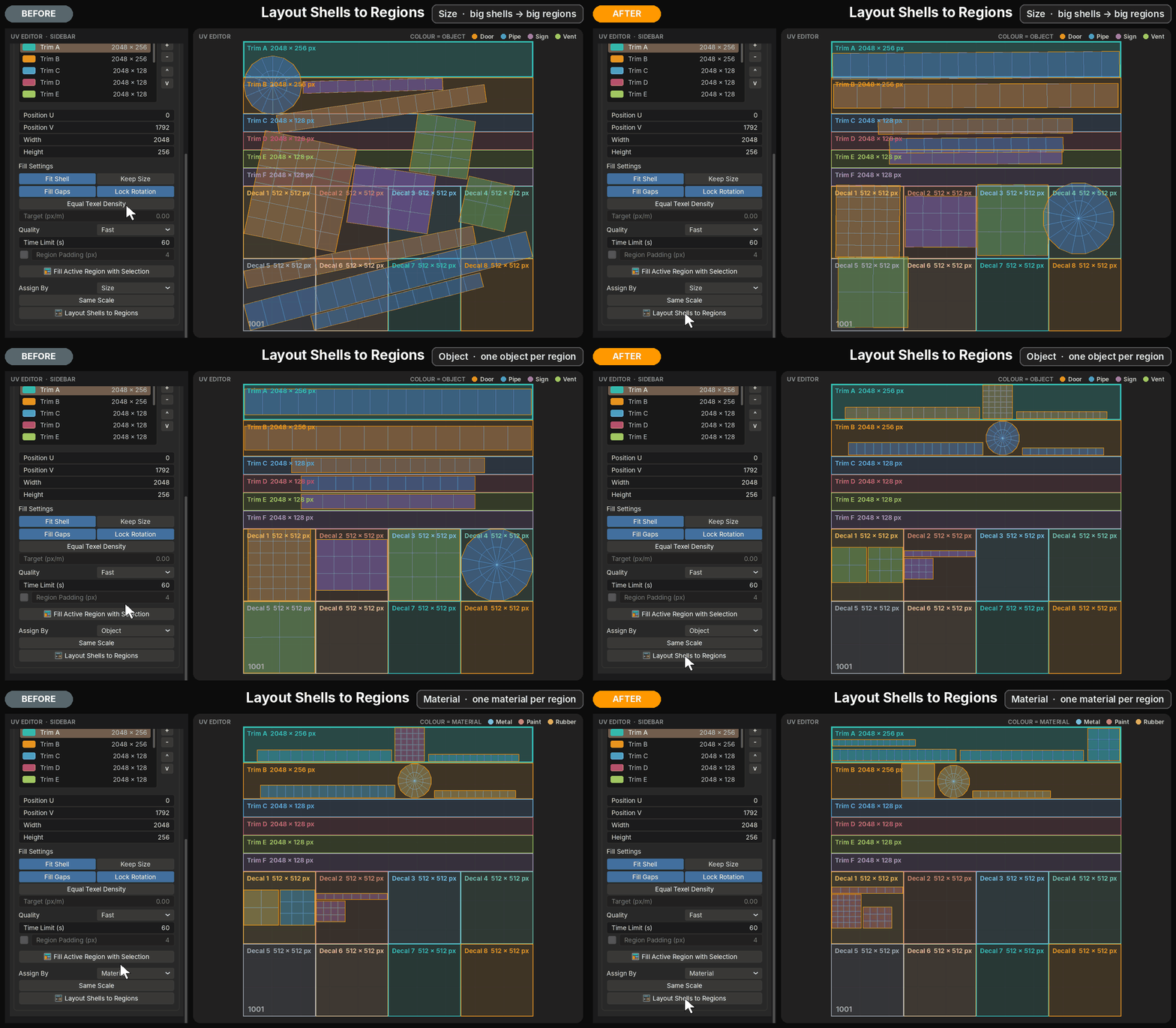
Layout Shells to Regions. One-click distribution.
Layout Shells to Regions automatically assigns selected UV shells to the available regions, then packs them according to their assigned space.
Choose how shells are distributed with Assign By:
- Size — matches shells to regions according to their dimensions and proportions.
- Shape — prioritizes proportions, placing elongated shells into strips and more compact shells into suitable rectangular areas.
- Object — keeps the shells belonging to each object together in one region.
- Material — groups shells sharing the same material into a region.
Enable Same Scale to preserve relative shell sizes across regions, or allow each region to use its available space independently.
Combined with Equal Texel Density, this provides a controlled way to maintain consistent texture resolution across an atlas.
Load a template, select your shells and distribute them across the defined regions in one operation. Individual regions can still be refined afterwards.
From region design to organized UV layout. Directly inside Blender®.
16 — TRANSFORM, ORIENTATION & SMART GIZMO
Everyday operations, immediately accessible.
Moving, rotating, scaling and orienting UV shells are among the most frequent operations in UV editing.
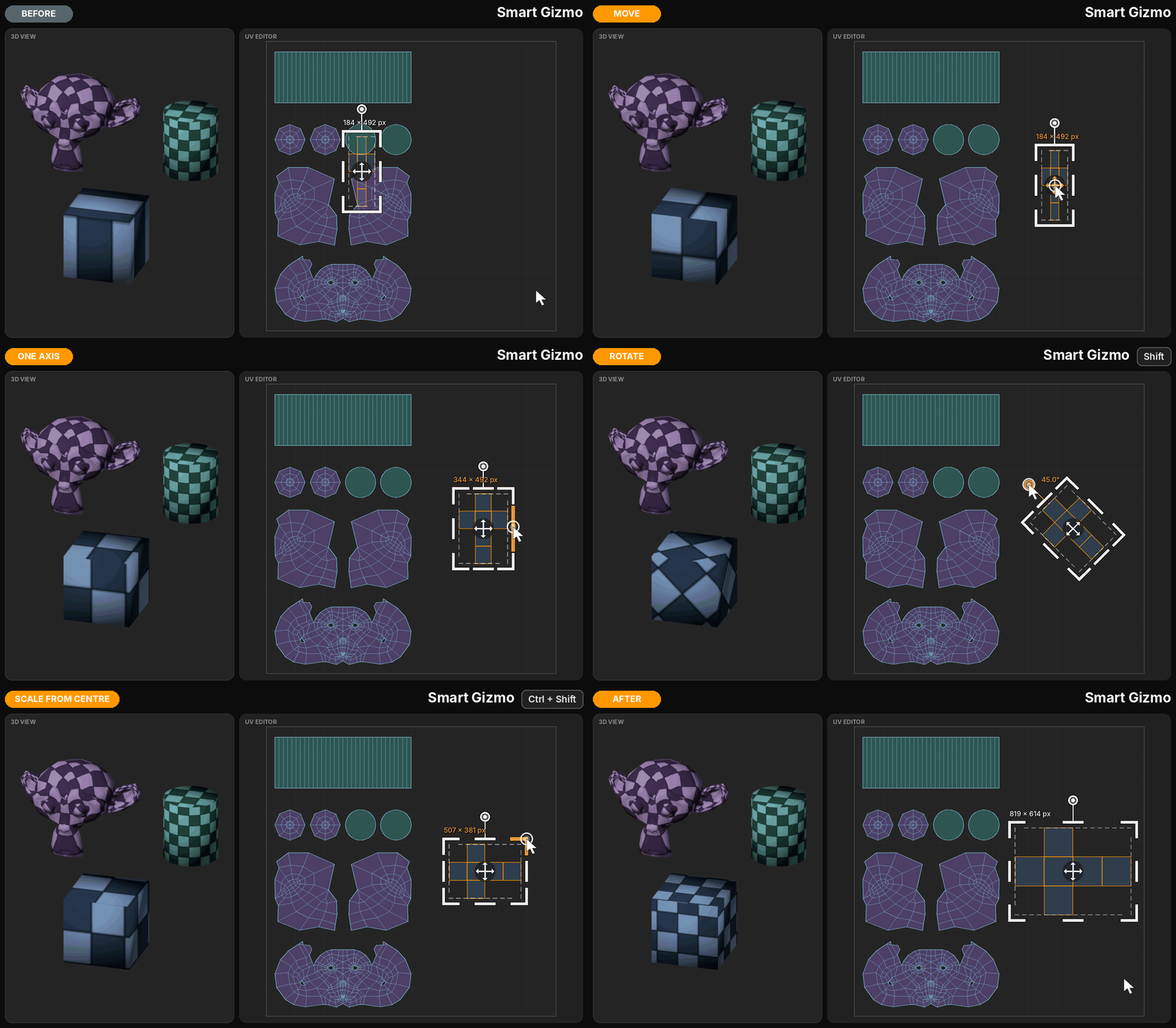
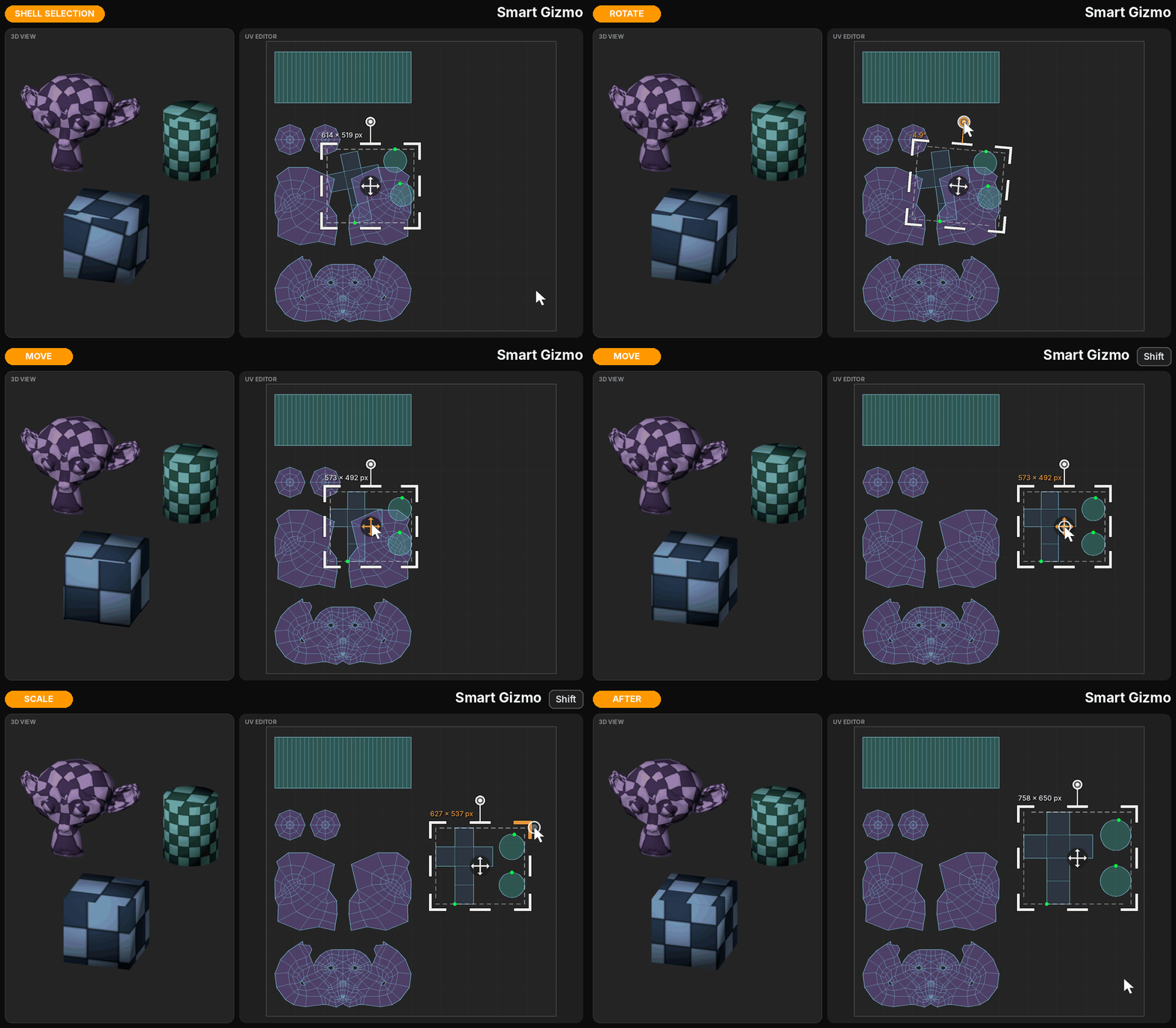
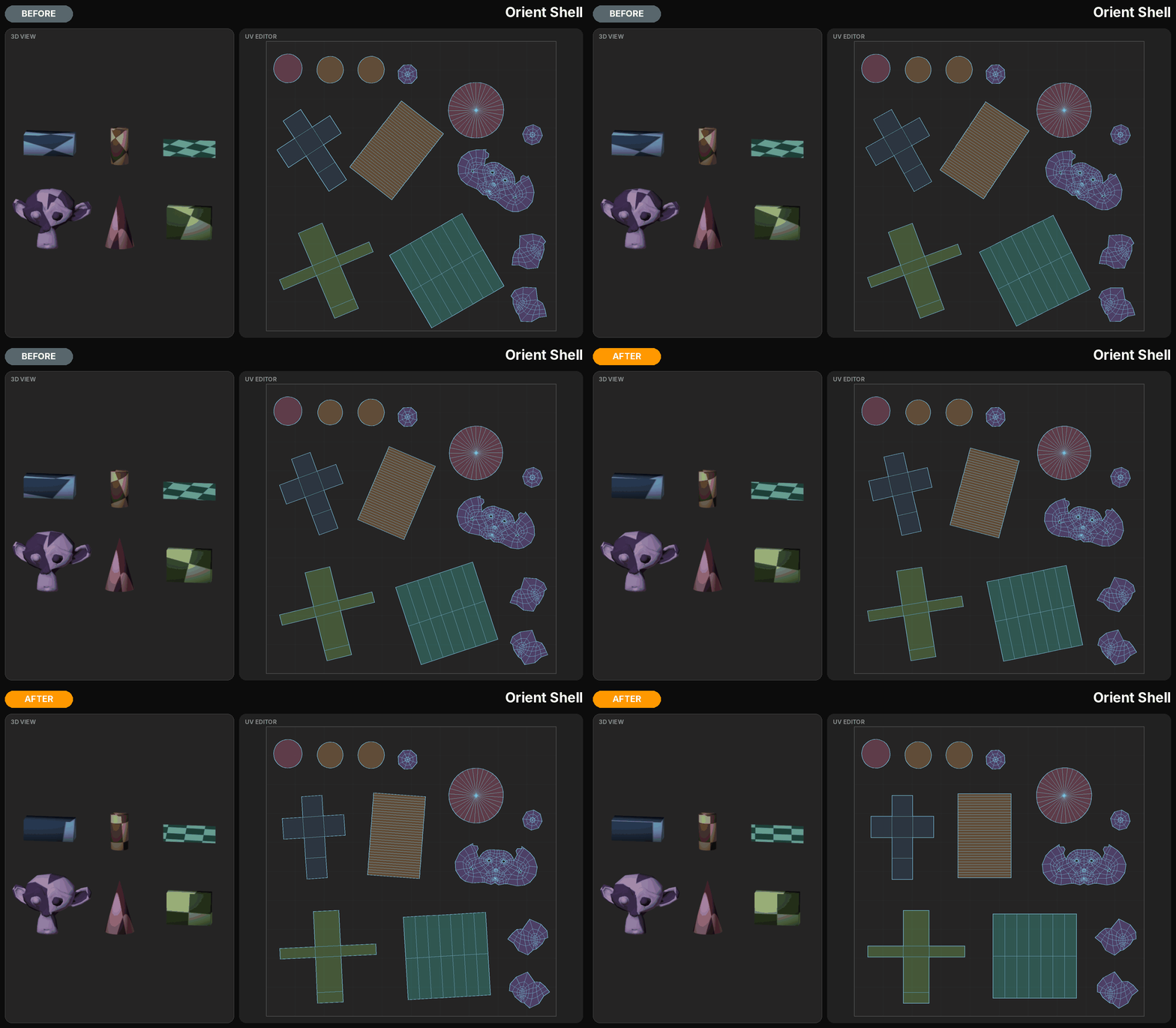
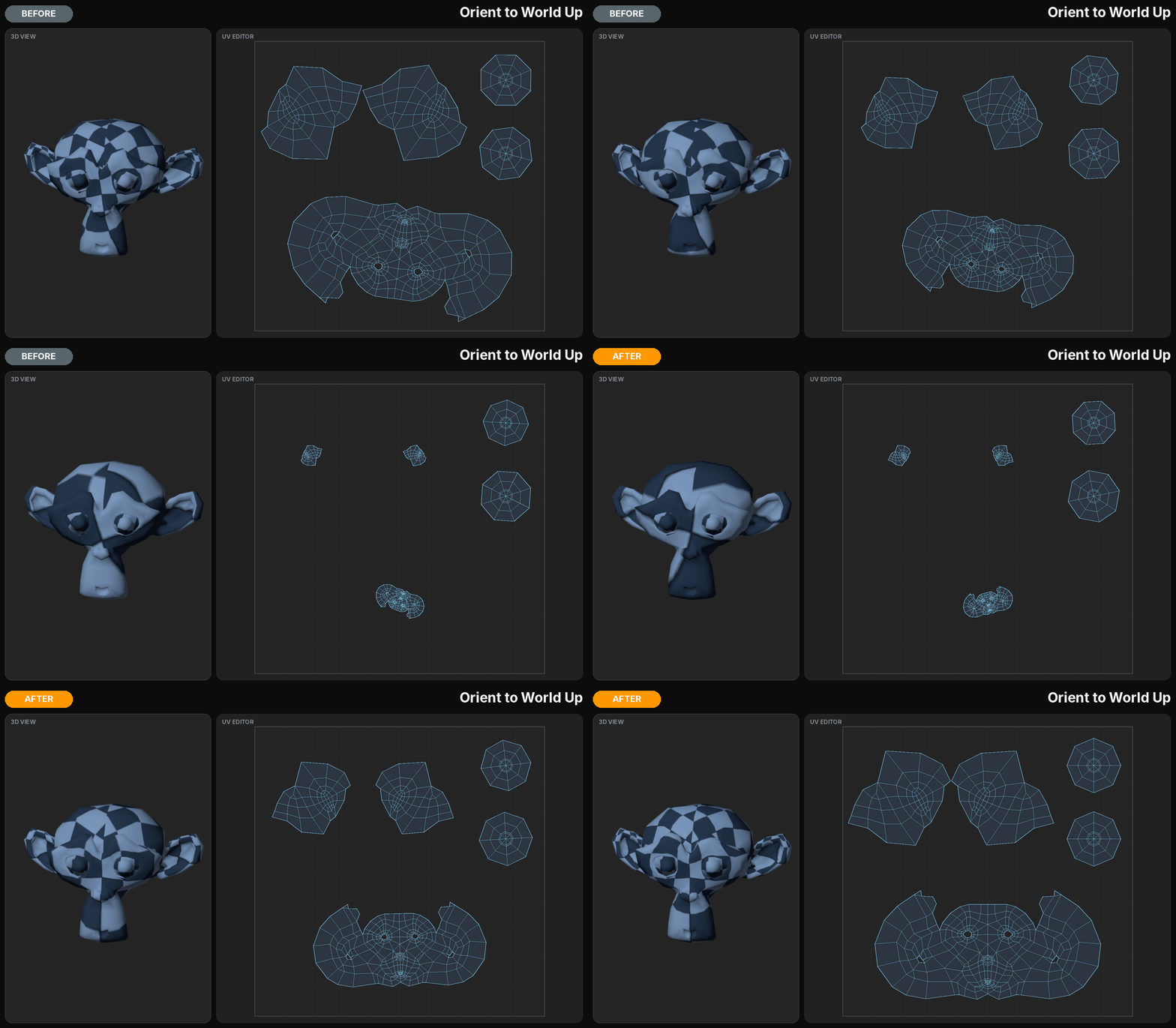
UV Edit Pro brings these controls together in a dedicated section, including a directional move pad, one-click transforms and orientation tools based on shells, selected edges or world direction.
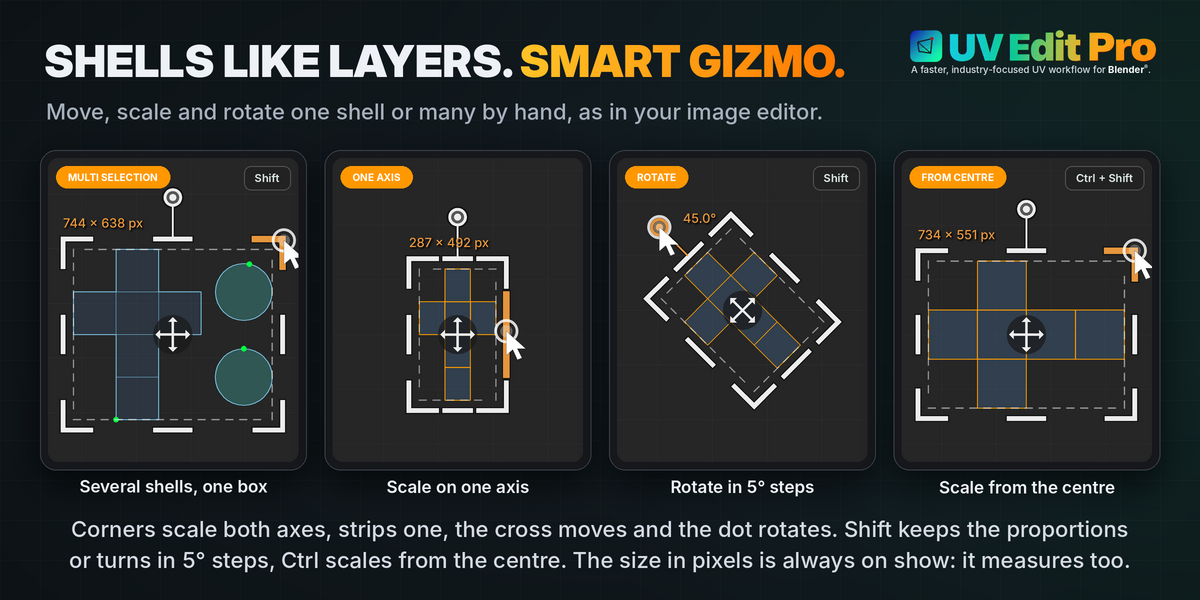
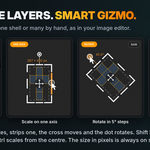
The new Smart Gizmo takes direct manipulation further with an interactive bounding box for moving, scaling and rotating entire UV shells or individual selections — complete with live pixel measurements, precise transform controls and seamless selection.
Transform your UVs as naturally as working with layers in an image editor. Full control, directly in the UV Editor.
Dedicated operations also help identify and correct flipped UV shells.
Small adjustments should remain small tasks.
17 — UV MAPS
Manage, transfer and organize UV sets.
UV Edit Pro brings UV map management directly into the editing workflow, reducing the need to navigate between the UV Editor and Blender®'s Object Data Properties.
Add, Remove and Rename UV layers from a dedicated interface, with direct access to the active UV map.
Copy & Paste UV transfers UV layouts between compatible objects, making it useful for asset variations and duplicated geometry.
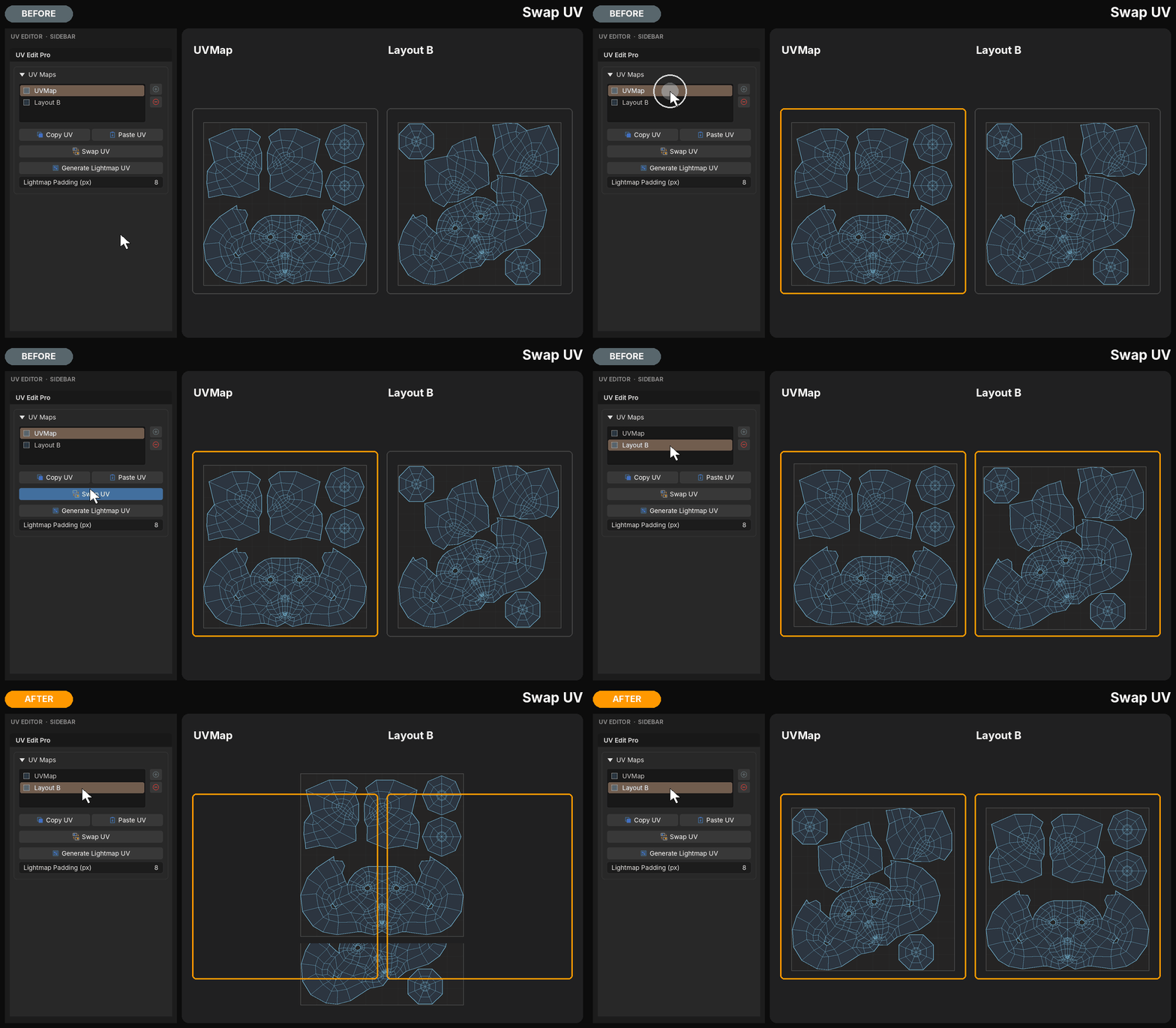
Swap UV exchanges UV data between maps, providing direct control over existing UV sets without manually rebuilding their contents.
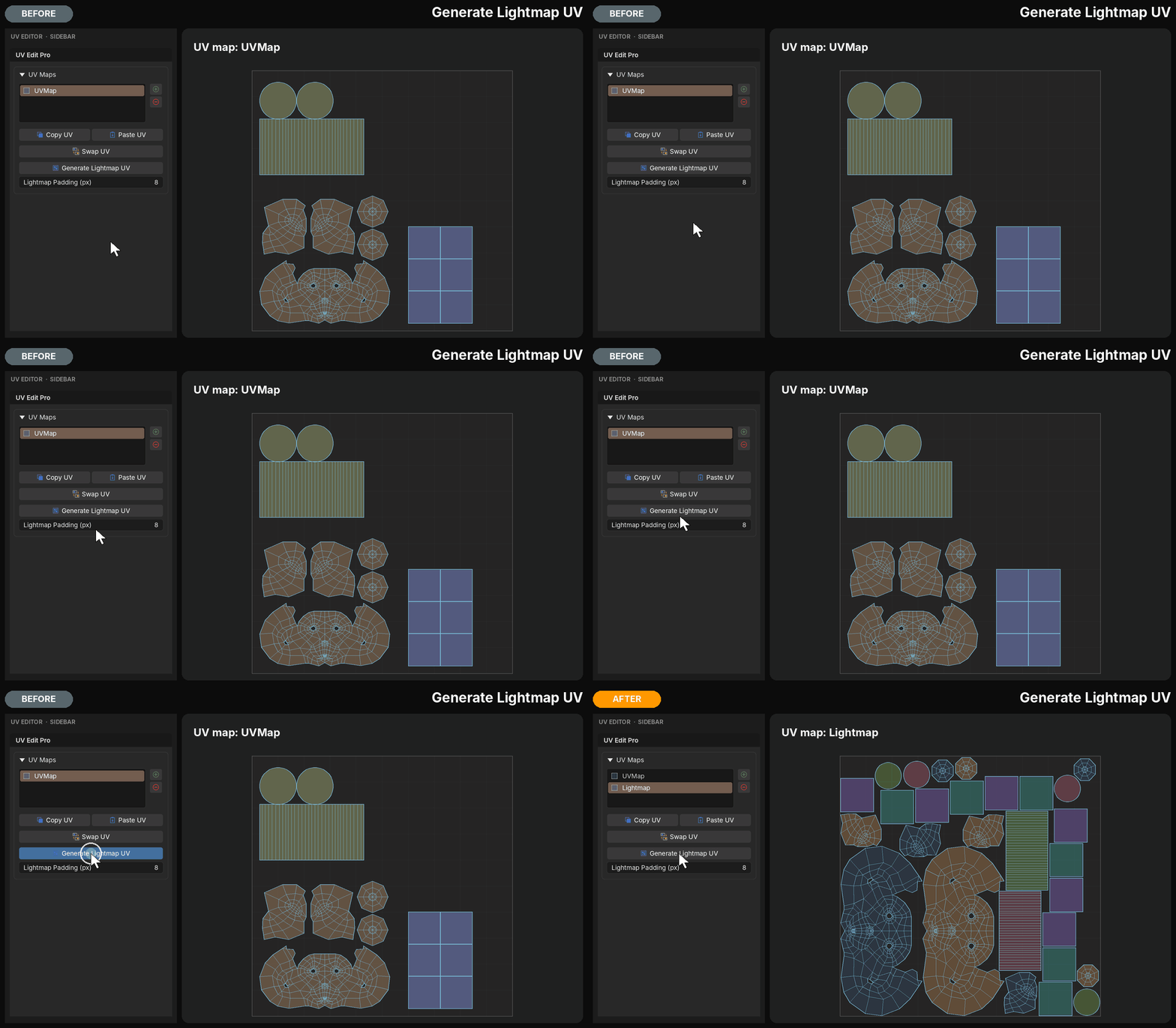
Generate Lightmap UV creates a dedicated UV layout for lightmapping, keeping it separate from the original texture UVs.
From everyday UV layer management to transferring and preparing additional UV sets, the tools remain accessible within the same workflow.
Multiple UV sets. One consistent workflow.
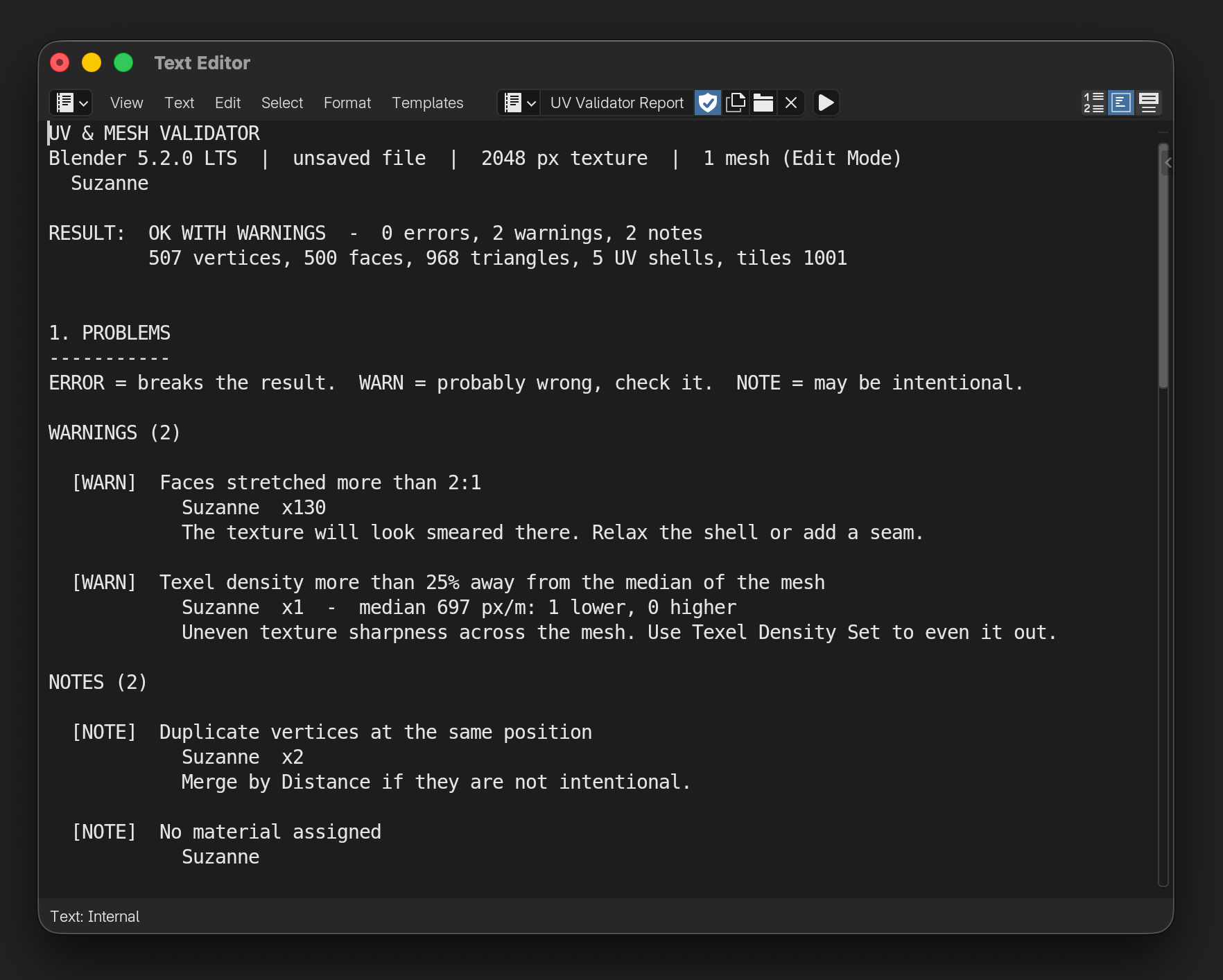
18 — UV & MESH VALIDATOR
Inspect the asset before delivery.
A finished UV layout is only one part of a production-ready asset.
UV & Mesh Validator provides a structured inspection of UVs, mesh properties, materials and texture references in a single operation.
It checks for issues such as missing or collapsed UVs, overlapping regions, insufficient padding, inconsistent texel density, flipped or mirrored shells, seam mismatches, unapplied scale and missing UDIM tiles.
Findings are organized by severity — Error, Warn and Note — with explanations to help artists identify what requires attention.
The generated report can be reviewed and shared as part of an asset review process.
The validator does not modify the scene.
Find issues before they become production problems.
19 — BUILT AROUND SPEED
Your tools, directly under your fingers.
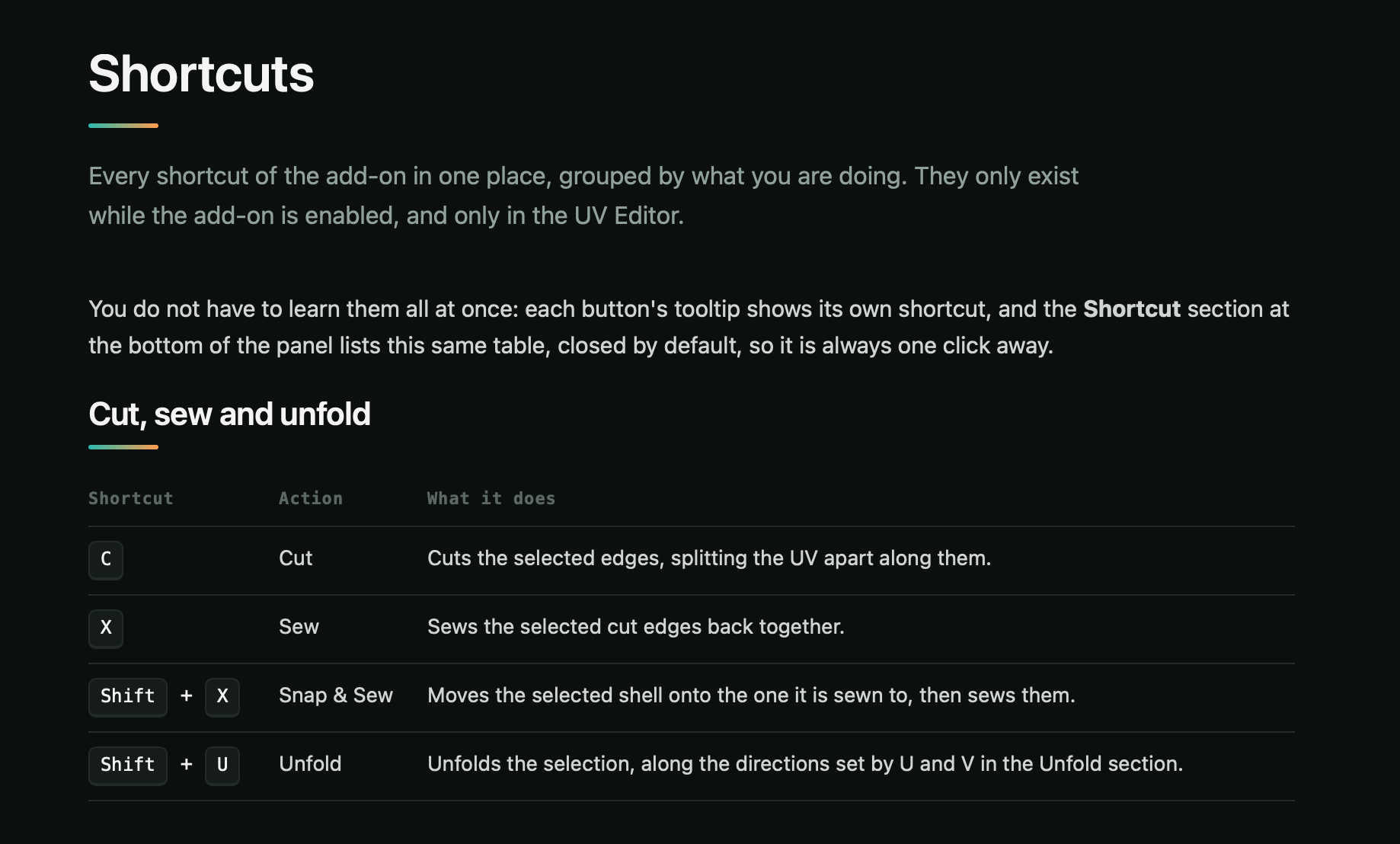
UV Edit Pro combines its organized panel with dedicated shortcuts for frequently used operations.
Cut with C. Sew with X. Double-click a face or edge to select its UV shell, with Shift and Ctrl modifiers for adding or removing shells.
Grow and Shrink selections ring by ring with Ctrl + Numpad + / −, access unfolding with Shift + U, and send shells to Layout with Shift + L.
The shortcuts complement the panel rather than introducing a separate workflow.
Fewer interruptions. More time editing.
ALSO INCLUDED
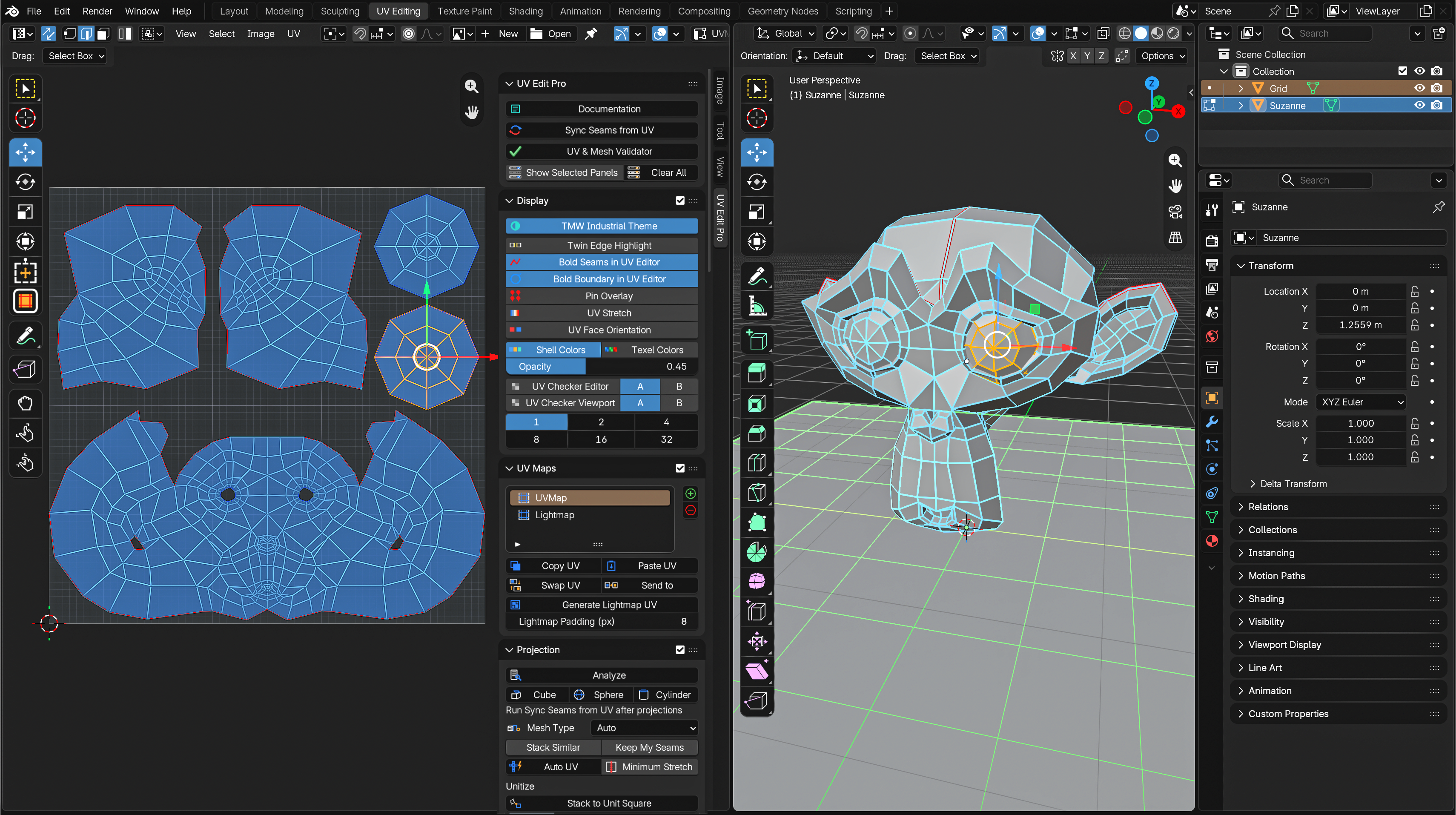
TMW INDUSTRIAL THEME
An optional Blender® interface theme inspired by established industry-standard DCC environments, designed to improve visual clarity, UI consistency and focus throughout the working experience.
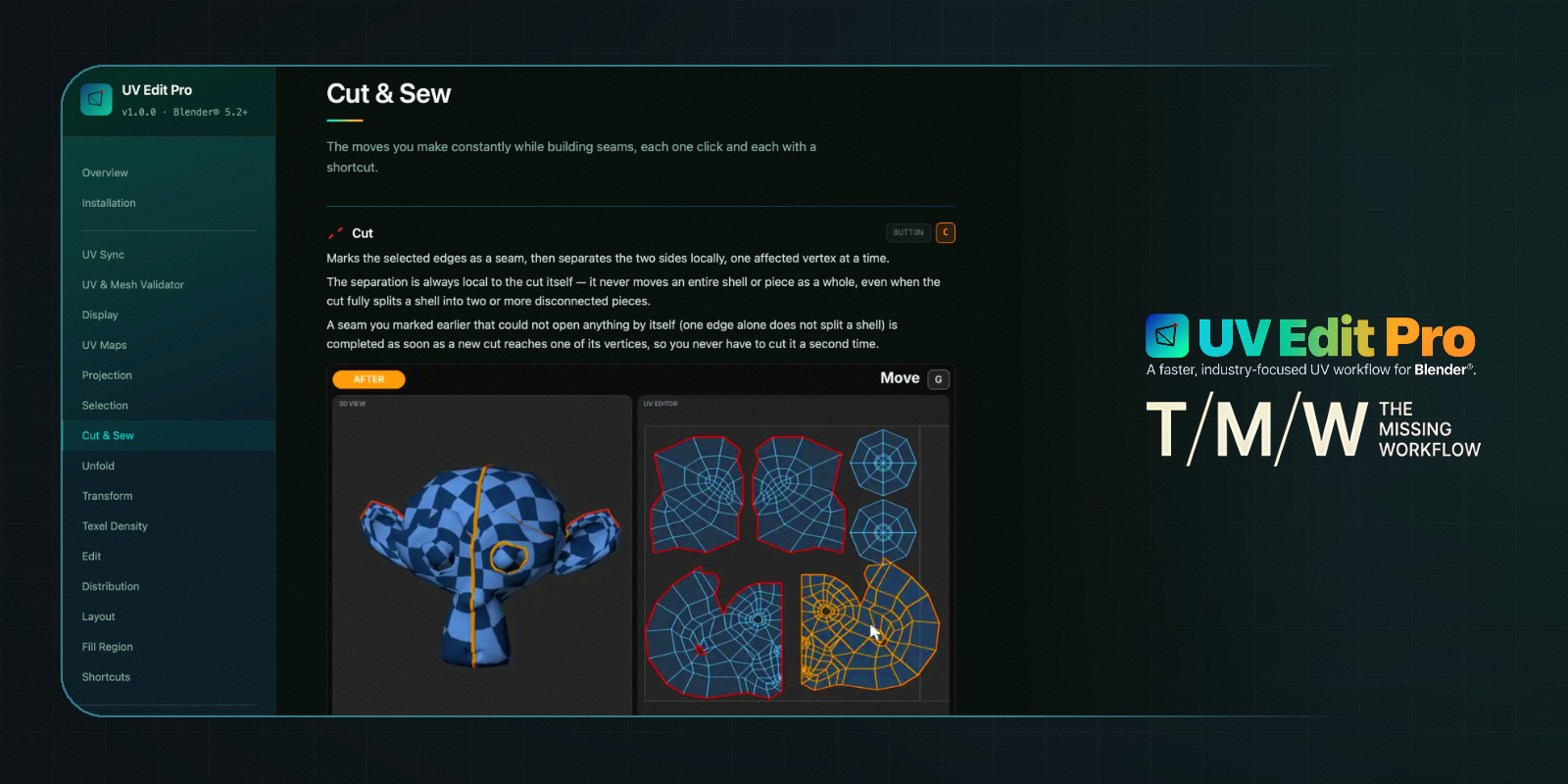
COMPLETE OFFLINE DOCUMENTATION
Comprehensive HTML documentation accessible directly from UV Edit Pro, with detailed explanations of individual operators, parameters, workflows and troubleshooting.
Built for the Work That Matters
UV Edit Pro doesn't try to do your UVs for you.
It gives you the tools to do them properly.
A production asset rarely needs every UV shell rebuilt. Sometimes you need to correct a stretched area, straighten a strip, match two shells, repair a seam or add new geometry to an existing layout.
Those changes should not require starting over.
UV Edit Pro is designed for precise, localized editing, allowing artists to work directly on the areas that need attention while preserving the parts of the layout that already work.
From the first projection to final validation, its tools are organized into a continuous workflow inside Blender®.
No external UV application required.
No export/import round-trips.
No need to rebuild an entire layout to correct a single problem.
Just the tools you need, exactly where you need them.
One workspace. One workflow.
Requirements: Blender® 5.2 or newer.
Installation: Single add-on package. No external dependencies.
Documentation: Complete offline HTML reference included.
T/M/W — The Missing Workflow.

If you've made it this far, you clearly care about your UVs. I think we'll get along.