 Blood Pixel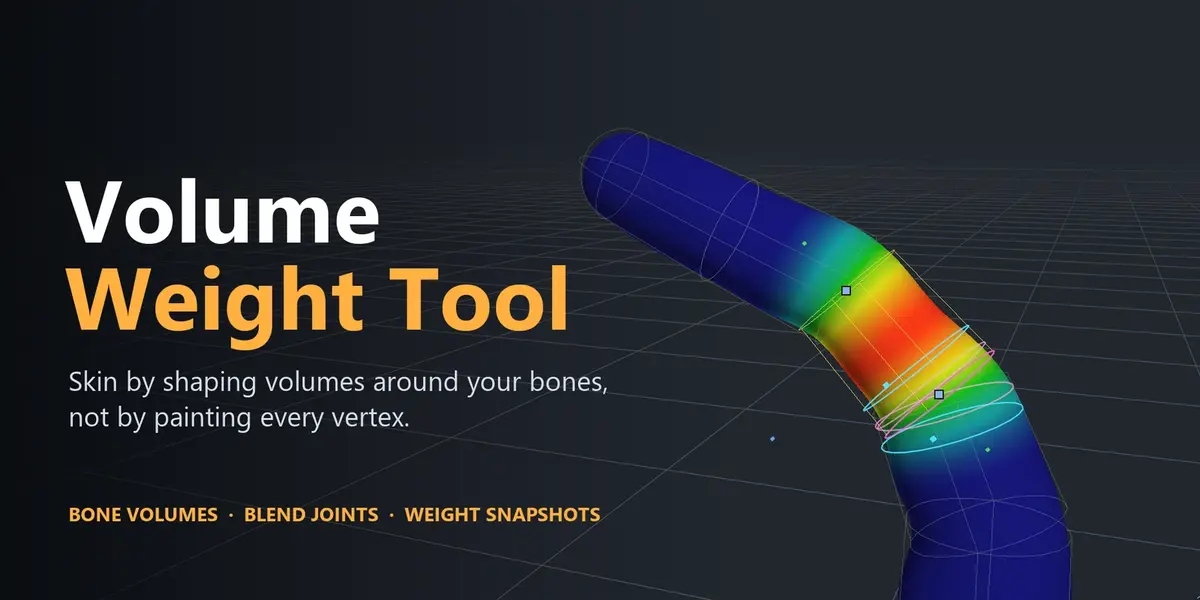
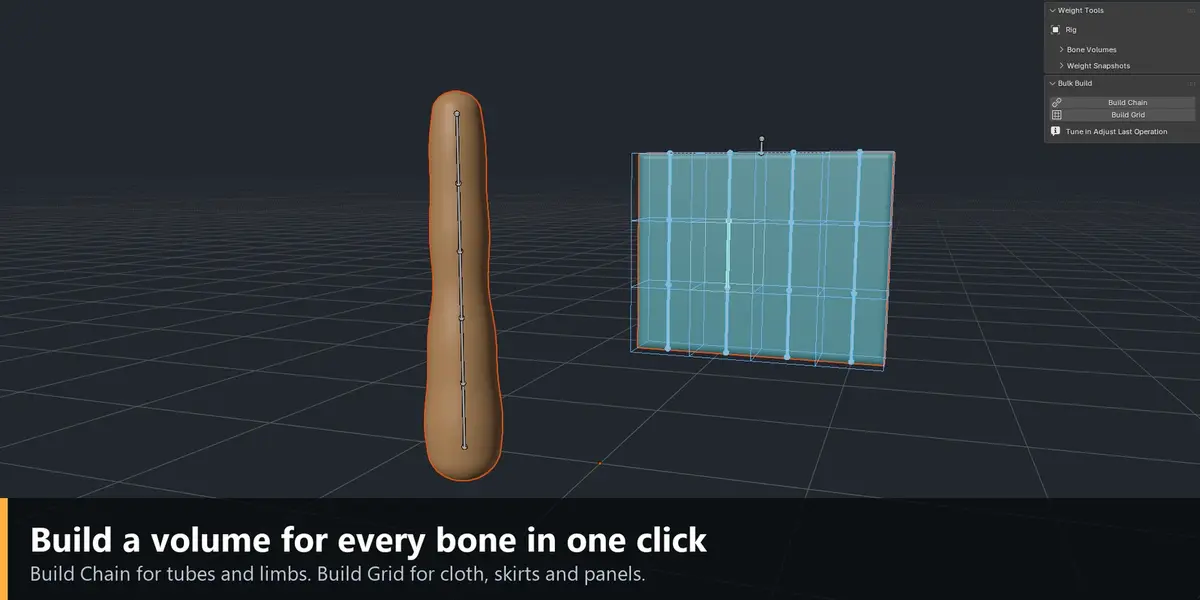
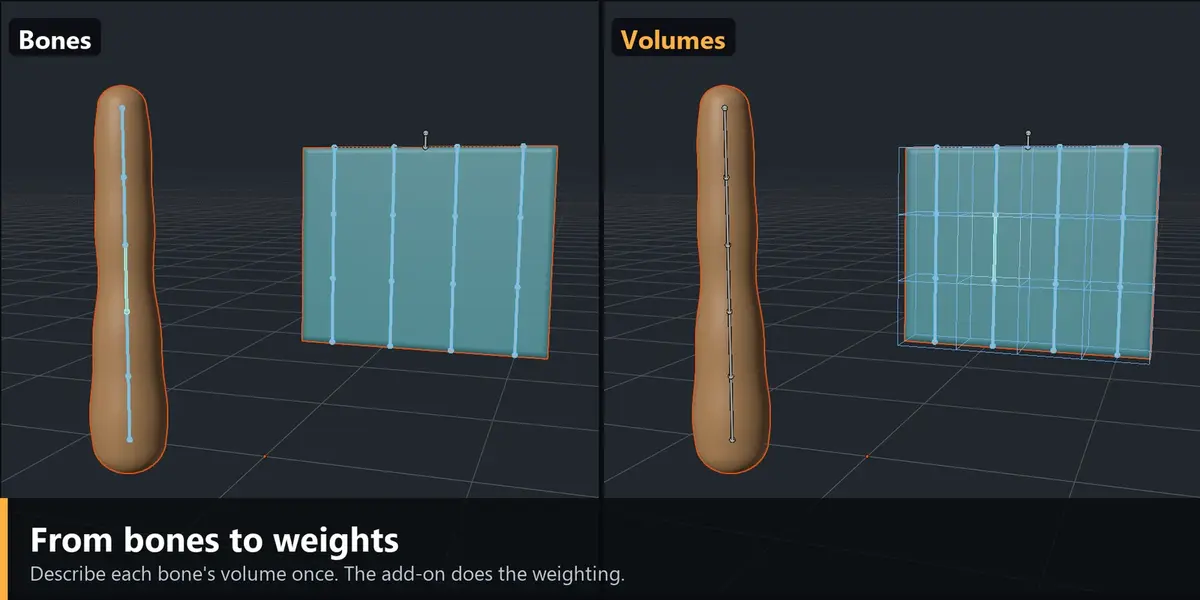


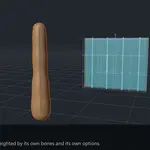

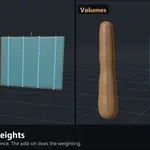
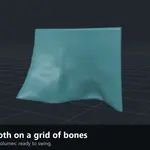
Volume Weight Tool weights your characters the other way round. Instead of painting every vertex, you give each bone a simple volume (a capsule, a tube, a box) and the add-on turns those volumes into vertex weights. Resize a volume and the weights follow, live.
Three tools, one workflow
1. Bone Volumes
- Build Chain and Build Grid create the volumes of every selected bone at once: a linked tube per chain (sleeves, straps, tails, hair strands, legs) or one box per bone for rows and grids (skirts, capes, panels).
- Size from Mesh measures your mesh, so the first result already fits.
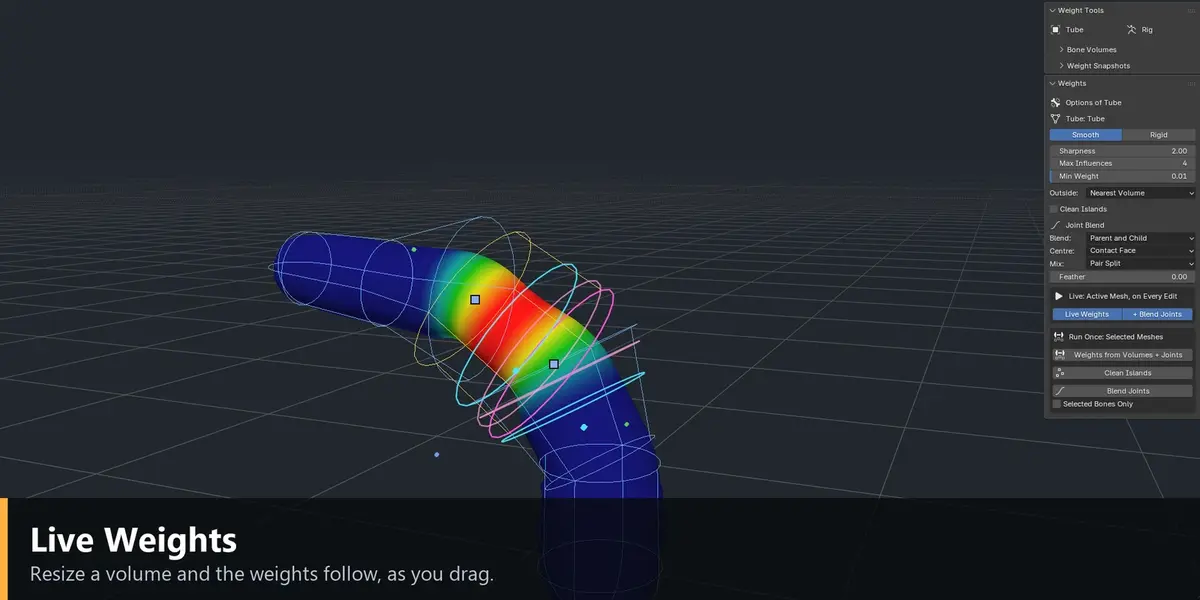
- Live Weights: drag a handle in the viewport and the weights update while you drag.
- Smooth or Rigid weighting, with a per-volume falloff and priority.
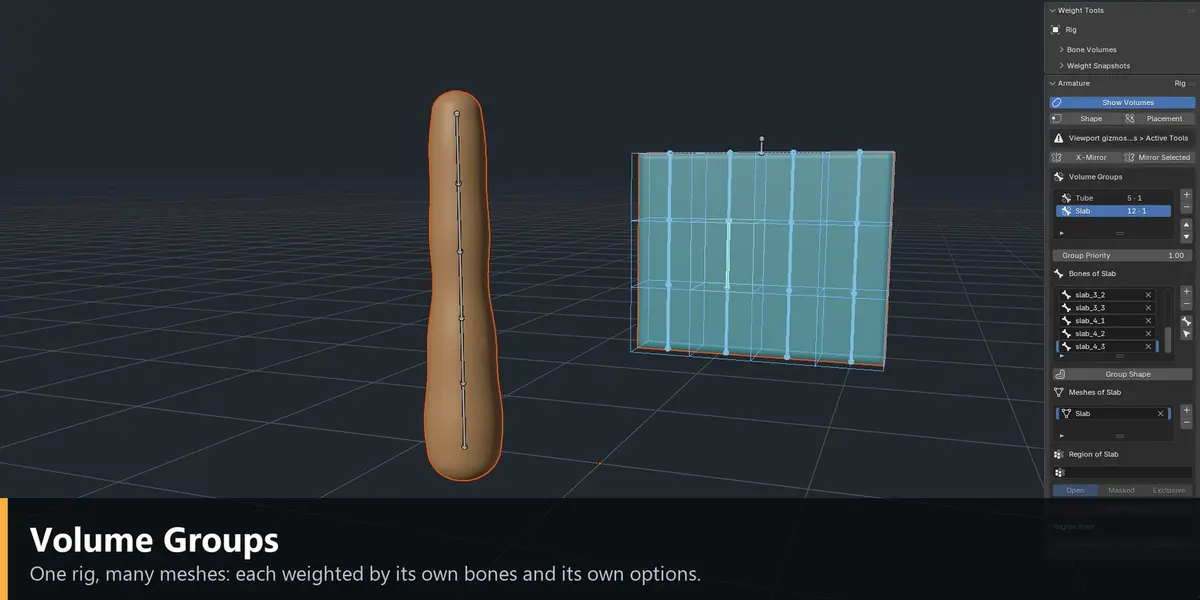
- Volume Groups let one rig weight several meshes (body, jacket, shorts, belt) with their own bones and their own options.
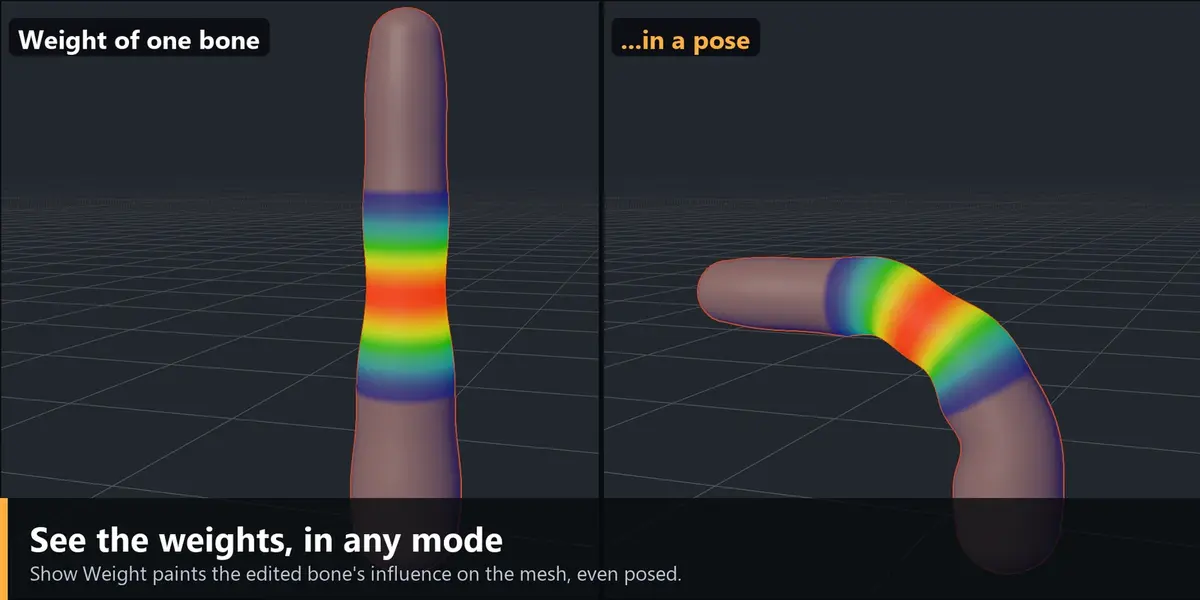
- Show Weight paints the edited bone's weight on every mesh, in any mode, even while you pose.
- Check Weights and Inspect find unweighted vertices, spikes, mirror mismatches and tell you why a vertex has its weights.
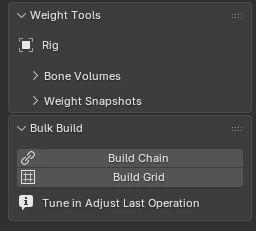
Bulk Build: one button per kind of bone.
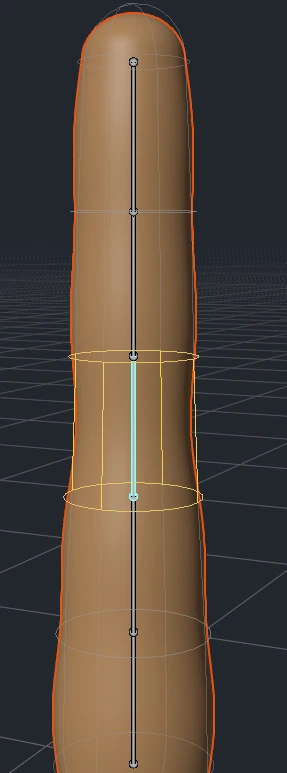
Build Chain gives every bone of the tube a linked volume.
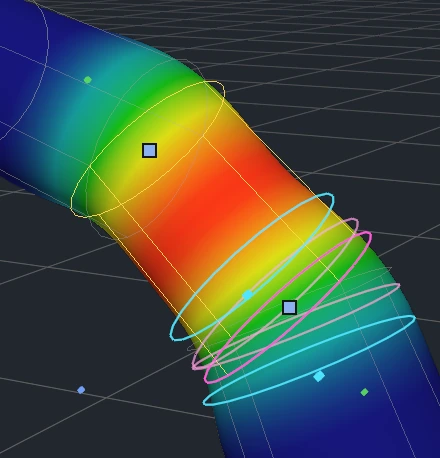
Volume Shape: yellow handles for the radii, green for the ends, blue for the falloff.
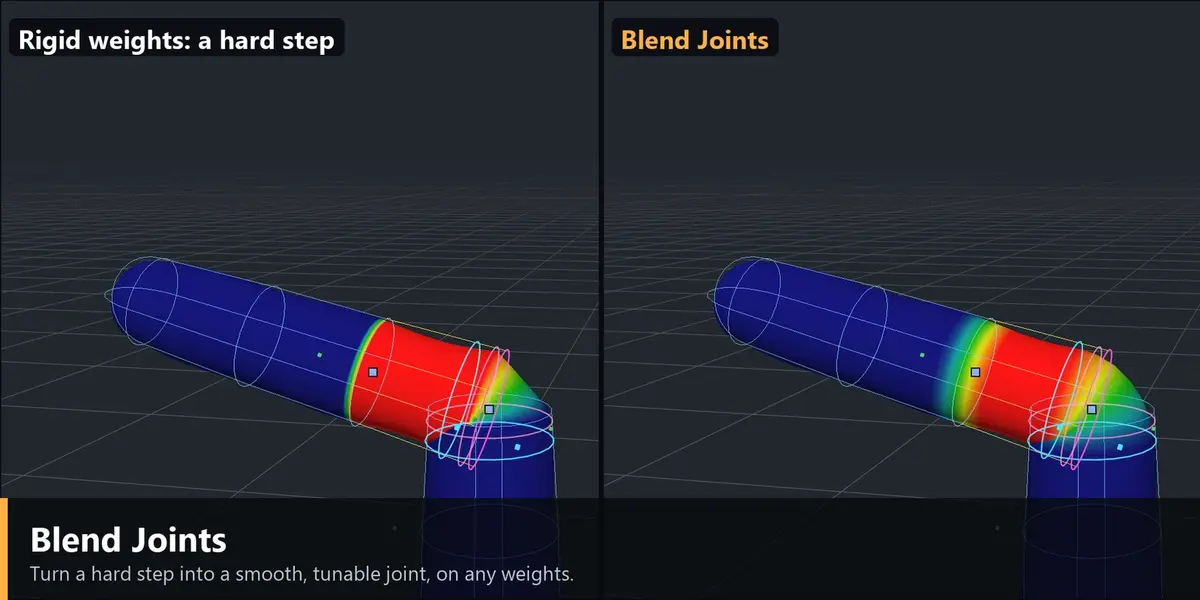
2. Blend Joints
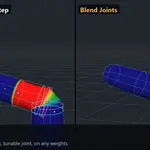
Turns the hard step between two bones into a smooth, controllable joint, measured along the volumes. It works on the weights the volumes give you and on weights made any other way: painted, automatic, Rigify, Auto-Rig Pro.
- Nine curve shapes (Linear, Smooth, Smoother, S-Curve, Ease In / Out / per Side, Hold, Custom curve you draw).
- Parent side and child side lengths you drag in the viewport.
- Centre Shift for boundaries that are not straight.
- Sibling joints for bones that leave the same parent, end against end.
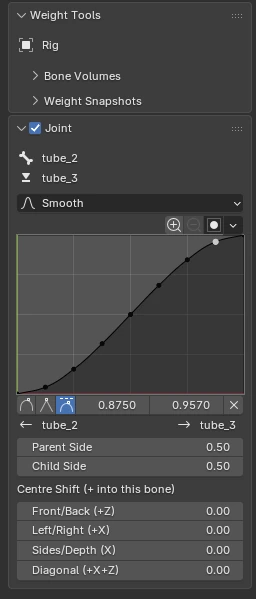
The Joint panel: shape, sides and centre shift of the blend.
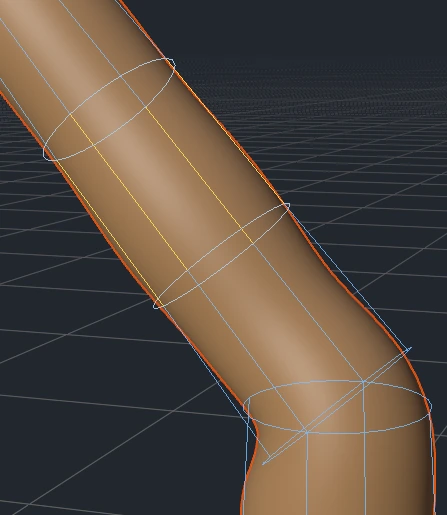
The rings show where each blend starts and ends.
3. Weight Snapshots and Snapshot Blend
Keep as many versions of a mesh's weights as you like and switch between them without losing anything. Snapshots live inside the .blend file and survive closing it, which Blender's undo does not.
- Save, compare, restore. Show Difference paints a heatmap of what changed between two versions.
- Copy Groups takes only some vertex groups (the shoulders, say) from one version into another.
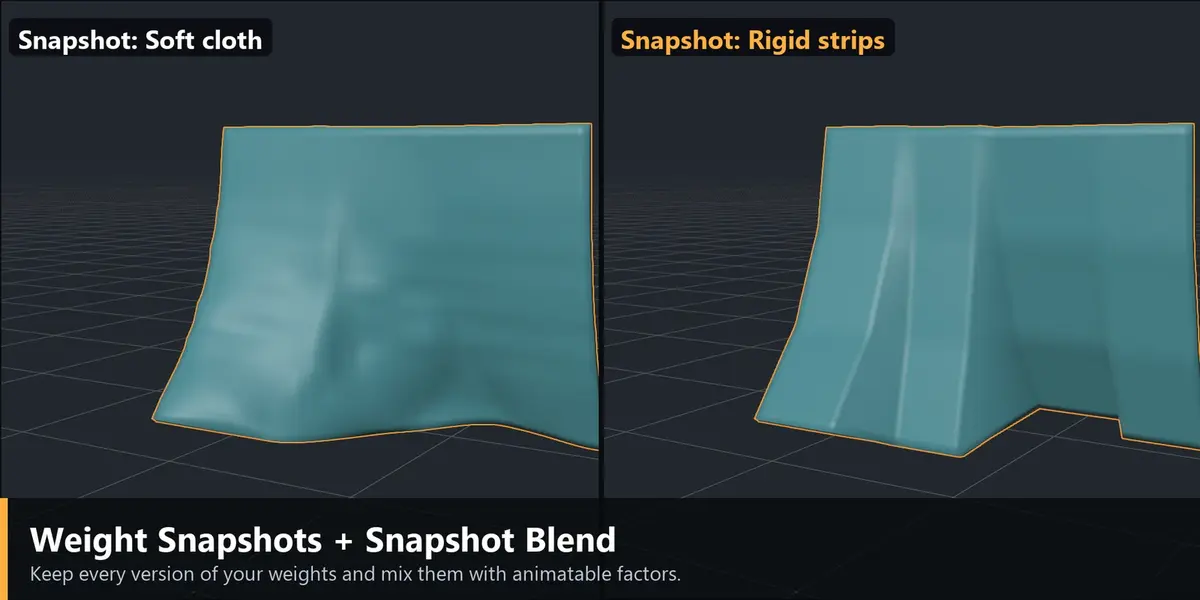
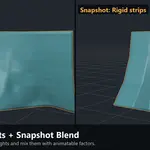
- Snapshot Blend deforms the mesh with a weighted mix of snapshots. Every snapshot has a factor you can keyframe or drive: stiffer cloth in one pose, softer in another, corrective weights for a raised arm, three stages of a transformation.
- Single Alpha slides one value through an ordered list of snapshots.
- Bake Blend writes the current mix into the weights for export.
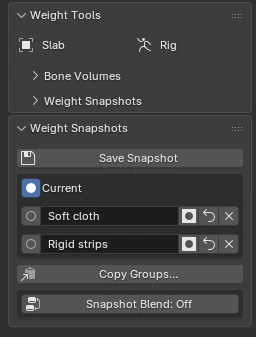
Snapshots: Current plus as many versions as you like.
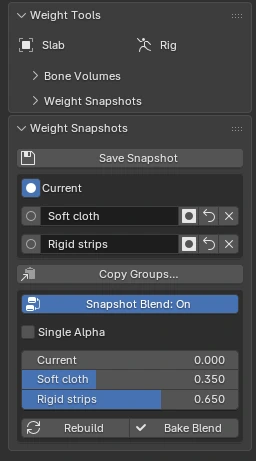
Snapshot Blend: one factor per version, ready for keyframes or drivers.
What it is for, honestly
This is a very fast, very tweakable base, not a magic button. It gives you clean, symmetric, controllable weights in minutes. Simple and regular parts can be finished with it. Complex anatomy still needs your touch afterwards, and that is expected.
| Usually final straight away | Great starting point, then refine |
|
|
Because the result is plain vertex groups, you can take it into Weight Paint at any point and finish by hand. Save a snapshot first and you can always come back.
Where it shines: cloth, tubes and grids
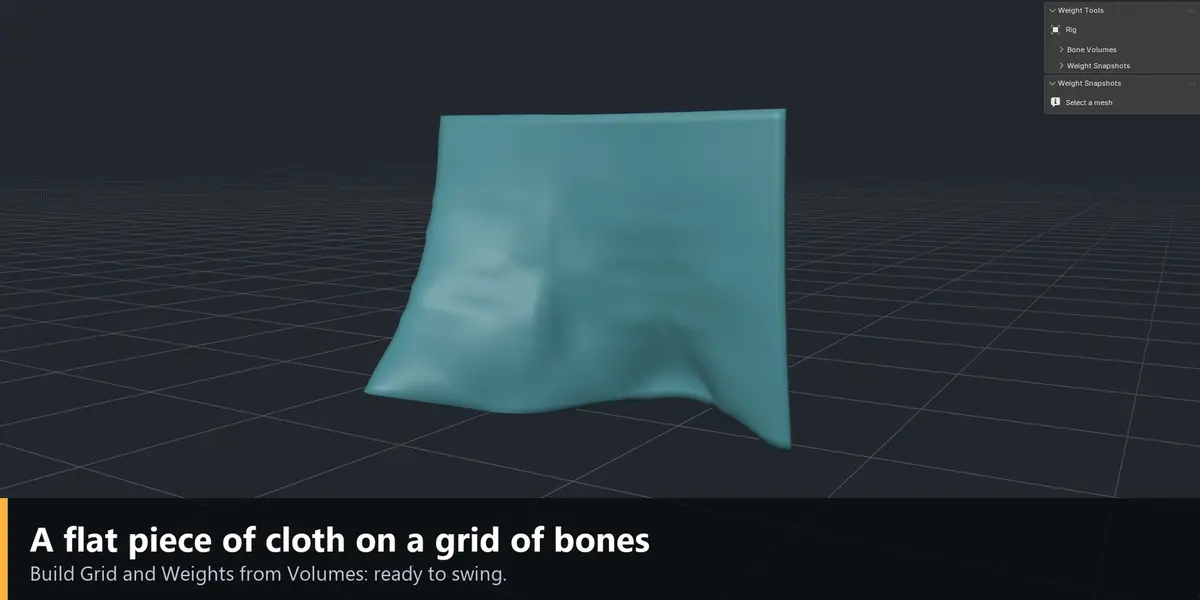
Clothes are where the volume approach works best. A tube (a trouser leg, a sleeve, a strap) is exactly what a chain of bones describes, and a flat panel or skirt is exactly what a grid of bones describes. Build Chain and Build Grid make those volumes in one click, with the joints already blended. The two demo meshes in the pictures (a tube on a chain of five bones, a flat cloth on a 4 x 3 grid) were weighted this way.
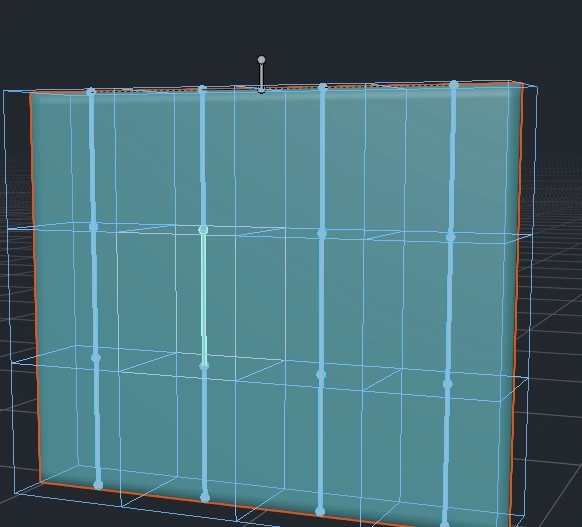
Build Grid: one box per bone of the cloth.
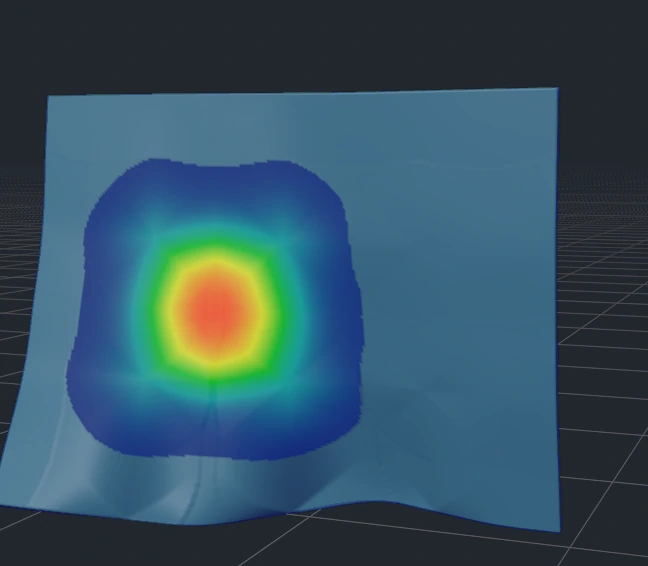
Smooth: the weight of one bone blends into its neighbours.
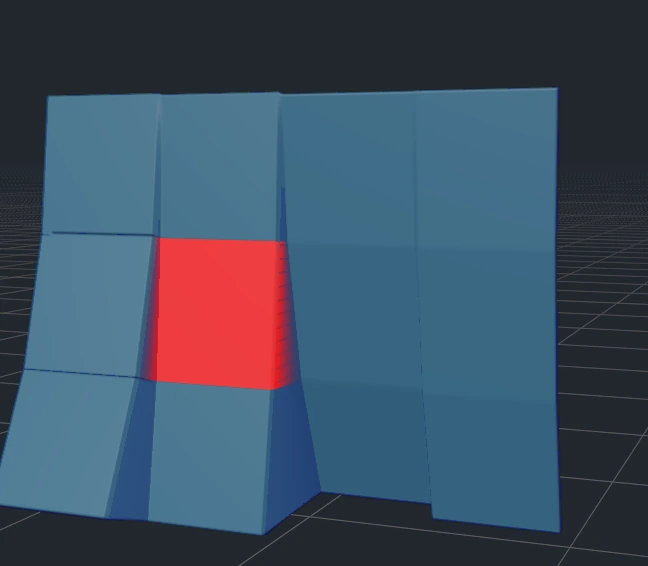
Rigid: the same bone, every vertex owned by one volume.
Weighted cloth move
Tube bend
Live Weights
Pose the armature first, then edit the volumes: the deformation follows every change as you drag, and only the vertices that actually changed are recomputed, so it stays fast on dense meshes.
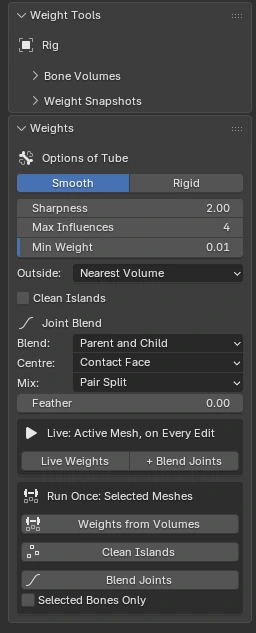
The Weights panel: options, the Live box and the Run Once box.
More
- Volume Shape and Volume Placement viewport tools: yellow handles for radii, green for the ends, blue for the falloff, G / R / S on the whole volume, and Snap Point to Loop (Alt+L) to hug an edge loop of your mesh.
- Direction profile and Centre Shift for volumes that must pull harder on one side.
- Clean Islands removes stray patches of a bone's weight that sit apart from its volume.
- X-Mirror, Mirror Selected, Copy to Selected and linked ends for consistent volumes.
- Works with Rigify-style rigs whose deform bones are hidden.
- Locked vertex groups are respected. Other vertex groups (masks, regions) are never touched.
- Every operation is one undo step, and every mode change is restored, even on errors.
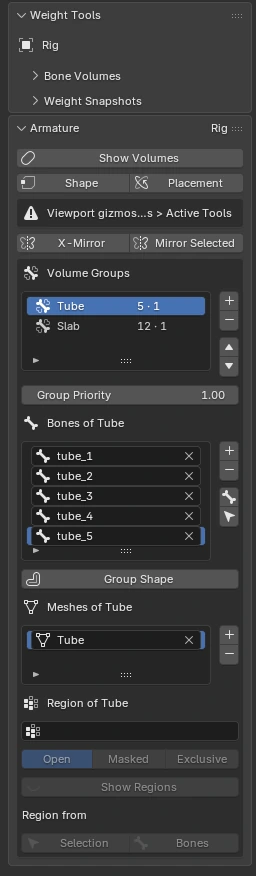
Volume Groups: bones, meshes and options of each group.
Requirements
| Blender | 4.5 LTS or newer (tested on 4.5, 5.1 and 5.2) |
| Install | Edit > Preferences > Get Extensions > Install from Disk. Panel: 3D Viewport sidebar (N) > Weight Tools |
| Dependencies | None. Pure Blender, no external libraries |
| Render engines | Any: it edits vertex groups only |
| License | GPL |
Quick start
- Select your mesh, then your armature (active). In Pose Mode select the deform bones.
- Build Chain (tubes and limbs) and/or Build Grid (rows and grids) in the Bulk Build panel.
- Weights from Volumes. The mesh is bound to the armature and weighted.
- Pose the rig, turn on Live Weights, and adjust volumes until the deformation is right.
- Save Snapshot before every bigger change. Finish by hand where you want to.
Full documentation is on this page, under the Documentation tab.