Volume Weight Tool
 Blood Pixel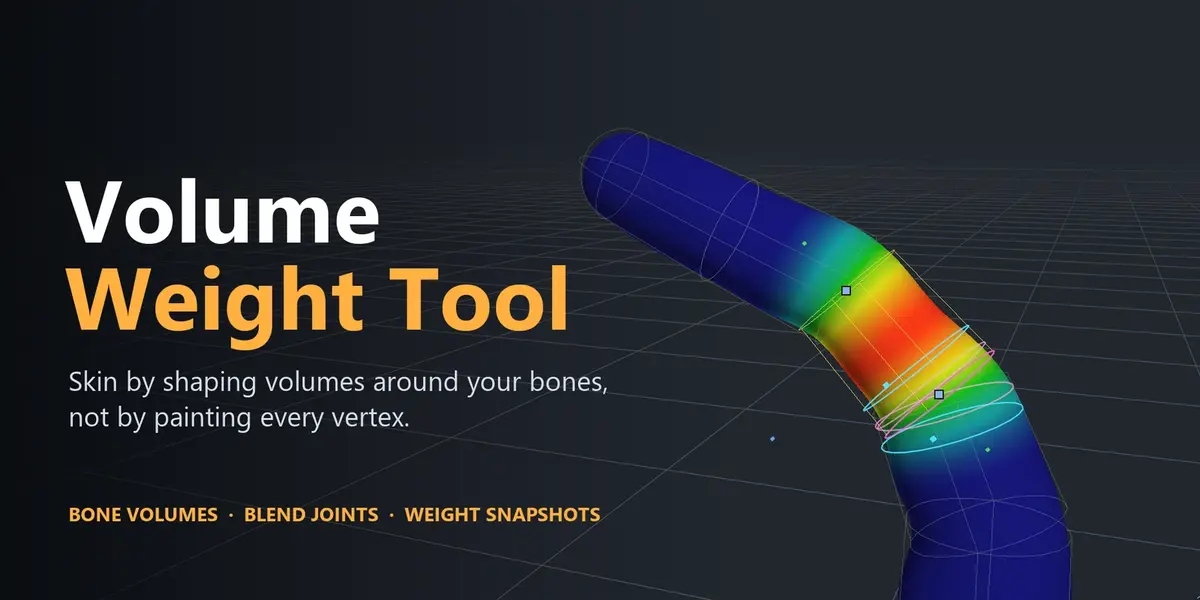


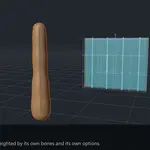
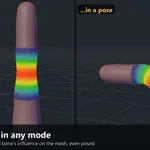
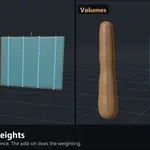
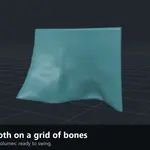
Volume Weight Tool documentation
Scope. Volume Weight Tool is a fast and tweakable base, not a finished-weights machine. Use it as the final weights for blockouts, clothes and fabrics that are not too complex, tubular parts, rigid props and anything that a chain or a grid of bones describes. Complex parts (anatomy, tight layered clothing, face) will need refinements afterwards, usually with the normal Weight Paint brush. Plan for that: save a snapshot first.
Contents
- Installation and where to find it
- Quick start: weight a piece of cloth
- Bone Volumes
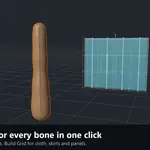
- Bulk Build: Build Chain and Build Grid
- Weights from Volumes and Live Weights
- Volume Shape and Volume Placement
- Volume Groups, regions and Clean Islands
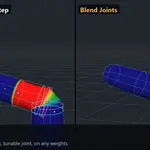
- Blend Joints
- Check Weights and Inspect
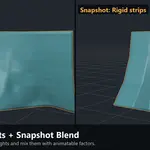
- Weight Snapshots and Snapshot Blend
- Workflows
- Limits and good practice
1. Installation and where to find it
- Edit > Preferences > Get Extensions > Install from Disk, choose the zip.
- In the 3D Viewport press N. The tab is called Weight Tools.
The panel shows the active object and its armature, then two sections: Bone Volumes (sub-sections Bulk Build, Armature, Bone, Joint, Sibling Joint, Weights, Checks, Inspect) and Weight Snapshots (with Snapshot Blend).
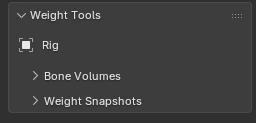
The Weight Tools tab: the active object and its armature, then the two sections.
Two shortcuts belong to the add-on and can be changed in Preferences > Add-ons > Weight Tools:
| V | Pose Mode, Weight Paint | Switch between Volume Shape and Volume Placement; from any other tool it activates Volume Shape |
| Alt+L | With Volume Shape | Snap Point to Loop: snap a volume point to an edge loop of the mesh |
Both keys are free in Blender's default keymap in those modes.
Concepts shared by every tool
- Which vertex groups are touched. Only deform groups: vertex groups named like a deform bone of the armature (the one in the mesh's Armature modifier, or its parent armature). Masks, regions and any other group are never modified. A mesh with no armature yet treats all its groups as deform.
- Locked groups. A locked vertex group is never changed but still counts: the other bones share what it leaves free, as Blender's Normalize does. Blend Joints skips joints that involve a locked group and says so.
- Selection mask. In Weight Paint with the vertex or face selection mask on, tools change only the selected vertices: the simplest way to re-weight one area.
- Modes and undo. Operators that switch mode always restore it. Every operation is one undo step; volume edits made with Live Weights undo together with the weights they wrote.
- Heatmaps (snapshot difference, regions) are a photograph of the moment you ask for them: they live in memory, are not saved in the file, and do not refresh by themselves.
2. Quick start: weight a piece of cloth
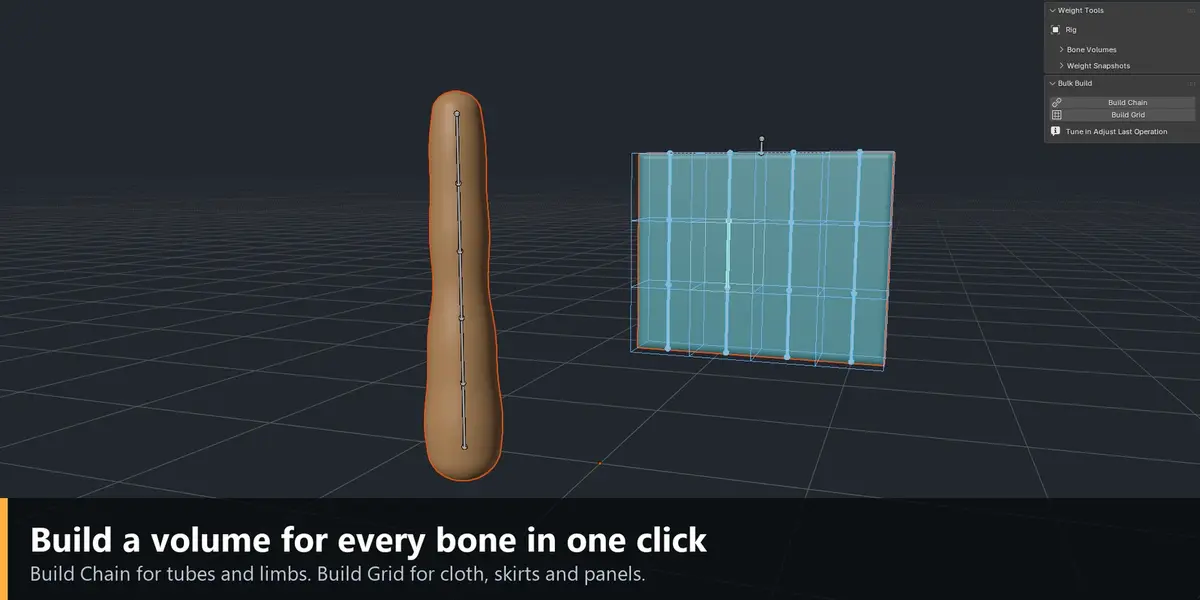
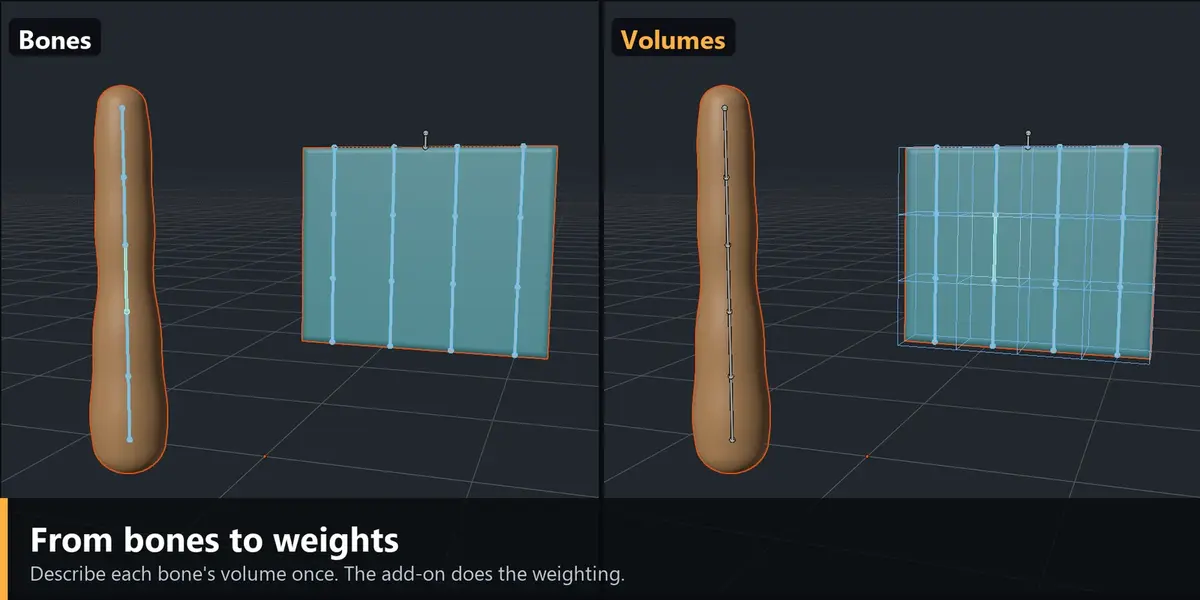
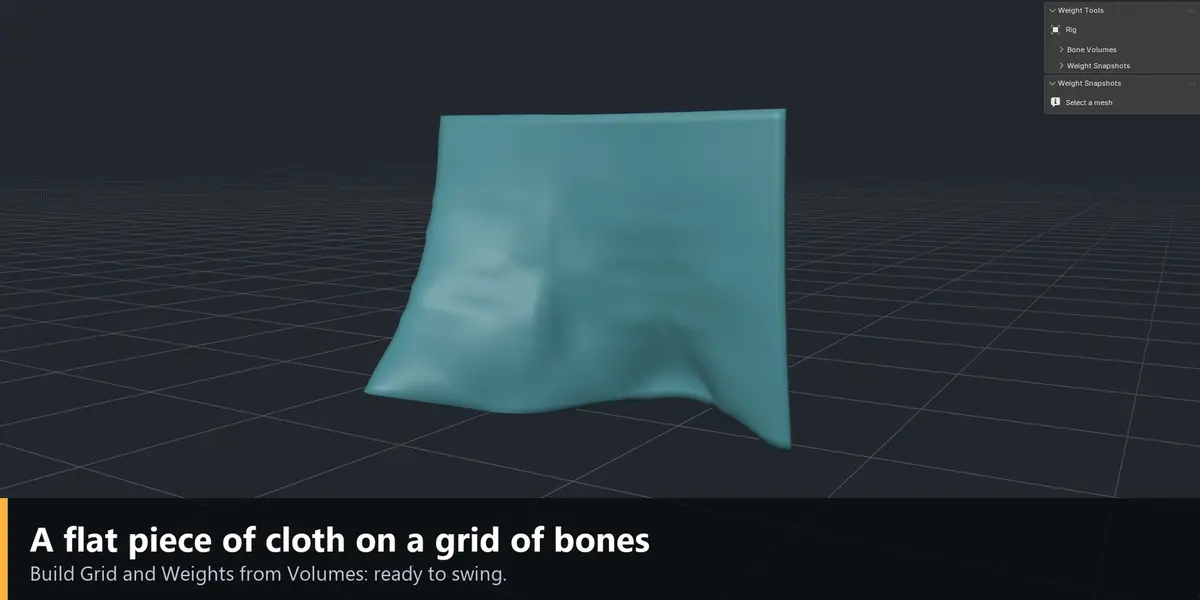
The example is the demo scene of this page: a tube (a chain of five bones) and a flat piece of cloth (a grid of 4 x 3 bones).
- Select the tube and the cloth, then the armature. In Pose Mode select the five bones of the tube.
- Bulk Build > Build Chain. A linked volume per bone appears, sized from the mesh.
- Select the cloth's bones, then Build Grid. Each bone gets a box that fills the space between it and its neighbours.
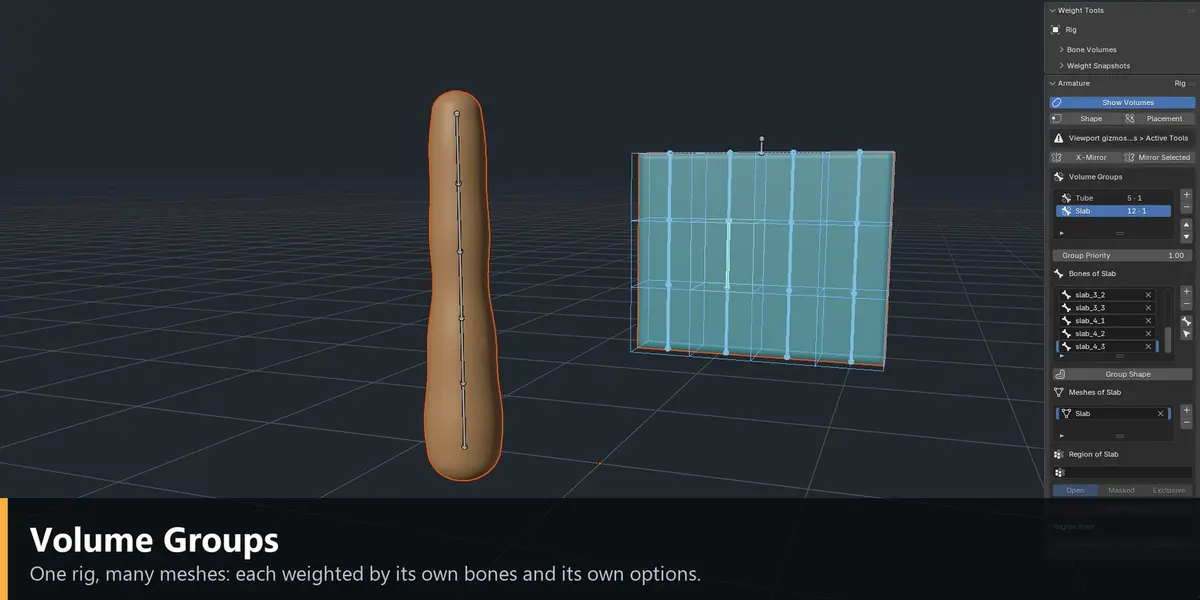
- Optional: create a Volume Group per piece (Armature > Volume Groups) so each mesh only takes its own bones.
- With the armature active and the cloth selected: Weights from Volumes.
- Pose the rig. Turn on Show Weight and click a bone to see its influence. Switch to Weight Paint on the cloth, turn on Live Weights, and drag the volume handles until it deforms well.
- Save a snapshot, finish any detail with the brush.
3. Bone Volumes
A bone's volume is a shape you model around it. A vertex takes weight from the bones whose volumes contain it, the deeper inside the more. Where two volumes touch, the two bones split the border.
Work as you do when painting: mesh in Weight Paint, armature in Pose Mode, Ctrl+click a bone to make it active. You can also work from the panel with the armature active.
The panel
| Bulk Build | Build Chain and Build Grid |
| Armature | Show Volumes, the two tools (Shape, Placement), X-Mirror and Mirror Selected, Volume Groups |
| Bone | Show Weight, then the volume of the edited bone: section, ends, falloff, priority, spine points, offset, rotation, Linked Ends, Copy to Selected, Reset |
| Joint / Sibling Joint | The bone's joint with its deform parent, or with a sibling |
| Weights | The weight options, a Live box with the toggles that re-weight on every change, and a Run Once box with one-shot buttons |
| Checks / Inspect | Check Weights and Inspect |
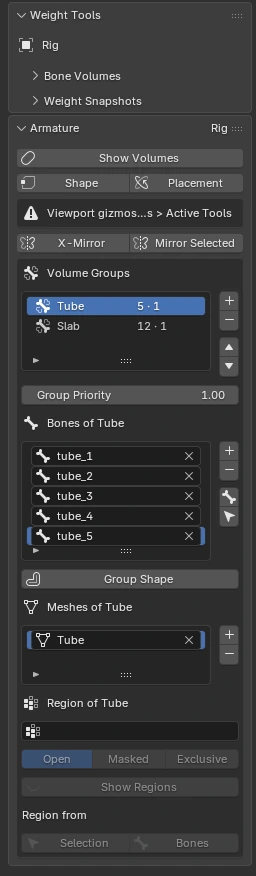
The Armature sub-section: Show Volumes, the two tools, mirroring and the Volume Groups.
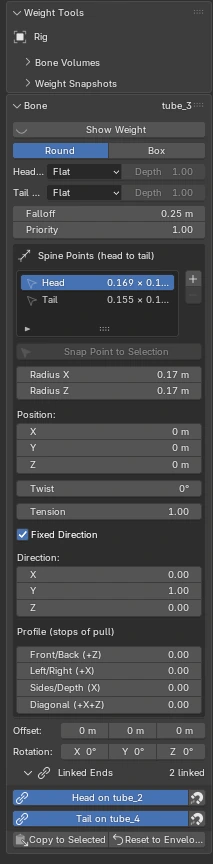
The Bone sub-section: Show Weight, the section, ends, falloff, priority, the spine points and the profile of the edited bone.
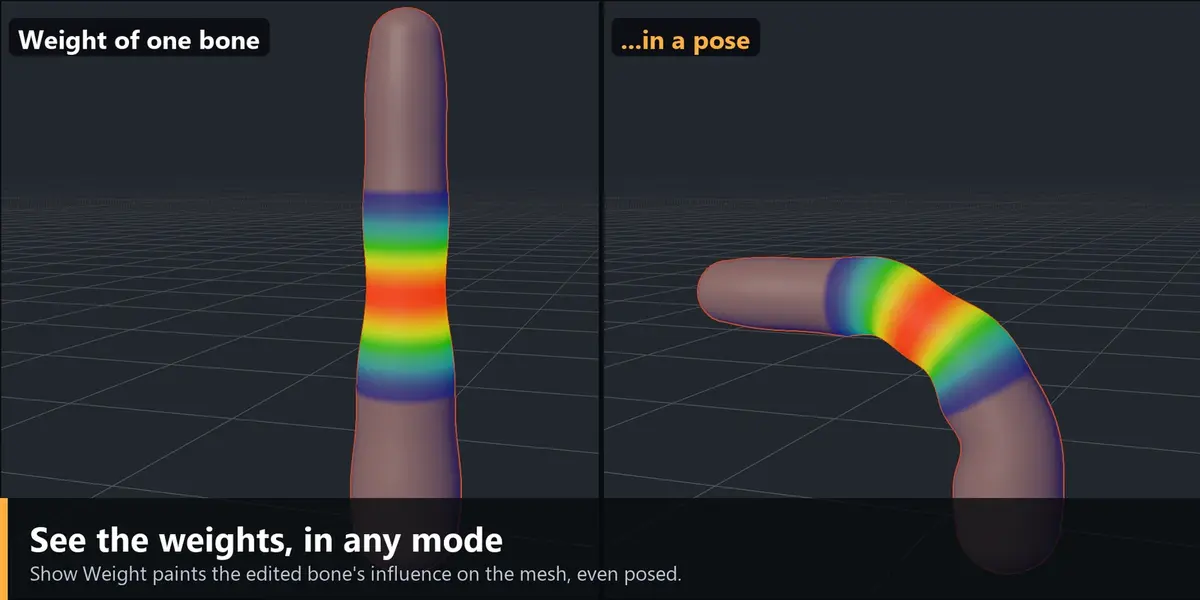
Show Volumes draws every deform bone's volume in the viewport, in the current pose: the active bone's in yellow, selected bones' in blue, the rest in grey, visible through the mesh. With Volume Groups only the active group's volumes are drawn. Show Weight colours the edited bone's weight on every mesh it weights, with Weight Paint's colours, in any mode, and follows the weights, the pose and the edited bone.
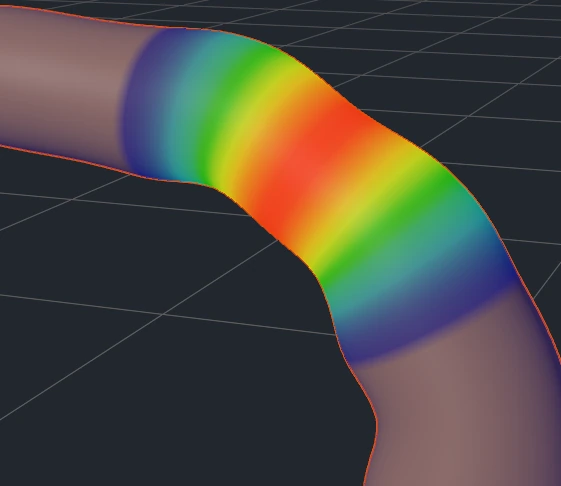
Show Weight: the edited bone's weight while the tube is posed.
How a volume is made
A volume is a section swept along a spine.
- The spine goes through 2 to 16 points, head to tail. Each point has a position, Radius X and Radius Z, Twist, Tension and an optional fixed direction.
- Section: Round (an ellipse) or Box (a rectangle, with Roundness for the corners).
- Head End / Tail End: round (half an ellipsoid, with a Depth) or flat. A box always ends flat.
- Offset and Rotation move and turn the whole volume in the bone's axes, so it follows the bone when posed.
- Profile: a volume can pull harder on one side, by direction around the section (useful on wide parts).
With these settings the same volume is a capsule, a cylinder, a box, an ellipsoid or a curved tube.
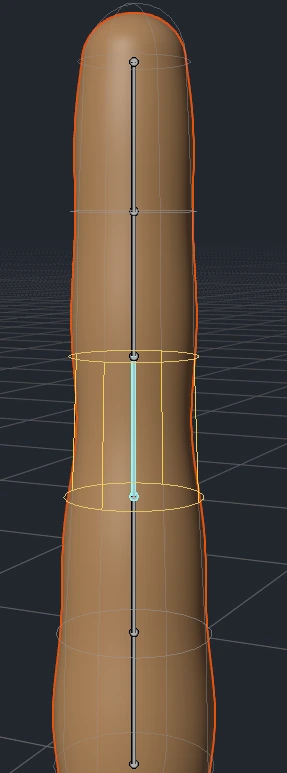
A chain of five bones, each with a volume whose ends are linked.
- Falloff: how far beyond the surface the volume still gives weight, fading to zero. With falloff 0 it weights only inside itself.
- Priority: how hard the volume pulls against its neighbours. 2 weighs twice as much as a volume at 1; 0 never weights.
A bone that has no volume of its own uses Blender's envelope until you press Customize Volume (it starts from the envelope, nothing changes until you edit) or drag a handle. Reset to Envelope goes back.
From volume to weight
For each vertex and each volume the add-on measures how deep the vertex is: 1 on the core, 1/2 exactly on the surface, 0 at the end of the falloff band. The value is multiplied by the volume's priority. Because the surface is worth 1/2, two touching volumes split their border in half.
Rigs with hidden deform bones
In rigs such as Rigify the deform bones (DEF-...) are hidden and the active bone is a control. The Bone panel then warns that the active bone is not a deform bone and gives an Edit field to choose which deform bone to edit. Its volume can be edited even if the bone is hidden.
Copy, mirror, link
- Copy to Selected: copies the active bone's volume, points included, to the other selected bones.
- X-Mirror: every edit is mirrored onto the bone with the flipped name (.L / .R, _l / _r), across the armature's X axis. Mirror Selected does it once.
- Linked Ends: the end of a child volume stays joined to the end of its parent, so chains bend like tubes.
4. Bulk Build: Build Chain and Build Grid
Modelling one volume at a time is good for tweaking, not for starting. Bulk Build builds the volumes of all the selected deform bones in one go. After pressing a button, the settings appear in Blender's Adjust Last Operation panel (bottom left of the viewport): every change rebuilds live. The next build starts from the last settings.
Both rebuild the volumes of the selected bones from scratch.
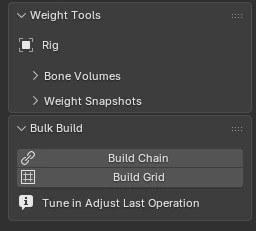
The Bulk Build sub-section.
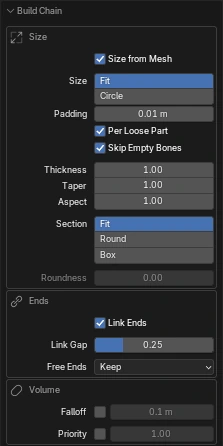
Adjust Last Operation after Build Chain: Size, Ends and Volume (the Joints section below them is the one of the Joint panel).
Options shared by both
| Set Falloff / Set Priority | Give all built volumes the same value. Off: each keeps its own |
| Joints | On by default: every built bone blends with its deform parent (see Blend Joints) |
| First Joint / Last Joint | Also create the joint of the first bone of a chain with its (unbuilt) parent, and of a bone with no built children |
| Set Joint Shape | Give every built bone the same joint shape and sides |
Build Chain: limbs, tubes, tails, hair, straps
Each selected bone gets a volume with two points, head and tail. Where a selected child starts at the tail of its selected parent, the two ends are linked in a flat disc oriented halfway between the two bone directions, so the chain bends like the bones do.
| Size from Mesh | Each disc takes its size from the mesh section at that place, so the first result already fits. Only the vertices of the two bones of the disc count |
| Size: Fit / Circle | Fit: X and Z radii contain the section each on their own (flat or square parts get flat or square sections). Circle: one circle, with Aspect for Z |
| Per Loose Part | When a disc's plane cuts several loose parts, the ring on the bones' own part wins |
| Skip Empty Bones | A bone no vertex is closest to gets priority 0 and its joint off, and the message names it |
| Padding / Thickness | Added to the measured radii / multiplies all radii |
| Taper | Radius at the end of each chain relative to the start: below 1 thins towards the tip (a tail) |
| Aspect | Multiplies the Z radius: below 1 gives flat sections (ribbons, hair locks) |
| Section | Fit (a box where the mesh is square, round otherwise), Round or Box, with Roundness |
| Link Ends / Link Gap | Link ends of consecutive bones, and how loose the link may be |
| Free Ends | Keep, Round or Flat for the ends that touch nothing |
Examples: a tail that tapers (Taper 0.3), a flat lock of hair (Aspect 0.3), chunky cartoon fingers (Section Box, Roundness 0.5), a segmented mannequin (Per Loose Part on).
Build Grid: skirts, capes, panels, curtains
Each selected bone gets a box with two points, from head to tail plus Extend Ends, Width along the bone's X axis and Height along its Z axis, not linked to the parent.
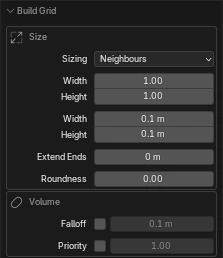
Adjust Last Operation after Build Grid.
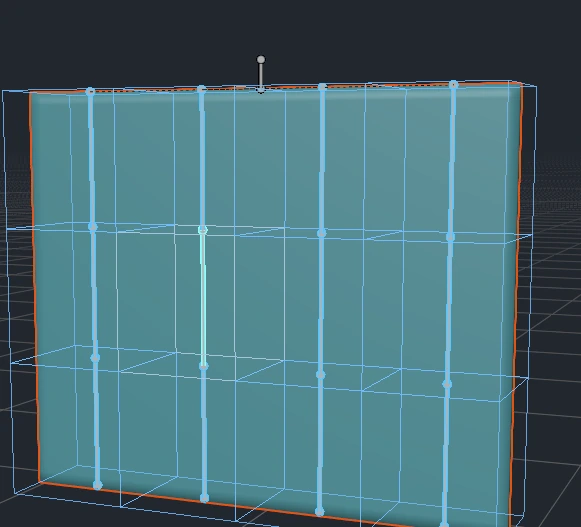
A 4 x 3 grid of bones gets 12 boxes.
| Sizing: Neighbours (default) | Width and Height are a fraction of the distance to the closest selected bone beside it, so at 1 the boxes touch: no gaps, no overlaps |
| Sizing: Bone Length / Fixed | A fraction of each bone's length / fixed sizes in armature units |
| Extend Ends | Lengthens each box beyond head and tail (use 0.1 if a hem sticks out) |
| Roundness | Rounds the corners of the boxes |
Example, a striped skirt: select all the skirt bones (rows of vertical chains), Build Grid with Sizing Neighbours and Width 1, Extend Ends 0.1 if needed, then Weights from Volumes in Smooth with a high Sharpness (4-6) for crisp strips, lower for a soft skirt. A cape works the same; if rows are very far apart vertically, use Sizing Bone Length.
5. Weights from Volumes and Live Weights
Weight options (Weights sub-section)
| Smooth (default) | Weights follow the volume values, raised to Sharpness and normalised: where volumes overlap, weights blend |
| Rigid | Every vertex goes 100% to the volume it is deepest in: one bone per vertex |
| Whole Loose Parts | Rigid only: each loose part goes entirely to one bone, so a plate or a button never bends |
| Sharpness (2) | Smooth only: higher tightens the blend between neighbouring volumes |
| Max Influences (4) | Keeps at most this many bones per vertex, the strongest. Mirrored bones with equal weight stay or go together, so a symmetric mesh does not lose one side |
| Min Weight (0.01) | Drops weights under the threshold and renormalises |
| Outside | Vertex reached by no volume: Nearest Volume (100% to the nearest), Keep Weights, or Select (to show the gaps) |
| Clean Islands | Removes a bone's weight from patches detached from its volume |
| Joint Blend: Blend, Centre, Mix, Feather | Options of Blend Joints |
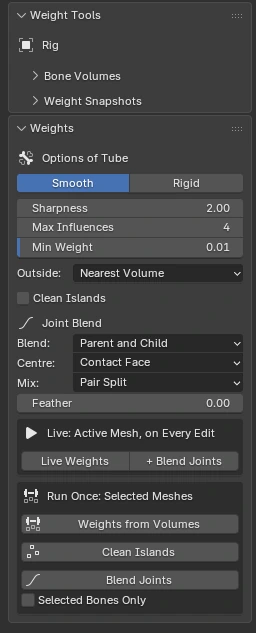
The Weights sub-section in Smooth mode.
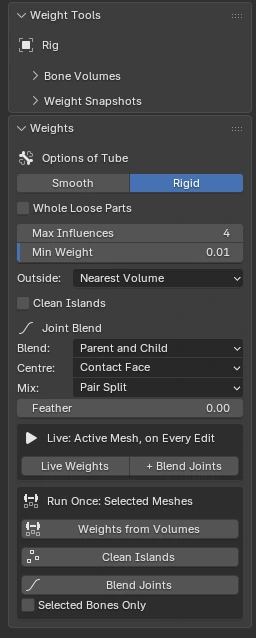
In Rigid mode: Whole Loose Parts replaces Sharpness.
Smooth for anything that deforms: bodies, soft clothes, tails, hair. Rigid for parts that must not bend: weapons, plate armour, jewellery, mechanical parts, buttons.
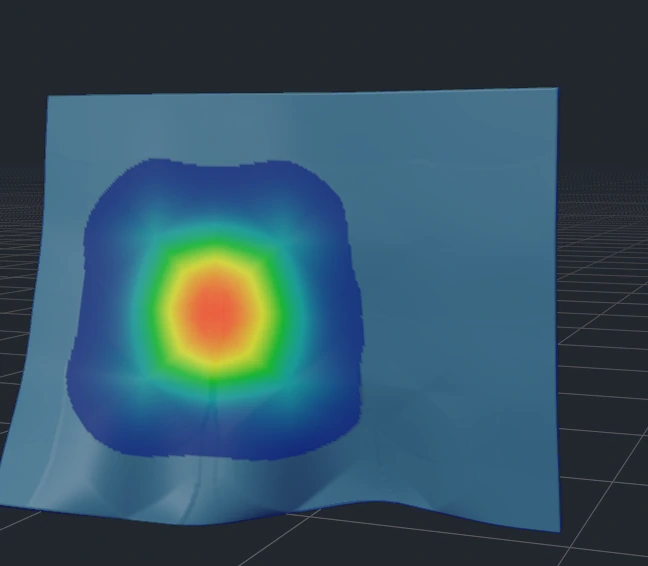
The same bone and the same volumes, Smooth.
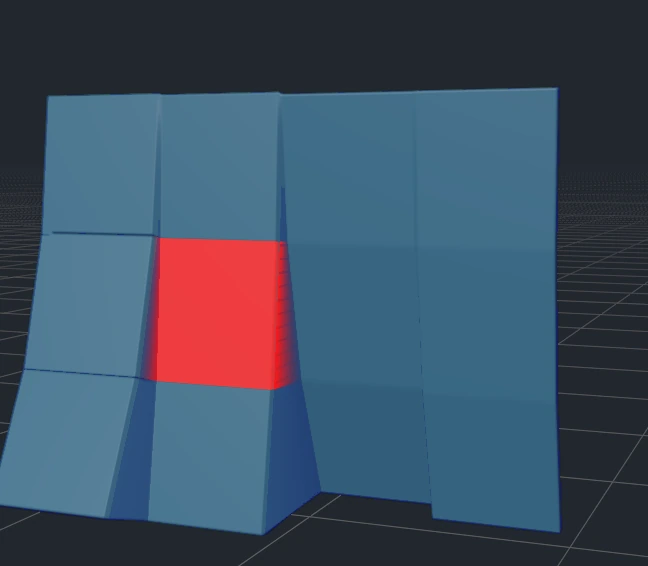
Rigid: every vertex goes to one bone.
Weights from Volumes (Run Once)
Replaces the deform weights with the ones from the volumes, on the active mesh (in Weight Paint, only inside the selection mask if active), or, with the armature active, on the selected meshes, binding them to the armature first if needed. It stops with an error if no deform bone has a volume with priority above 0, or if the mesh is in no Volume Group when the armature has groups. If some vertices stay outside every volume the message says how many.
With + Blend Joints on, the button becomes Weights from Volumes + Joints and blends the joints right after.
Live Weights
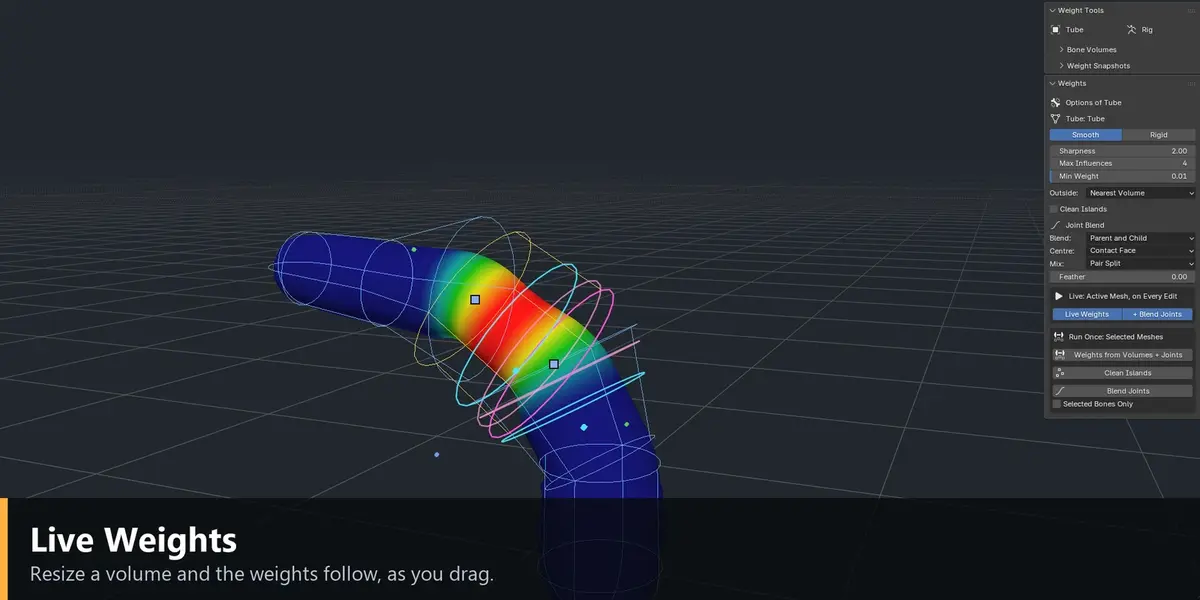
With Live Weights on, every change to a volume, from the panel or from a handle, re-weights the active mesh while you drag. Only the vertices where the scores changed are recomputed. Changing a weight option re-weights the whole mesh. Tip: pose the armature first (elbow at 90 degrees, a bent leg), then edit the volumes: you see the deformation follow at once.
A brush stroke on top of live weights stays until you edit a volume again; then the mesh is re-weighted. Save a snapshot before turning Live Weights on, because it writes to the vertex groups.
6. Volume Shape and Volume Placement
Two viewport tools (activate them from the Armature sub-section or press V) with on-screen gizmos.
| Volume Shape (radii, ends, falloff, points) | |
| Dots on the spine | Click selects a point, Shift+click adds or removes it from the selection |
| Yellow handles | Drag the two radii (X and Z) of the selected points |
| Green handles (beyond each end) | Slide the head or tail end along the spine |
| Blue handle | Drags the falloff |
| Cyan arrows (with a joint) | Drag the Parent Side and Child Side of the bone's joint |
| Volume Placement (position the whole volume) | |
| White ring on the origin | Moves it |
| Red, green, blue dials | Rotate it around a bone axis |
| Grey, wider dial | Rotates it on the screen plane |
G / R / S act on the selected points (Volume Shape) or on the whole volume (Volume Placement). Snap Point to Loop (Alt+L) snaps a point to an edge loop of the mesh: ideal for a precise wrist or knee. Snap Point to Selection snaps a point to the average of the selected vertices.
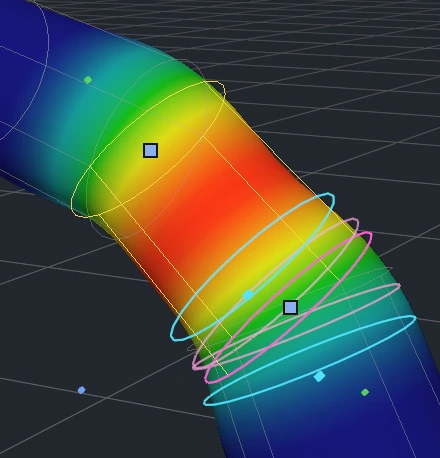
Volume Shape on the edited bone.
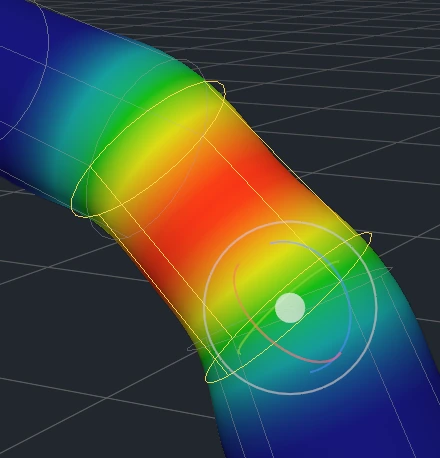
Volume Placement: the ring moves the volume, the dials rotate it.
7. Volume Groups, regions and Clean Islands
On a real character one rig deforms several meshes (body, jacket, trousers, belt) and several close parts of one mesh (fingers, legs, a fringe). A volume that is a bit too big invades the part next to it. Volume Groups say which bones weight what, and where.
Without groups all the deform bones weight all the meshes, with the armature's options: fine for a single mesh with no close parts. With groups, each group has a name, a Group Priority, its bones, its meshes, its own weight options and an optional region.
The group highlighted in the list is the one you are editing (its bones, meshes, options, and the volumes drawn in the viewport). It does not decide who weights: a mesh is always weighted by all the groups that include it.
Volume Groups: the list, Group Priority, the bones, the meshes and the region.
A mesh in no group is not weighted and Weights from Volumes stops with a clear error: better than the body volumes weighting a jacket by mistake.
| Body | All the body bones | Body |
| Jacket | Torso and arm bones, extra jacket bones | Jacket |
| Shorts | Pelvis and thigh bones, extra shorts bones | Shorts |
How groups compete
When several groups weight the same mesh they compete vertex by vertex: for each group the deepest volume containing the vertex is taken, multiplied by the Group Priority; the highest value owns the vertex, and it takes weights only from that group's bones, with that group's options. A group never erases another group's weights, the order of the list only breaks exact ties, and the border falls where the volumes are equally deep, so you do not need exact sizes.
- Fingers on one mesh: a group per finger plus one for hand and wrist.
- A rigid belt on a soft body: Body (Smooth) and Belt (Rigid) both on the body mesh; raise Belt's priority if Body still wins some belt vertices.
- Group Shape: a bone can weight with a shape of its own inside one group, different from its normal volume.
Regions
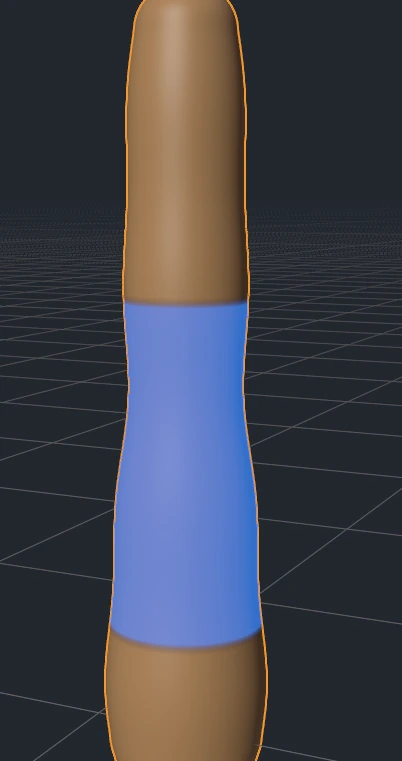
Show Regions: the part of the mesh a group may weight.
A region restricts where a group can weight: from selected vertices (Region from Selection), from bones, by loose parts, with Grow/Shrink. The region scope decides what happens to the vertices of the region: Open (other groups may weight them too), Masked, Exclusive (only this group). Show Regions draws a heatmap of them.
Clean Islands
Removes the weight of a bone from patches of the mesh that are detached from its volume (a stray island across a gap). Available as an option of Weights from Volumes and as a one-shot button.
8. Blend Joints
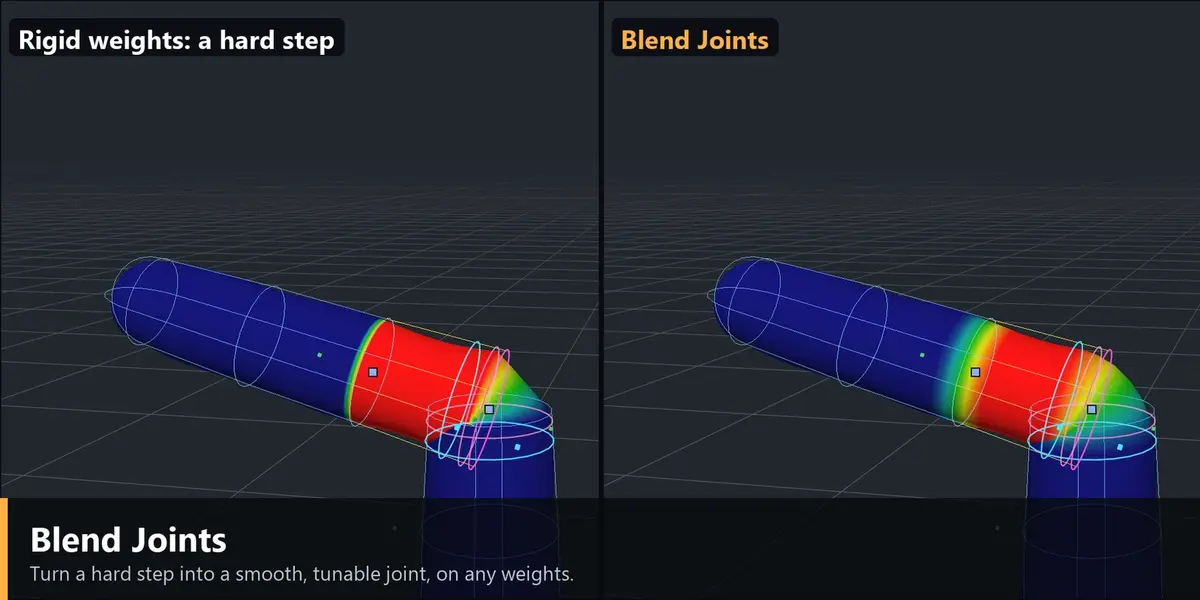
Blend Joints turns the hard step of weight between two bones (one bone per vertex, as after a Rigid weighting or a rough automatic bind) into a smooth joint measured along the volumes. It works on volume weights and on weights made any way: painted, Blender's automatic weights, Rigify, Auto-Rig Pro.
What a joint is
A joint is a deform bone with its closest deform parent: arm and forearm, thigh and shin, a vertebra and the next. Its settings live in the Joint panel of the child bone. The head face of the child's volume is the joint's contact face. The blend runs along the spine of each volume: lines of equal weight are the sections of the volume, so at an elbow they bend with the spine, tighter on the inside of the curve.
On a branching joint (a shoulder leaving the chest, a thigh leaving the pelvis) the parent side is measured from the plane of the contact face, only near the child volume, so the blend does not spread over the whole chest.
Joint panel
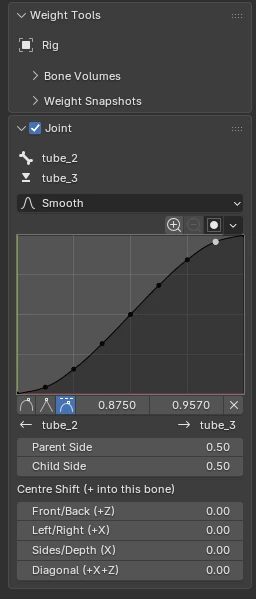
The Joint panel of the child bone.
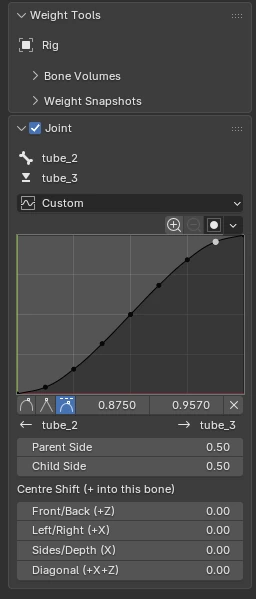
Shape: Custom, with the curve you draw.
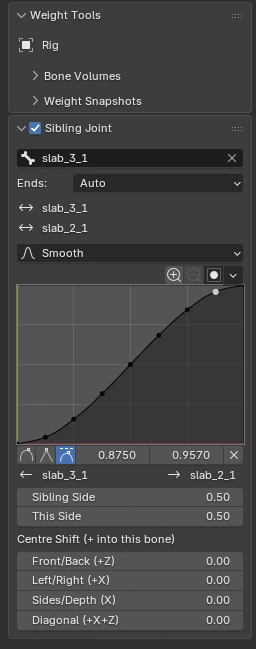
The Sibling Joint panel: pick the bone beside this one.
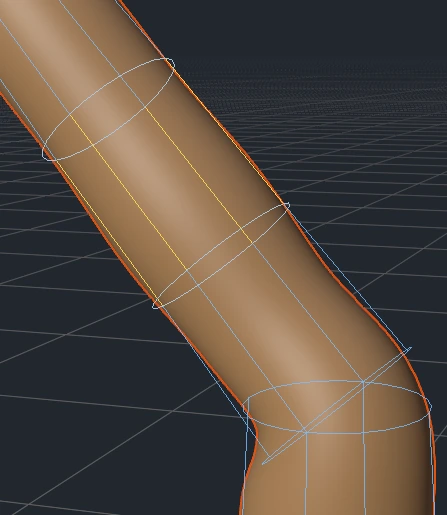
The joint's rings in the viewport.
- Parent Side / Child Side: how far the blend reaches into each bone (also draggable with the cyan arrows).
- Shape of the curve:
| Linear | A uniform ramp |
| Smooth (default) | Leaves the parent gently and enters the child gently |
| Smoother | Even softer at both ends: long, gentle joints |
| S-Curve | Flat at the ends, steep in the middle (Sharpness) |
| Ease In / Ease Out / Ease per Side | Leave the parent slowly or quickly, with a Power (or one per side) |
| Hold | Half and half over a band in the middle: twist is shared by both bones |
| Custom | A curve you draw with a widget |
- Centre: where the blend is centred: on the child's contact face, or on the border where the current weights change from the parent to the child.
- Centre Shift: moves the blend zone along the joint depending on the direction around the child's contact face, for boundaries that are not straight (a hip, a shoulder).
- Mix: how the curve combines with the existing weights (Pair Split, and Feather from 0 to 0.5).
- Sibling joints blend two children of the same parent, end against end (for example the roots of fingers).
Running it
Blend Joints (Run Once) works on the current weights. With Selected Bones Only it blends only the joints of the selected bones. + Blend Joints in the Live box blends the joints right after every volume change. Joint rings are drawn in the viewport so you can see where each blend starts and ends.
Use cases: a squashed elbow, a wrist that twists like a candy wrapper (Hold), softening Rigify weights, a belt in two symmetric halves, one joint only, a Rigid character then blended.
9. Check Weights and Inspect
Check Weights looks for what is worth fixing in the active mesh's weights and lists it in the Checks sub-section, with a button to select each finding.
| Unweighted | Vertices with no weight on any deform bone. Use Outside: Nearest Volume, or bigger volumes there |
| Not Normalized | Vertices whose deform weights do not sum to 1. Normalize All, or re-weight |
| Over Max Influences | Vertices with more bones than the Max Influences of their strongest bone's group |
| Mirror Mismatch | Vertices whose weights differ from their mirror vertex (reading each .L bone as its .R) |
| Split Rigid Parts | Islands of a Rigid group split between bones: a rigid part that bends. Use Whole Loose Parts |
| Spikes | Isolated peaks of one bone's weight that become a crease or a point in a pose |
| Region Steps | Edges on a region border where a group's own bone jumps in weight |
| Idle Bones | Bones with a volume and priority above 0 that weight no vertex |
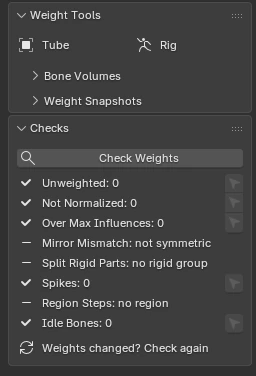
Check Weights and what it found.
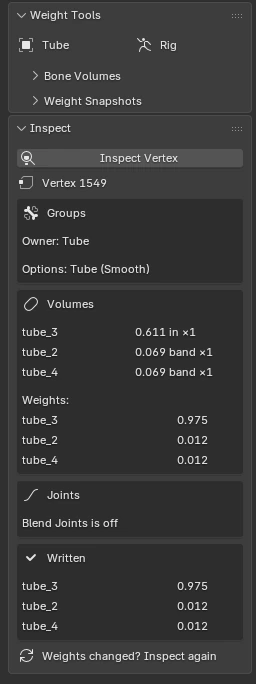
Inspect: the volumes and weights behind one vertex.
Thresholds (Spike 0.35, Mirror 0.02, Region Step 0.3) can be changed in Adjust Last Operation. Inspect explains, step by step, where the active vertex's weights come from: which volumes reach it, with what depth and priority, and what each option did.
10. Weight Snapshots and Snapshot Blend
Weight Snapshots keeps several versions of a mesh's weights and lets you switch between them without losing work. Snapshot Blend deforms the mesh with a weighted mix of those versions, with a factor per version that you can keyframe or drive.
Slots and snapshots
Every mesh has a Current slot (cannot be deleted) and any number of snapshots (Snap 1, Snap 2...). One slot is active at a time: its weights are in the vertex groups, used by the armature and the brush. What you paint goes into the active slot, not into Current.
| Save Snapshot | Saves the active slot's weights as a new snapshot |
| Round button | Makes the slot active: its weights move into the vertex groups. Switching never overwrites anything |
| Name | Click to rename; an empty name goes back to Snap N |
| Mask button | Show Difference: heatmap of the difference between the active slot and this one (blue equal, then green, yellow, red totally different). Clear Difference removes it |
| Restore | Copies the snapshot over Current, after a confirmation |
| x | Deletes the snapshot |
| Copy Groups | Copies some vertex groups from one slot to another (From / To), leaving the others as they are. Use Selected Bones copies the groups of the selected bones; Normalize brings every changed vertex back to 1 |
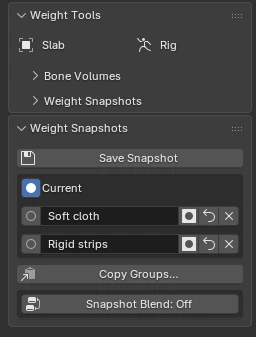
The slots list.
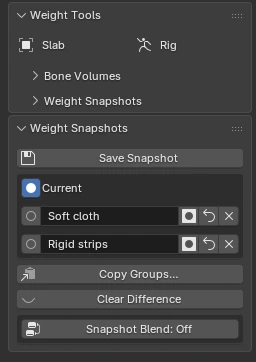
Show Difference: Clear Difference appears while the heatmap is up.
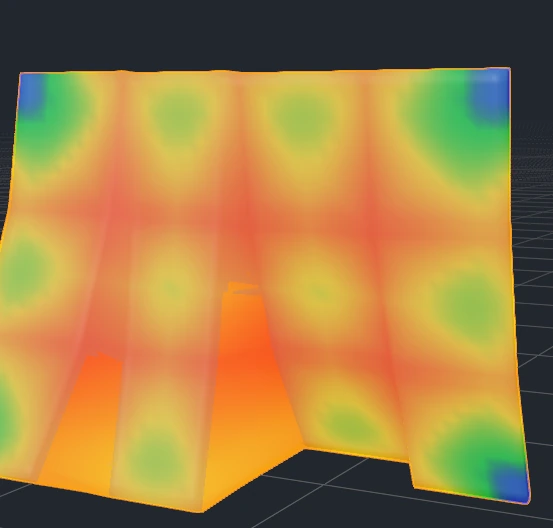
The heatmap: blue equal, red totally different.
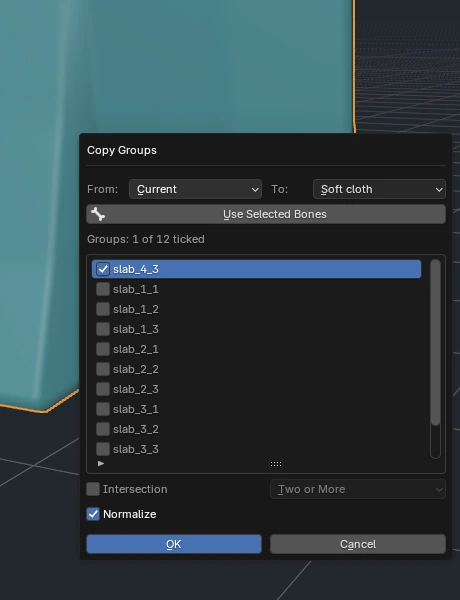
Copy Groups…
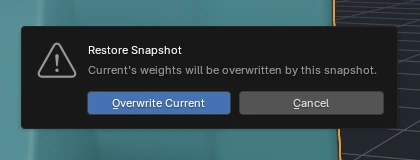
Restore asks before it overwrites Current.
Snapshots hold the deform groups only; other groups (masks, regions) are neither saved nor changed. They are stored inside the .blend as generic mesh attributes named __wts (one float per point per deform group per slot), so they survive closing and reopening the file. Do not rename or delete them by hand. On very dense meshes (500,000 vertices and more) saving and switching take longer.
Example: try a change without risk
- Save Snapshot: Snap 1 holds the weights you have now.
- Work on Current: Weights from Volumes, Blend Joints, the brush.
- Do not like it? Activate Snap 1 to see the old version, or Restore to bring it back into Current.
Example: two versions side by side
- Save Snapshot twice: identical Snap 1 and Snap 2.
- Activate Snap 2 and paint a variant (softer shoulders, a different cloth sharpness).
- Switch between slots in a pose to compare: the deformation changes at once.
Example: take the best of two versions
Snap 1 has good shoulders, Current has everything else better. Copy Groups from Snap 1 to Current, Use Selected Bones with the shoulder and clavicle bones selected, Normalize on.
Snapshot Blend
Needs at least one snapshot (two slots) and an Armature modifier. Snapshot Blend: Off / On adds a Geometry Nodes modifier, WT Snapshot Blend, right before the Armature one. For each deform group it computes
weight = sum(factor_i x weight in slot_i) / sum(factor_i)
and gives the result to the Armature modifier, only on the evaluated mesh: the saved weights never change. With all factors at 0 the result is Current. A group missing from a slot counts as 0 there.
| Slot factors | The modifier's inputs, shown in the panel: right click to insert a keyframe or add a driver |
| Rebuild | Regenerates the nodes after adding or removing deform groups; factors, keyframes and drivers are kept |
| Bake Blend | Writes the current result into Current, after a confirmation: for export |
| Snapshot Blend: On again | Turns it off: the modifier is removed, no weight changes |
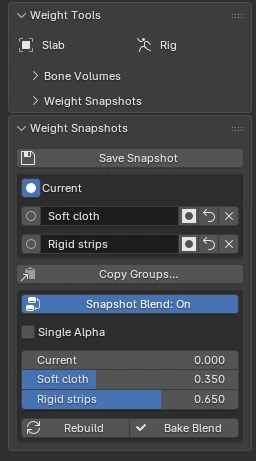
The factors of Snapshot Blend: a slider per slot.
The nodes rebuild themselves when you save, delete, restore or switch snapshots. Painting a slot shows up in the blend at once. In Weight Paint the panel reminds you that you see and paint the active slot's weights, not the blend.
Limits. Mixing slots can give a vertex more influences than any single slot had: check the influence count after a Bake. Cost grows with deform groups x slots: measure it on dense meshes.
Single Alpha
Single Alpha (off by default) replaces the per-slot factors with one Alpha that slides along an ordered list of slots: 0 is the first, n-1 the last, in between it mixes the two neighbours linearly (1.25 is 75% of the second and 25% of the third). Turning it on fills the list with all the slots in order; + adds a slot at the end (the same slot may appear more than once), - removes the active one, the arrows reorder. At least two steps are needed. Keyframes and drivers on Alpha work as usual.
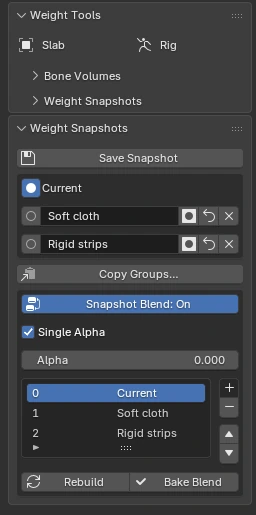
Single Alpha: one slider, an ordered list.
Use cases
- Different weights for different poses (correctives without shape keys): Snap 1 for normal poses, Snap 2 for the raised arm (softer shoulder); a driver on the factor of Snap 2 linked to the arm bone's rotation.
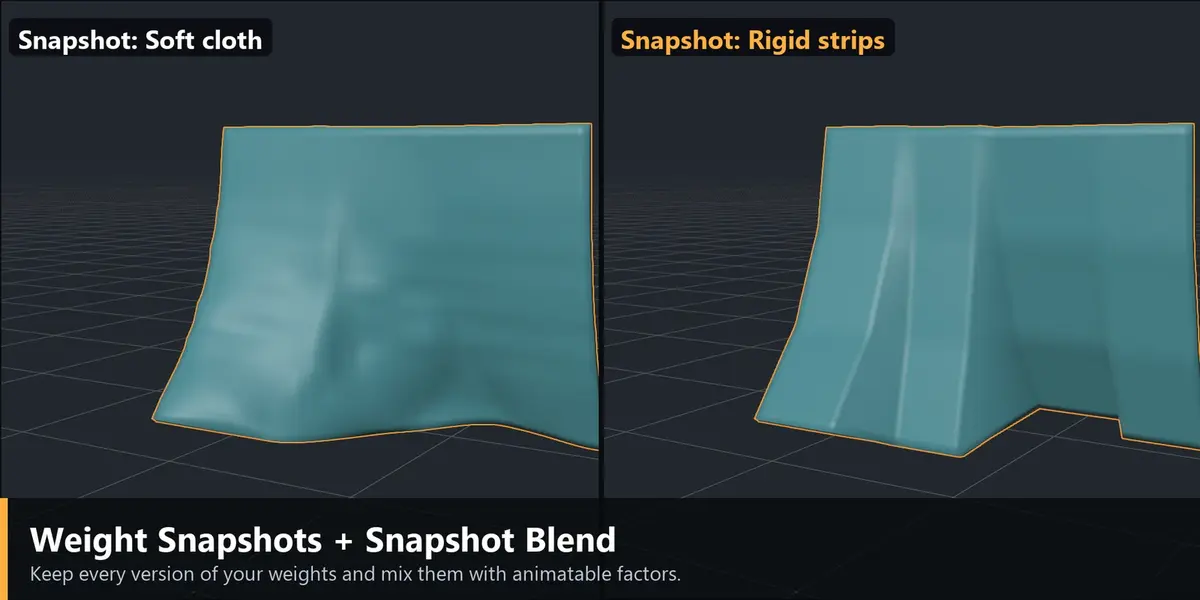
- Stiffer or softer cloth (see the demo): one snapshot with a rigid strip weighting, another with a soft one, factor animated while the cloth moves.
- Three stages of a transformation (a character that inflates, armour that opens): one snapshot per stage, Single Alpha over the three, Alpha animated from 0 to 2.
- Live comparison of two approaches: factor of Snap 1 at 0.5 shows halfway between two versions before you choose and Bake.
- Export: game engines do not know the modifier, so Bake Blend with the factors at the wanted value, then export.
- Safety net for the other tools: save a snapshot before anything that rewrites weights (Weights from Volumes, Blend Joints, Clean Islands). If it goes wrong, one click brings the old weights back, even after closing the file, which undo cannot do.
11. Workflows
A habit for all of them: save a snapshot before every step that rewrites the weights.
A character from scratch (blockout)
- Select the body mesh, then the armature; in Pose Mode select every deform bone.
- Build Chain with Size from Mesh: a cylinder per bone sized from the mesh, linked, with joints.
- Weights from Volumes. The mesh is bound and weighted.
- Check holes: Outside: Select, run again. Vertices left selected are usually tips (toes, ears, hair): lengthen that volume end (green handle) or raise the falloff. Then back to Nearest Volume.
- Pose (elbow 90 degrees, a raised arm), turn on Live Weights and refine.
- Run Check Weights; finish by hand what is left (anatomy usually needs a little brushing).
Rigid parts: a weapon in hand
Weights Rigid with Max Influences 1 and Whole Loose Parts: every vertex of the prop at 100% on one bone, so it moves without bending when the arm is posed.
Clothes on separate meshes
One Volume Group per piece (Body, Jacket, Shorts...) with extra bones for the cloth; select the armature and all the meshes and run Weights from Volumes. Each mesh takes only its group's bones. Simple clothes and fabrics can usually be left as they come out.
Close parts on one mesh: fingers and legs
A group per finger plus hand, with regions and Exclusive scope where volumes invade each other.
Skirt, cape, hair
Skirt and cape: rows of vertical chains and Build Grid (Smooth, Sharpness 4-6 for strips). Ponytail or tail: Build Chain with Taper. Flat locks of hair: Aspect 0.3.
Robot: rigid and soft on one mesh
Two groups on the same mesh: Rigid for the plates, Smooth for the joints, with group priorities so each vertex goes to the right owner.
Improving existing weights (Rigify, Auto-Rig Pro, automatic binding)
Run Blend Joints alone on the current weights to soften the joints, or rebuild with volumes where the automatic weights failed. Snapshot first, Show Difference afterwards to see what changed.
Different weights for different poses
Snapshots plus Snapshot Blend with a driver on a factor (see Weight Snapshots).
Wide parts: torso, shoulders, pelvis
When the border is right on one side and wrong on the other: direction Profile on the volume and Centre Shift on the joint; Group Shape for a bone that needs a different shape in one group.
12. Limits and good practice
- It is a base, not a promise of finished weights. Simple, regular parts can be final. Complex ones need refinements.
- Everything is plain vertex groups. Weight Paint, Smooth, Normalize and any other Blender tool keep working on the result.
- Save a snapshot before Live Weights or any run: they write to the vertex groups.
- Volumes that are too thick invade the part next to them (fingers, legs): use Volume Groups and regions.
- Only deform groups are touched; locked groups are respected.
- Dense meshes: Live Weights recomputes only what changed; Snapshot Blend cost grows with groups x slots.
- If the volumes still look like Blender's default envelopes, the panel warns you: no bone has been customised yet.
Have questions about this product?
Login to message
| Blender Extension Compatible | Yes |
| Published | 1 day ago |
| Blender Version | 4.5 - 5.2 |
| Extension Type | Add-on |
| Render Engine Used | Arnold, Blender-Internal, Blender-Game-Engine, Cycles, Eevee, Freestyle, Luxrender, Mental-Ray, Octane, Vray, Yafaray |
| License | GPL |
Discover more products like this
auto weights rigging skinning weight painting skirt cloth rigging Character rigging weight snapshots bone volumes joint blending armature vertex weights