 QLeris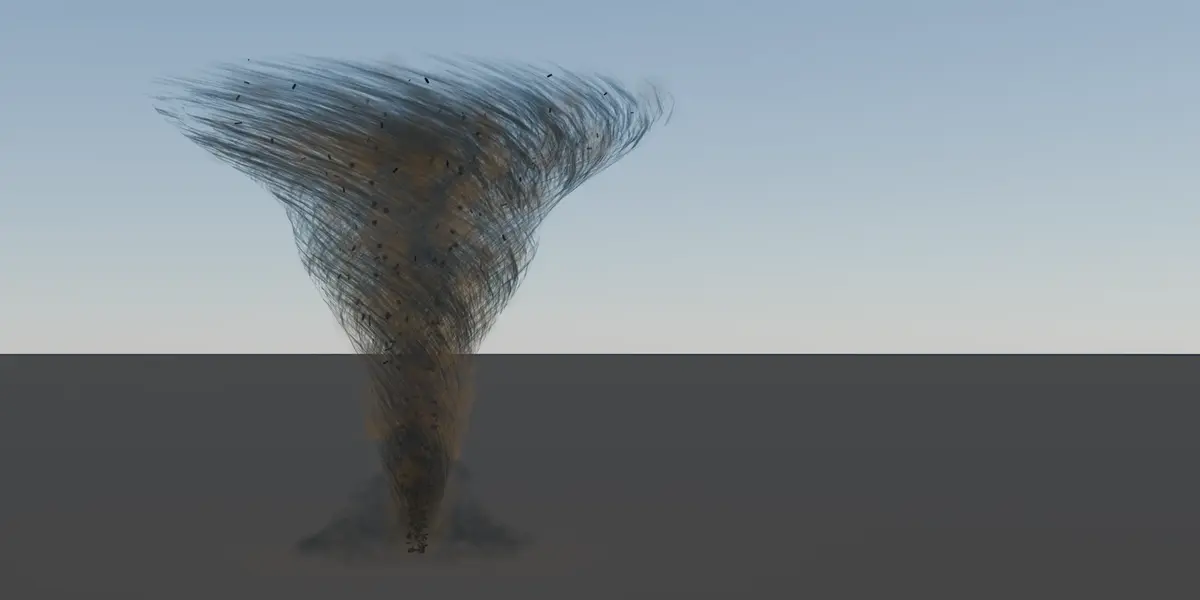
The always-current version of this manual lives at qleris.com/handbook.html. The same text ships inside the add-on as README.md.
Requirements
- Blender 5.2 LTS or newer
- Works in EEVEE and Cycles
- No external dependencies, no account, no internet connection
Installing
- Open Edit › Preferences › Add-ons and choose Install from Disk…
- Pick the downloaded .zip
- Enable Volute in the list
The panel appears in the 3D viewport sidebar – press N and pick the Volute tab.
Your first effect
- Press N in the viewport and open the Volute tab.
- Choose a shape and press Add Effect. It is built at the 3D cursor.
- Switch the viewport to Material Preview – press Z.
If you see nothing, this is almost always why: every layer in Volute is a volume, and Blender's Solid shading draws no volumes at all. A perfectly built effect is simply not there until you switch to Material Preview or Rendered. The on-screen overlay says so when it happens.
The panel, at three depths
A switch at the top decides how much is on screen at once. Nothing is hidden permanently – it only changes what you have to look past.
- Simple – shape, look, motion, and which layers are on. Enough to turn a preset into your own effect.
- Normal – plus sizes, speeds, and the defining slider of each layer.
- Expert – everything: segment counts, detail, noise, colours, simulation, performance.
Start on Simple. Most effects never need more.
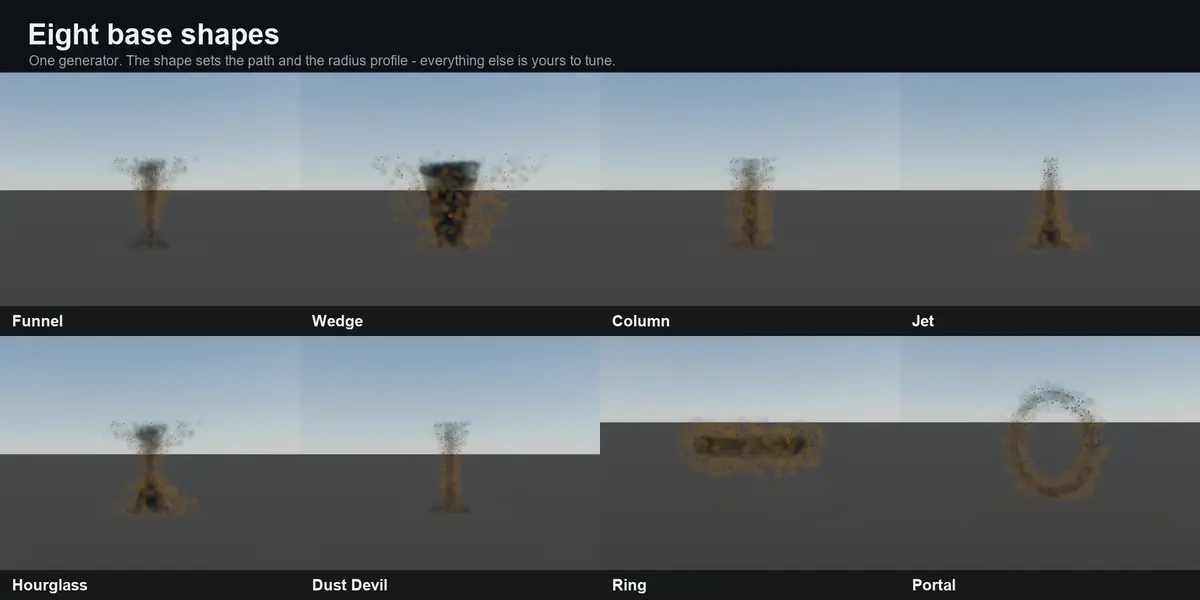
Eight base shapes
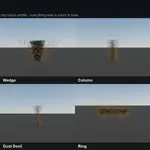
The shape sets the path and the radius profile. Ring and Portal are closed loops; the rest are open columns.
Funnel · Wedge · Column · Jet · Hourglass · Dust Devil · Ring · Portal
Shaping it in the viewport
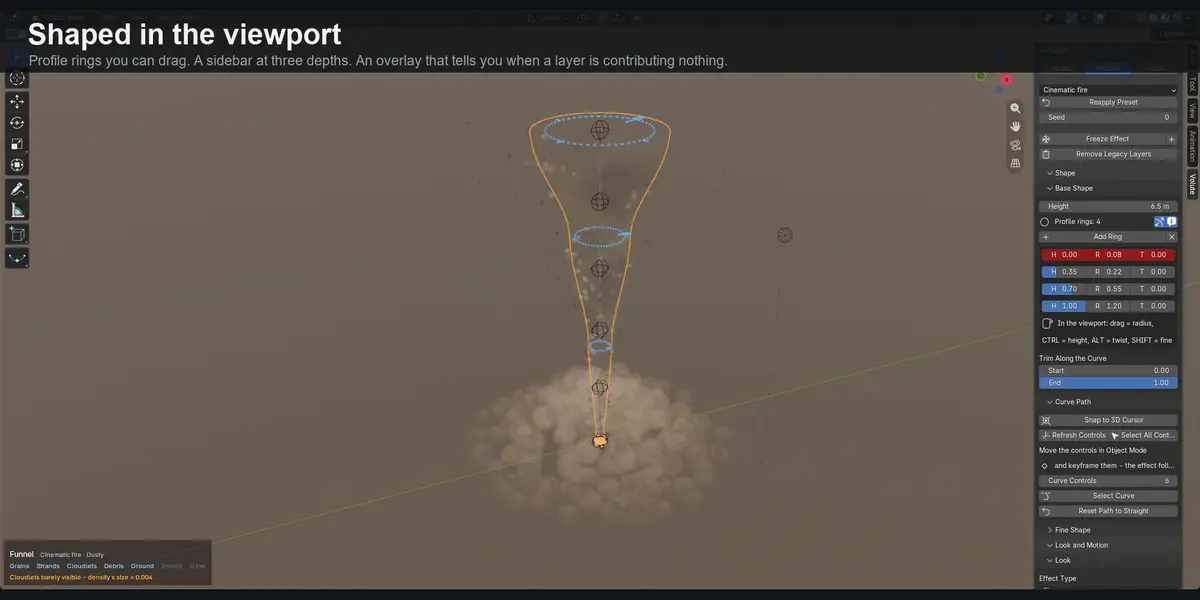
An effect is described by profile rings along its height. Each ring carries a position, a radius and a twist, and the body interpolates between them. Add a ring wherever you want the silhouette to change.
- Drag a ring – radius
- Ctrl + drag – height along the path
- Alt + drag – twist
- Shift + drag – fine adjustment
Add Ring inserts a new one into the largest gap. Note that Blender does not draw gizmos while an animation is playing – that is Blender's behaviour, not Volute's. The viewport overlay stays visible.
The layers
An effect is built from eight layers. Each can be switched off from its own panel header, and turning off what you cannot see is the cheapest optimisation available.
- Main volume – the body itself, with its own core, dust and outer wisps
- Dust Grains – fine specks caught in the flow
- Strands – thin drawn-out threads spiralling up the body
- Cloudlets – rounded puffs of smoke
- Debris – tumbling shards, replaceable with your own objects from a collection
- Ground Dust – the dome kicked up where the effect touches down
- Spiral Sheets – wide twisting veils wrapped around the body
- Glow – an emissive band, optionally with a real light that travels with it
A thin volume is only as visible as its density multiplied by its thickness. If a layer is on but contributing nothing, the viewport overlay says so and gives you the number.
Effect type, palette and preset
Three separate things, on purpose, so any one can change without disturbing the other two.
- Effect Type – what the layers are. Smoke absorbs light; Fire and Sci-Fi emit it.
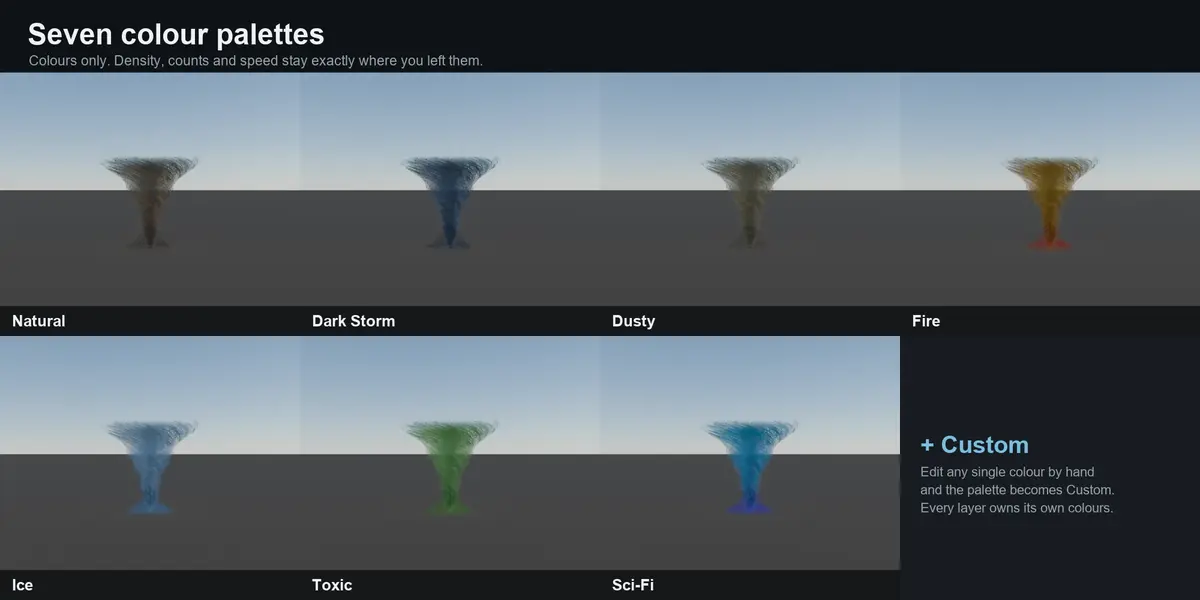
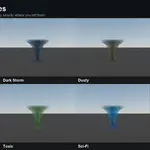
- Colour Palette – colours and nothing else. Density, counts and speeds stay where you left them, so a palette can be tried on any look. Seven ship: Natural, Dark Storm, Dusty, Fire, Ice, Toxic, Sci-Fi.
- Preset – a complete look: shape, motion, densities, counts and colours.
Every layer owns its own colours. Edit them where the layer is set up, or all together under All Colours in the Look panel. Change any single colour by hand and the palette name switches to Custom. Save your own presets and they follow you into every project.
Animating
The path carries a row of controllers. Move them in Object Mode and the effect follows; keyframe them and it travels. The deformation is a Hook modifier that Blender evaluates itself, so nothing fights your keyframes.
- Snap to 3D Cursor puts the effect's foot on the cursor. Place the cursor with Shift+right-click on a surface, or Shift+S onto a selection.
- Refresh Controls resamples the path to the number of controllers you asked for.
- Reset Path to Straight undoes path edits without touching anything else.
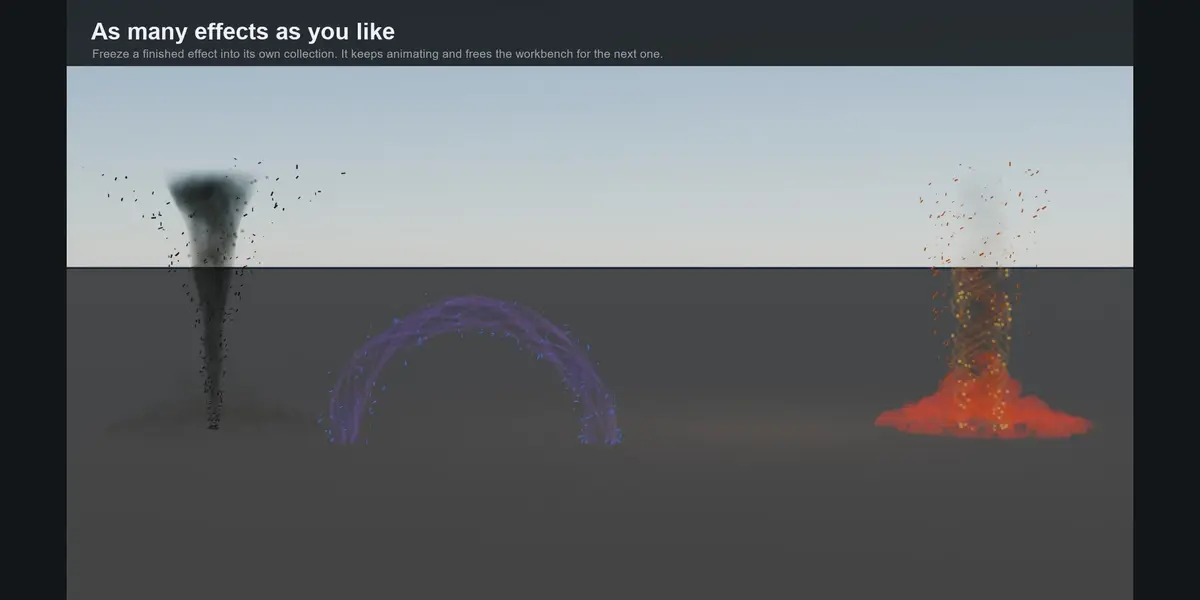
Several effects in one scene
Volute edits one effect at a time. When one is finished, press Freeze Effect. The copy moves into a collection of its own with its own node graph, materials and path. It keeps animating, stops responding to the sliders, and frees the workbench for the next one. A frozen effect runs no Python at all, so the limit is your hardware.
Using your own mesh
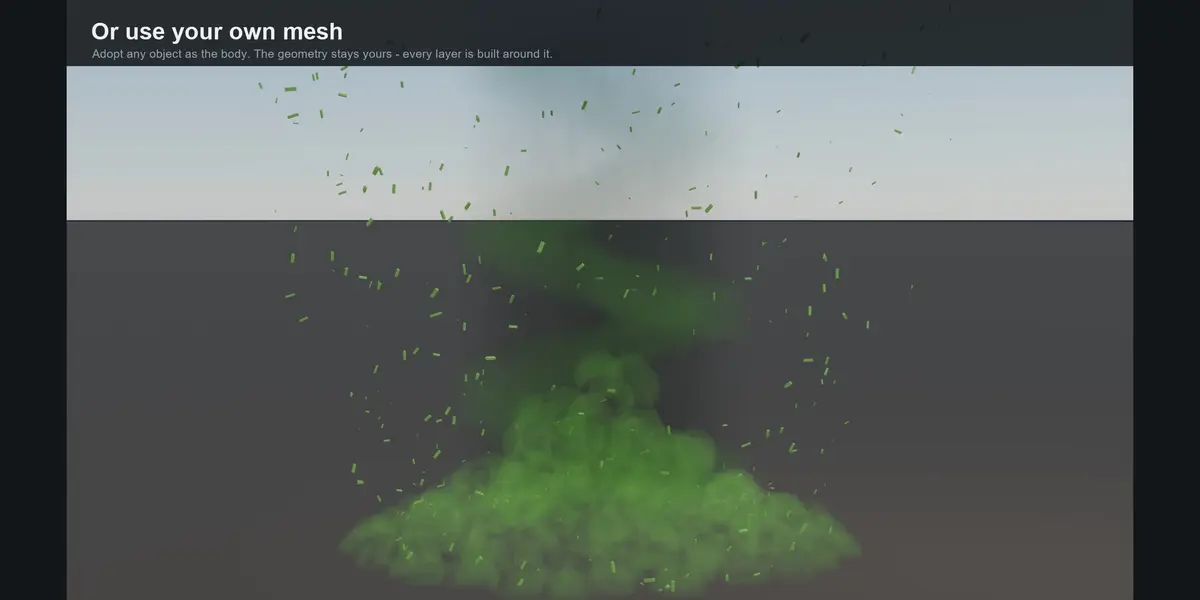
Adopt Selected Mesh makes any mesh the body of an effect. The geometry stays yours: it receives the volume material, and the path, dust, debris and every other layer are built around it at its own size and position. Height and Width then scale the object – the mesh data itself is never modified. Scaling it yourself with S works too; the effect follows either way.
The volume follows your mesh's size and position, not the fine detail of its silhouette. Large, simple forms read best.
Driving physics
The Force Field section places Blender's own force fields along the path, so cloth, hair, particle systems and rigid bodies react to the effect. Simulated Particles adds an emitter matched to the shape and driven by the same fields.
Anything driven by a force field is a Blender simulation: it has to be simulated or baked before it renders correctly. The effect itself always stays real-time.
Performance
- Quality – Preview / Realtime High / Render. Sets segment counts, detail and layer counts together. The first thing to reach for.
- Surface Shell – expensive and usually barely visible. Measured at 15 s per frame against 0.4 s with it off.
- Scatter shadows – costs a great many shadow pages in EEVEE and shows almost nothing. Leave off except for close-ups.
- Sheet render method – Dithered is considerably faster than Blended and resolves over the samples.
- Live Updates – switch off to hold the layers on the current frame while you work on something else.
Troubleshooting
- Nothing visible – Solid shading draws no volumes. Press Z and choose Material Preview.
- A layer is on but invisible – its density multiplied by its size is too low. The overlay gives you the number.
- Gizmos vanish during playback – Blender does not draw gizmos while an animation runs. The overlay stays.
- Add Effect is missing – an effect is already being edited. Freeze it first to free the slot.
- Viewport feels sticky – lower Quality, or switch Live Updates off while you work.
Known in 1.0.0
On the two closed shapes – Ring and Portal – the Spiral Sheets layer shows a visible seam where its colour gradient wraps around the loop. The other seven layers are unaffected, and switching Spiral Sheets off avoids it. A fix is in progress.
Support
Questions, bugs and feature requests: qleris.com
Have questions about this product?
Login to message
| Blender Extension Compatible | Yes |
| Published | 27 days ago |
| Blender Version | 5.2 |
| Extension Type | Add-on |
| Render Engine Used | Eevee |
| License | GPL |

Discover more products like this
fire tornado eevee procedural effects smoke geometry nodes VFX portal volumetric real-time dust