wk_RockPipeline
 Wolfram Kampffmeyer


Blender Addon wk_RockPipeline
This Documentation is also included in the .zip file of the addon!
Installation:
• In Blender go to Edit > Preferences > Add-ons
• Click Install, then choose the wk_rockpipeline*.zip file
• Enable wk_RockPipeline in the list
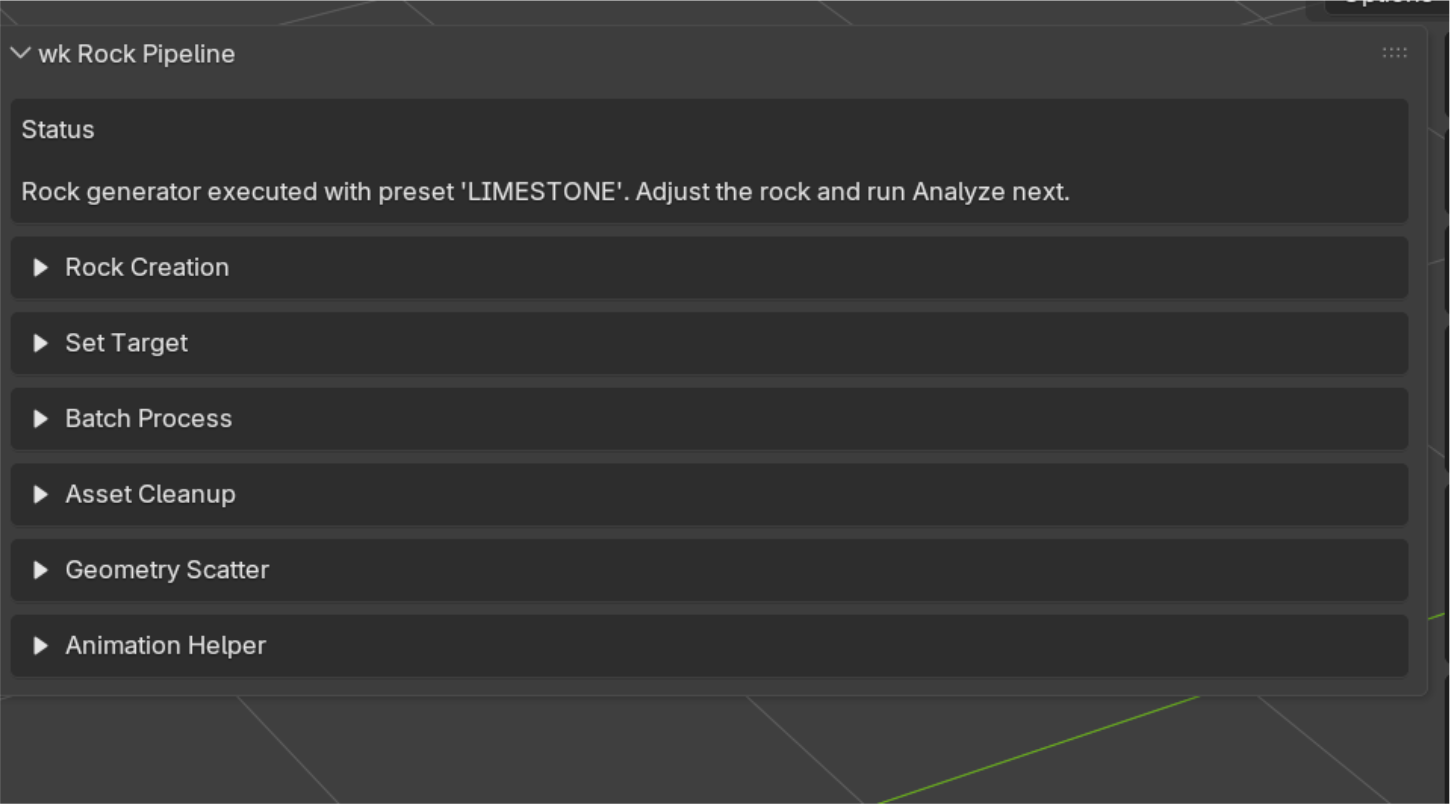
• Access it from the Sidebar (N) > Rock Pipeline
Overview:
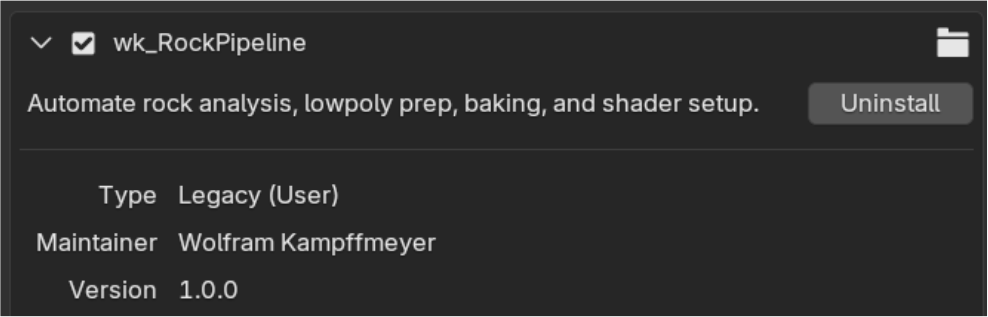
wk_RockPipeline is a Blender workflow toolkit for creating, texturing, processing, scattering and reusing rock assets.
It builds on Blender's existing Rock Generator and turns it into a more complete production pipeline. Instead of stopping at the generated high-resolution rock, wk_RockPipeline provides tools for procedural texturing, low-poly creation, baking, shader reconstruction and batch processing.
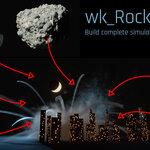
The add-on also extends beyond individual rocks. Rock libraries can be scattered across larger surfaces using a layered Geometry Nodes based system, making it useful for debris fields, rocky environments and larger procedural structures such as asteroids or comets.
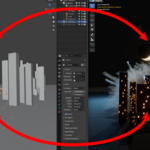
For simulation and animation workflows, wk_RockPipeline includes additional tools for exporting and importing animation data, VDB sequences and point-cloud caches. Imported point clouds can be converted into animated instanced geometry using configurable instance layers.
Main Features
Rock Generator Presets – Quickly create different rock types such as Granite, Basalt, Sandstone, Limestone, Frozen Rock and Cliff.
Procedural Rock Materials – Generate adjustable procedural materials designed specifically for rock surfaces.
Low-Poly & Baking Pipeline – Create optimized versions and bake Normal, AO, Base Color, Roughness and additional maps.
Batch Processing – Process multiple rocks through the pipeline automatically.
Asset Management – Generated textures and bake data are tracked using persistent asset IDs and can be cleaned up from within Blender.
Geometry Scatter – Scatter multiple rock collections across a surface using layered Geometry Nodes setups with density, scale, rotation, noise and weight-map controls.
Simulation Helpers – Export and import animation data and VDB sequences.
Point Cloud Pipeline – Export, import and reload animated point caches and replace particles with configurable collections of instanced geometry.
Create Rocks & Textures
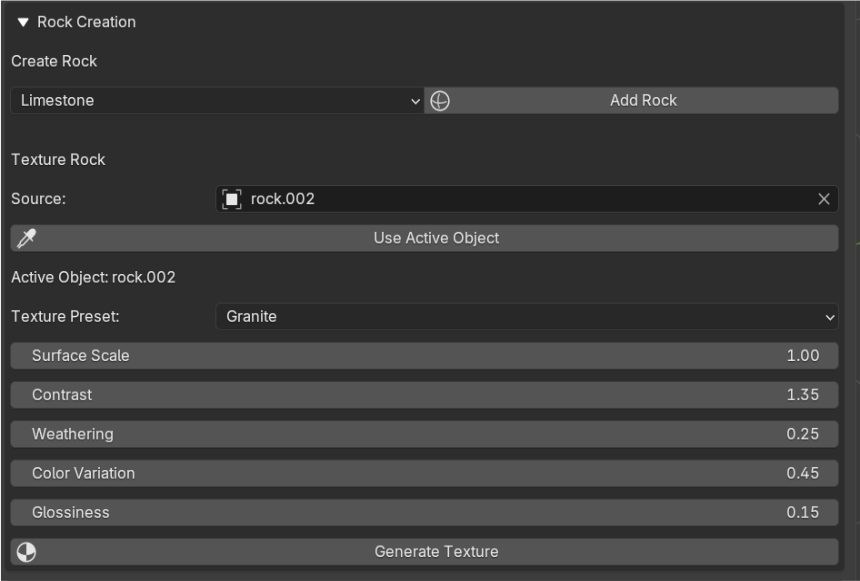
The Create & Texture section combines the first two stages of the rock workflow: creating a new rock mesh and generating its procedural surface material.
You can either create a new rock using one of the included shape presets or use an existing mesh as the source for the texture generator.
Create Rock
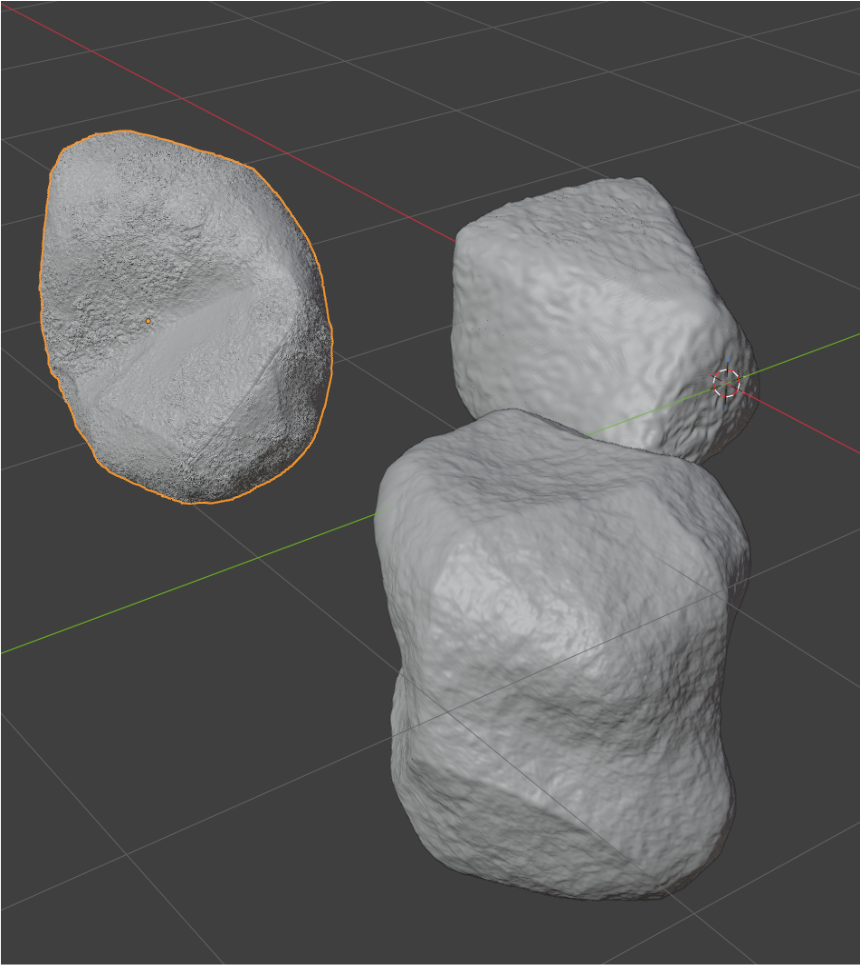
Choose a Rock Preset and click Add Rock to create a new rock mesh using Blender's built-in Rock Generator.
Available presets:
Granite
Basalt
Sandstone
Limestone
Frozen Rock
Cliff
Each preset uses a different set of Rock Generator parameters to create a characteristic base shape. The generated rock is a regular Blender mesh and can be edited freely using Blender's modeling or sculpting tools.
The presets are intended as starting points rather than finished assets. Refine the rog in the Modifier Tab! Carefully increase the Subsurf levels.
Texture Rock
The Texture Rock tools generate a procedural rock material for the selected source object.
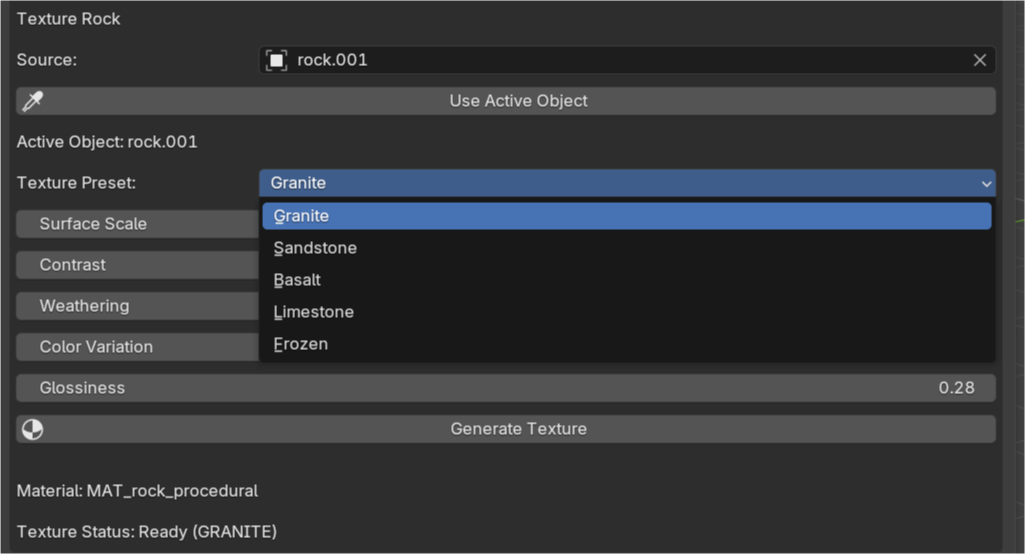
Use Source to specify the mesh you want to texture, or click Use Active Object to use the currently active Blender object.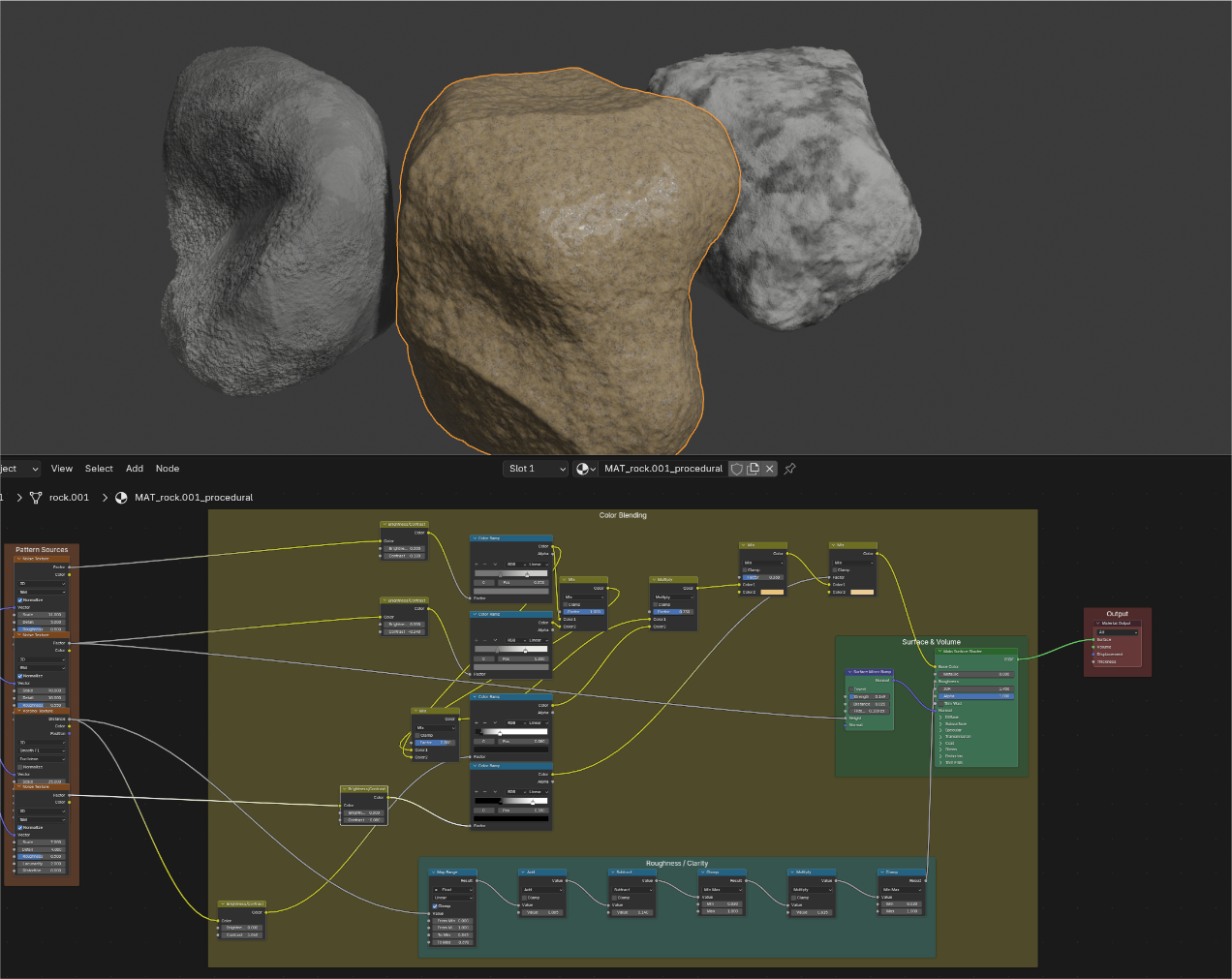
Choose a material preset:
Granite
Sandstone
Basalt
Limestone
Frozen
The standard material controls include:
Surface Scale
Controls the overall scale of the procedural surface structure.
Contrast
Adjusts the contrast and definition of the generated surface.
Weathering
Controls the amount of weathered surface variation.
Color Variation
Adjusts the amount of variation within the base colors.
Glossiness
Controls how glossy or matte the surface appears.
Frozen Rock
The Frozen preset provides additional controls specifically for icy and frozen surfaces:
Ice Flow Scale – Controls the scale of the flowing ice structures.
Ice Contrast – Adjusts the definition of the ice patterns.
Frosting – Controls the amount of frosted surface appearance.
Cloudiness – Adjusts the amount of cloudy variation within the ice.
Ice Polish – Controls how smooth and polished the ice appears.
Hue / Saturation – Adjusts the overall ice coloration.
An optional Dirt Stripes effect can be used to add layered dirt or sediment patterns to the frozen surface.
Click Generate Texture to create the procedural material using the current settings.
Using Existing Meshes
The texture generator is not limited to rocks created with Add Rock. Any suitable mesh can be selected as the Source, allowing the procedural rock materials to be used on imported, modeled or sculpted geometry as well.
Continue Editing in the Shader Editor
The texture presets are designed as starting points, not finished materials. After generating a texture, you can open the material in Blender's Shader Editor and continue working with the generated node setup.
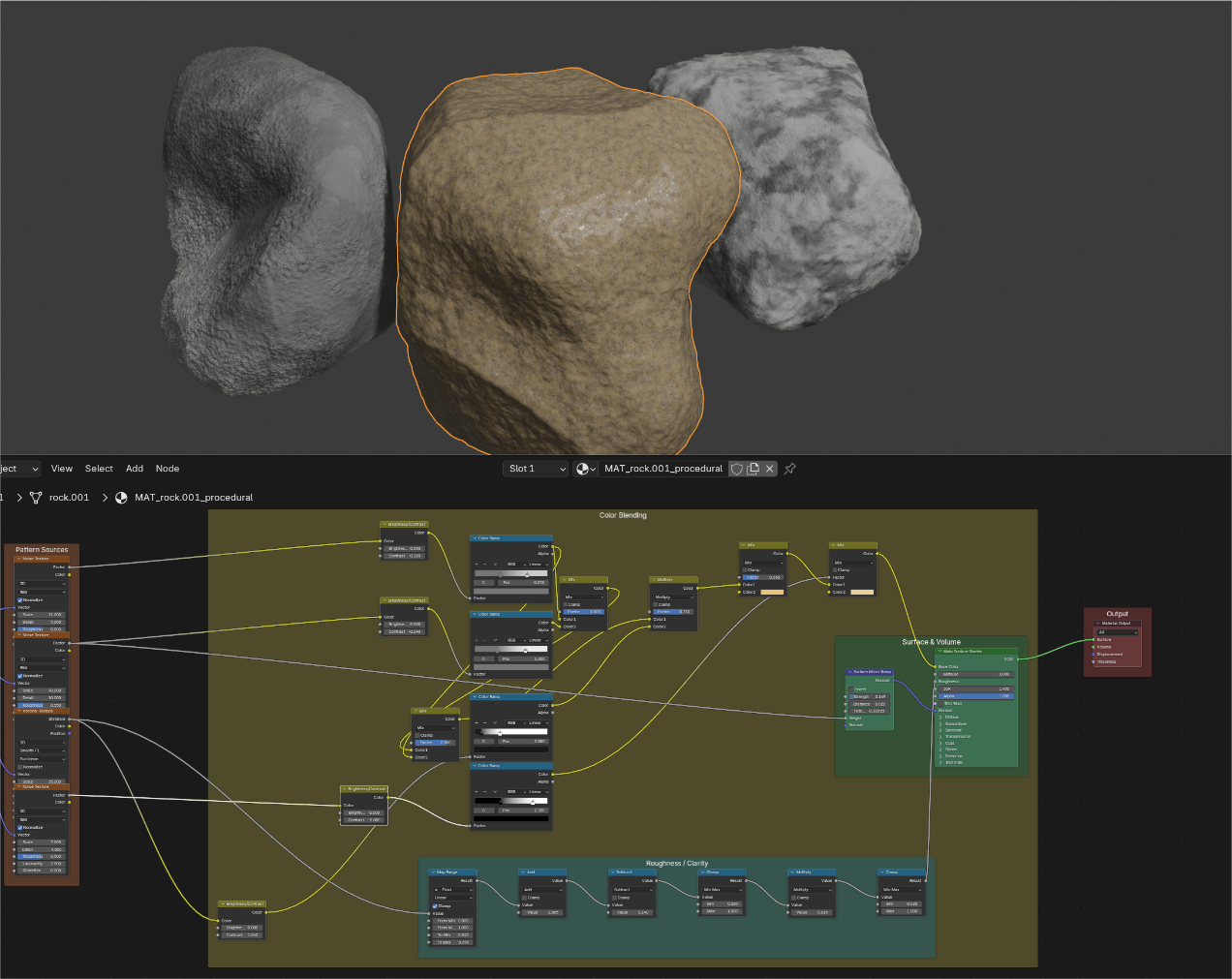
The shader is built from procedural nodes and remains fully editable. Try changing values, Color Ramps, noise scales, blending parameters and other settings to see how they affect the surface. Experimenting with these controls is one of the easiest ways to create variations or develop a preset into a completely different material.
Don't be afraid to explore the node setup. Since the material is procedural, even small changes can produce significantly different results.
A useful workflow is to generate a preset that is reasonably close to the desired look, then use the Shader Editor for further refinement: Choose Preset → Generate Texture → Open Shader Editor → Experiment & Refine
Set Target & Batch Process
After creating and texturing a rock, the next step is to prepare it for its intended use. The Set Target section defines how the source rock should be processed — including the desired level of detail, target polygon count, texture resolution and bake settings.
Once one or more rocks have been prepared, Batch Process can run the same production pipeline automatically across an entire list of objects.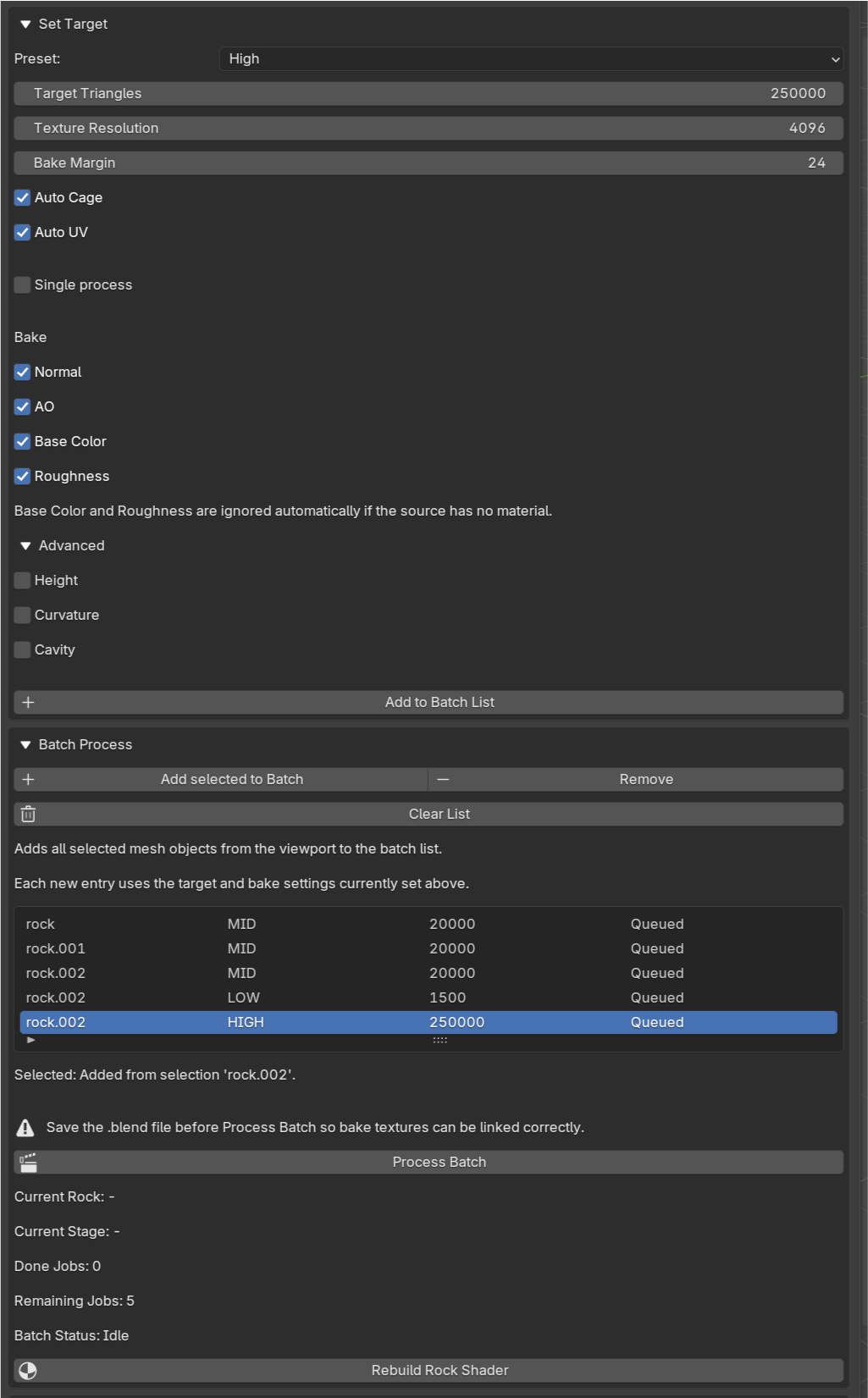
Set Target
Choose a target preset depending on how the finished asset will be used:
LOW - Creates a strongly optimized version for situations where performance and low polygon counts are the priority.
MID - Provides a balance between geometric detail and performance.
HIGH - Preserves more of the original geometry and is intended for assets that require a higher level of detail.
The preset provides a starting configuration which can then be adjusted using the available settings.
Target Triangles defines the desired triangle count of the optimized mesh.
Texture Resolution defines the resolution used for the generated bake textures.
Bake Margin controls how far baked pixels extend beyond the UV islands, helping to prevent visible seams.
Auto Cage automatically handles the cage required for transferring surface details from the source mesh to the optimized target.
Auto UV automatically creates the UV layout required for baking.
This makes it possible to use the presets for quick processing while still retaining control over the important optimization and baking parameters.
Tip: Choose the Bake Maps you need before adding to the batch list!
From High-Resolution Rock to Production Asset
The purpose of Set Target is not simply to reduce polygon count. It prepares the rock for the following stages of the pipeline.
A typical process is:
Source Rock → Set Target → Create Lowpoly → Bake Maps → Rebuild Shader
The detailed surface information of the original rock can therefore be transferred to a much lighter mesh using baked texture maps.
Batch Process
The same workflow can be applied to multiple rocks using Batch Process. Add individual rocks with Add to Batch List, or use Add Selected to Batch to add several selected objects at once.
The batch list can be edited using Remove Batch Item and Clear Batch. Once the list is ready, click Process Batch to process the queued assets automatically.
During processing, wk_RockPipeline displays information about the current rock and processing stage, completed and remaining items, batch status, duration, and successful or failed operations. This is particularly useful when creating a larger rock library: each rock can be prepared with the desired target settings and then processed without manually repeating the same optimization and baking steps for every asset.
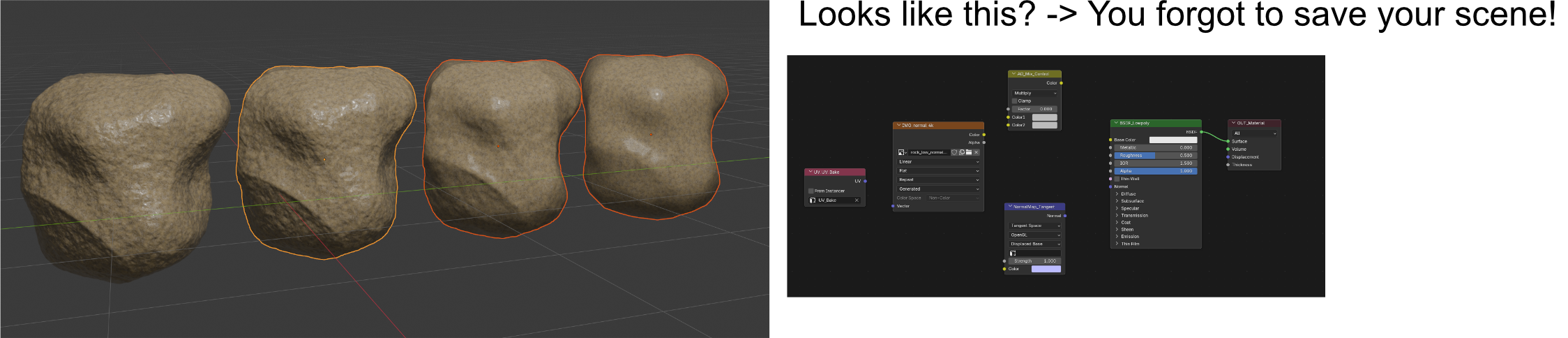
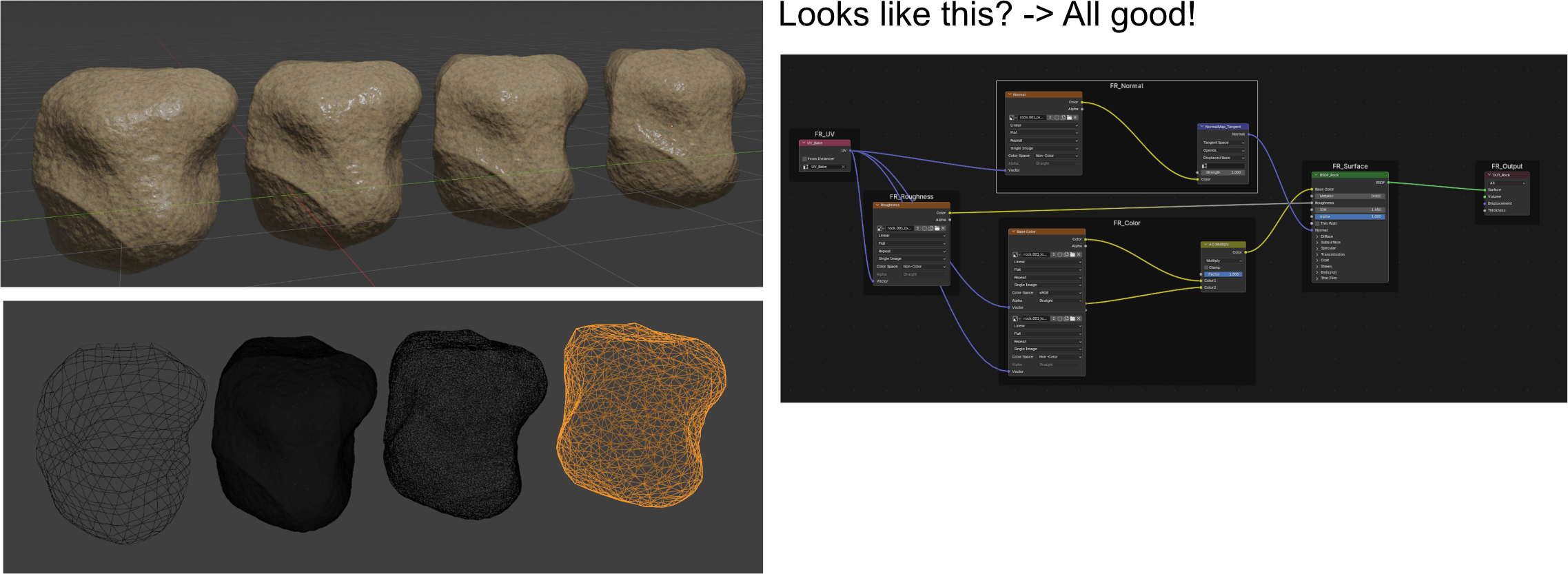
Asset Cleanup
The Asset Cleanup tools help keep your project folder organized by removing generated assets that are no longer needed.
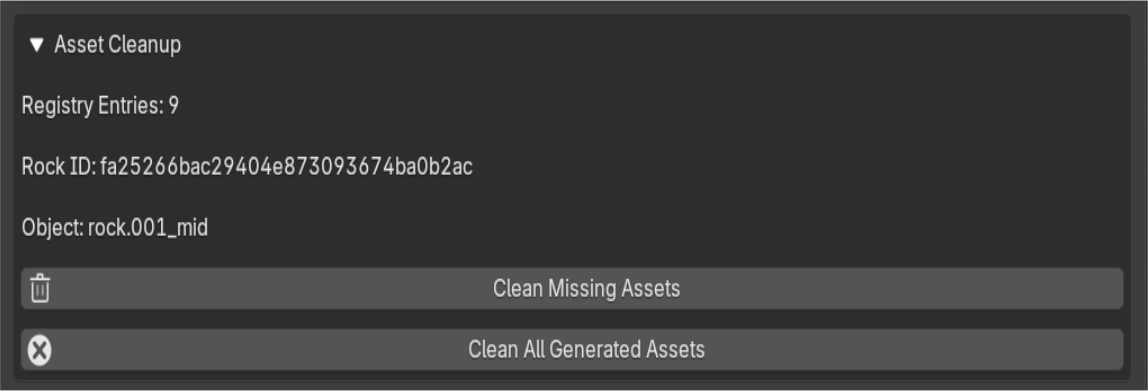
Clean Missing Assets
Scans the asset registry for generated rocks that no longer exist in the current scene. If a generated rock has been deleted, its associated generated assets can be removed from disk as well. This is useful for cleaning up unused data after deleting rocks during production.
Clean All Generated Assets
Removes all generated assets that are registered for the current project. Use this option with care, as it is intended to clean the generated output of the Rock Pipeline.
Geometry Scatter
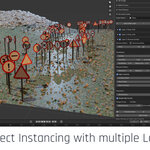
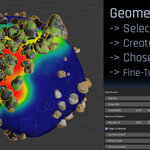
The Geometry Scatter tools allow you to distribute any geometry across the surface of another object. While originally developed for creating asteroid fields and comet debris, the workflow is equally suitable for vegetation, rocks, buildings, signs, or any other scattered assets.
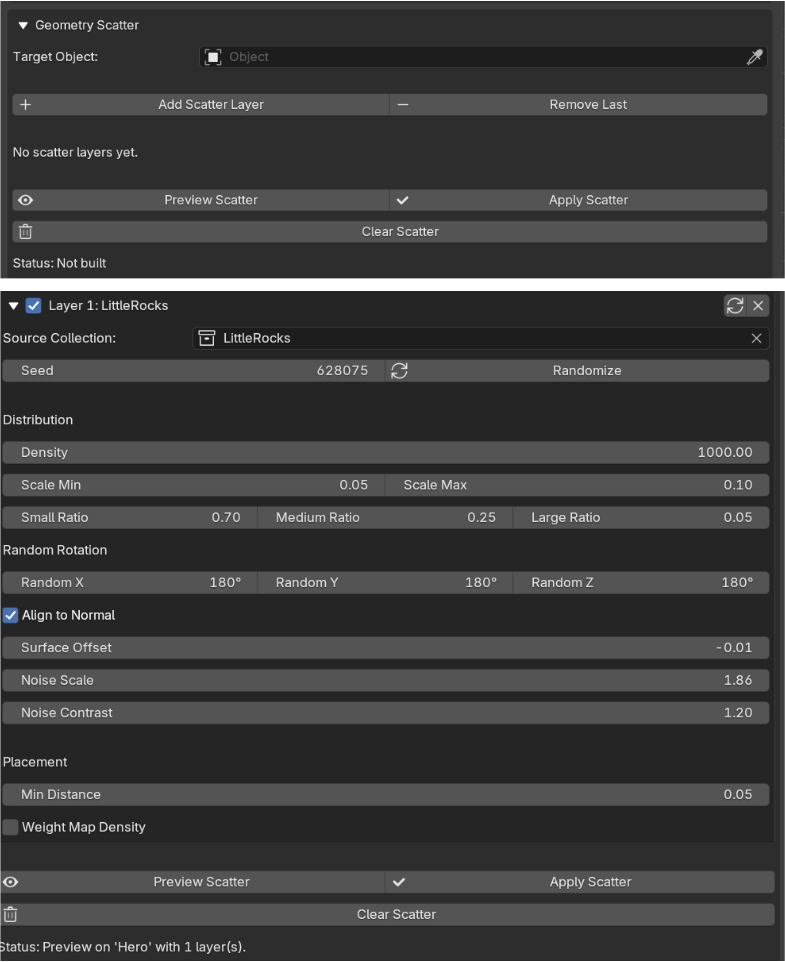
First, choose the target object and click „Add Scatter Layer“. Then choose the source collection with the scatter objects and adjust the scattering parameters to achieve the desired distribution. The system supports randomization, density control, scaling, rotation, and other placement options while remaining fully editable.
Because the generated objects remain regular Blender geometry, they can easily be modified, animated, exported.
Typical use cases
• Asteroids and space debris
• Rocks and boulders
• Trees and vegetation
• Buildings and city props
• Road signs and environmental assets
• Any repeated geometry distributed across a surface
Additional layers can be added at any time using Add Scatter Layer, allowing you to build up complex distributions step by step.
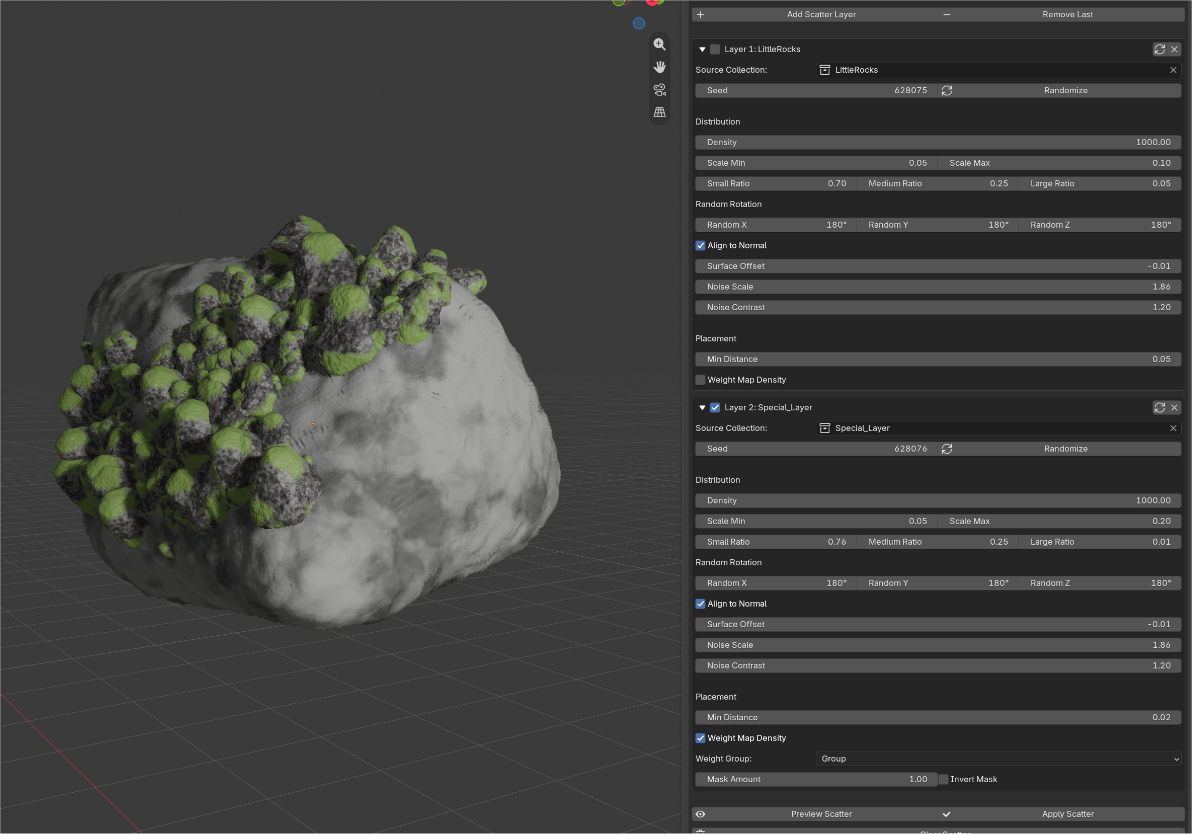
Workflow Tip: When working with multiple layers, temporarily disable the layers that are already finished while adjusting a new one. Previewing only the active layer is significantly faster and makes iteration much more comfortable. Once you're satisfied, simply enable the other layers again.
Tip: Keep the Large Ratio low. A small number of large objects mixed with many smaller ones usually creates a much more natural-looking distribution.
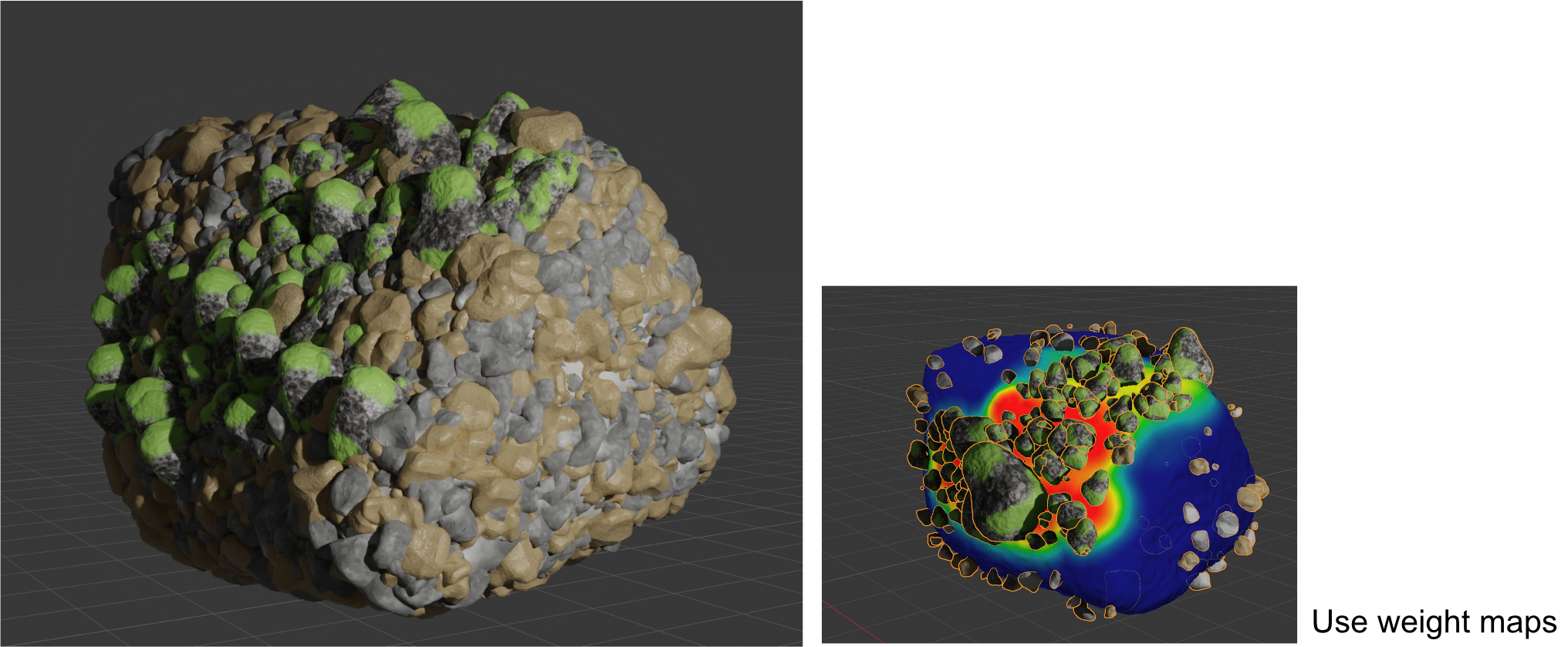
Animation Helper
The Animation Helper provides several utilities for exchanging animated data between Blender and external simulation tools such as Houdini, Pro Particles, and Pro Pyro. It simplifies common import and export workflows while keeping the original scene intact.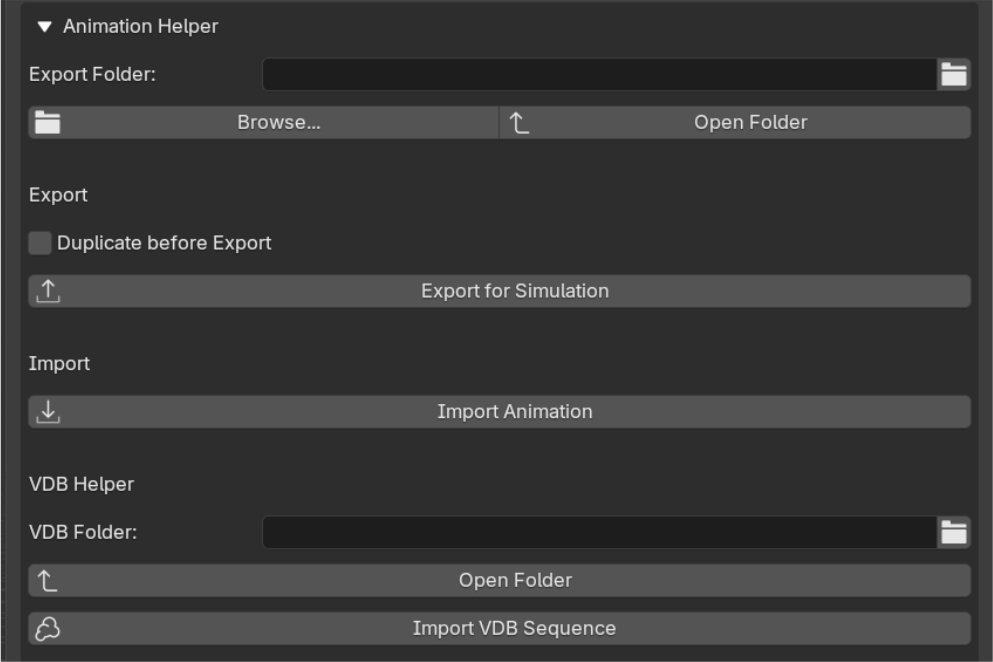
Export for Simulation
Use Export for Simulation to create a simulation-ready Blender scene. The tool bakes the animation of the selected objects and writes a separate .blend file that can be used for external simulation workflows. The original production scene remains unchanged.
Duplicate before Export
When enabled, the tool first creates temporary duplicates and bakes the animation on those copies. Your original animation curves remain untouched.
When disabled, the bake is applied directly to the original objects. This replaces the existing animation with fully baked keyframes, typically resulting in a key on every frame.
In most production workflows, it is recommended to keep Duplicate before Export enabled so your original animation stays editable.
Import Animation
Import Animation imports the objects from a previously exported simulation .blend file together with their baked animation. This provides a clean, lightweight scene that can be used for further simulation or processing.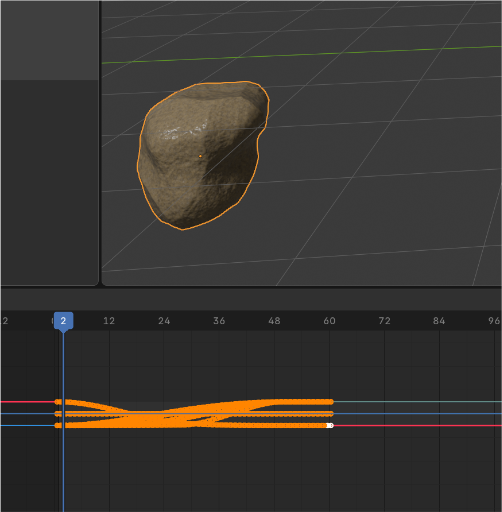
VDB Folder: Select the folder containing the VDB sequence.
Open Folder: Opens the currently selected VDB folder in the operating system.
Import VDB Sequence: Imports the complete VDB sequence from the selected folder. If no folder has been selected yet, the folder browser opens automatically.
Typical Workflow for Particle Simulation
The Animation Helper is designed to separate animation, simulation, and rendering into independent scenes. This keeps production files lightweight and allows simulations to be iterated without modifying the original animation.
Step 1 – Create the animation
Animate your scene as usual. Low-poly stand-ins can be used during animation to keep the viewport responsive.
When the animation is finished, export the required objects using Export for Simulation.
Step 2 – Simulate
Open the exported scene in your preferred simulation environment.
The workflow was primarily designed for Blender-based simulations (for example using Pro Particles, Pro Pyro, Geometry Nodes or Blender's native simulation tools), but the exported animation can also serve as the starting point for other simulation software after conversion if required.
Run your simulations and export only the data needed for rendering:
VDB sequences
Point Caches
Important: Each folder should contain only a single VDB sequence.
Step 3 – Render
Return to your original animation scene. Import the simulation results using the appropriate tools:
Import VDB Sequence for volumetric simulations.
Import Point Cache for particle simulations.
Now continue with shading, lighting, compositing and final rendering without carrying the simulation setup inside the production scene.
Point Cloud Pipeline
The Point Cloud Pipeline lets you replace simulated particles with any geometry collection. Instead of rendering thousands of simple points, each particle can become a rock, piece of debris, vegetation, or any other asset while preserving the original simulation.
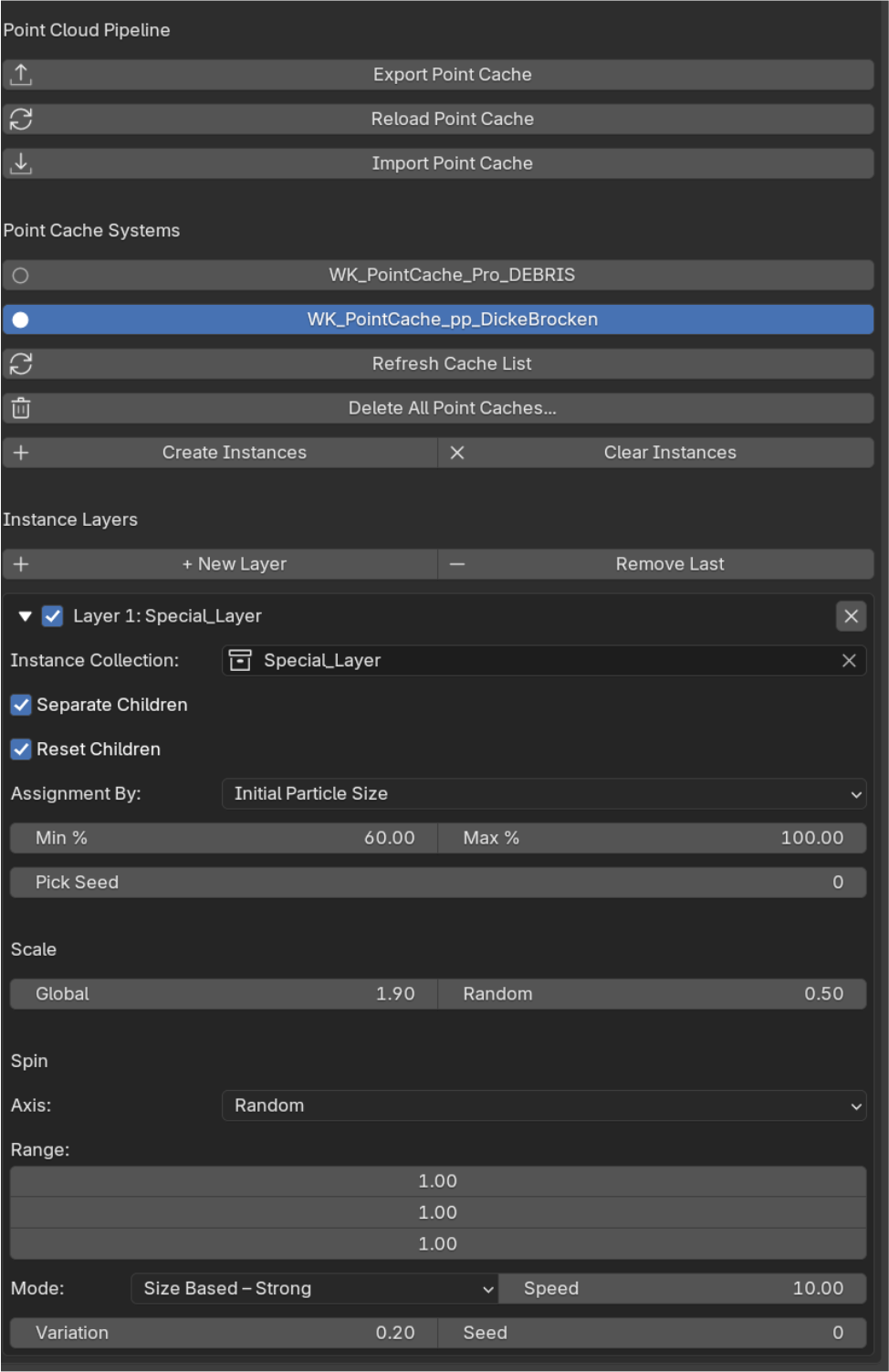
Each imported point cache can be used with multiple Instance Layers, allowing different assets to be assigned to different particle groups or value ranges.

Importing a Point Cache
Use Import Point Cache to load a point cache previously exported from the simulation scene.
After importing, the cache appears in the Point Cache Systems list. Multiple caches can coexist in the same scene and are configured independently. The point cache stores particle attributes such as position, velocity, size, mass and optional group IDs, allowing different instancing strategies later.
Instance Layers
Each cache can contain multiple Instance Layers.
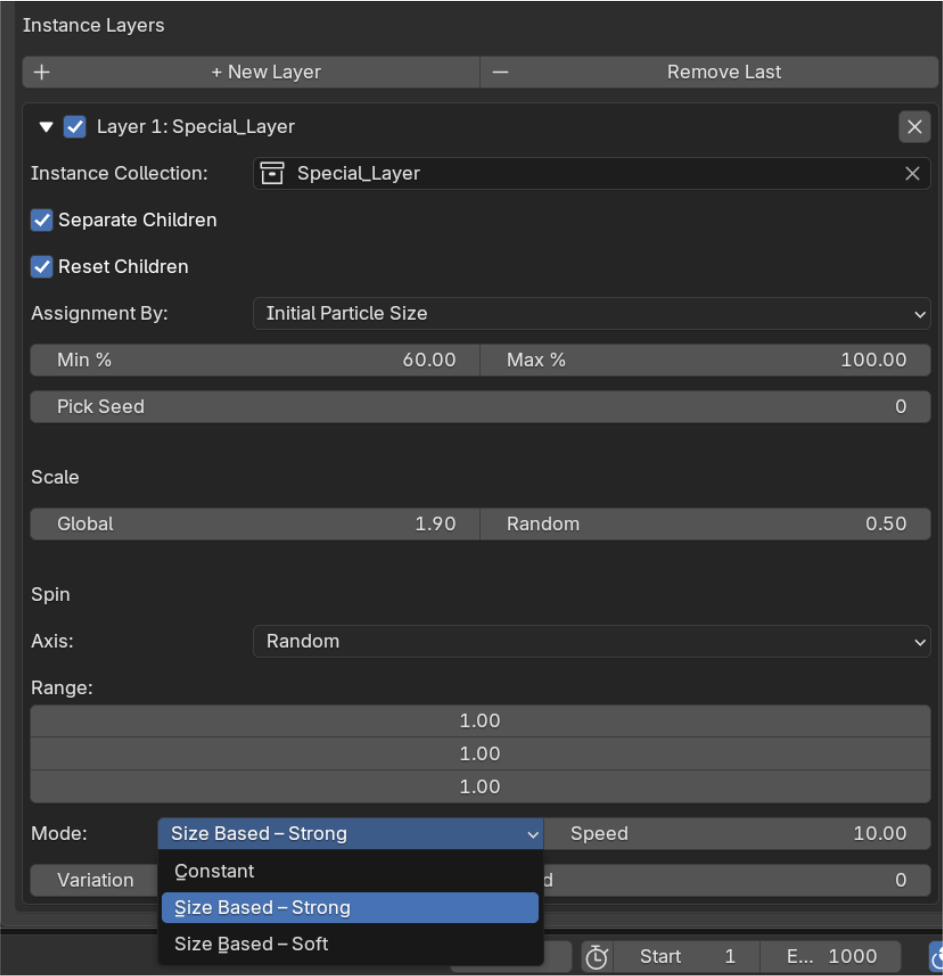
Every layer defines, which collection should be instanced, which particles it affects, scaling, random variation, rotation behaviour. Layers are evaluated independently, making it easy to combine different asset types in one simulation.
Assignment By
Particles can be selected using different criteria.
• Initial Particle Size: Assigns assets according to the particle's original size. This is ideal for debris simulations where particle size already represents the intended object size.
• Mass: Uses the particle mass instead of visual size. Useful when particles share a similar size but have different physical properties.
• Group ID: Assigns geometry based on particle groups created during the simulation. This is useful for separating different emitters or simulation regions while keeping everything inside one point cache.
Min / Max %: The percentage range determines which particles belong to the current layer.
For example:
0–20% → Dust
20–70% → Medium debris
70–100% → Large fragments
Several layers can be combined to build complex distributions.
Pick Seed: Changes the random selection of objects inside the assigned collection.
Scale: Global controls the overall size of all instances in the layer.
• Random adds natural variation, so repeated objects become less obvious.
• Spin: The rotation system can generate anything from subtle movement to rapidly spinning debris.
Axis: Choose how the rotation axis is determined.
• Random – random axis for every particle
• Along Velocity – spins around the movement direction
• Local Rotation – uses the particle's stored orientation
• Range - Controls how strongly rotation is allowed around each axis.
Refresh Cache List: If you’ve deleted a Point Cache manually, the Refresh button will update the Point Cache System.
Delete All Point Caches: Clears your scene, deletes all Point Caches and Instance Layers.
Create Instances: Creates the Geometry Nodes setup for the selected point cache.
Clear Instances: Deletes the Geometry Nodes setup
Spin Mode: Three rotation modes are available.
Constant: All particles rotate with approximately the same angular velocity.
Size Based – Strong: Smaller particles rotate significantly faster than large ones. Ideal for explosions, dust and lightweight debris.
Size Based – Soft: Also increases rotation for smaller particles, but with a more subtle effect. Useful for natural looking rock or rubble simulations.
Speed: Controls the overall spin speed.
• Variation: Adds random differences so particles never rotate perfectly identically.
Separate Children: Separates instanced children into individual objects. Useful when you have multiple objects in the source collection.
Reset Children: Restores separated children back to the original hierarchy.
 Included
Includes 12 months of
- Support from Wolfram Kampffmeyer
- Product updates
Extend this product’s Support Period +12 months: 25% of product price
Have questions before purchasing?
Login to message
| Blender Extension Compatible | Yes |
| Dev Fund Contributor | |
| Published | about 2 months ago |
| Blender Version | 5.1 - 5.2 |
| Extension Type | Add-on |
| License | GPL |
Discover more products like this
geometry scatter Asset Generator VDB Pipeline ProceduralRocks layers point cloud FX Pipeline animation tools geometry instancingm geometry nodes pointcloud instancing import-pointclouds