 Bala
Wonder Bool
Live booleans with clean quads, for Blender 4.0 to 5.3. A plain boolean leaves n-gons and long thin triangles that spoil shading, bevels and subdivision. Wonder Bool cuts the hole and then rebuilds the mesh around it with quads. The cutters stay live: move, turn or edit them and the cut follows.
Currently in beta
Most cuts come out clean, but you may see a few mistakes here and there. If you do, please message me on Superhive with some screenshots of your use case, and I'll fix it.
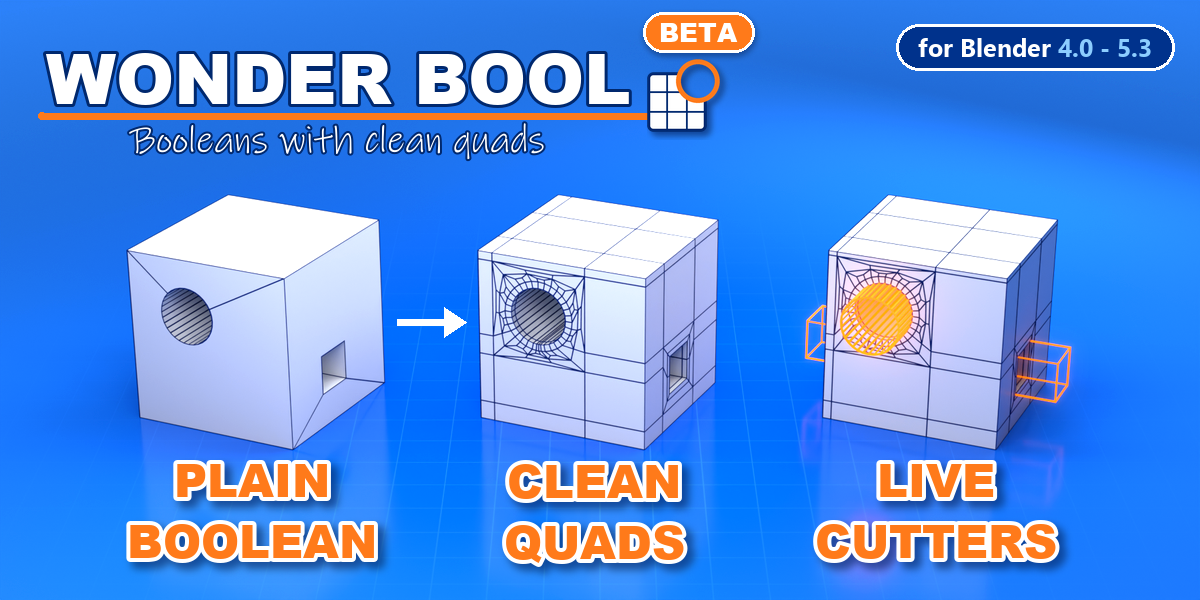
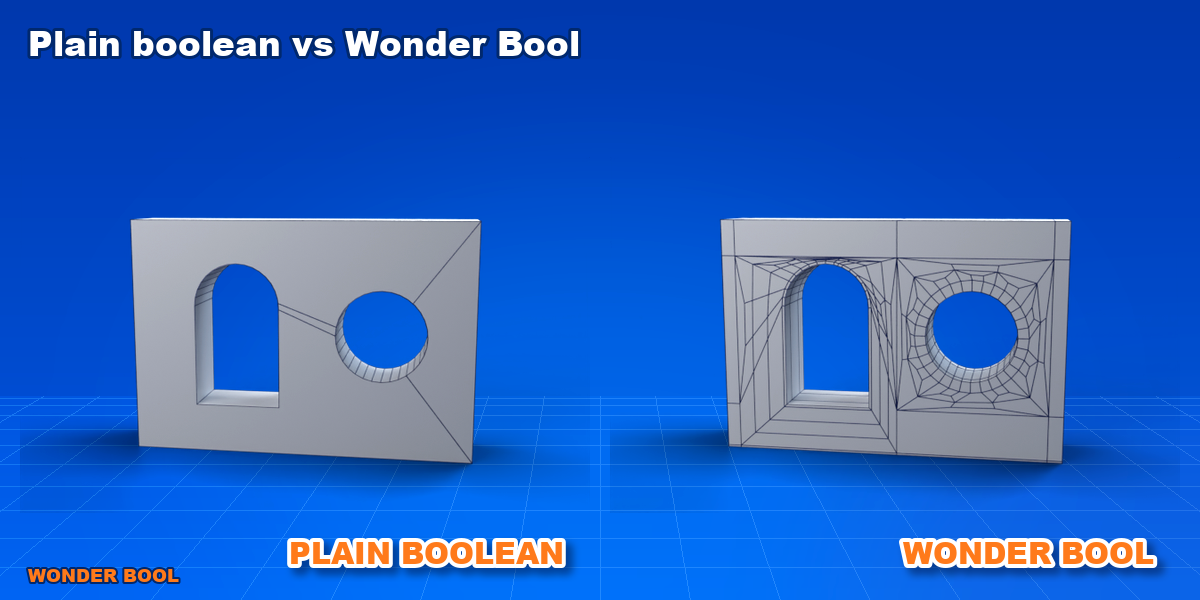
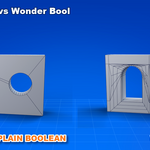
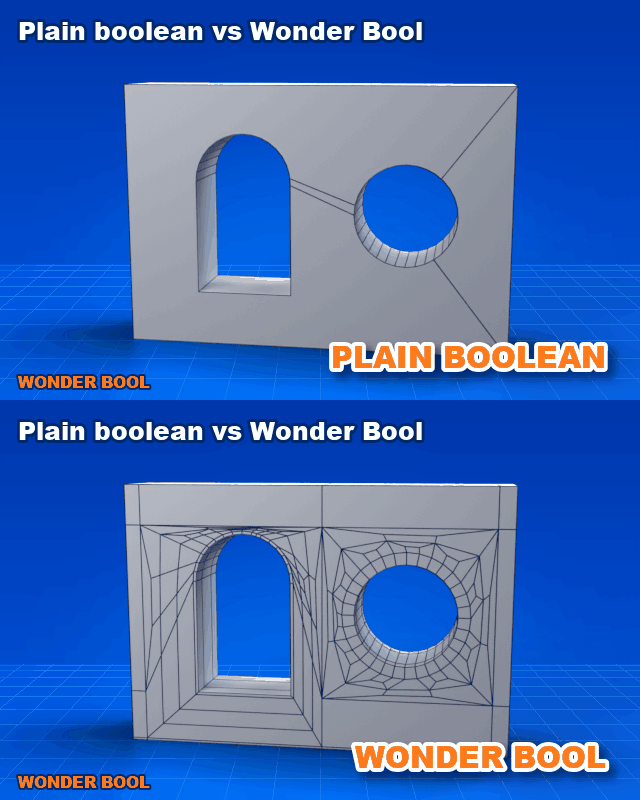
Plain boolean vs Wonder Bool
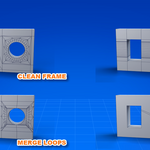
Same object, same cutters. A plain boolean leaves n-gons with stray edges running across the surface. Wonder Bool puts a frame of quads around every hole and lets only a few loops cross the surface.
What it does
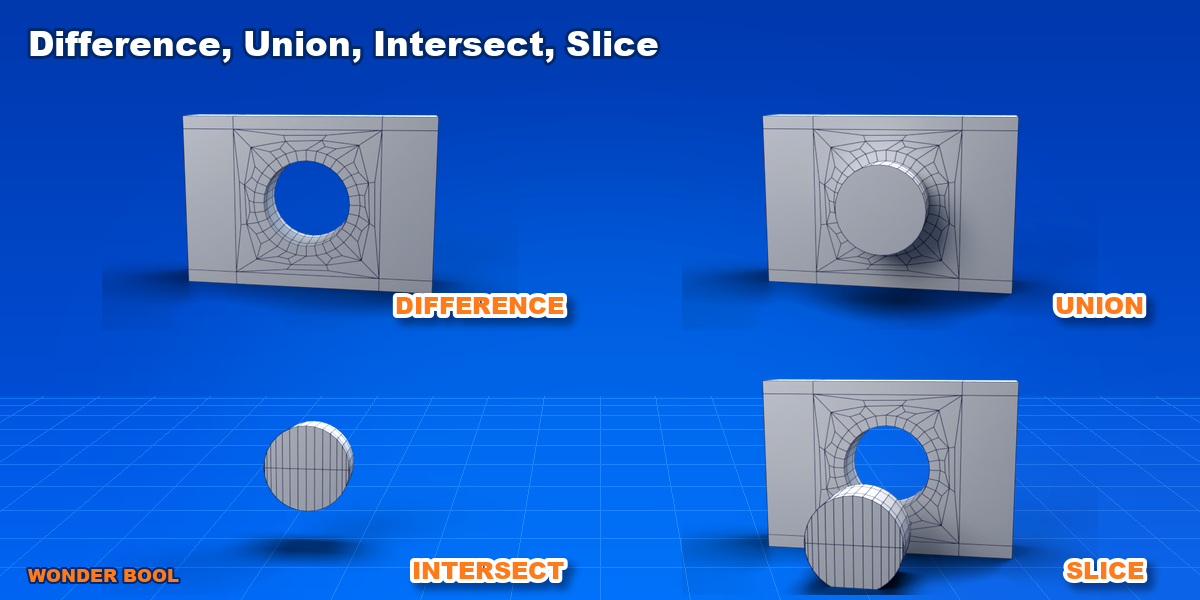
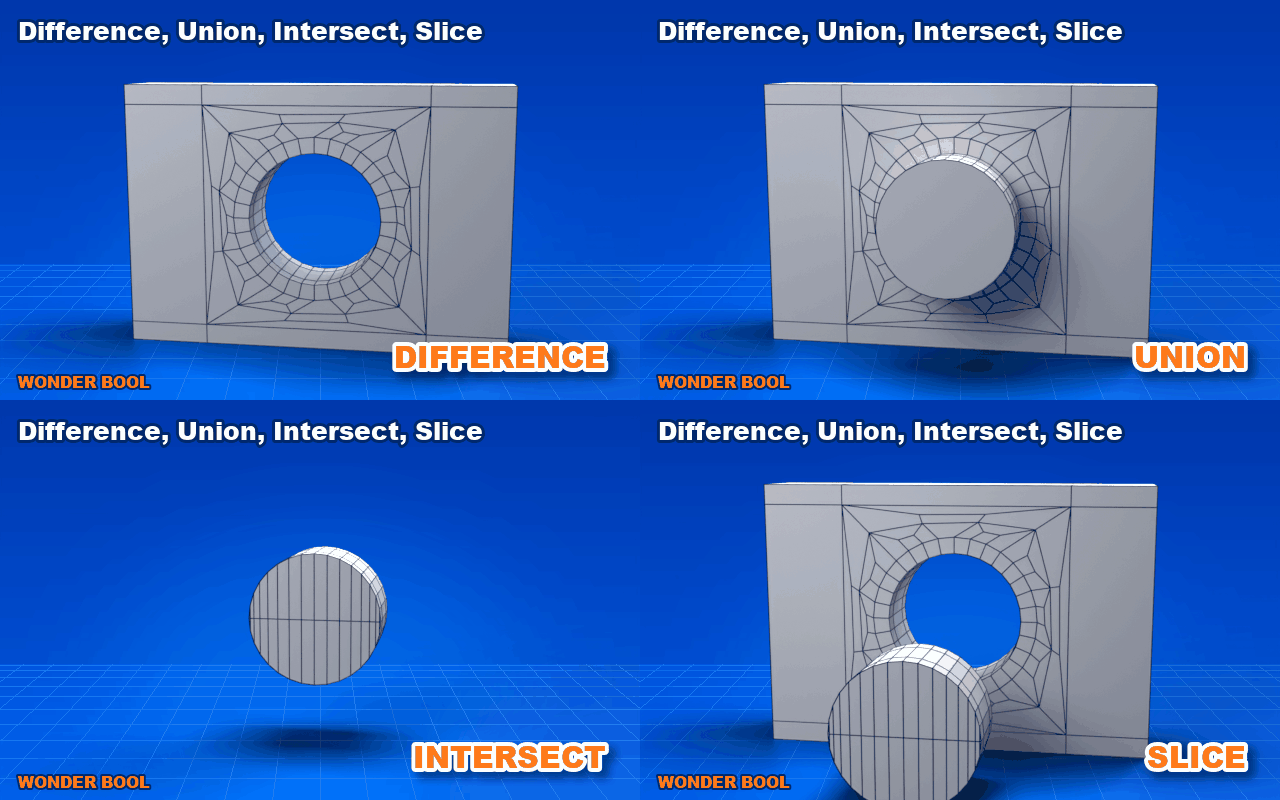
Difference, Union, Intersect, Slice
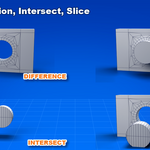
All four operations work with live cutters, from the sidebar or the Shift+Alt+B pie menu. Slice keeps the cut-off piece as a separate object.
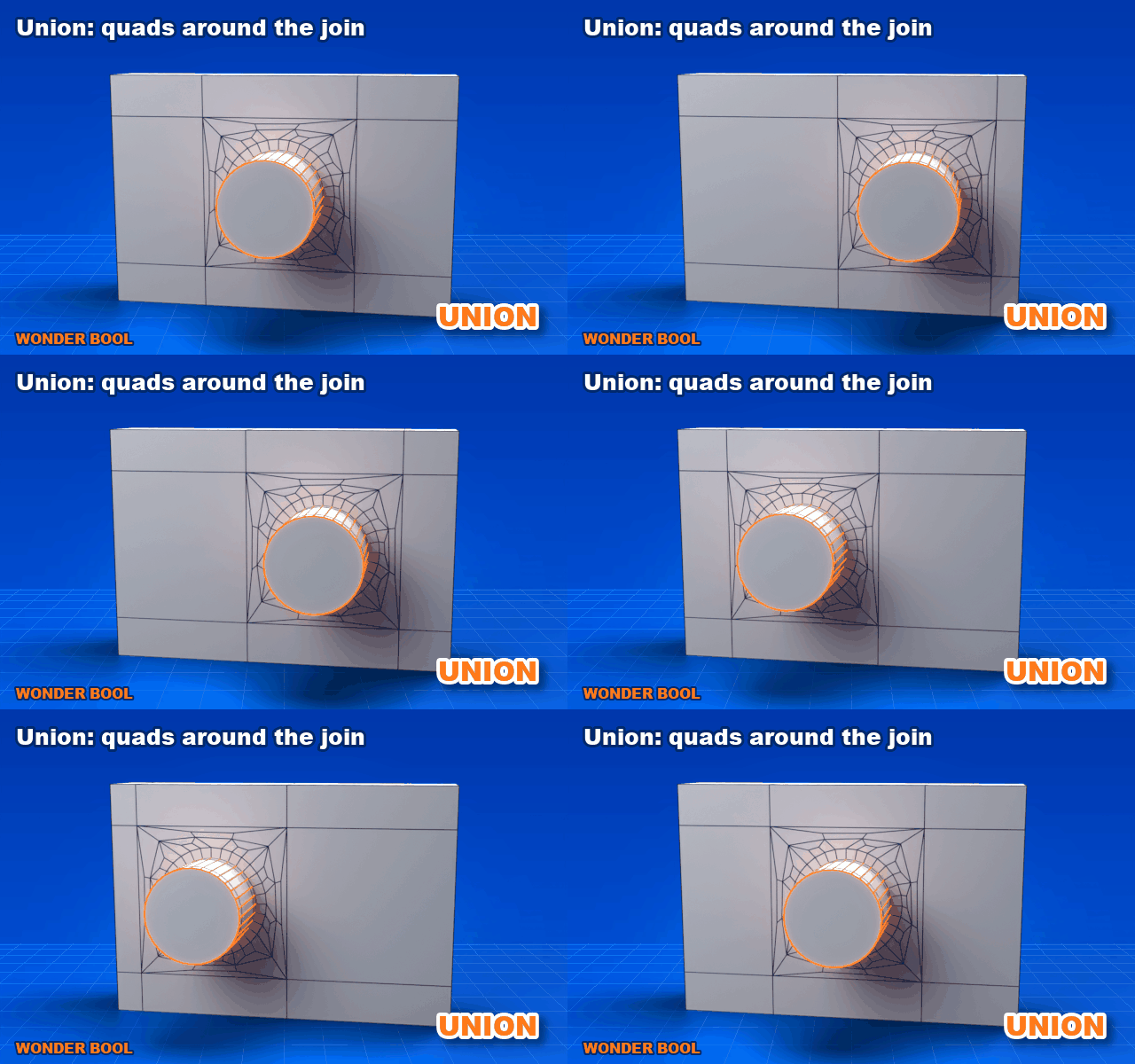
Union
Add shapes to the object. The joined part gets a frame of quads around the join, and it follows the cutter live.
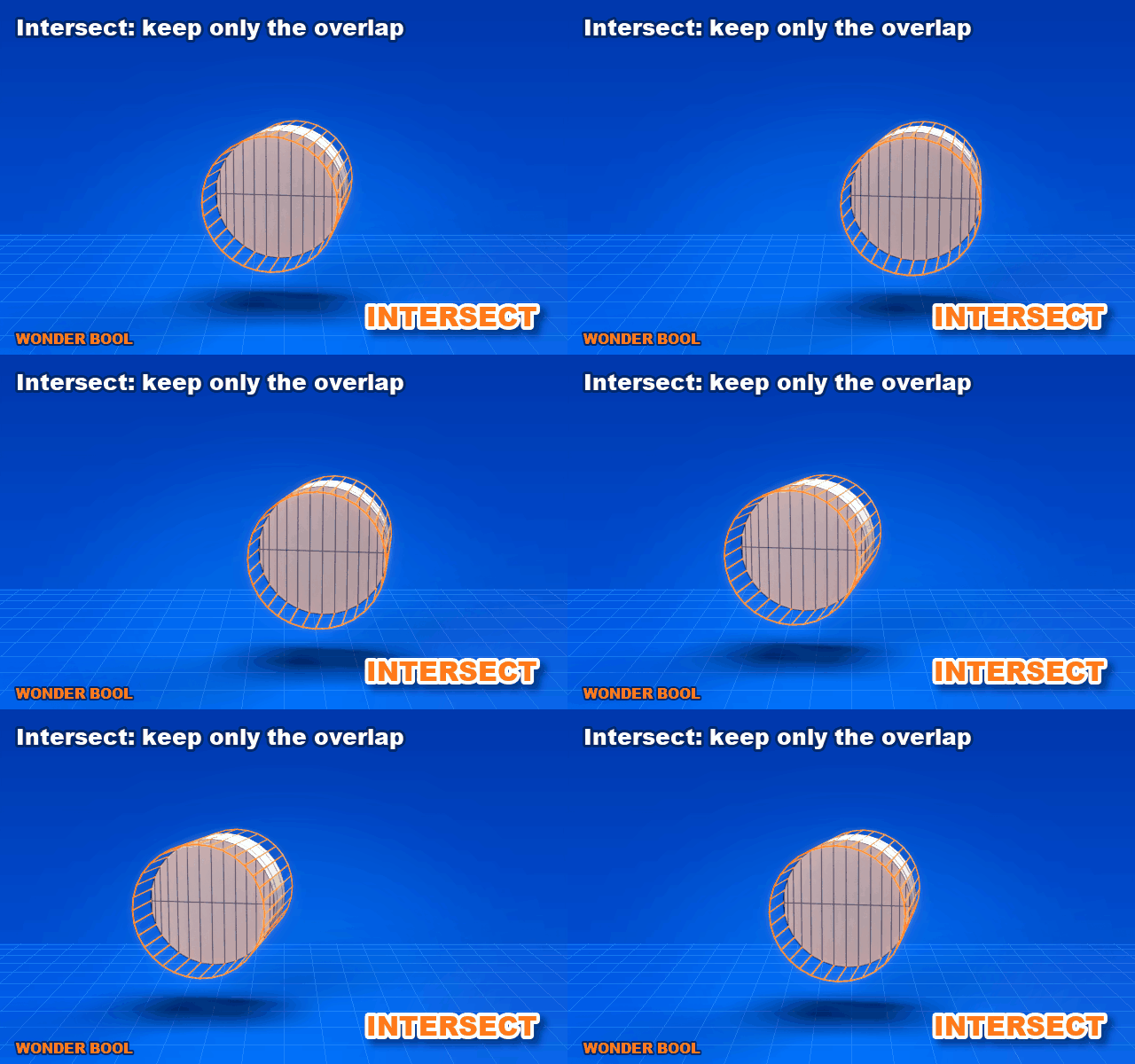
Intersect
Keep only the part where the object and the cutter overlap. Move the cutter and the kept piece changes with it.
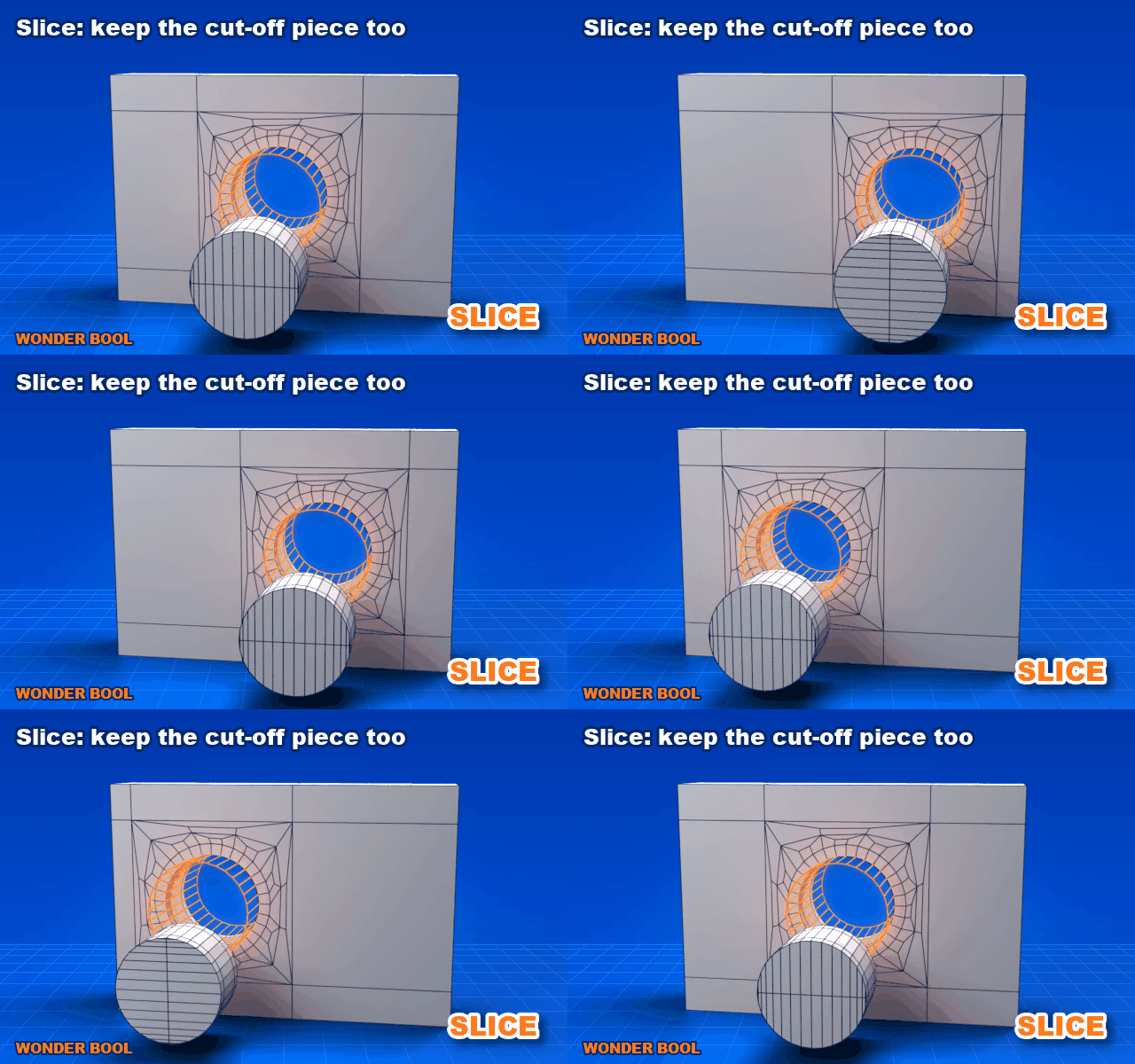
Slice
Cut a piece off and keep it as its own object. The object gets a clean hole, and the piece follows the cutter.
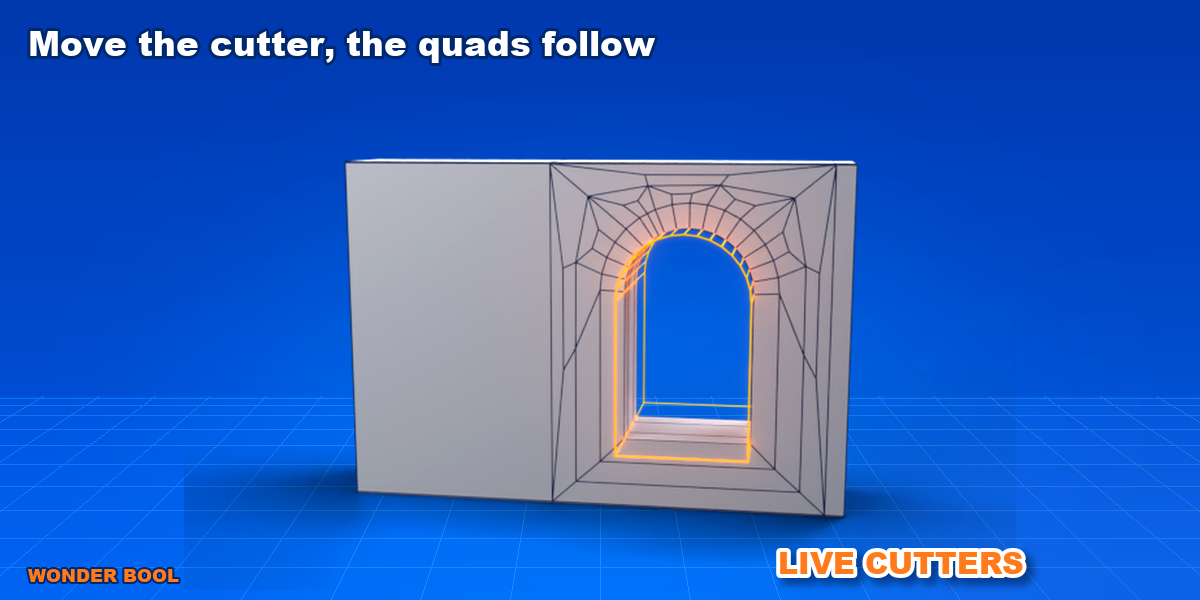
Live cutters
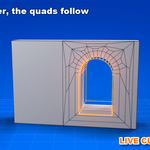
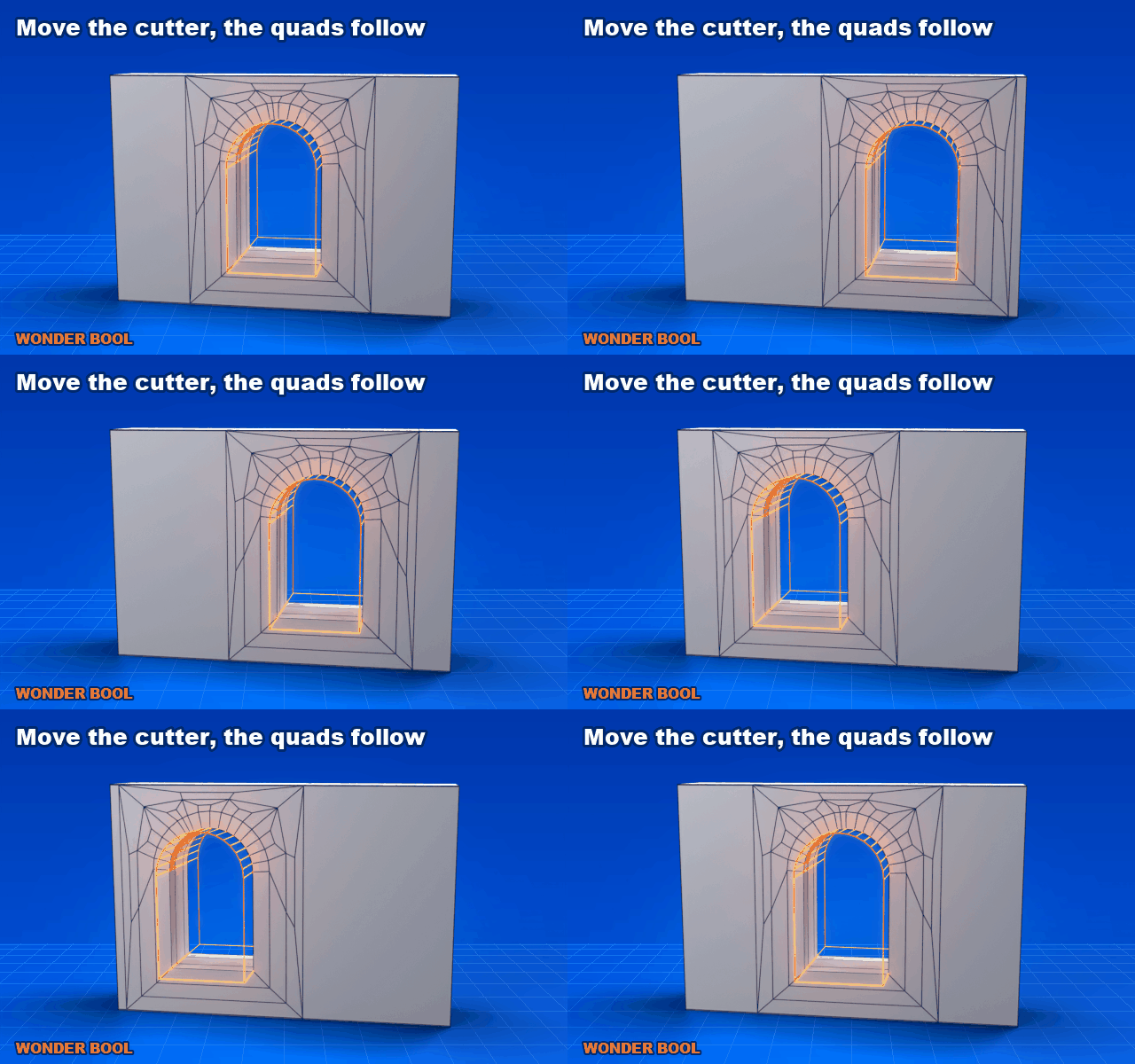
Move a cutter and the clean topology follows while you drag. There's no apply step, and you never have to run the boolean again.
Turn the cutter
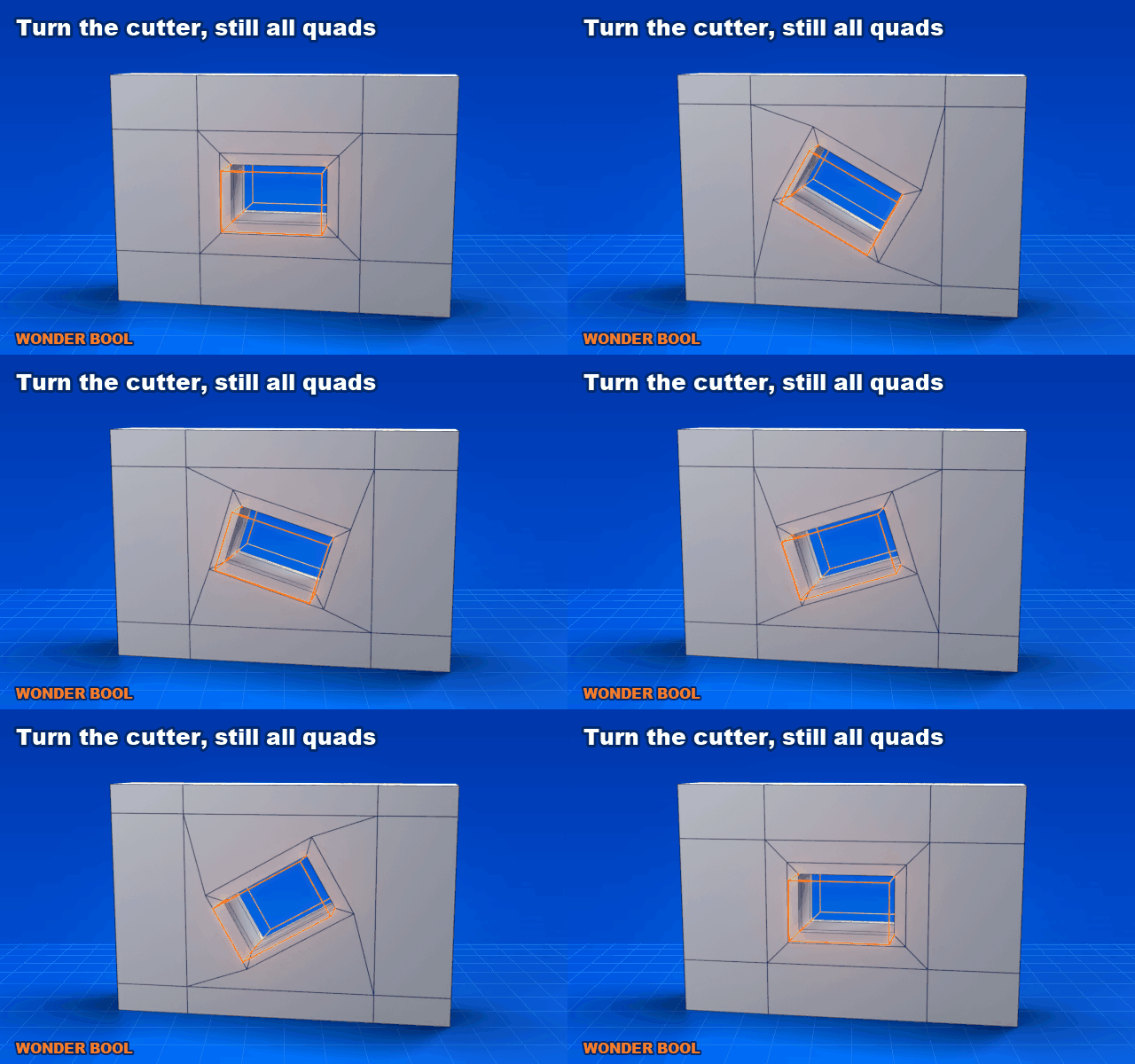
Rotated cutters stay clean too. The loops run straight through the hole instead of fanning out.
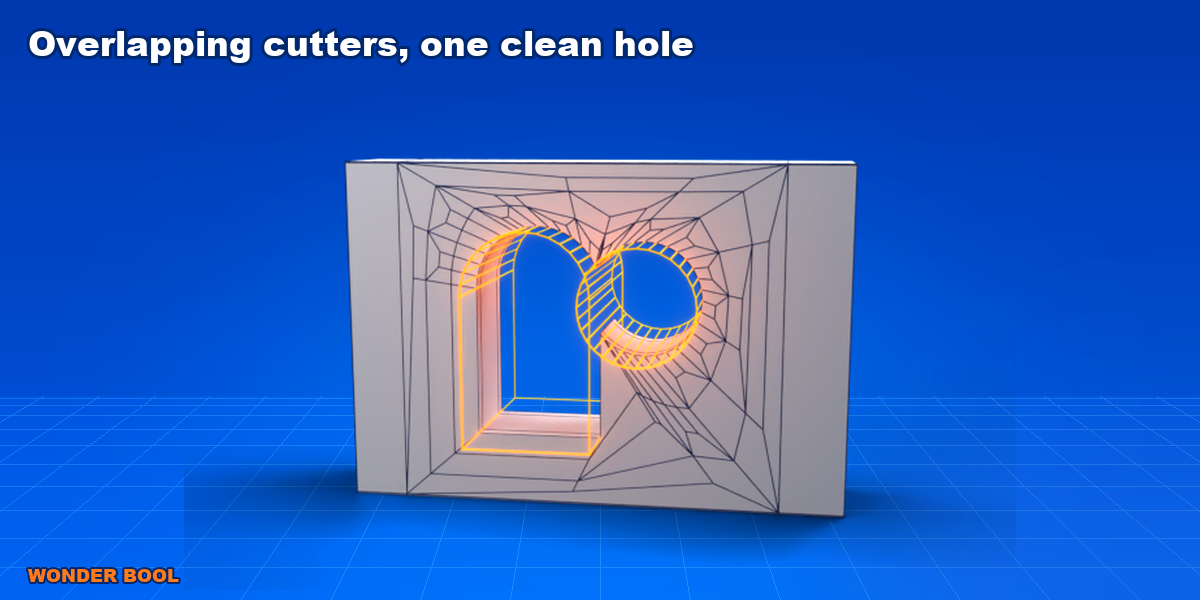
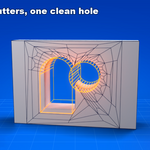
Overlapping cutters
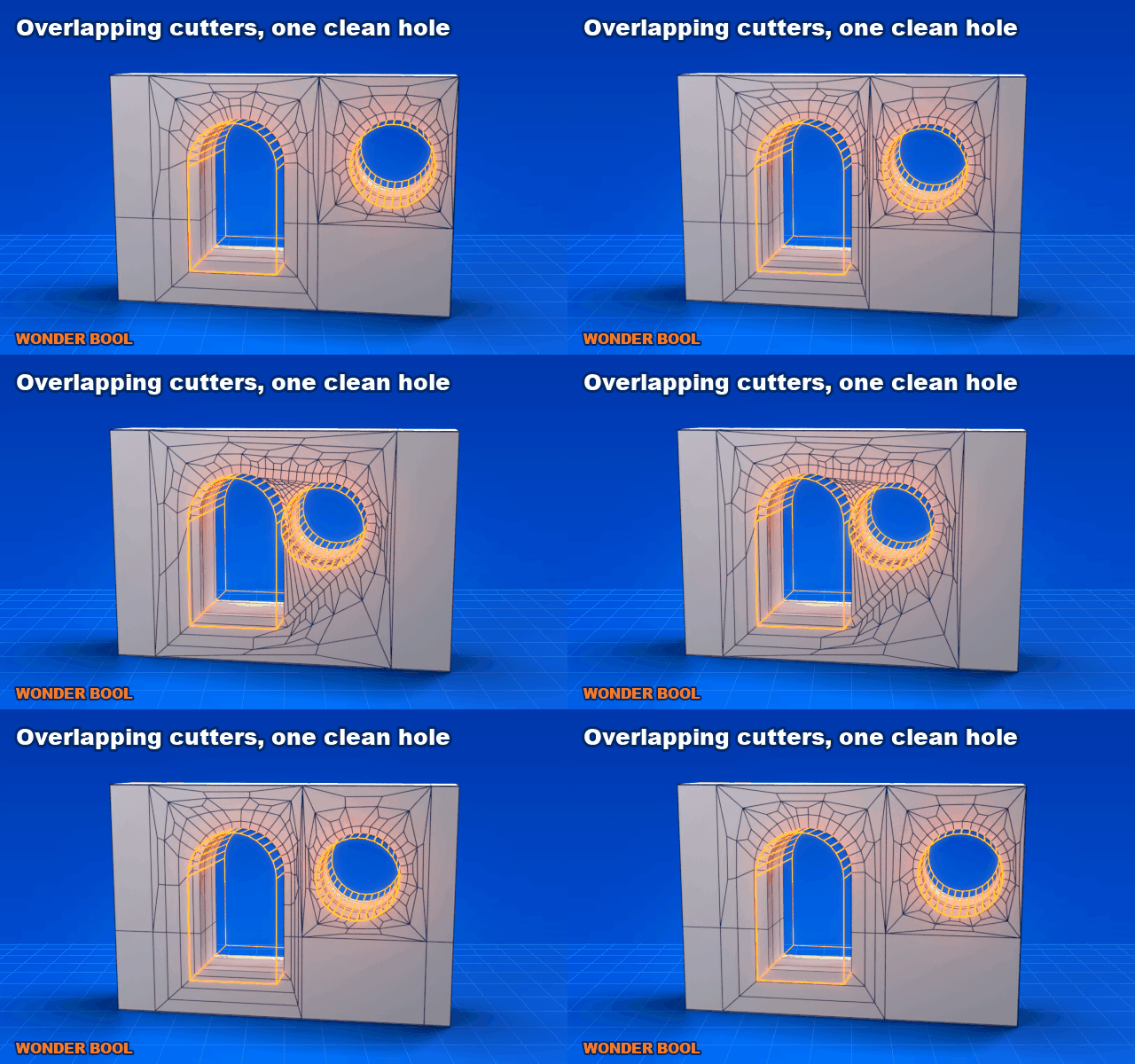
Push cutters into each other and you get one clean hole, not a pile of triangles. Close holes share one frame.
Duplicate a cutter
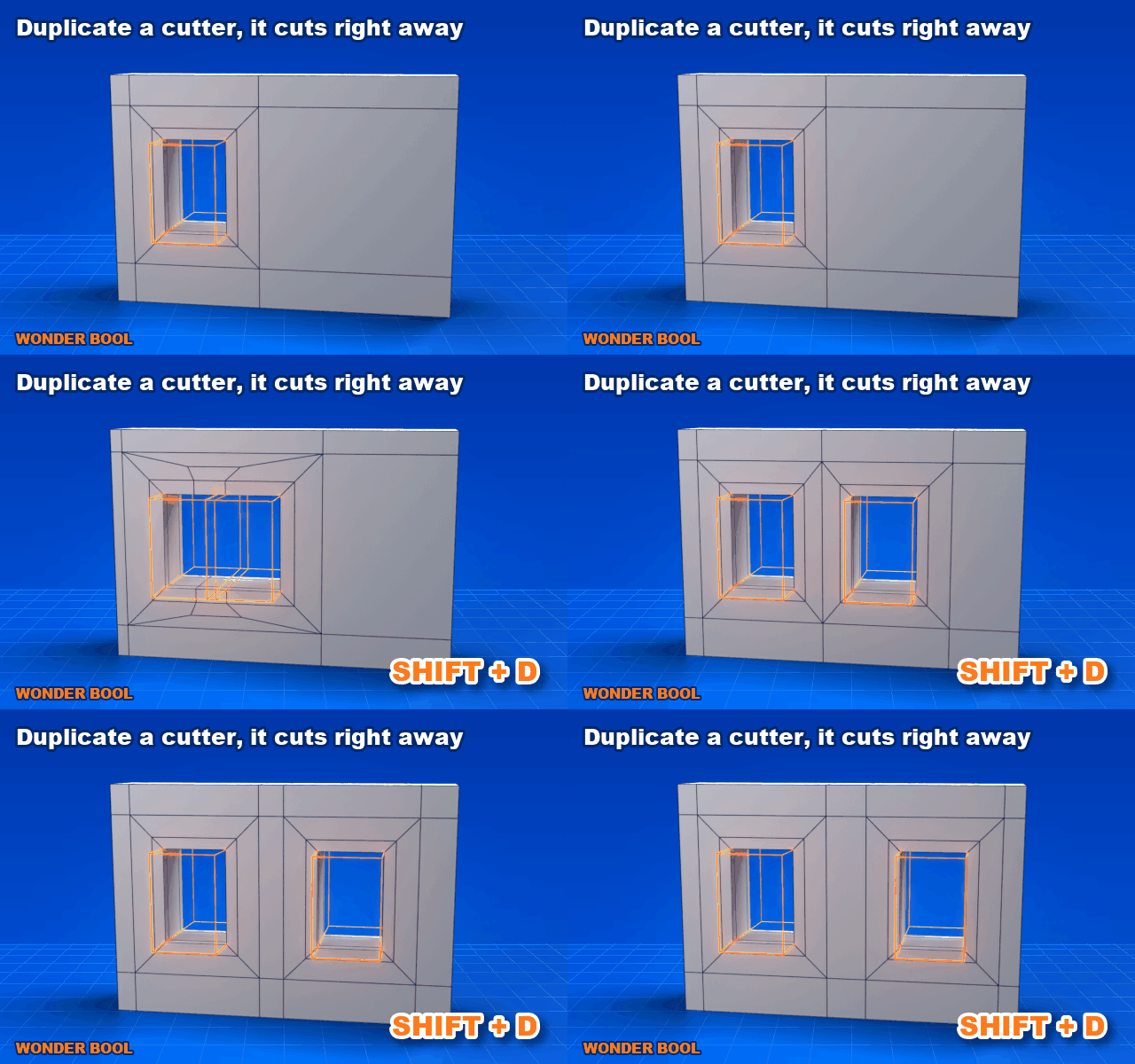
Press Shift+D or Alt+D on a cutter and the copy cuts the same object right away, with the same operation.
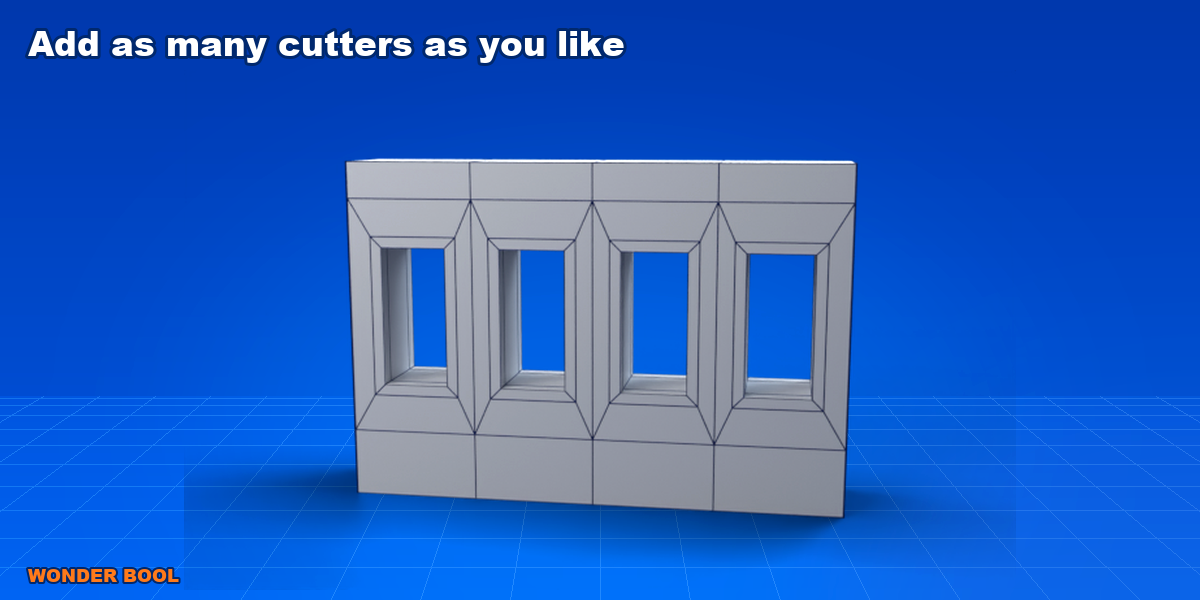
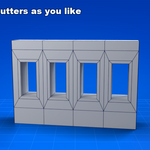
Lots of cutters
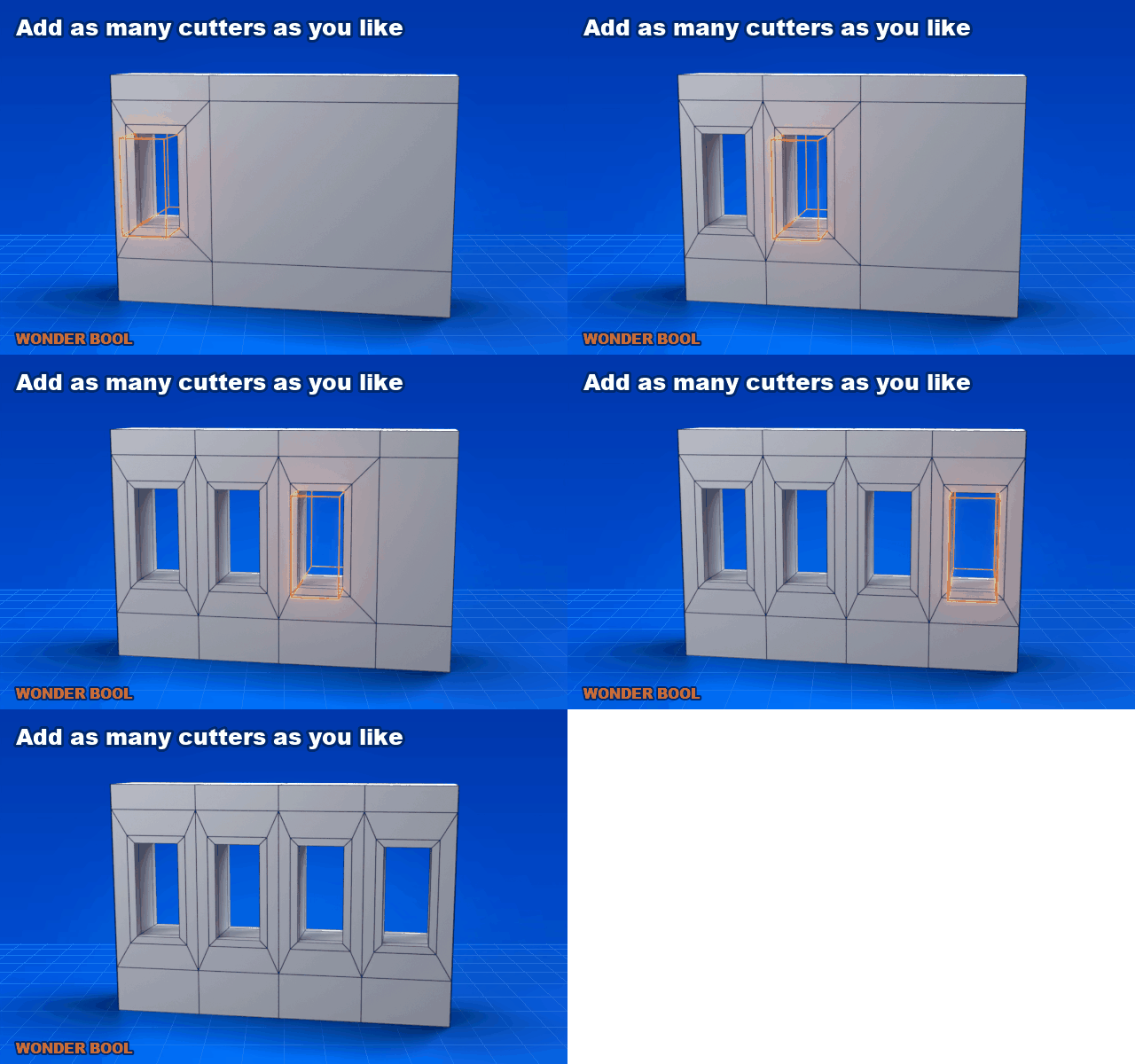
Add as many cutters as you like. Every window gets its own frame of quads, and the wall around them stays clean.
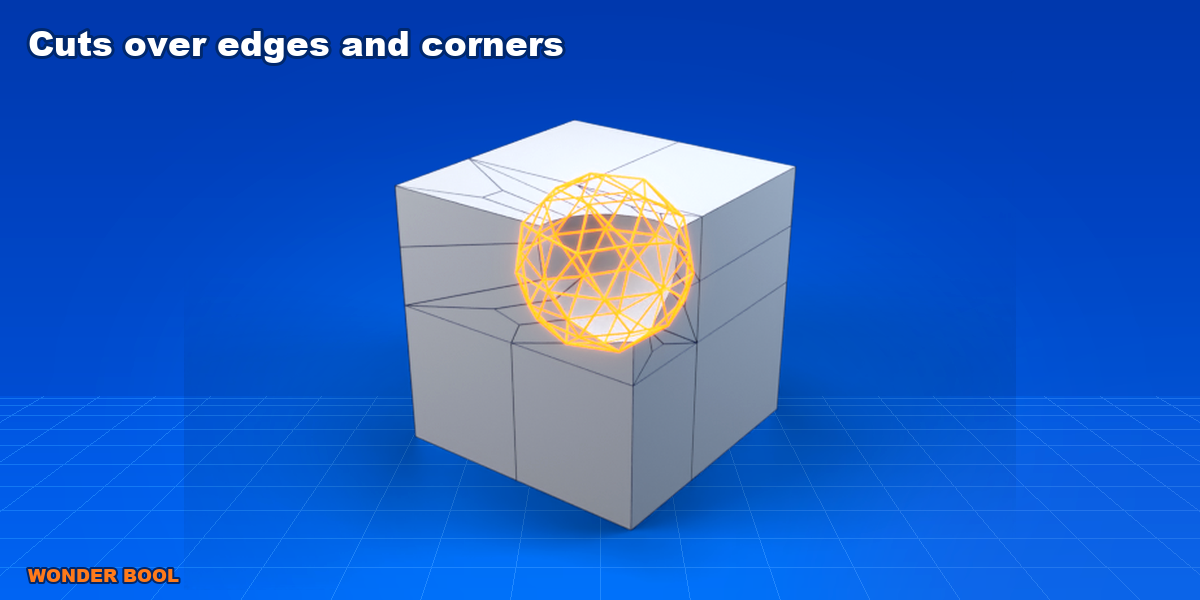
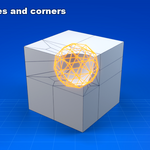
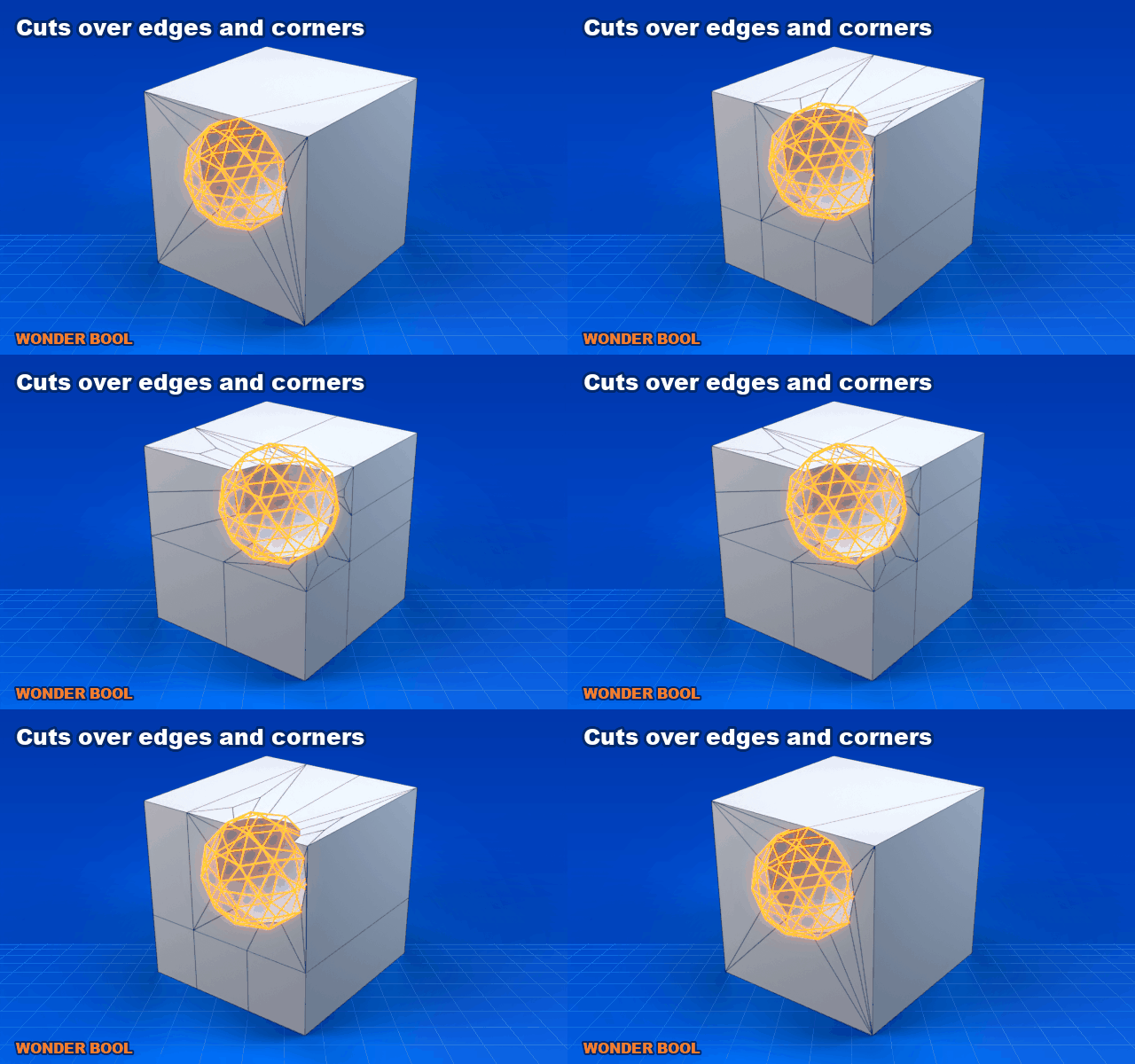
Cuts over edges and corners
A cutter that pokes out over an edge or a corner gets a frame of its own with quads around the cut, even on a plain cube. Slanted grooves running off an edge work too.
Curved surfaces
Holes in balls and cylinders get a ring of quads that follows the surface, instead of a fan of thin triangles.
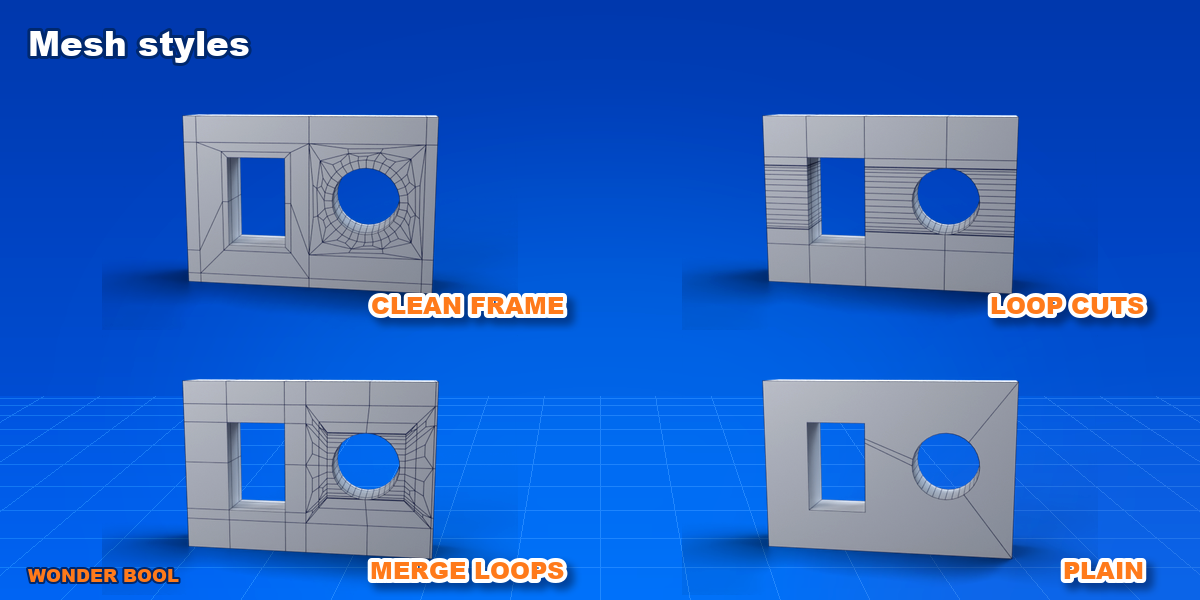
Mesh styles
Pick the mesh you need
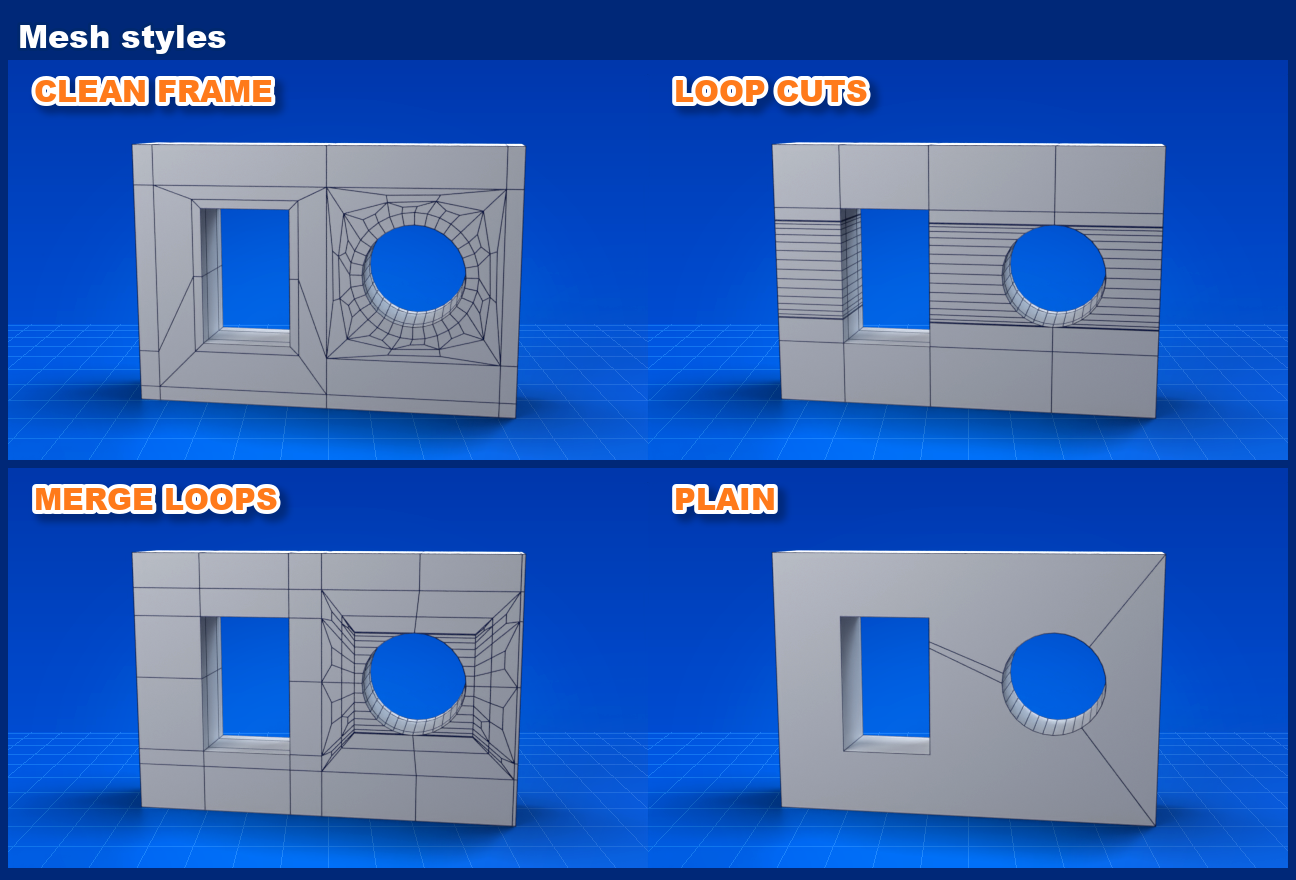
- Clean Frame (default): quads around each hole, a band that merges 3 edges into 1, only a few loops across the surface. Where a frame doesn't fit, that cut switches to loop cuts or a basic cleanup by itself.
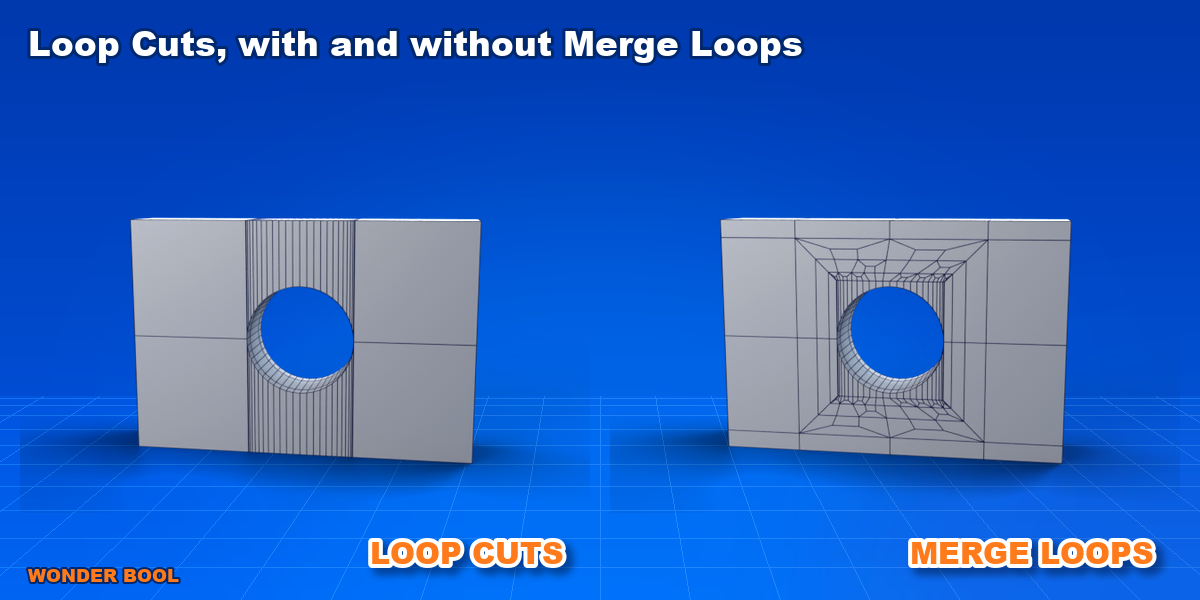
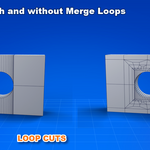
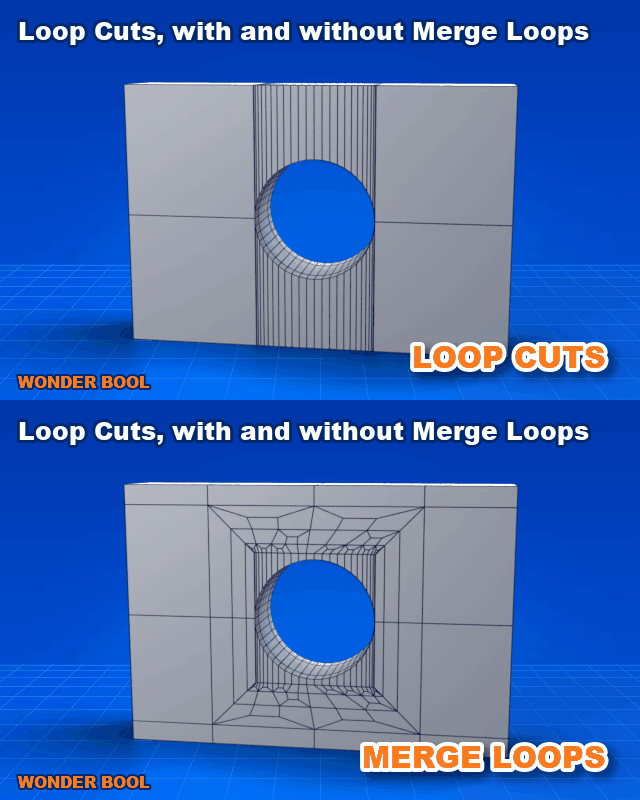
- Loop Cuts: straight edge loops through the hole's corners, for subdivision modelling. Tick Merge Loops to thin them out away from the cut.
- Basic Cleanup: no new loops, only the boolean's messy faces get fixed. Lowest poly count.
- Plain: Blender's plain boolean, with live cutters.
Merge Loops
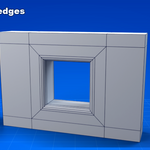
Loop Cuts run straight loops through every corner of the cut. Tick Merge Loops and they merge 3 into 1 as they move away from the cut, so only a few go around the object. Great for detailed cutters like window frames.
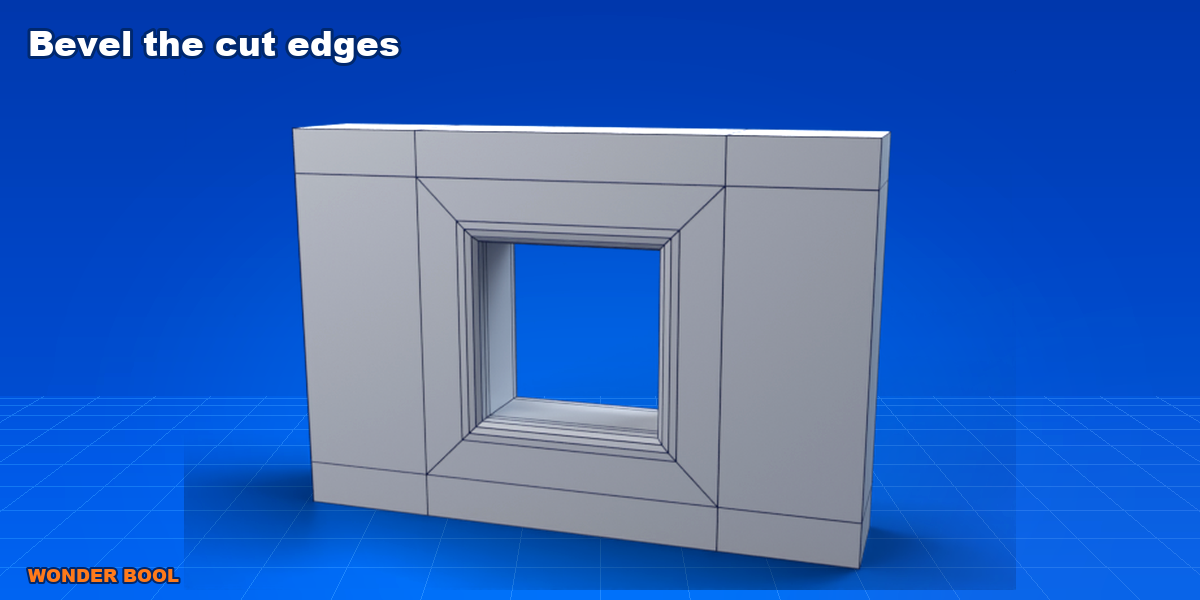
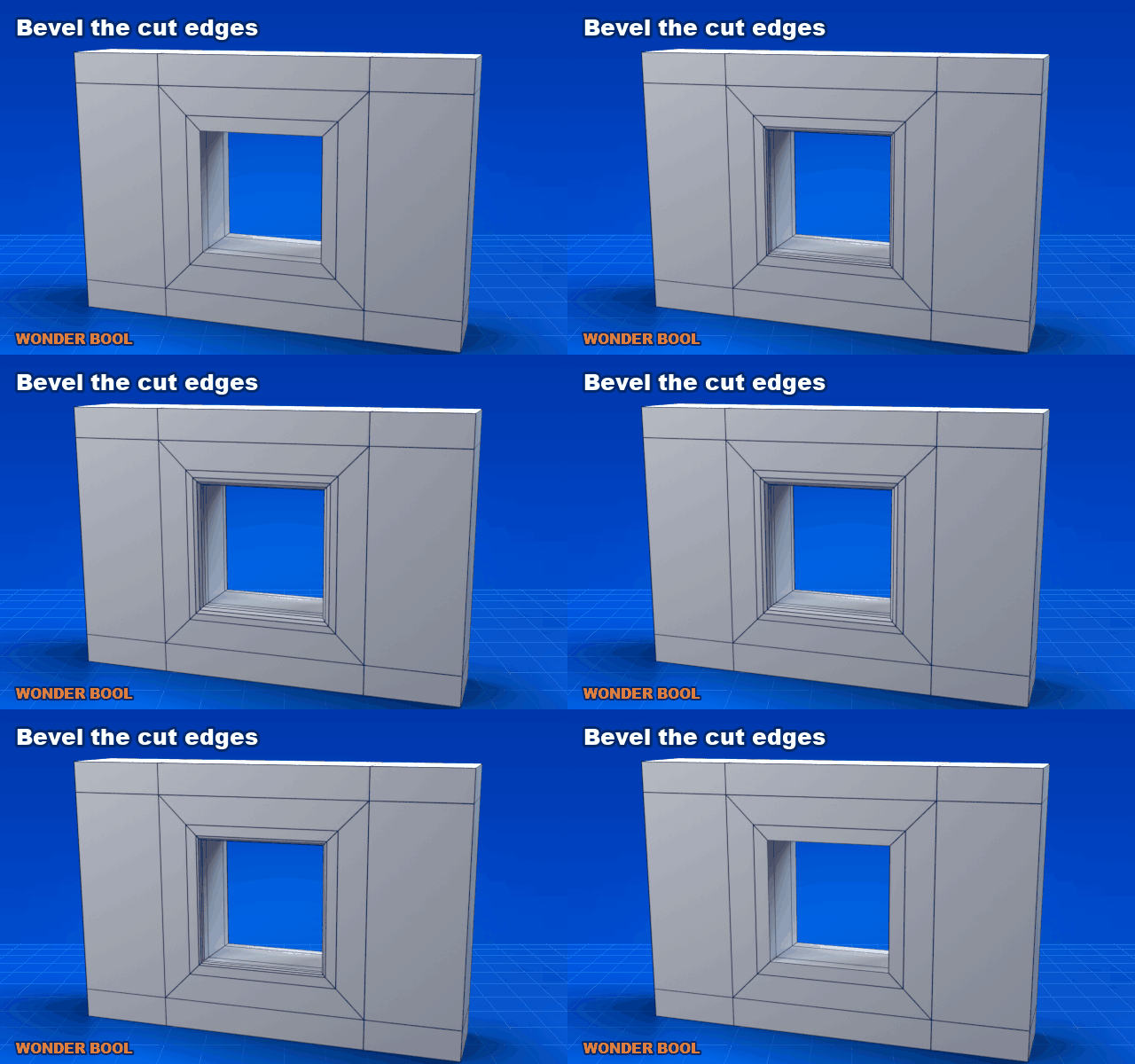
Bevel the cut edges
Tick Bevel, set the width and segments, and the cut edges get a bevel right away. It follows the cut live and never touches your own modifiers.
Everything in one panel
In the Wonder Bool tab of the sidebar
- Difference, Union, Intersect, Slice, from the sidebar or the Shift+Alt+B pie menu.
- Live or Baked for each object: keep the cutters editable, or freeze the cut and hide them.
- Apply keeps the result as a normal mesh. Restore Original brings the old mesh and the cutters back.
- The panel tells you in plain words when a cut couldn't get a clean frame, and why.
- Materials, UVs, vertex weights, colours, creases and seams carry over onto the new faces.
How to use
Three clicks
- Select the cutter.
- Shift-click the object you want to cut.
- Click Difference in the Wonder Bool tab of the sidebar (or press Shift+Alt+B).
Compatibility
Install
- One zip for every version.
- Blender 4.2 to 5.3: Edit › Preferences › Get Extensions › Install from Disk.
- Blender 4.0 and 4.1: Edit › Preferences › Add-ons › Install.
- Works in Blender 4.0 to 5.3.
Good to know
- Shape keys aren't supported, because Blender's booleans can't keep them.
- A cutter that isn't closed (a plane, for example) is cut as an open shape, and the panel tells you.
- Your own n-gons stay as they are. Only the faces the boolean made get rebuilt.