 Tesselune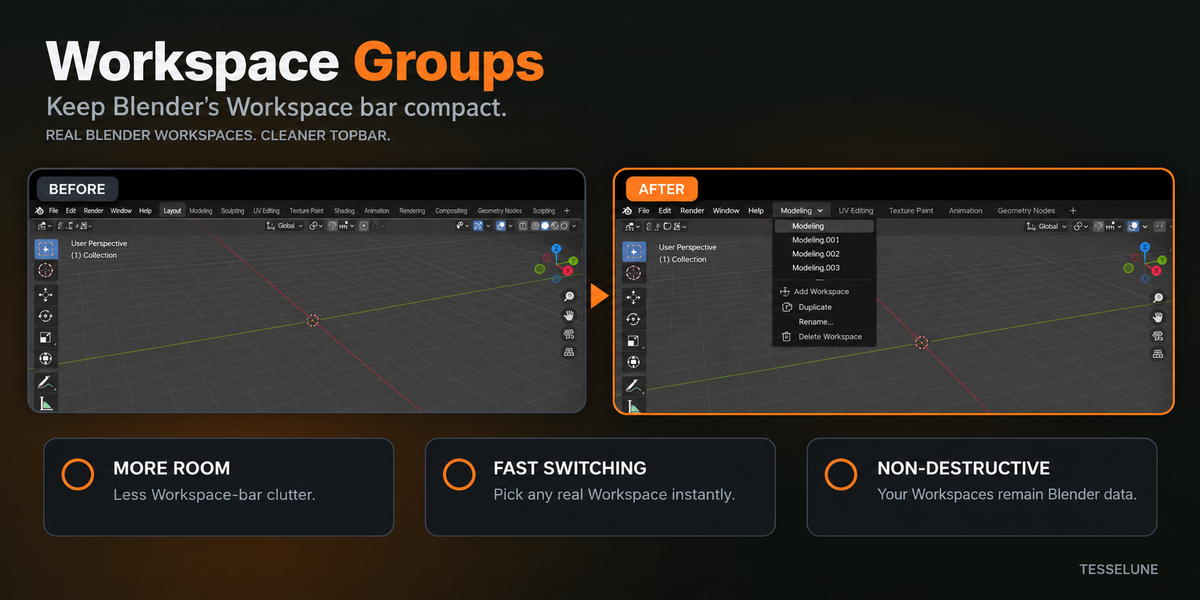

Workspace Groups Documentation
OVERVIEW
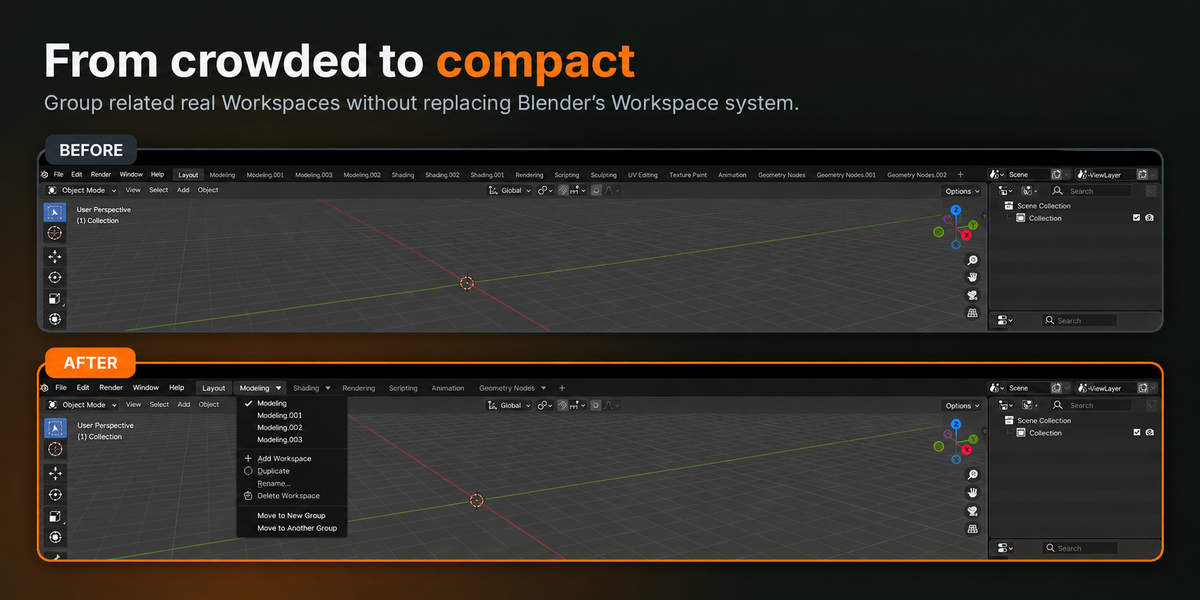
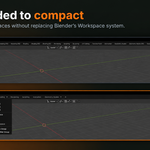
Workspace Groups keeps Blender's Workspace bar compact by grouping related real Workspaces under one Topbar entry.
Before:
Layout | Modeling | Modeling.001 | Modeling.002 | Sculpting | ...
After:
Layout | Modeling ▼ | Sculpting | ... | +
Every item inside a Group is still a normal Blender Workspace. Workspace Groups does not create virtual Workspaces or replace Blender's Workspace system.
INSTALLATION
1. Download the Workspace Groups ZIP from your Superhive purchase.
2. In Blender, open Edit > Preferences.
3. Open Get Extensions / Add-ons.
4. Choose Install from Disk.
5. Select the Workspace Groups ZIP without extracting it.
6. Enable Workspace Groups.
QUICK START
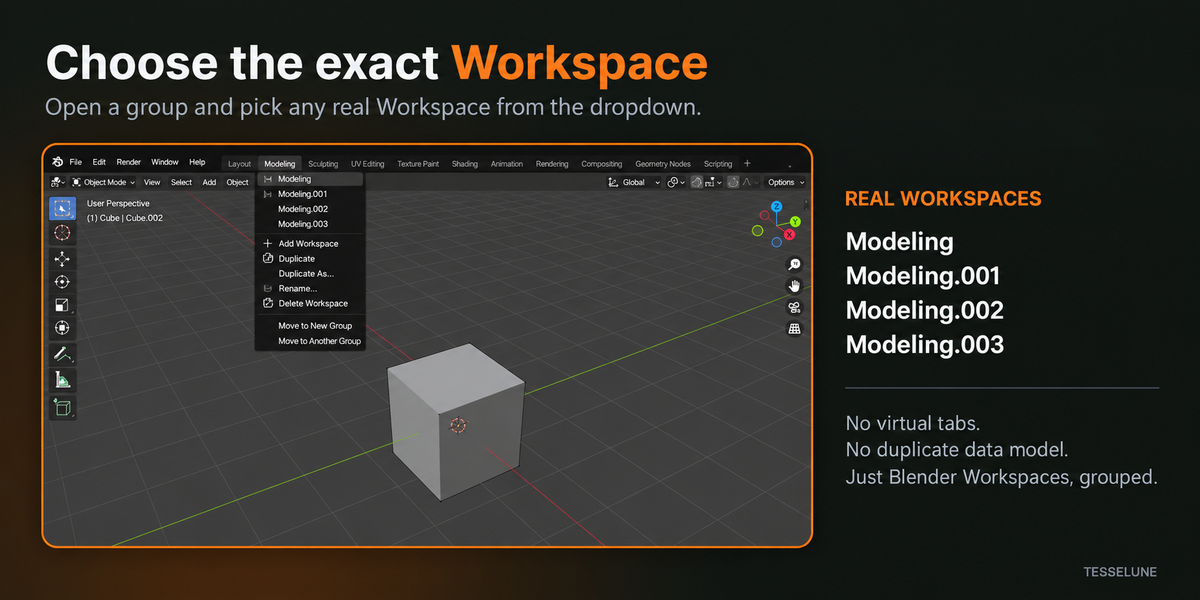
Create or duplicate related Workspaces, for example:
Modeling
Modeling.001
Modeling.002
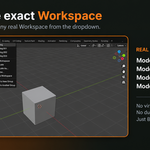
When a Group contains two or more Workspaces, a ▼ appears beside the Group name.
Open ▼ to select the exact real Workspace you want.
A Group containing only one Workspace is displayed without a dropdown arrow.
LAST ACTIVE WORKSPACE
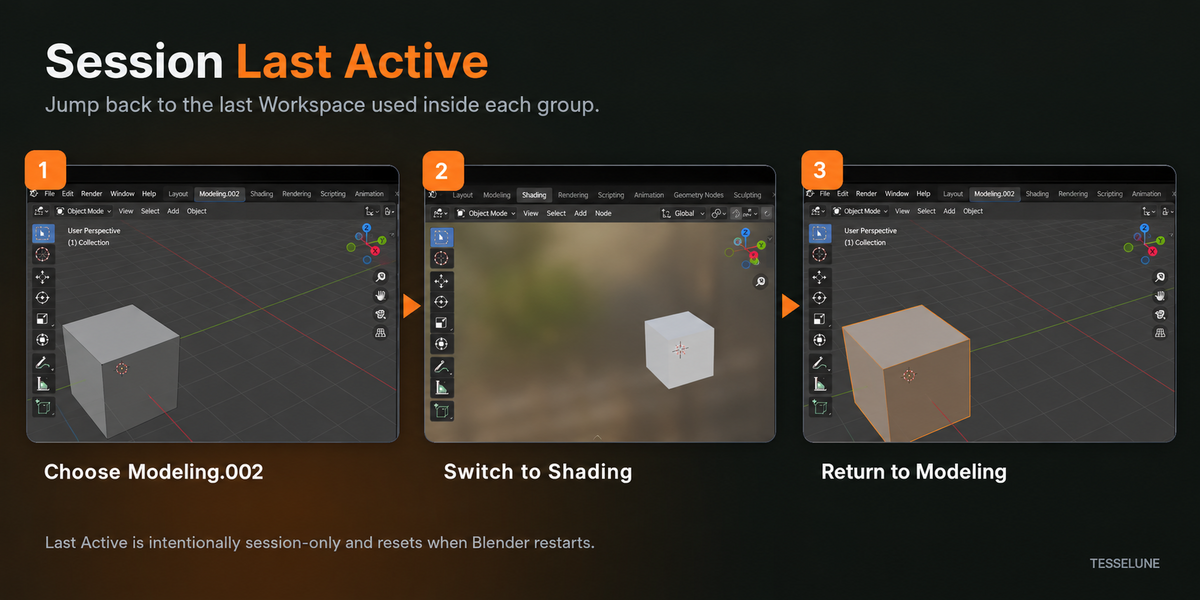
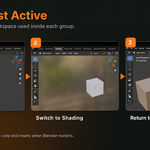
Workspace Groups remembers the last Workspace used inside each Group during the current Blender session.
Example:
1. Open Modeling ▼.
2. Choose Modeling.002.
3. Switch to Shading.
4. Click the Modeling Group name.
5. Workspace Groups returns to Modeling.002.
Last Active is session-only and resets when Blender restarts.
ADD WORKSPACE
Blender's standard + button at the far right remains unchanged.
Workspace Groups also provides Add Workspace inside a Group. This creates a clean Workspace from the Group's stored Blender template source when available.
If a compatible template source is not available, use Duplicate instead.
DUPLICATE / DUPLICATE AS / RENAME
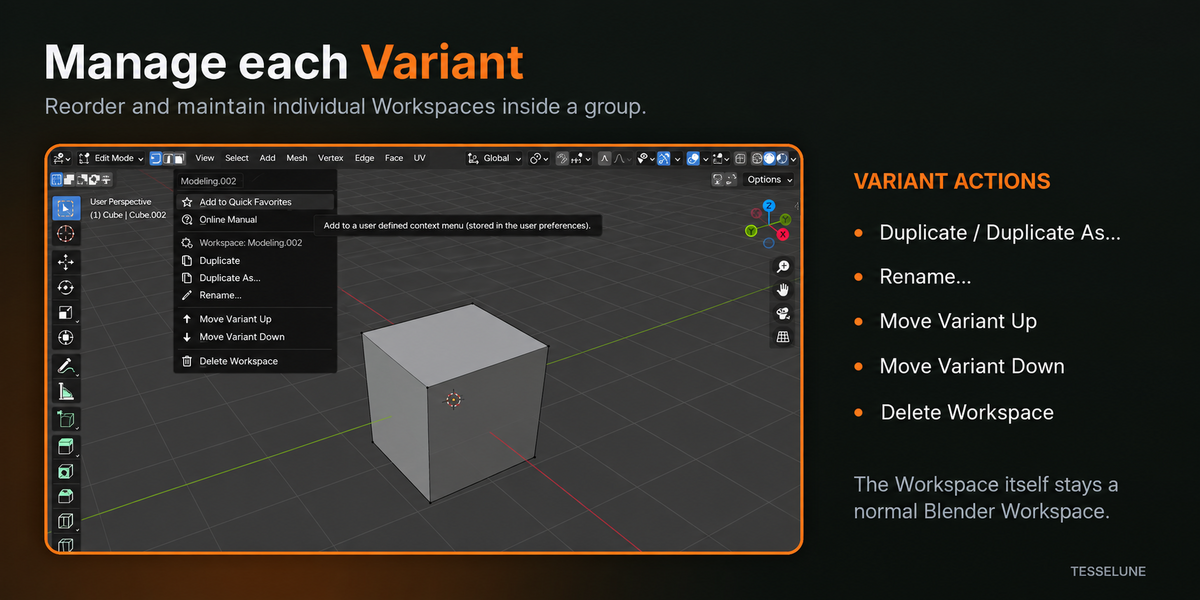
Duplicate creates a copy of the selected real Workspace and keeps it in the same Group.
Duplicate As... creates a copy and lets you choose its name.
Rename... renames the real Blender Workspace. Group membership does not depend on keeping names such as Modeling.001.
MOVE BETWEEN GROUPS
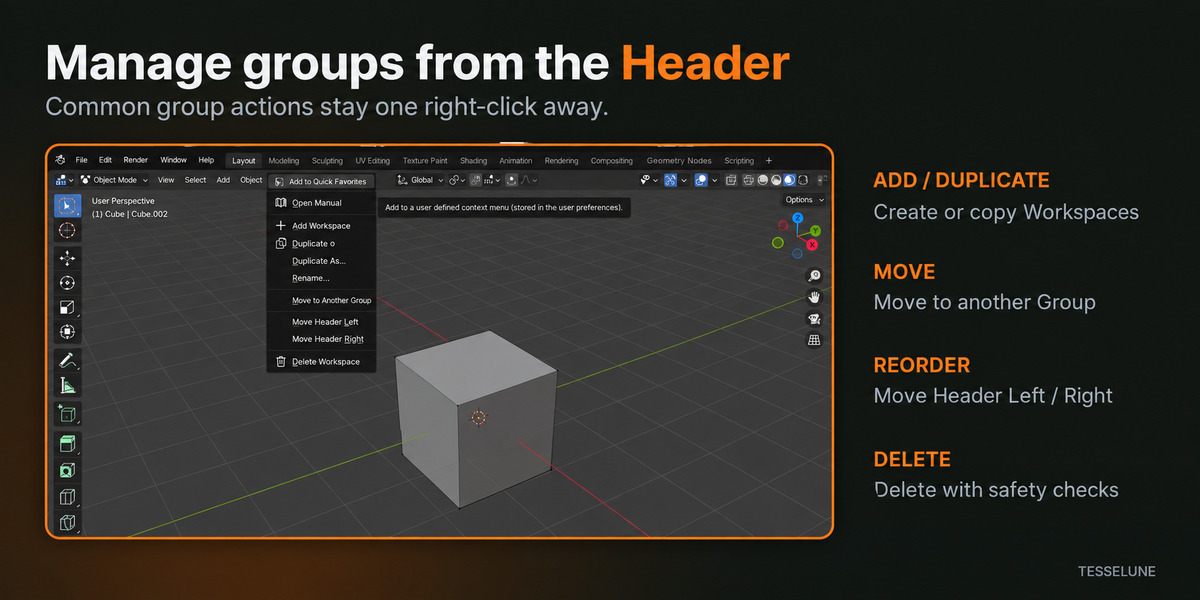
Move to New Group separates a Workspace from its current multi-member Group and creates a new Group for it.
Move to Another Group moves the selected Workspace into an existing Group.
Single-member Groups can also be moved into another Group from the Header context menu.
REORDERING
Use:
• Move Header Left
• Move Header Right
to change Group order.
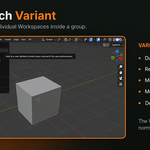
Inside a Group, right-click an individual Workspace row and use:
• Move Variant Up
• Move Variant Down
The stored order changes immediately.
If the dropdown is already open, close and reopen it to see the new visible row order.
DELETE SAFETY
Workspace Groups adds safety checks around Workspace deletion.
It prevents deletion when:
• the target is the final Workspace in the .blend file
• the target Workspace is currently in use by another Blender window
The final member of a Group may still be deleted when other Workspaces exist elsewhere in the file.
DISABLE OR UNINSTALL
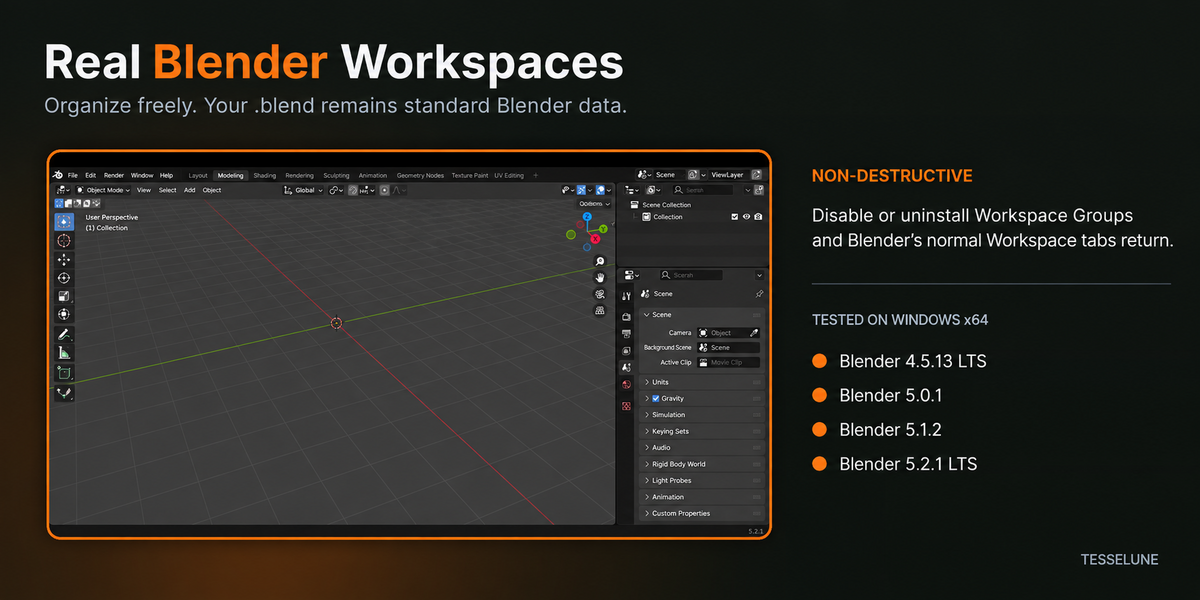
Workspace Groups does not convert your Workspaces into a proprietary format.
If the extension is disabled or uninstalled:
• all real Blender Workspaces remain in the file
• Blender's normal Workspace tabs return
• Workspace layouts, editor arrangements and viewport states remain Blender-owned data
WORKSPACE ORDER PRESERVATION
Workspace Groups uses a conservative version-sensitive method to preserve Blender's existing Workspace order.
Depending on Blender version and file state, it may read the current saved .blend, startup.blend, or use a safe fallback.
It does not automatically cycle through Workspaces or rewrite Blender's native Workspace order.
FILE PERMISSION & PRIVACY
Workspace Groups declares Blender's files permission for Workspace-order preservation.
It may read saved Blender data and, on supported versions, create a short-lived temporary Workspace snapshot when needed.
Workspace Groups:
• does not request network permission
• does not include telemetry
• does not upload project files or Workspace data
COMPATIBILITY
Tested on Windows x64 with:
• Blender 4.5.13 LTS
• Blender 5.0.1
• Blender 5.1.2
• Blender 5.2.1 LTS
The extension manifest requires Blender 4.5.0 or newer.
Workspace Groups is actively maintained. Tesselune intends to review compatibility as Blender evolves, including current releases and LTS versions where practical.
Future Blender versions are not considered supported until they have been tested, and compatibility with every future Blender release is not guaranteed.
KNOWN LIMITATIONS
• No direct Header drag-and-drop reordering; use Move Header Left / Right.
• Move Variant Up / Down requires closing and reopening an already-open dropdown to refresh its visible row order.
• Generic Blender context-menu entries such as Quick Favorites remain visible.
• The active Group uses brighter text rather than reproducing Blender's exact native selected Workspace-tab background.
• On some unsaved custom Workspace setups where no safe native-order source is available, Workspace Groups may fall back conservatively rather than guess.
SUPPORT
For technical support, use the product-message function on Superhive.
Please include:
• Workspace Groups version
• Blender version
• operating system
• exact reproduction steps
• expected result
• actual result
• screenshot, short recording, or console warning when useful
Reproducible bugs and compatibility issues on listed supported versions will be reviewed and addressed when appropriate.
LICENSE
Workspace Groups is licensed under GNU GPL v3.0 or later.
Developed and maintained by Tesselune.
Have questions about this product?
Login to message
| Blender Extension Compatible | Yes |
| Published | 1 day ago |
| Blender Version | 4.5 - 5.2 |
| Extension Type | Add-on |
| Render Engine Used | Cycles |
| License | GPL |
Discover more products like this
Workflow organization workspace manager topbar interface productivity workspace workspace tabs