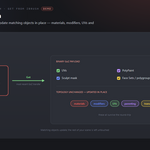
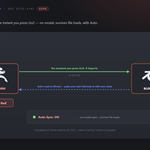
A two-way bridge between Blender and ZBrush built on ZBrush's own GoZ transfer. Send meshes to ZBrush as SubTools, sculpt, and get the result back onto your Blender meshes — with UVs, PolyPaint, the sculpt mask and Face Sets carried both directions. It reuses a running ZBrush (or launches the version you pick), imports the instant you press GoZ, and can push your Blender edits back hands-free. Heavy sends run on a background thread so Blender never freezes.
Requirements - please read before buying
-
Windows only. The add-on detects and launches ZBrush through Windows paths and processes. macOS and Linux are not supported.
-
Blender 3.3 - 5.2 - Extension on 4.2+, classic add-on on 3.3-4.1.
-
ZBrush is required and sold separately. You need your own licensed copy from Maxon. No ZBrush licence is included with this product - it is the Blender-side bridge only, and is not affiliated with, endorsed by, or a reseller of Maxon.
-
Network: none. Blender and ZBrush exchange files on your own machine - the add-on opens no network connection.
Installation
Blender 4.2+ (Extension): Edit ▸ Preferences ▸ Add-ons ▸ drop-down ▸ *Install from Disk…* → pick universal_bridge_zbrush-x.x.x-blender4.2-5.2.zip, then enable it. Blender 3.3–4.1: Edit ▸ Preferences ▸ Add-ons ▸ *Install…* → pick universal_bridge_zbrush-x.x.x-blender3.3-4.1.zip.
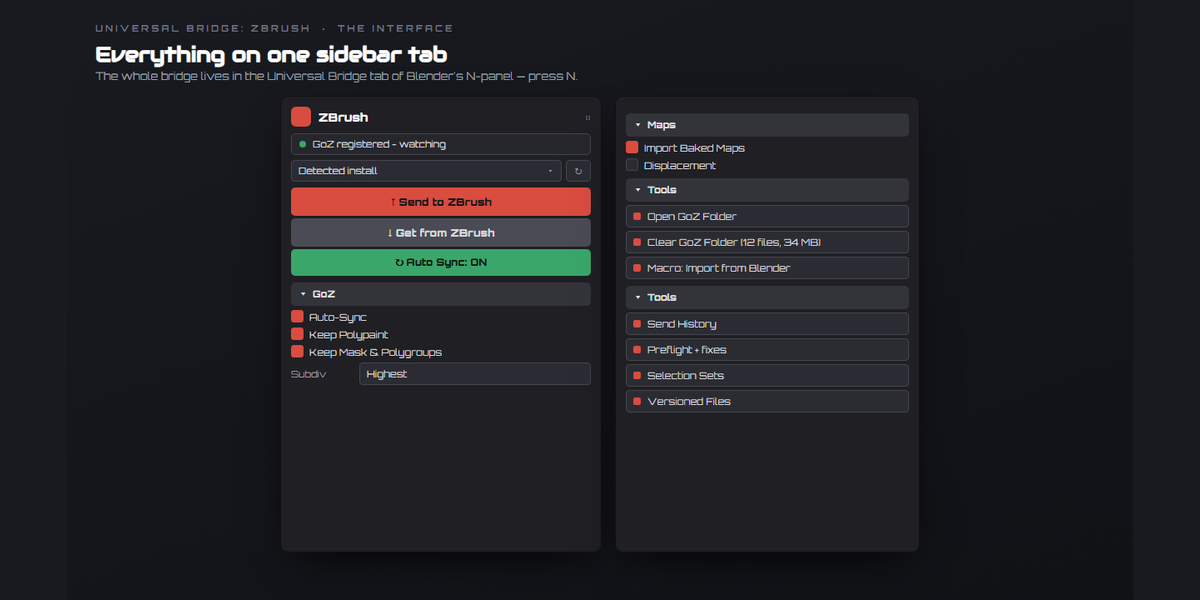
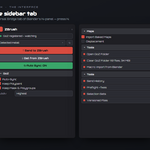
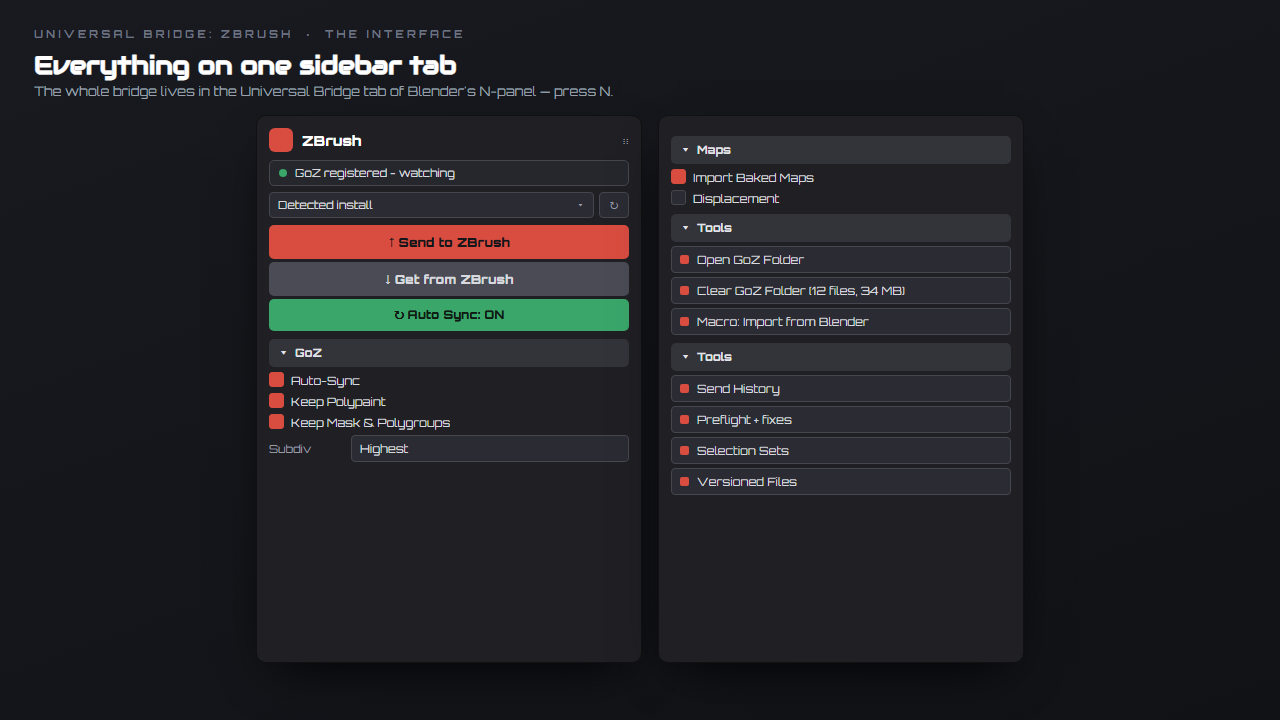
The panel is in the 3D Viewport sidebar (press N) under the Universal Bridge tab, in the ZBrush section. Open the add-on preferences and check the version dropdown — it lists the ZBrush installs found on this machine; pick one, use Detect ZBrush, or set the executable by hand for a Custom path.
One-time GoZ setup
- Run GoZ once in ZBrush (press the GoZ button) so ZBrush creates its public
GoZ folders.
- In the panel's GoZ section, click Register Blender with GoZ. This adds
Blender to ZBrush's "select a GoZ enabled application" list.
- Turn on GoZ Auto-Sync when you want the bridge watching for GoZ presses.
Getting started
- Select one or more mesh objects.
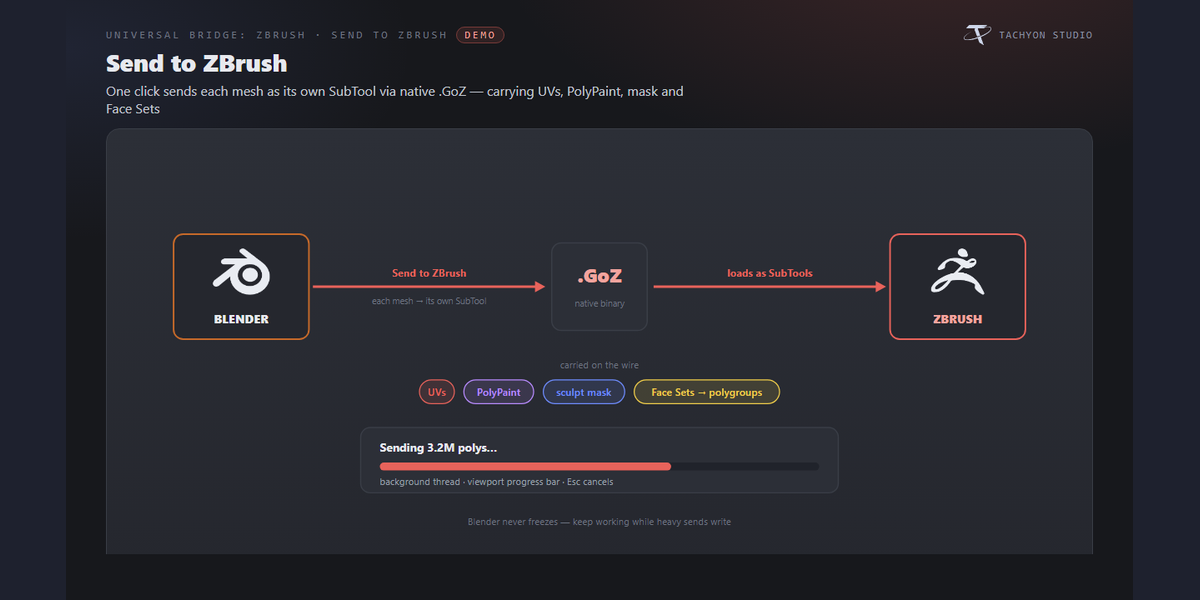
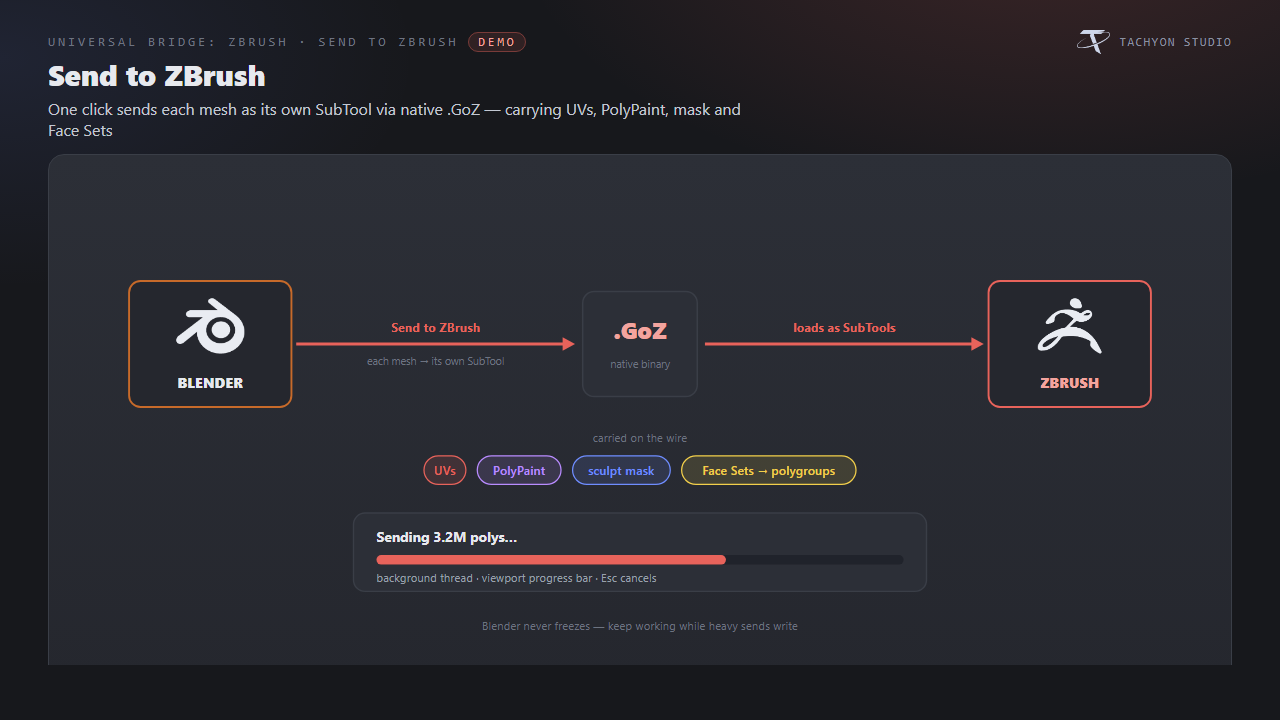
- Click Send to ZBrush — each mesh is written as its own GoZ SubTool,
immediately. In ZBrush, press Macro ▸ Universal Bridge ▸ Import from Blender to bring them in (bind it to a hotkey and it is one keypress).
- Sculpt. When you're ready, press GoZ in ZBrush (or use a "… and Send" macro).
- Click Get from ZBrush — or turn on GoZ Auto-Sync and skip this step.
Send to ZBrush
Each selected mesh is exported as its own SubTool through a native binary .GoZ file (a clean-room writer of ZBrush's format), carrying:
-
Geometry with n-gons triangulated in the export copy only.
-
UVs (per face-corner).
-
PolyPaint from the active colour attribute (enable Vertex Colors (PolyPaint)).
-
Sculpt mask and Face Sets (written as polygroups).
If a GoZ write ever fails, the mesh falls back to an OBJ export (geometry + UVs). Heavy sends (roughly 200k+ vertices) run on a background thread with a viewport progress bar; press Esc to cancel. Light sends stay immediate. This is governed by Background Export (heavy sends) in preferences.
Get from ZBrush
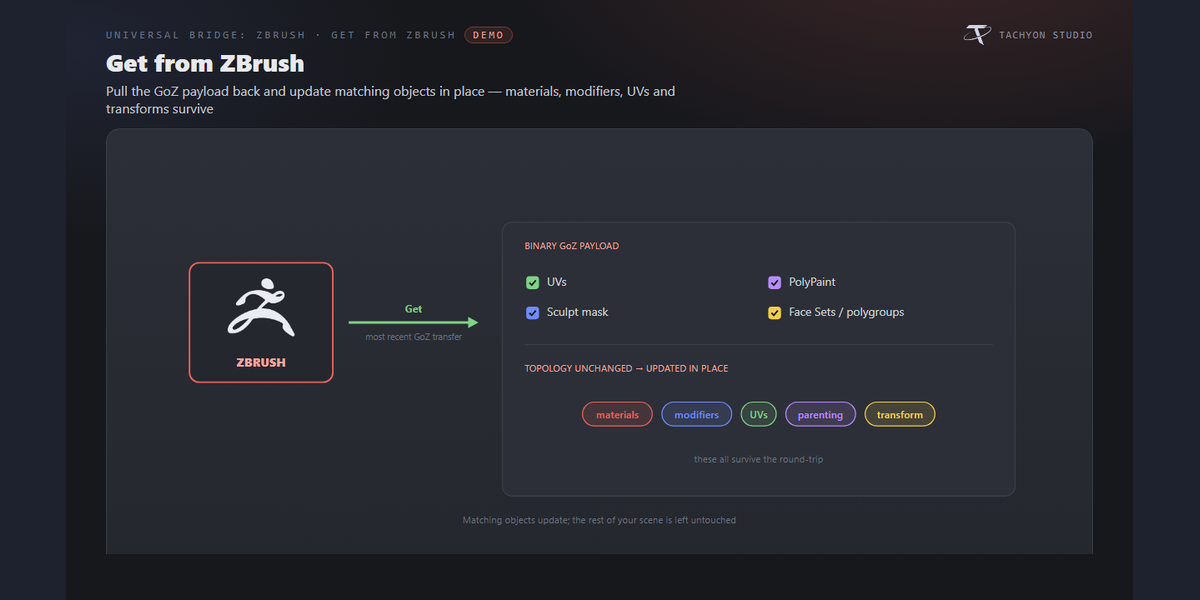
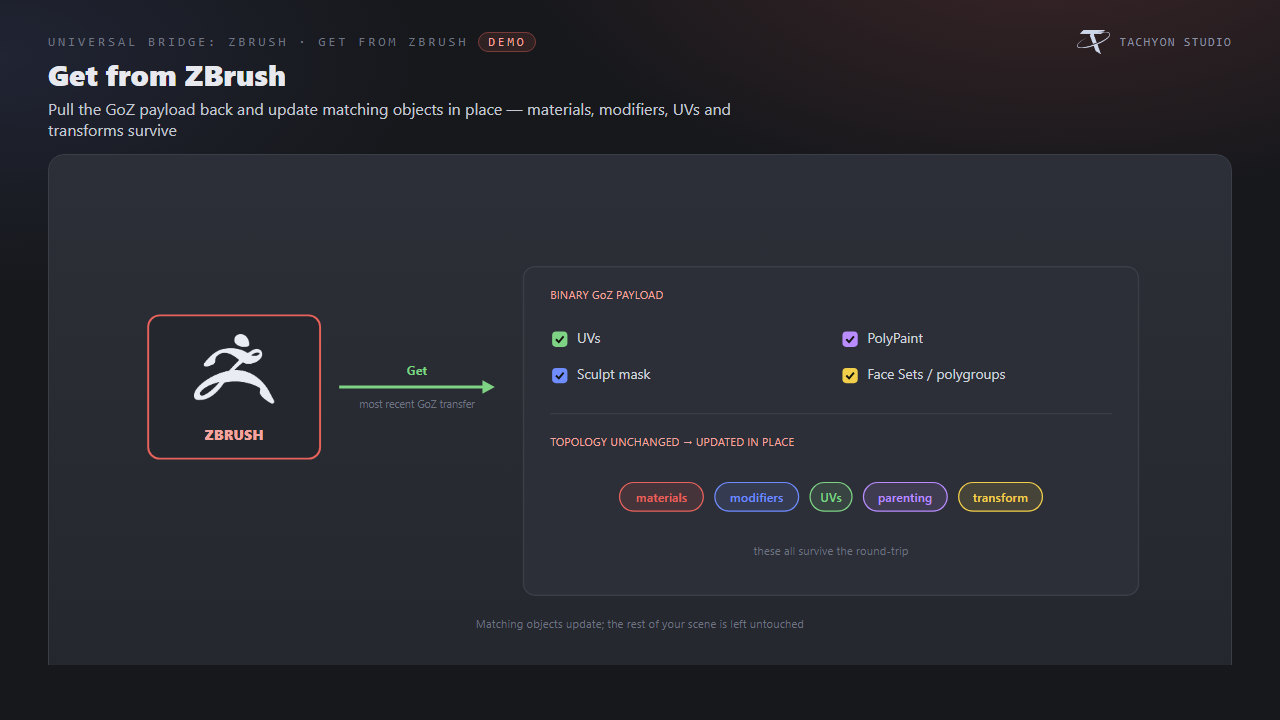
Get from ZBrush imports the most recent GoZ transfer — every object listed in GoZ's object list, preferring the full .GoZ and falling back to .obj. It reads back UVs, PolyPaint (to a colour attribute), the sculpt mask and Face Sets.
-
Update In Place — when a mesh returns with unchanged topology (paint or detail
passes), the existing object's vertices and attributes are updated instead of being replaced, so materials, modifiers, UVs, parenting and transform survive.
-
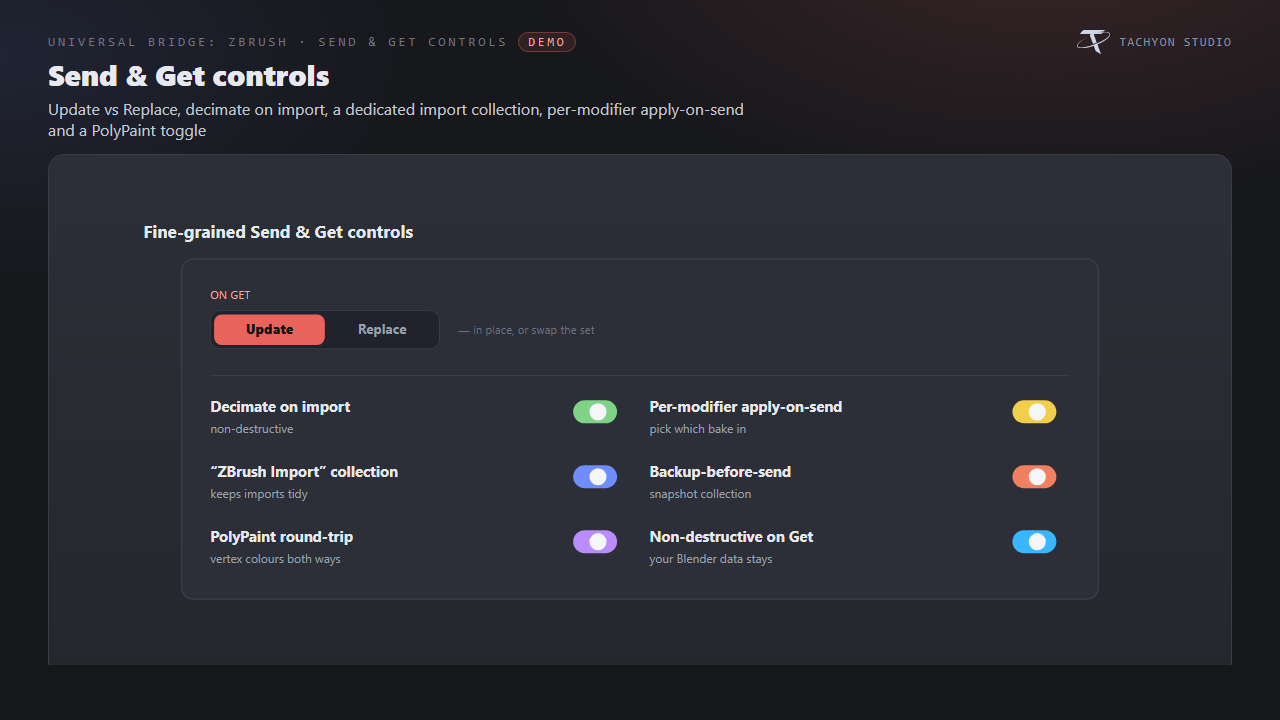
On Get: Update vs Replace — *Update* keeps every other bridged object and only
refreshes the ones re-sent; *Replace* clears the "ZBrush Import" collection and imports everything fresh.
GoZ Auto-Sync & Live Sync
-
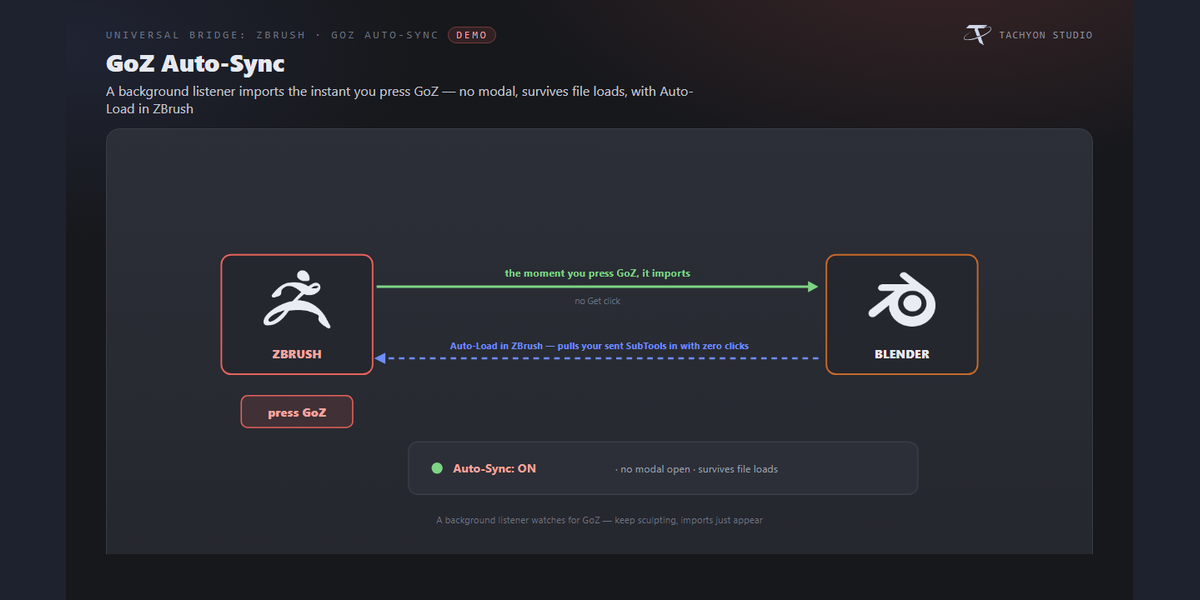
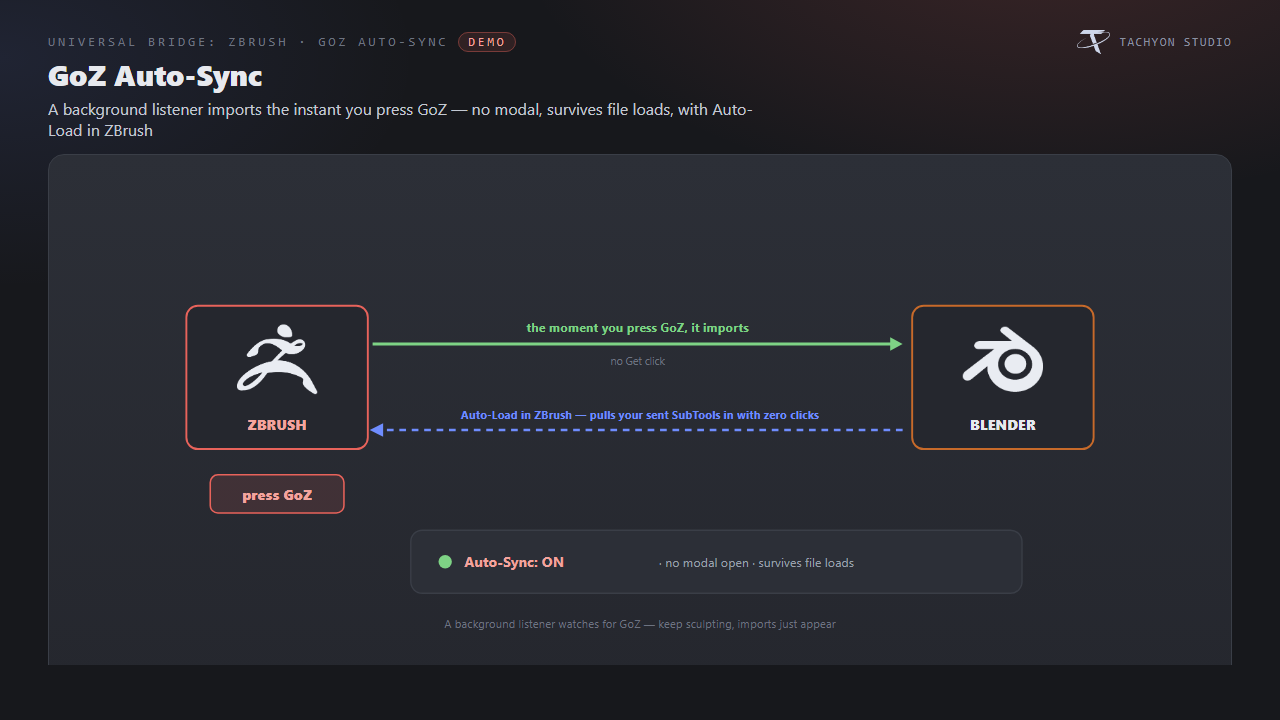
GoZ Auto-Sync — a persistent background listener that imports automatically
whenever you press GoZ in ZBrush. It runs without keeping a modal open and survives file loads.
-
Bring a send into ZBrush — press **Macro > Universal Bridge > Import from
Blender**, or bind that macro to a hotkey and it is one keypress. The transfer itself is automatic: the SubTools are written and waiting the moment you press Send. ZBrush cannot be driven from outside by anything an add-on can install, so the import is a keypress rather than nothing at all.
-
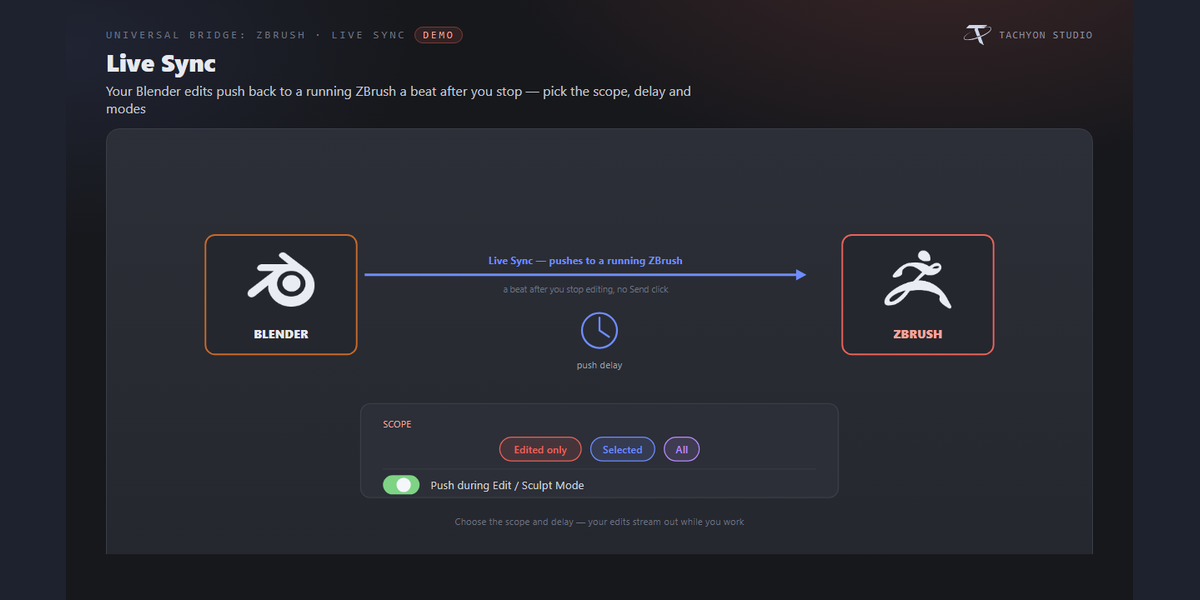
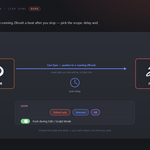
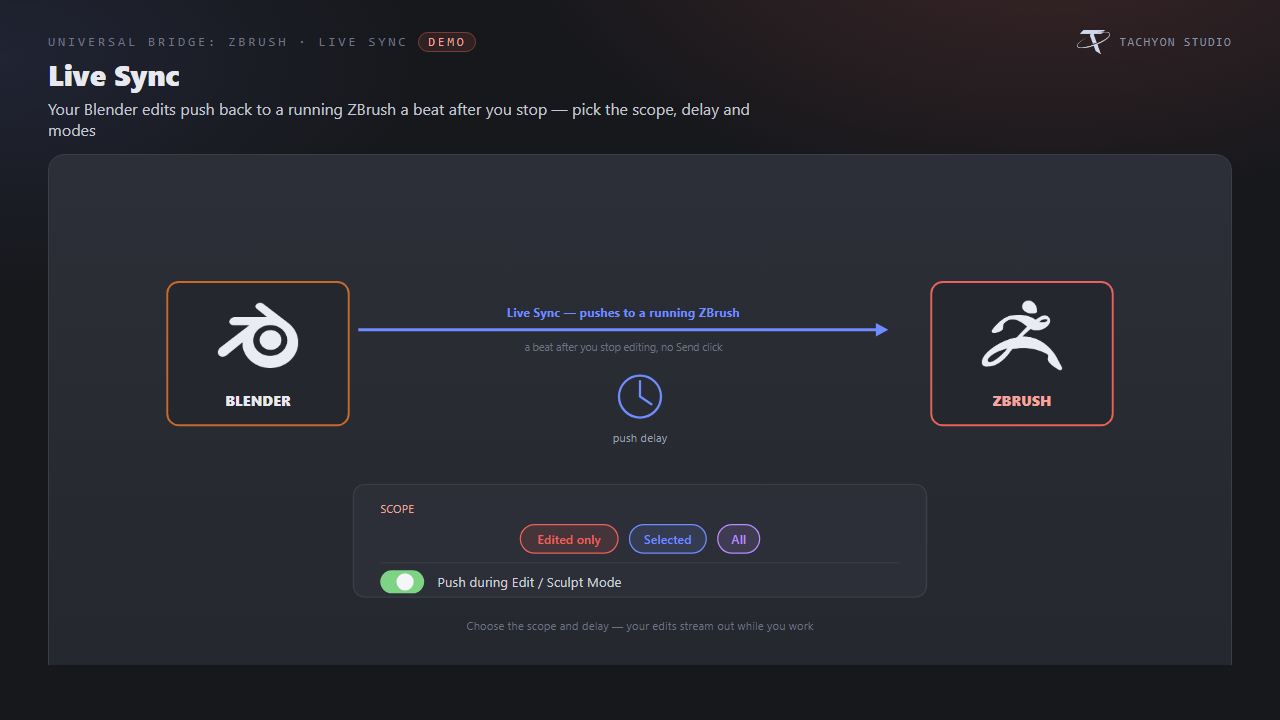
Live Sync (Live Push) — while a sync is on, a mesh you edit is auto-sent to
ZBrush a beat after you finish. Set the Push Delay, the Scope (Edited only / Selected / All Meshes) and whether to push in Edit/Sculpt Mode. Off by default.
-
Watch Macro Sends (Auto Sync) — watches the exchange OBJ that the "… and Send"
macros write, importing those automatically. Auto Sync on Send arms it for you.
ZBrush Buttons (Macros)
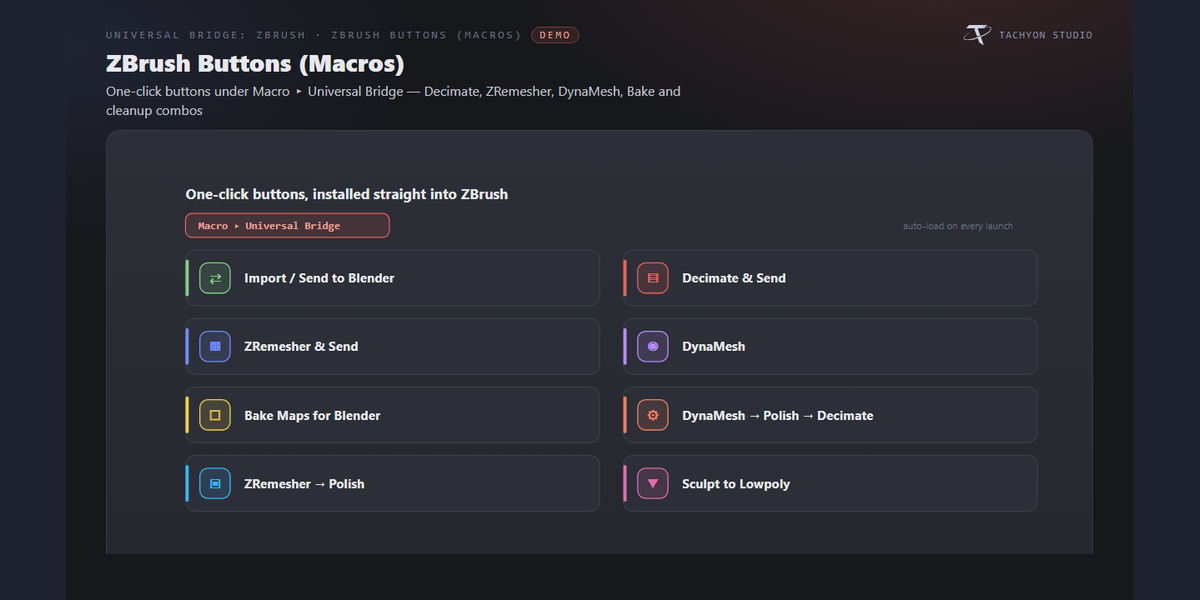
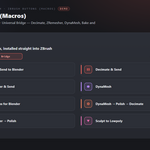
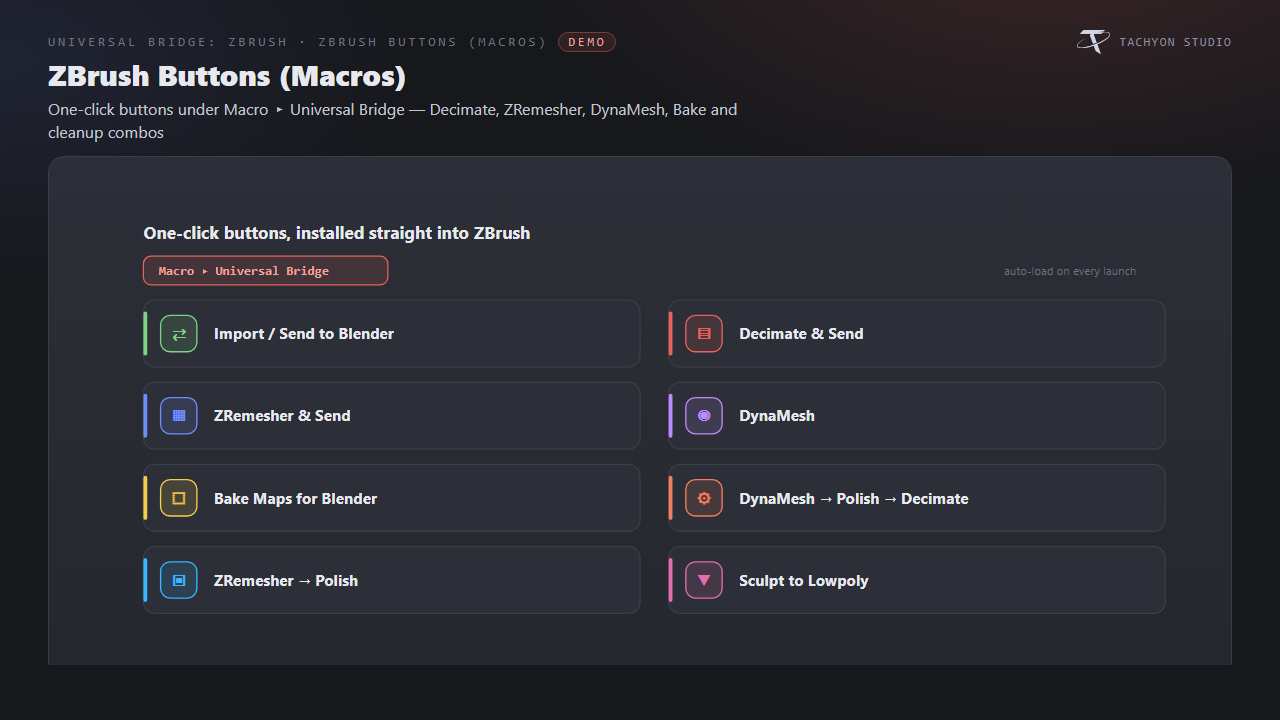
Install ZBrush Buttons (auto) writes self-contained macros into each detected ZBrush's ZStartup/Macros/Universal Bridge folder, so they appear under Macro ▸ Universal Bridge on every launch (a single ZScript is also written to the bridge folder as a manual-load fallback). Installed buttons:
| Button |
What it does |
| Import from Blender |
Import the mesh Blender just sent as the current Tool/SubTool. |
| Send to Blender |
Export the current Tool to Blender (Auto Sync picks it up). |
| Decimate and Send |
Decimate (Decimation Master) to your % then export. |
| ZRemesher and Send |
ZRemesh to your target polycount then export. |
| DynaMesh |
Remesh the current Tool with DynaMesh at your resolution. |
| Bake Maps for Blender |
Bake displacement + normal maps into the GoZ folder. |
| DynaMesh Polish Decimate and Send |
DynaMesh → Polish → Decimate → export, one click. |
| ZRemesher Polish and Send |
ZRemesh → Polish → export (clean retopo). |
| Sculpt to Lowpoly and Send |
DynaMesh → decimate hard → export a game-ready lowpoly. |
The Decimate %, ZRemesher Target (k) and DynaMesh Res values in the panel are baked into the macros at install — change them and click Re-install / Update Buttons. Restart ZBrush after installing.
Import Baked Maps
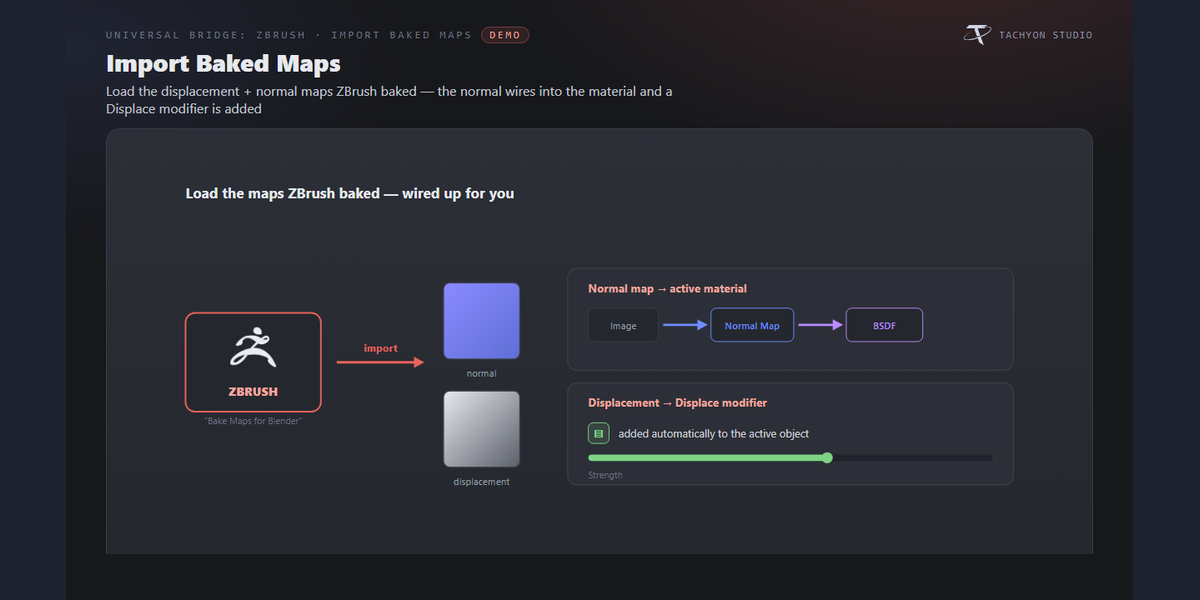
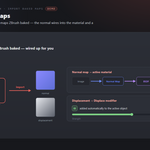
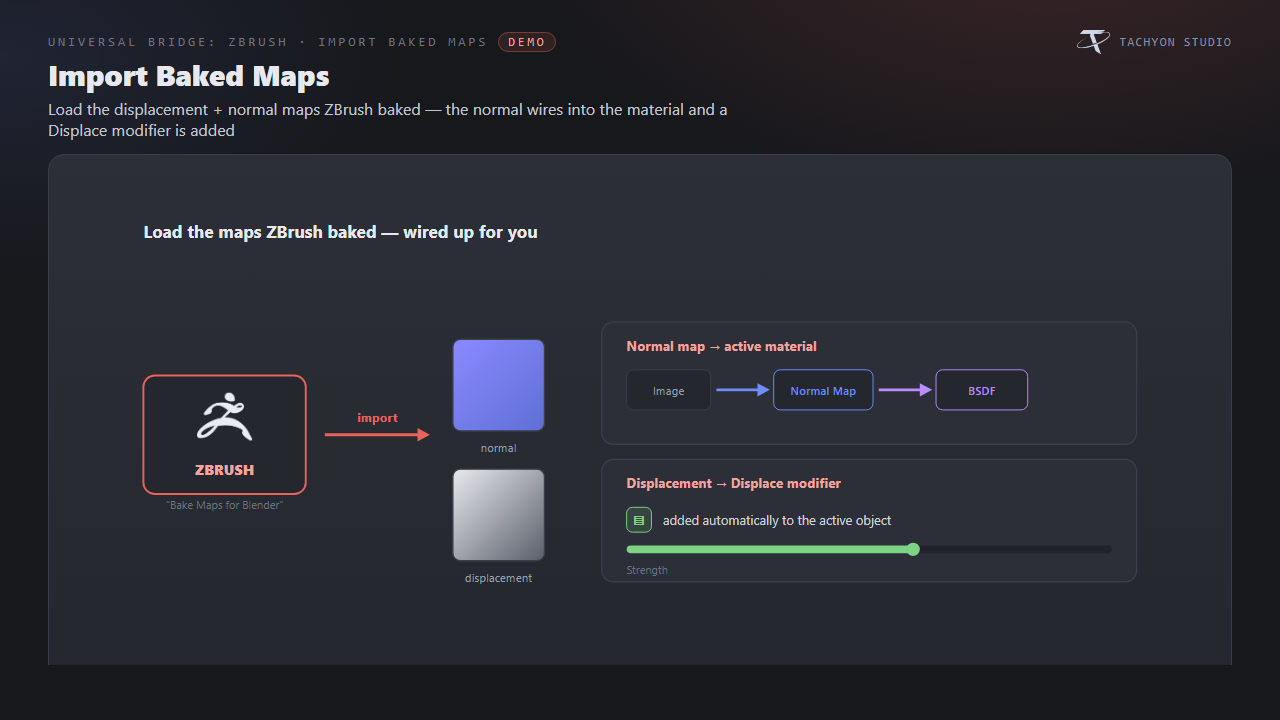
After running the Bake Maps for Blender macro, click Import Baked Maps in the Live Sync section. The newest *_NRM map is loaded (Non-Color), wired into the active object's material through a Normal Map node, and the newest *_DISP map is added as a Displace modifier driven by an image texture.
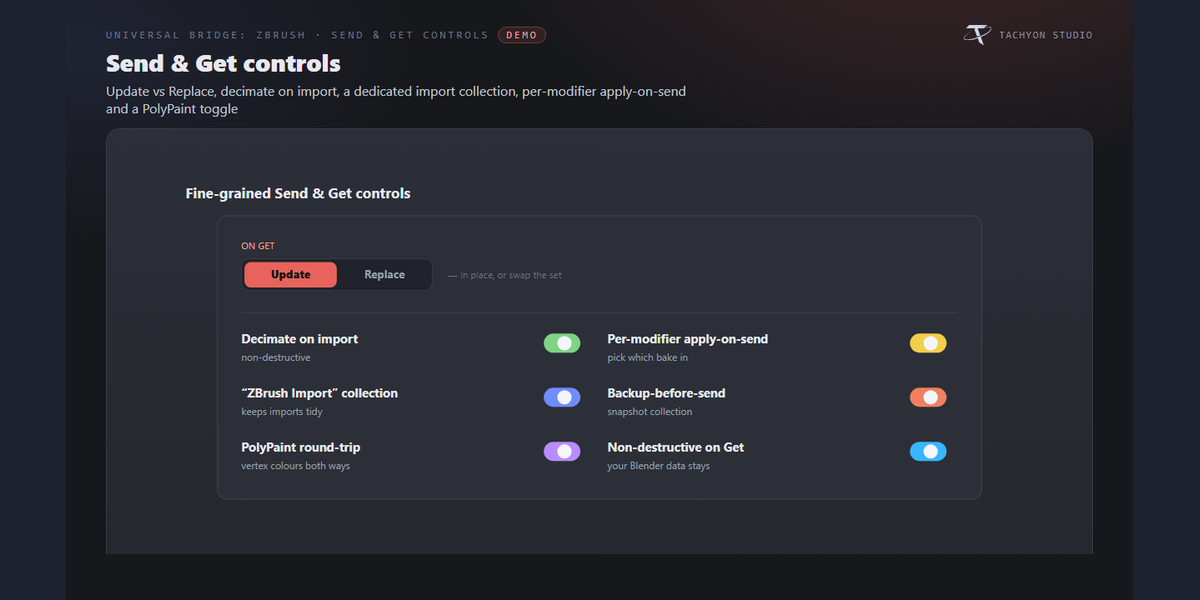
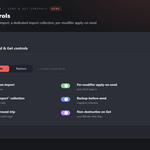
Send & Get settings
-
On Get — Update (keep others) or Replace all.
-
Update In Place — refresh unchanged-topology meshes without replacing them.
-
Decimate on Get — add a non-destructive Decimate modifier (with a Ratio) to
imported sculpts so heavy meshes stay responsive; full-res data is kept.
-
New "ZBrush Import" Collection — import into a dedicated collection (or the
active one when off).
-
Apply Modifiers — bake modifiers into the mesh on send, with a **per-modifier
checklist** (All / None) so you choose exactly which ones apply.
-
Backup Before Send — duplicate objects into a "ZBrush Backup" collection first.
-
Vertex Colors (PolyPaint) — round-trip vertex colours as PolyPaint both ways.
-
GoZ Folder — override the GoZ project folder, or leave blank to auto-detect
(Public\Pixologic\GoZProjects\Default). Open GoZ Folder and Clear GoZ Temp Files (removes .GoZ/.obj/.mtl/.ztn; your .ZTL tools are untouched) are on hand.
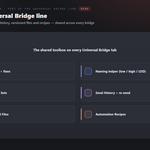
Shared Universal Bridge tools
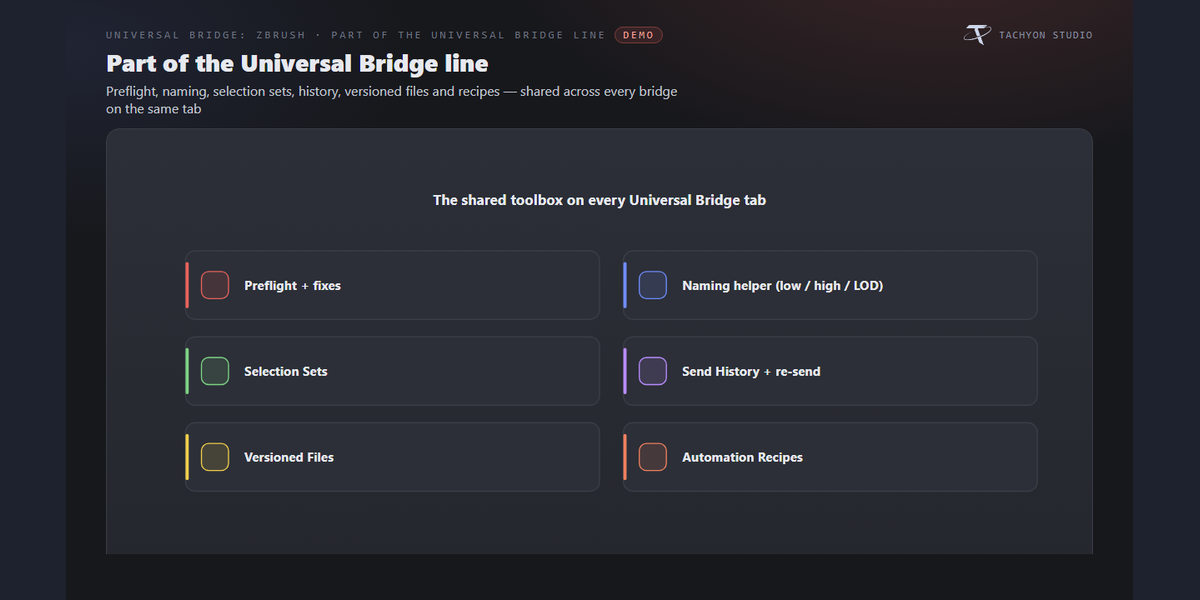
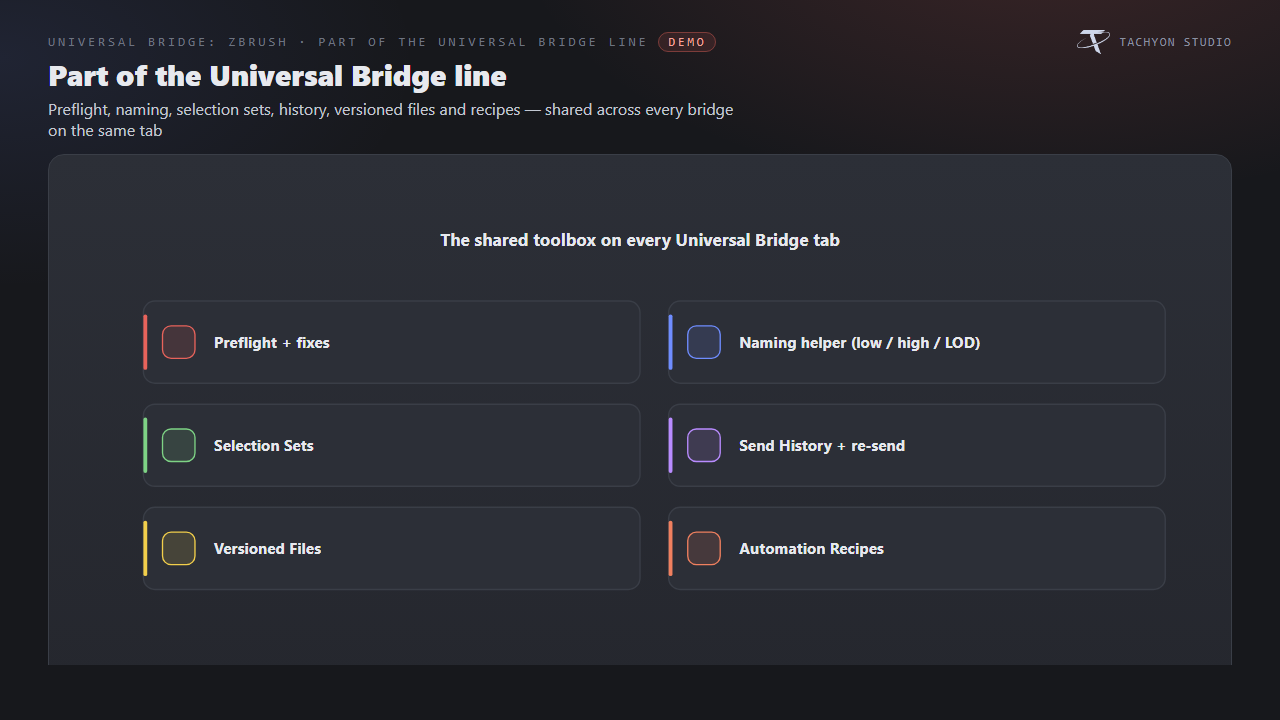
Registered once and shared with every other bridge you own, on the same tab: Command Palette, Send Each Collection (batch), Preflight (flags unapplied scale/rotation, missing UVs, missing materials, n-gons and non-manifold edges, with safe fixes), a Naming convention helper (low / high / LOD / UCX / socket), Selection Sets, Send History (re-send), Versioned Files, and Automation Recipes (pre-send / post-get clean-up chains with presets).
Preferences
-
Show ZBrush Panel — hide the section if you only use other bridges.
-
ZBrush Version — dropdown of detected installs, Detect ZBrush, active install
read-out, and a manual ZBrush Executable path (used when Version = Custom).
-
Reuse Running ZBrush — send to an already-open ZBrush instead of launching one.
-
Background Export (heavy sends) — write heavy sends on a worker thread.
-
Install / Reinstall and Uninstall the ZBrush buttons.
Troubleshooting
-
"GoZ not registered yet" → run GoZ once in ZBrush, then click **Register Blender
with GoZ**.
-
Nothing imports on a GoZ press → turn on GoZ Auto-Sync; confirm the **GoZ
Folder resolves (use Open GoZ Folder**).
-
ZBrush not found → set or Detect the executable in the add-on preferences.
-
Buttons don't appear in ZBrush → the Macros folder may need write access; the
ZScript path is copied to the clipboard as a fallback — load it via Zscript ▸ Load, and restart ZBrush after installing.
-
Two versions installed → pick the one you want in the version dropdown; the
bridge launches exactly that build.
Button icons
The buttons in the bridge panels use a drawn icon set rather than Blender glyphs borrowed from elsewhere. Preferences ▸ Button Icons controls it:
-
Brand Colours (default) — each bridge in its own colour.
-
Mono — every icon in one accent colour you pick.
-
Blender Built-ins — no custom icons at all, exactly as before.
Colour-code Status keeps the link and modifier icons green / amber / red, where the colour is the message; turn it off and they take your accent too. Blender's own glyphs are kept wherever they are already the familiar thing — the trash can, the folder, the warning triangle — so the panels still look like Blender.
Support
Join the Discord: https://discord.gg/SuSqbZMDk5 — include your Blender and ZBrush versions.
Part of the Universal Bridge line. Works on its own, and the free Universal Bridge Manager hub add-on is included with your purchase.
 Tachyon Studio