Zone Select - Select Meshes Across Multiple Objects
 Shahzaib A.

Zone Select — Documentation
Installation
Install the Zone Select addon through Blender's Add-ons preferences.
After installation, open the 3D Viewport, press N to open the Sidebar, and select the Zone Select tab.
Basic Workflow
1. Create or Assign a Zone
You can use an existing mesh object as your selection zone, or automatically create one.
To create a zone from your selected mesh objects:
Select one or more mesh objects.
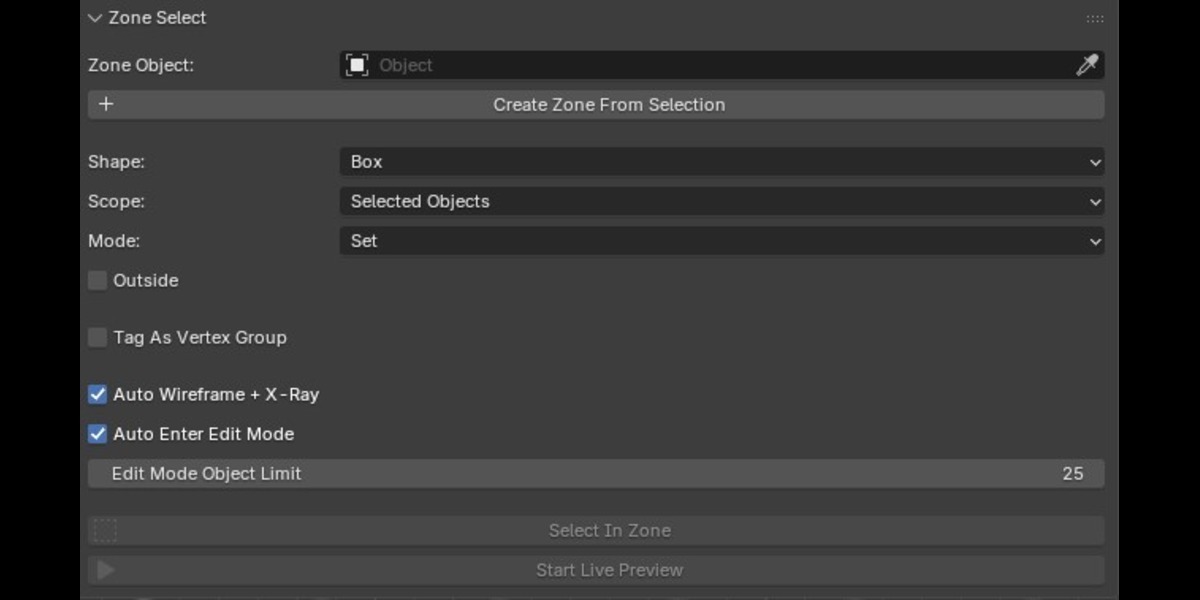
Open N-panel → Zone Select.
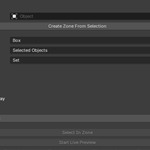
Click Create Zone From Selection.
A wireframe cube is created around the selected objects and assigned as the active Zone Object.
You can also manually assign any mesh object as the Zone Object.
2. Choose the Zone Shape
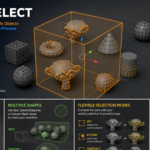
Zone Select supports three selection shapes:
Box
Uses the zone object's local bounding box.
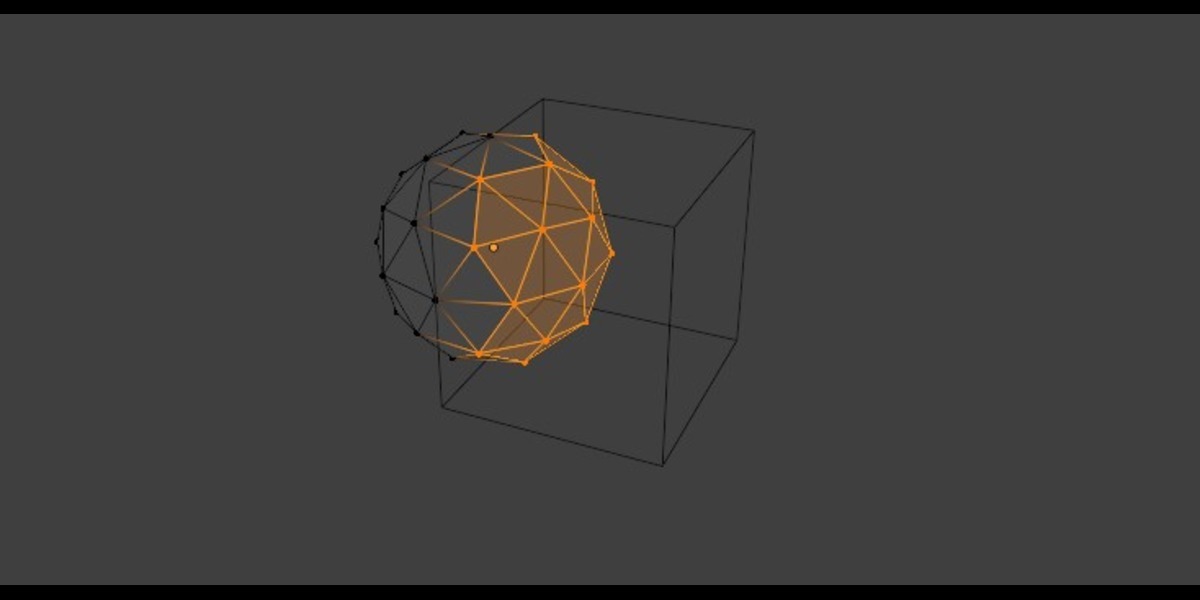
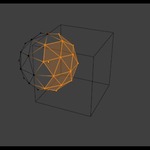
Sphere / Ellipsoid
Uses an ellipsoid fitted inside the zone's bounding box. A UV Sphere can be used as the zone for a true spherical volume.
Convex Mesh
Uses the actual faces of the zone mesh. The zone mesh must be convex. Running Convex Hull is recommended if the shape is not already convex.
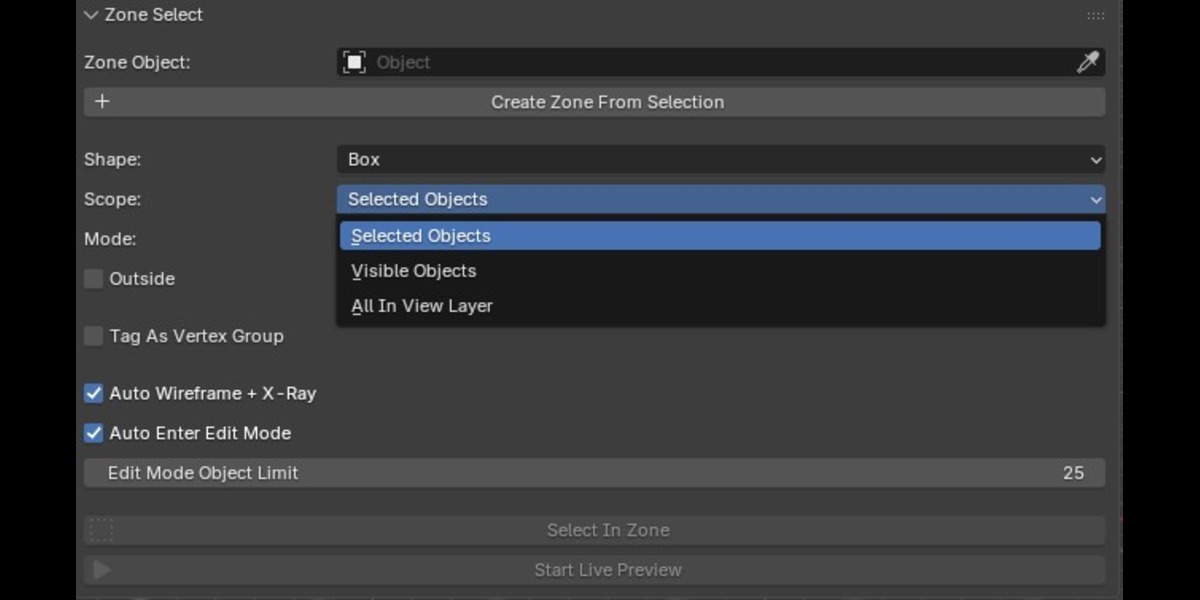
3. Choose the Target Scope
Select which mesh objects should be affected:
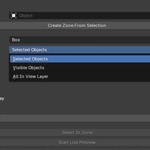
Selected Objects
Only the currently selected mesh objects.
Visible Objects
Every visible mesh object in the current view layer.
All In View Layer
Every mesh object in the view layer, including hidden objects.
4. Choose the Selection Mode
Zone Select provides four ways to combine the zone with your existing selection:
Set — replaces the current selection.
Extend — adds the vertices inside the zone.
Subtract — removes the vertices inside the zone.
Intersect — keeps only vertices that were already selected and are inside the zone.
5. Select Inside or Outside
Enable Outside to invert the result and select elements outside the zone instead of inside it.
6. Run Zone Select
Click Select In Zone to apply the selection.
Zone Select calculates the spatial relationship between the target mesh and the zone and applies the resulting vertex selection.
Live Preview
Live Preview lets you preview the affected vertices while transforming the zone.
Set your Zone Object and desired settings.
Click Start Live Preview.
Move, rotate, or scale the zone.
The affected vertices are displayed in the viewport.
Click the button again or finish the interaction to commit the result.
During preview, the target objects remain frozen for the Selected Objects scope so that moving the zone does not accidentally change which objects are being evaluated. Nothing is written to the meshes until the preview is committed.
Vertex Group Tagging
Enable Tag As Vertex Group to synchronize the result into a named vertex group.
Enter the desired Group Name, such as ZoneSelect.
The vertex group is created or updated on each affected object so that it matches the latest selection.
This is useful when the selected region needs to be reused later for workflows based on vertex groups.
Viewport Options
Auto Wireframe + X-Ray
When enabled, Zone Select switches 3D Viewports to Wireframe shading with X-Ray enabled after running the operation.
This is purely a viewport display option and does not change which vertices are selected.
Auto Enter Edit Mode
When enabled, Zone Select selects the processed objects and switches them into multi-object Edit Mode so the selection is immediately visible.
You can also specify an Edit Mode Object Limit. If the number of processed objects exceeds this limit, automatic Edit Mode entry is skipped to avoid opening an unnecessarily large multi-object edit session.
Recommended Workflow
For most projects:
Create Zone → Select Target Objects → Choose Shape → Choose Scope → Choose Selection Mode → Start Live Preview → Position the Zone → Commit
For reusable masks:
Create Zone → Enable Tag As Vertex Group → Set Group Name → Run Zone Select
Important Notes
For Convex Mesh mode, the zone geometry must be convex and have outward-facing normals. If necessary, use Convex Hull and recalculate normals before using the shape.
Zone Select currently operates on mesh vertices; the addon forces Blender's mesh selection mode to vertex selection when executing the operation.
Have questions about this product?
Login to message
| Blender Extension Compatible | Yes |
| Published | about 2 months ago |
| Blender Version | 5.0 - 5.2 |
| Extension Type | Add-on |
| Render Engine Used | Cycles, Eevee |
| License | GPL |
Discover more products like this
Workflow Vertex Selection mesh editing mesh selection Live Preview hard surface productivity Object Selection Selection Tool Modeling tools Selection vertex groups