 Andrey Petrov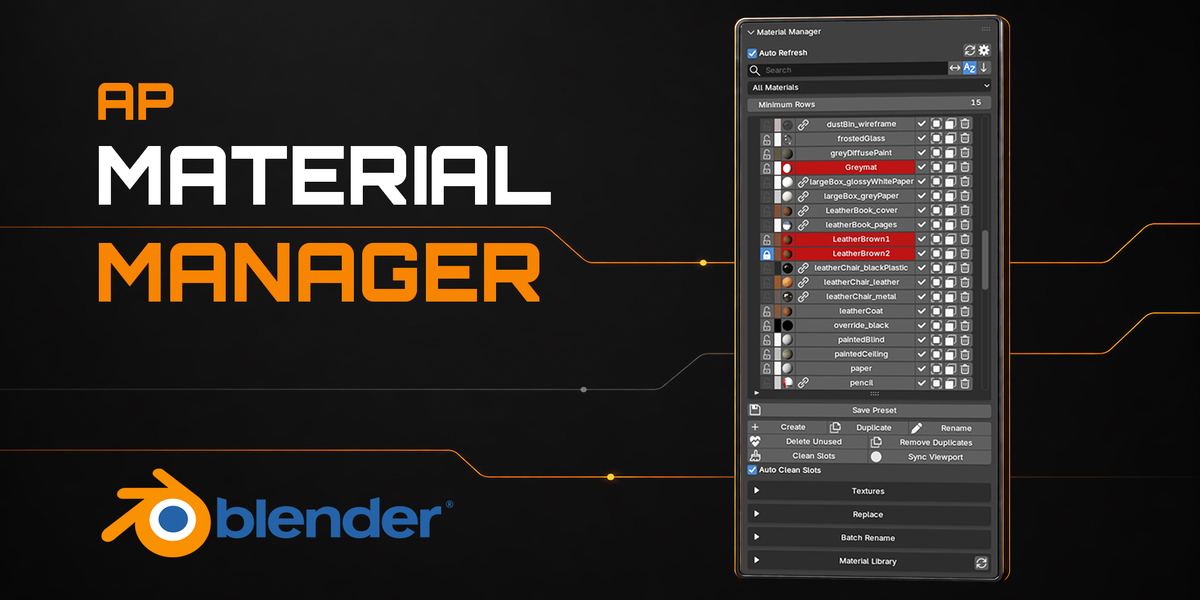
Manage every material in your Blender scene from one clean panel
AP Material Manager brings material browsing, assignment, replacement, cleanup, batch renaming, texture management, and a reusable material library into a single convenient interface.
Instead of searching through objects and material slots manually, you can instantly see which materials are used, locate their owners, assign them to objects or selected faces, replace them across a scene, and clean unnecessary data.
It is designed for artists working with product visualization, environments, architectural scenes, game assets, large imported models, and any project where material organization matters.
Key Features
Centralized Material List
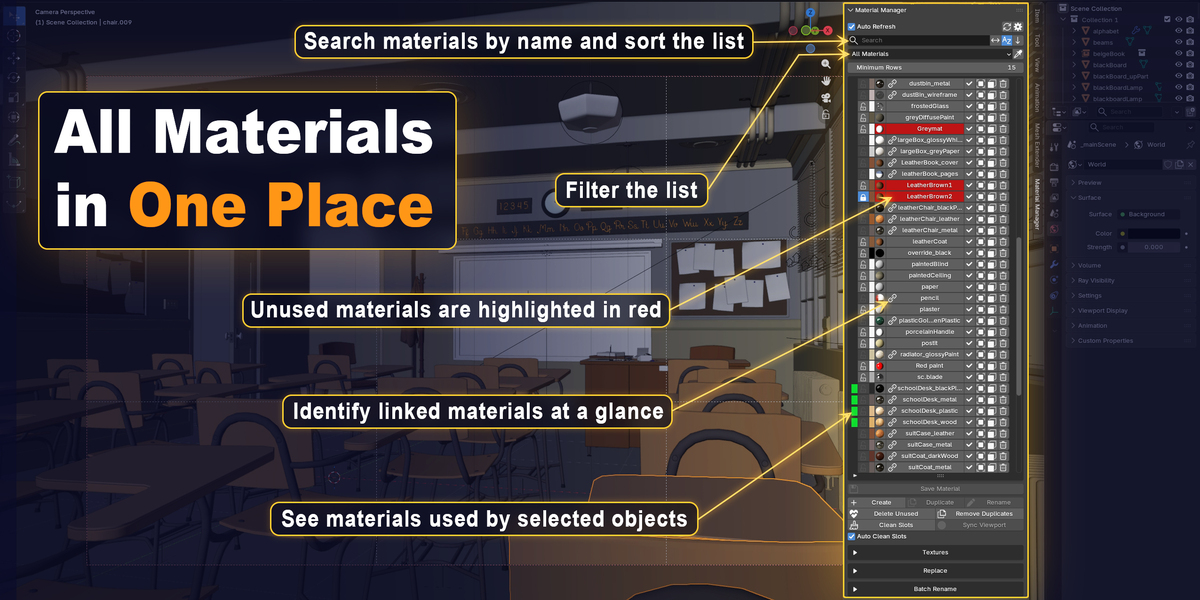
Browse all materials in the file from the 3D Viewport Sidebar.
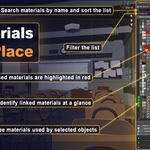
- Search materials by name
- Sort alphabetically
- Filter by active scene, selected objects, used, unused, or linked materials
- See which materials are used by the current selection
- View material preview thumbnails and Viewport Display colors
- Identify linked library materials
- Protect important materials with Fake User directly from the list
- Automatically refresh the list when the scene changes
- Pick materials directly from the 3D Viewport with the eyedropper. Alt-click to choose from multiple materials under the cursor.
Quick Access with Smart Toggle
Access Material Manager without interrupting your workflow. Press the hotkey to open Material Manager, then press it again to return to your previous Sidebar tab or close the Sidebar if it was previously hidden. Quickly work with materials and get back to your other tools without manually switching tabs.
The default shortcut is Ctrl + Shift + Alt + M and can be customized directly in Add-on Preferences.
Fast Material Assignment
Assign materials without opening multiple Blender panels.
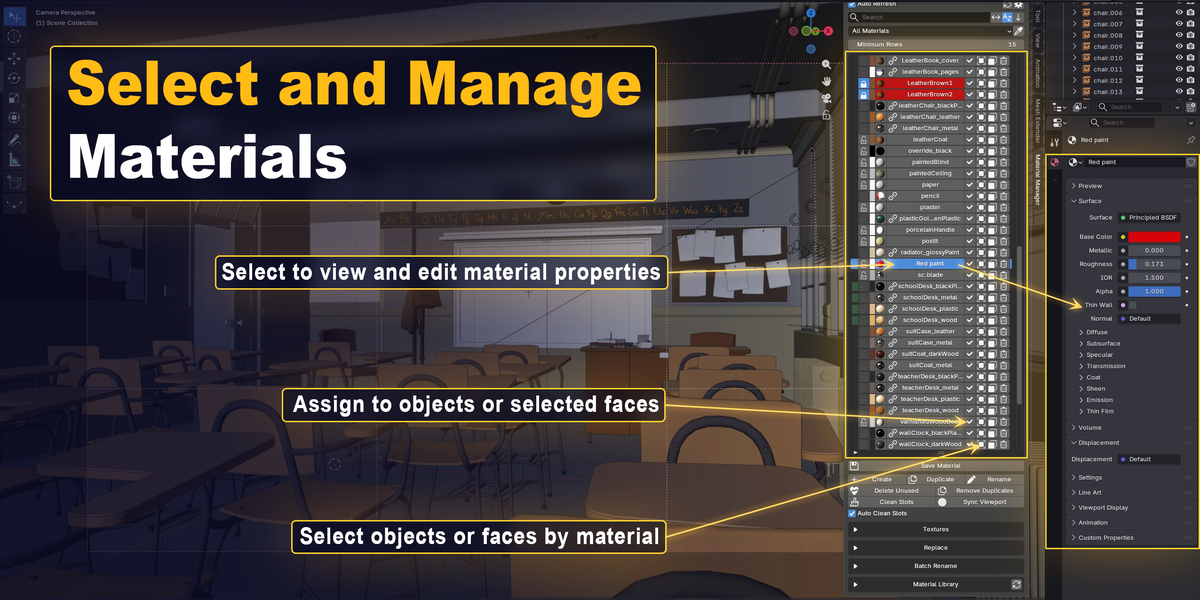
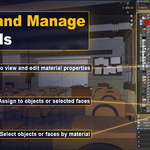
- Assign a material to one or more selected objects
- Assign a material to selected faces in Edit Mode
- Select every visible object using a material
- Select faces with a specific material assigned
- Find objects and instances that reference a material
Create and Organize Materials
- Create new materials
- Duplicate materials
- Rename materials
- Convert linked materials into editable local copies by duplicating them
- Sync Base Color, Metallic, and Roughness to Viewport Display
Batch Rename
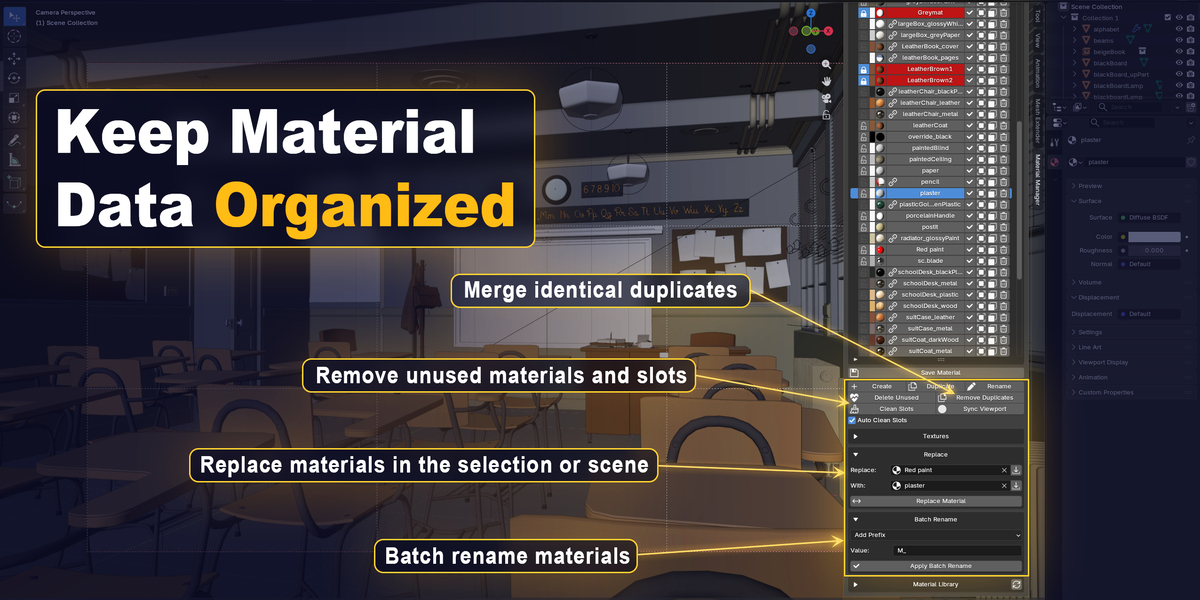
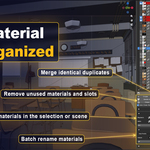
Rename the materials currently visible in the filtered Material Manager list.
Available operations:
- Add Prefix
- Add Suffix
- Find and Replace Text
Filters can be used to precisely control which materials are affected.
Replace Materials
Replace one material with another:
- On selected objects
- Across the active scene when nothing is selected
Material slots are updated automatically, making it easy to consolidate imported assets or change materials throughout a project.
Cleanup Tools
Keep your project organized with simple cleanup tools.
- Delete unused materials while preserving locked materials protected with Fake User
- Merge identical materials into one and update all affected objects and slots
- Remove unused material slots manually or automatically after material operations
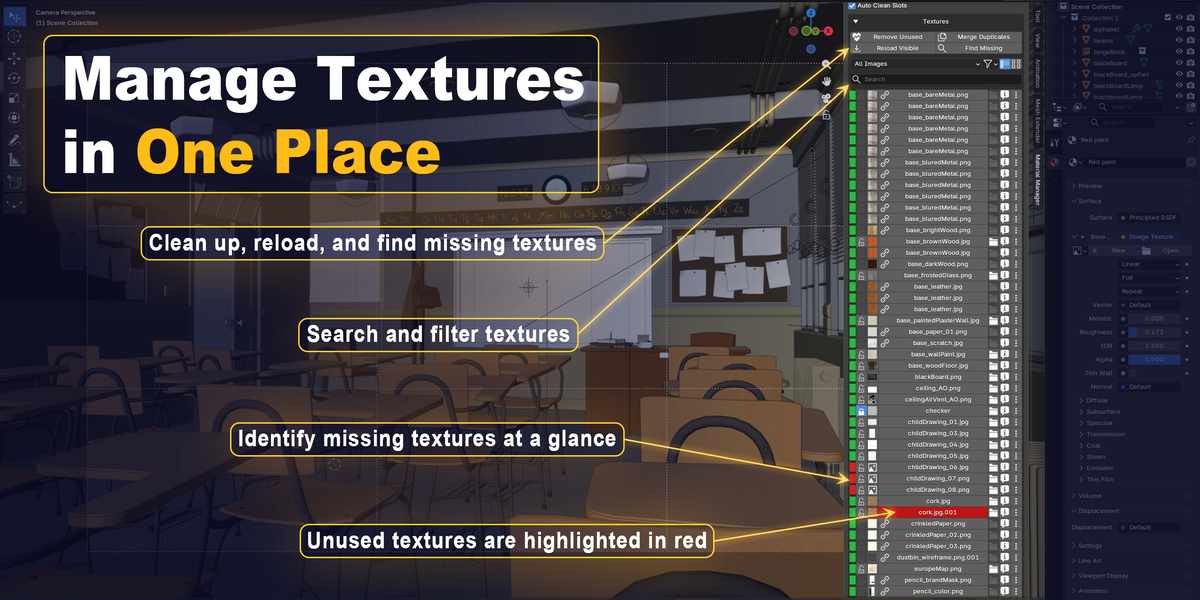
Texture Management
Manage image textures directly from Material Manager.
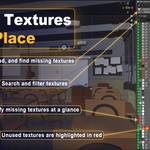
- Browse all project images or only textures used by the selected material
- Search by image name or file path
- Filter missing and unused textures
- Switch between compact list and thumbnail gallery views
- View texture previews, file status, paths, resolution, and usage information
- Select related materials and reveal image texture nodes
- Relink, reload, pack, or unpack individual textures
- Find and restore missing texture files
- Merge duplicate images and update all references
- Reload all visible textures or remove unused images while preserving Fake User protection
- Work with packed, generated, linked, and UDIM images
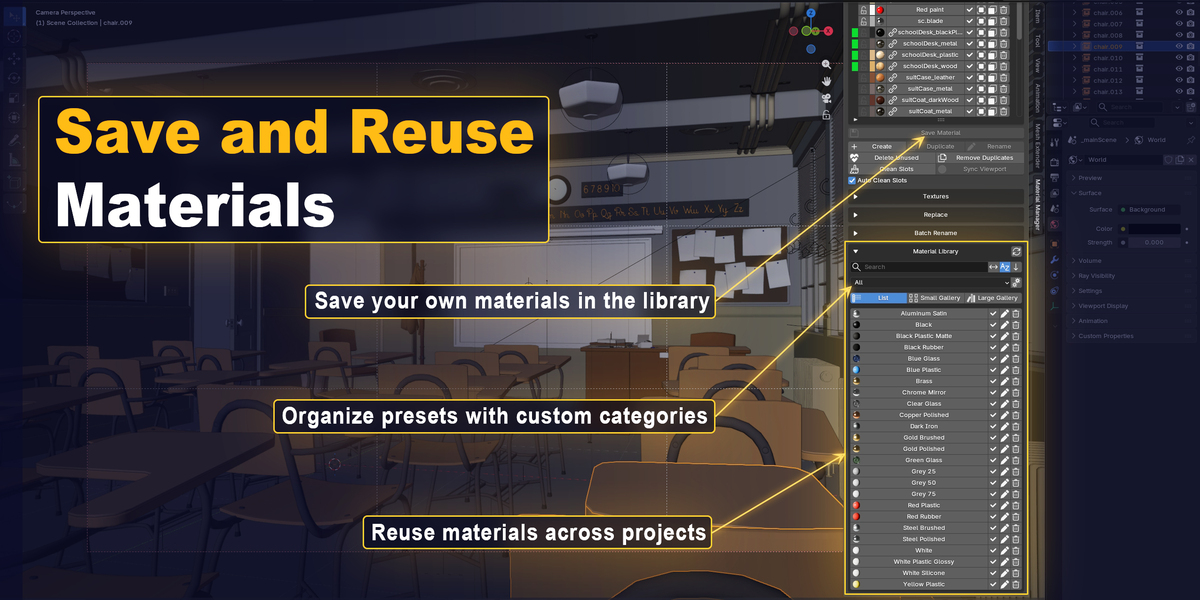
Reusable Materials Library
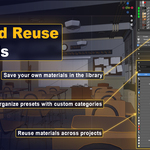
Save materials to the library and reuse them in future projects.
- Saved materials are stored as independent .blend files
- Automatic thumbnail generation
- Custom categories
- Search and category filters
- Compact list and thumbnail gallery modes
- Rename, move, or delete saved materials
- Assign saved materials to objects or selected faces
- Optional custom library location
Your custom library is stored outside individual project files, so saved materials remain available across Blender sessions and projects.
Material Asset Browser
Browse material assets from the Blender Asset Libraries configured in Blender Preferences directly inside Material Manager.
The Material Asset Browser is disabled by default. Enable Show Material Asset Browser in Addon Preferences to display it.
- View material previews in compact list or thumbnail gallery mode
- Search by name, sort alphabetically, and filter by Blender Asset Catalogs
- Append materials to the current project and assign them to selected objects or faces
- Link materials from their source libraries and assign them to the selection
- Reveal source .blend files in File Explorer
25 Materials Included
AP Material Manager includes a ready-to-use starter library:
- 5 Basic materials
- 9 Metal materials
- 5 Plastic materials
- 3 Rubber and silicone materials
- 3 Glass materials
The included metals, plastics, rubber, and glass are practical base materials intended for quick use and customization rather than a large premium material pack.
You can expand the library with your own materials and categories.
Compatibility
- Blender 4.5 or newer
- Extension type: Blender Add-on
- No external software or Python packages required
Permissions
The extension requests only the permissions required for its features:
- File access is used to store and manage the personal Material Library, browse configured Blender Asset Libraries and their material previews, and inspect, relink, pack, and unpack external texture files.
Why AP Material Manager?
Blender’s native material tools are powerful, but material management becomes increasingly fragmented as scenes grow. AP Material Manager keeps the most common operations together, reduces repetitive navigation, and provides a clear overview of the materials in your project.
Spend less time searching through slots and datablocks and more time creating.
