Ap | Material Manager
 Andrey Petrov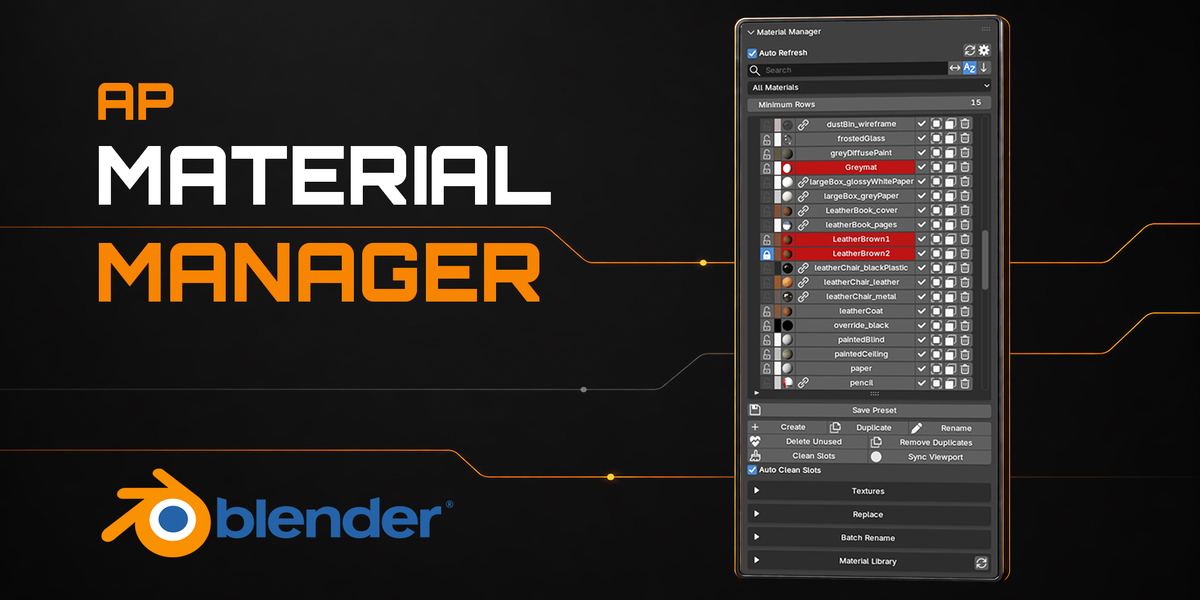
Installation
- Download the ap_material_manager.zip file.
- Do not extract the archive.
- Open Blender.
- Install the extension using either method:
Drag and Drop
Drag the downloaded .zip file directly into the Blender window and confirm the installation.
Install from Disk
- Go to Edit > Preferences > Get Extensions.
- Open the menu in the upper-right corner.
- Select Install from Disk.
- Choose the downloaded .zip file.
After installation, confirm that AP Material Manager is enabled.
Opening Material Manager
You can open Material Manager in any of the following ways:
- Open the 3D Viewport Sidebar with N and select the Material Manager tab.
- Go to Window > Toggle Material Manager Sidebar.
- Use the default shortcut: Ctrl + Shift + Alt + M.
The shortcut can be customized in the add-on preferences. The currently assigned shortcut is also displayed next to the command in the Window menu.
Quick Start
- Open the Material Manager tab in the 3D Viewport Sidebar.
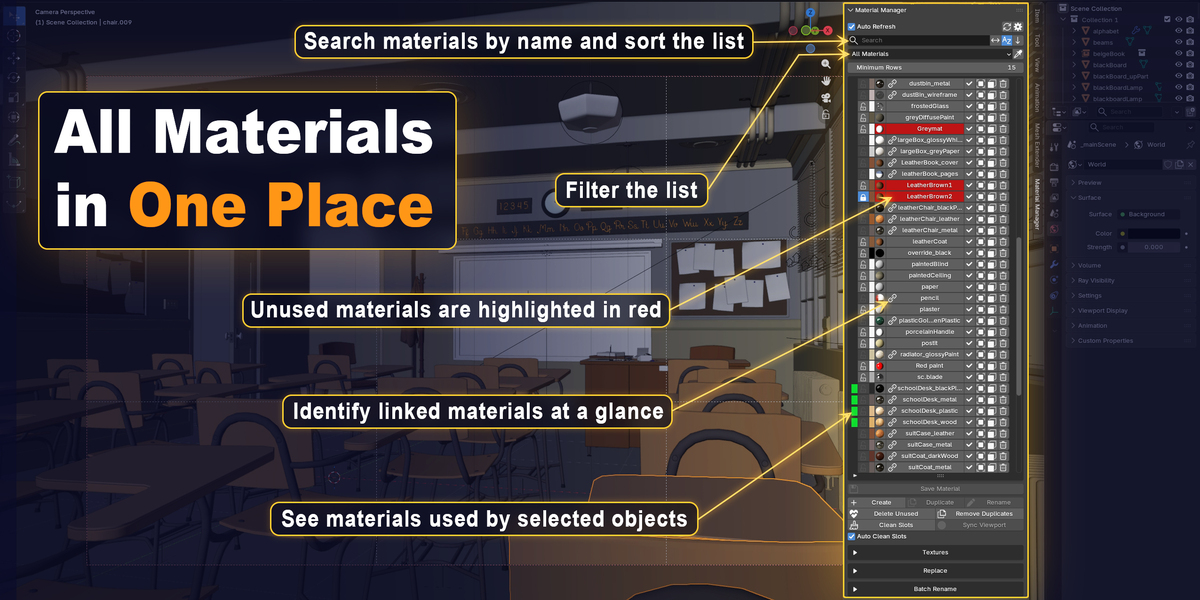
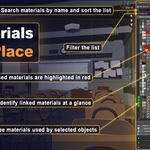
- Use Search, Sort, and Filter to find the required material.
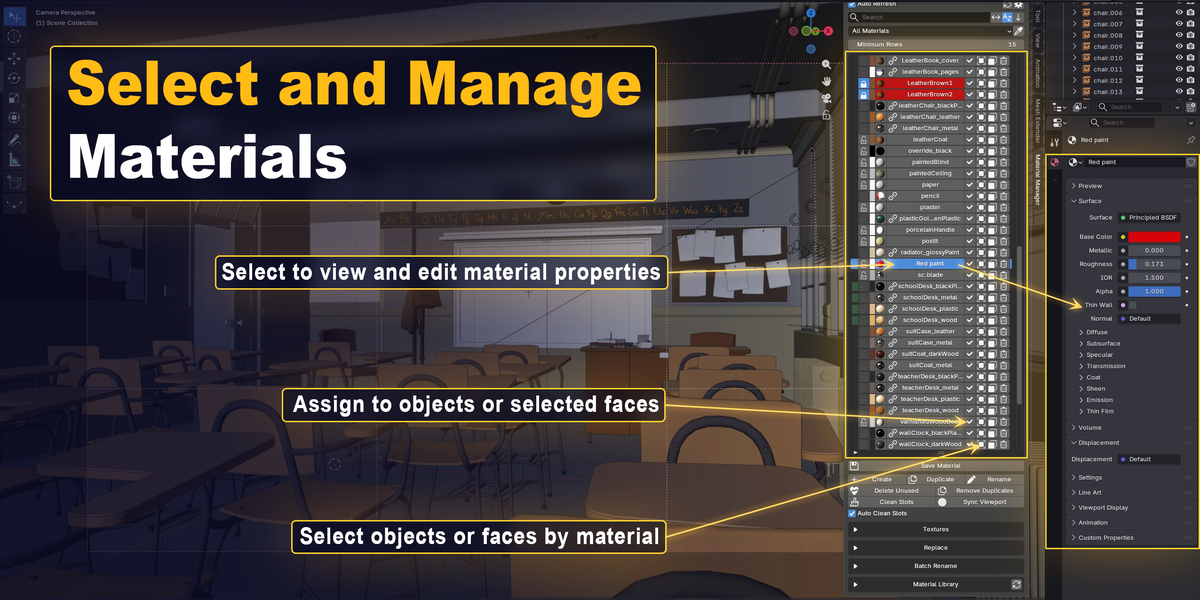
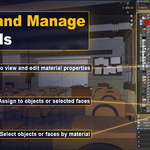
- Click the checkmark next to a material to assign it to selected objects or faces.
- Use the object or face selection buttons to locate material users.
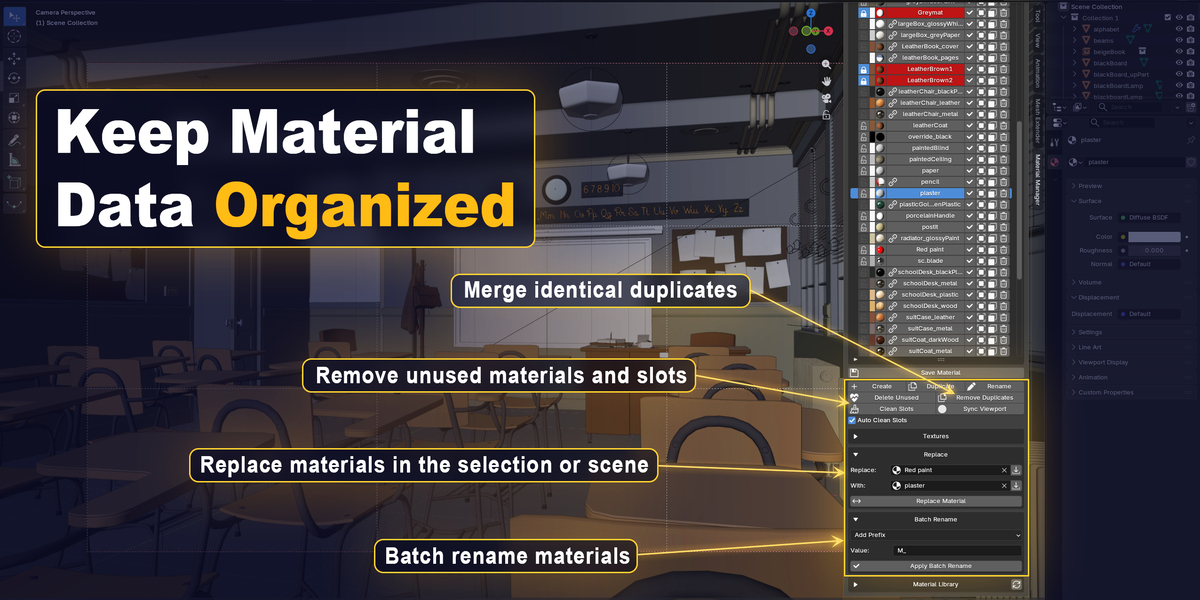
- Expand Replace, Batch Rename, or Material Library when additional tools are needed.
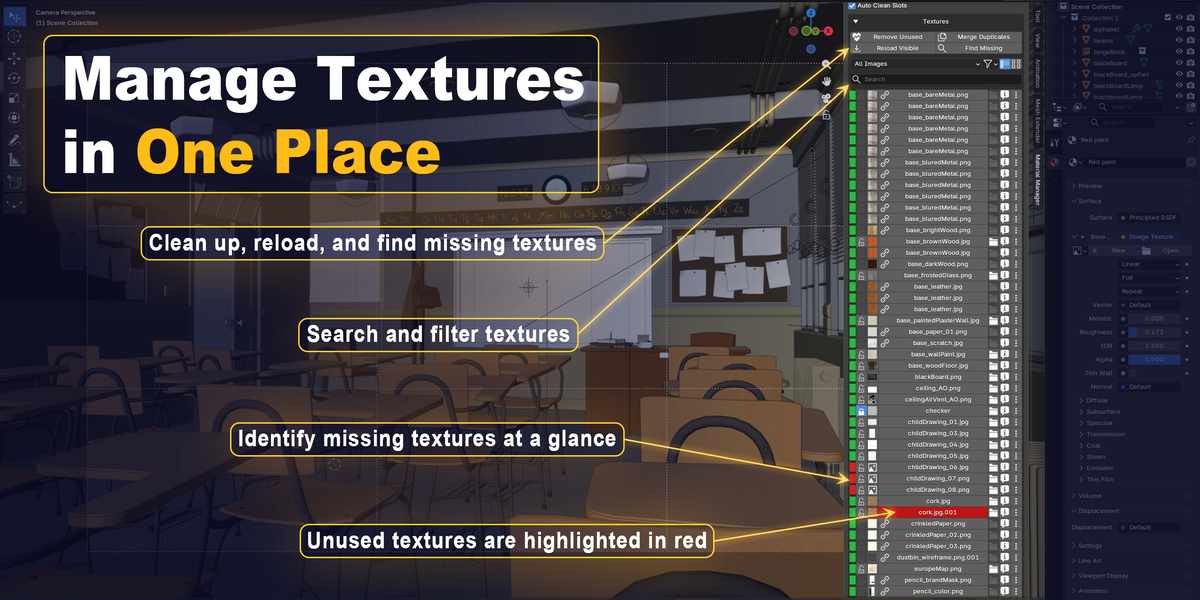
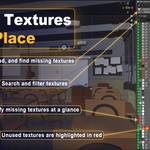
- Expand Textures to browse and preview all images in the project or only those used by the selected material. Use search and filters to find missing or unused textures.
- Use Find Missing to restore broken texture paths, or open a texture’s actions to relink, reload, pack, or unpack it.
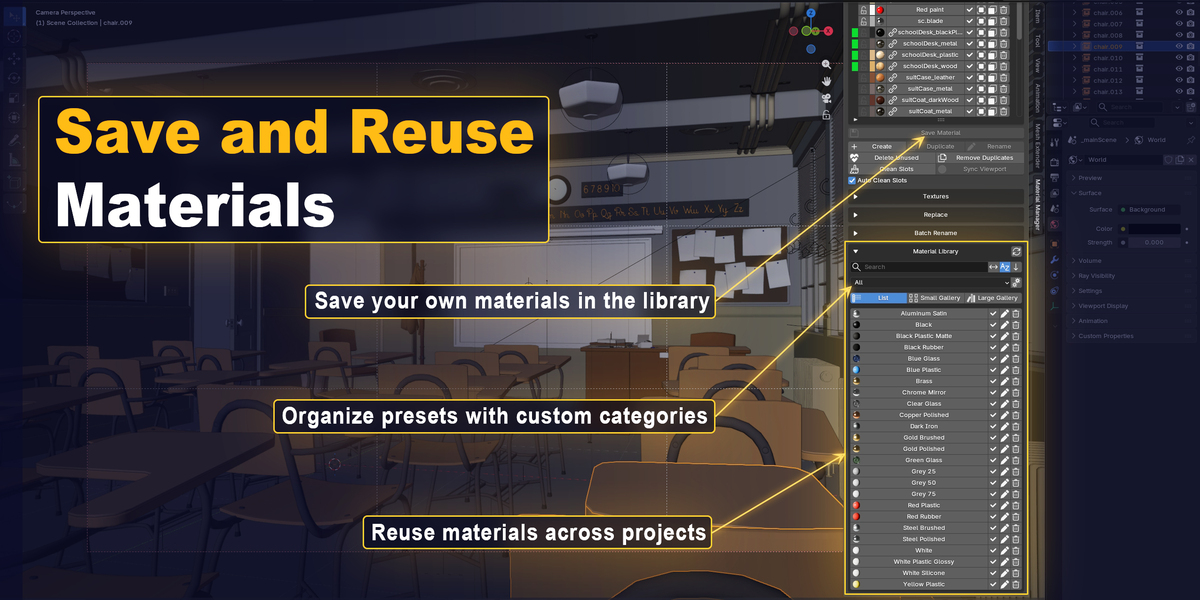
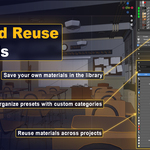
- Before saving materials to the library, we recommend choosing an external Material Library Folder in the add-on preferences. Materials saved to the default library folder will be deleted when the add-on is uninstalled. An external library will remain on your computer.
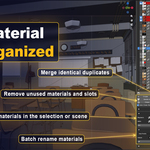
- Use the cleanup tools to remove unused materials and images, merge duplicate datablocks, and clean empty material slots.
- To browse Blender Asset Libraries inside Material Manager, enable Show Material Asset Browser in Addon Preferences and expand Material Asset Browser. Use the checkmark to append and assign a material, or the chain button to link it.
Preferences
Open Edit → Preferences → Add-ons, find AP | Material Manager, and expand its settings.
Available options:
- Default Material Name - Set the default name for newly created materials
- Material Library Folder - Choose where the personal material library is stored
- Reset Path to Default - Restore the default Material Library location
- Copy Bundled Materials - Copy the included materials into the selected library
- Show Preview Swatches - Show or hide Viewport Display Color swatches in the material list
- Combine Selection Buttons - Combine the object and face selection buttons into one. Click to select objects using the material; Ctrl-click to select faces to which the material is assigned
- Hotkey - Customize the shortcut used to open Material Manager
- Show Material Library - Show or hide the add-on’s personal Material Library and the Save Material button
- Show Material Asset Browser - Show or hide the browser for materials from configured Blender Asset Libraries. It is disabled by default
