Ap | Material Manager
 Andrey Petrov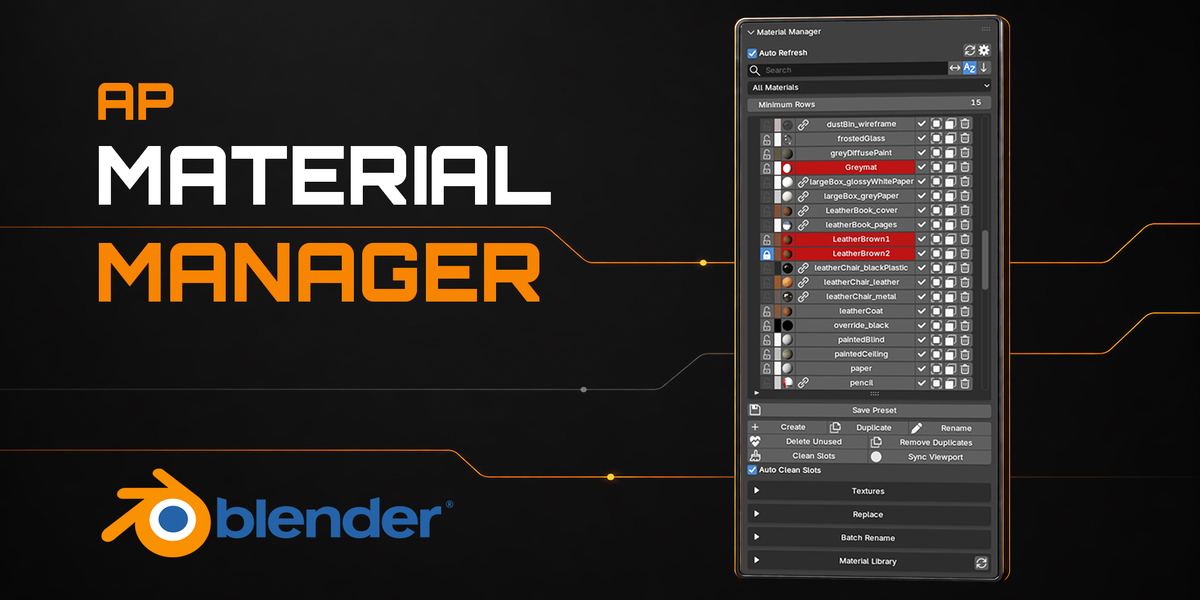
Does AP Material Manager work with Cycles and Eevee?
The material management tools are not tied to a specific render engine. The included presets use standard Blender materials suitable for regular Cycles and Eevee workflows.
Where is my custom material library stored?
By default, presets are stored in Blender’s persistent extension data folder.
For a personal library that you plan to expand over time, we recommend creating a separate folder outside the Blender installation and selecting it in the add-on preferences.
This keeps your presets independent from the add-on installation and helps prevent them from being lost if the extension is removed or reinstalled.
Can I save my own materials as presets?
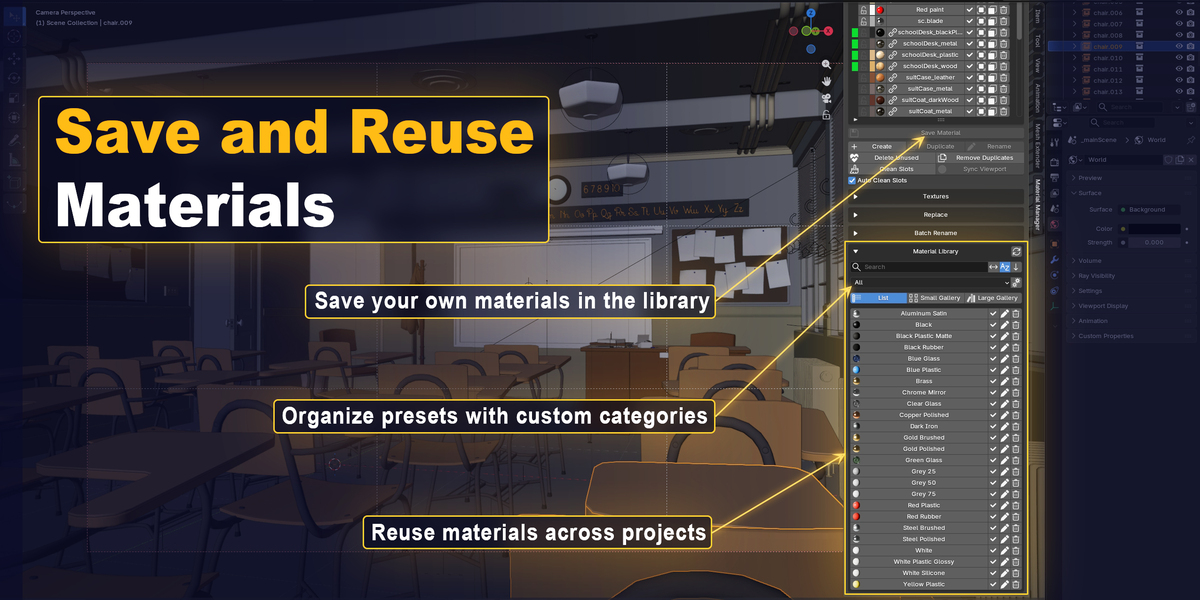
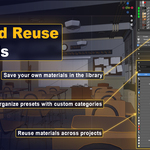
Yes. Any material can be saved as a reusable preset with its own thumbnail and category.
Your saved presets remain available across Blender projects and can be assigned to selected objects or selected faces.
Does the add-on include a material library?
Yes. AP Material Manager includes 25 simple, ready-to-use starter materials.
The collection contains metals, plastics, rubber, glass. These are practical base materials intended for quick use and customization rather than a large premium material pack.
What does Remove Duplicates do?
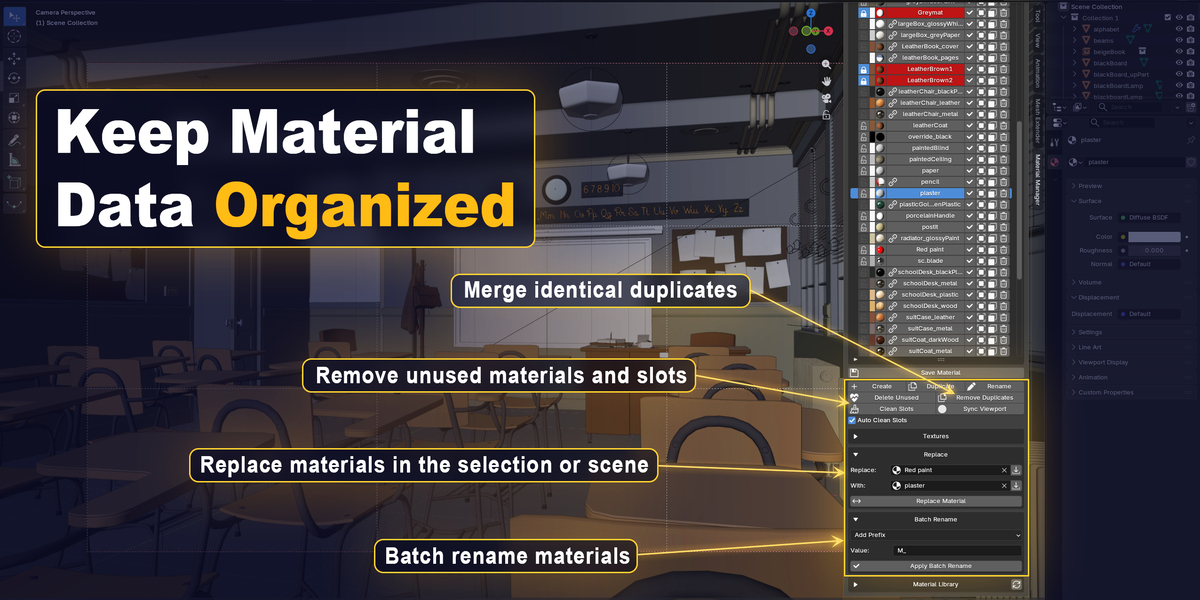
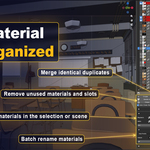
Remove Duplicates finds materials with identical settings and keeps one material from each matching group.
The other duplicate materials are removed, and all objects and material slots that used them are reassigned to the remaining material.
Will Delete Unused remove protected materials?
No. The lock icon in the material list controls Blender’s Fake User protection.
When the lock is enabled, the material is preserved by Delete Unused even if it is not currently used by any objects.
How does the add-on identify unused materials?
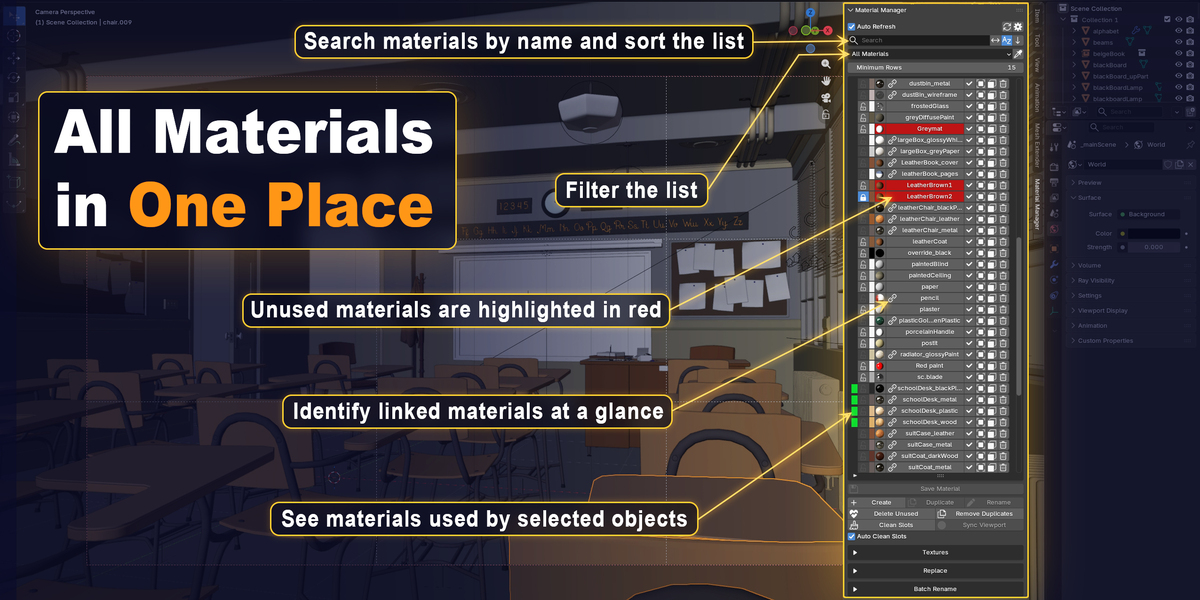
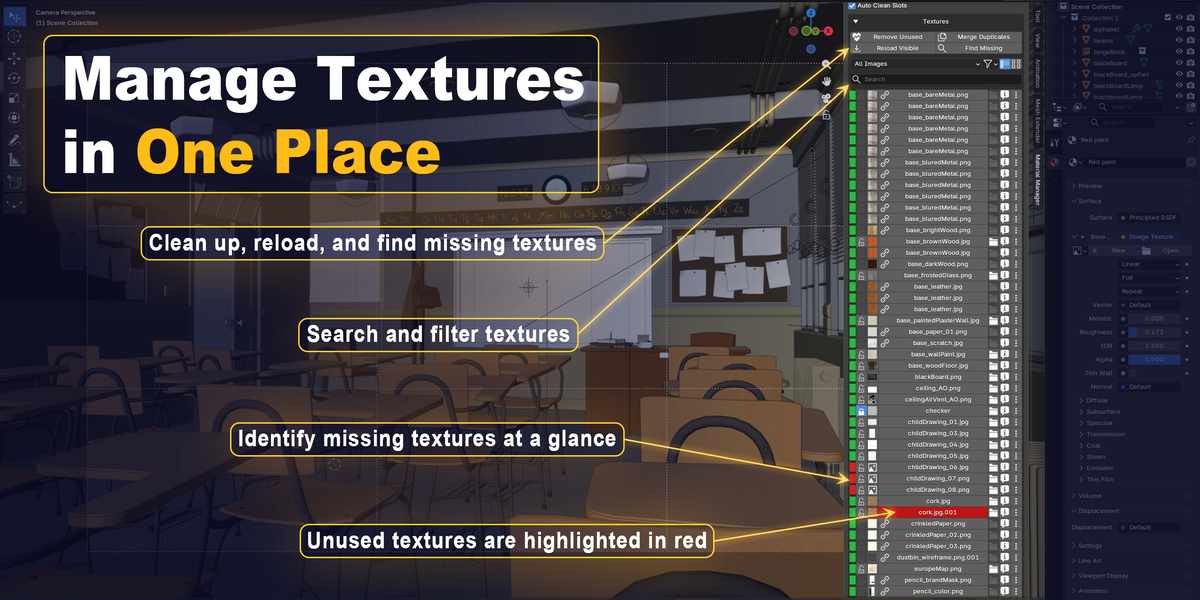
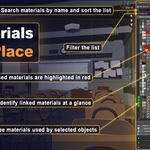
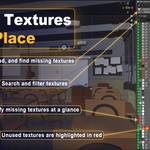
Unused materials are highlighted in red in the material list. You can also use the Unused Materials filter to display only materials without live usage.
Can the add-on identify linked materials?
Yes. Linked materials are clearly marked with a chain icon in the material list.
Hover over a linked material’s name to see a tooltip with the path to its source .blend file and information about where the material is referenced. Linked materials can also be displayed separately using the Linked Materials filter.
What happens when I select a material in the list?
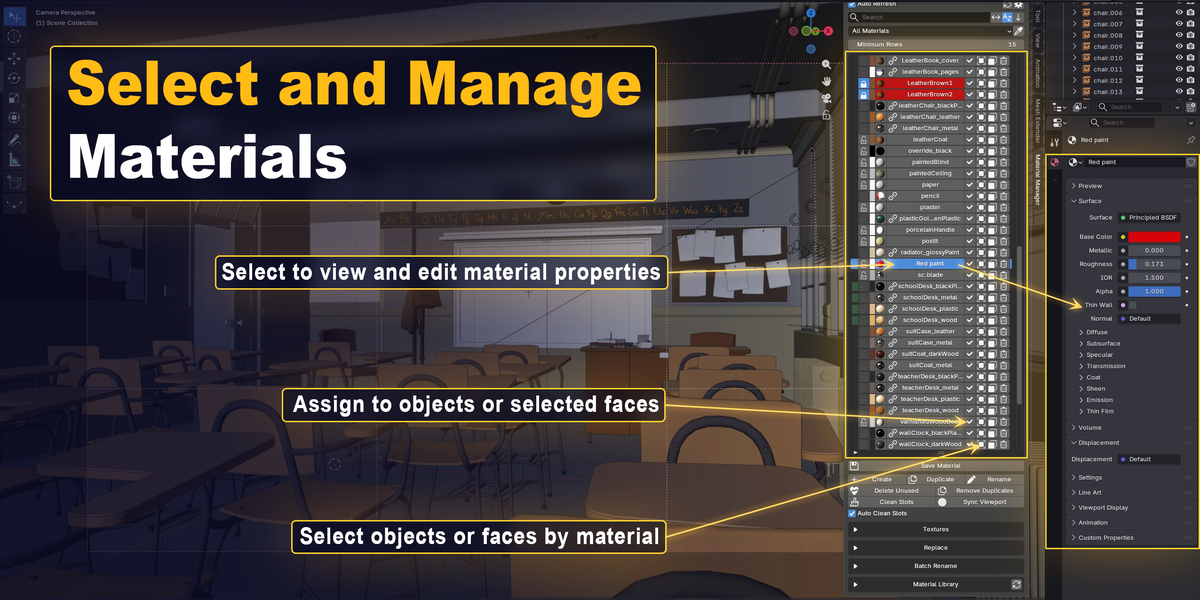
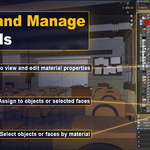
The material becomes active in Material Manager, and its Material Properties and shader nodes are displayed for viewing and editing.
Can I assign materials to both objects and individual faces?
Yes. In Object Mode, materials can be assigned to selected objects. In Edit Mode, they can be assigned to selected faces.
Where can I find the add-on after installation?
Open the 3D Viewport Sidebar with N and select the Material Manager tab.
You can also open it from:
Window > Toggle Material Manager Sidebar
The assigned shortcut is displayed next to this command in the Window menu. The default shortcut is Ctrl + Shift + Alt + M.
What Blender versions are supported?
AP Material Manager requires Blender 4.5 or newer.
