 Blaze
Blaze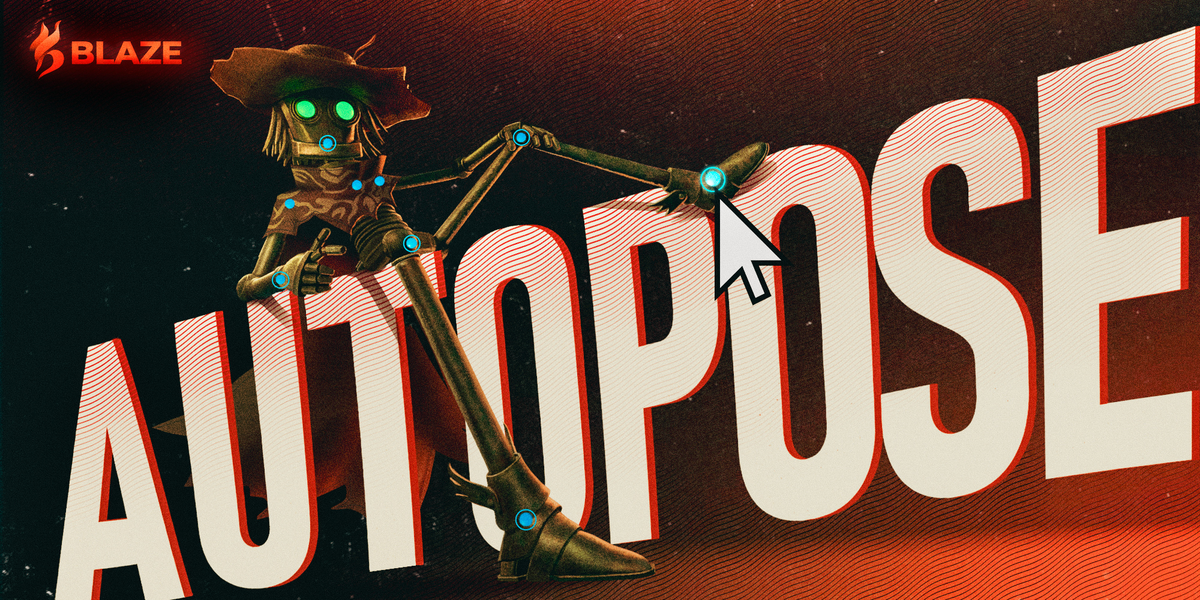


BLAZE AUTOPOSE FAQ
Common questions about Blaze AutoPose
Direct answers about compatibility, rig setup, posing, constraints, animation, and support.
Open live FAQQuick answers to the questions that usually come up before reading the full guides.
One pose at a time
AutoPose creates full-body poses from direct viewport drags. Key the result or record a take when you want animation.
Works on your rig
After a short setup, poses are applied to the FK body controllers already used by your character.
The visible pose is the starting pose
Every drag starts from the pose visible immediately before that drag. Set Base only saves a Restore checkpoint.
Humanoid body posing
Fingers and facial controls are posed manually. Use your rig's FK-to-IK snap if you want to continue in IK.
01 / WHAT AUTOPOSE DOES
What AutoPose Does
Is AutoPose a motion generator?
No. AutoPose builds one pose at a time from direct viewport manipulation. You can key individual poses or record your posing session, but it does not generate motion from a prompt.
Is this the same as Blaze Puppeteer?
No. Puppeteer generates motion over a frame range. AutoPose is for direct posing, key poses, stills, and blocking. The add-ons can be installed together.
What is not supported?
AutoPose is built for humanoid body rigs and FK body controls. Fingers, facial controls, and non-humanoid rigs are not supported.
Does AutoPose use the GPU?
No. AutoPose solves on the CPU on every supported platform. There is no GPU setting to configure.
02 / RIG SETUP
Rig Setup
Which rigs work?
Rigify, Auto-Rig Pro, CloudRig, Mixamo, and Puppet Studio have built-in presets. Custom humanoid rigs work after you map the five FK body chains.
Do I have to run Rig Setup every time?
No. The setup is saved with the character in the
.blend
file. Return to Rig Setup only when the rig or controller mapping changes.
I already set this character up in Blaze Puppeteer. Do I have to map it again?
Usually not. AutoPose can detect an existing Puppeteer mapping. Review the imported chains, reconstruct the AutoPose rig, and confirm the T-pose.
Why does AutoPose need a T-pose?
The T-pose is the reference used to measure the character. Confirm it with the arms straight out and the legs straight so later poses are calculated correctly.
What are the extra rigs in the scene?
Reconstruction creates
YourRig_Blazed,
YourRig_AutoPose100, and
YourRig_TPOSE. They are internal helper rigs.
Can I use a linked or overridden rig?
Not directly. Rig Setup writes properties to the armature and creates sibling rigs. Make the character rig fully local before setup.
Do not edit the helper rigs
Do not rename, delete, constrain, or animate the helper rigs. If they fall out of sync, run Reconstruct AutoPose Rig again.
03 / POSING
Posing
How many constraints should I use?
AutoPose allows up to 16 active constraints, but that is a maximum, not a target. Three or four is typical. Deactivate constraints you no longer need so the rest of the body has more freedom to adjust.
Why did the rest of the body move when I dragged one handle?
That is how AutoPose produces a full-body result. Joints without active constraints can move so the body can adapt naturally around the handle you dragged.
What pose does AutoPose work from?
The pose visible immediately before you begin each drag. Set Base does not define the starting pose. It only saves a checkpoint that Restore can return to.
How do I protect a handle while I work elsewhere?
Freeze prevents the handle from being selected or edited. If its constraint is active, it continues guiding the solve. If it is inactive, it stays inactive.
Deactivate removes an active constraint from the solve without changing the current pose.
Can I still use Blender's posing tools?
Yes. Press Shift + R for Manual Pose and edit the rig directly. Return to AutoPose when you want another full-body solve. The manual edit stays visible and becomes the starting pose for the next drag.
Can I pose more than one character?
Yes, one character at a time. Change Character Rig to switch characters. Each character keeps its own setup and constraint state.
Clear, Restore, And Set Base
Clear
Deactivates every constraint and keeps the visible pose. The next drag starts from that pose.
Restore
Returns the character to the saved checkpoint and deactivates every constraint.
Set Base
Saves the visible pose as the Restore checkpoint and deactivates every constraint. It does not define the starting pose for later drags.
Does Foot Contact Lock The Foot?
No. Preserve Foot Contact is soft conditioning. A foot in Contact is treated as planted, but it can slide or lift slightly when AutoPose balances it with the rest of the pose and other active constraints.
04 / RESULTS & ANIMATION
Results & Animation
What does AutoPose write to my rig?
Ordinary transforms on the FK controllers mapped in Rig Setup. The first spine controller can receive location and rotation. Other mapped controllers receive rotation. Existing scale is preserved.
Are the keyframes normal Blender keyframes?
Yes. Press I to insert regular keyframes on the mapped controllers and the character's world location.
Can I paste a pose onto another character?
No. Copy and Paste work on the same reconstructed character. Use them between frames or before trying another variation on that character.
Does finishing AutoPose remove the pose?
No. Finish AutoPose leaves the current pose on your rig controls.
What does Record do?
Record captures solved poses while you drag and bakes them to keyframes when the take ends. Wait for the bake to finish before using pose-management commands.
05 / SUPPORT
Support
Where are the logs?
AutoPose writes one log per Blender session and keeps the last five. Open Log Folder in preferences opens their location.
How do I report a problem?
- Enable Debug Logging in AutoPose preferences.
- Reproduce the problem.
- Press Save Support Bundle.
- Use Report a Bug to open the Blaze creator page on Superhive and attach the bundle to your message.
06 / QUICK LINKS
Quick Links
Installation
Install the package and confirm AutoPose is available in Blender.
Rig Setup
Choose a preset or map your character's FK body controls.
Posing With Constraints
Constraint types, handle controls, Manual Pose, and the Constraint Manager.
Troubleshooting
Common setup, posing, foot-contact, recording, and keying problems.
For the newest FAQ updates, use docs.blazeanimation.com/autopose/reference/faq/.
 Included
Includes 12 months of
- Support from Blaze
- Product updates
Extend this product’s Support Period +12 months: 25% of product price
Have questions before purchasing?
Login to message